Have you tried using Apple’s stunning new 3D Spatial Scene Wallpaper on your iPhone lock screen only to find it’s not working? Don’t worry — you’re not alone. Many users face this due to wrong customization settings, software glitches, or incompatibility issues.
In this guide, we’ll walk you through all the fixes to get your immersive 3D wallpaper working again.
(Refer: YouTube video guide)
1. Check and Disable Low Power Mode
One of the most common reasons the 3D spatial scene effect fails is that your iPhone is in Low Power Mode. If your battery icon is yellow, this mode is turned on, which limits animations and effects.
👉 How to disable Low Power Mode:
- Open Control Center and tap the yellow battery icon, or

- Step #1: Go to Settings > Battery,

- Step 2: Scroll to Power Mode > Then toggle Low Power Mode off.

Once turned off, your 3D lock screen wallpaper should immediately start working.
2. Turn off Reduce Motion
- To turn off Reduce Motion, open the Settings app on your iPhone, then navigate to Accessibility > Motion and toggle off Reduce Motion.

3. Force Restart Your iPhone
If your lock screen is still stuck or unresponsive, a force restart might clear temporary glitches.
How to force restart:
- Quickly press & release Volume Up
- Quickly press & release Volume Down
- Press & hold the Side (Power) button until you see the Apple logo.
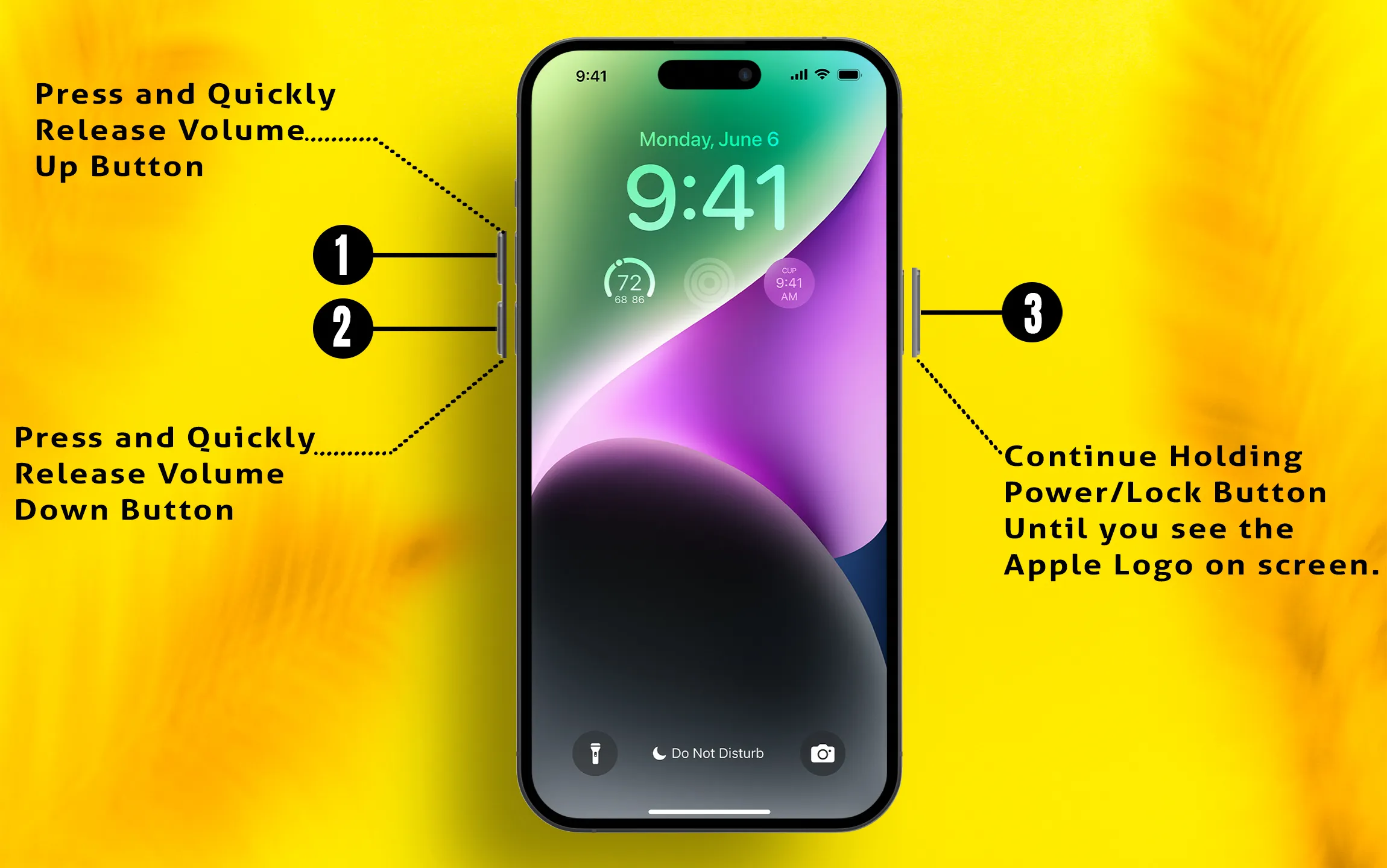
This won’t erase your data but will refresh system processes.
4. Reapply or Adjust the Special Scene Wallpaper
Sometimes the settings get misconfigured. You may need to re-activate the special 3D scene.
How to fix:
- Go to Settings > Wallpaper.
- Tap on Customize under your Lock Screen preview.
- Select the Special Scene icon (it looks like little stars).
- If it’s already active, try toggling it off and back on.

It might take a few seconds to reload the effect. Check if your 3D lock screen is now functional.
5. Avoid Certain Customizations
Some lock screen customizations interfere with the 3D spatial wallpaper, such as:
- Large fonts
- Depth Effect on widgets or time

Try keeping these off by tapping More > Keep it On or Off, and testing to see which setting works with your wallpaper.
6. Use a Compatible Picture
Not all images work well with the 3D effect. Try using a photo with a clear foreground subject, like a person, animal, or distinct object.

Try this:
- Browse through your Photos, pick a picture with clear separation between subject & background, set it as wallpaper, and see if the effect loads.
7. Make Sure Your iPhone & iOS Are Compatible
The 3D spatial scene wallpaper is available on most iPhones running iOS 16 or later (including iOS 26). However, some older iPhone models might have limited support.
👉 Update your iPhone:
- Go to Settings > General > Software Update.
- Download and install any pending updates.
📝 Final Thoughts
With these steps, your stunning new 3D spatial lock screen wallpaper should come to life. Always make sure your iPhone is updated and not in low power mode, double-check your customization settings, and use photos that work best with Apple’s depth detection.
If you still have issues, consider reaching out to Apple Support. Enjoy your eye-catching lock screen!