


in this blog post, I’ll suggest some possible fixes the iPhone volume low when playing music. Music lover loves boosted clean sound quality from premium apple music song and Other Third-Party apps like Pandora, Spotify, and Amazon Music. Get the iPhone music volume settings and tricks to manage Apple Music sound level and EQ Options that cover different sound effects depending on song type and surrounding area (Open-air, Home, Office, Car, Night dancing club, Functions, and more).
Music App EQ sound options in settings are Acoustic, Bass Booster, Bass Reducer, Classical, Dance, Deep, Electronic, Flat, Hip Hop, Jazz, Late Night, Latin, Loudness, Lounge, Piano, Pop, R&B, Rock, Small Speakers, Treble Booster, Vocal Booster.
Steps for Fixing iPhone Music Volume Too Low, Improving Poor Sound
1. Clean the Speaker
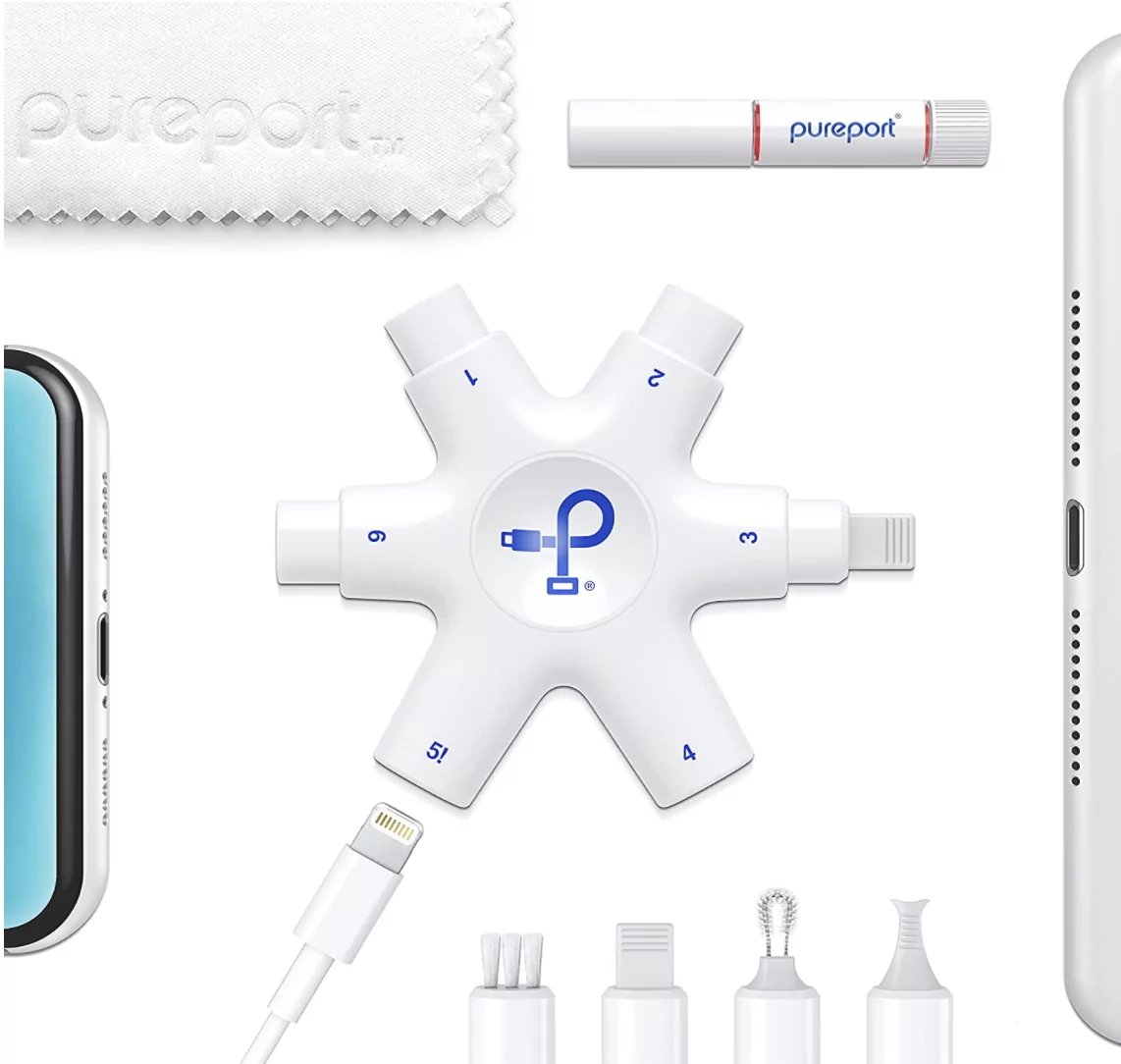
A first and most helpful solution for your iPhone is playing Slow Music or Crackling music volume from either the top receiver speaker or the Bottom Stereo speaker. I highly recommend cleaning up those Speaker slots using a professional iPhone cleaning tool [This tool is reusable and helpful for cleaning up another gadget].
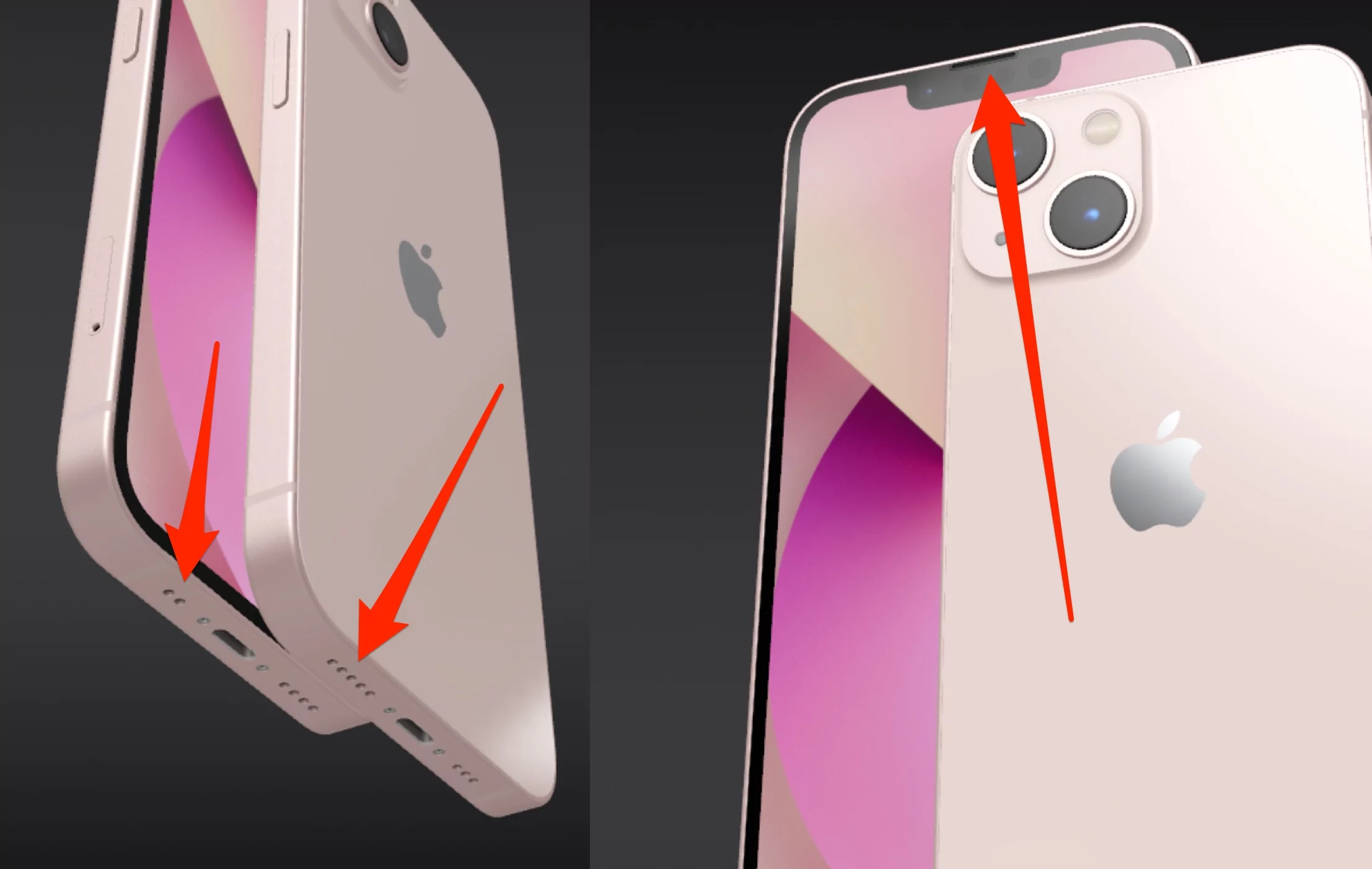
The one-time investment gives more profit. using your soft hand, clean up dust, Remove Lint, heavy mesh from the speaker grill. And blow the mouth air.
Now, your Speaker grill is ready to give you equal sound quality.
Still, you are not getting loud music volume from your iPhone. Check the audio balance between the receiver and the stereo speaker.
2. Check Audio Balance
For optimal surround sound from your iPhone, it’s important to adjust the audio balance settings according to the angle. These are the recommended settings to check:
- Go to the settings app on iPhone
- Tap Accessibility.
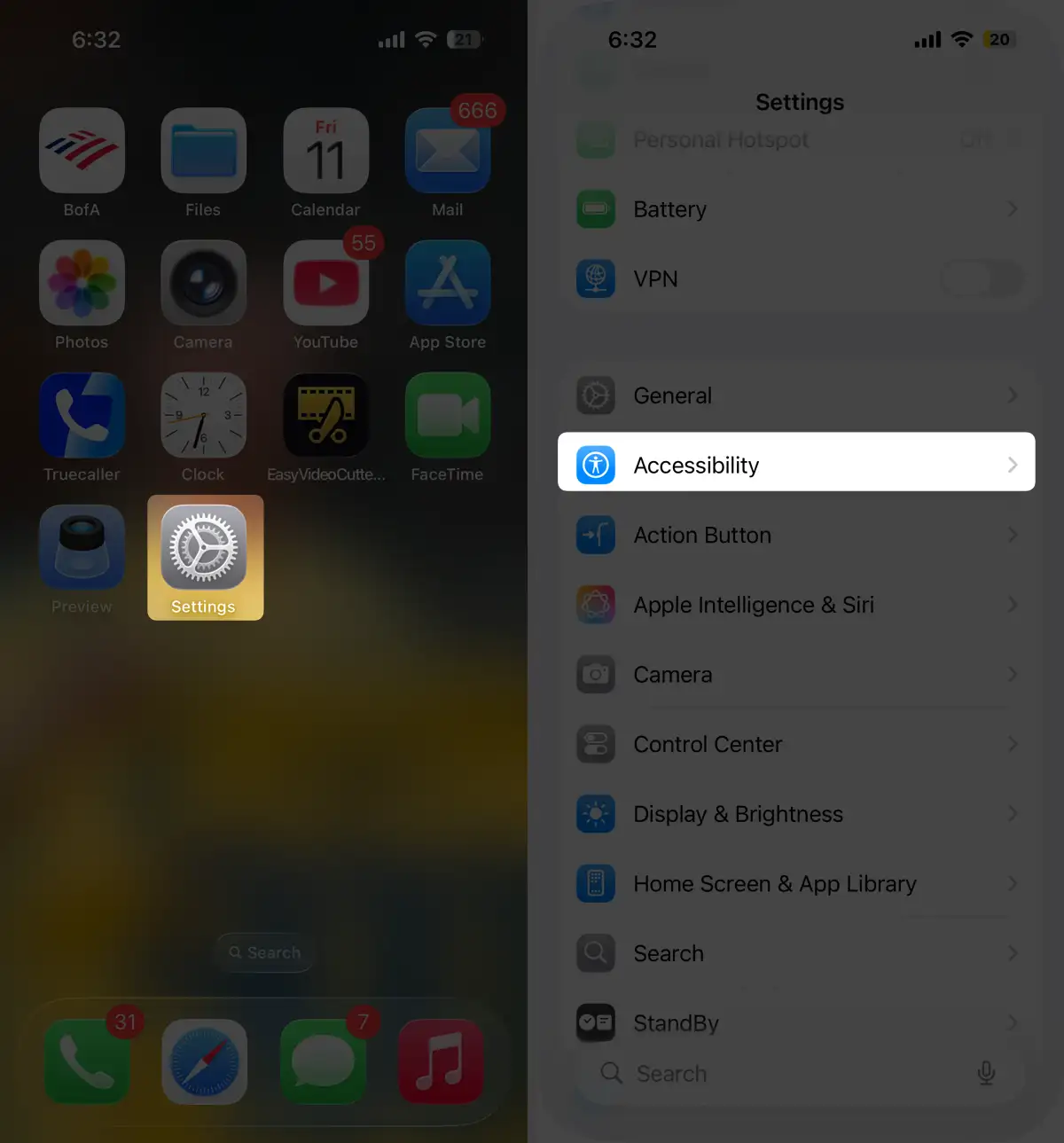
- Next, Click on Audio/Visual
- Scroll to the Audio Balance section, and keep the audio balance slider at the center position.
Note:- If the Phone slider is on the left side, only the Bottom speaker will play sound. If it is on the right side, the Top ear speaker will play the music.
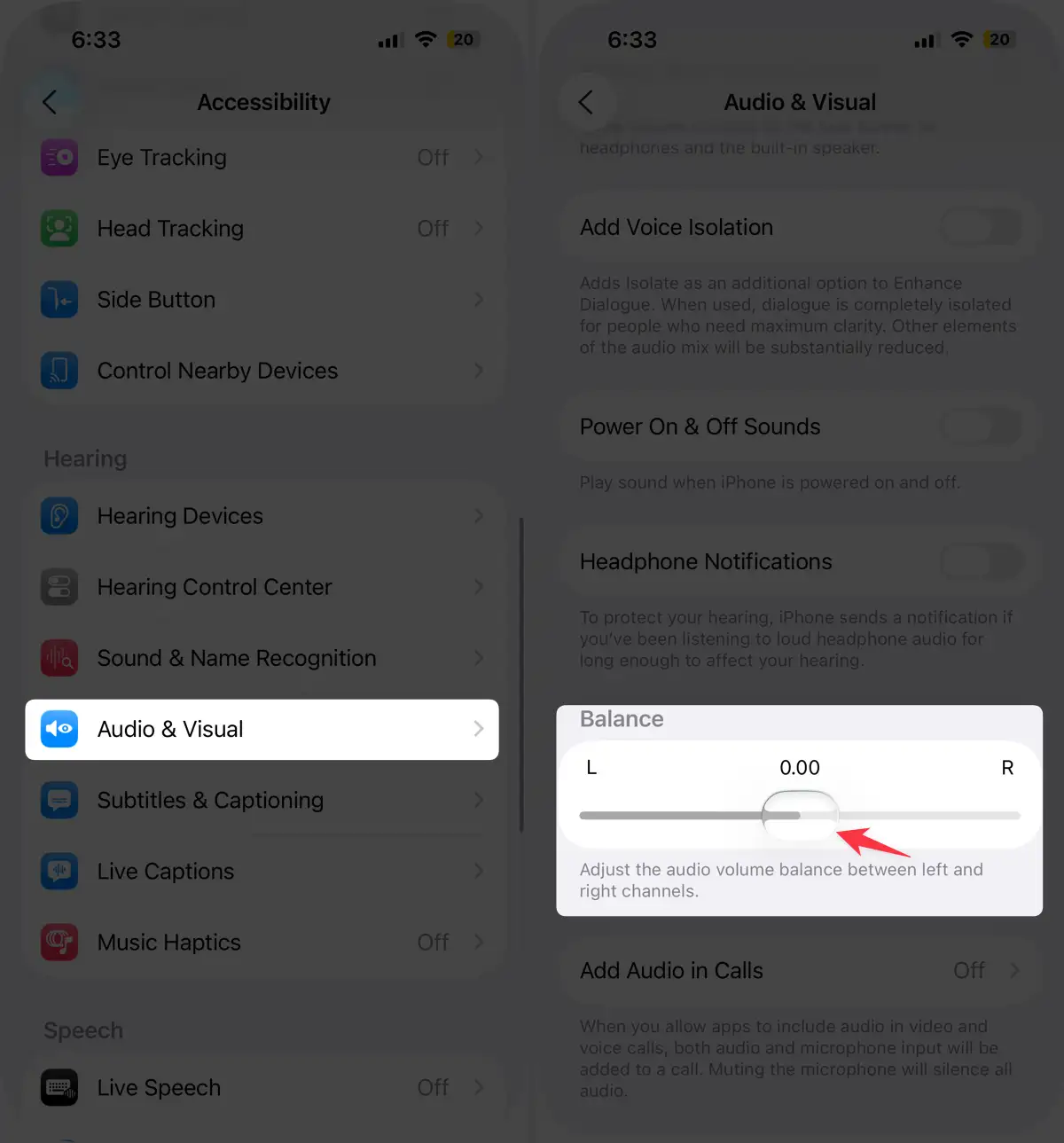
That’s it.
3. Turn off Background Sound if it is on
if you are hearing some backgroud sound while playing music on your iPhone in speaker mode or Headphones. Please make sure the Background sound is off on iPhone settings. check the below steps to manage Background sounds are Rain, Bright Noise, Dark Noise, Ocean, Stream.
- Go to the settings app on iPhone
- Tap Accessibility
- Scroll to Audio/Visual option
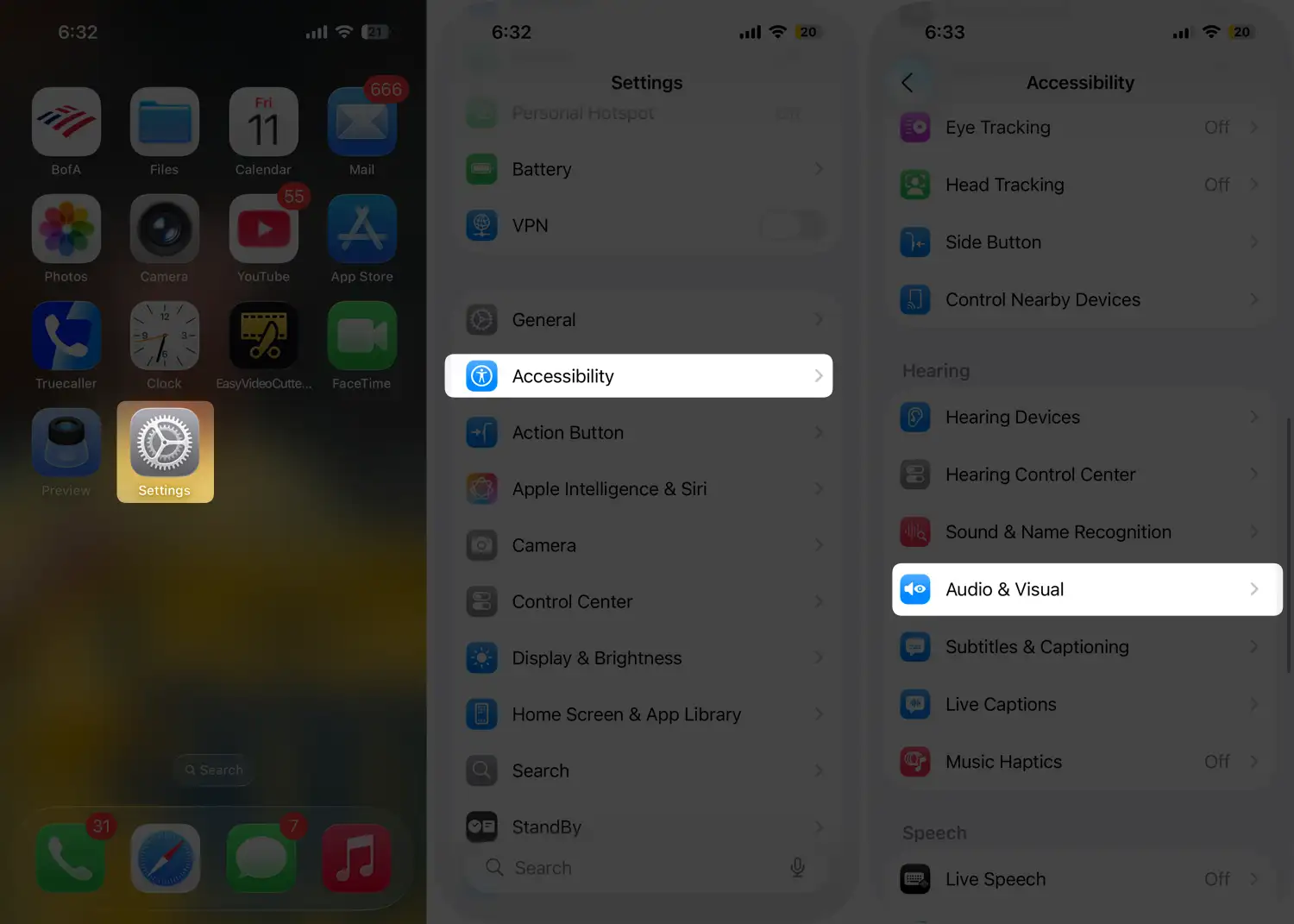
- Tap on Backgroud Sound.
- Turn off the Backgroud sound toggle.
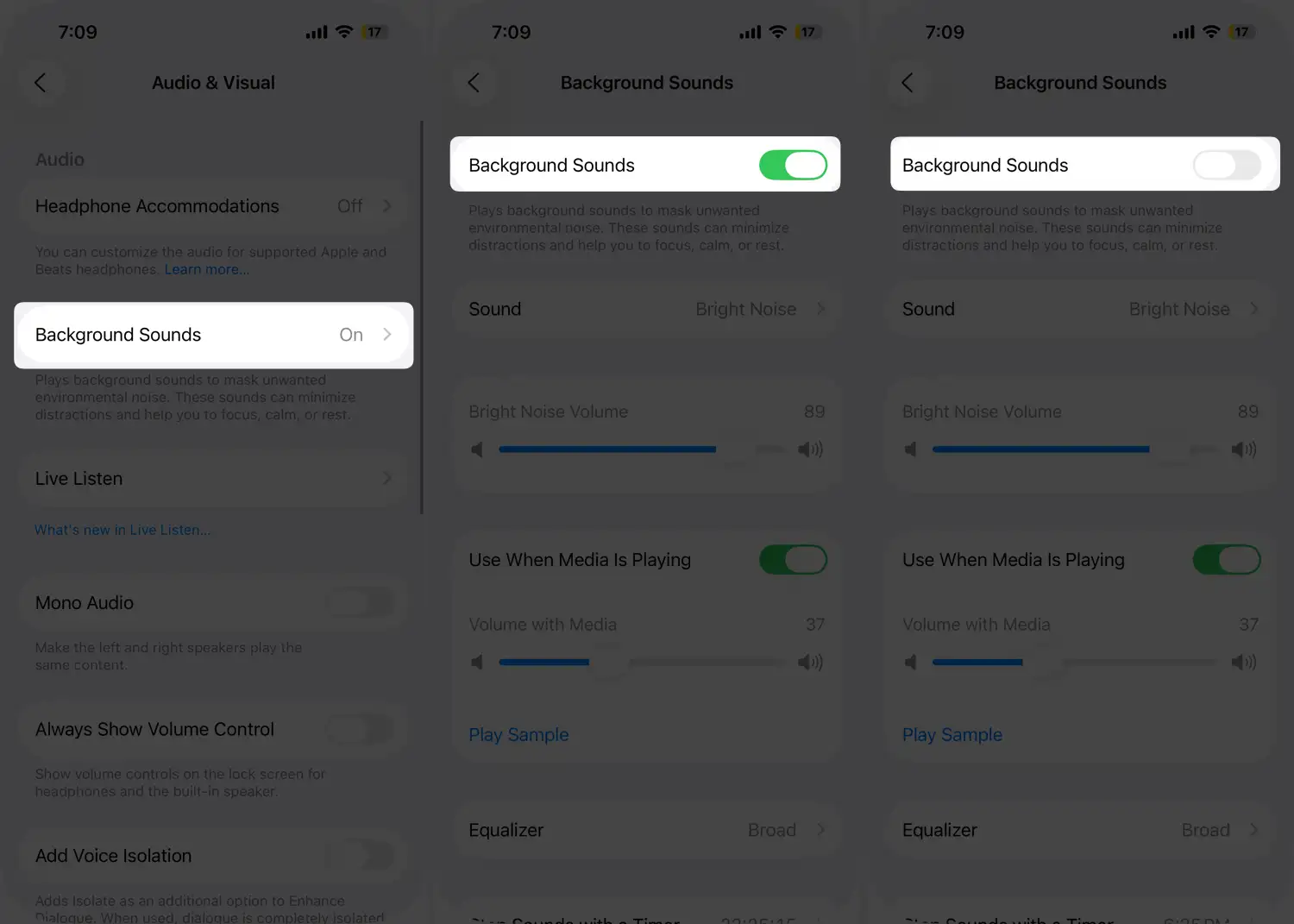
That’s it.
If you’re still experiencing sound issues even after turning off the background sound, try performing a hard reboot at least once. Then, check to see if the issue has been resolved.
4. Hard Reboot iPhone
When your iPhone is stuck or has a temporary software issue, try performing a hard reboot. The hard reboot procedure varies depending on the model of your iPhone.
iPhone 8 and Later models
- Press and Quickly Release the volume up button.
- Press and Quickly Release the volume down button,
- Press and hold on the side power button only, until you see the Apple logo on the screen.
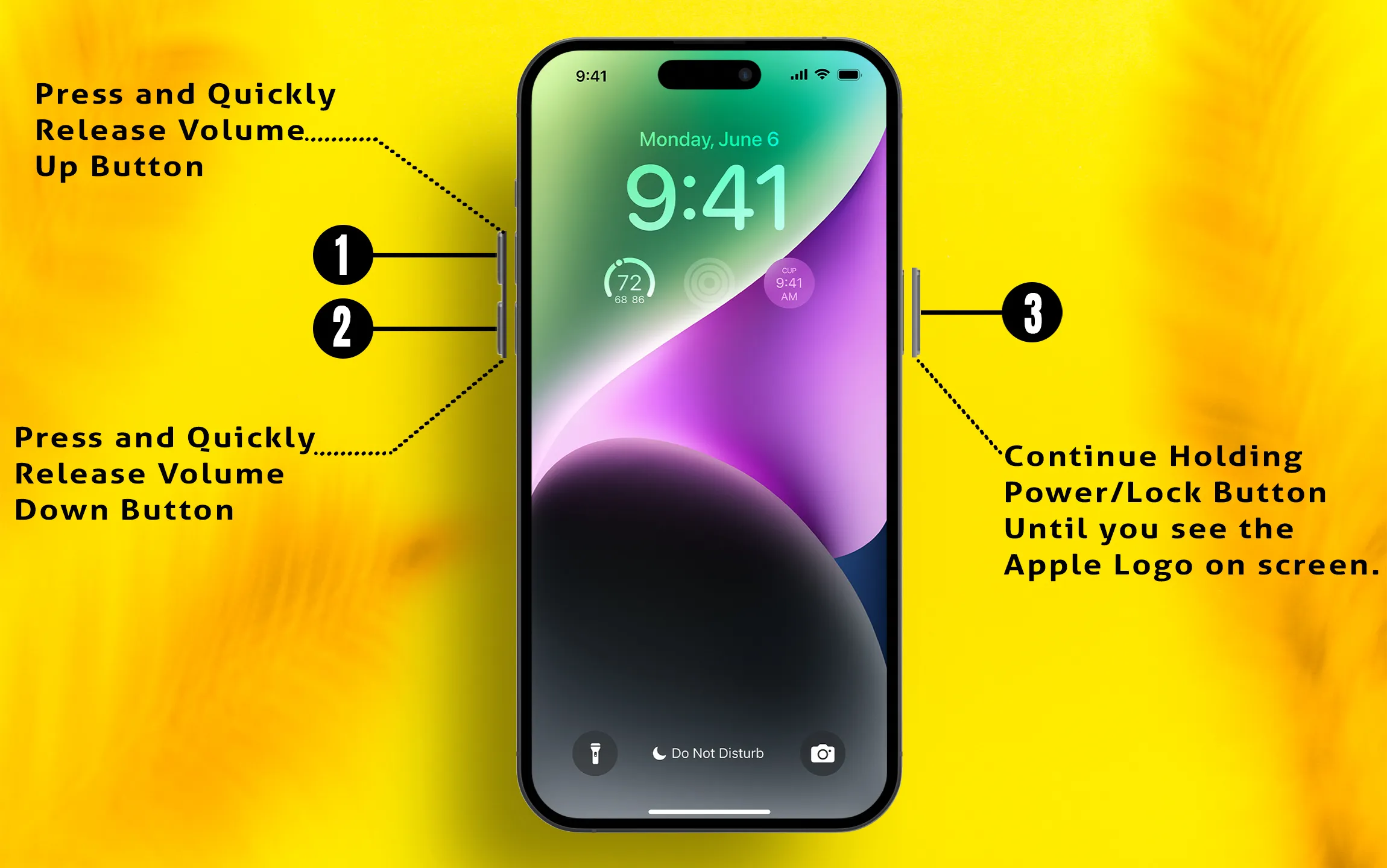
For Other iPhones, model check this hard Reboot iPhone guide.
5. Contact Apple Support
If nothing is helpful and you Need some extra assistance, then Apple will be ready to help you. As an iPhone owner, we can contact you via call, Email, or Chat, and Book Appointment at apple genius bar or Visit the Apple service center near you.
If there is hardware damage, then you have to replace the iPhone screen with the receiver. Get the original screen and Receiver from Apple’s iPhone repair program.
6. iPhone’s Music volume is Low on AirPods or headphones only
Several users have been facing the same issue like iPhone’s Music volume is low on headphones or AirPods. Follow the steps below,
First, Turn off Bluetooth and forget the device from the iPhone’s Bluetooth settings,
- Open the settings app.
- Tap Bluetooth
- Tap on the (i) button next to the Device name and forget the device.

Now re-connect your device;
Let’s connect your Bluetooth device again. Check whether the issue is fixed or not.
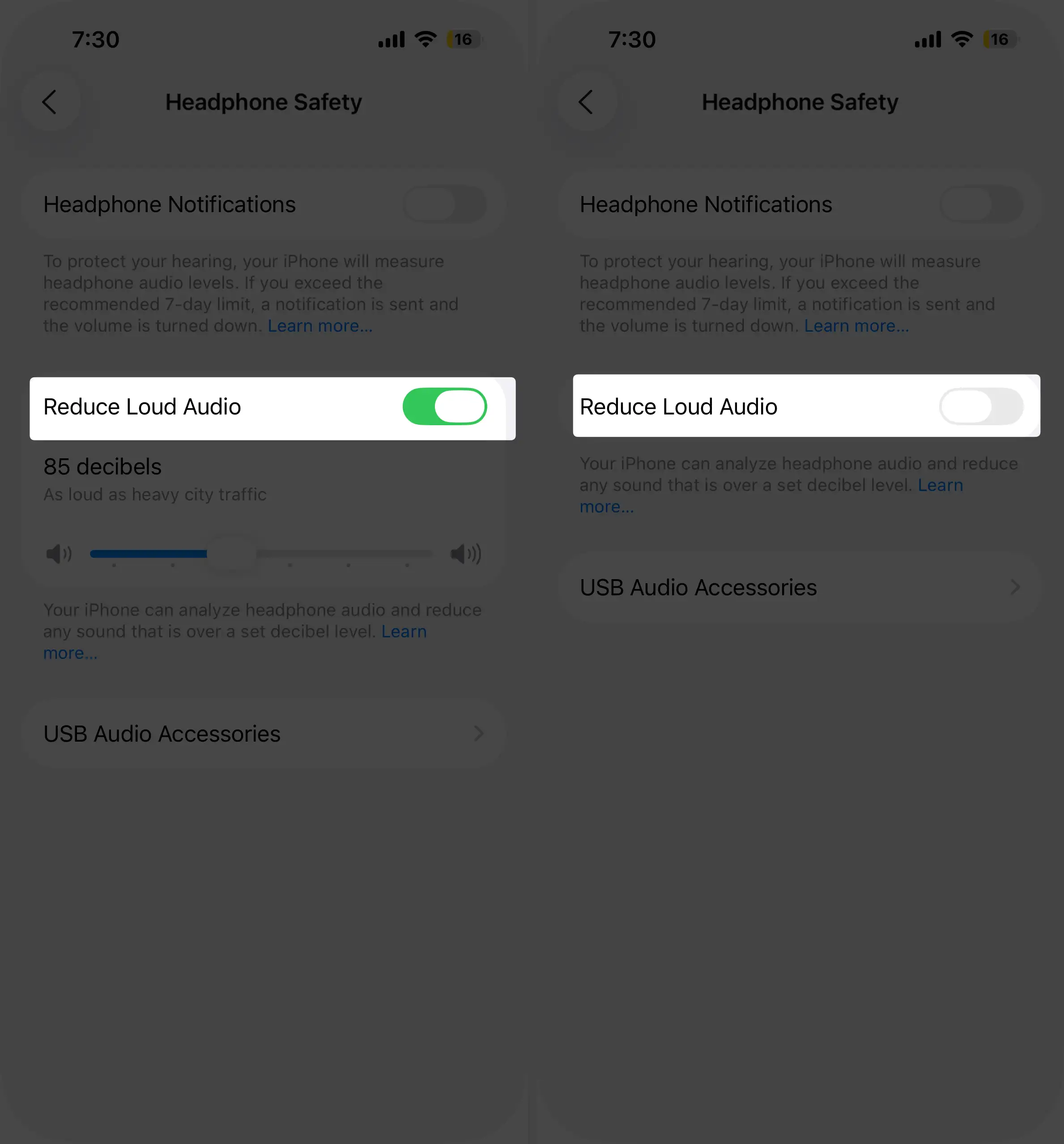
Here you also change to Off Volume limit/Reduce Loud Sound
“Reduce loud sound” comes in iOS 14 or later iOS Version. Reduce Loud sound limit the output volume while we listen to music or Call using Headphones (AirPods Pro/2/1, Earbuds). Follow the steps below to turn off Reduce loud sound and Boost sound quality on your headphones.
- Open the Settings app on iPhone.
- Tap Sounds & Haptics.
- Scroll the screen to the Headphone Safety option.
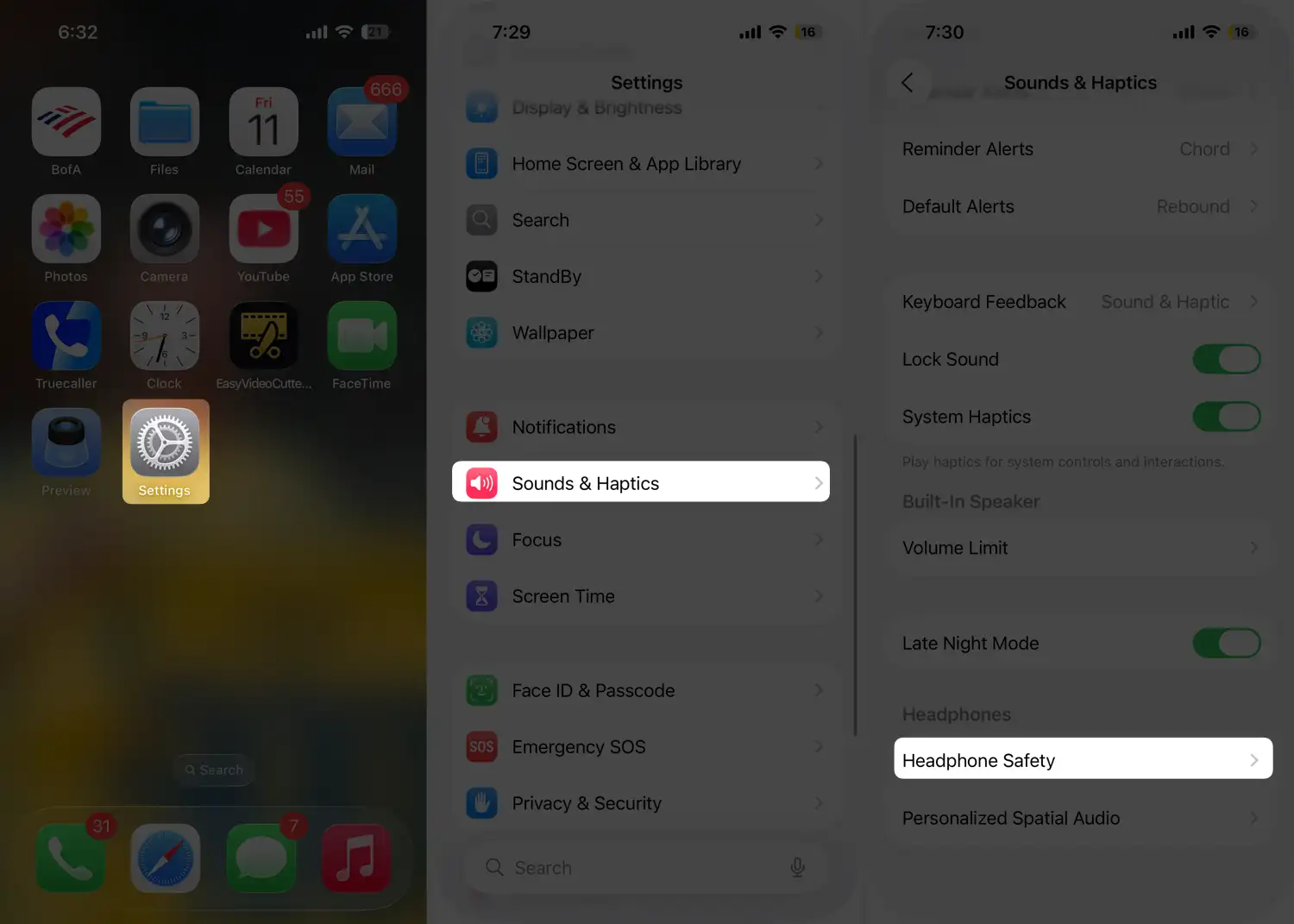
- Turn the Reduce loud sounds toggle off.
Change EQ Music Volume level from iPhone settings
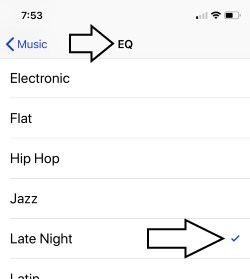
- Go to the Settings app on the iPhone.
- Scroll to Apps
- Tap Music App
- Select EQ
- Choose Night Light
- Now, Find Sound Check > Turn off Toggle.

Hard Reboot your iPhone,
- Stucked Speaker because of iOS or App bug, Fix after Hard Reboot works in many cases.
- Quickly Press and Release Volume up and Down button one by one, now Only Press and Hold side button until you see the Apple logo on the screen.
Now, Turn on your iPhone with Press and hold Side until the Startup apple logo will see on screen.
Also, Check EQ:
- Apple Gives Default Sound Equalizer, for the best quality as of user’s want.
Happy listening and Boosting Music Sound on iPhone X: Go to the Settings app > Music > EQ > Late Night [recommended]. We can check the instant effect on the sound if the song is played in the background in the apple music app.
Check connected music device
Unable to listen to music on a connected earpiece or Bluetooth Speakers. For all third-party speakers and Headphones, we can manage it from the side volume button on the iPhone. Go to Apple Music > Find Airplay icon > Tap on it and Change the target speaker connected to the iPhone.
Or directly access all the settings from the control center > Apple Music Player widget.
Adjust Bluetooth volume on iPhone
- You’re playing or streaming song over Bluetooth, check the volume level of the speaker. Increase it physically from the button given on the speaker.
- Also, Update Driver of Bluetooth speaker and contact the manufacturer, if you are not satisfied with the sound.
Some iPhone, iPad devices are affected by Apple music sound issues after the update.
Wrap up
Follow the Sequential guide given above, fix iPhone X low music volume problems, and Also contact Apple Support if that’s looking too hard to fix DIY.
Don’t miss to like and share this article, if this helps. Also, join Like us on a Facebook page, and Follow us on Twitter.






