A lot of newbies have no idea what is AirDrop on iPhone and how to use it. In terms of AirDrop on iOS, user noting can do like officially transfer files, pictures, and videos between iOS and macOS, or vice-versa. It is located in Control Center, but in the latest iOS, the location of the AirDrop in the Control Center has been shifted. So the first time seems AirDrop Missing in Control Center after the iOS update.
Let’s see how to turn on AirDrop on an iPhone running the latest iOS with the redesigned Control Center. So after the iOS update, you may notice a new single-page swiping up App Shortcuts Menu as in previous iOS, instead of two pages in prior iOS. So definitely, you feel AirDrop missing on Control Center because it’s neither directly visible nor customizable. Hence, it seems something mess-up. In this thread, I will describe how to unhide AirDrop and turn it on for someone and for your contacts.
Watch Video to turn on AirDrop on iPhone & iPad
Way to Unhide and Turn on AirDrop on iPhone, iPad on the latest iOS
Before turning on AirDrop on your iPhone/iPad, You must be enabled WiFi or Bluetooth on your device. I recommend to turn on under the Settings app. First, Settings > WiFi > Enable WiFi toggle. Second, Settings > Bluetooth > Turn on Bluetooth. Now, Turn on AirDrop.
- To launch the Control Center on iPhone X or Later, swipe down from the right upper corner of the Screen. Alternatively, open the Control Center from the bottom of the Screen on the Home Button iPhone 8/8 Plus and earlier.
- Tap on the connections tile, including Airplane Mode, Cellular, Wi-Fi, and Bluetooth.

- Here is a pop-up with two additional functions, including AirDrop and Personal Hotspot.
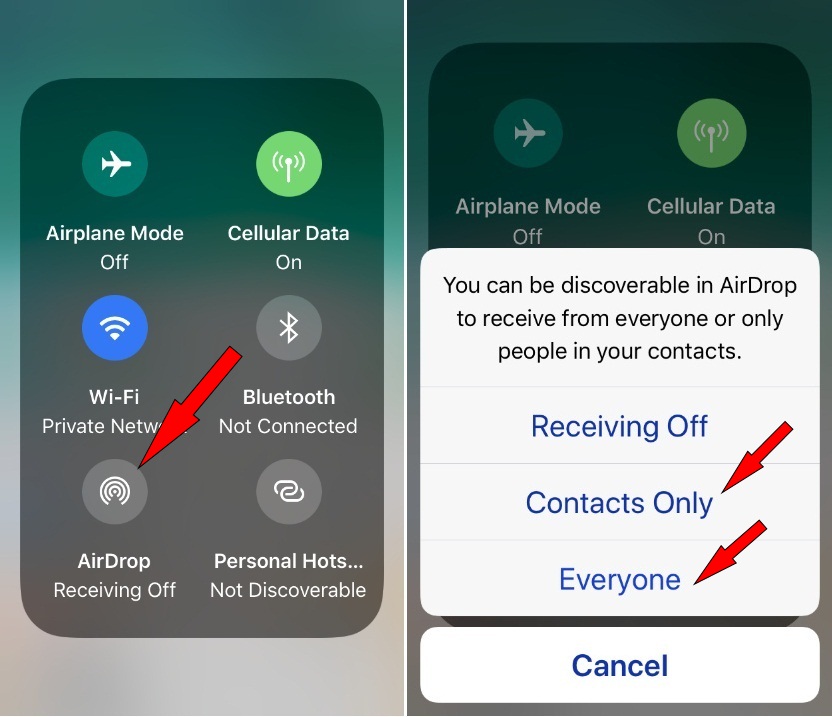
Voila. Now, it is very simple to use AirDrop on your iPhone and iPad.
Also Read: Customize Control Center on Your iPhone
Method 2: Use AirDrop without Control Center on iPhone, iPad
While AirDrop is missing or won’t work in Control Center then now in iOS, you can also enable AirDrop using the Settings App. Let I will know you how to do that.
- Open the Settings App on your iDevice.
- Tap on General.
- On this screen, find and tap on AirDrop.
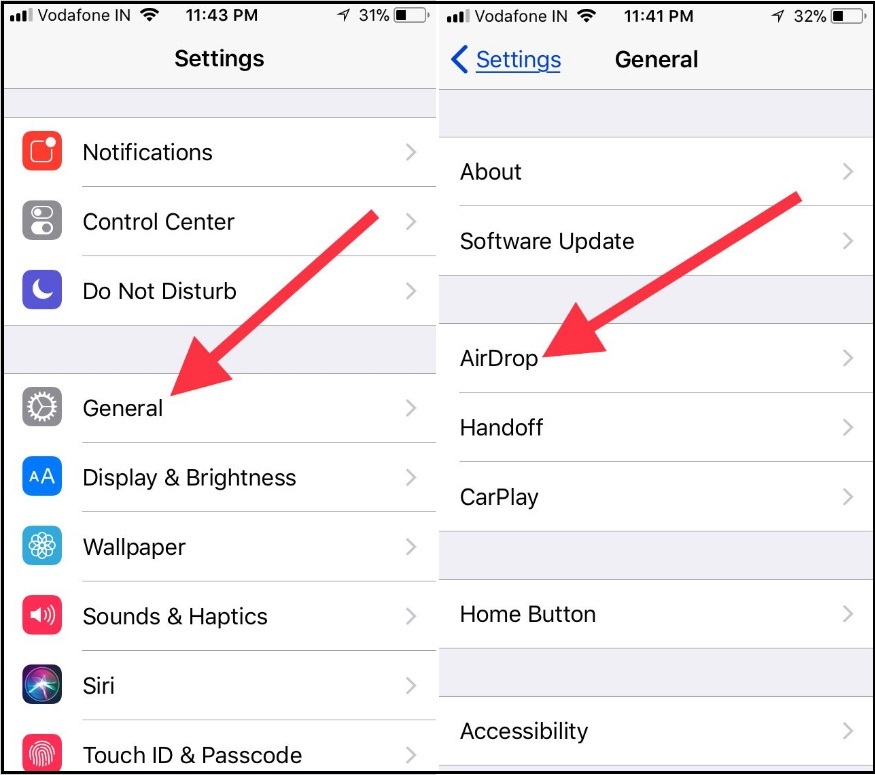
- Finally, tap on the given options: Contacts Only (eligible to share files instantly with that nearby user who is in your contact) or choose Everyone for 10 Minutes (to share documents along with nearby public iOS or macOS users).
Your Job is Done.
Tap on AirDrop and choose Contacts Only or Everyone to make your iPhone or iPad discoverable to nearby iOS devices and macOS Apple Computers.
It’s easy to get started sharing and receiving items between two devices, like an iPhone to a Mac, a Mac to an iPad, etc.
Get More: Where is Night Shift Mode in Control Center in the latest iOS?
Do you have any trouble using AirDrop on iPhone and iPad? Feel free to post in the comments. We’ll reply quickly.