

Apple has introduced significant changes in its iOS for iPhone, iPad, and iPod Touch. The Notification Center and Today View are now in separate panes, while the redesigned Control Center features a single interface for both 3D Touch and non-3D Touch devices. These updates may not feel new to first-time users, but they mark a major shift for long-time iOS users, offering a refreshed experience overall. and design pattern provide a fresh experience for iOS users.
In the previous iOS, users can view the Notification Center, and Today view by swipe down from the top of the screen. But now in the latest iOS, it little differs. So definitely to access view today, you need to swipe right side like you before accessing Siri app Suggestions in iOS. Now, here I will describe – how to Add or Remove Today Widgets on your iPhone.
How to Add Today Widgets on My iPhone, iPad, iPod
Also, Siri App Suggestions Widget is a new one in iOS, so now you can use Siri Suggestions in today’s widgets, no matter if Siri’s suggestion is disabled in settings.
iOS Version Add or Remove Today Widgets
Is your iPhone updated with latest iOS version? Then you have to follow the steps below. Because iOS improved with the latest Customization options,
- Move your Screen to the left from the first home screen. Next, Scroll to down and Tap on the Edit option.

- See the Customize option on the screen. Here on this screen, we can add a new inactive widget in the Active Widget list by a tap on the Minus sign.


That’s it.
For iOS 13 And Earlier, Add or Remove Today Widgets on iPhone
- Step 1. Unlock your iPhone Screen and Swipe right side from Home Screen to get the Today Widgets screen.
- Step 2. Now scroll down the Today Widget screen until you appear the Edit button. After that, Tap on Edit.
- Step 3. Now on Screen, you can view Do not include Apps Widgets looks with Green Color ‘’+’’ mark button next to the app.
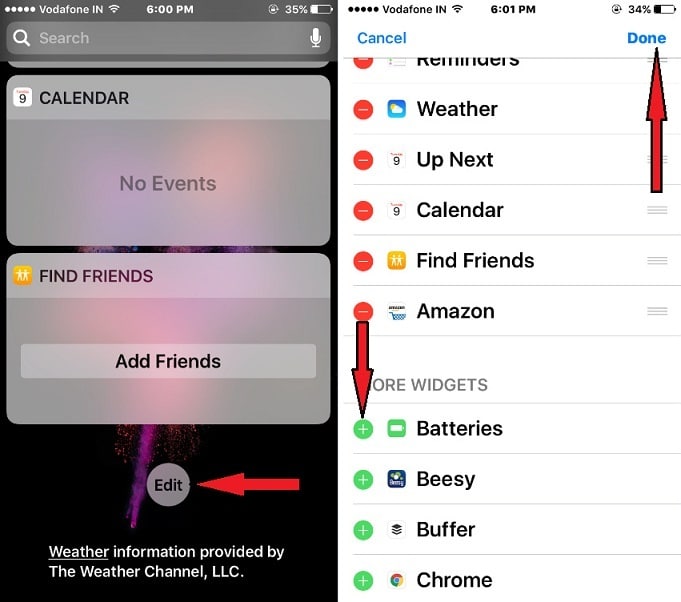
Step 4. To add Widget, tap on the Green button, so it will automatically add to the Widget list.
Step 5. Tap on Done (appear top-right side).
How to Delete or Remove Today Widgets on iOS
You should go with the above-given guide until Step 2, and then go to the next steps below-listed instructions.
After opening up Edit screen for the Today view, Tap on the red button next to the widget name and tap on Remove. After that, Tap on Done.
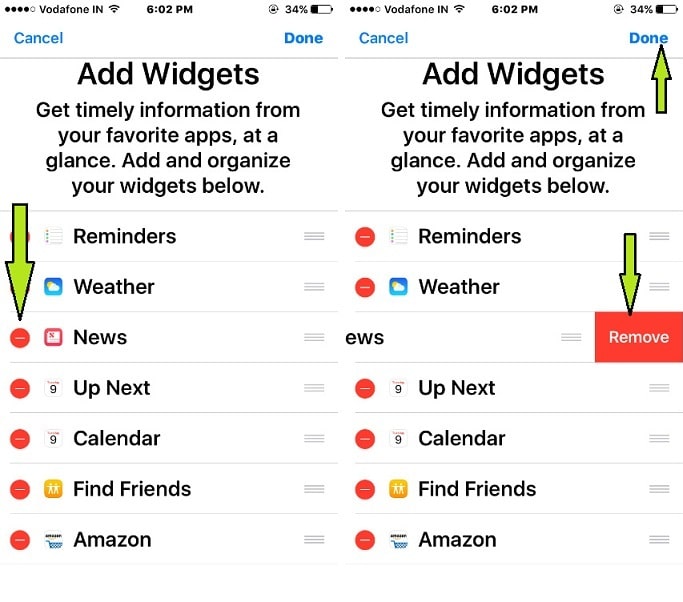
That’s simple.
So, Add your favorites and daily more used app widgets in Today View and get information timely and at a glance. You can also organize your Widgets by a tap on three horizontal lines next to the App and move it up or down.
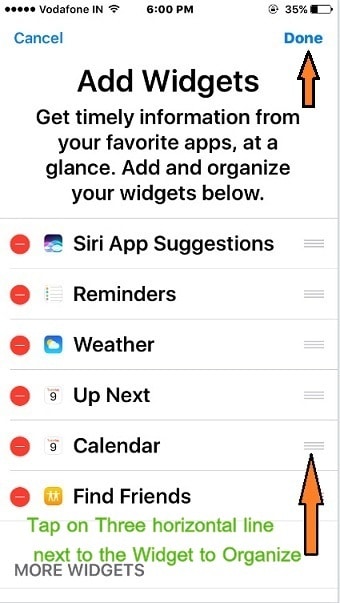
I hope you got an answer that you are looking to manage means Add to Remove Today Widgets in iOS. Like it? Share it.
Get Here – How to Disable Lock Screen Widgets in iOS






