


AirDrop is one of the easiest ways to share photos, files, and links between Apple devices, but after updating to iOS 26, many iPhone users are finding AirDrop grayed out in Control Center or Settings. If you can’t toggle it on or the Contacts Only / Everyone for 10 Minutes options don’t work properly, you’re not alone.
Fix AirDrop Grayed Out on iPhone, iPad
In this guide, we’ll break down all the possible causes — from profile restrictions to temporary iOS glitches — and show you how to fix them.
Case 1: AirDrop Disabled by Profile Permissions
One of the most common reasons AirDrop is unavailable is because of device management settings. If you see the message:
“AirDrop – this setting has been configured by a profile.” It means AirDrop is restricted by a Mobile Device Management (MDM) profile, often on work or school iPhones.
Fix:
- Go to Settings → General → VPN & Device Management.
- Look for installed profiles.
- If this is a work-issued device, you may need to contact your IT admin.
- On personal iPhones, removing unused profiles usually restores AirDrop.
Case 2: Contacts Only / Everyone for 10 Minutes Not Working
With iOS 26, Apple made a change: “Everyone” is no longer a permanent option. Instead, it’s “Everyone for 10 Minutes.” If AirDrop looks grayed out here, it could be due to a glitch in visibility.
Fix:
- Switch AirDrop to Receiving Off first.
- Then toggle back to Contacts Only or Everyone for 10 Minutes.
- Make sure both Wi-Fi and Bluetooth are turned on.
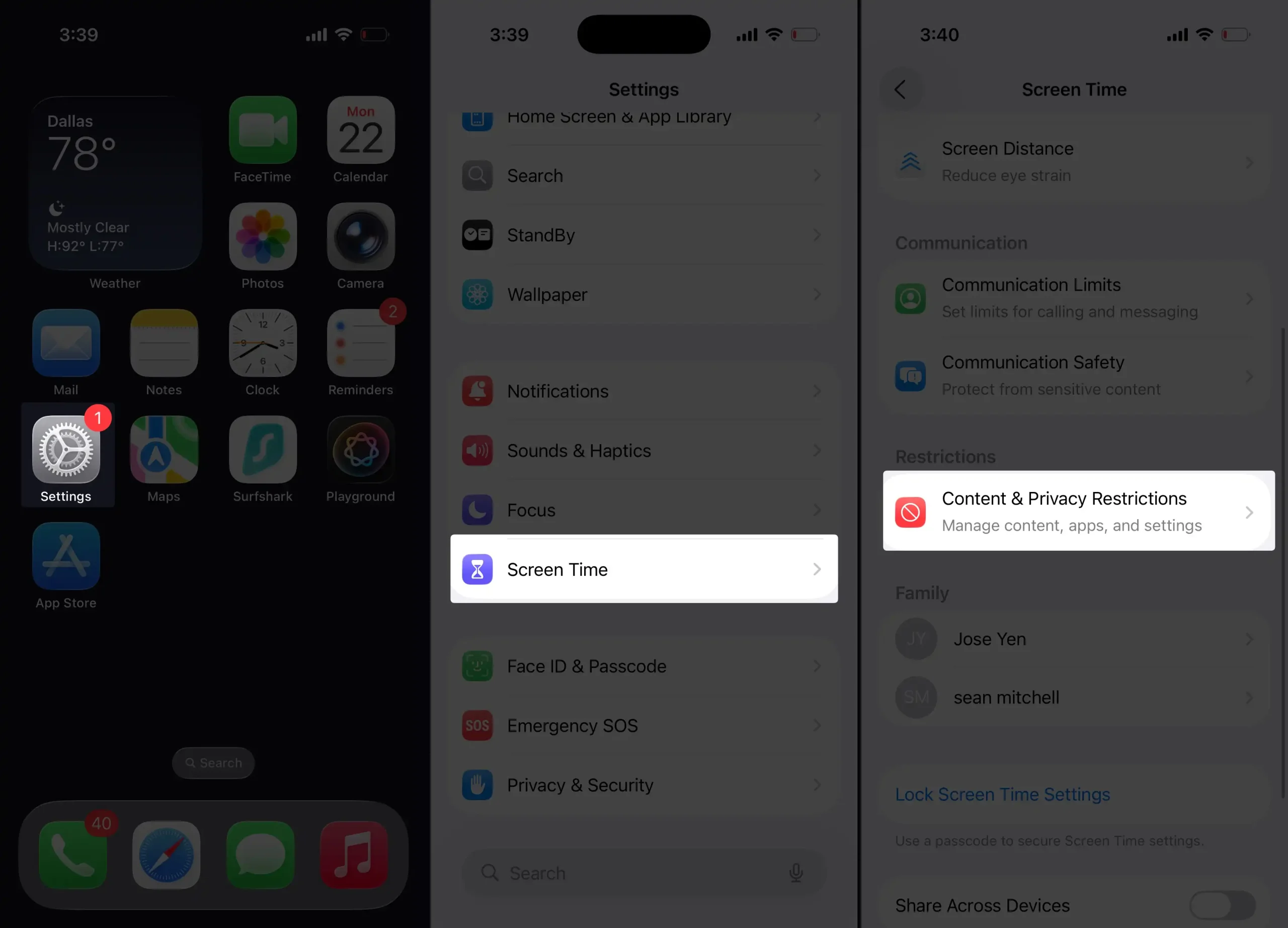
Case 3: AirDrop Blocked in Screen Time Restrictions
Sometimes AirDrop gets grayed out because of parental controls or Screen Time settings.
Fix:
- Go to Settings → Screen Time → Content & Privacy Restrictions.
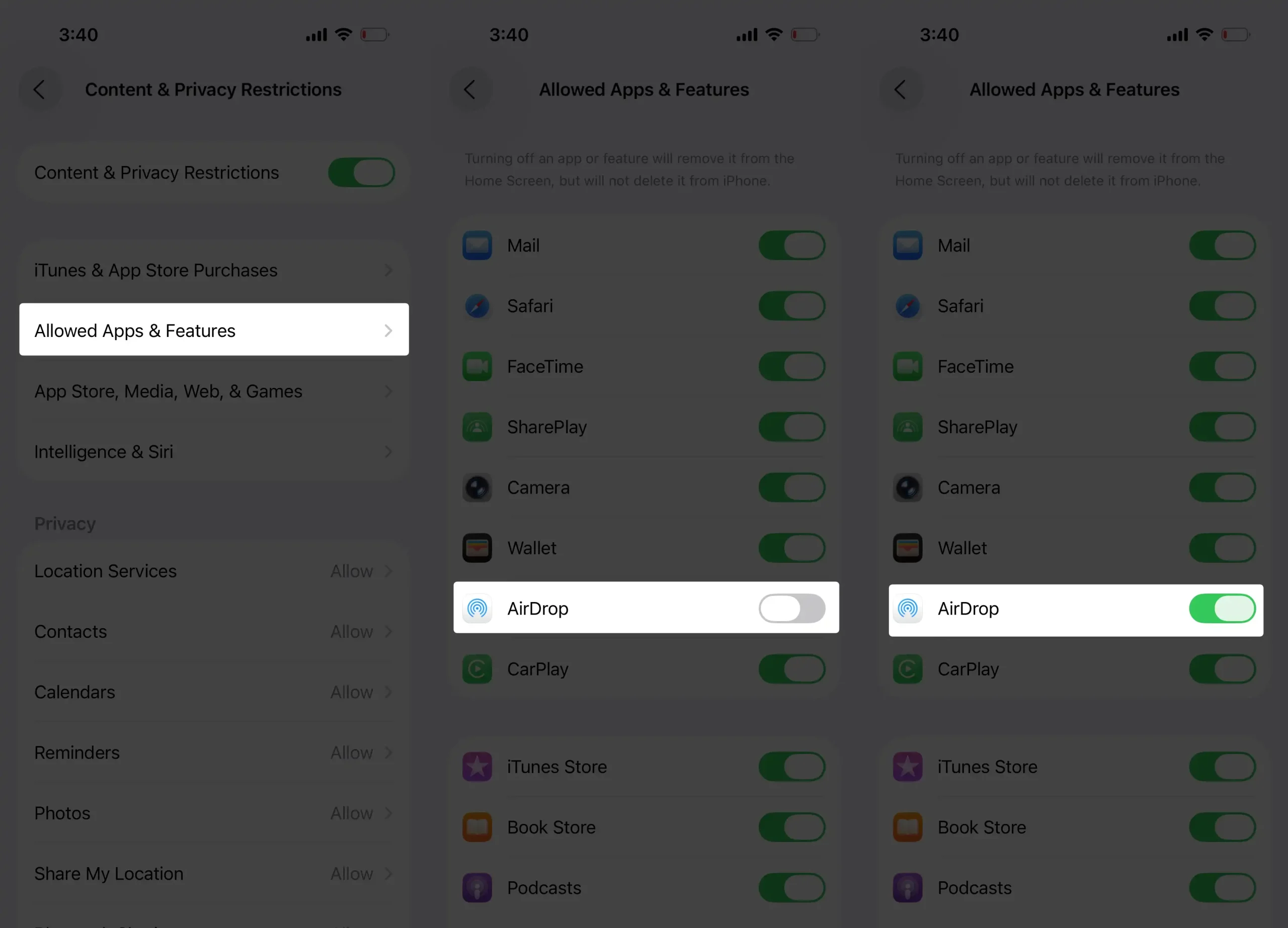
- Tap Allowed Apps & Features.
- Ensure AirDrop is toggled ON.
Case 4: Temporary iOS 26 Glitch
Right after updating, small bugs can cause AirDrop to misbehave.
Fix:
- Restart your iPhone.
- Reset Network Settings (Settings → General → Transfer or Reset iPhone → Reset → Reset Network Settings).
- Ensure both Wi-Fi and Bluetooth are working properly.
Case 5: Carrier or Hardware Limitations
Although rare, sometimes AirDrop issues are linked to carrier-installed restrictions or even hardware problems.
Fix:
- Check with your carrier if restrictions apply.
- If all else fails, back up your iPhone and perform a fresh restore.
- For persistent issues, contact Apple Support.
✅ Conclusion
If your AirDrop is grayed out after updating to iOS 26, the cause could be anything from profile permissions to the new Contacts Only / Everyone for 10 Minutes toggle not working correctly.
Start with the simple fixes — check your restrictions, reset your network, and toggle settings. If you see “AirDrop this setting has been configured by a profile,” that means your iPhone is managed by a profile and you’ll need admin access to change it.
With the right steps, you’ll get AirDrop working again and be back to sharing instantly between your Apple devices.





