
After updating to iOS 26, many iPhone 13 users are facing a frustrating problem: the phone is not responding at all, just sitting on a black screen with no Apple logo, nothing—essentially stuck in a black screen mode. Users report they can’t access anything on their device, making it impossible to check messages, calls, or even perform a force restart. This issue seems even more common for those who have ever had a screen replacement, raising concerns about compatibility or hardware triggers after the update.
In this article, we’ll explore why this might be happening and what you can do to bring your iPhone 13 back to life.
Video Guide to Fix iPhone 13 black screen of Death
Solution 1: Force Restart iPhone after Charging Enough
To rule out the Black screen issues on the iPhone running the latest iOS, force restarting the iPhone will bug out the software glitches really quickly.
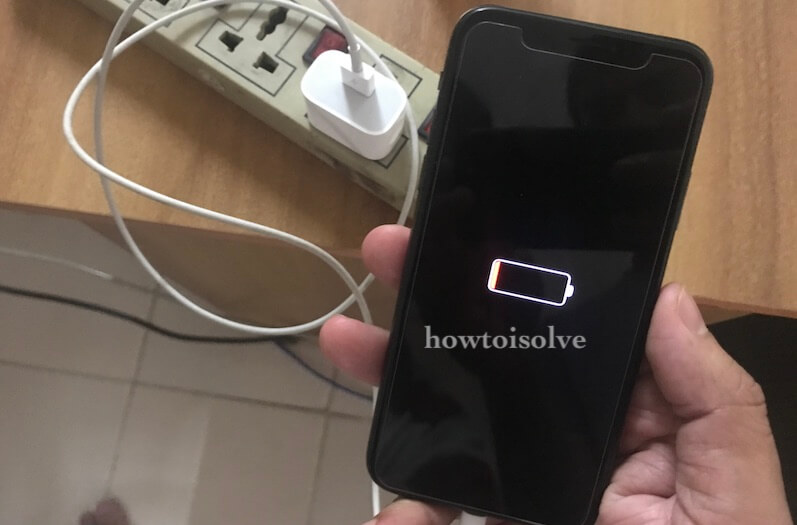
Make sure your iPhone has enough charge by keeping it plugged into a power source for at least 15 to 30 minutes. After that, you can test the cable and charger with another iPhone or iPad before plugging them back into your dead or black screen iPhone.
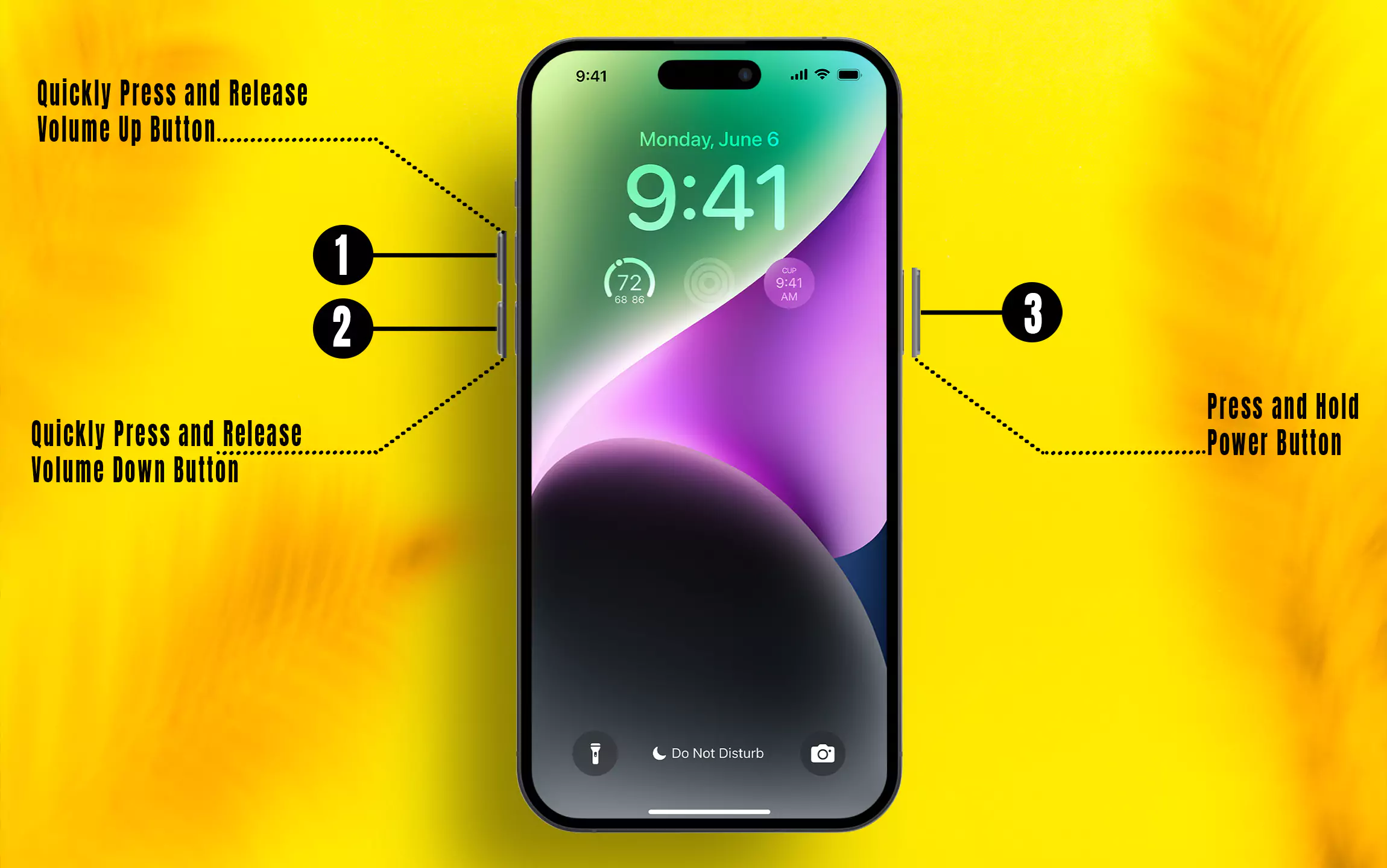
Now, Hard Reboot, and Turn on
- Press and quickly release the Volume Up button
- Press and quickly release the Volume Down button.
- Now, Only press and hold the Side button until the Apple logo appears.
If this doesn’t work, connect the charger to the iPhone for 20-30minutes, and again follow the same procedure.
Solution 2: Try an Alternate Charger
Sometimes a faulty charger won’t power up your iPhone, and if the battery is already low, your iPhone might never turn on — it’ll just stay stuck on a black screen.
Borrow a charger from your friend, or try using the alternate charger if you have one.
Solution 3: Check the Charging Port
Did you investigate the charging port for the debris and dust? If not, then use the flashlight on the charging port and check for dust.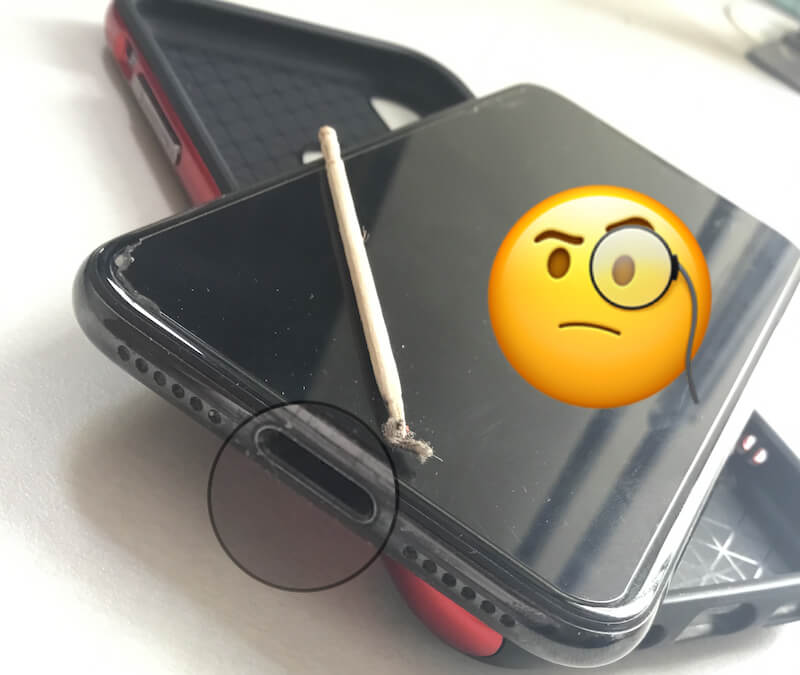
In such cases, the iPhone won’t be able to make contact with the lightning cable, so it won’t charge.
Still, if you can’t start the iPhone or stay on a black screen, move to the next tip.
Solution 4: Update iPhone in Recovery mode
This process won’t erase your device. However, the Update option in Recovery mode will not erase it, unlike the Restore option, which will erase the device. Be sure to choose carefully.
If your iPhone won’t turn on or is stuck on a black screen during an iOS update or installation, I strongly recommend updating it using Recovery Mode. Just follow these simple steps to reinstall the latest compatible iOS on your iPhone without losing your data.
- Connect your iPhone to a Mac/PC via Lightning cable. macOS Catalina and Later user can use finder on Mac for Update your iPhone. MacOS Mohave and Earlier or Windows User can use iTunes for Update your iPhone in Recovery mode.
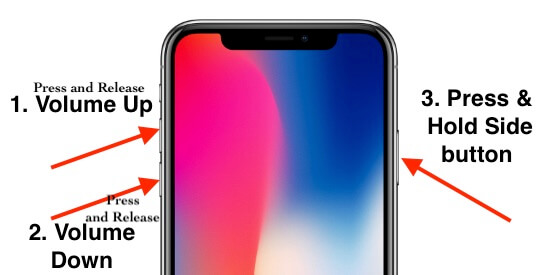
- Now, Put your iPhone in Recovery mode by following these process, Keep your iPhone connectd and Quickly Press and Release volume up button, Quickly Press and Release Volume down button. and then Only Press and Hold the side button until your iPhone screen goes black screen, then Appear apple logo and Your Mac/PC show recovery mode screen, like below. Then release the Side button.

- Select the Update Option, wait for the iOS update to download to your Mac or PC, and then install it on your Device. Don’t disconnect your iPhone during the process.

- That’s it.

Solution 5: Restore iPhone in DFU Mode (video guide)
This process erases everything from iPhone, so it Must have a Backup iPhone if you have a take earlier.
While restoring the iPhone in DFU mode will erase the iPhone, there is no way to back up the device since you cannot see anything on display. In that case, you’ve to compromise with the iPhone data and restore the device using Finder or iTunes.
- First, connect your iPhone to iTunes or Finder on Mac or PC.
- Then, Unlock your iPhone and Allow to access your iPhone on Mac Finder or iTunes.
- Now, Using iPhone’s side buttons you can put your iPhone in DFU mode, Quickly press and Release Volume up button then Volume Down button, Then Only Press and Hold on the Side power button for Ten (10) seconds, after that Press Volume down button for 5 seconds along with Power button.
- After That, Release Side power button until your Mac or PC: Finder or iTunes will see Recovery mode with popup on the screen.
- Go with the Restore iPhone option. [Restore iPhone process, your Mac or PC will download the latest iOS version on your Computer then Extract & Install on Paired iPhone]
- That’s it.
Check the description or click on the link on the upper screen, for a detailed guide to restoring the iPhone in DFU mode.
If you still cannot turn on the iPhone, reach out to Apple Support for further help. Let them examine the iPhone and fix the issue.
Solution 6: Apple Support
Don’t give up and get help from apple support online via Phone call and Book Appointment at apple genius bar. or Visit the Nearest apple service center.
Also, apple will help you in free with the Hardware repair issue or Free replacement if your iPhone is under warranty check it out.
You can also get more about your Problems through the comment section given below.