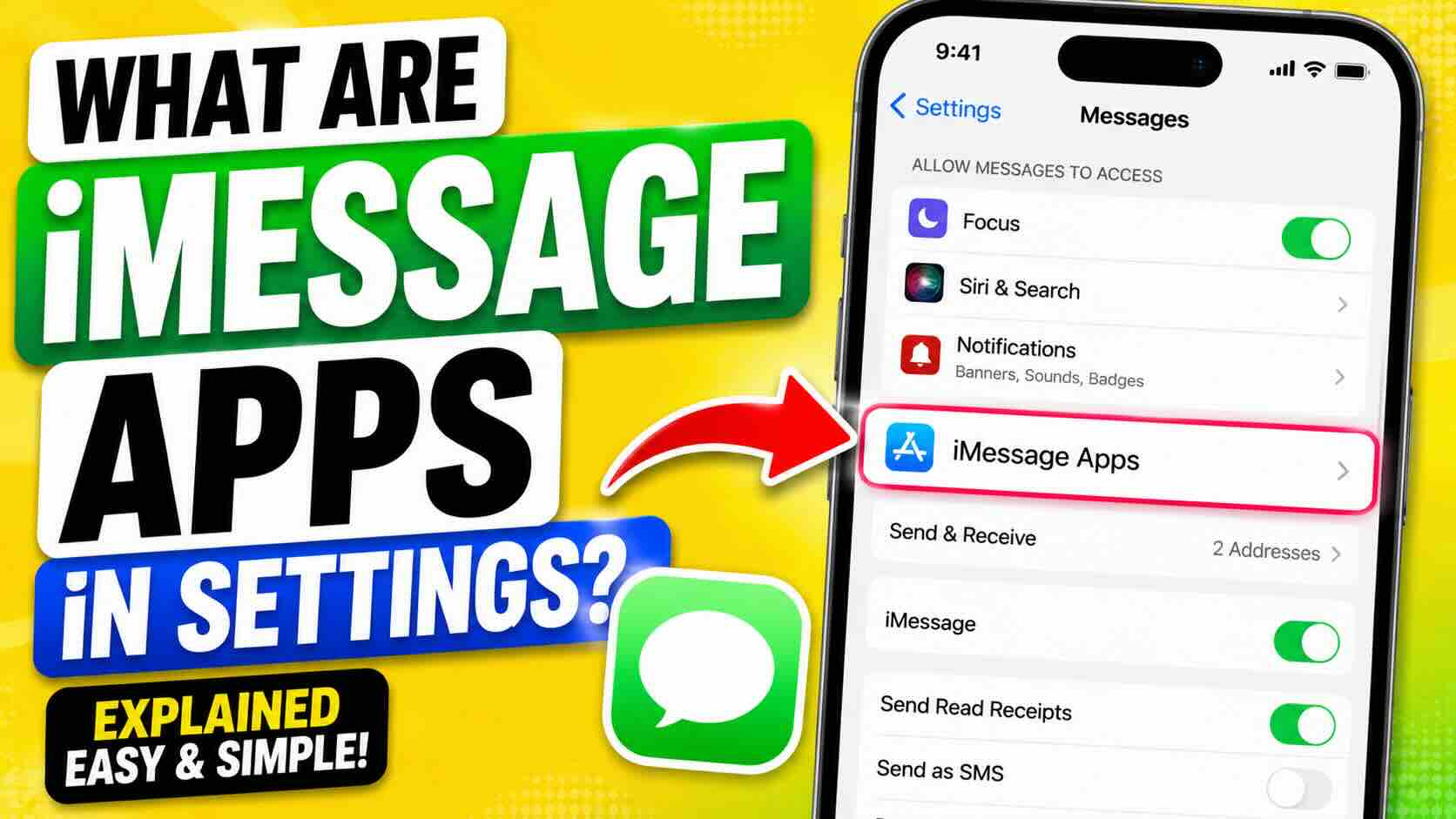
If you’ve ever opened the Messages settings on your iPhone and noticed an option called “iMessage Apps,” you may have wondered what it actually does and whether you need it.
The short answer is that iMessage apps are small apps, extensions, and sticker packs that work directly inside the Messages app. They let you do more than just send text messages. For example, you can share music, send money, use stickers, play games, send GIFs, or access other features without leaving your conversation.
What Are iMessage Apps?
Think of iMessage apps as mini tools that live inside Apple’s Messages app. Instead of opening a separate app, you can access these features right from your chat screen.
For example, you might use:
- Apple Music to share songs with friends
- Apple Cash to send or receive money
- Photos to quickly share images
- Check In to let family know you’ve arrived safely
- Sticker packs to make conversations more fun
- Third-party apps like Giphy, Spotify, or YouTube extensions
These apps appear when you tap the Plus button inside an iMessage conversation.
Why Is There an iMessage Apps Setting?
Apple includes an iMessage Apps section in Settings so you can control which apps appear in your Messages app.
Not everyone uses every available app. If your chat menu feels cluttered, you can hide the apps you don’t use and keep only your favorites visible.
The good news is that turning an app off doesn’t delete it. It simply hides it from the Messages app.
Types of iMessage Apps
There are generally three types of iMessage apps you’ll find on an iPhone.
Built-In Apple Apps
These come pre-installed with iOS and are created by Apple.
Examples include:
- Photos
- Apple Music
- Audio Messages
- Apple Cash
- Check In
- Camera
These apps help you quickly share content without leaving your conversation.
Third-Party Apps
Many developers create iMessage extensions that work inside Messages.
Popular examples include:
- Spotify
- Giphy
- YouTube sharing tools
- Multiplayer games
- Productivity tools
These apps add extra features directly to your chats.
Sticker Packs
Sticker packs are one of the most popular iMessage app categories.
You can use:
- Memoji stickers
- Bitmoji stickers
- Character sticker packs
- Animated stickers
Simply drag and place them onto messages or send them as standalone stickers.
How to Manage iMessage Apps on iPhone
If you want to control which apps appear in your Messages app, follow these steps:
- Open Settings on your iPhone.
- Tap Apps.
- Select Messages.
- Scroll down and tap iMessage Apps.
- Turn apps on or off depending on your preferences.
Apps that are turned on will appear in your Messages app. Apps that are turned off will be hidden from the Plus menu.
Should You Turn Off iMessage Apps?
There’s no right or wrong answer.
If you regularly use stickers, Apple Music sharing, Apple Cash, or other messaging tools, keeping them enabled makes sense.
However, if you prefer a cleaner Messages experience, you can disable apps you never use. This makes the Plus menu easier to navigate and helps reduce clutter.
Final Thoughts
iMessage apps are simply extensions that add extra features to Apple’s Messages app. They allow you to share media, use stickers, send money, play games, and access useful tools without leaving a conversation.
If your Messages app feels crowded, you can easily manage which apps appear by visiting the iMessage Apps section in Settings. A few quick toggles can make your chat menu cleaner and easier to use while still keeping your favorite features available when you need them.