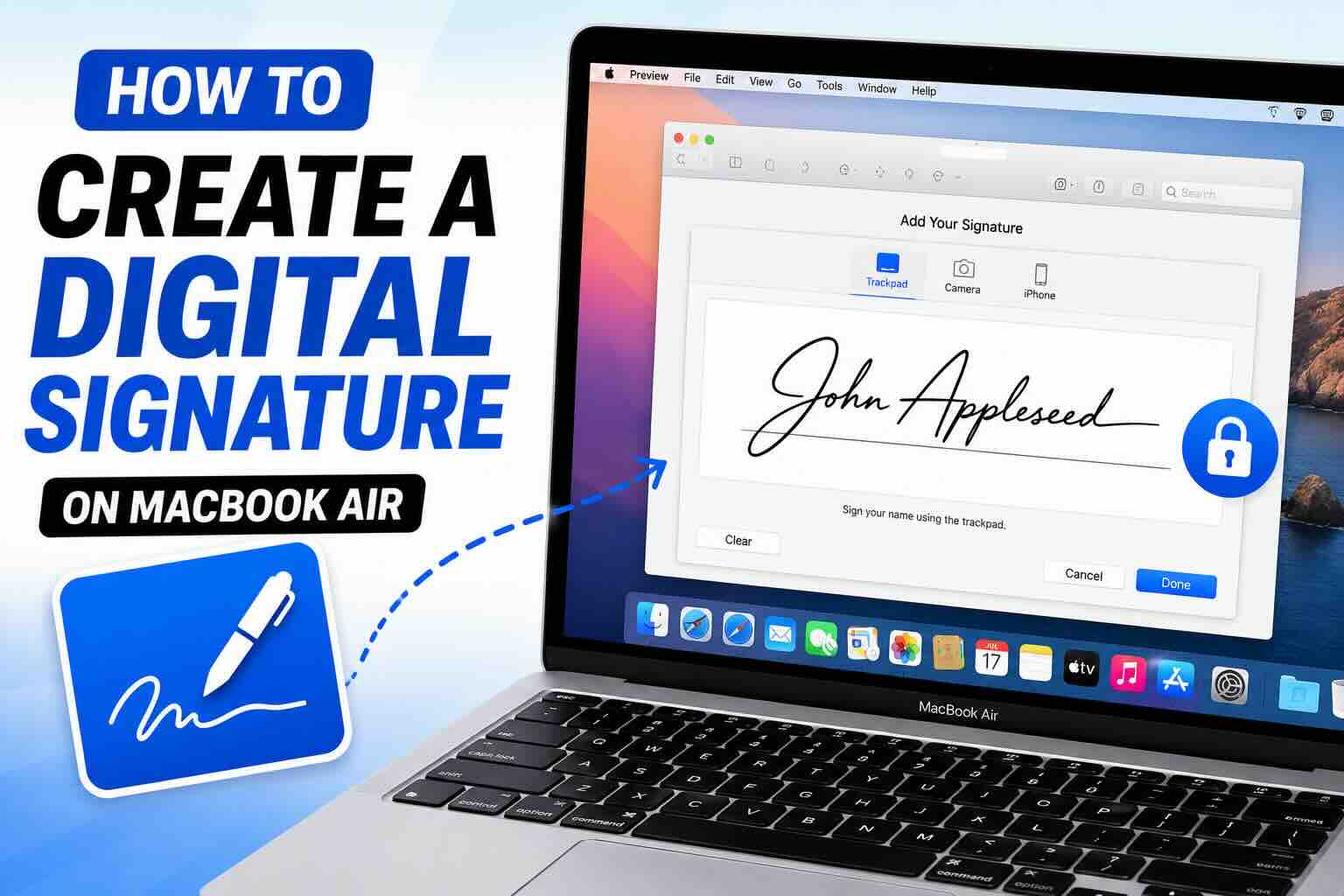
Need to sign a PDF document on your MacBook Air without printing it first? The good news is that macOS includes a built-in tool that lets you create, save, and use a digital signature in just a few minutes.
Using Apple’s Preview app, you can sign contracts, forms, agreements, and other documents directly from your MacBook Air. You don’t need to install any third-party software or pay for a PDF editor.
Even better, Preview gives you three different ways to create your signature: using the trackpad, your Mac’s camera, or an iPhone or iPad.
Why Use Preview for Digital Signatures?
Preview comes pre-installed on every MacBook Air and offers a simple way to add signatures to PDF files and images.
With Preview, you can:
- Create and save multiple signatures
- Sign PDF documents electronically
- Reuse saved signatures in future documents
- Resize and reposition signatures easily
- Avoid printing and scanning paperwork
For most users, Preview is the fastest and easiest way to sign documents on macOS.
How to Create a Digital Signature on MacBook Air
Step 1: Open the Document
Locate the PDF or image file you need to sign.
Double-click the file to open it in Preview. If another app opens the file, right-click it and choose Open With, then select Preview.
Step 2: Open the Markup Toolbar
At the top of the Preview window, click the Markup Toolbar button.
The icon looks like the tip of a pen or marker.
This will reveal additional editing and annotation tools.
Step 3: Select the Signature Tool
Click the Sign button in the toolbar.
The icon looks like a handwritten signature.
If this is your first time creating a signature, Preview will ask you to choose a method for capturing it.
Method 1: Create a Signature Using the Trackpad
This option allows you to draw your signature directly on the MacBook Air trackpad.
- Click Trackpad.
- Use your finger to sign your name on the trackpad.
- Press any key when finished.
- Click Done.
Your signature will be saved automatically for future use.
Tip: If your MacBook Air has a Force Touch trackpad, pressing slightly harder while signing may create a smoother and darker signature.
Method 2: Create a Signature Using the Camera
This method is surprisingly accurate and works well if you prefer your natural handwriting.
- Select Camera.
- Sign your name on a blank white sheet of paper.
- Hold the paper in front of your MacBook Air’s camera.
- Align the signature with the blue guideline shown on screen.
- Click Done.
Preview automatically converts the handwritten signature into a digital signature.
Method 3: Create a Signature Using an iPhone or iPad
If you own an iPhone or iPad signed in with the same Apple Account, this is often the easiest option.
- Click Select Device.
- Choose your nearby iPhone or iPad.
- A signature window will instantly appear on the selected device.
- Draw your signature using your finger or Apple Pencil.
- Tap Done.
The signature automatically appears on your MacBook Air and is saved for future use.
How to Add the Signature to a Document
Once your signature is created:
- Click the Sign button again.
- Select your saved signature.
- Click anywhere in the document to insert it.
- Drag the signature to the correct location.
You can move it around until it is perfectly positioned.
How to Resize the Signature
After placing the signature:
- Click the signature.
- Drag the blue corner handles.
- Adjust the size as needed.
This allows you to make the signature larger or smaller depending on the document requirements.
How to Reuse a Saved Signature
One of the best features of Preview is that your signature remains saved on your Mac.
The next time you need to sign a document:
- Open the file in Preview.
- Click the Sign button.
- Select your saved signature.
- Place it on the document.
There’s no need to recreate the signature every time.
Final Thoughts
Creating a digital signature on a MacBook Air is quick, easy, and completely free thanks to the built-in Preview app. Whether you use the trackpad, camera, or an iPhone or iPad, you can sign documents in seconds without printing or scanning anything.
For most users, Preview provides everything needed to create professional-looking digital signatures and sign PDF documents directly from their MacBook Air.