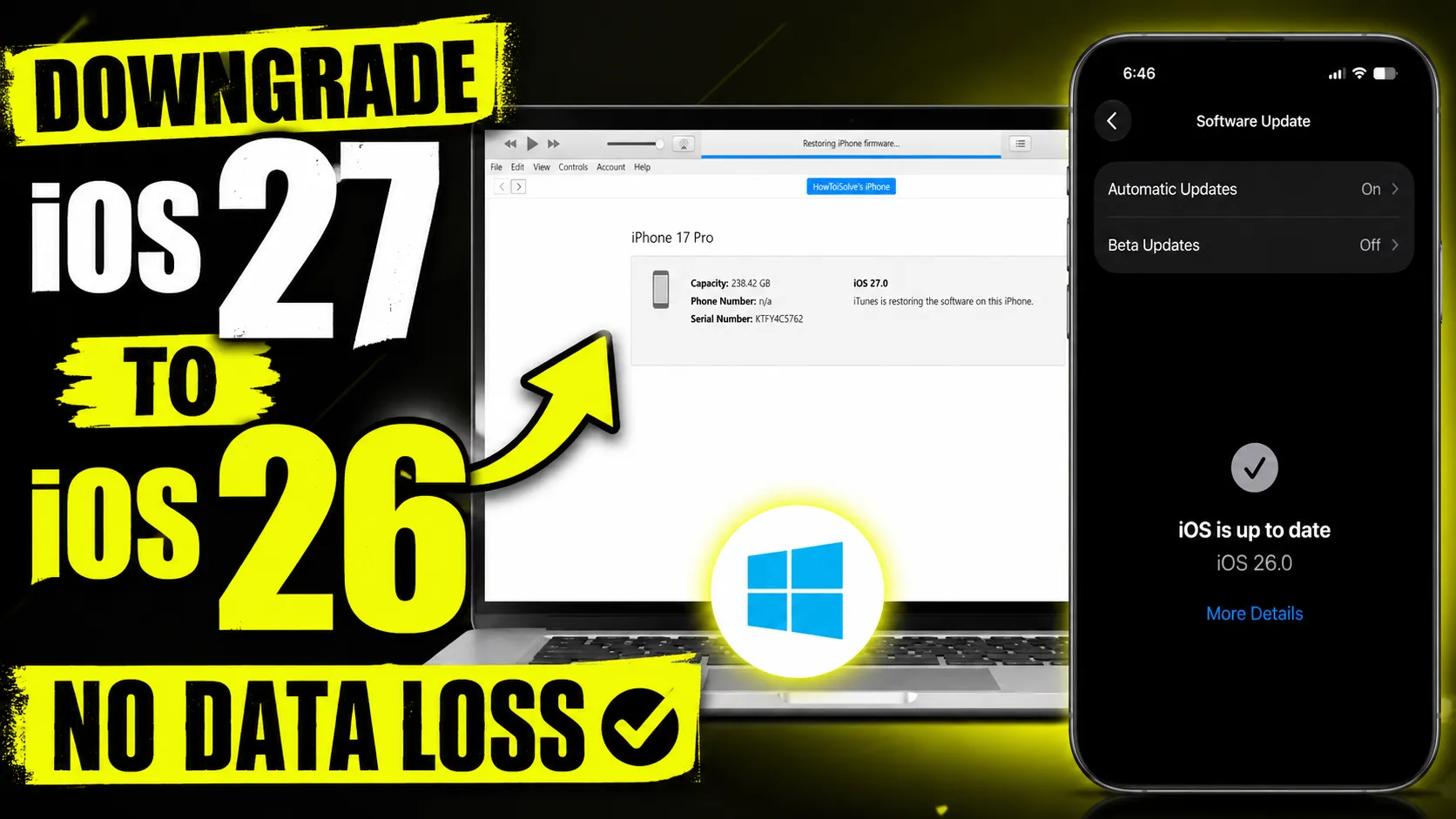
If you installed iOS 27 Beta and want to go back to iOS 26, you can downgrade using a Windows PC or Mac. Before you start, create a backup because the downgrade process usually erases your iPhone data. Apple only allows downgrades to iOS versions that are still being signed.
What You Need
- A Windows PC or Mac
- USB-C or Lightning cable
- Latest version of Finder (Mac) or Apple Devices/iTunes (Windows)
- iOS 26 IPSW firmware file if you plan to restore manually
- A backup created before installing iOS 27 Beta (recommended)
Create a iCloud backup of your iPhone
Before you downgrade from iOS 27 to iOS 26, create a fresh iCloud backup to save your photos, messages, app data, and settings.
- Launch the Settings app on your iPhone.
- Tap your Apple ID name at the top.
- Select iCloud.
- Under Saved to iCloud, tap See All.
- Make sure the apps and data you want to back up are turned on.
- Go back and tap iCloud Backup.
- Turn on the backup This iPhone toggle, if it’s not already enabled. Not enough space in the iCloud account? Then create an offline backup on your Mac or PC before starting the restore process.
- Connect your iPhone to Wi-Fi and keep it plugged into a charger.
- Tap Back Up Now.
- Wait for the backup to complete. The backup time depends on the amount of data stored on your iPhone and your internet speed.
Turn Off Find My iPhone
- Open Settings.
- Tap your Apple ID name.
- Tap Find My.
- Tap Find My iPhone.
- Turn off the Find My iPhone toggle.
- Enter your Apple ID password to confirm.
Downgrade on Windows
- Use a USB-C or Lightning cable and connect your iPhone to your Windows PC.
- Open Apple Devices or iTunes on Windows on Mac.
- Hold the Shift key and click Restore iPhone.
- Select the downloaded iOS 26 IPSW file.
- Click Open and confirm Restore.
- Wait for the installation to complete.
Downgrade on Mac
- Use a USB-C or Lightning cable and connect your iPhone to your Mac.
- Open a Finder window on Mac. Find “iPhone” on the left sidebar of the window.
- Hold the Option key and click Restore iPhone.
- Select the downloaded iOS 26 IPSW file.
- Click Open and confirm Restore.
- Wait for the installation to complete.
Restore Your Backup
After setup, restore a compatible backup created before installing iOS 27 Beta. Backups created on iOS 27 Beta may not restore correctly on iOS 26.
Important Notes
- Downgrading is only possible if Apple is still signing the iOS 26 version you want to install.
- The official restore process typically erases apps, photos, messages, and settings.
- Keep your iPhone connected until the restore is fully completed.
- If you only want to stop receiving beta updates, you can remove the beta profile from Settings instead of downgrading.
This method works for all iPhone models that support iOS 27 and can be performed on both Windows and Mac.