iOS 14 & Latest macOS introduced hundreds of features comprising minor changes and major updates. The native Messages App for iPhone and Mac got some bigger, like Pinning up to 9 Conversations at once, a Special Mute feature for Group Chats, Inline Replies, Mentions, Typing Indicators, Enhanced Memojis, and more. Another noticeable change in the Messages App is in Group Chats, till now Apple won’t let us Add Group Name and Photos to Messages on iPhone and Mac, just like WhatsApp, Facebook Groups, and other social media applications.
Previously, the Group Conversations only showed the Contact Names and Photos if you have been assigned to their contact, so it’s kind of chaotic to find the group without any sort of identification. In some cases, we have the same contact in two different groups. What will you do about that? Rather add name and photo on iMessage Group on iOS 14 and macOS Big Sur on iPhone, iPad, and Mac, respectively.
How to Rename Group and Set Photo on iMessage Group in iPhone, iPad
You can give a funny Group Name, Add your own photo, or use the organization’s logo or Emoji as a Group icon in iMessage.
Step 1: Launch the Messages App on your iPhone > Tap on the iMessage Group that you want to customize.
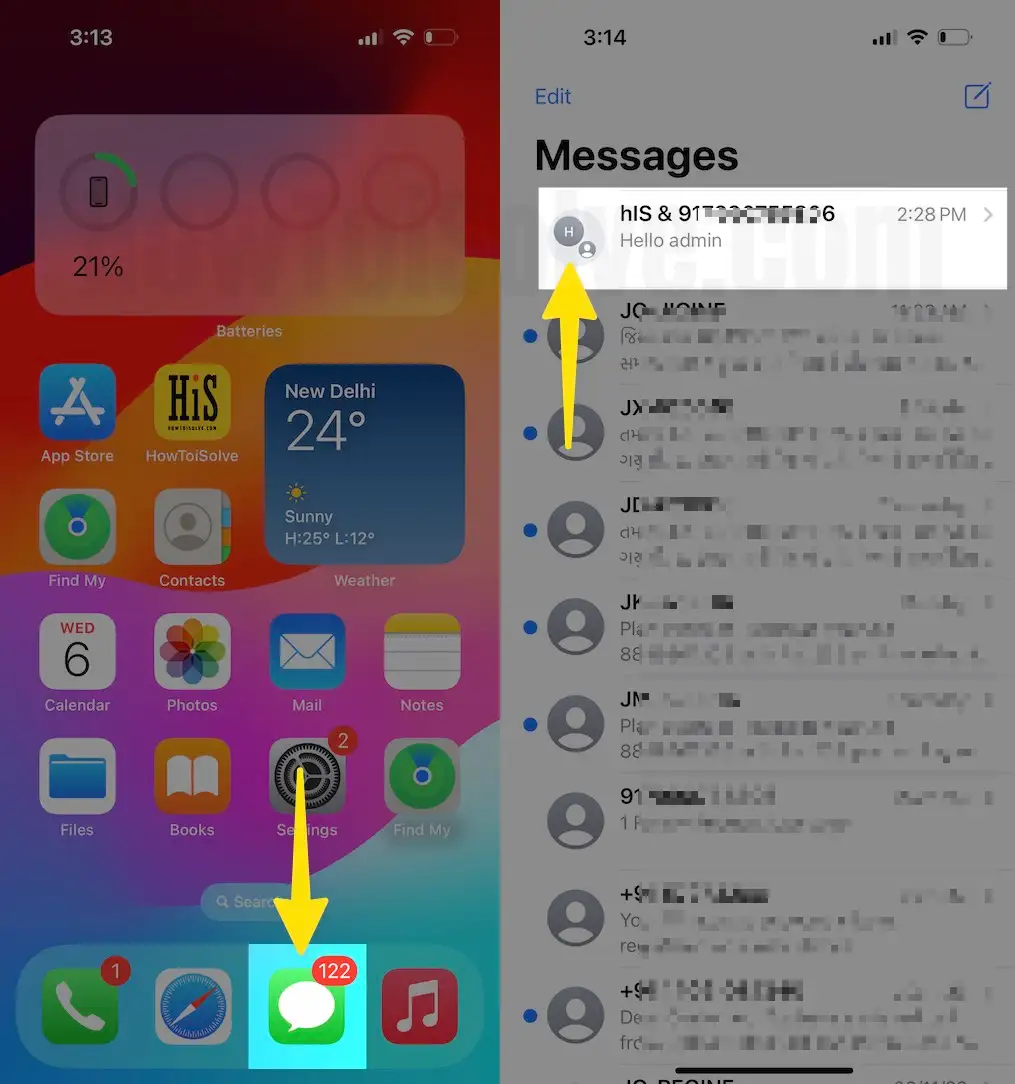
Step 2: On the top center of the iMessage Group Chat, Tap on People, as shown in the sample image > Tap on Change Name and Photo.
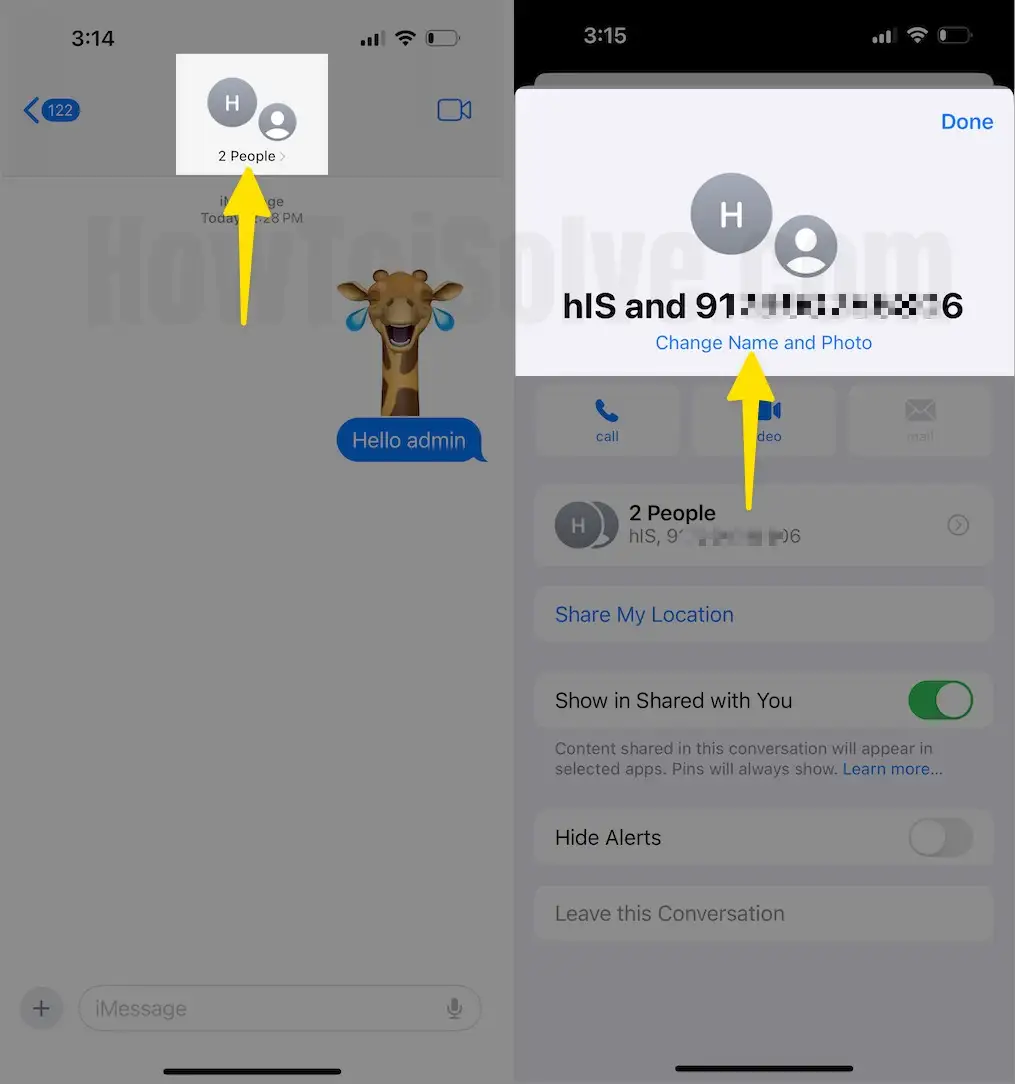
Step 3: Tap the Change Name > Type the Group Name.

Step 4: Tap the Photo option > Choose the Photo. To capture a photo, tap on the Camera icon, or go to the Photos app (tap on the Photos icon next to the the Camera icon) and find the image you want to set as Group Photo. You can also set the Emoji as a Profile Photo in iMessage Group > Once you are satisfied with the Photo and Group Name, Tap Done.

Step 5: Now, it’s Easy to Find your Favorite conversation and Group conversation with the name.

How to Add Group Name and Photo on iMessage on Mac macOS Big Sur or Later
This feature is extended to the MacOS Big Sur too. Here’s how to do it.
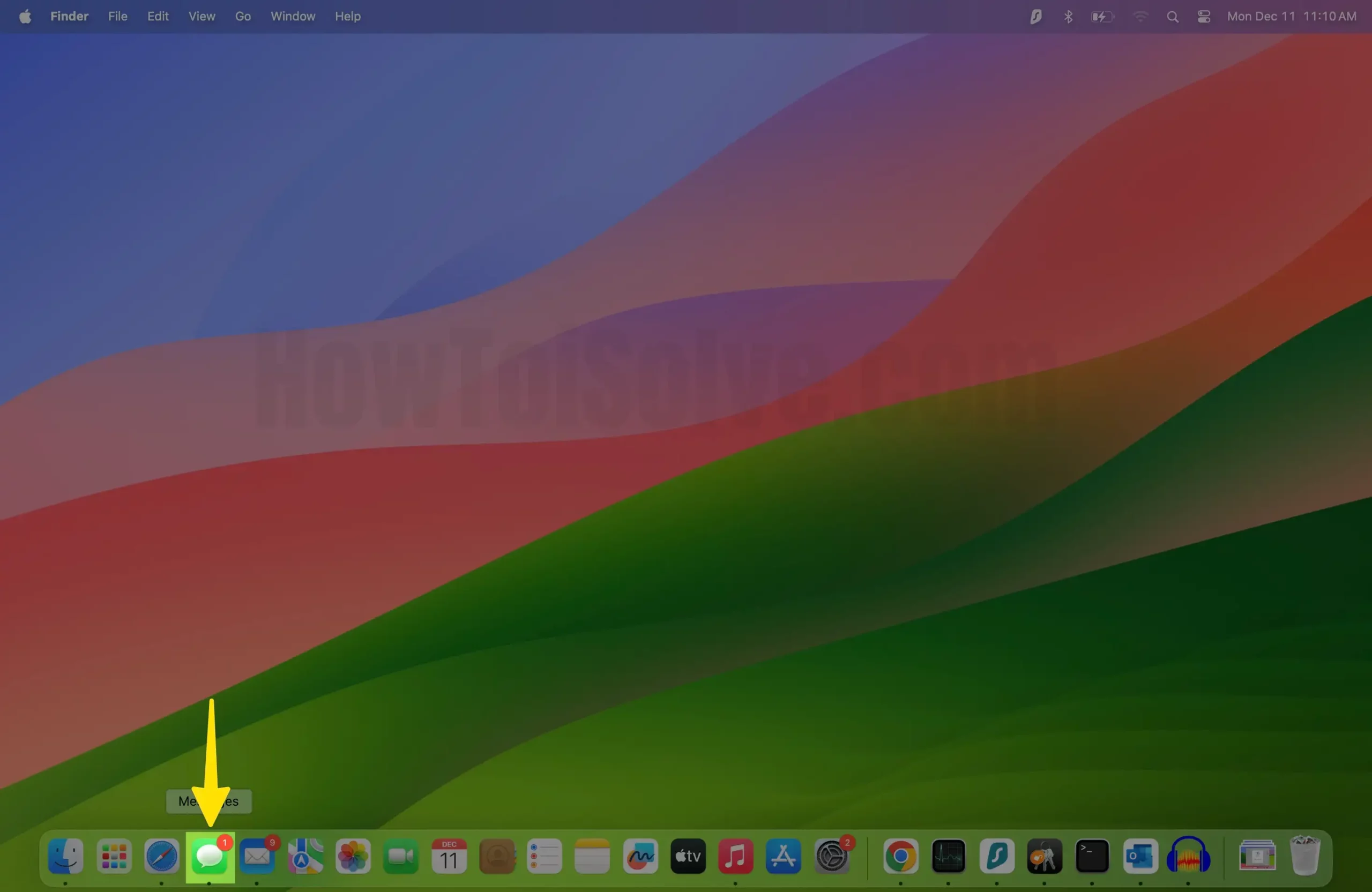
Step 1: Launch the Messages App on your Mac.
Step 2: Open the Group Chat.
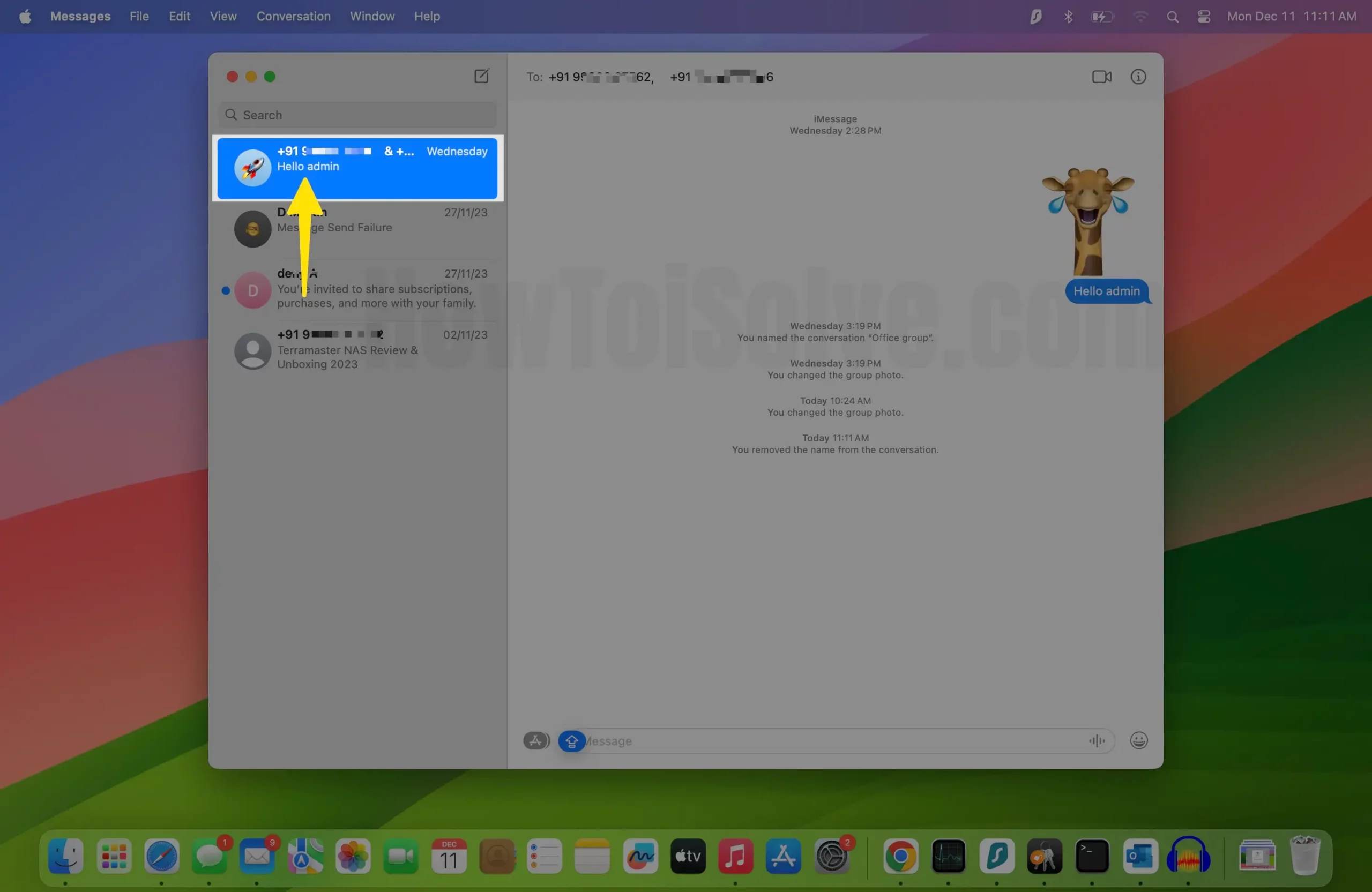
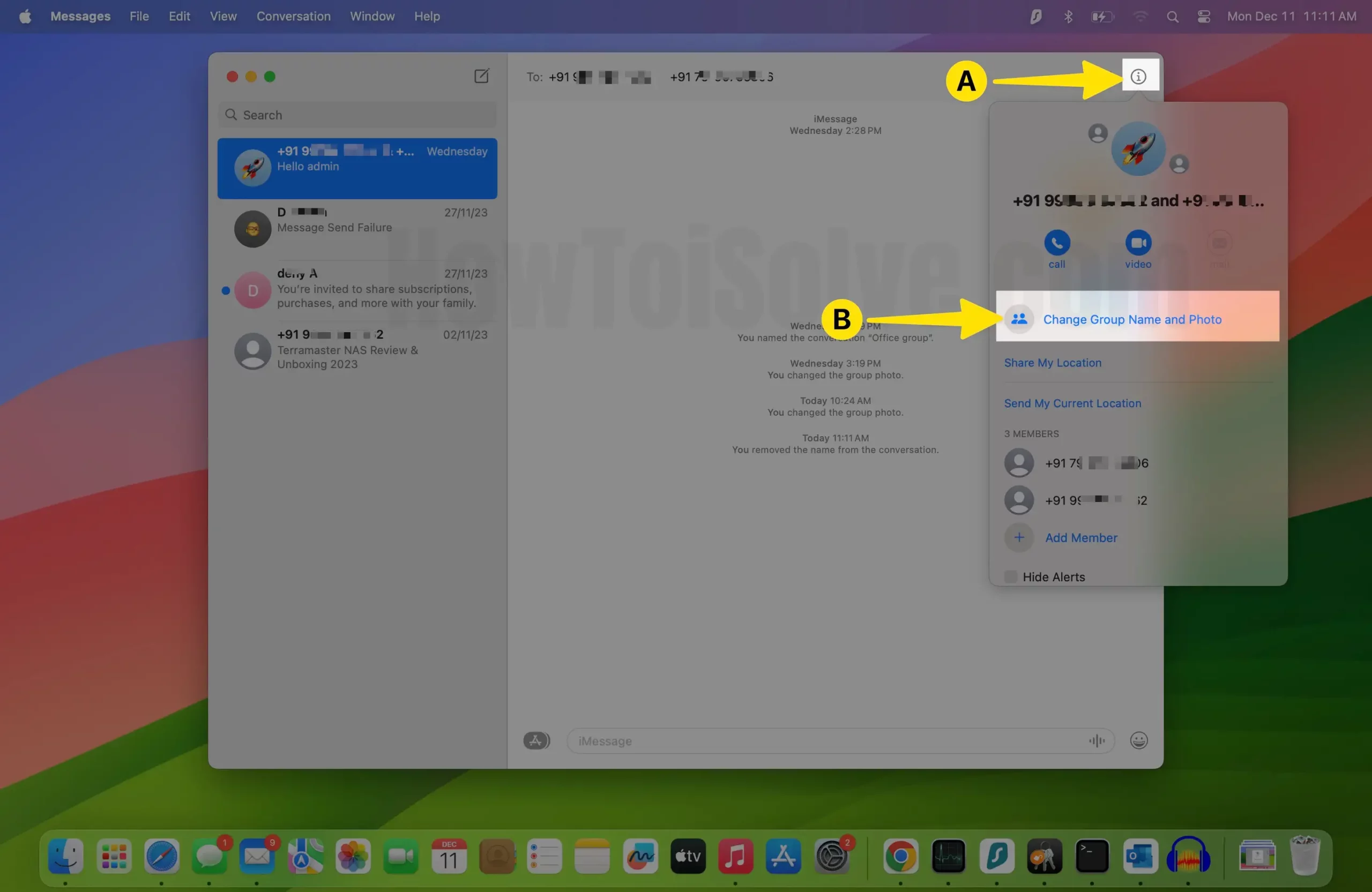
Step 3: Click on the (i) at the top-right corner > Click Change Group Name and Photo.
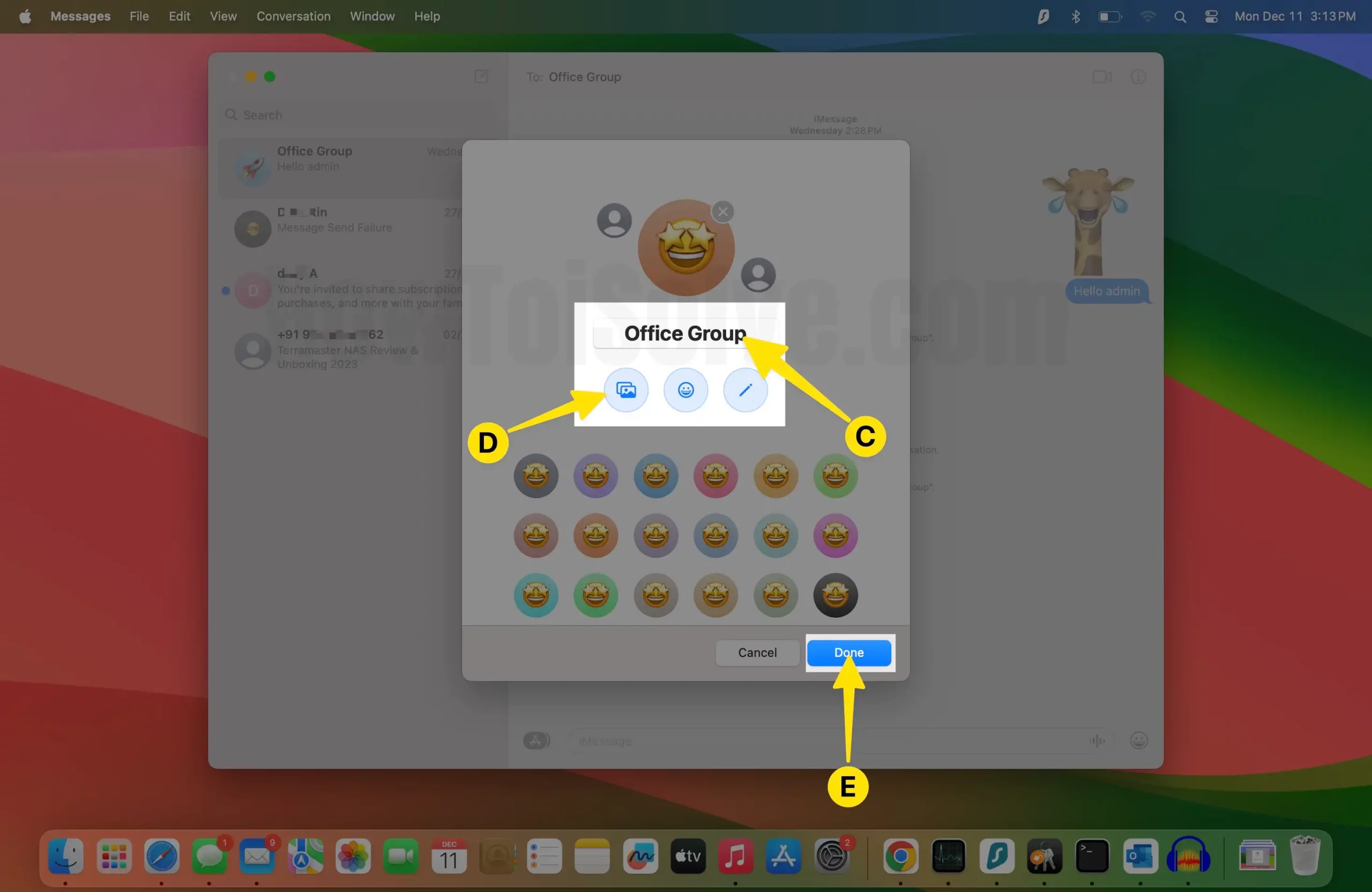
Step 4: Assign the Group a Name, and Set a Photo. Choose from Emojis or open your Photos collection and select the photo > Once you are finished, click Done.
Step 5: Now, it’s Easy to Find your Favorite conversation and Group conversation with the name.
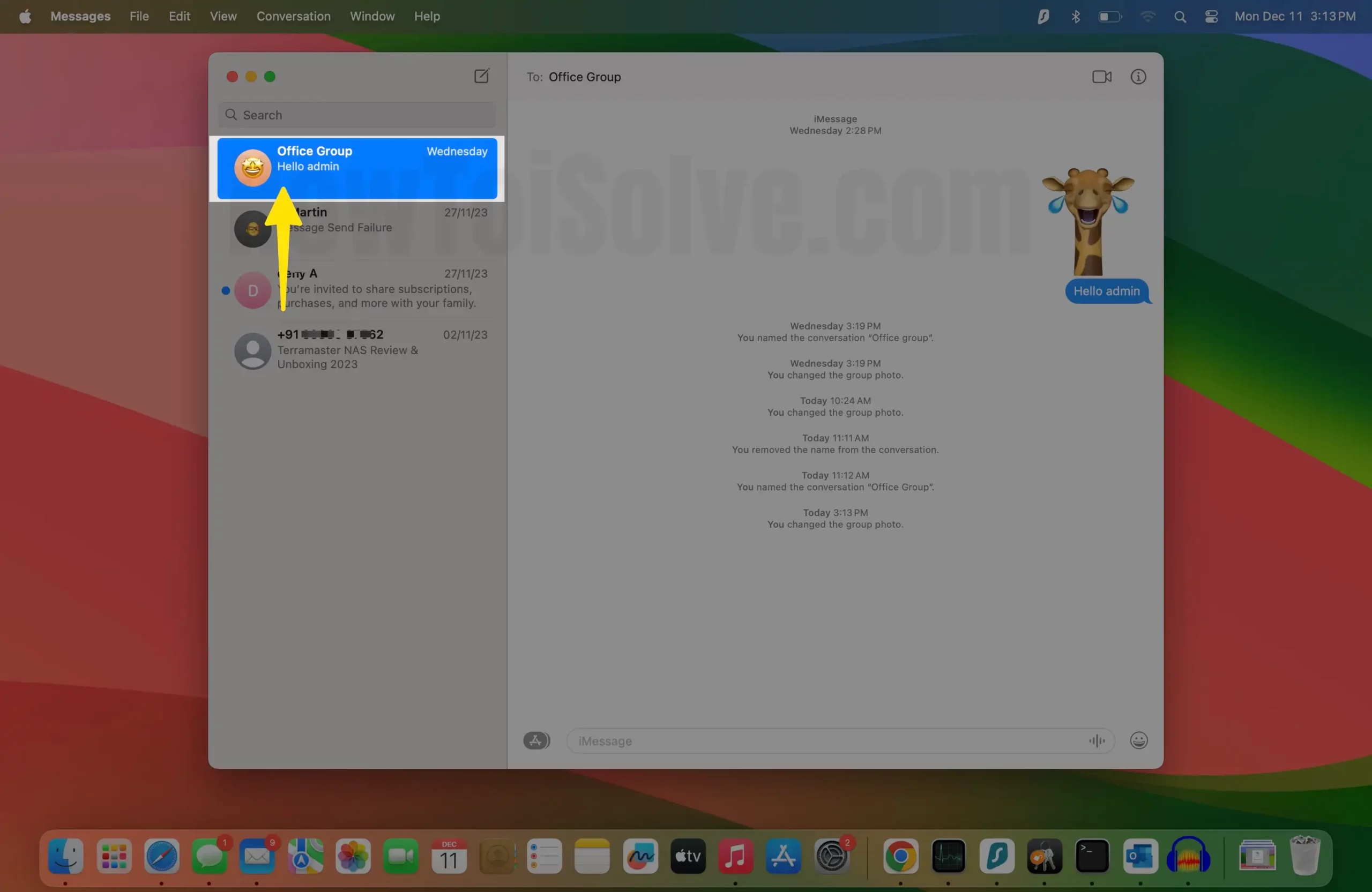
you can pin conversations and Groups on your Messages app on iPhone,iPad, and Mac (macOS Big Sur or later MacOS). We can Add Up to 9 Pined Conversations.