Tired of your favorite tracks sounding flat or missing that studio-quality punch? Spotify’s new Lossless Audio feature is here to change the way you hear your music—offering crystal-clear sound that reveals every beat, instrument, and breath the artist intended.
Whether you’re an audiophile craving hi-res quality or just curious about what “lossless” really means, turning it on can feel like switching from regular TV to 4K Ultra HD—but for your ears. The best part? It’s quick and easy to set up.
In this guide, we’ll show you step-by-step how to enable Lossless Audio on Spotify and share a few tips to make sure you get the best experience on your headphones, speakers, or even your car stereo. Pair this with the example picture below to follow along visually and unlock the full potential of your playlist.
Turn on Lossless Music on Spotify | Step-by-Step Guide for Premium Users
What Is Lossless Audio on Spotify?
Lossless audio streams playback without any compression, preserving every instrument, layer, and vocal nuance as recorded. This creates a fuller, deeper, and more lifelike sound, especially on high-end headphones or speakers. It’s perfect for audiophiles and anyone who wants to enjoy music as the artist intended.
Check If Your Account Supports Lossless
Before you dive in, make sure your account is ready. Lossless audio is available only for Spotify paid subscription users and is gradually rolling out in the U.S. and other regions. Update your app to the latest version from the App Store or Google Play Store. If your account has access, you’ll see new quality options under the audio settings section.
How to Enable Lossless on the Mobile App?
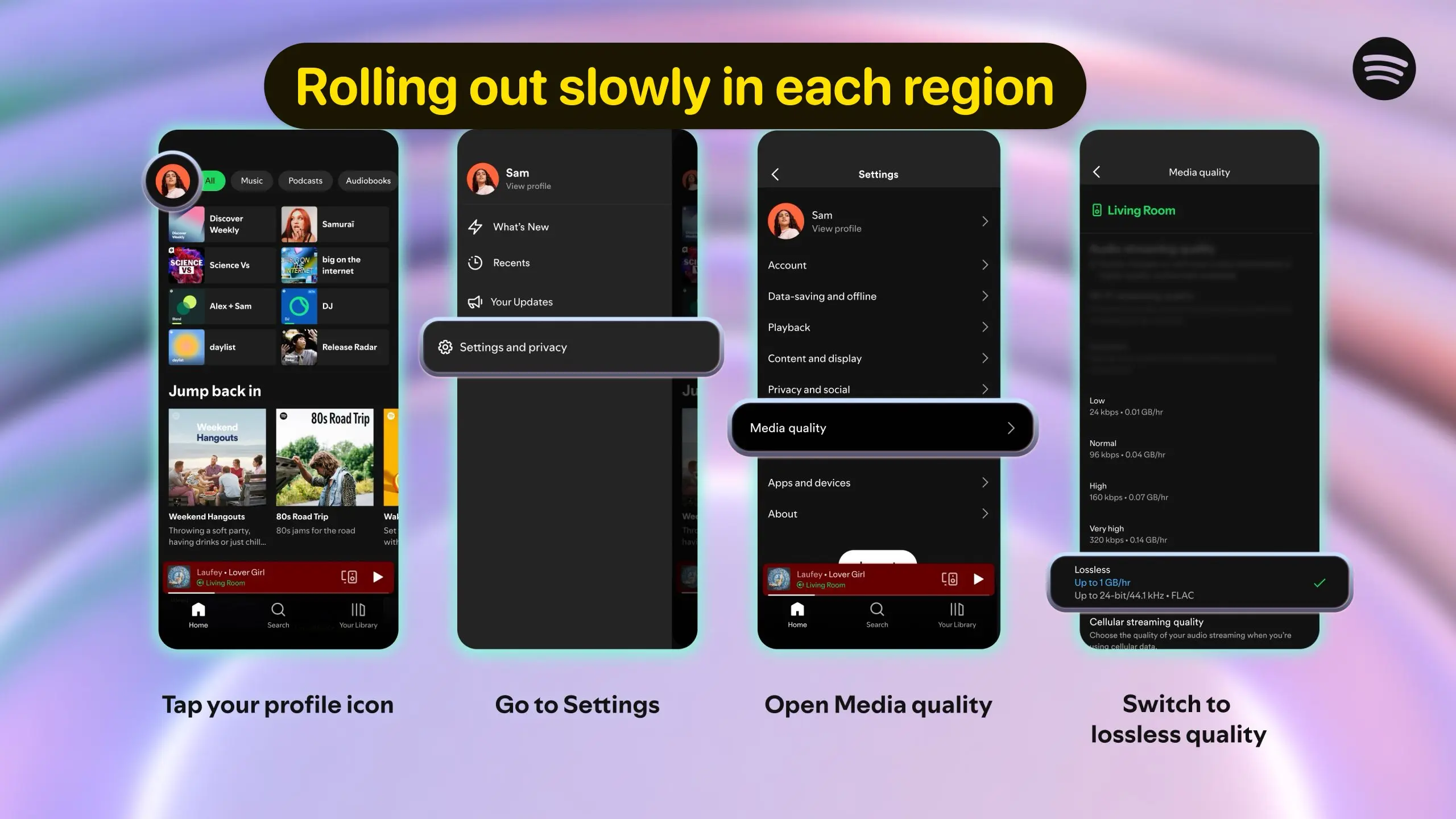
- Open the Spotify app on your iPhone or Android device.
- Tap your profile icon in the top-left corner.
- Go to Settings and Privacy.
- Select Media Quality.
- Under “Audio Streaming Quality,” choose “Lossless” for both Wi-Fi and Cellular.
- A pop-up asks you to tap “Turn on Lossless.”
- Spotify has finally switched to Lossless Audio, delivering studio-quality sound — but be ready, it can use up to 1 GB of data per hour (up to 24-bit/44.1 kHz – FLAC).


Once done, your tracks will start playing in lossless quality whenever your connection supports it.
How to Enable Lossless on Desktop App
- Open the Spotify desktop app on your computer.

- Click your profile icon at the top-right corner.
- Go to Settings.

- Scroll to Audio Quality.
- Set Streaming Quality and Download Quality to Lossless.

Make sure you’re using a wired connection or high-speed Wi-Fi to avoid buffering when streaming large audio files.
Choose the Right Playback Settings
Lossless audio files are much larger than standard ones, so a good setup is key. Use wired headphones or a USB audio interface for full resolution playback, as Bluetooth can compress sound and reduce quality. Also, check your device’s output settings — set them to support high sample rates (like 44.1 kHz or higher) if available.
Tips for the Best Lossless Experience
- Stay on Wi-Fi: Cellular data may not handle large files smoothly.
- Close other apps: Keeps your device focused on music playback.
- Use external DACs or amps: They boost quality for wired headphones.
- Test with known high-quality tracks: Helps you hear the difference clearly.
Following these steps ensures you’re getting the purest sound possible from Spotify.
Bottom Line
Enabling lossless audio on Spotify is simple, and it completely transforms how you experience music. With crystal-clear sound, rich layers, and studio-level detail, your favorite songs will feel brand new again. Just make sure your setup is ready — a Spotify ad-free plan, stable Wi-Fi, and quality headphones and you’ll be hearing music like never before.