

Apple Music working fine on your iPhone but throwing errors on your MacBook? If the Music app is broken and shows “Something went wrong. Please try again later,” you’re not alone. In this guide, we’ll help you fix this common Apple Music error on Mac so you can get back to listening without hassle.
Step-by-Step Instructions for Fixing Apple Music Not Working on macOS
The “Something went wrong. Please try again later” prompt in Apple Music for Mac typically indicates a problem connecting to Apple’s servers, a bug in the Music app, or a network issue. You can’t play music, look through your collection, or get to your playlists until the problem is addressed.
Here are reasons and solutions for the Apple Music “Something went wrong” error on Mac.
| Reason | Quick Check | Solution (Steps) |
|---|---|---|
| Temporary app glitch | Works after relaunch? | On the latest macOS? |
| Outdated macOS/Music | Are other apps slow? | System Settings > General > Software Update; install updates. |
| Apple services hiccup | Others reporting issues? | Try again in 10–15 min; if persistent, continue below. |
| Network/Wi-Fi issue | Other apps slow? | Reconnect Wi-Fi, reboot router, or try hotspot/ethernet. |
| VPN/Proxy/Firewall | Using VPN or blockers? | Disable VPN/proxy; allow Music in firewall/Little Snitch/AdGuard. |
| Wrong date & time | Set automatically? | System Settings > General > Date & Time > Set automatically ON. |
| Apple ID glitch | Account menu loads? | Music: Account > Sign Out, then sign in again. |
| Subscription/region | Apple Music active? | Verify plan in Account Settings; fix billing if needed. |
| Device authorization | Hit device limit? | Music: Account > Authorizations > Deauthorize This Computer, then Authorize again. |
| Sync Library conflict | Songs show cloud errors? | Settings (Music) > General > Sync Library OFF → restart → ON. |
| Corrupted cache | Error persists on one Mac only? | Quit Music; delete ~/Library/Caches/com.apple.Music/ (leave other files); reopen. |
| Problem prefs | Toggle missing or odd UI? | Delete ~/Library/Preferences/com.apple.Music.plist (while app closed); reopen. |
| DNS/SSL hiccup | Sites fail to resolve? | In Terminal: sudo dscacheutil -flushcache && sudo killall -HUP mDNSResponder then retry. |
| iCloud/Apple ID Keychain | Repeated sign-in prompts? | Toggle System Settings > Apple ID > iCloud > Passwords & Keychain OFF/ON; sign in again. |
| Content restrictions | Playback blocked? | Screen Time > Content & Privacy OFF or allow Music. |
| Third-party audio plugins | Recently installed plugin? | Remove/disable new Audio Units; reboot and test. |
| Corrupt Music library db* | Only this Mac fails, fresh user works? | Back up ~/Music/Music/; move Music Library.musiclibrary to desktop; reopen Music to rebuild; re-enable Sync Library. |
*Rebuilding the library reindexes local data; your Apple Music cloud library remains tied to your Apple ID, but always back up the ~/Music/Music/ folder first.
Solution 1: Restart Apple Music and Mac
Sometimes the error is temporary. Quit the Music app completely and restart your Mac to refresh the system.
Solution 2: Check Your Internet Connection
Apple Music requires a stable connection. Switch to a reliable Wi-Fi or try restarting your router.
Solution 3: Sign Out and Sign Back In to Apple ID
Go to Music > Account > Sign Out. Restart the app, then sign back in with your Apple ID.
Solution 4: Update macOS and Apple Music
Outdated versions may cause compatibility issues. Update to the latest macOS from System Settings > General > Software Update.

Solution 5: Disable VPN or Proxy
If you use a VPN or proxy, turn it off temporarily. Apple Music may block playback due to region or network conflicts.
Solution 6: Reset Apple Music Cache
Corrupt cache can trigger errors. Go to Finder > Go > Go to Folder and enter:~/Library/Caches/com.apple.Music — then delete the cache files.
Solution 7: Check Apple System Status
Visit Apple’s System Status page to confirm if Apple Music servers are down. If so, wait until Apple resolves it.
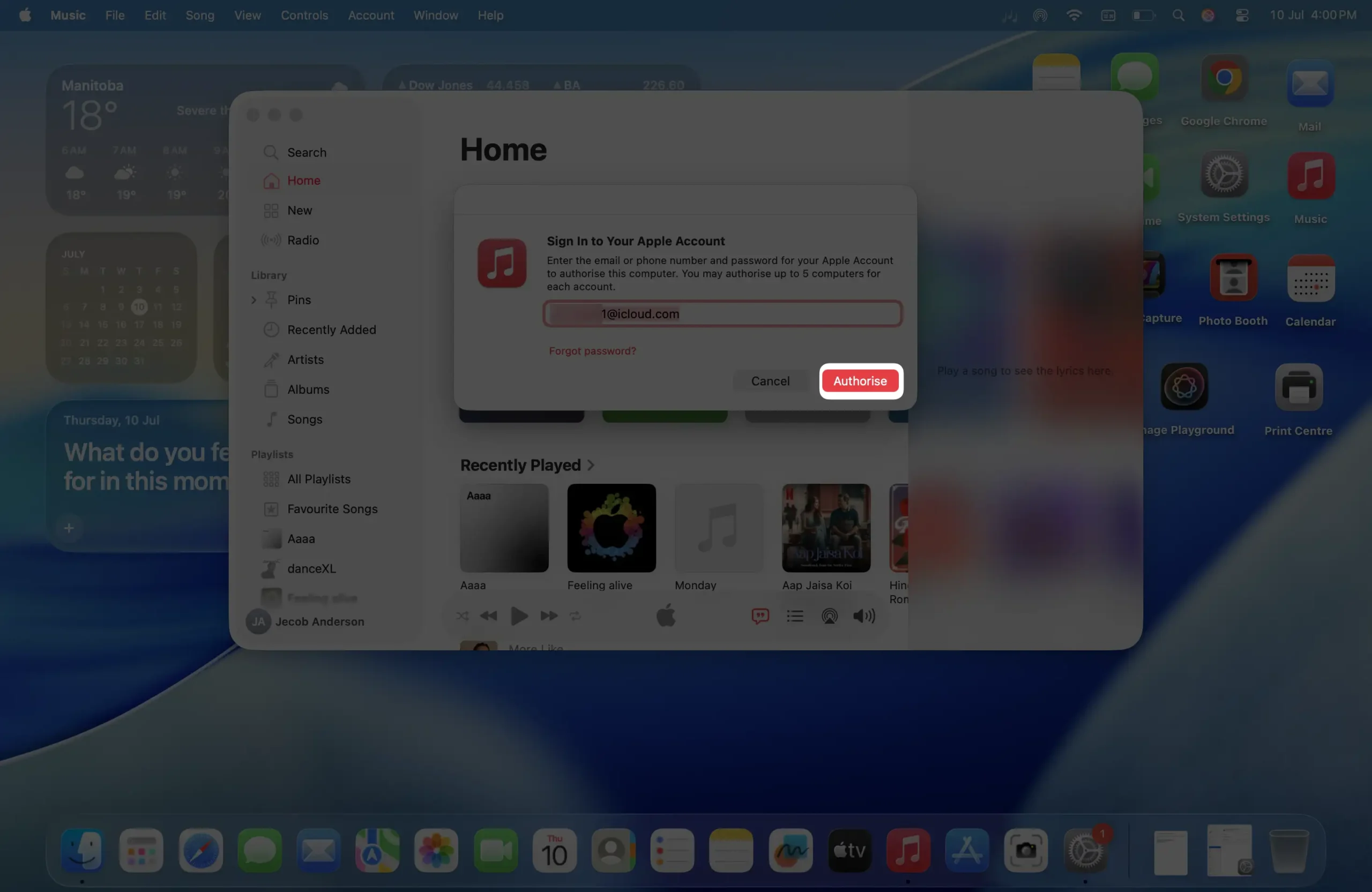
Solution 8: Reauthorize Computer in Apple Music
Open Music app > Account > Authorizations > Deauthorize This Computer, then reauthorize it again with your Apple ID.
Solution 9: Reset Network Settings on Mac
Remove saved Wi-Fi networks and reconnect. Go to System Settings > Network, then reset your configuration.
Solution 10: Reinstall the Music App (For macOS Beta/Glitchy Builds)
If nothing works, reinstall macOS Music app via App Store updates or restore with macOS Recovery to fix corrupted system files.






