

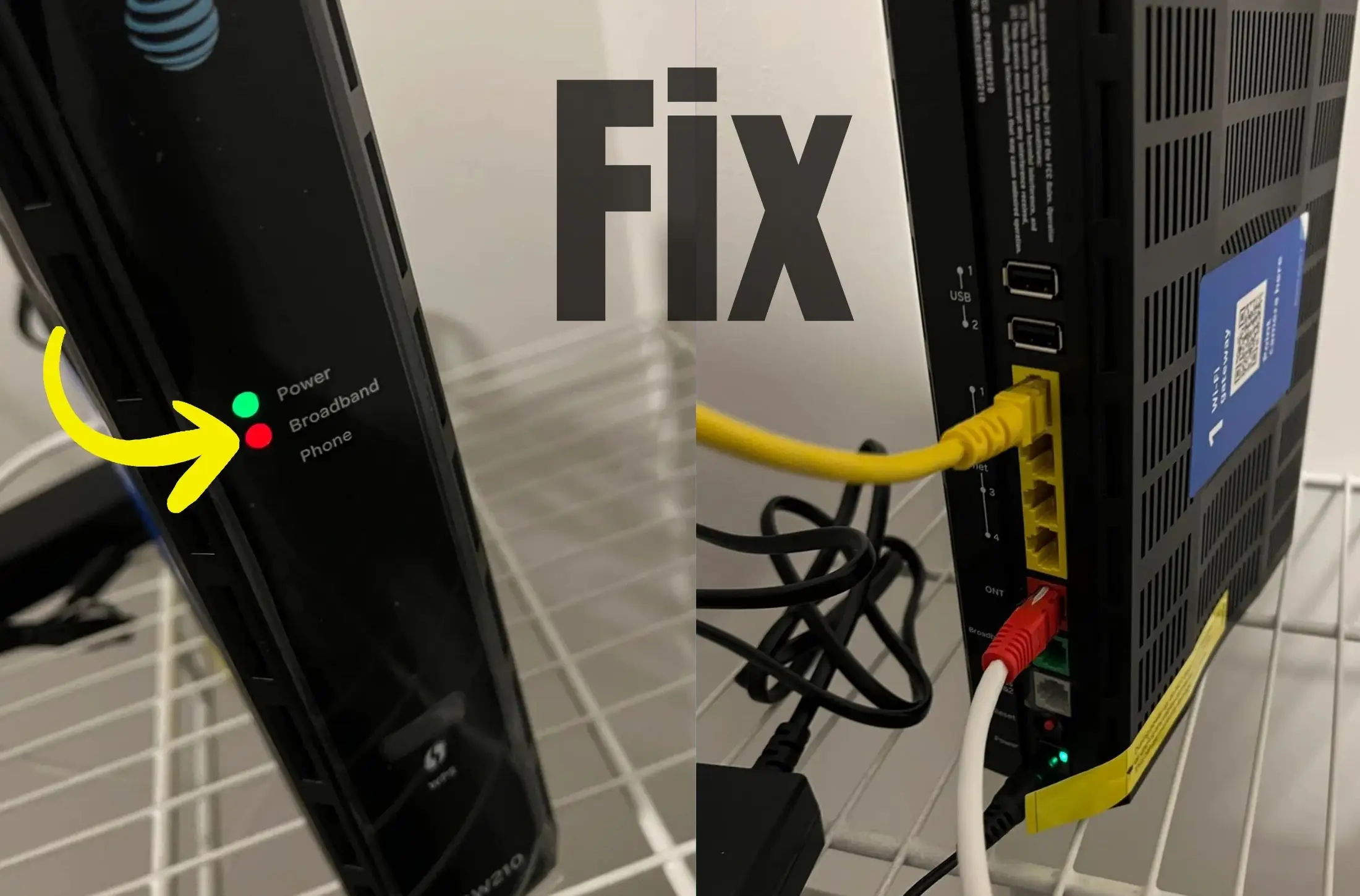
Seeing a red light on your AT&T broadband gateway can be frustrating, especially when you rely on your internet for work, streaming, or gaming. A solid red light usually means your gateway can’t detect an internet signal, while a flashing red light indicates a weak or unstable connection.
This guide will show you step-by-step instructions to troubleshoot AT&T Broadband red light problem — from quick checks at home to advanced troubleshooting — along with helpful hints and tips to save time. We’ll also suggest a few alternative internet services in case you experience frequent outages.
AT&T Broadband Red Light Blinking Error: 9 Easy Ways to Get Back Online
Solution 1: Check the Light Pattern on Your Gateway
Knowing whether the red light is solid or flashing can help pinpoint the problem:
- Solid red light: The gateway isn’t receiving a broadband signal at all.
- Flashing red light: The signal is weak or keeps dropping.
Hint & Tip: Look at both Broadband 1 and Broadband 2 lights (if your model has them). If only one is red, it may be a line-specific issue.
Solution 2: Inspect All Cables and Power Connections
Loose or damaged cables are a common cause of AT&T Broadband red-light errors:
- Make sure the power adapter is fully plugged in.
- Check DSL/fiber line and Ethernet cables for frays, bends, or loose connections.
- Confirm that all connections click snugly into place.
Hint & Tip: Use a surge protector to protect your gateway from power fluctuations that can cause connection drops.
Solution 3: Restart the Gateway
Restarting often resolves temporary glitches:
- Unplug the power cord from the gateway.
- Wait 20–30 seconds.
- Plug it back in and let it reboot (about 3–5 minutes).
Hint & Tip: Don’t rush — give the gateway enough time to fully reconnect before testing the internet again.
Solution 4: Check for AT&T Service Outages
Sometimes the red light isn’t your fault. Visit the AT&T Outage Map or log in to the Smart Home Manager app to see if your area is affected.
Hint & Tip: If there’s a reported outage, avoid resetting the gateway repeatedly — it won’t help until AT&T restores service.
Solution 5: Try a Different Ethernet Wall Jack or Port
If your home has multiple broadband wall jacks, move the gateway to another port to test the connection.
Hint & Tip: This step can help identify whether the issue lies in a single wall outlet or the line itself.
Solution 6: Soft Reset the Gateway
For minor firmware glitches, perform a soft reset:
- Locate the Reset button (usually at the back).
- Press and hold it for 5–10 seconds until the lights blink.
- Wait for the gateway to reconnect.
Hint & Tip: A soft reset won’t erase your Wi-Fi name or password, but it clears temporary bugs.
Solution 7: Perform a Factory Reset (Last Resort)
If nothing else works:
- Hold the Reset button for 20 seconds.
- Release when all lights flash, and allow the gateway to reboot.
Hint & Tip: A factory reset erases your custom Wi-Fi settings, so write down your Wi-Fi name and password beforehand.
Solution 8: Check Gateway Settings
Open a web browser on a connected device:
- Enter the IP address 192.168.1.254 in the address bar.
- Log in to view the gateway status page for error codes.
- Follow any on-screen troubleshooting prompts.
Hint & Tip: If you see frequent errors like “No DSL signal” or “Line disconnected,” it’s likely a line or provider issue.
Solution 9: Contact AT&T Support
If the red light persists, call AT&T Technical Support at 800-288-2020. Provide them with the light status, any error codes, and details about recent storms or outages.
Hint & Tip: Keep your account number and device model (e.g., BGW210, BGW320) handy to speed up support.
Preventive Tips to Avoid Future Issues
- Keep your gateway in a cool, well-ventilated spot to prevent overheating.
- Avoid bending cables sharply or placing heavy objects on them.
- Periodically restart your gateway to keep it running smoothly.
- Use AT&T Smart Home Manager to track and resolve minor issues before they escalate.
Alternative Internet Options for U.S. Users
If you frequently experience outages or poor speeds, consider these alternatives:
- Xfinity Internet: Wide coverage with fast cable and fiber options.
- Spectrum Internet: Reliable broadband in many U.S. regions.
- Verizon Fios or 5G Home Internet: Great for areas with strong 5G or fiber.
- T-Mobile Home Internet: Affordable 5G-based broadband for urban and suburban homes.
Hint & Tip: Check each provider’s availability in your ZIP code — speeds and prices vary by location.
FAQs
Q: What does a solid red broadband light mean on the AT&T gateway?
A: It usually means the gateway isn’t receiving any broadband signal.
Q: What’s the difference between flashing red and solid red?
A: Flashing red indicates a weak or unstable signal; solid red means no signal.
Q: How long should I wait after restarting the gateway?
A: Give it at least 3–5 minutes to reconnect before testing again.
Q: Will a factory reset delete my Wi-Fi name and password?
A: Yes, it restores the device to default settings, so keep those details noted.
Q: How can I tell if the issue is with AT&T or my equipment?
A: Check the AT&T outage map or Smart Home Manager app first. If no outage is reported, it’s likely your gateway or line.
Final Word
The AT&T broadband red light is often fixable at home by following these steps in order — starting with cable checks, restarts, and outage verification.
By staying proactive and knowing when to contact AT&T or consider alternatives, you can minimize downtime and keep your home connected.






