Are you having trouble installing third-party Apps or Software because of a lack of free space? Try the steps below to free up space on your MacBook. To update your current macOS, you need much more space than you expect. 10 to 12 GBs must be required this time to download and install OS X on your iMac, Mac Mini, MacBook Pro, or MacBook Air.
Generally, users are getting messages like “Free up space on Mac”, ”Your Startup disk almost full”, Need more space for start installation on your Mac, Required more space.
Try Different Ways to Free up space on MacBook, Mac
I would also like to recommend a one-click solution for cleaning your mac using Mac cleaner. Don’t interested, For that go with manual action right from the below steps.
The below steps are also useful if your system running on OSX.
Delete Large Files and Documents: Quickly Free Up Storage
We have official settings for managing storage on your MacBook, Mac. This will help in find large Documents and Files saved on your Mac, or MacBook Drive. Let’s see how to find it using the Manage storage option.
On macOS Ventura & later: Free Up Storage on Mac
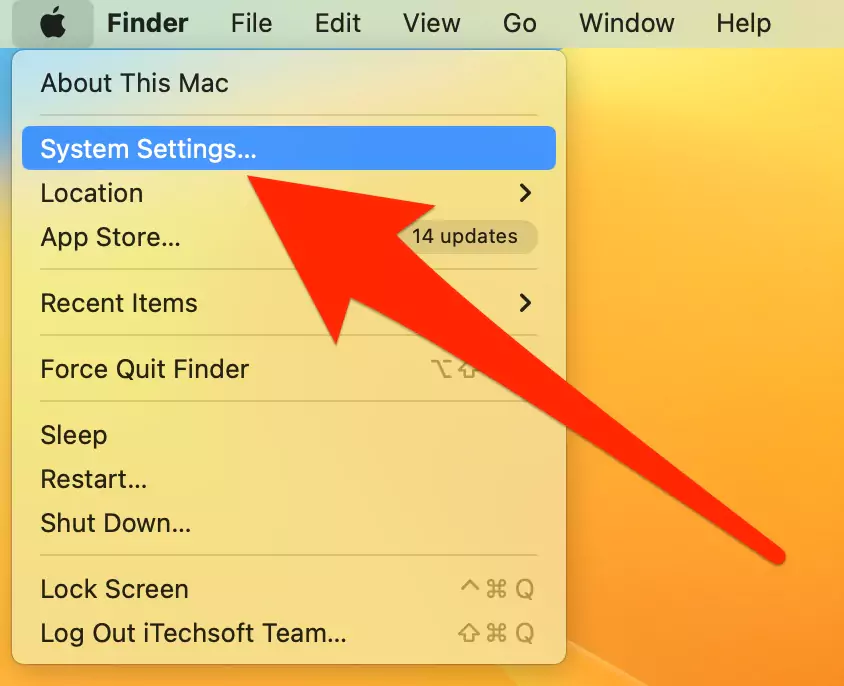
1→ Go to the Apple Logo from the top Menu > System Settings.
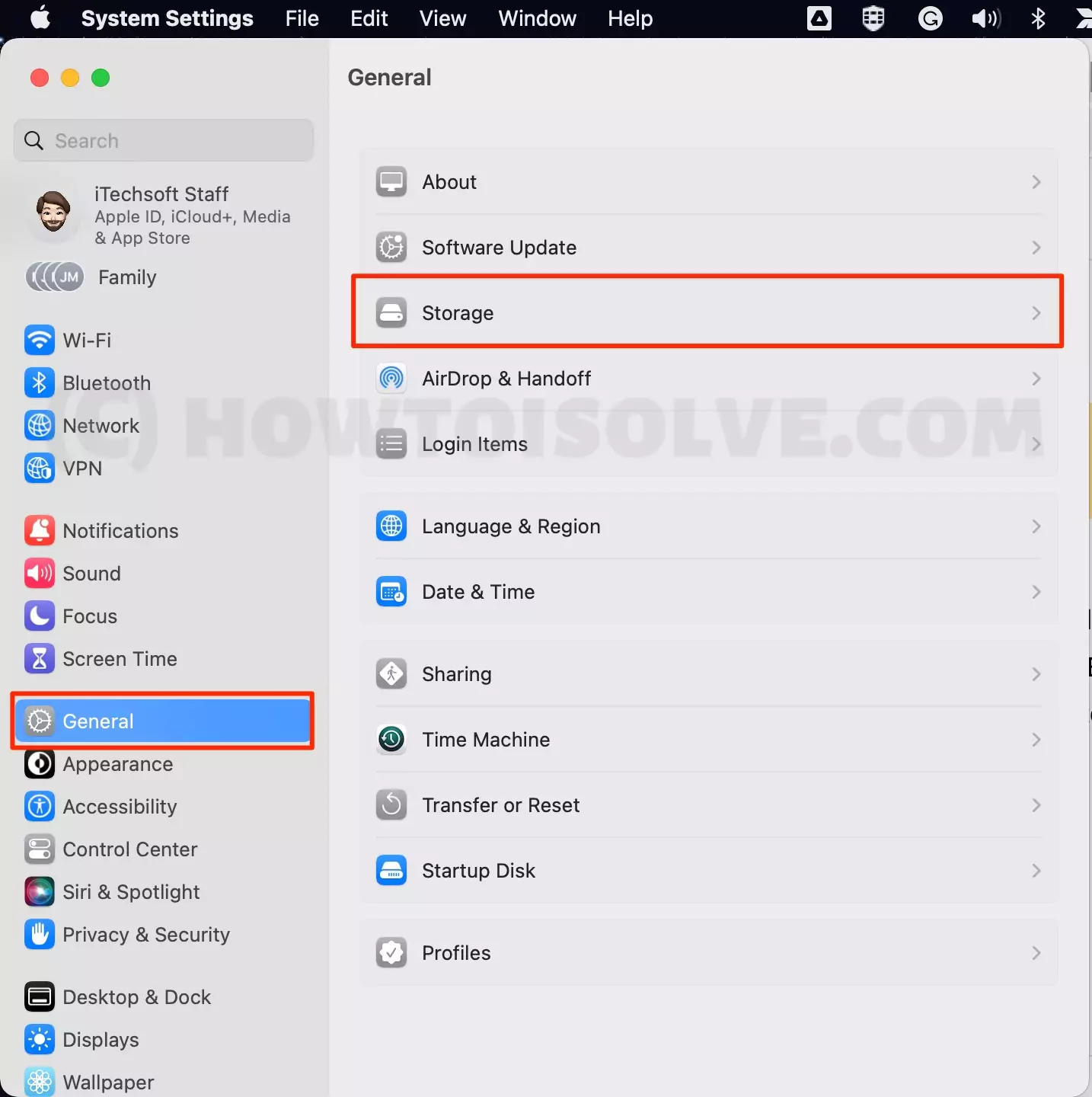
2→ Now, Open General settings > Find the Storage Option. and see the Available free space.
3→ Also, See the Recommendations like Store in iCloud, Optimize Storage, and Empty Trash Automatically. and Further Options and Storage management are divided into the Data types like Installed apps [Applications], Documents, and like,

- iCloud Drive
- iOS Files
- Messages
- Music
- Music Creation
- Photos
- Podcasts
- Trash
- macOS
- System Data
4→ Click on the (i) Button next to Options and see the Option for uninstalling the app or Deleting the app or Data within the Storage settings.

5→ In the Same delete, iOS Backup file from Mac. Click on (i) Button next to iOS Backup.

The steps are compatible with Apple’s Silicon M1-series, M1 Pro (MacBook Pro), M1 Max (MacBook Pro & Mac Studio), M1 ultra (Mac Studio), M2 chip of 2022 (MacBook Pro & MacBook Air) Or Intel chip Mac computer updated with latest macOS.
6→ Click on (i) button next to the documents under the Storage Option.

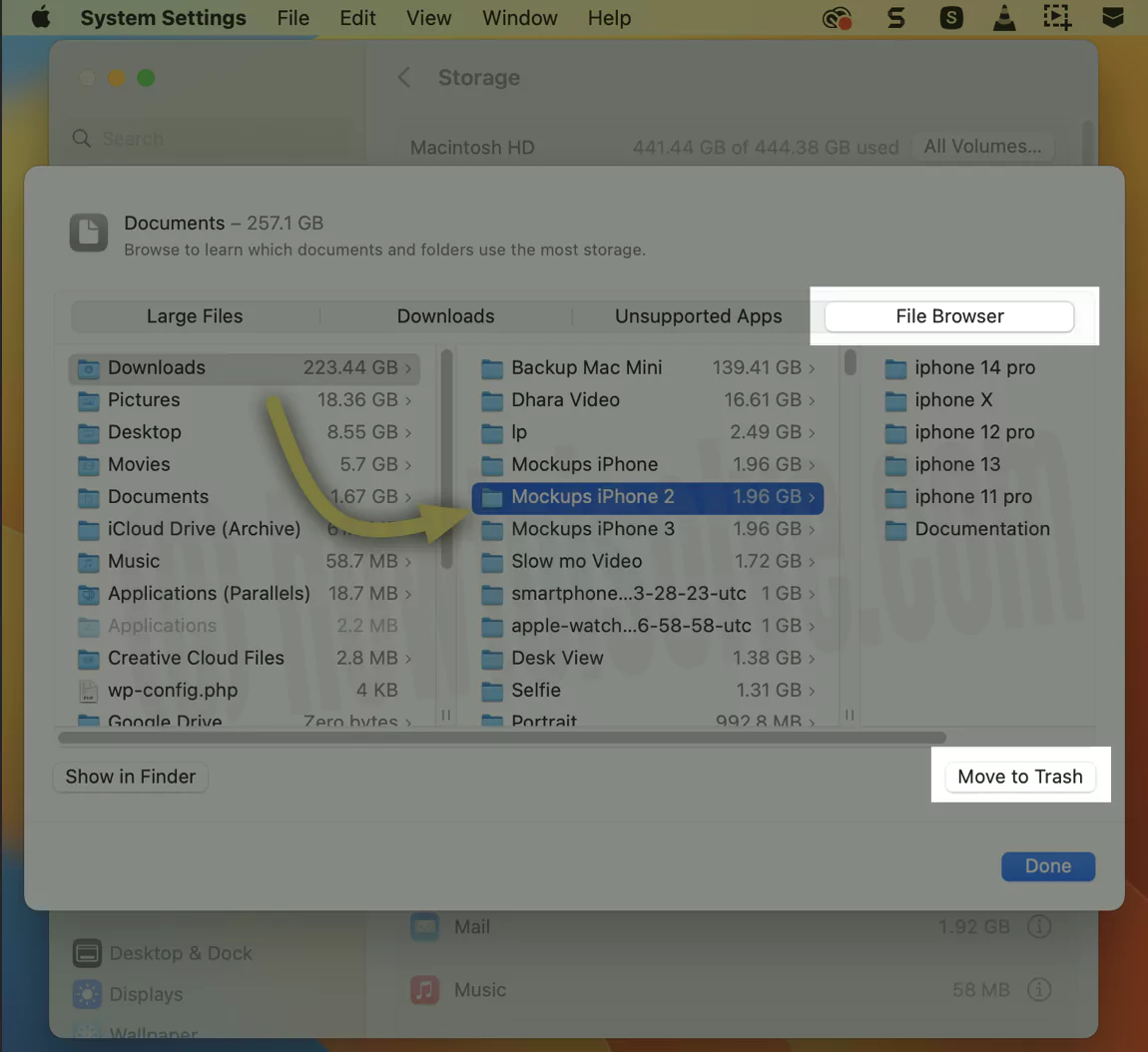
7→ Find and Filter large documents from the “Large Files, Downloads Unsupported Apps, and File Browser“.

To Quickly Delete large Downloads from Mac,

To quickly find and Uninstall/Delete Unsupported apps on Mac,

Find large Files from the File Browser on Mac, and delete them.
Note: If you don’t go with the Manual process, Try a one-click solution to free up space on your Mac.
Repeat the same steps if you are getting an error while updating macOS: Your disk does not have enough free space updating requires 14.51 GB of disk space.
On macOS Monterey: Free Up Storage on Mac
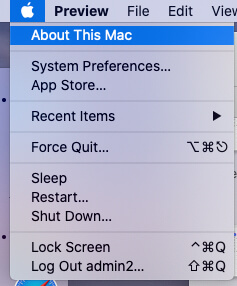
- Go to the Apple logo () from the top Mac menu and click on About this Mac.
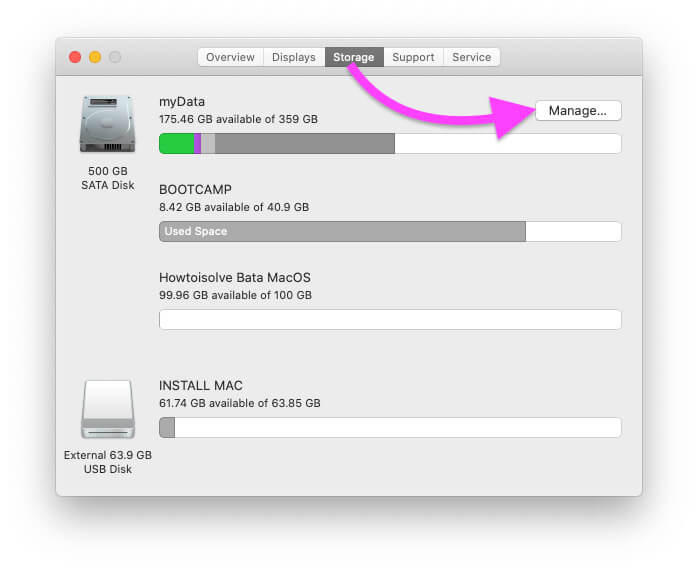

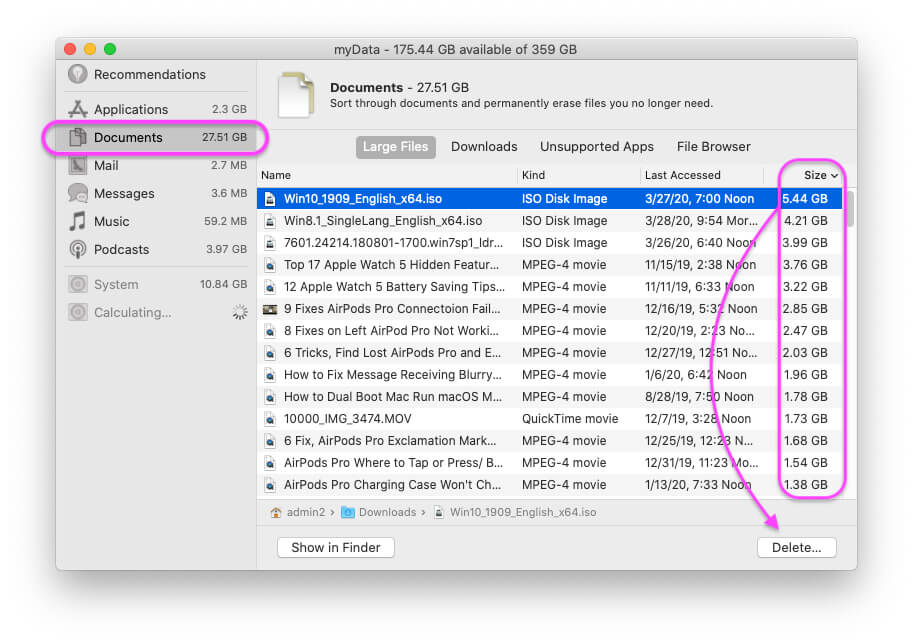
Select the Unused file and Click on the Delete option to remove it from your computer completely.
More you will manage Applications, Mail, Messages, Music, and podcasts.
Clear Purgeable Space on MacBook
Purgeable Space is system files and folders that are unused and Hard to clear. Sometimes, Cleaning Purgeable storage using third-party software makes our Mac system buggy and slow. But in most cases, Purgeable space gives free space and Improves Performance as well. So the ideal solution for cleaning Purgeable space on Mac is to reinstall macOS on your MacBook or Mac running any MacOS. Reinstallation will clean up your Mac first, and then you can install the latest MacOS version on your Mac from the internet.
- You can backup your Mac on an External Drive using Time Machine or copy the important files and folders to an external USB drive or External Hard Disk.
- Clean up Mac and reinstall macOS.
- Go to the Apple logo () From the top mac menu > Click on Restart option.
- Next, During the next startup of your Mac, On M1 Mac, Press and Hold on the Power button until you see the Startup volume and Options on Screen, click on Options… on Intel Mac, Press, and Hold Command + R key from the Keyboard. until you see the MacOS Utility window on the screen.

- Now, Click on the Disk Utility option and Open it. From Disk Utility, select the Drive from Sidebar and Erase your Mac. Once your Erase close Disk Utility window.

And you will move to the macOS utility window, Click on Reinstall MacOS option.

1st: Try to Remove Large Files
You can easily remove large files with the filter option available in finder. You can easily find and Delete/ Move to make more space in your Mac.
- Open Finder from spotlight search and Open it.



the Top Menu > File > Find > Kind > Other > Type (File Size).

Now filter file from finder by entering size and more. remove/ Trash unused files and folders or Copy to other external drive.
2nd: Disk inventory tools
Disk inventory tools are a great option for automatically find large files that will never use in the future. Like web browsing cookies, Third-party apps, and more.
- Tools here And Compatible with OS X 10.3 or later.
3rd: Remove old iOS device backup
iCloud backup is also the best option for those users who have more enough space to take the whole backup, Because iOS device backup takes more space in your iCloud account for Photos, Videos, Contacts, and Calendars, and Settings. by removing iTunes OLD iOS backups you can release numbers of GBs space from your Mac’s hard drive space. if possible, only keep the last backup in place two or three.
Using Finder on the Latest macOS: We can delete an Old backup completely from a Mac while connecting the iOS device to a Mac and without connecting the device to a Mac. If you are confused and hard to find, then here’s the complete tutorial: How to Delete an iPhone Backup from a Mac.
For iTunes: Launch iTunes, From the Top Menu iTunes > Preferences > Devices.

4th, remove unused Apps
Check your Application folder and remove unwanted apps by right-clicking on them and clicking on “Move to Trash.”
If you have any alternative tricks to free up space on the latest macOS.