Need to create a bootable USB for Windows or Linux? Ventoy makes the process faster and easier by letting you copy multiple ISO files to a single USB drive without formatting it every time. Basically, you can drag and drop ISOs (Windows, Linux, etc.) to your USB without a GUI tool.
In this guide, you’ll learn how to use Ventoy to create a bootable USB on Windows 11 and Windows 10 in 2026.
Step 1: Download Ventoy
1. Launch the web browser and visit the official Ventoy website.
2. Select and download the installation package of the most recent version of Ventoy for Windows.
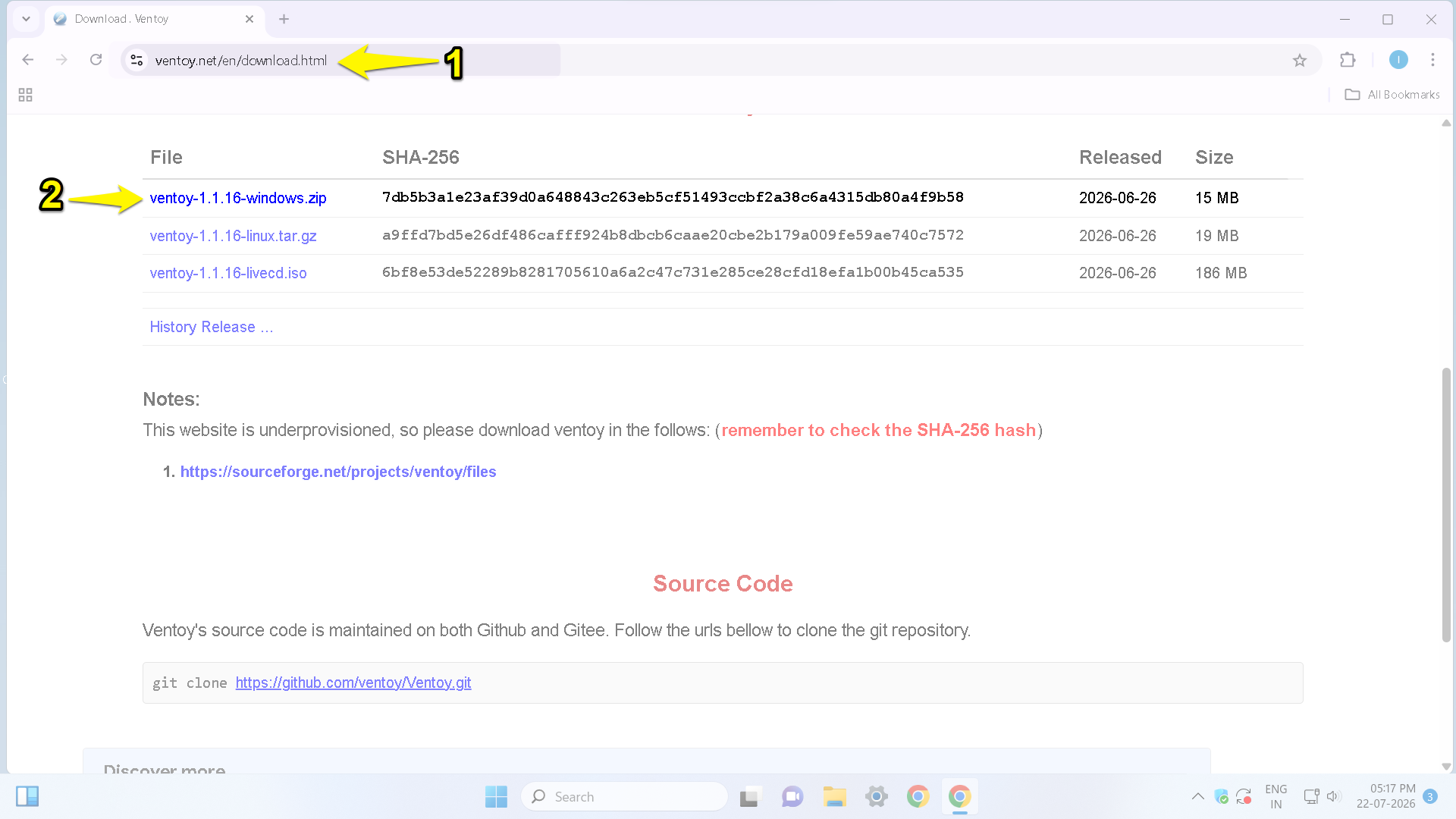
3. Then, decompress the downloaded zip file to a specific folder on your computer.
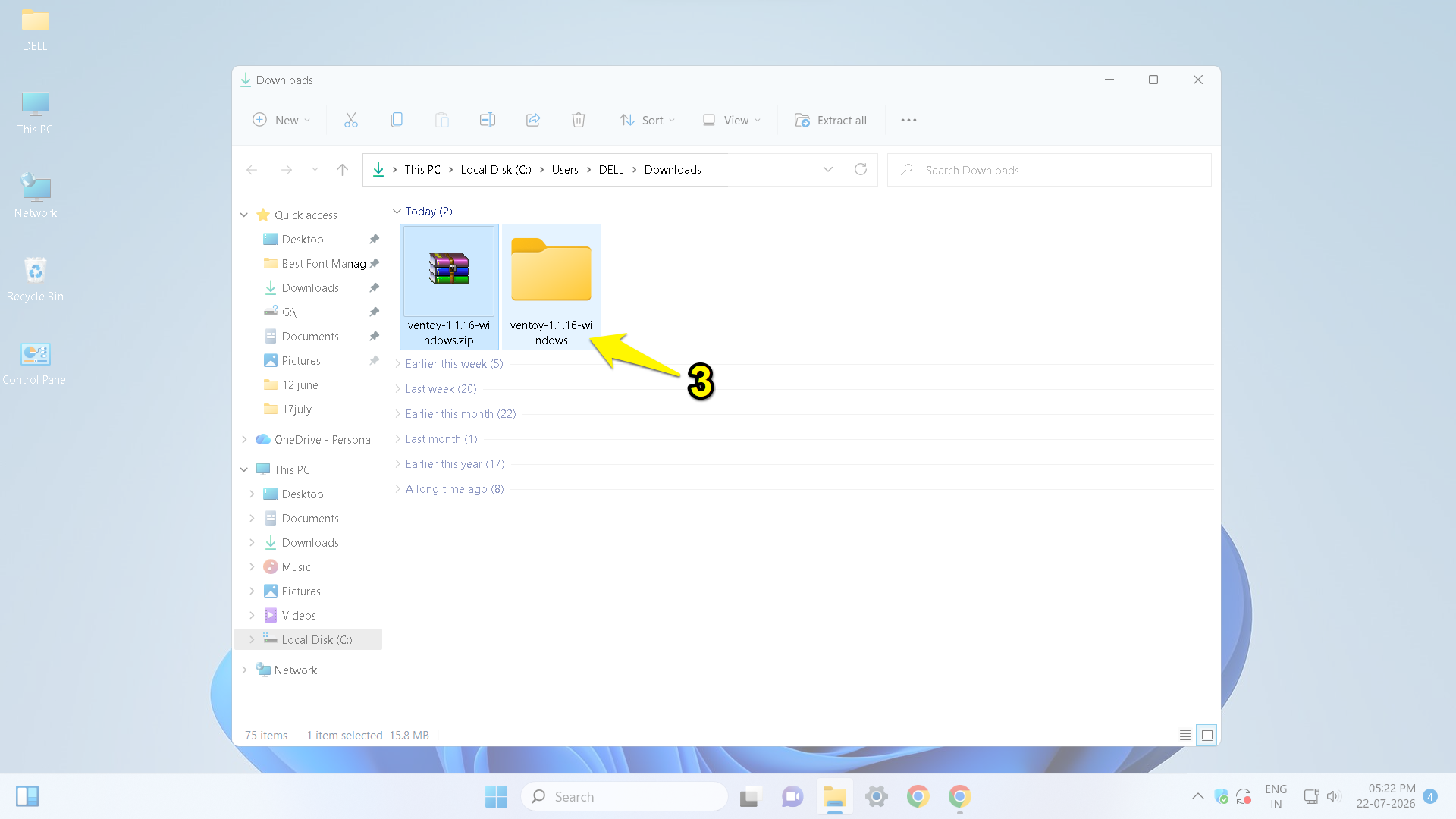
Step 2: Connect USB drive
4. Insert your USB flash drive into your Windows PC.
Important note: Installing Ventoy may erase everything on your USB flash drive. So, take a backup of your important files before proceeding.
Step 3: Launch Ventoy
5. Launch the file explorer and open the extracted Ventoy folder.
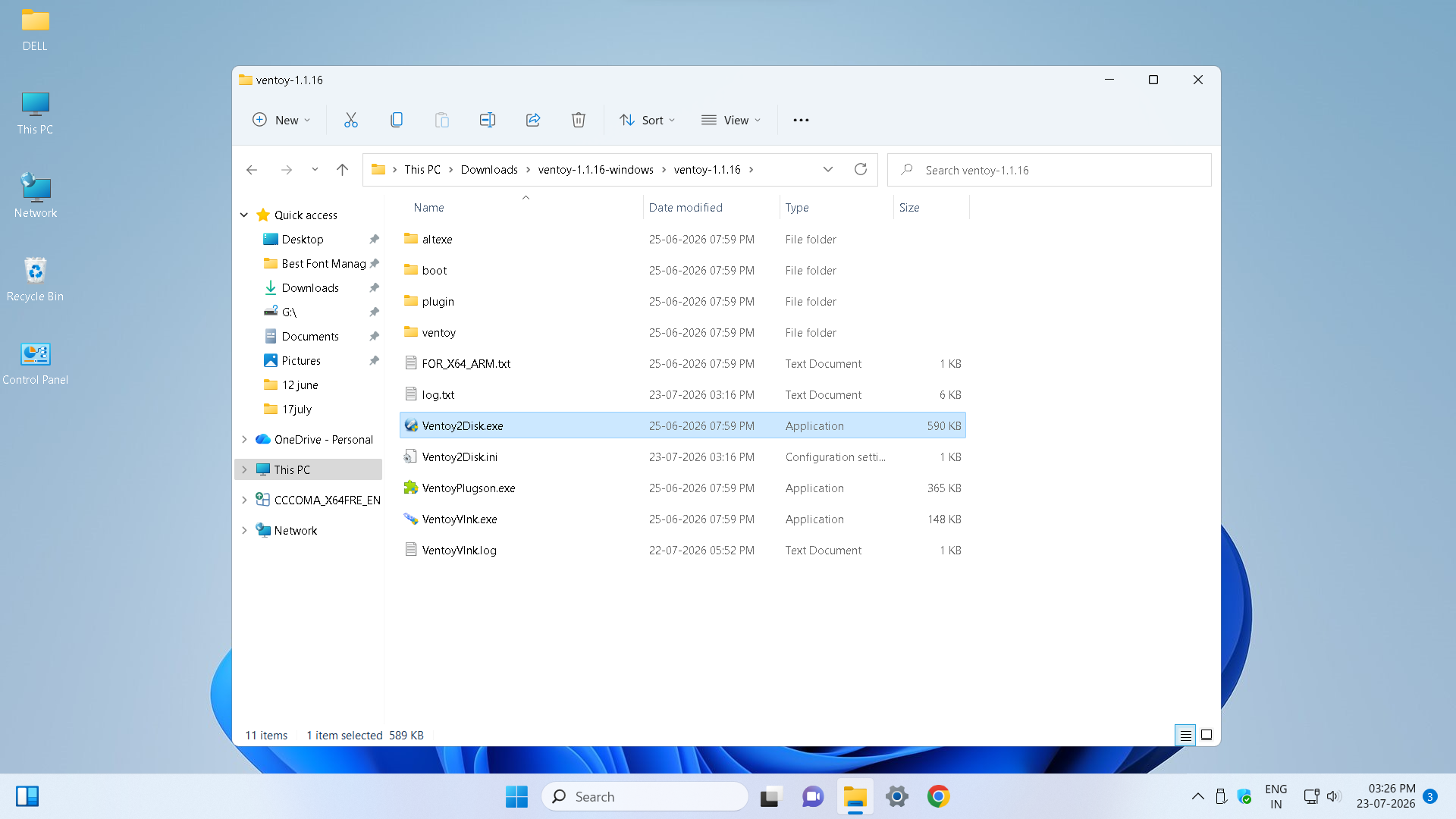
6. Run the Ventoy executable file as administrator.
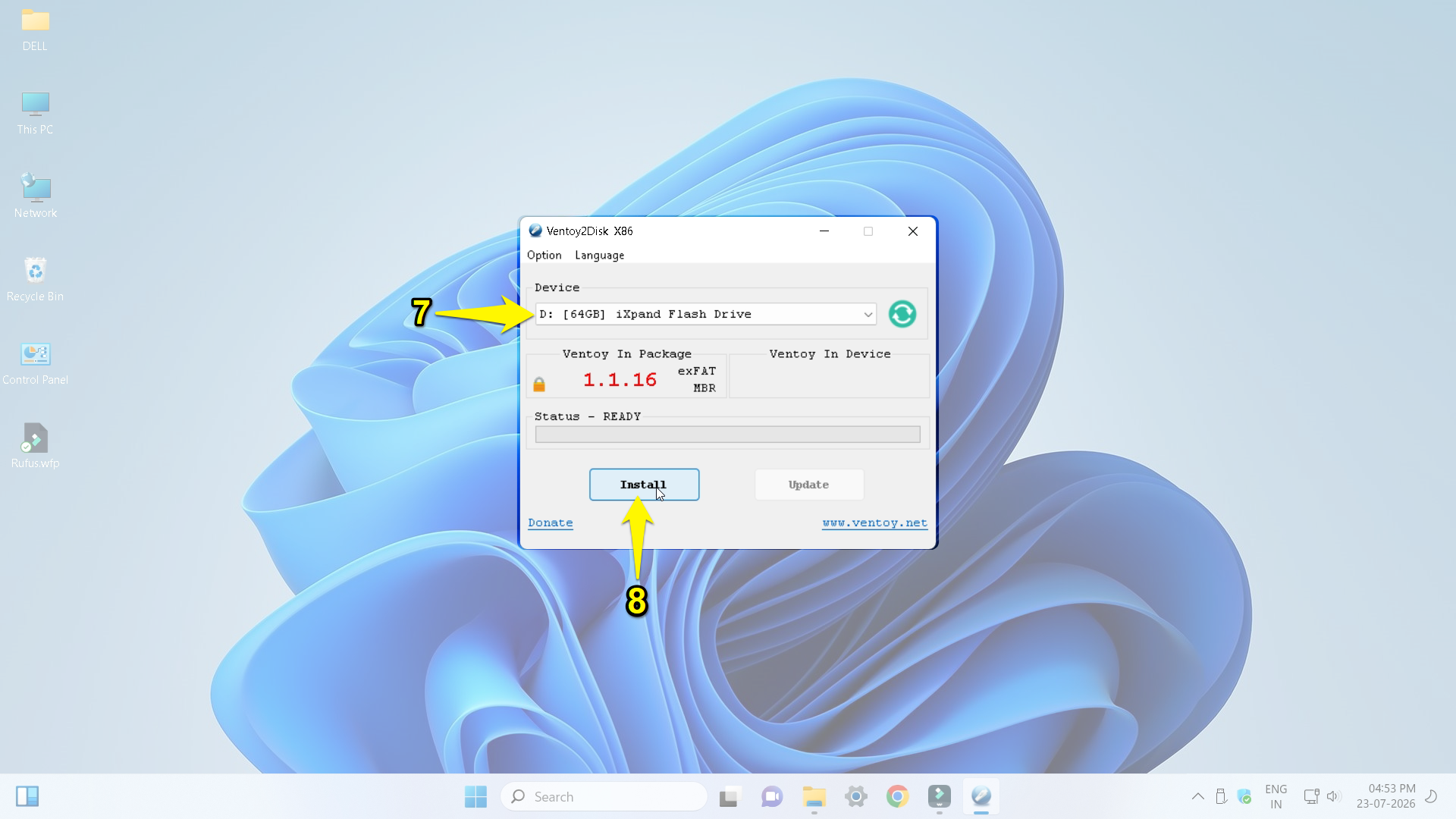
7. Ventoy automatically detects the USB flash drive.
Now, check and verify that the correct USB drive is selected.
Step 4: Install Ventoy
8. The installation screen will appear on your PC screen. Click the install button.
8. A warning screen may appear that says your data will be deleted. Click the Yes button and confirm.
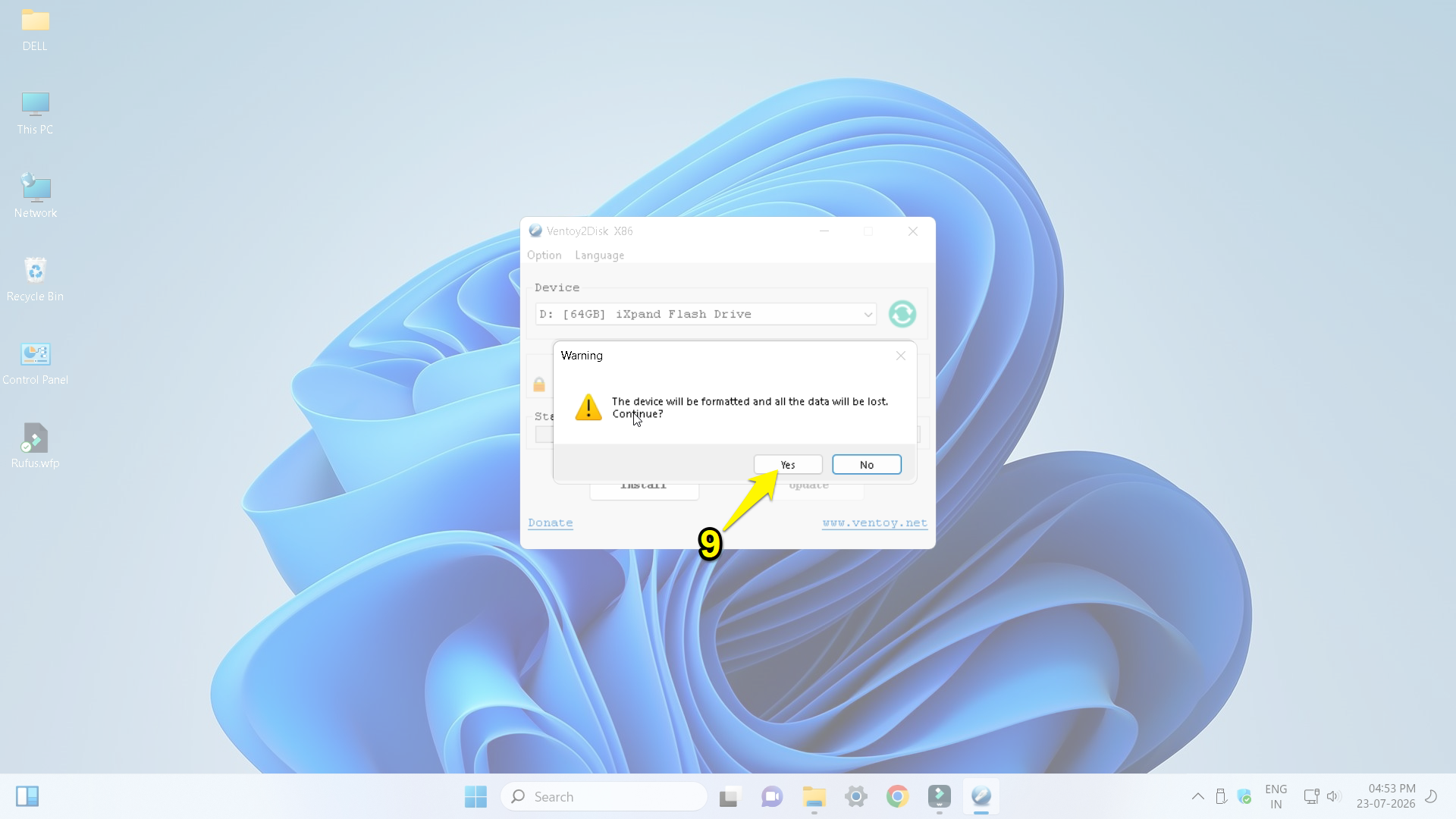
Note: Please note that the Ventoy application supports both 32-bit and 64-bit Windows PCs with Intel/AMD processors.
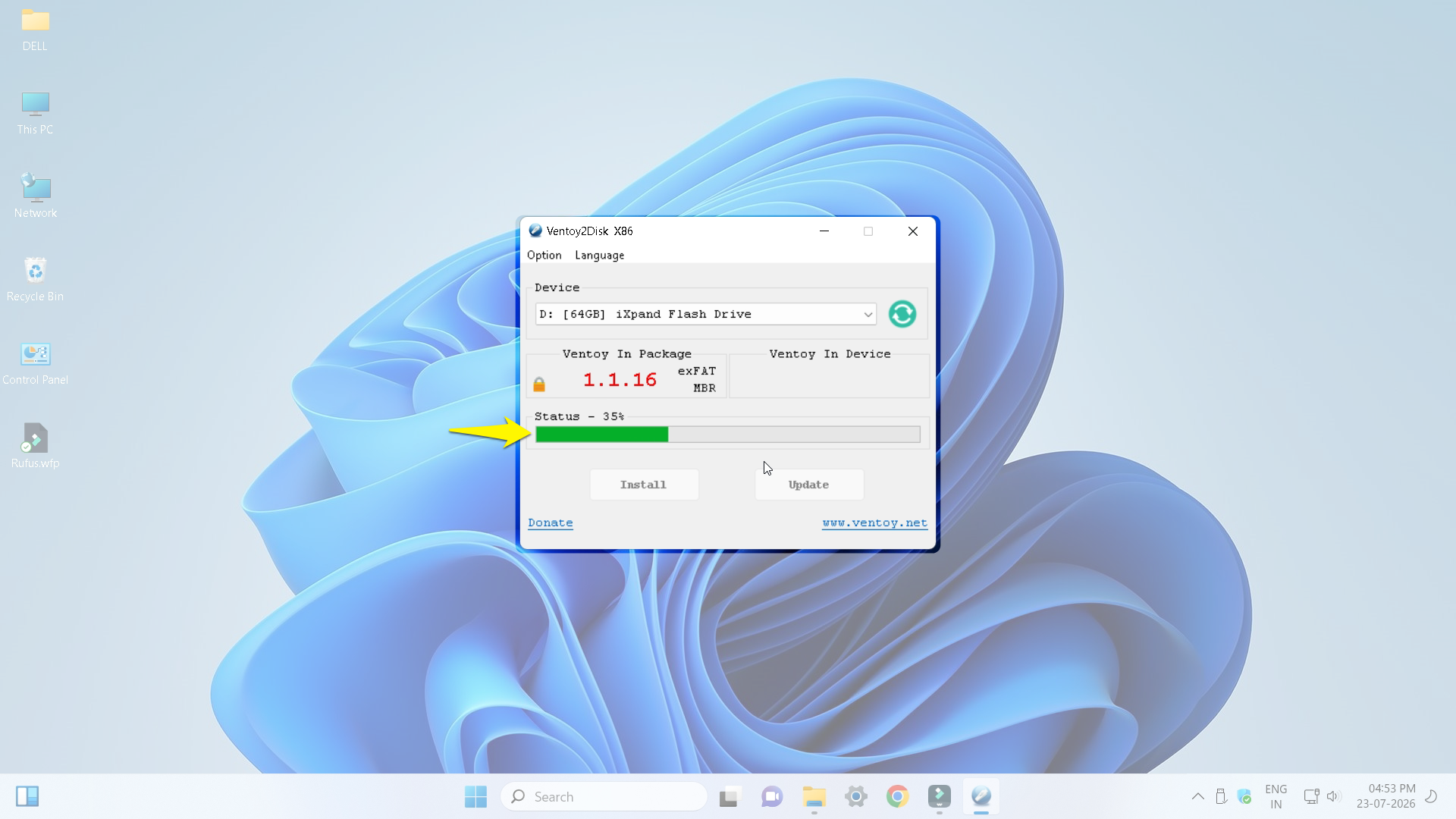
The installation may take some time, so wait for the process to finish.
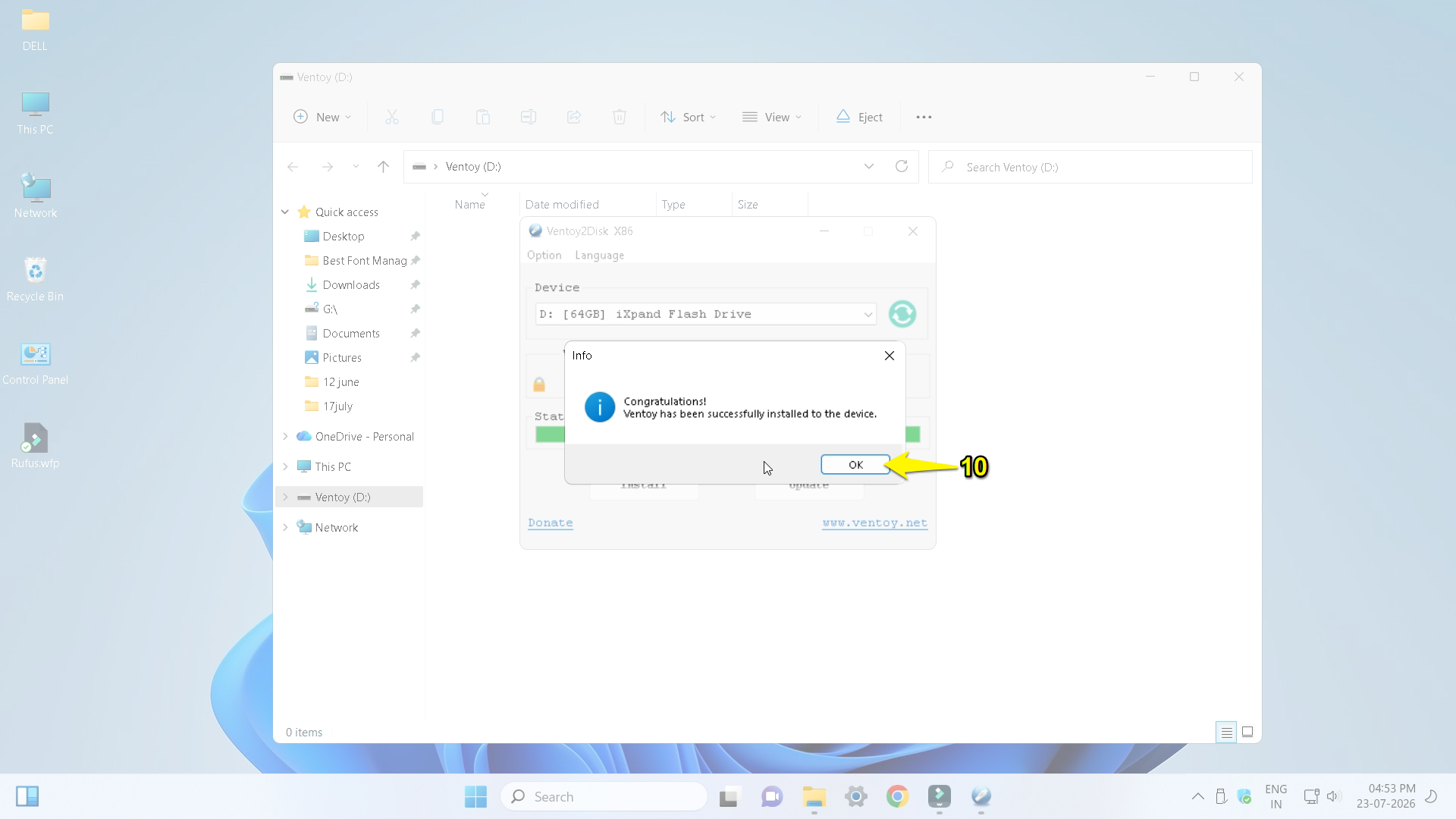
After that, you may see a message prompt on your computer screen that says “Ventoy has been successfully installed to the device.” Click the ok button.
Step 5: Copy ISO Files to the USB
9. Launch the file explorer on your Windows PC and open the newly created Ventoy USB drive.
Now, drag and drop the ISO files onto the USB drive.
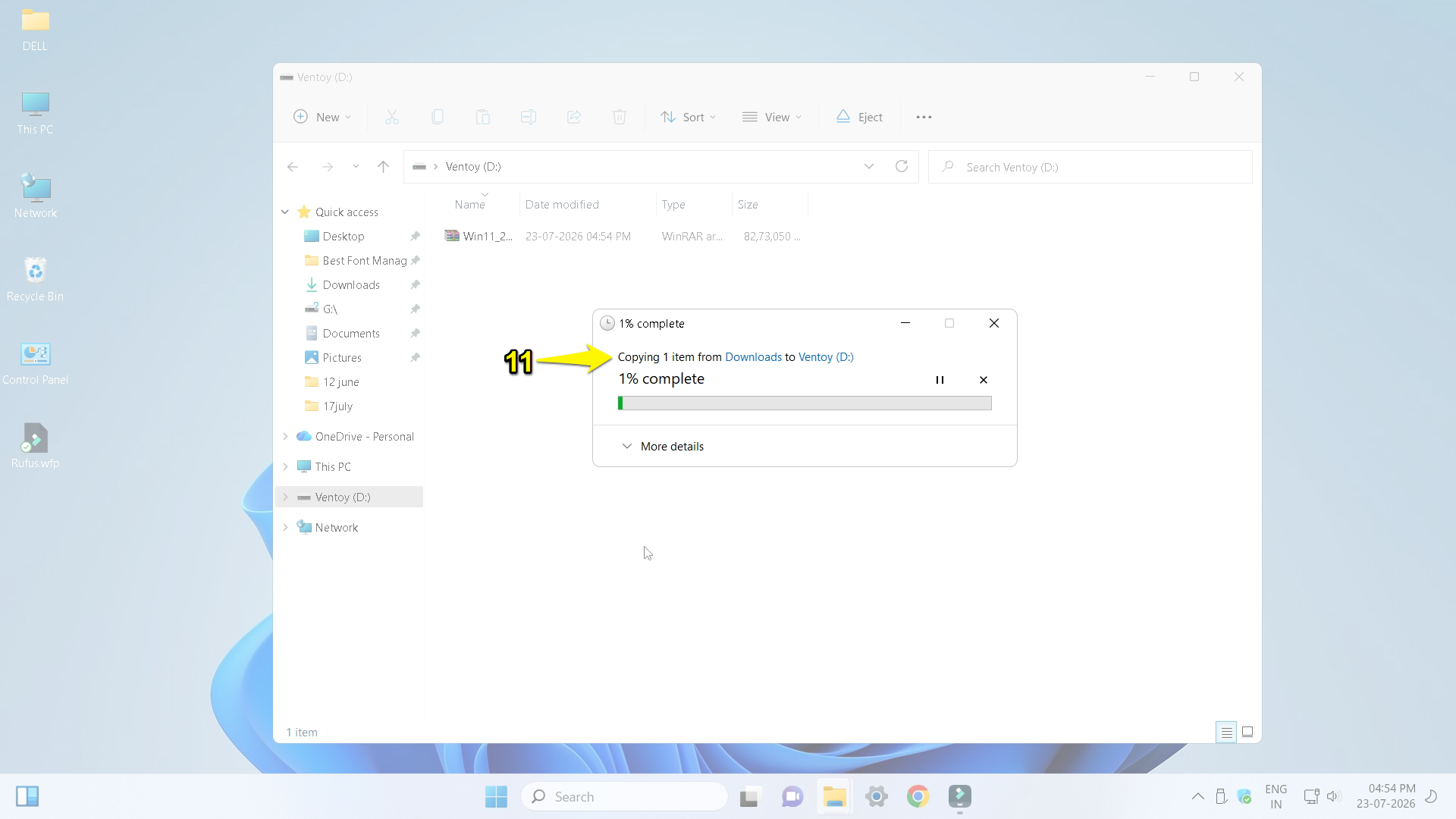
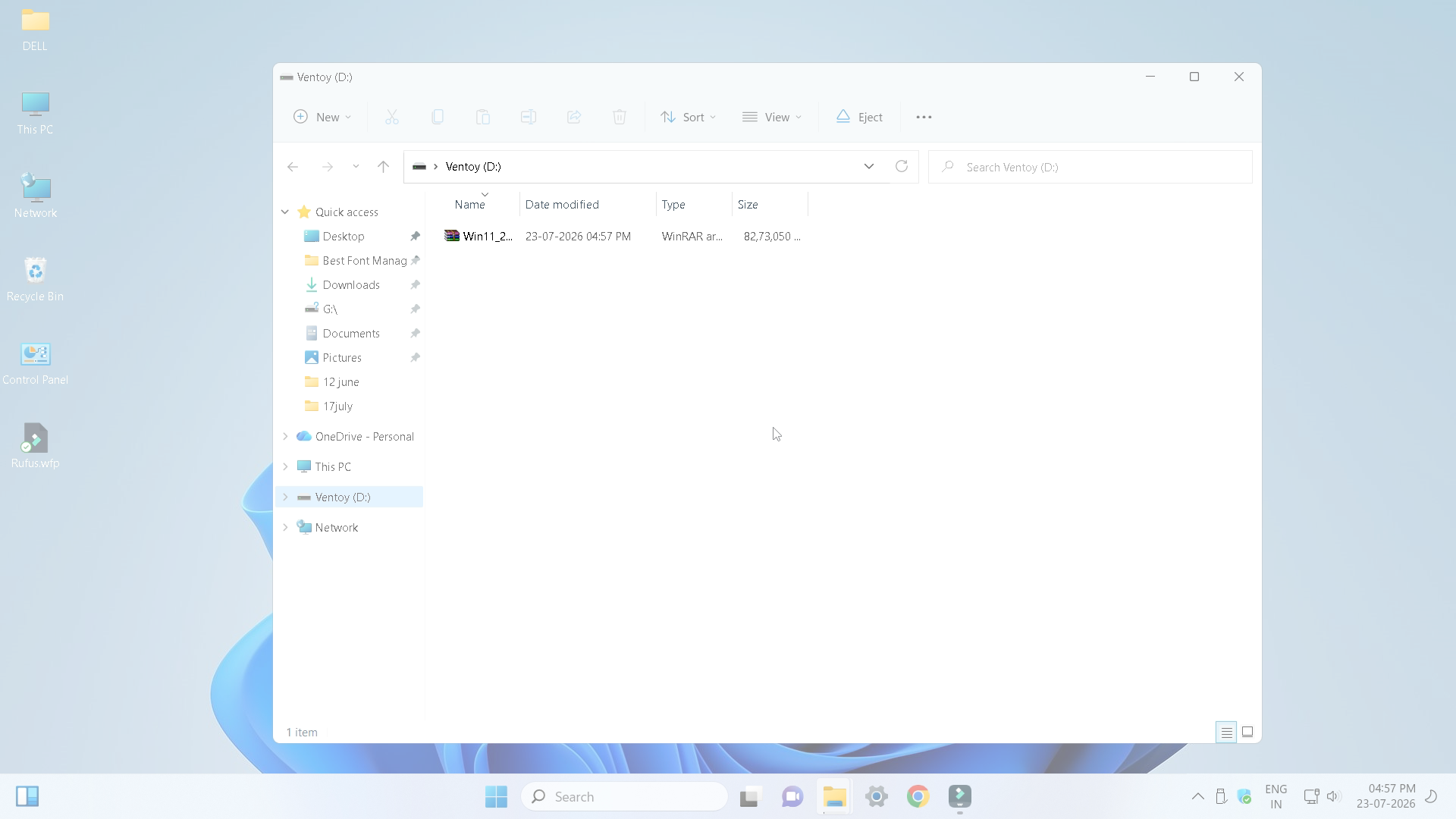
Please wait for the file copying process to complete. You can also copy multiple ISO files to the same USB drive without using any additional software. Finally, safely eject the USB drive from your PC.
Step 6: Boot from Ventoy USB
If you want to create a Windows setup on any PC, follow the given steps.
- Insert the Ventoy USB and restart the computer.
- Open the boot menu by pressing the F12, F11, Esc, or F9 key (depending on the manufacturer).
- Select the USB drive.
- All available ISO files will appear on your PC screen.
- Choose the Windows ISO and press the Enter key.
By following these steps, the Windows setup screen will appear. That means it allows you to install Windows normally.
How to Add Another ISO Later
For example, if you want to add another ISO like Linux to an existing Ventoy USB:
- Launch the browser and visit the official Ubuntu website.
- Download the Ubuntu desktop ISO file.
- Connect your USB to your PC.
- Copy the Ubuntu ISO file to the Ventoy USB drive.
- Wait for the process to finish.
- Safely eject the USB drive.
The same process works for other operating systems, such as Windows 10, Linux Mint, Fedora, Zorin OS, Debian, etc.
How to Update Ventoy
If the new version or update is released,
- Check Ventoy’s official website and download it.
- Open the Ventoy2Disk.exe file.
- Select your USB drive.
- Then, click the update button.
The existing ISO files remain on the USB drive.
Advantages of Ventoy
- Easy to use
- Supports multiple operating systems
- Works on most modern computers
- Supports large ISO files
- Compatible with GPT and MBR partition styles.
- Faster workflow than traditional USB tools.
Troubleshooting
ISO Doesn’t Appear
- Check the file extension format (should be .iso)
- Safely eject and reconnect the USB.
USB doesn’t boot
- Try another USB port.
- Check & verify USB boot is enabled in BIOS/UEFI.
- Disable fast boot if required.
Frequently Asked Questions
Q.1 Is Ventoy free?
Yes, Ventoy is a free and open-source utility.
Q.2 Does Ventoy work with Windows 11?
Yes, Ventoy supports Windows 11 and the latest releases in 2026.
Q.3 Which size USB drive should I use?
You can use a minimum 16 GB USB drive for a single Windows ISO. For multiple ISOs, a 32 GB or 64 GB drive is recommended.
Q.4 Does Ventoy erase my USB every time?
No. The USB will erase only during the initial Ventoy installation. After that, you can simply copy and remove ISO files as needed.
Q.5 Can I store multiple Windows ISOs on a single USB?
Yes. You can store multiple ISOs on a single USB drive.
Conclusion
Ventoy is a flexible tool for creating a bootable USB drive on Windows 11 and Windows 10. Unlike other traditional bootable USB tools, you don’t need to format your USB every time you want to use a different operating system. Simply copy ISO files to your Ventoy USB drive, and you can boot them whenever you need. If you frequently work with multiple operating systems, Ventoy saves time and makes managing bootable media much easier.