Don’t worry if you forgot the admin username mac that you are looking for to authorize changes on your Mac settings. Luckily you get your Mac login username in Three Different ways from logged-in Mac. No matter what app, system, smartphone, or device you use, the username is a key prospect to access and secure the system by creating a username and password.
Devices offer multiple user accounts to separate files. Forgetting usernames can be a nightmare as it bars access. This article will show you different ways to find your Mac username. MacBook users often need help finding their username and password, or locating an administrator username. This article will show you how to find your Mac username.
What do you do if you forget your Mac username? Complete Guide
Method 1: find out the username of your Mac using the Terminal app
Terminal App in your Mac is one of the most convenient apps to get anything installed and stored in your system, though you should know the Terminal Commands to operate the system. In this article, we’ll show you Terminal Command to fetch and list out all the usernames of your Mac system. So what is my username Mac Terminal? Let’s see how to find it.
1→ Use Spotlight search to open Terminal App, press Command + Space bar, and search Terminal App.
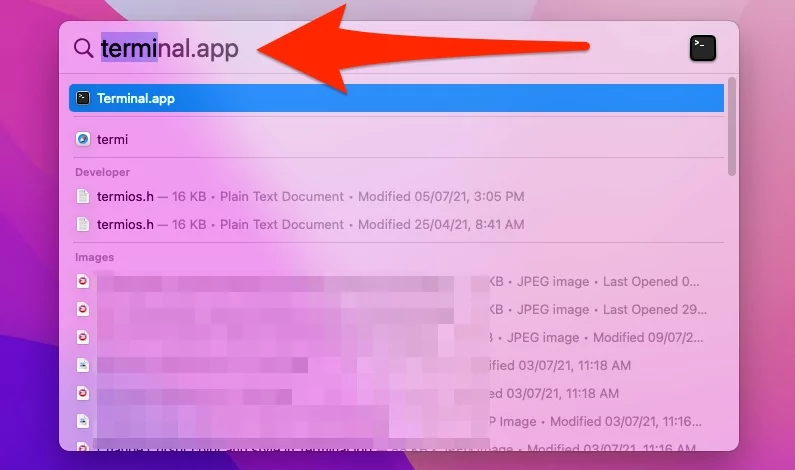
Please enter the command below and press the ‘return‘ key to execute it.
2→ Ls /Users Once the command is executed correctly;
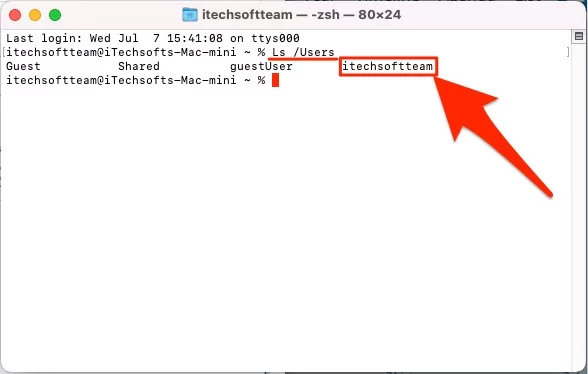
The Terminal application on a Mac computer can display a list of all the usernames associated with it.
That’s it.
Method 2: How to Check Mac Username using System Settings/Preferences?
Note: On MacOS Ventura, Mac can’t see the user Detail on Mac from System Preference settings.
Forgot your Mac admin username? The Mac gives full control to the admin to add new user accounts and guest accounts without any interruptions. We’ll use the same Users & Groups section to see the list of all the usernames. Here’s how to.
On MacOS Ventura
1→ Go to the Apple Logo from the top menu > System Settings.
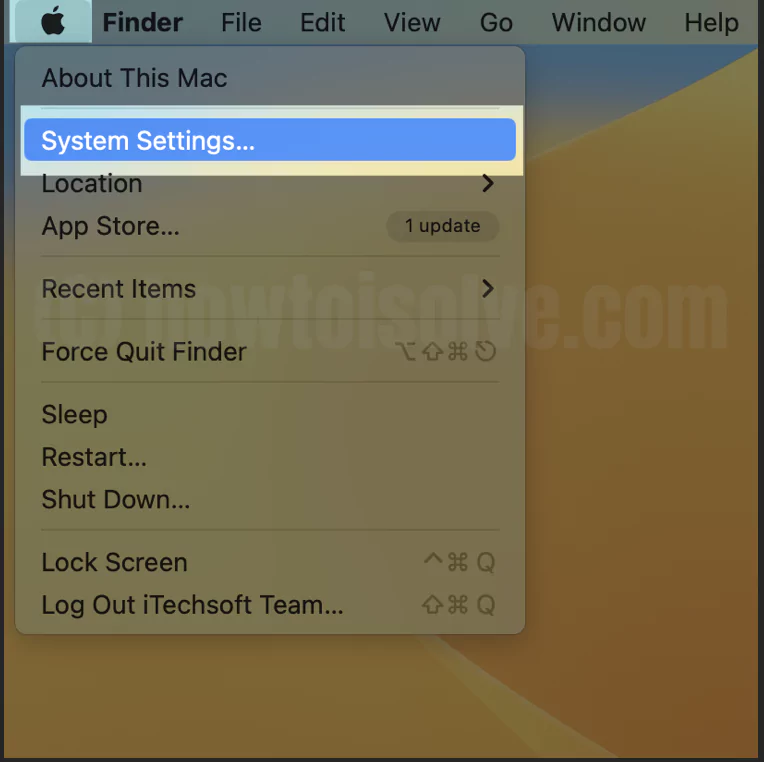
2→ Next, Click on the Users & Groups Option > Right-click on User name and Advanced Options…

3→To verify the details and unlock, please enter your Mac login password.
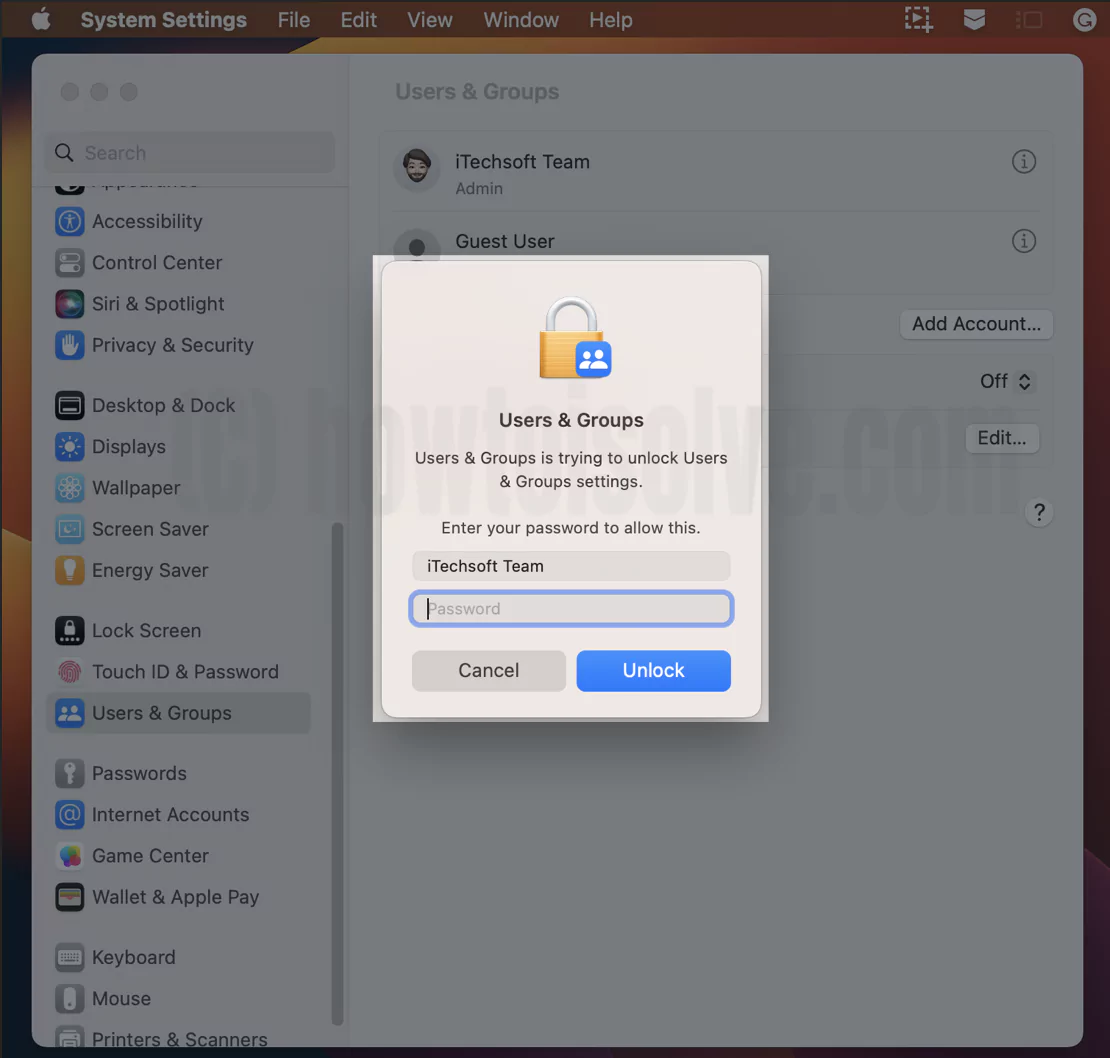
4→ See the User Name listed in Windows. Use it for your Mac when the mac asks for verification with username and password or for Network connectivity.

Follow the below steps for old user name,,,
On MacOS Monterey & Earlier
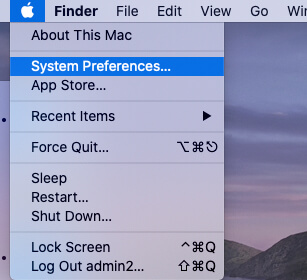
1→ Go to Apple Logo from the top Mac menu > Go to System Preferences.
2→ Select Users & Groups > and unlock the window, By Click on Lock icon – Enter Mac login password.
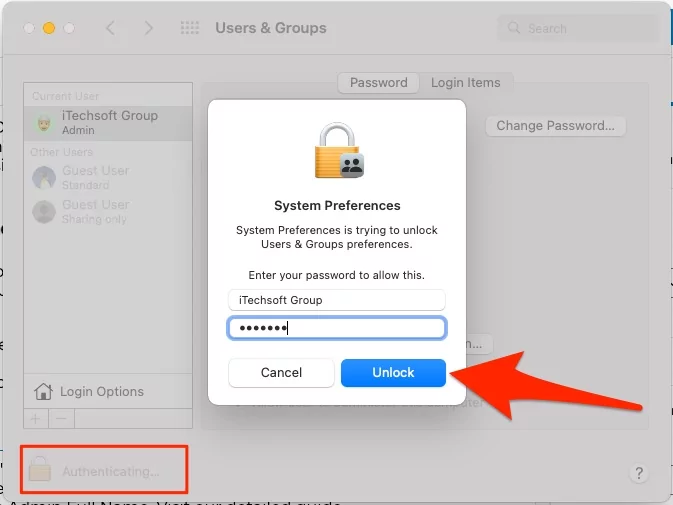
3→ In the sidebar, you’ll see the list of Mac usernames. Right click on Mac user, and see “Advanced Options“.

4→ See Account name [Username].
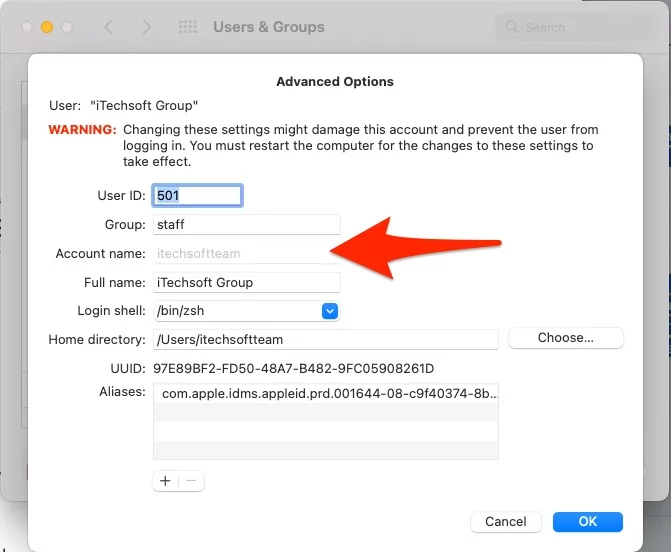
That’s your Mac username.
Method 3: Find your Mac Username using the Top Menu bar

You can also know the Mac username from the Apple menu. Despite the fact that you’re running any app, the Apple menu always shows up in the top menu bar, and when you click the Apple icon, the last option appears as Log Out [username]. This is another and easiest way to check the Mac username if you’ve access to the system.
Also useful: Forgot Mac Login Password.
FAQ:-
Unfortunately, the Mac username can’t be changed. Once you’ve created a username, it deeply gets indulged with the entire Mac system, and this is the primary reason why username can’t be renamed or changed on macOS. Apparently, Mac allows you to change the Admin Full Name. Visit our detailed guide on how to change the admin name on Mac.
Apple doesn’t give any provision to change the Mac, MacBook username, so if you’re attempting and failing every time to change the Mac username, don’t waste your precious time; instead, you can change the Account Name.
By reset, you want to delete all the settings associated with the Mac username, and I presume you’re not worried even if the user account gets deleted. So, if you’re looking to reset the admin username on Mac, then our best guess is to create an alternate user account and delete the old one.
To add a new user account on Mac, click on Apple Logo from top Mac menu > System Preferences > Users & Groups > click the Lock button and enter admin password > click Plus button > enter the required details to create a new user account. You must be the admin of the Mac to make these changes.
To delete the user account on Mac, follow the same steps, and click on the user account and click on the minus(-) to delete it.
If you’re an admin of Mac, then create a new Admin Account and delete the old one; this is the best alternative to change the administrator on your Mac. You can refer to the above section to add a new user account and delete the old one.