


Many iPhone users have reported overheating issues after a recent iOS update. This can lead to battery drain, performance slowdowns, or even system warnings. In this article, we’ll explore common causes behind the heating problem and offer practical tips to cool down your device and restore normal operation.
Fix Your iPhone Overheating Problem & Cool It Down
Why is my iPhone overheating? Real Facts!
The iPhone may feel warm during charging or prolonged app use, which is normal. However, if it becomes excessively hot, it’s a concern that needs attention. Overheating can be due to defective hardware or software issues. We can address software bugs, but hardware problems are beyond our control.
Remove the full-body protective cover of iPhone to allow cold air to circulate around the metal body, which helps maintain a comfortable temperature. Otherwise, during long video calls on FaceTime, Skype, Messenger, or WhatsApp, your iPhone may overheat.
If your iPhone gets hot while charging, use the official charging cable and adapter. Using an iPad charging kit can cause overheating, as I’ve experienced personally.
What should you do when your iPhone is getting hot?
Tip 1: Close all the apps when the iPhone gets Warm
Primarily lighten the burden on the iPhone’s processor. To do so, you must close all applications running in the background. Get all Running apps on the multitasking screen.
- Swipe up a finger from the bottom edge to the center of the screen until you find all apps render on the screen.
- To close the specific app, swipe up your finger on the app preview.

Disable Background App Refresh
- Open the Settings app on your iPhone.
- Tap on General.
- Now, Tap on Background App Refresh. See the list of apps that we can disable from running in the Background or turn off all at once.

Turn Off App Notifications
Disable all push notifications for Apps like Mail, Social app, Facebook, Instagram, Tumblr, and many others. That app is pushing new updates frequently on the lock screen or the Home screen notification center.
- Open the Settings app.
- Scroll to Notifications.
- Scroll down to find all the Apps in the list. Please turn off Notifications for the specific app.

Tip 2: Remove battery-consuming apps
To get detailed information about the battery usage of applications, you have to follow the steps,
- Go to “Settings”
- Select “Battery”.
- Tap “Battery Usage”.

You can get complete details of culprits who are absorbing much of the battery, so iPhone is getting hot while using.
Now, after analyzing, you must delete those apps and, if needed then reinstall them. First, go to the home screen and then press and hold on to that app to remove and tap on the Red icon to uninstall the app.
Complete guide: what’s an app using Battery on iPhone.
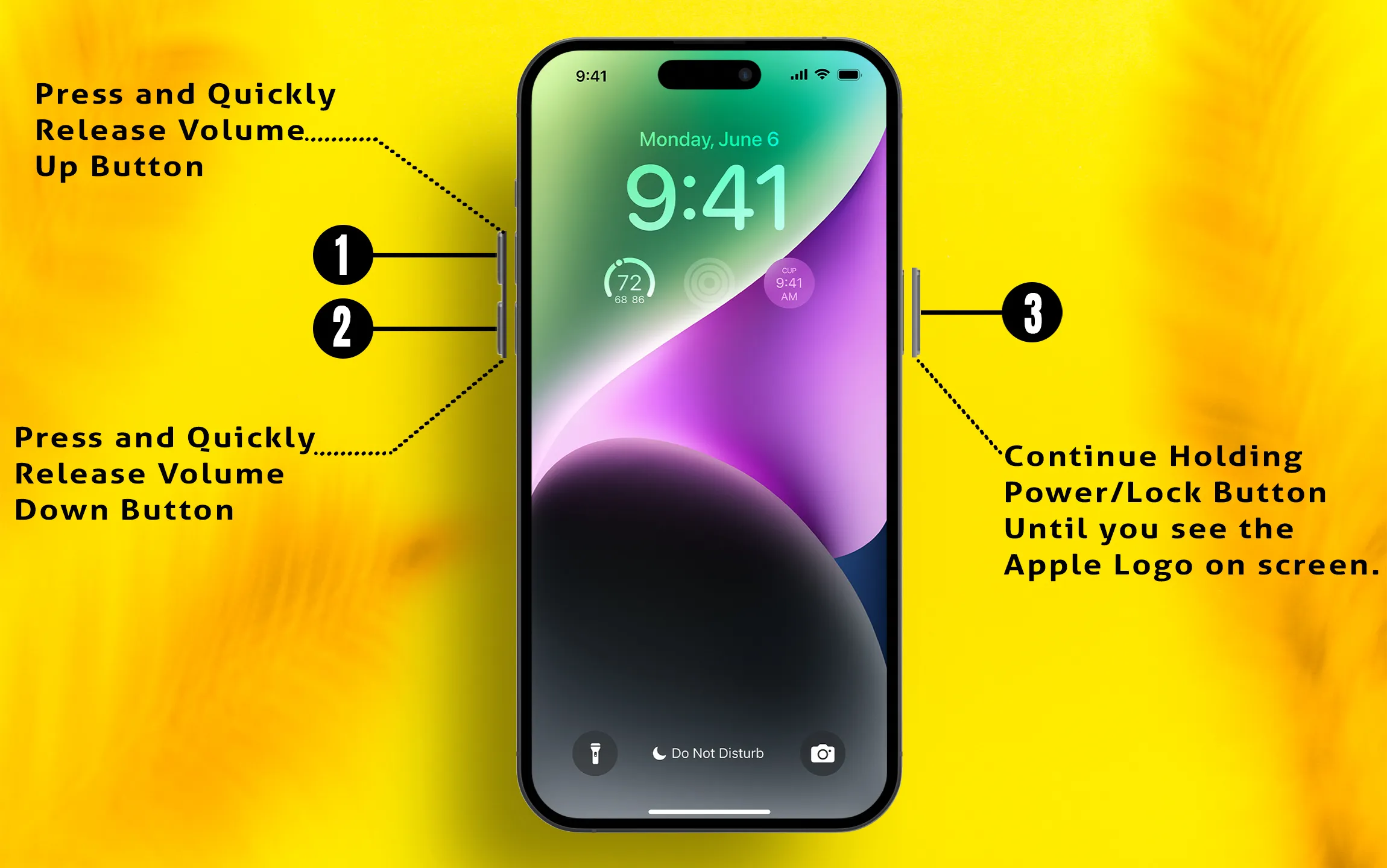
Tip 3: Hard Reboot Your iPhone
iPhone getting hot while charging? Then try this trick to resolve the issue. Restarting the iPhone can resolve minor bugs and issues with misbehaving apps.
- Press and release the Volume Up button.
- Press and release the Volume Down button.
- Next, Press and hold the Power button until the Apple logo appears on the screen. Turn it on using the Side button only.
Tip 4: Update the Apps And iOS
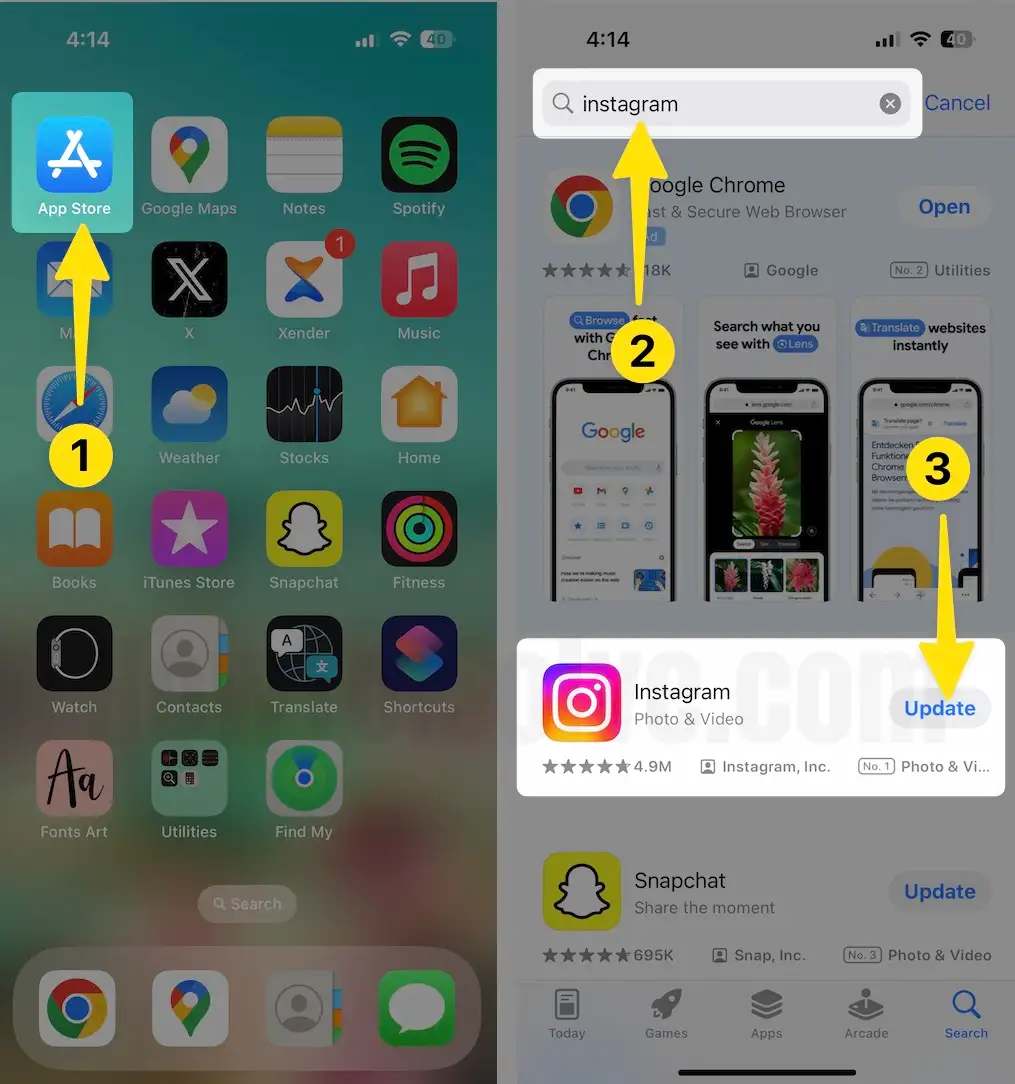
iPhone hot near camera or Photo click, Some Buggy iOS creating issues like this. There are few cases when the application is not compatible with iOS and vice versa, and it results in several faulty responses. Therefore we always tell you to keep your iPhone up to date as well as the apps.
To update apps, open the App Store App, find an app in the search bar, tap the Update section, and update the applications.
How to update iPhone
- Open “Settings” and tap “General”.
- Select “Software Update”.
Tip 5: Reset All Settings on iPhone
Resetting all settings on your iPhone can help if it’s overheating or the battery is draining quickly. This will restore all settings to their default values and may fix issues like overheating while gaming or watching YouTube.
Steps to Reset All Settings
- Launch the “Settings” app
- Tap “General”
- Scroll down all the way to “Transfer or Reset iPhone”
- Tap “Reset.”
- Lastly, tap on “Reset All Settings.”
- For security reasons, you will be asked to enter the iPhone Passcode.
- Tap Confirm Reset All Settings.
After that, the iPhone will reboot.
Tip 6: Contact Apple Support
The iPhone is overheating; contact Apple’s technical team immediately to prevent damage.






