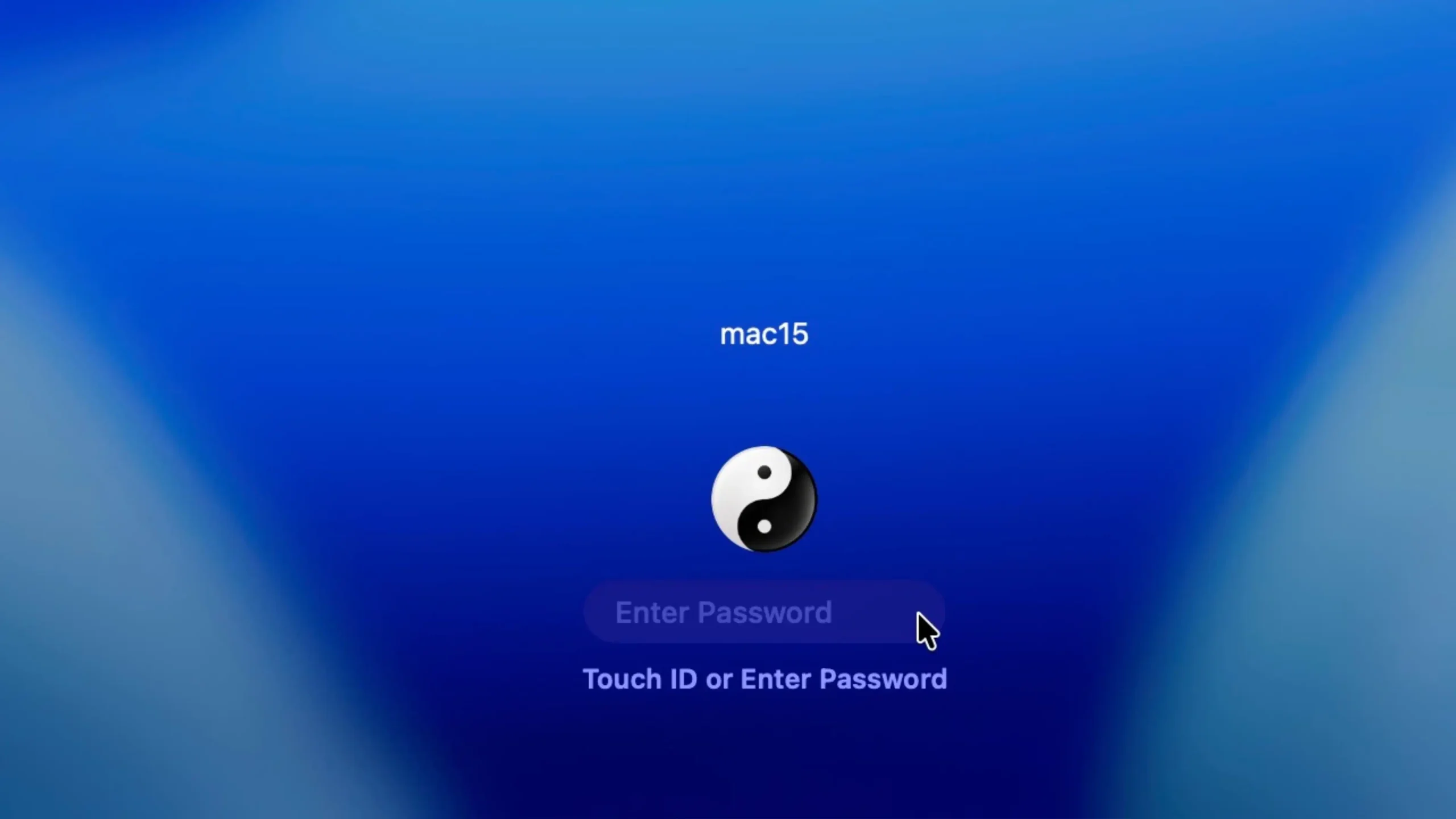
After upgrading to macOS 26 on your Mac Studio M2 Max (and other Macs), you may notice a loading bar beneath your username at the login screen. This is completely normal and not a bug.
What the Loading Bar in macOS Tahoe User Login Means
That bar indicates macOS is loading your user account environment after you enter your password or use Touch ID. It’s essentially the system preparation:
- Your user profile (desktop, dock, preferences, apps)
- FileVault decryption if your startup disk is encrypted – (If you want quicker logins, turn off FileVault on your Mac, explain below)
- Any login items or background processes that start with your account
Why does it show after macOS 26 Upgrade?
- Apple adjusted the login process visuals in macOS 26, so now you see a progress bar where earlier versions might have gone straight into the desktop.
- It’s especially visible on Apple Silicon Macs like the M2 Max because of FileVault encryption being tied into the login process.
- If you just upgraded, your Mac may also be re-indexing Spotlight and iCloud data, which can make the bar stay longer for the first few logins.
Should You Be Concerned
- No — if the bar appears briefly (a few seconds), it’s completely normal.
- If the bar takes unusually long (minutes) every time, it could point to:
- Corrupted login items
- Slow external drives are being mounted at startup
- Disk issues (rare, but check with Disk Utility > First Aid)
How to Turn Off FileVault on macOS Tahoe
- Click the Apple menu in the top-left corner.
- Select System Settings.
- Scroll down the left sidebar and choose Privacy & Security.
- On the right, scroll until you find FileVault.

- Click Turn Off FileVault.
- Enter your administrator password or authenticate with Touch ID, then click on Unlock.

- macOS will begin decrypting your startup disk. This process may take a while depending on the size of your drive, but you can keep using your Mac during decryption.

- Once completed, FileVault will be off, and the login process may feel faster since the system no longer decrypts your user account at startup.
⚠️ Note: Turning off FileVault reduces security — your data won’t be encrypted if your Mac is lost or stolen. Only disable it if you’re sure you don’t need that extra protection.
Bottom Line
The macOS 26 login loading bar is a normal part of the updated login process. It simply means macOS is preparing your account, applying encryption, and setting up background services. Unless it’s stuck or prolonged, you don’t need to worry.