A personal hotspot is important to use the internet on other Wi-Fi devices. In some cases, Users are confused about finding their own device’s network from the list of some personal hotspot names.
iOS user has the biggest drawbacks and problems facing us right now. By default iPhone’s personal hotspot name is “iPhone”. Let’s get a guide on how to change the hotspot name on iPhone and iPad.
Keep your Personal Hotspot Wi-Fi Name unique and easy to find among them. There are two or three WiFi names, including iPhone, which is yours. Let’s differentiate your device name.
Steps to Rename Or Change Hotspot Name on iPhone
1. Go to the Settings app on your iPhone.
2. Tap General.
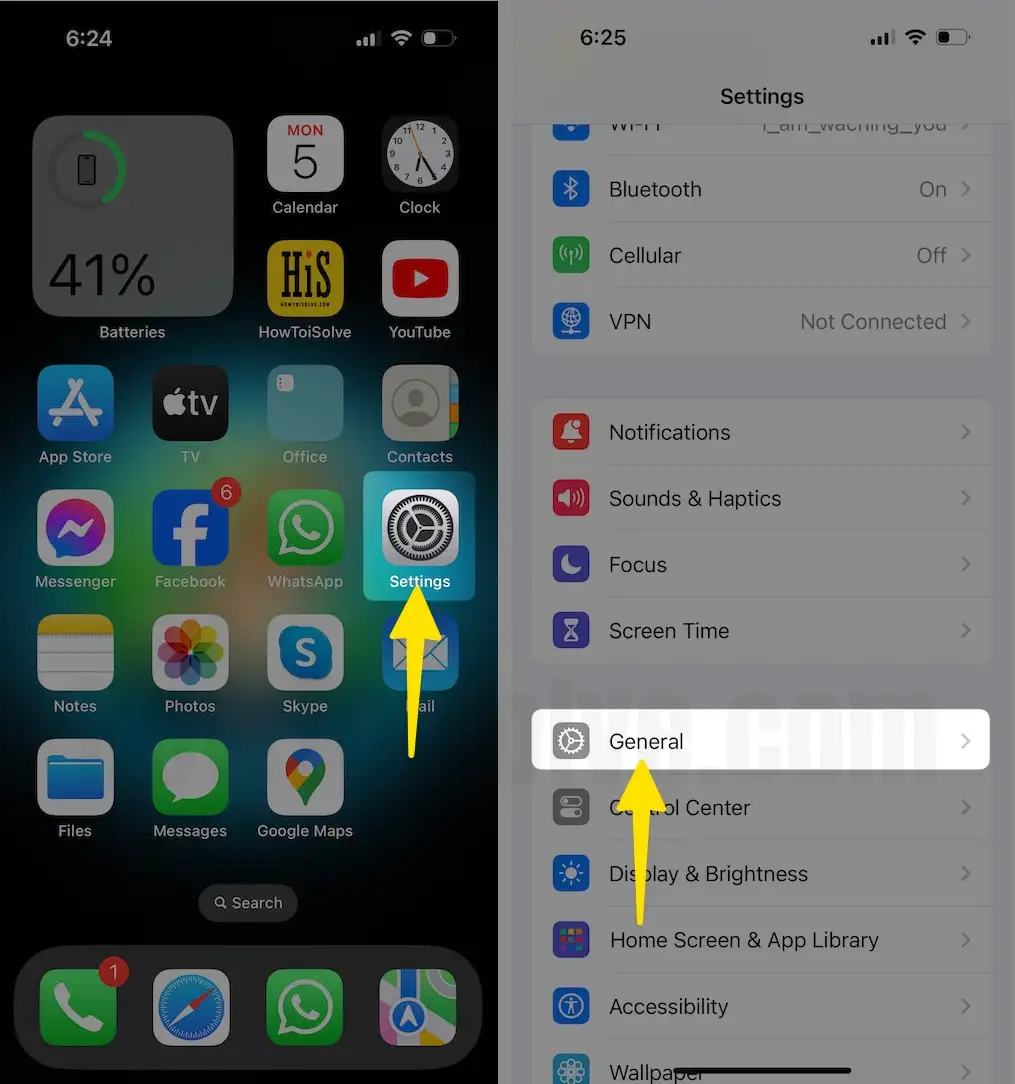
3. Choose About.
4. Tap on the Name field iPhone.
5. Enter a New Name to change your Hotspot name on your iPhone.
6. Here you can type the Name that you would like to keep.
7. Tap on Done to save.
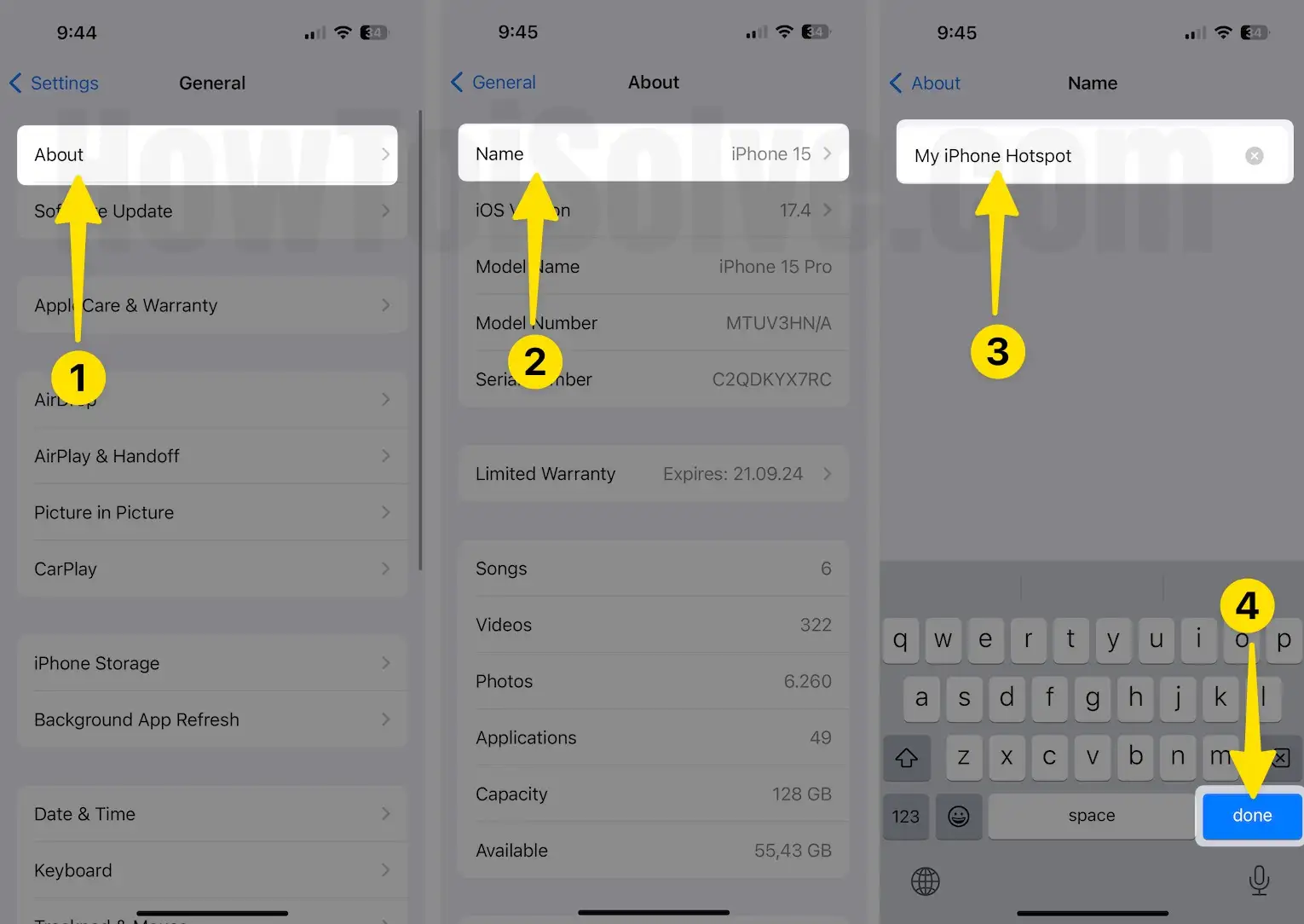
Now, Your device names the unique and easy to identify from a list of other WiFi network names.
Check instant changes on other devices’ wi-fi names. Refresh the list or disable/ enable WiFi, rescan WiFi networks, and join your network.
Way to Change Hotspot Password on iPhone (Using Mobile Data settings)
From time to time, we have to change the Personal hotspot password for your iPhone because of Unauthorised Access to your Mobile Data Through WiFi Hotspot. Here are the simple steps for Change Your WiFi personal hotspot password.
Note: After changing the iPhone Hotspot password, I recommend forgetting the old WiFi hotspot password saved on your Desktop; otherwise, your Desktop will try to connect with the old saved WiFi password.
That’s why your iPhone’s hotspot is not working with a Laptop or Desktop.
1. Open Settings on iPhone > Scroll to Mobile Data/Cellular Data.
2. Turn on Mobile Data.
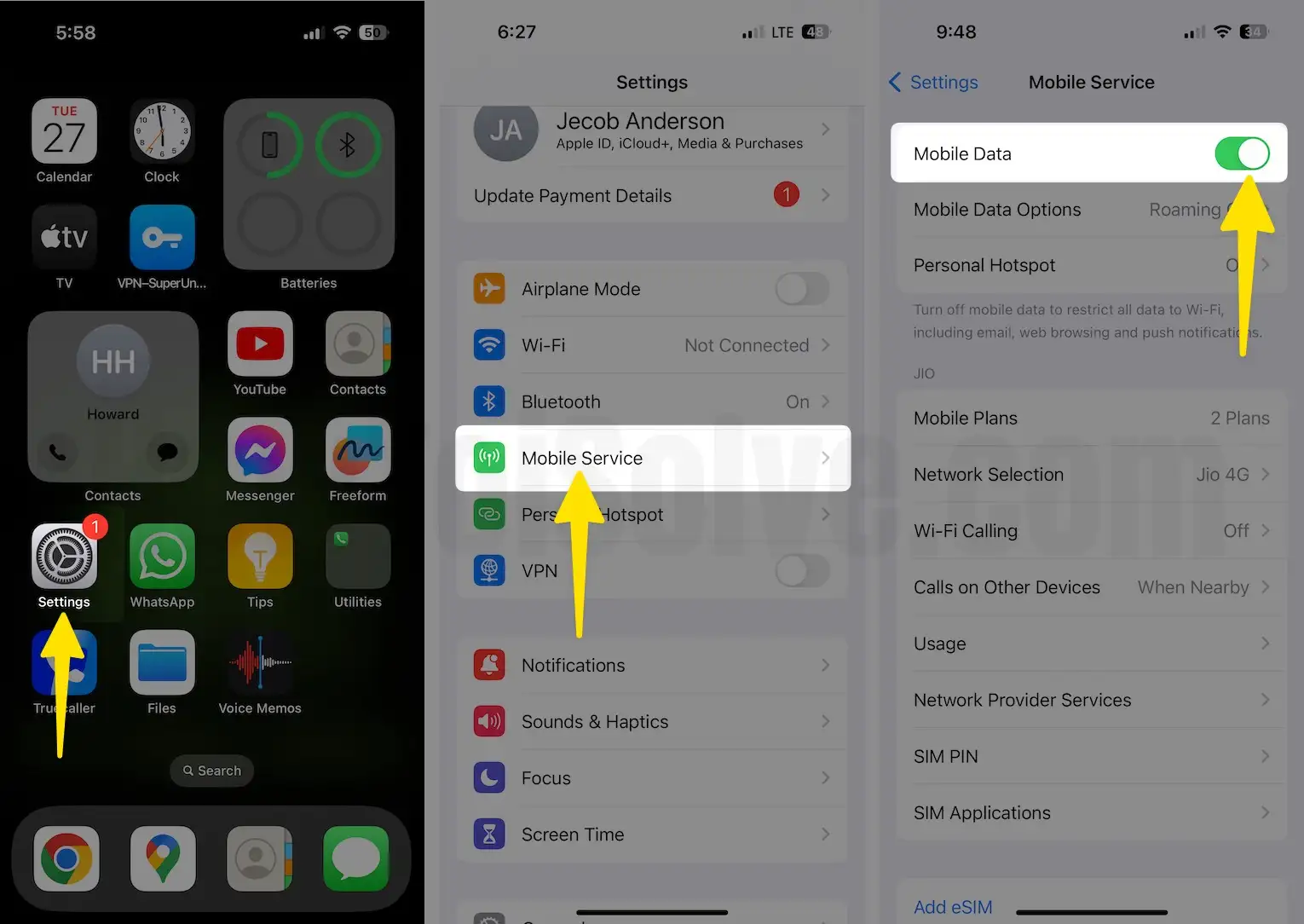
3. Tap on Personal Hotspot > Wi-Fi Password.
4. Change your WiFi Password and Tap on Done to save.

That’s it.
Suppose Change Hotspot Name on iPhone not working – Follow Troubleshoot and Wrap Up
Still, are you unable to connect your personal hotspot to rename? you might be changing your personal hotspot WiFi network. Forgot the old saved password or changed from settings.
Generally, you need to do it on your Windows 11, Windows 10, Windows 7, or Windows PC, Laptop, or Mac (view saved wifi password on Mac).
Delete Saved WiFi password on Windows 11 or Windows 10
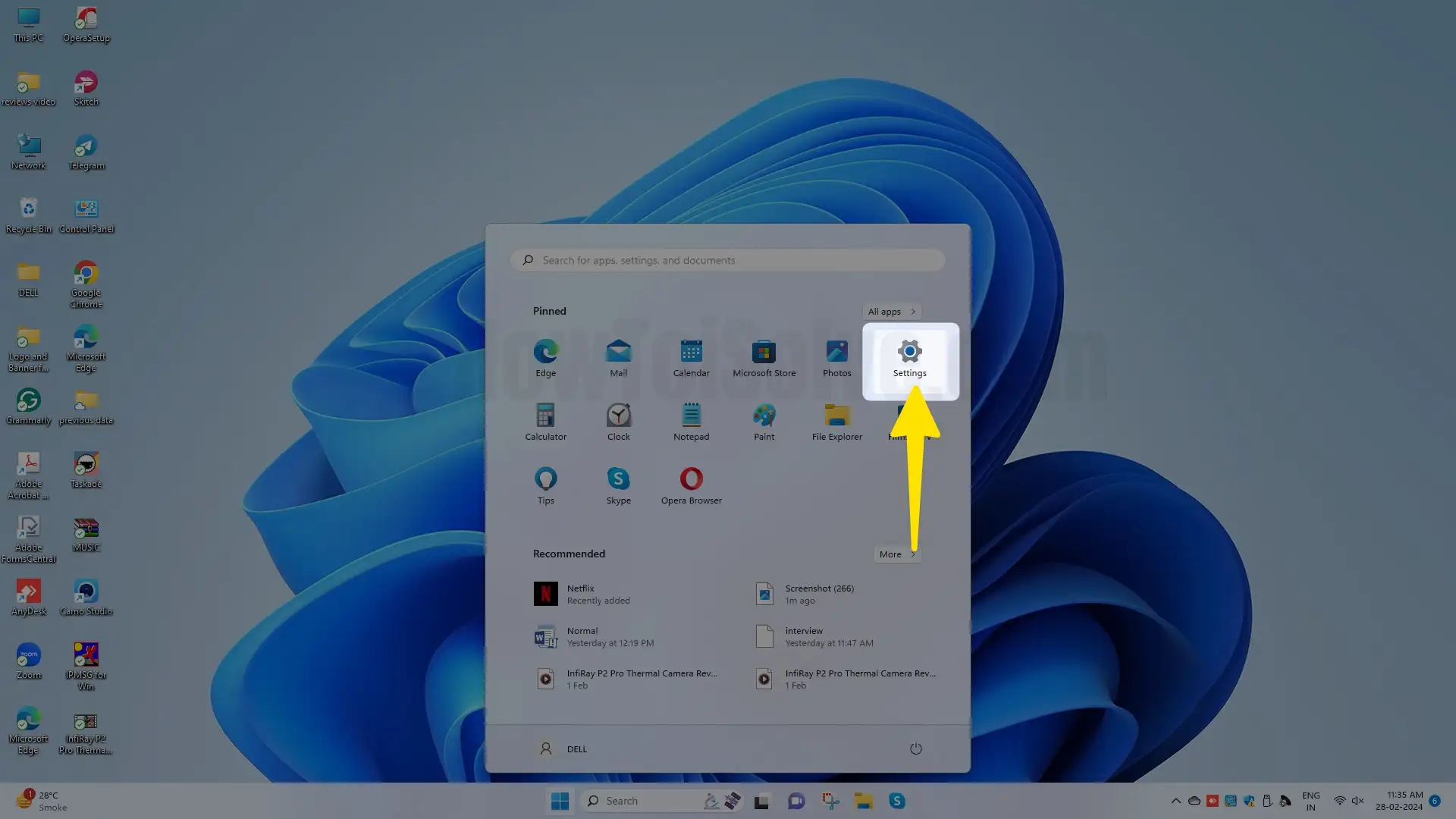
1. Open Start on Windows.

2. Open Settings on a Windows computer.
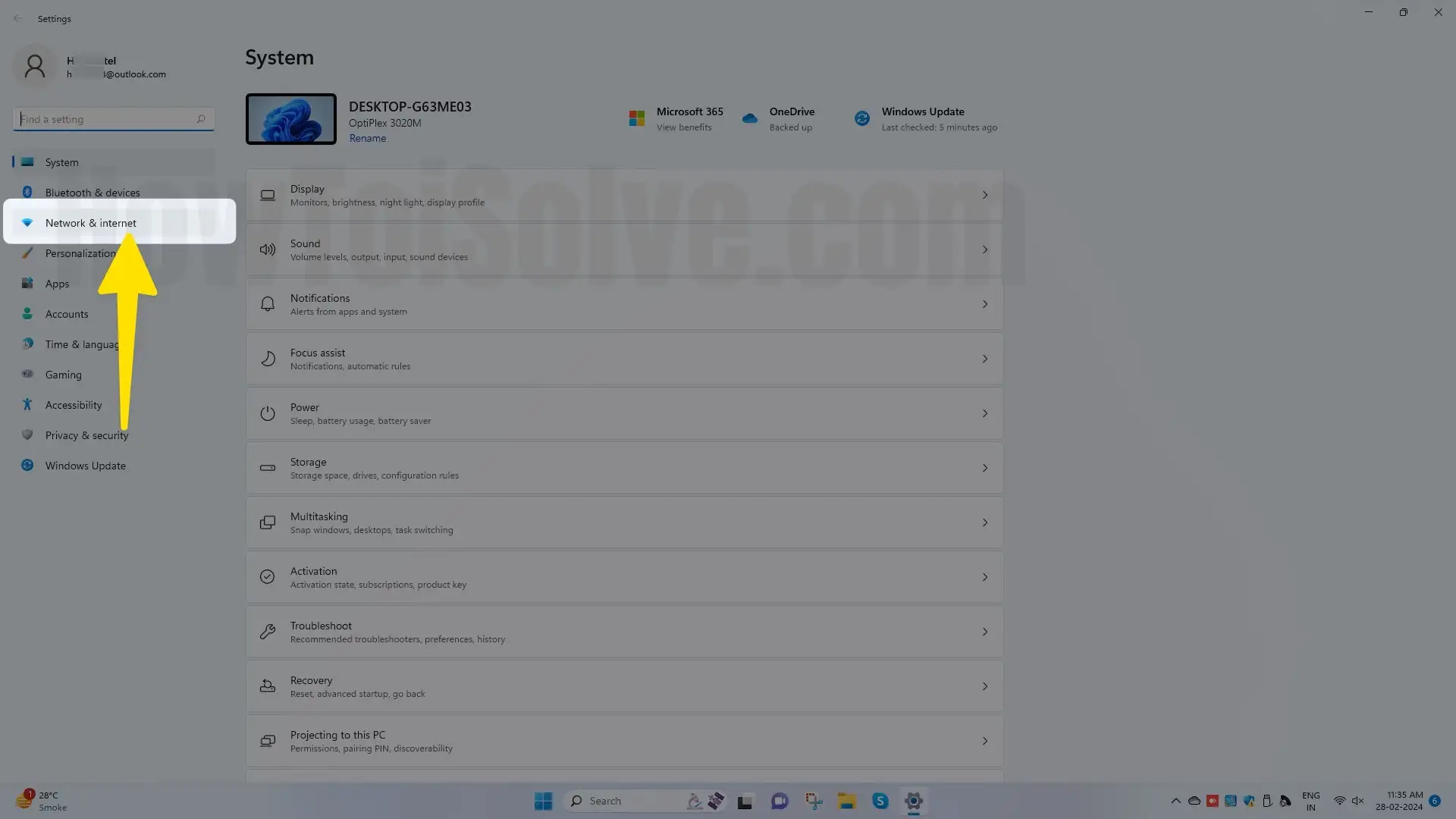
3. Navigate Network & Internet.
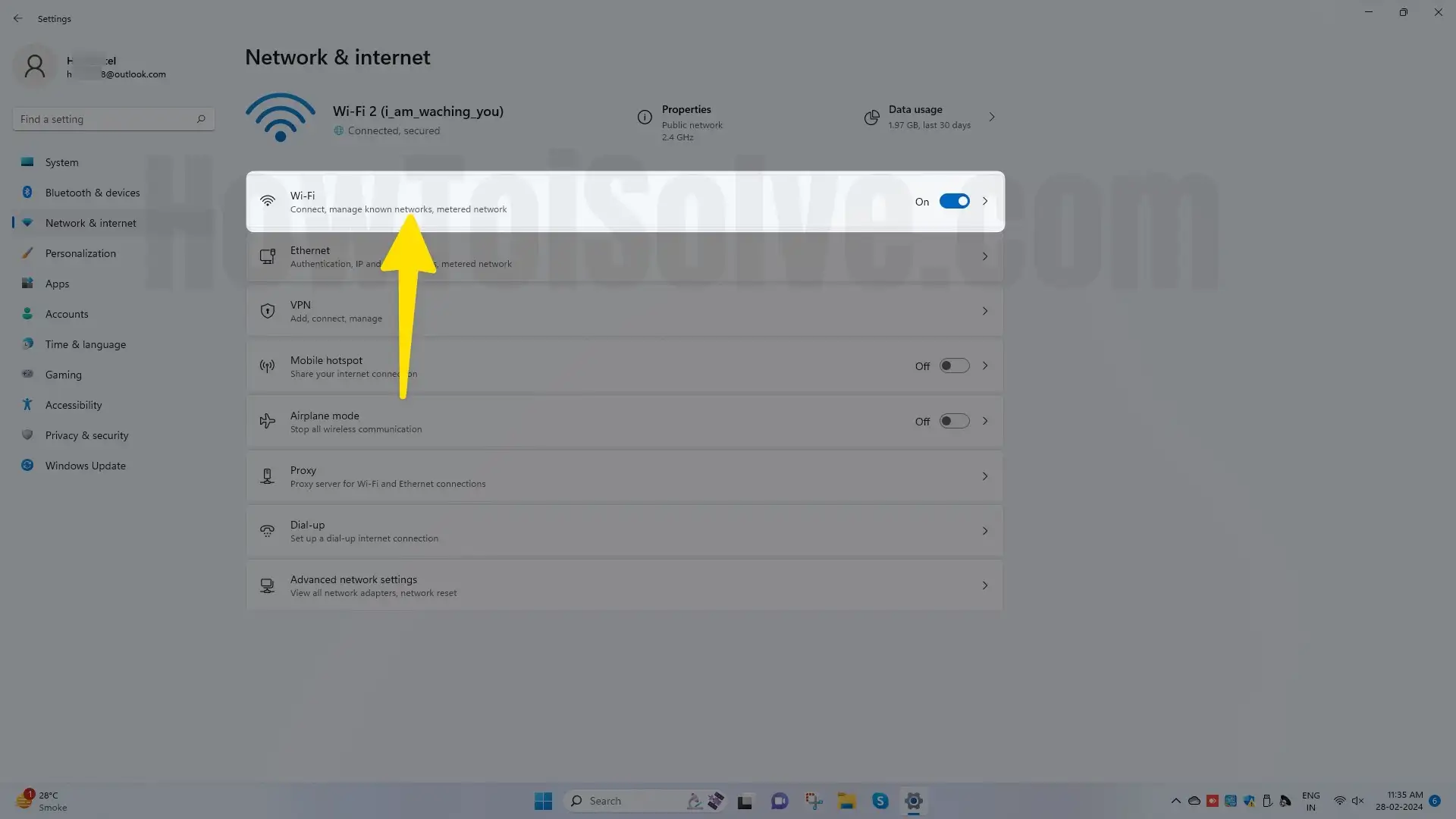
4. Choose Wi-Fi.
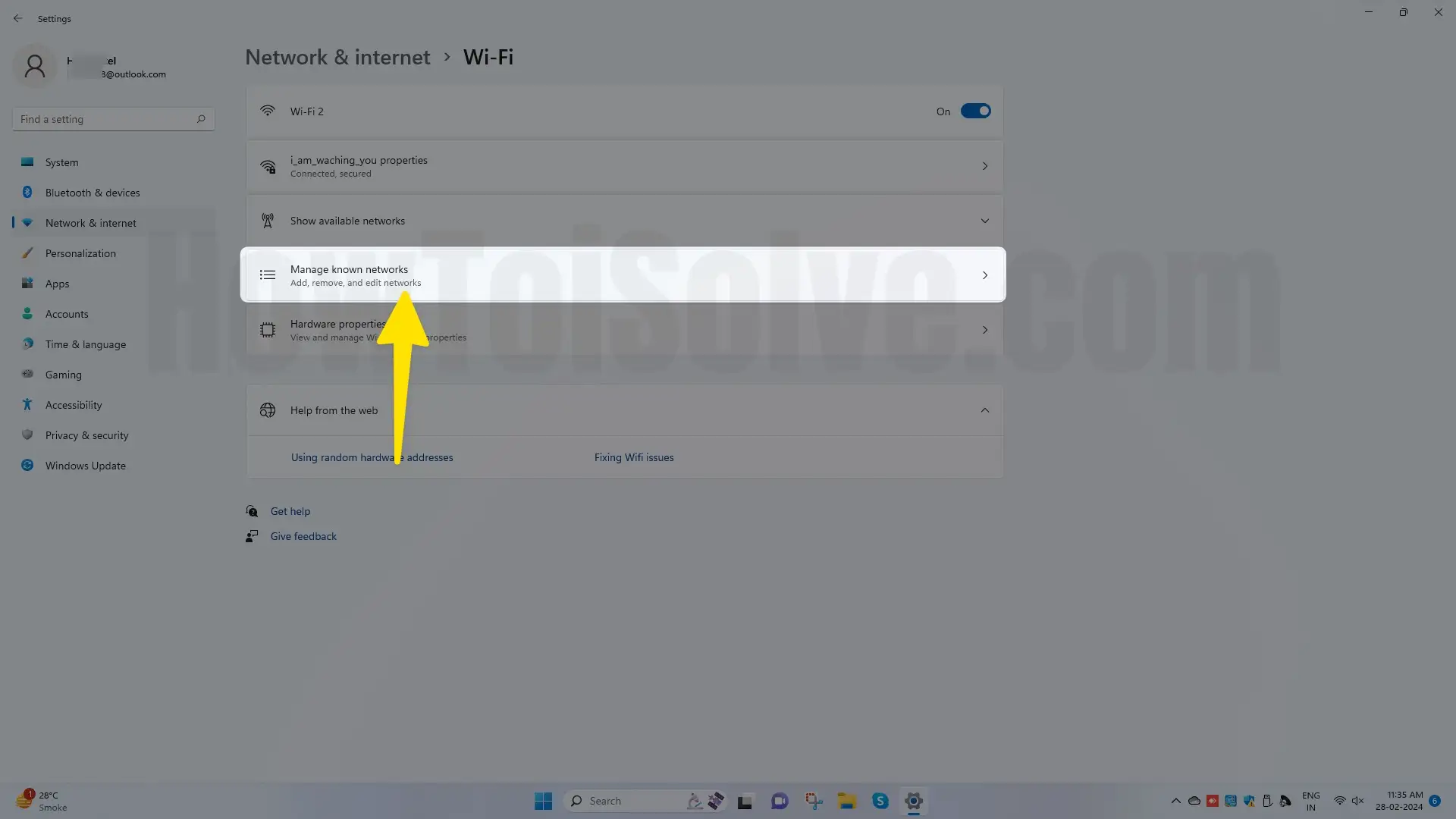
5. head to the Manage Known Network.
6. Click on your iPhone name. Select Forgot.
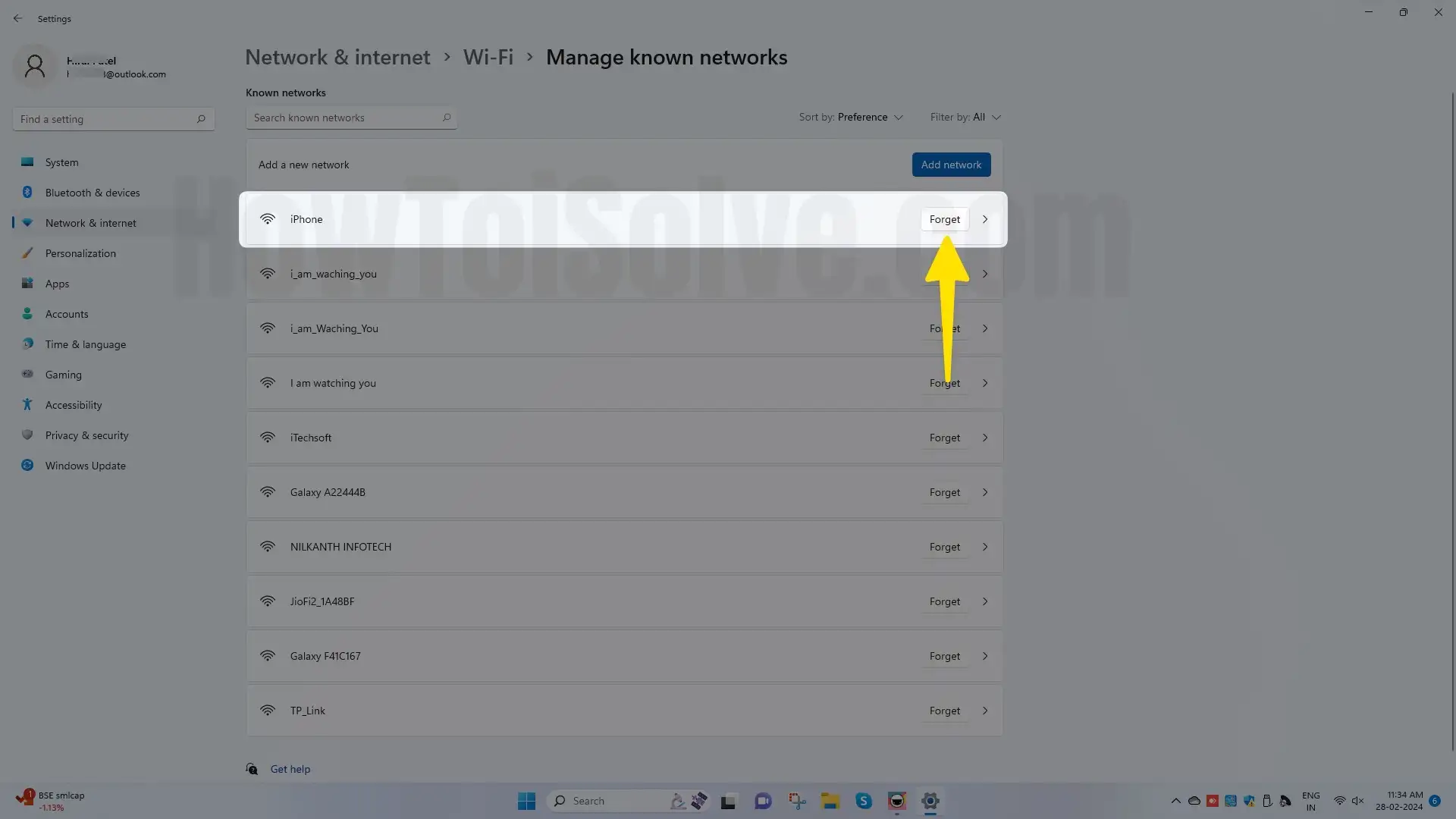
Now, Rejoin your iPhone WiFi hotspot to your Windows. please perform it on another Smartphone.
It’s quite difficult to view or forget saved Wi-Fi passwords on Windows 10. If this article is helpful to you, don’t miss sharing or liking us on Twitter and Facebook.