

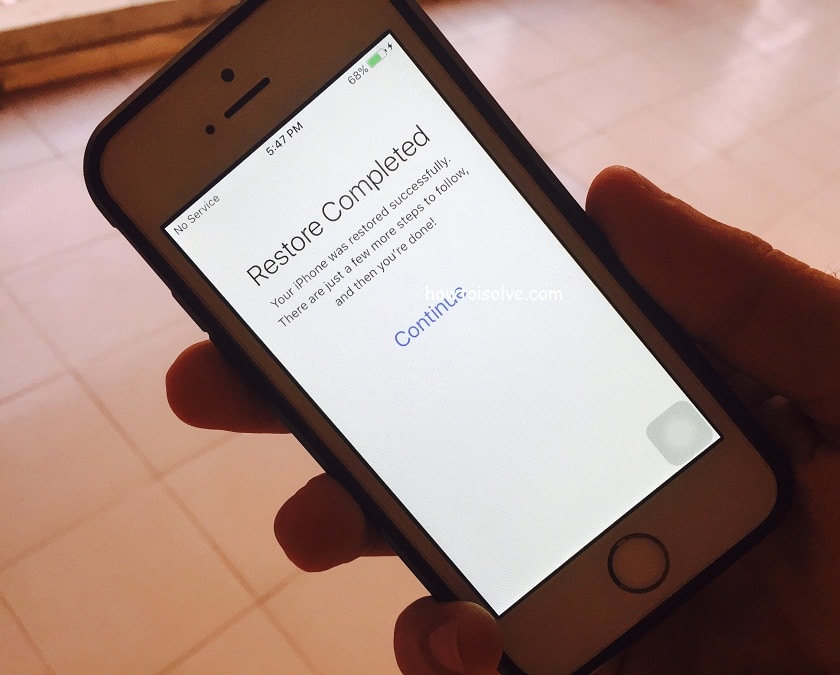
The Last tutorial is on finding all backups taken on Mac or PC via iTunes/Finder On Mac or Save directly to iCloud. Now here I explained about the alternate options for using old backup for restoring iPhone or iPad. Note: iTunes was officially removed by Apple, Now iTunes is Replaced with Finder on Mac. The process is equally the same for Backup & Restore iPhone using Finder on Mac running macOS Catalina or Later. Check out my Video and rubric to explain more in detail.
All Old Backup Saved in the Windows System and Mac System File on PC and Mac accordingly. But it is hard to understand which backup is old and latest. Also, we can check all old and recent backups on iTunes for PC and Finder on Mac.
You need to check at two places, The First is found on a Mac or PC system, and the Second is found on iCloud.
Find Old backups and restore iPhone from old backups in alternate methods
Video Guide on Taking and Manage Backups, Restore Latest Backup
Quickly get snap-on to find old iPhone backups in iCloud on Mac Before Restore
- Latest macOS Catalina:
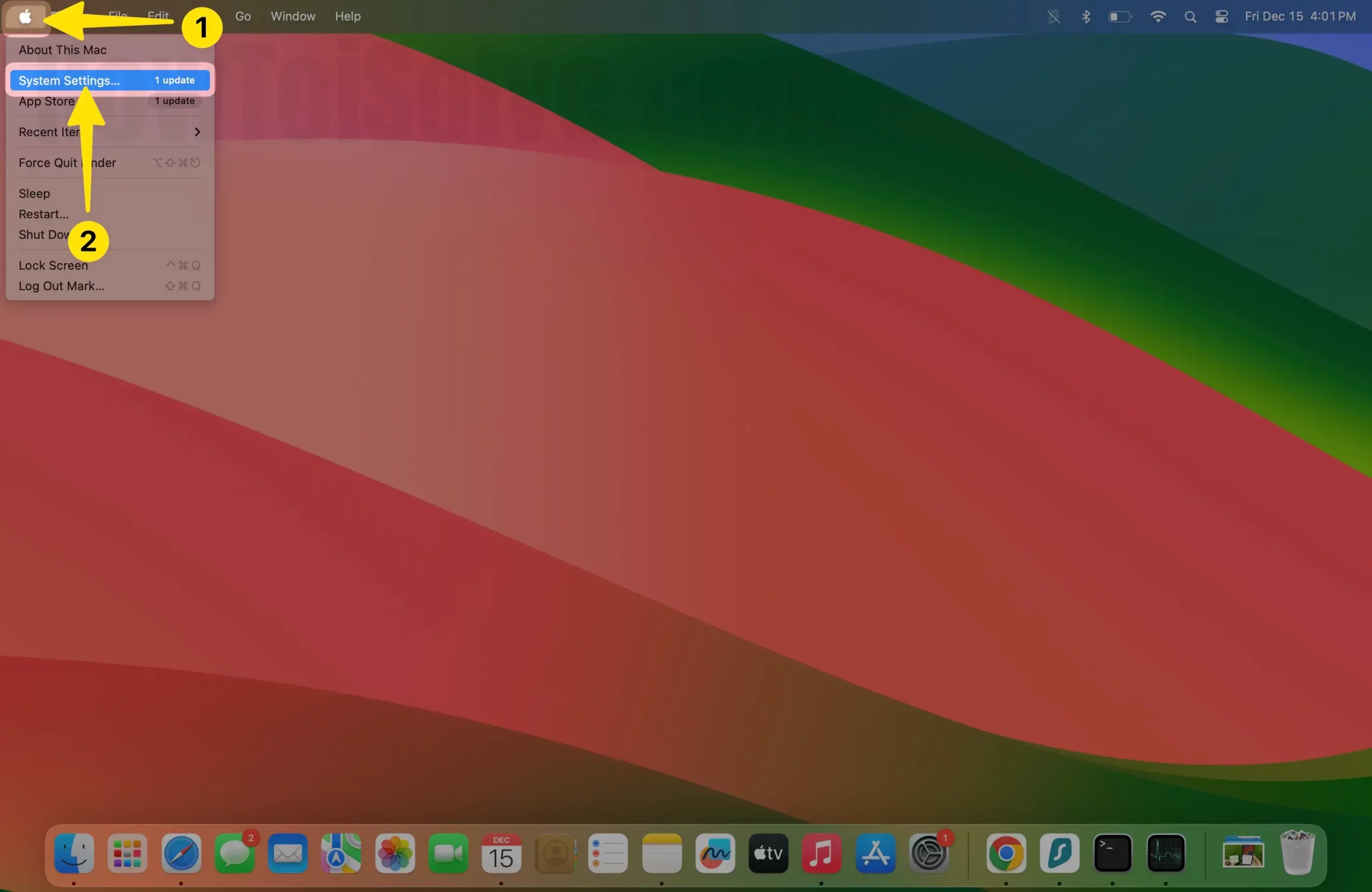
1. Click Apple Logo, then System Settings… on Mac.
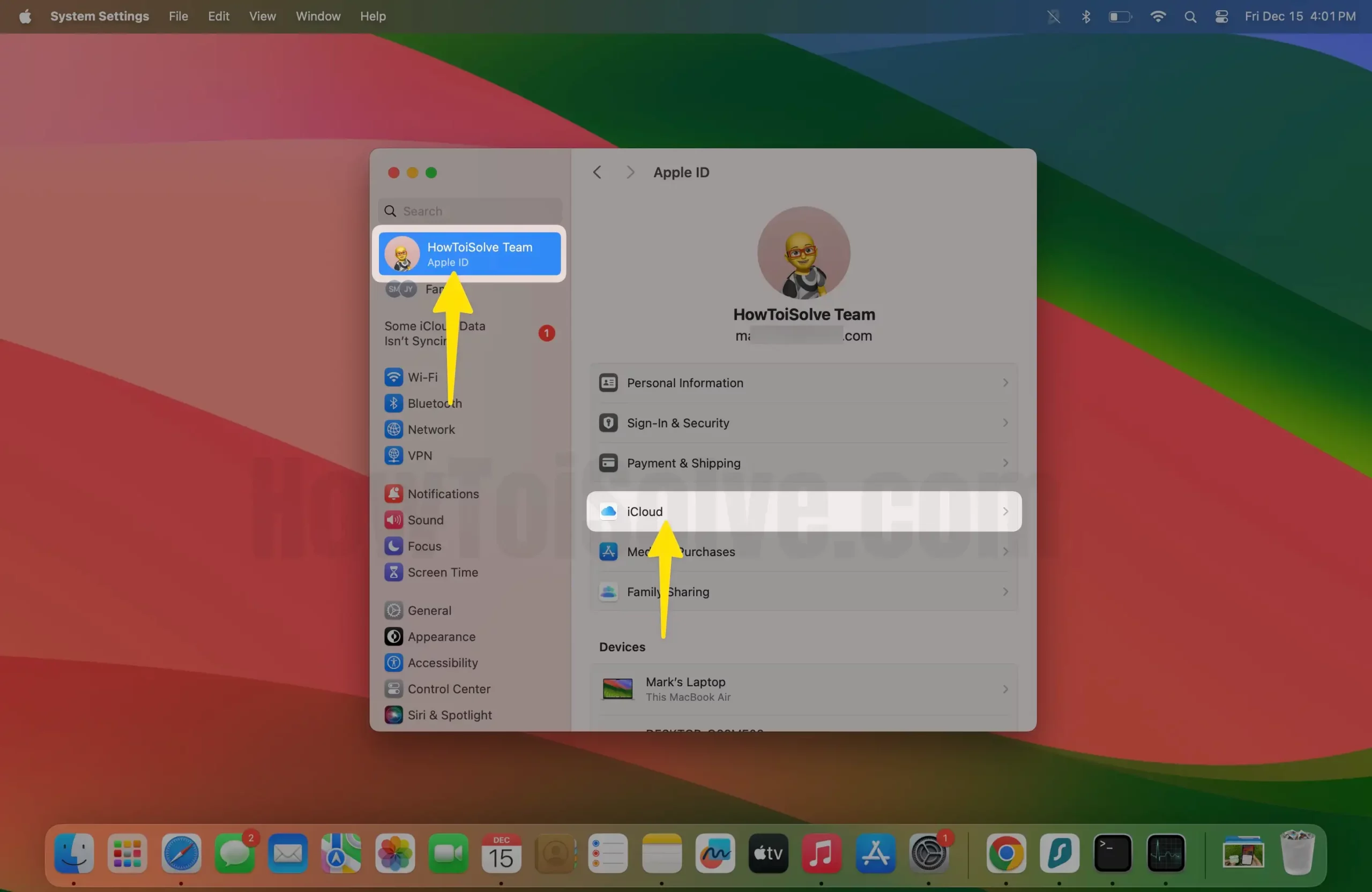
2. Select the Apple ID Profile Name and iCloud system settings…
3. And then Manage… right-side panel corner.

4. Choose the Backups option.

5. Then all backup options on iPhone,iPad on Mac.

- macOS High Sierra or Earlier See iCloud backups On Mac, Go to the Apple Menu > System Preferences > iCloud > Manage
Offline Backup on Mac Using iTunes and Finder
On Finder: Open Finder on Mac,
1. Click on Locations under iPhone and then General Tab left penal select Manages Backups… on mac.

2. Device backups: select the iPhone in double click for the Delete Option.

3. Choose for Delete Options.

On iTunes, Open iTunes on Mac > iTunes Preferences > Devices > List of All devices backups>
Restore iPhone from old backups, From iCloud or iTunes
Restore iPhone from Previous backup iCloud
Without the use of iTunes or Mac, You have only one option which is iCloud.
Restore options; you will get only while you set up the new device on clean install iOS, Setup on the new device, or completely erase all the settings and content from settings.
Step 1: Follow the welcome Hello screen, Insert a new SIM, Connect your WiFi network, and other on-screen instructions.
Step 2: Enter your Apple ID Login details, Apple ID, and password.
Step 3: Apps & Data screen, choose Restore from iCloud Backup
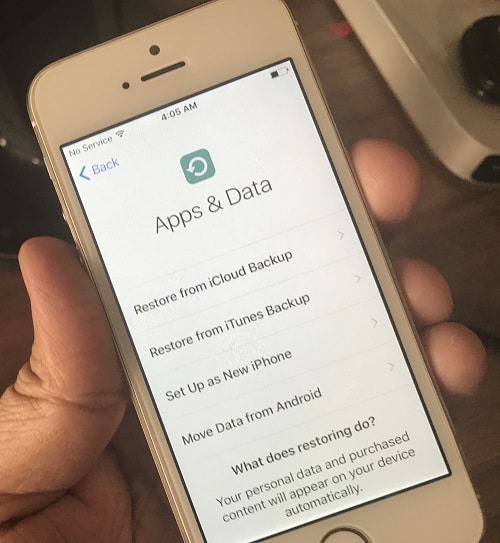
Step 4: Now, Screen will fetch all old saved backups from iCloud. Choose what you want to restore.
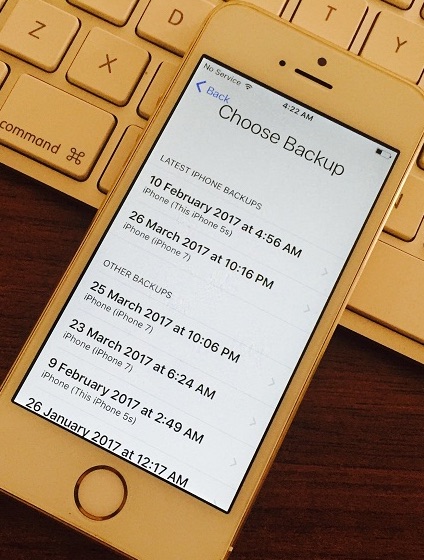
Restore Backup from iTunes/Finder
iOS users can use Apple Software to Backup and Restore the data to the iPhone and iPad. Till now, iTunes has been used for all types of activity, But iTunes has been dropped by Apple; use Finder to restore and Backup processes the same as iTunes. Watch the video that explains how to Sync, Backup, and Restore iPhone/iPad using Finder on Mac.
Connect your iPhone to iTunes via lightning cable,
iTunes Methods: two options for restoring past backups from iCloud or Saved backups on Mac or PC.
Restore or import backup on New iPhone
Your First screen, like below, the Welcome screen with “Restore from this backup: iPhone,” Click on continue.
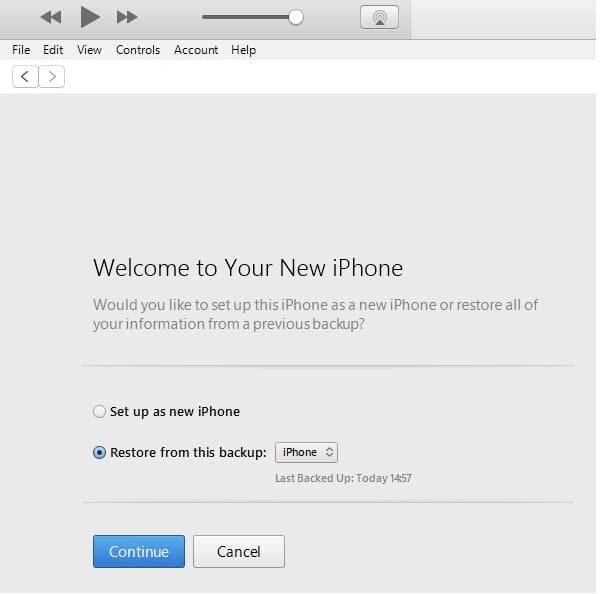
Wait for restore. Don’t unplug your iPhone or iPad from iTunes until the whole process is completed.
Restore previous Date or Day backup to iPhone via iTunes
Step 1: Connect iPhone/ iPad to iTunes via lightning cable.

Step 2: Go to the summary page, Under the Backups section.

Step 3: Click on Restore Backup.. button.

Find your latest backup and Old-day backup from the drop down. Here you can see two backups taken by me. You have more than you can see a list of all on this screen.
Start and restore old backup with a single click on “Restore.”
Wait for the restore process until complete process.
Put comments to us for more help on “restore your iPhone from Old Backup” or “How can I restore my iPhone to an earlier date” in alternative techniques?






