How to Set up Two-Factor Authentication for Facebook iPhone App

🗓️ February 15, 2024, By ✍️ Karly Wood

In this article, I’m sharing with you how to Set up Two-factor Authentication for Facebook. For security reasons, you need to launch or activate two-step verification, now available on Facebook after Gmail or connected Google services, Dropbox. Then, confidentially, you can use your Facebook account on a third-party iOS app for sign-up and registration. Using this way, you don’t need to enter your actual password; a temporary generated password for the app captures the reality of the official app, So there is no way to leak or copy your password by any third-party app using an iPhone/ iPad.

Setting up two-step verification in the Facebook iOS app should be difficult for new users, but it is a very useful and secure way, just like setting up two-factor authentication for the Gmail App.

Two-step verification: Most people are using Xbox, Spotify, Skype, and Jabber.

Steps for Enable or Setup Two-Step Verification in the Facebook iPhone App

For third-party apps to generate authentication passwords from the official Facebook iOS app, Below are the steps

Step 1: Launch the Facebook app on your iPhone > Tap on Profile Menu at the bottom-right Corner.

in this article, I'm sharing with you how to Set up Two-factor Authentication for Facebook. For security reasons, you need to launch or activate two-step verification, now available on Facebook after Gmail or connected Google services, Dropbox. Then, confidentially you can use your Facebook account on third party iOS app for sign up and registration. Using this way you don’t need to enter your actual password, Temporary generated password for app capture reality of official app, So there is a no way to leak or copy your password by any third party app using in iPhone/ iPad.Set up two-step verification in the Facebook iOS app should be difficult for new users but a very useful and secure way just like set-up two-factor authentication for the Gmail App.Two-step verification mostly people are using on Xbox, Spotify, Skype, Jabber.Steps for Enable or Setup Two-Step verification in Facebook iPhone AppFor third-party app generate authentication password from official Facebook iOS app, Below are the stepsStep 1: Open the Facebook app on your iPhone/ iPad.
Step 2: Tap on More option icon from beneath tap on Facebook app.Step 3: Scroll down and Tap on Settings & Privacy
Step 4: Then, Tap on Settings.
Step #5. Click on Security and Login
Step #6. Now tap Use two-Factor Authentication. we will ask for a code if we notice an attempted login from an unrecognized device or browser.Help Protect your Facebook account - if we notice an attempted login from a device or browser we don't recognize, we'll ask for your password and a verification code.Now on the screen, you can see there are two ways, first is Authentication App and second is a Text message (SMS)Facebook recommended the Authentication App method - in this trick, FB use an app like google authenticator or Duo mobile or generate verification codes for more protection.Let's choose one of them and click on the Continue button.in this method - Set up Via third party Authenticator
Please use your authentication app ( such as Duo or Google Authenticator ) to scan this code.
or click on the Set up on the Same device appear under the code.
or enter this code into your authentication app by tap and holding on the code to copy the code and paste into the Duo or Google Authenticator App - Note: you can download this application free of cost from the Apple App Store.After this click on continue
now you get a screen, Enter Confirmation Code
Please enter the confirmation code you see on your authentication app
Enter the 6-digit code and click on continueand follow the on-screen instructions. That's Done!!Text Message (SMS) - in this way, Use Text Message (SMS) to receive verification codes. For your protection phone numbers uses for two-factor authentication can't be used to reset your password when two-factor is on.Let's choose one of them and click on the Continue button.Add Phone number
Tap on Change to choose the right country code from the drop-down list and Enter your correct mobile numberNote: This phone number will be enabled for two-factor authentication and login. We may also use the number added here to help protect our community, accurately count people who use our services, and assist you in accessing Facebook and opt-in programs, but nor for purposes such as suggestion friends or providing ass. only you will see this number on your profile.if the number added here is provided elsewhere across Facebook, company products, it may be used for other purposes including suggesting friends or providing ads.Click on Confirm and follow the on-screen instruction.That's it!Note: Setup two-step verification in the Facebook option also available on Facebook web users. So, replete same steps on facebook.com under the profile settings.Facebook improvement in security may be a change in your time. So feel free and share with us any uncertainty on Setup two-step verification on Facebook.

Step 2: Swipe Down to Tap on Settings & Privacy > Select Settings.
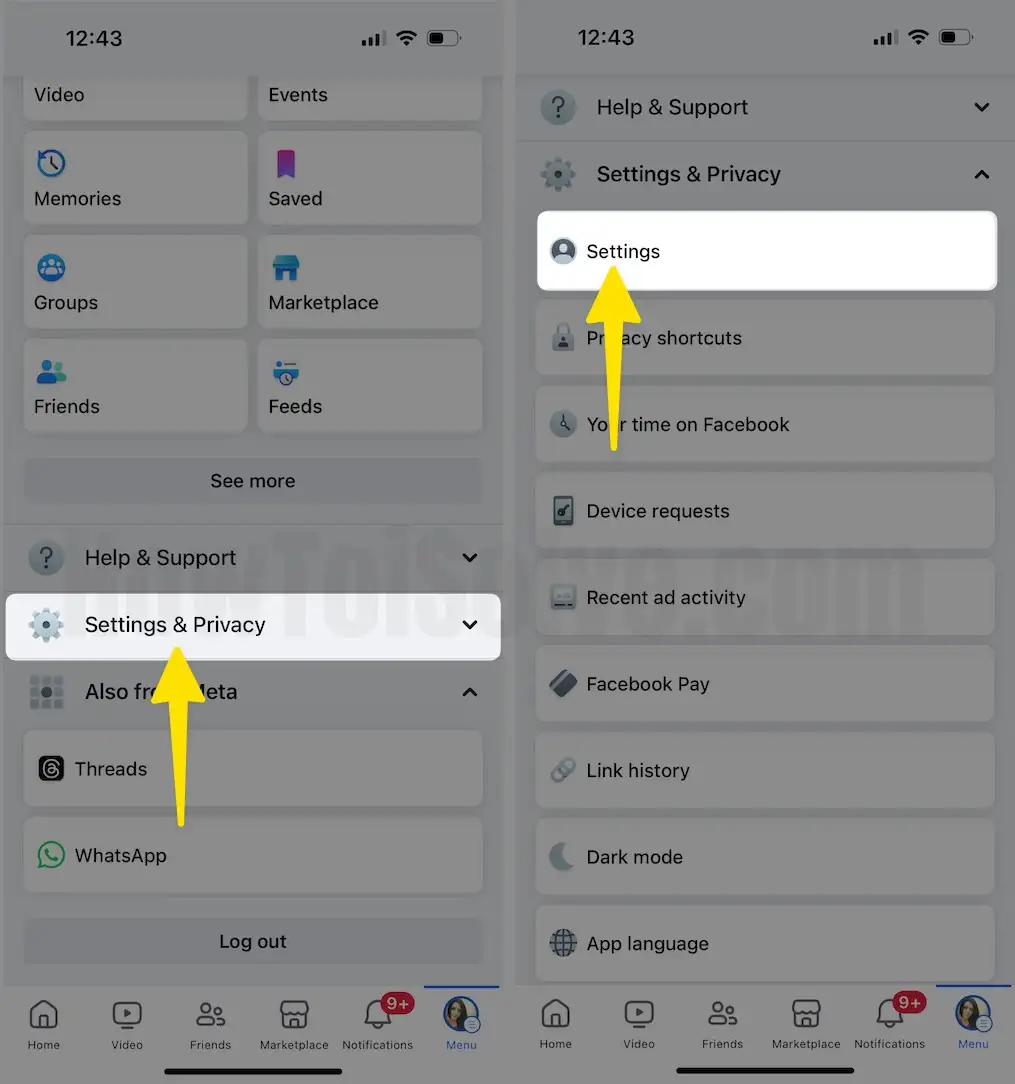
Tap on Settings & Privacy Select Settings on iPhone

Step 3: Click on Account Centre > Tap on Password and Security > Select Two-Factor Authentication under the Login & Recovery Section.
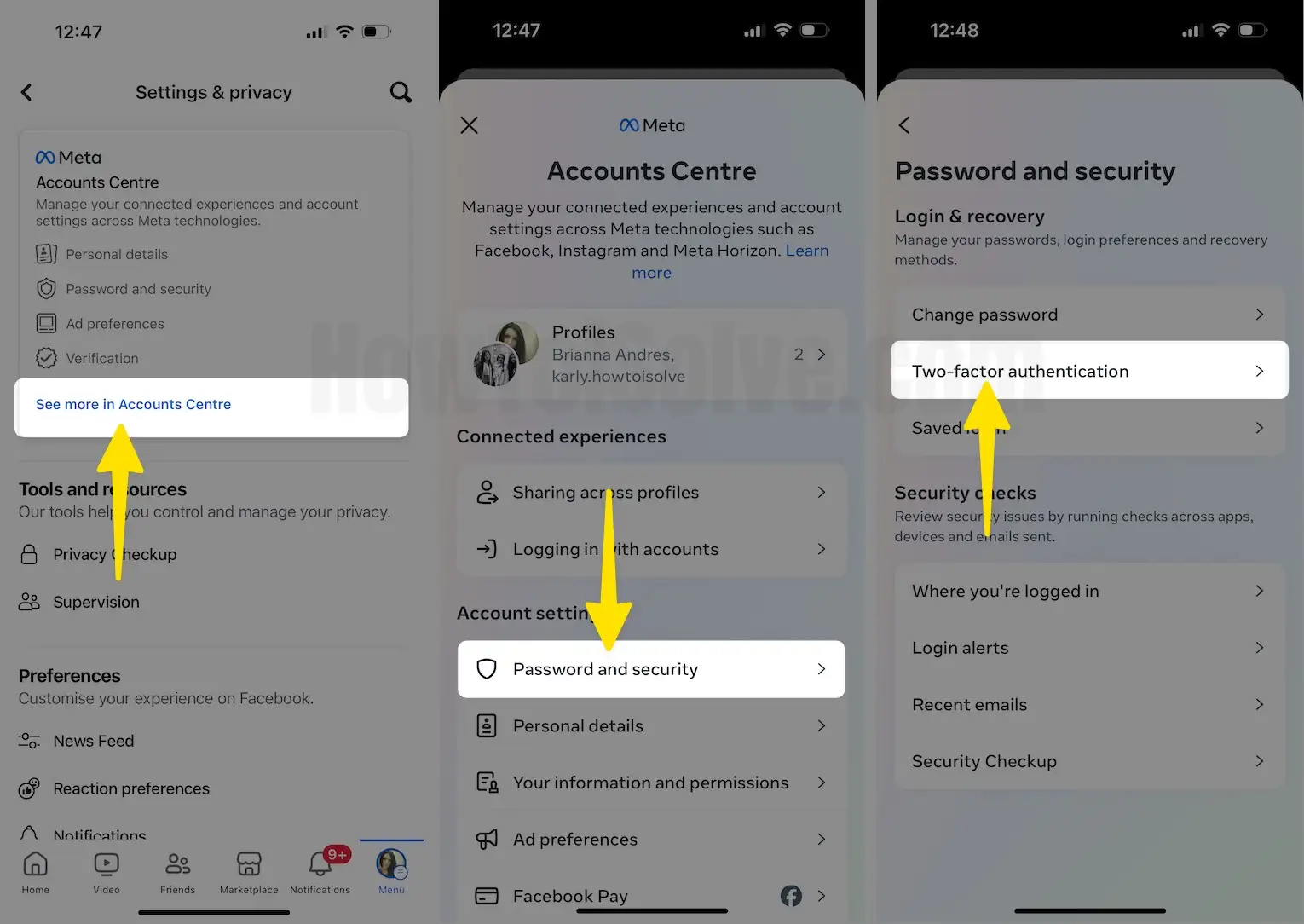
Tap on Account Centre Select Password and Security Click on Two-Factor Authentication on iPhone

We will ask for a code if we notice an attempted login from an unrecognized device or browser.

Help Protect your Facebook account – if we notice an attempted login from a device or browser we don’t recognize, we’ll ask for your password and a verification code.

Step 4: Choose an Account to Set up Two-Factor Authentication > Re-Enter your Password for Security > Click on the Continue Button.

Select Account Enter your Password Tap on Continue on iPhone

Step 5: Tap on Additional Methods > You can see there are three Methods: first is an Authentication App, the second is a Text message (SMS), and the third one is the Security Keys > Choose an Authentication App > Tap on Next.
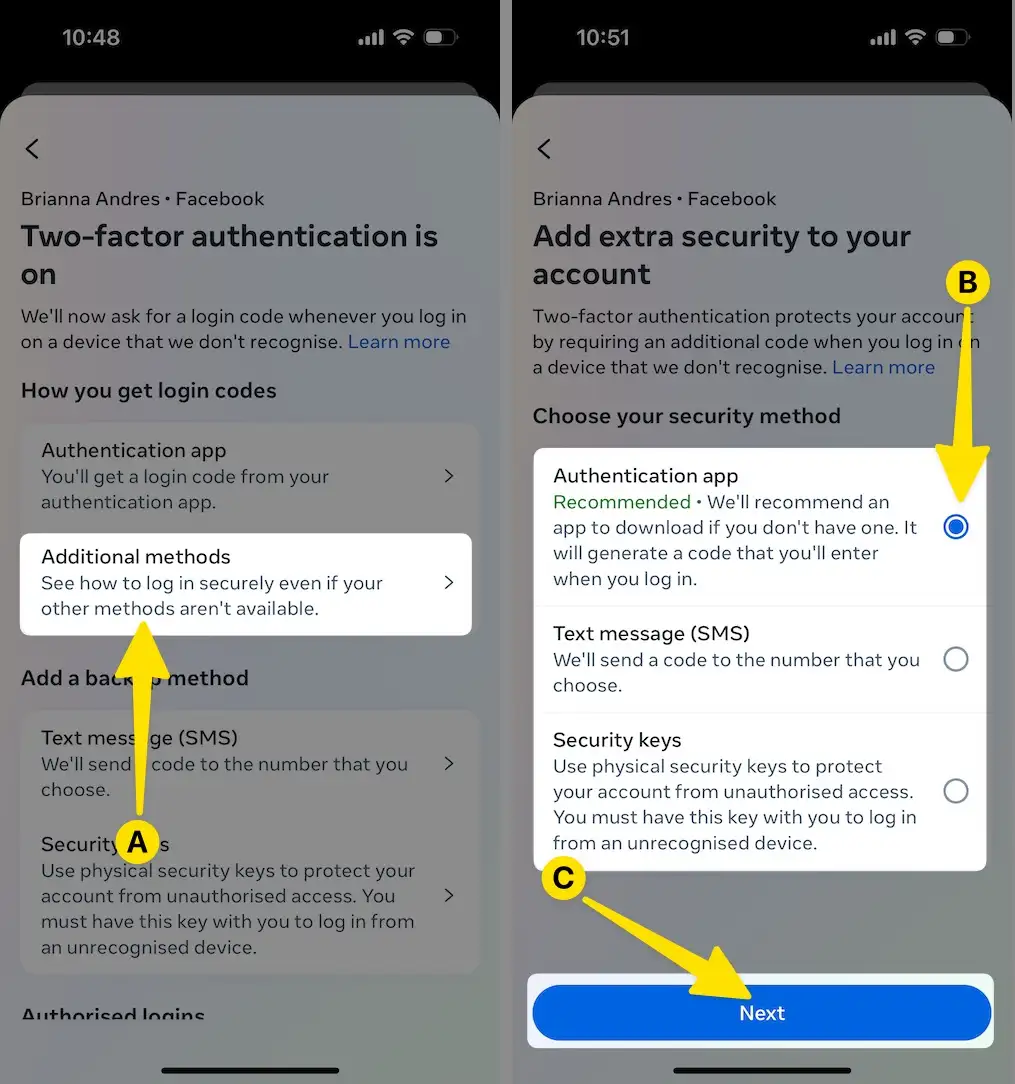
Select Additional Methods Choose Authentication App Click on Next on iPhone

Facebook recommended the Authentication App method – in this trick, FB uses an app like Google Authenticator or Duo mobile or generates verification codes for more protection.

Step 6: Use your Authentication App ( such as Duo or Google Authenticator ) to scan this code > Tap on the + Button.
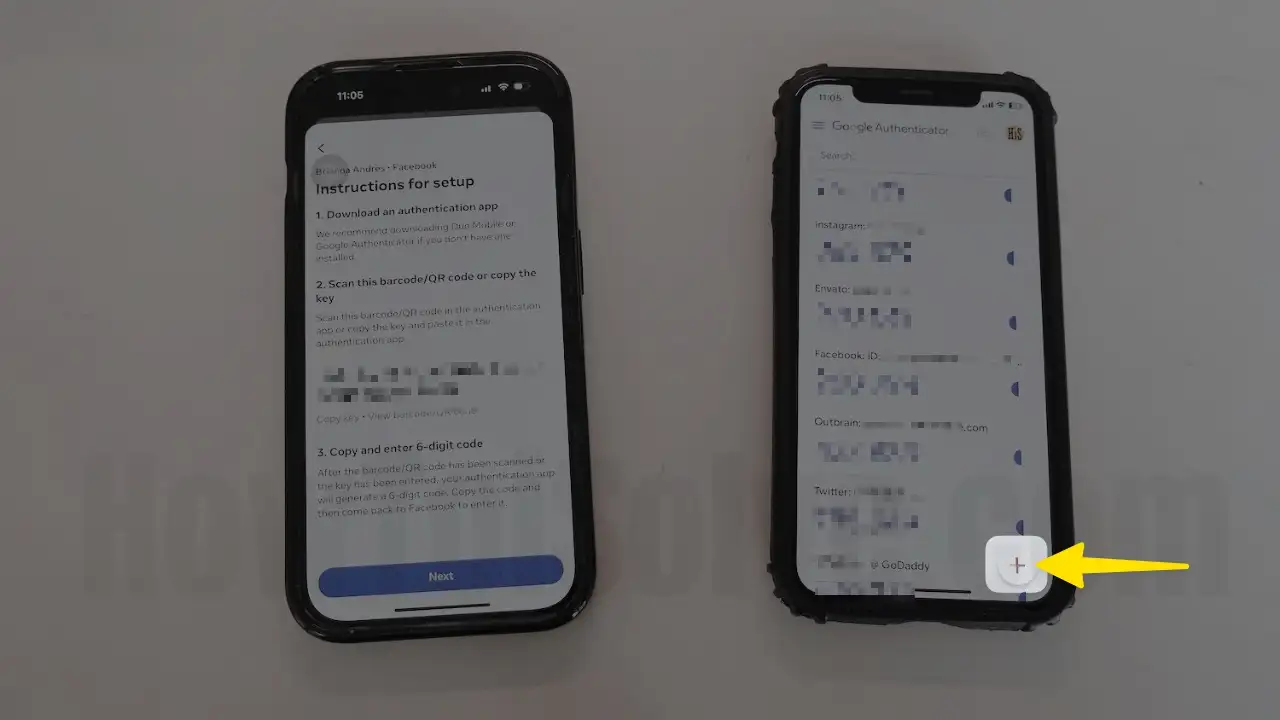
Click on + icon on iPhone

Step 7: Choose the Scan a QR Code Option > Click on Next.
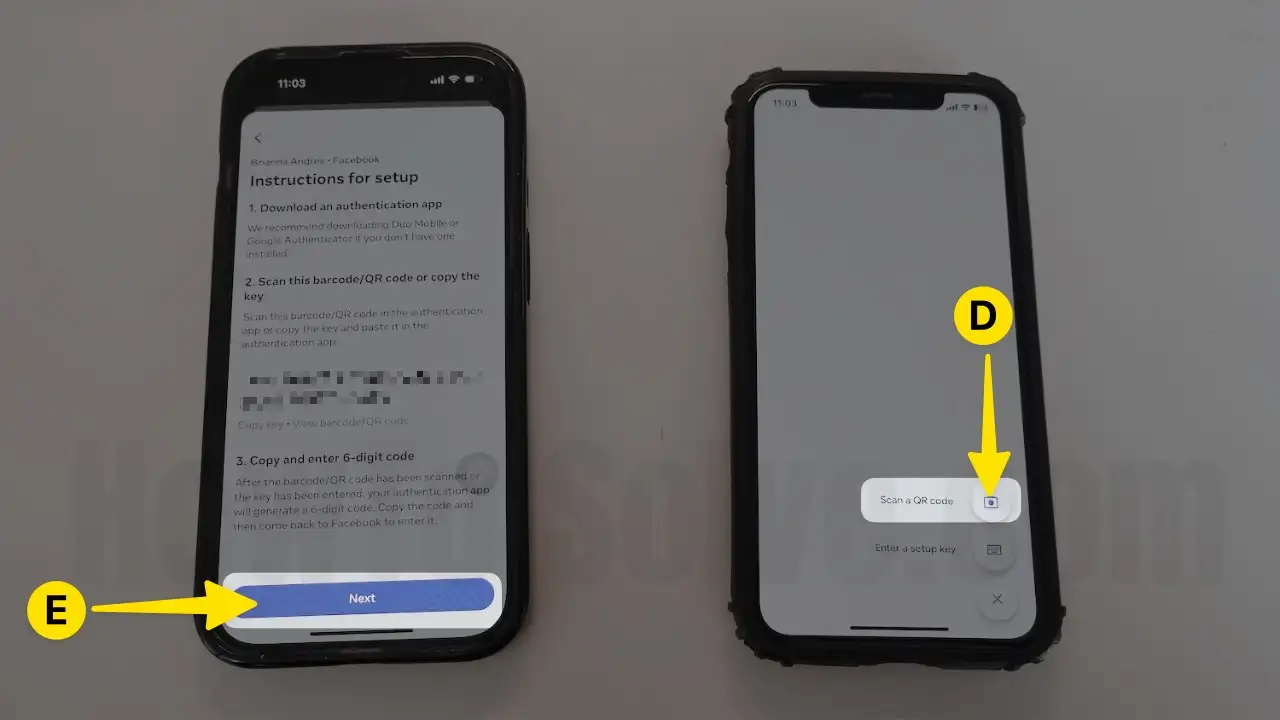
Select Scan a QR Code Tap on Next on iPhone

Step 8: Scan the QR Code.

Scan QR Code on iPhone

Step 9: Please Enter the Confirmation Code you see on your Authentication App > Enter the 6-digit code > Tap on Next.

Enter the 6-Digit Code Tap on Next on iPhone

Step 10: After this, Click on Done.

Tap on Done on iPhone

Step 11: The Authentication App Security Method is ON.

Enable Authentication App Security Method on iPhone

And follow the on-screen instructions. That’s Done!!


Text Message (SMS) – in this way, Use Text Message (SMS) to receive verification codes. For your protection, phone numbers used for two-factor authentication can’t be used to reset your password when two-factor is on.

Let’s choose one of them and click on the Continue button.

  • Add Phone number
  • Tap on Change to choose the right country code from the drop-down list and Enter your correct mobile number

Note: This phone number will be enabled for two-factor authentication and login. We may also use the number added here to help protect our community, accurately count people who use our services, and assist you in accessing Facebook and opt-in programs, but not for purposes such as suggesting friends or providing ass. Only you will see this number on your profile.

if the number added here is provided elsewhere across Facebook and company products, it may be used for other purposes, including suggesting friends or providing ads.

  • Click on Confirm and follow the on-screen instructions.

That’s it!


Note: Setup two-step verification in the Facebook option is also available to Facebook web users. So, complete the same steps on facebook.com under the profile settings.

Facebook’s improvement in security may be a change in your time. So feel free to share with us any uncertainty on the Setup two-step verification on Facebook.

Karly Wood
Karly Wood

Karly Wood is a journalist based in Ohio who specializes in covering Apple and technology trends. With a varied experience in reporting on public safety, government, and education, her insights bridge multiple disciplines, providing readers with a well-rounded perspective on today's technological advancements. If you need to contact me, you can reach me at karlywood.ohio@gmail.com or through (Facebook)

HowToiSolve
Logo