If your Mac apps are launching automatically at startup, it can slow down your device and clutter your workspace. Whether you’re using a MacBook Pro, iMac, or Mac mini, managing startup apps is essential for better performance. This guide will walk you through easy steps to stop apps from opening at startup.
Why are Apple Mac Computer Apps Launching at Startup? Possible Reasons
- First, the Apple Mac App is added to the Login Items section
- Second thing is – The selected Check box- Reopen windows when logging back in to the Apple Computer
Which Apps are most users keep as startup items on Mac Computer?
- Zoom for Meeting
- Spotify for Music
- Terminal
- Mail App
- Stickies
How to stop apps from opening on startup in Mac
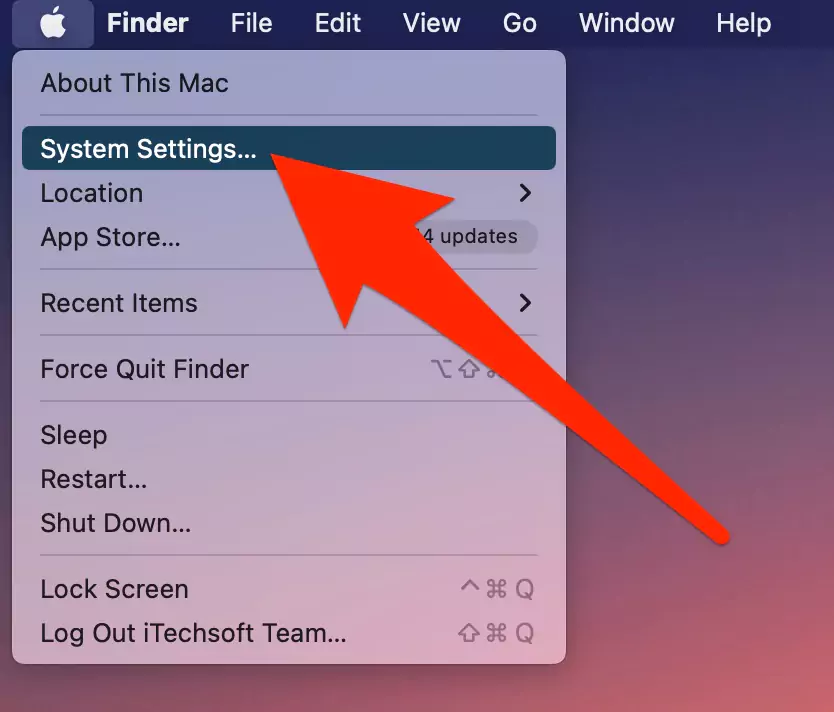
- Go to the Apple logo from the top Mac menu. and Click on System Settings.

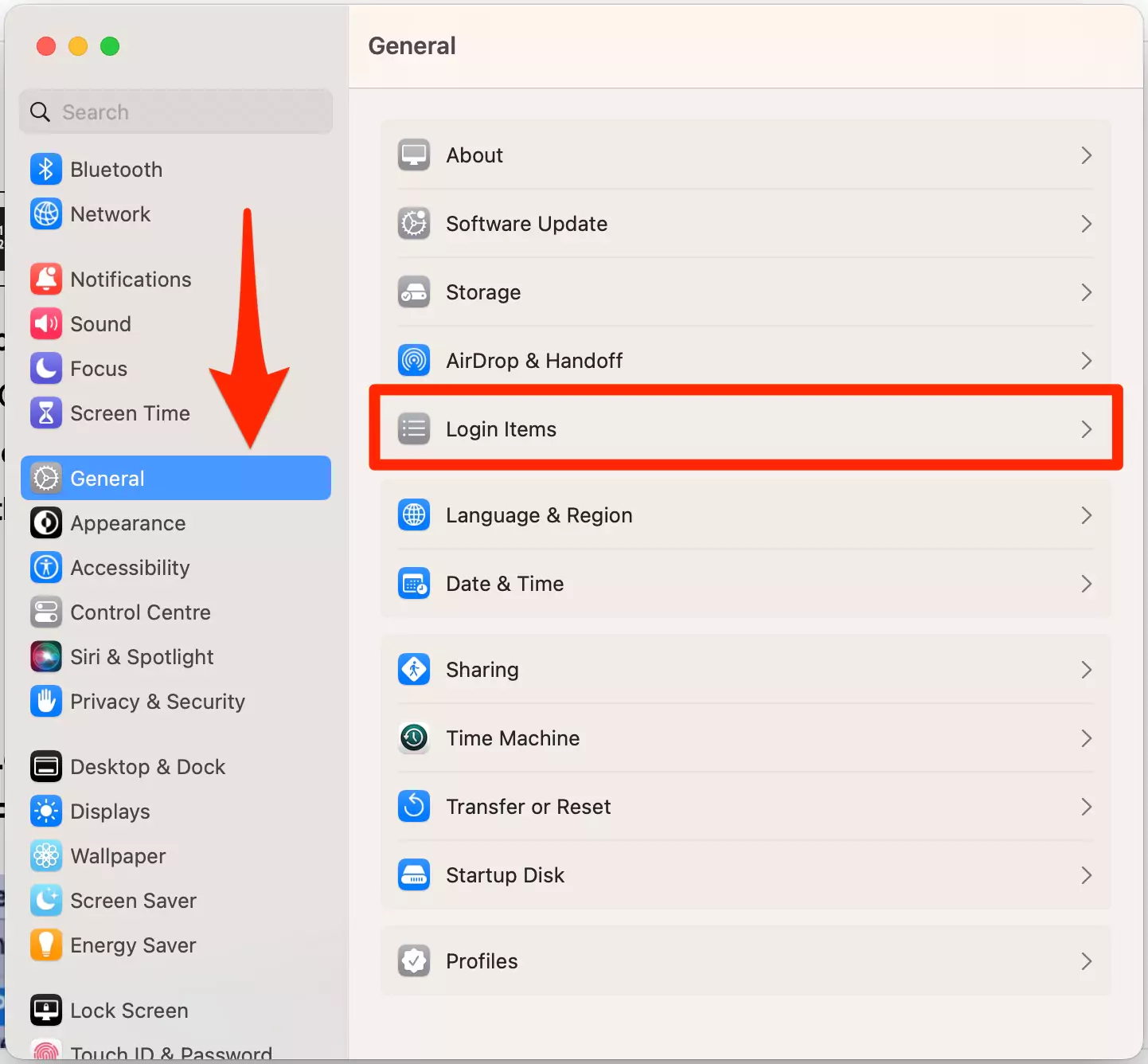
- Find the General Option > Login items.

- Now, see the list of Apps that are launching on Startup or After login.
- Disable the app that you want to stop from the Mac Startup.
- That’s it.

how to stop apps from opening on startup mac Monterey
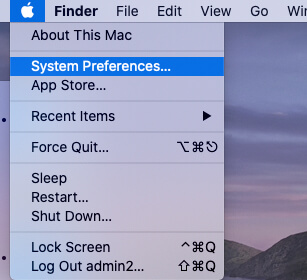
- Go to the Apple Logo on Mac from top Menu.
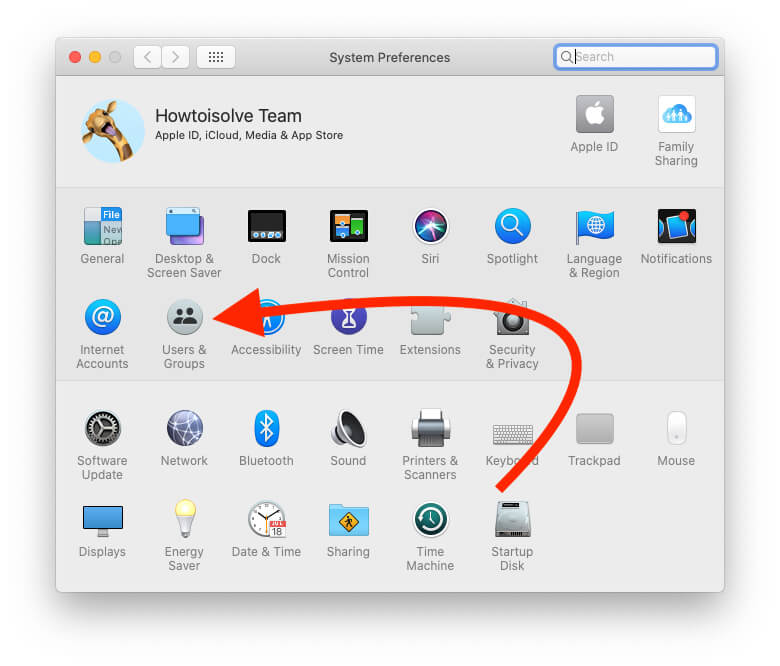
- Click on System Preferences…

- Select Users & Groups option. In Next Window Select, Your Login User name from the side panel,

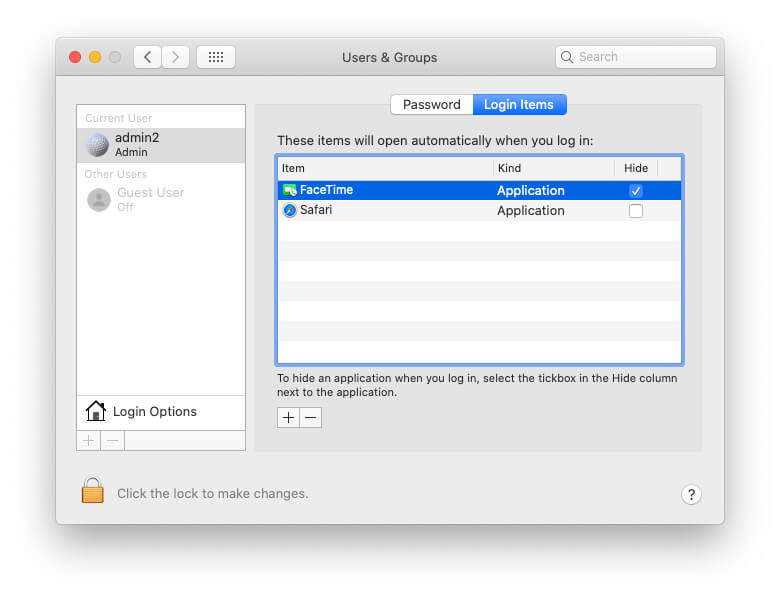
- Tap on “+” icon, to add as an Auto open apps and Document on Mac, For Perticualt user login.
If you want to remove it, then tap on the “-” sign.
Note: you can also remove startup items in your Mac through very easy steps.
Mac startup programs not in login items
suppose you can’t find a Login Item listed in the Users & Groups section, you can still find it in the User Library with Finder tool on your Mac. Follow the bottom guide to stop Apps from Auto Opening on Startup.
Mehtod #2. Stop Mac Apps From Launching at Startup Using Finder
where are login items stored on mac? A particular path is avialbe to find All login items on Mac storage. in the bottom guide, I’ll show you what path here.
- Open Finder on your Mac computer.
- Next Press Command + Shift + G on the magic keyboard, i hope your computer will show you a pop-up with a search bar; enter or copy and paste this path /Library/StartupItems
- Now press Return Key, So your computer screen will show you all startup items window.
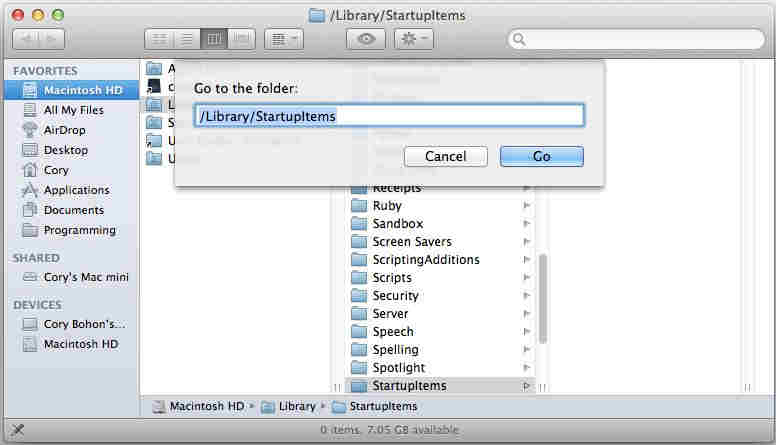
You can see all the startup Apps, Folders, and files in a single window. Just copy that item, you want to remove as a start-up for all the accounts and paste it in different places or folders.
Now you are done after restarting your Mac.
Method #3. Simple Way to Stop Programs From Running at Startup on a Mac
Here I’m taking an example of the Zoom App. Let’s see how to stop Zoom from opening on startup Mac.
Step #1. Right-click on Zoom app in your Dock. []
Step #2. Hover your Mouse over Options. there may be appear three options – Remove from dock, Open at Login, and Show in Finder.
Step #3. Check or uncheck “Open at Login.”
Voila!!
What to do open at login won’t uncheck on Your Mac?
in this situation, restart your Mac computer and try again to uncheck open at login. still, An issue persists? scroll down this troubleshooting guide to Final thoughts.
You should check user authentication permission is not locked. Open Settings App > Go to users & Groups > Click the Lock to Make Changes that appear left & lower of the screen of the open window. > A pop-up appears to enter your Mac password to allow unlock.
Read here- How to Reset Forgot Mac Password?
Fix Unable to Stop Mac Apps From Launching at Startup
Go through the under-listed steps to a permanent solution.
- Click on the Apple icon on top menu bar
- Go to the Restart option
A pop-up option with Notice of – Are you sure you want to restart your computer now?
if you do nothing, the computer will Restart automatically within 1 minute.
Using this way, you can change what opens on startup Mac.
I hope got the perfect solution that you want. If are you facing a problem or any suggestions or alternate ways, then comment and share with us and others. Very beautiful feature “Auto open apps and Document on Mac” So, Like and share it.
I hope this found helpful to get rid of Login items on Mac.