If you’re not receiving verification texts on your iPhone, it can be frustrating when you don’t receive a verification code by text in your iPhone while trying to log in to apps, email, or banking services. Many users face the issue of receiving SMS verification codes, especially when setting up two-factor authentication. This can happen due to carrier problems, blocked numbers, outdated settings, or even network glitches.
To fix the problem, there are several reliable methods you can try. Whether your phone is not receiving verification codes or if you’re specifically not receiving two-factor code SMS messages, follow my simple steps to troubleshoot.
Step-by-step guide to fix the Verification code not receiving on iPhone
Here are some possible reasons why you may not be receiving verification codes on your iPhone, along with the matching solutions:
| Reason (Why Code Not Receiving) | Solution (How to Fix) |
|---|---|
| Weak or no network signal | Move to an area with better cellular coverage |
| Set the correct line for SMS in Cellular settings | Contact your carrier to check SMS service status |
| Do Not Disturb or Focus mode enabled | Turn off DND/Focus in Control Center or Settings |
| SMS blocked by the carrier | Double-check your number with the service you’re verifying |
| iMessage/RCS interference | Temporarily turn off iMessage, then retry |
| SMS inbox full | Delete old messages to free up space |
| Network glitch on iPhone | Restart iPhone or reset network settings |
| Carrier restrictions (international SMS) | Enable international SMS or call your carrier |
| Set the correct line for SMS in Cellular settings | Set correct line for SMS in Cellular settings |
| Temporary service outage | Wait and retry after a short while |
Solution 1: Re-request the code correctly
- Confirm the phone number and country code in the app or website.
- Request once, then wait up to 2–3 minutes; rapid requests can throttle or invalidate earlier codes.
- If offered, choose ”Get a New Code,” “Send code again,” “Try another way,” or email instead of SMS.

Solution 2: Check the signal and Airplane Mode
- Make sure you have cellular bars.
- Toggle Airplane Mode ON → wait 10 seconds → OFF.
- Move to a spot with better coverage or near a window.

Solution 3: Disable Focus/Do Not Disturb & Notification Summary
- Go to Settings > Focus and turn off any active Focus.
- In Settings > Notifications > Scheduled Summary, turn off temporarily so OTPs aren’t summarized quietly.
- On the Lock Screen, look for “Deliver Quietly”; switch to Prominent if needed.
Solution 4: Unhide filtered or blocked messages
- Settings > Apps > Messages > Unknown & Spam: turn off “Filter Unknown Senders” for the test.
- Check Filters in Messages and open the Unknown Senders inbox.
- Settings > Apps > Messages > Blocked Contacts: remove any relevant short codes or service numbers.
- Temporarily disable third-party SMS filter apps.
Solution 5: Enable SMS/MMS and iMessage fallbacks
- Settings > Apps > Messages: turn on “Send as SMS” and MMS Messaging.
- Toggle iMessage OFF → wait 15 seconds → ON to refresh routing.
- Keep Send as SMS enabled so codes that aren’t iMessage can arrive.


Solution 6: Verify line/SIM status (physical SIM or eSIM)
- Settings > Cellular: ensure your line is On and has service.
- For Dual SIM, set the correct line as the Default for SMS.
- If a physical SIM, reseat it. For eSIM, confirm it’s activated with your carrier.
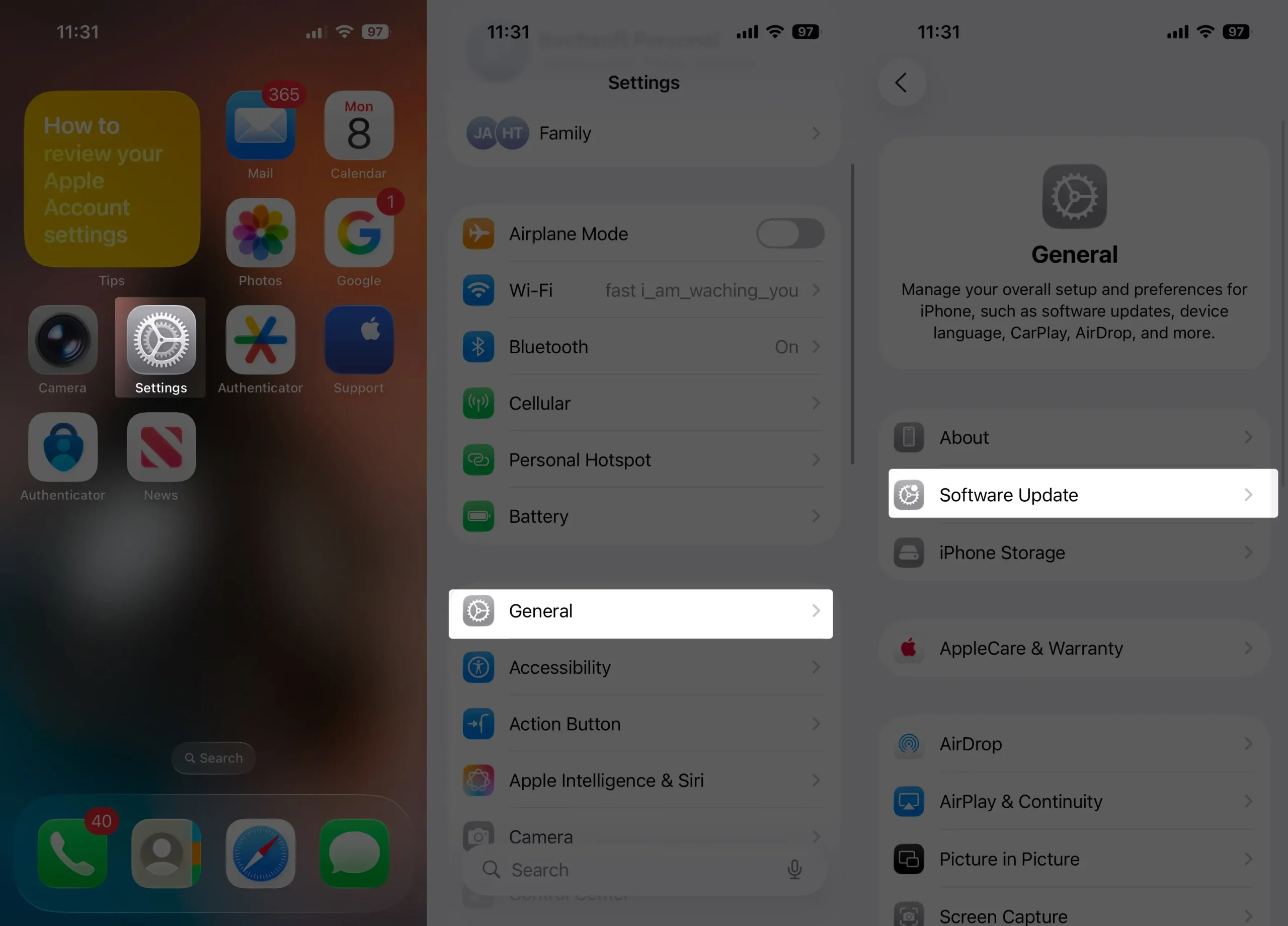
Solution 7: Update iOS and Carrier Settings
- Settings > General > Software Update: install updates.
- Settings > General > About: if prompted, tap Update for Carrier Settings.
Solution 8: Reset network components
- Settings > Cellular > Cellular Data Options: toggle Enable LTE/5G off then on; try LTE/4G only briefly.
- Settings > Apps > Phone > Wi-Fi Calling: toggle off/on; some carriers deliver SMS over Wi-Fi, others don’t—test both ways.
- Settings > General > Transfer or Reset iPhone > Reset > Reset Network Settings. This forgets Wi-Fi/Bluetooth/VPN; reconnect after.
Solution 9: Turn off VPN and private DNS apps
- Disable any VPN, private DNS, or firewall app that might interfere with short code delivery.

Solution 10: Try a different delivery method
- If available, tap “Call me with a code” to receive an automated voice call.
- Use backup codes or an authenticator app (Google Authenticator, Microsoft Authenticator, 1Password, etc.) if the service supports it.
Solution 11: Apple ID–specific workaround
- On a trusted Apple device: Settings > [Your Name] > Sign-In & Security > Tap Two-Factor Authentication > Click on Add a Trusted Phone Number > Add phone number > Choose Text Message as verify number Using secion > Tap on Continue button to generate a code instantly.
- Confirm your trusted phone numbers under Settings > [Your Name] > Sign-In & Security.


Solution 12: Check the account phone number with the service
- Open the website/app you’re trying to log into and confirm the registered number is current.
- Update the number if you recently changed SIMs or carriers.
Solution 13: Carrier checks (short code and account flags)
- Contact your carrier and ask them to:
- Ensure short code/OTP SMS isn’t blocked on your line.
- Remove any spam block on A2P/short code messages.
- Confirm your line is fully provisioned for SMS and not rate-limited.
- If you’re abroad, confirm that roaming and SMS over roaming are enabled.
Solution 14: Try another phone temporarily
- If possible, change the verification method to a different number you control, receive the code there, log in, then update your primary number.
Solution 15: Last resort—restore messaging stack
- Sign out of Apple ID in Messages and FaceTime, restart, then sign back in.
- If the issue persists across all services, back up your iPhone and consider a fresh iOS restore.
Bottom Line:-
If your iPhone isn’t receiving verification codes, it’s usually a simple fix like checking your network or restarting the device. Most issues come from blocked numbers, poor signal, or misconfigured settings.
Once resolved, codes will arrive instantly, keeping your accounts secure and accessible.