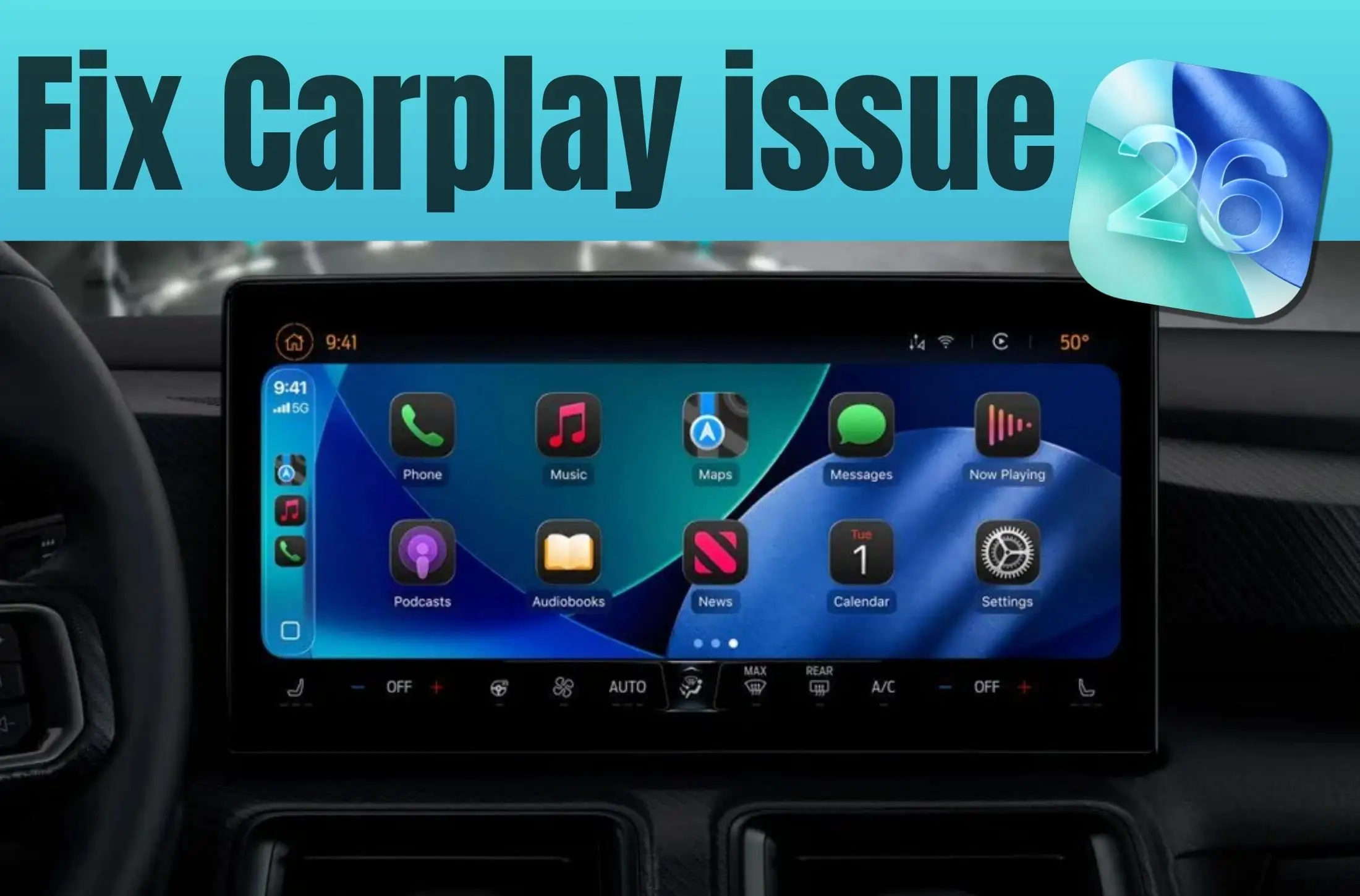
I drive every single day — and I depend on CarPlay like it’s my co-pilot. Whether I’m in my BMW X5 for long highway runs or my Mercedes-Benz GLE in city traffic, CarPlay keeps my music rolling, messages hands-free, and maps guiding me flawlessly.
But after updating my iPhone to iOS 26, everything went downhill. CarPlay started disconnecting randomly, sometimes showing a black screen mid-drive, or just not launching at all. One second I’m vibing to my playlist, the next it’s just silence and frustration.
It’s heartbreaking when your smooth, luxury-like drive suddenly turns chaotic — especially when the new CarPlay widgets in iOS 26 look absolutely stunning… but only when they actually work.
Here’s exactly how I fixed it — and how you can too.
12 Real Fixes to Get CarPlay Working Again
1. Restart Your iPhone and Car
The simplest trick — I just turned off the car, restarted my iPhone, and reconnected. It fixed random black screens twice. This mostly works with Apple CarPlay not loading apps.
2. Forget and Reconnect Car
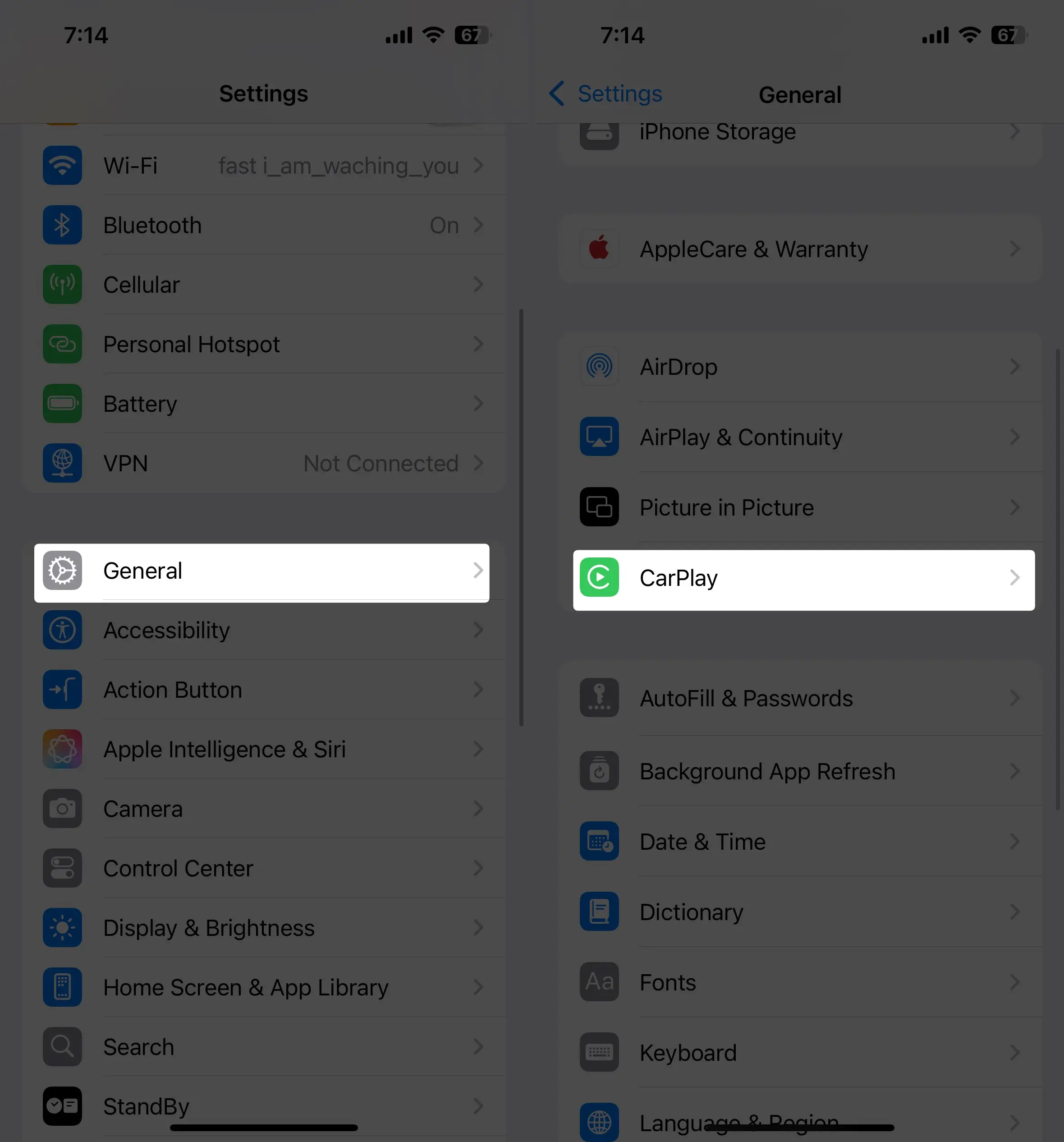
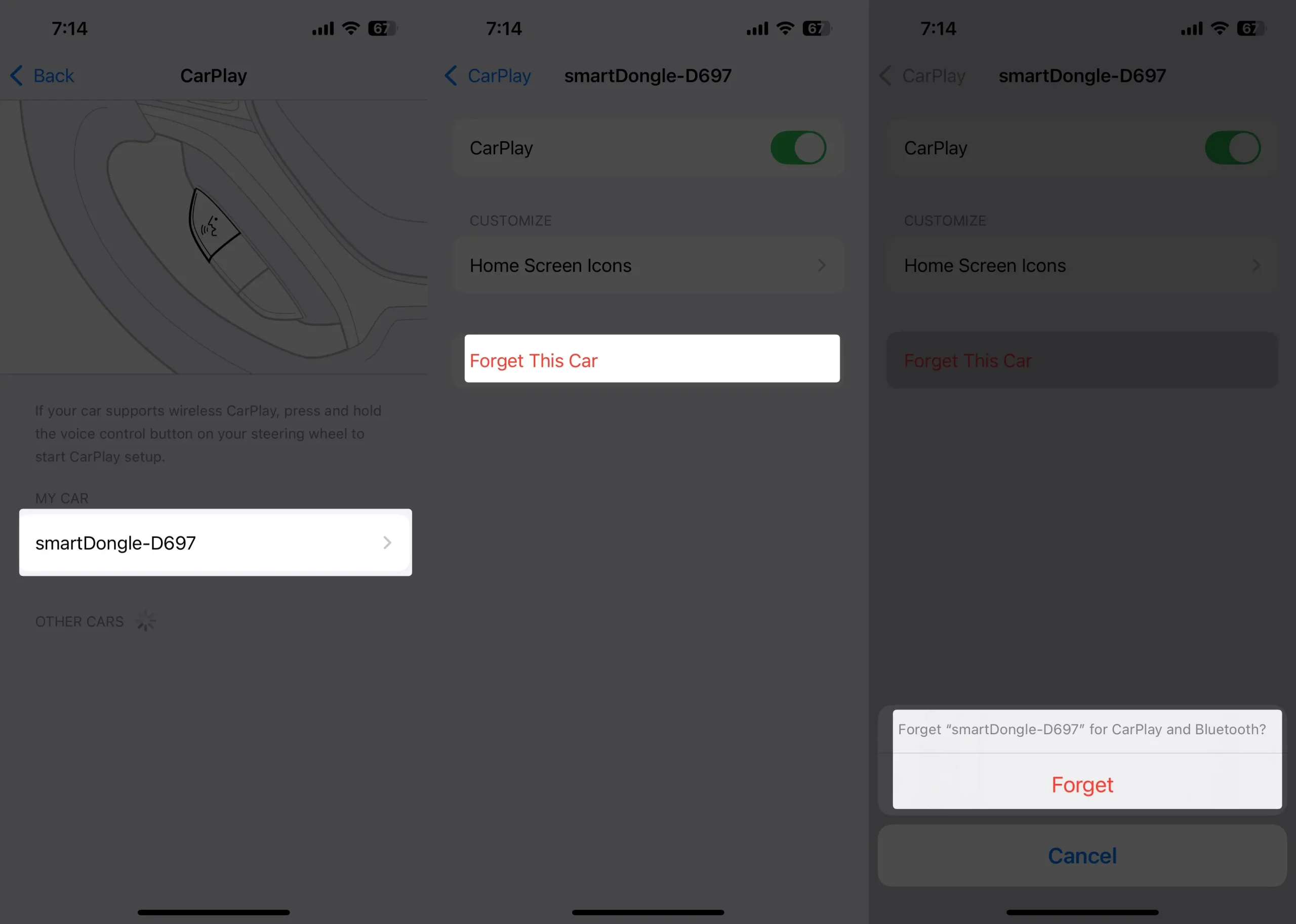
Go to Settings → General → CarPlay, tap your car (e.g., “BMW iDrive”), select Forget This Car, and tap Forget to confirm. Then pair it again.
3. Use a Genuine Cable
If you’re using wired CarPlay, switch to an Apple-certified cable. My cheap backup cable caused frequent disconnections in my Audi Q7.

4. Disable Bluetooth Temporarily
Turn Bluetooth off and try wired CarPlay. This helps if the car keeps switching between Bluetooth and CarPlay.

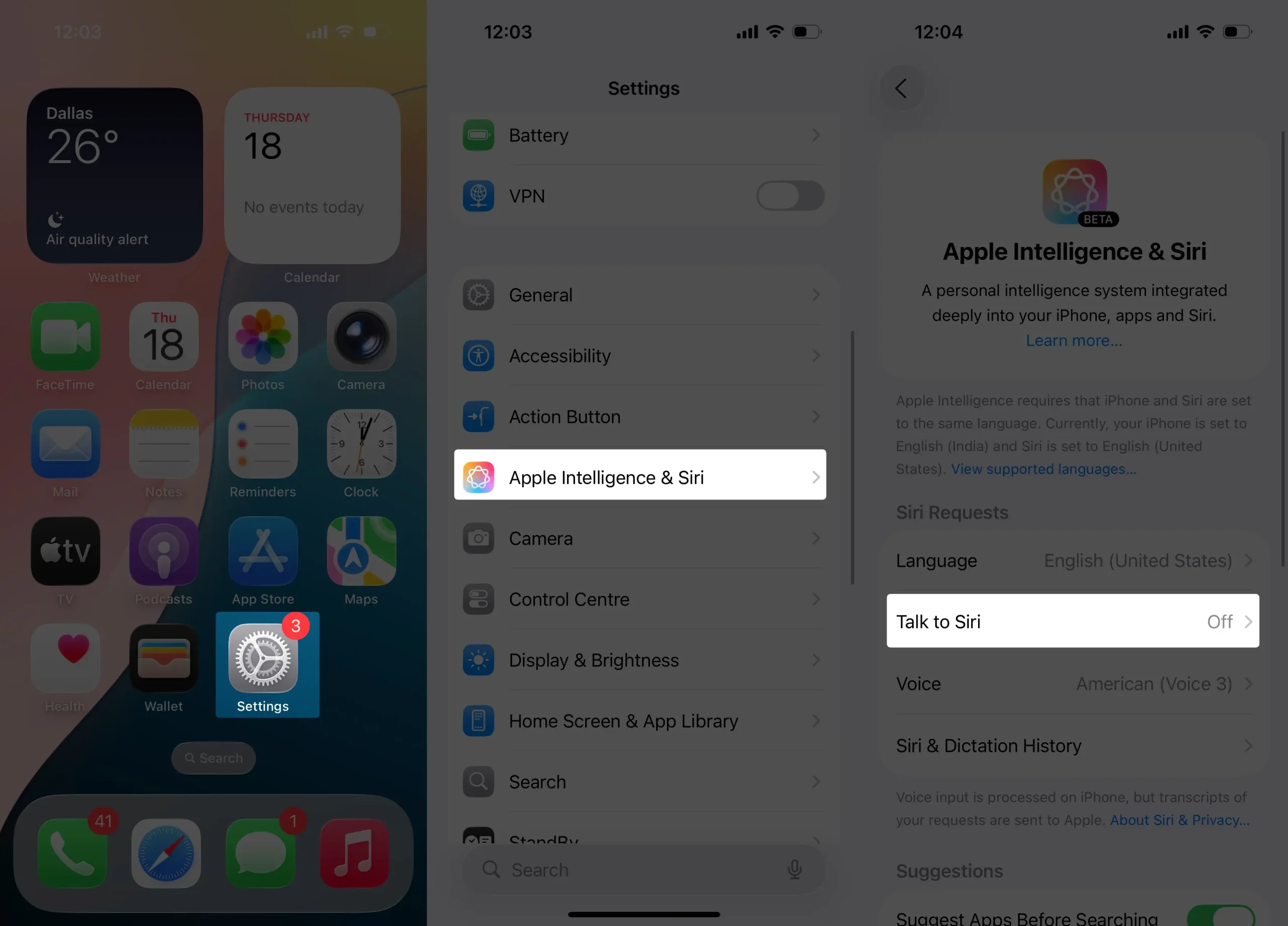
5. Check Siri Settings
Make sure Siri is enabled. Go to Settings → Apple intelligence & Siri, or Siri & Search → Talk to Siri → Hey Siri → Enable Siri → Set UP Hey Siri → Follow on-screen instructions. Note: CarPlay won’t launch without it.

6. Turn Off VPN or Security Apps
VPNs can block CarPlay’s network traffic. I disabled mine, and CarPlay launched instantly.

7. Reset Network Settings
Go to Settings → General → Transfer or Reset iPhone → Reset → Reset Network Settings. Reconnect Wi-Fi and CarPlay. To clear network glitches that block CarPlay.
8. Toggle CarPlay Off/On
In Settings → General → CarPlay, disable CarPlay for your car, then enable it again.

9. Update Your Car’s Infotainment
Luxury cars like the Porsche Cayenne or Range Rover Velar often receive periodic infotainment system updates that improve compatibility with features like CarPlay and fix connectivity bugs. These updates don’t usually install automatically — you’ll need to log in to your car brand’s official owner portal or visit your local service center to download and apply the latest version. Staying current ensures smoother CarPlay performance and fewer random disconnects.
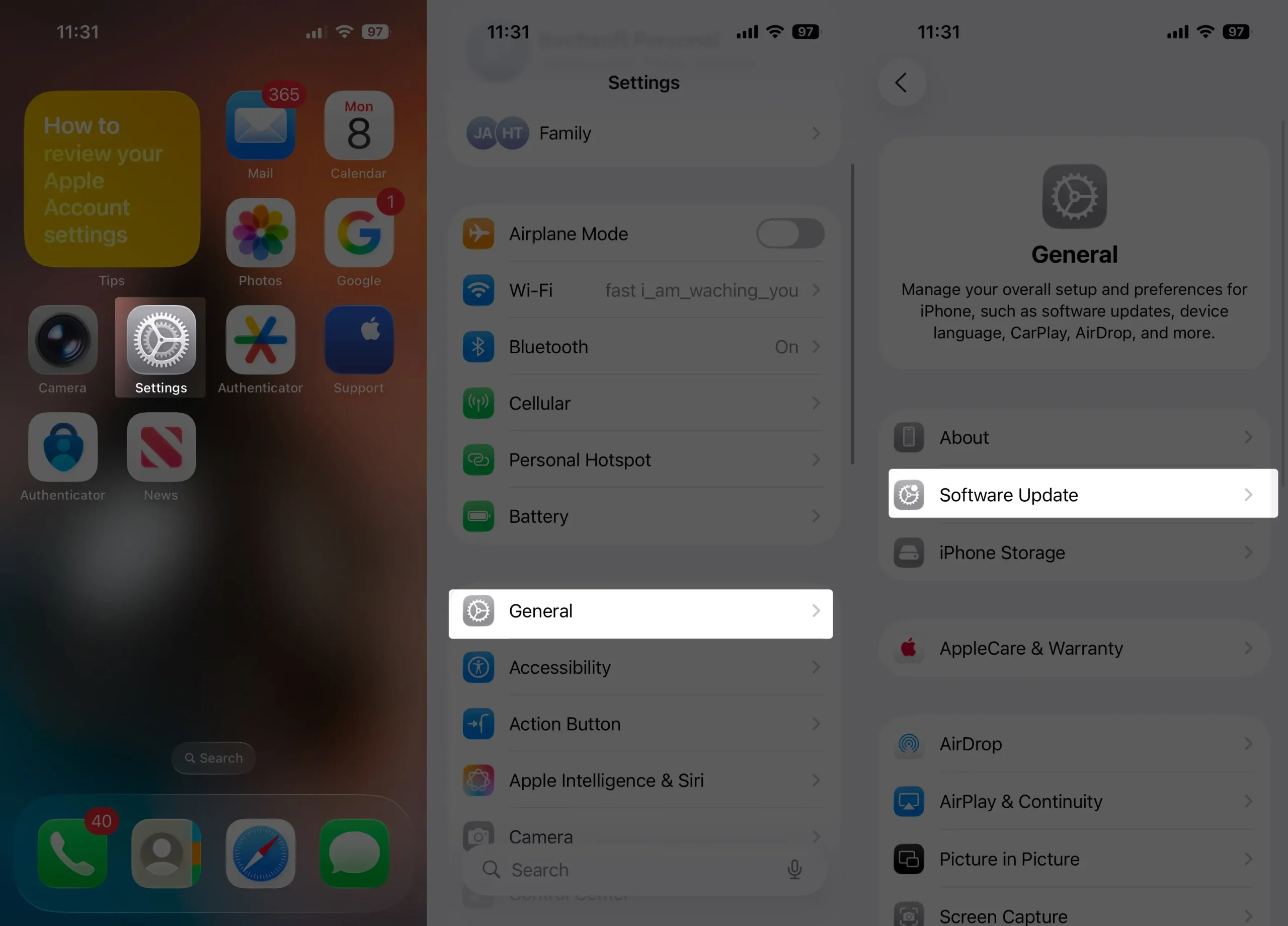
10. Check iOS Update Again
Sometimes a small bugfix update (like iOS 26.0.1) fixes CarPlay issues. Go to Settings → General → Software Update.
11. Try Wireless → Wired or Vice Versa
If you’re using wireless CarPlay and it glitches, plug in a cable. If your car is wired, try using wireless if it supports it.
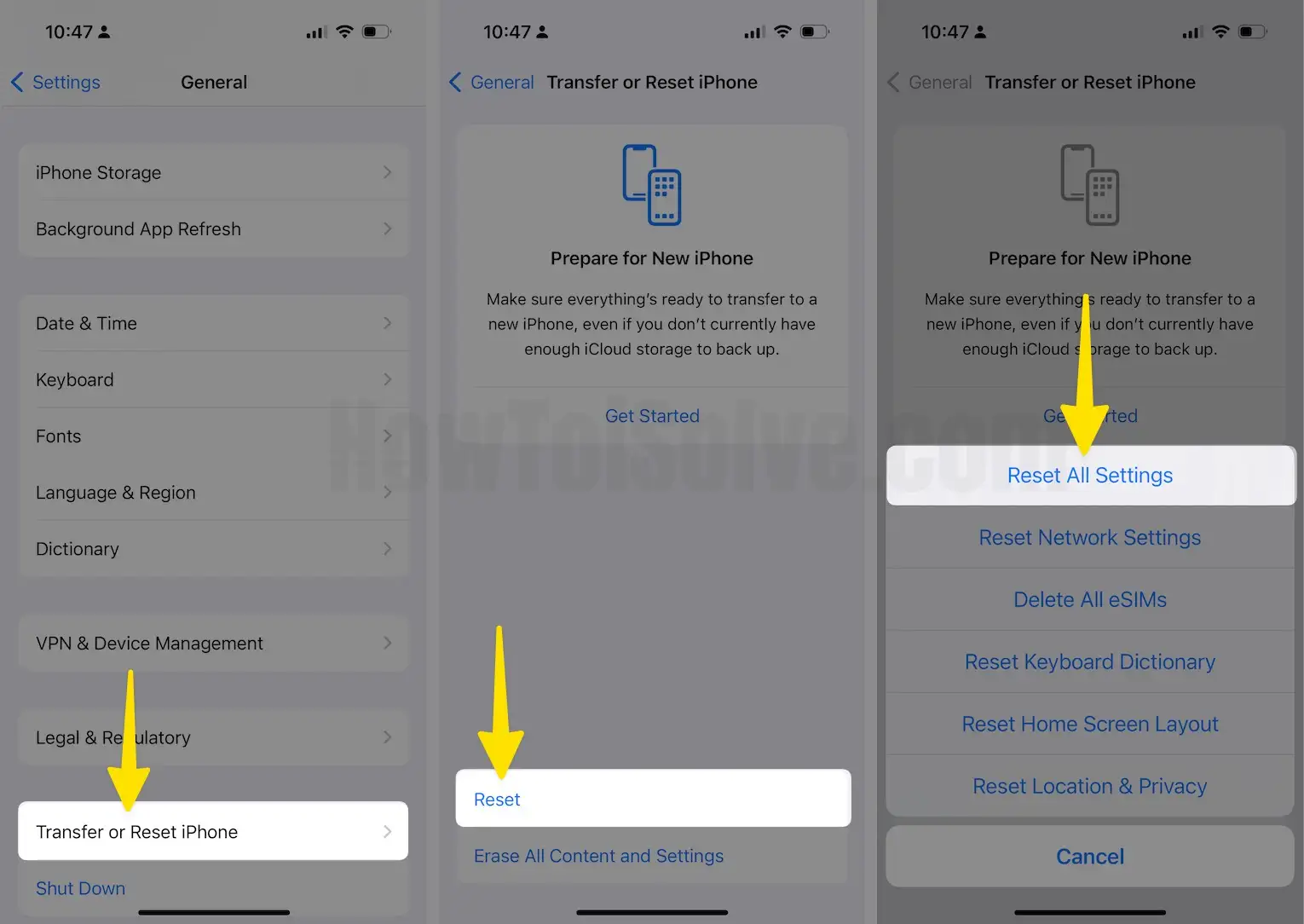
12. Reset All Settings
As a last resort: Settings → General → Transfer or Reset → Reset All Settings. This keeps your data but clears system bugs.
Final Thoughts From the Driver’s Seat
I love what Apple did with the new iOS 26 CarPlay dashboard widgets — they look futuristic, clean, and smooth. But none of that matters when you’re stuck in traffic, your CarPlay screen goes black in the middle of a route, and your music dies mid-chorus.
After trying all 12 fixes above, CarPlay is finally back to being the reliable co-driver I need — whether I’m gliding down the freeway in my Tesla Model Y or crawling through city traffic in the BMW X5.
If your CarPlay experience got wrecked after iOS 26, don’t give up — these steps genuinely work.
If none of these fixes solve the problem and CarPlay keeps failing, you can downgrade from iOS 26 to iOS 18 for a more stable experience until Apple releases a proper fix.