“🎧 Listen to this article” or “Prefer to listen? Hit play below.”
Just updated your iPhone to iOS 26 and now iMessage is acting up? Don’t panic — you’re not alone. After major iOS updates, iMessage sometimes stops working, won’t send messages, gets stuck on “Waiting for Activation,” or suddenly switches to green SMS bubbles. The good news is that it’s usually easy to fix. Below are all the practical solutions you can try right now.
iOS 26 Bug Breaks iMessage on iPhone — Here’s How to Fix It Fast
Wondering why iMessage suddenly stopped working after updating to iOS 26? Stick around — the real cause might surprise you.
1. Check Your Internet Connection
iMessage relies on internet access, so first make sure:
- Your iPhone is connected to Wi-Fi or has mobile data enabled.
- Try opening a webpage in Safari to confirm connectivity.
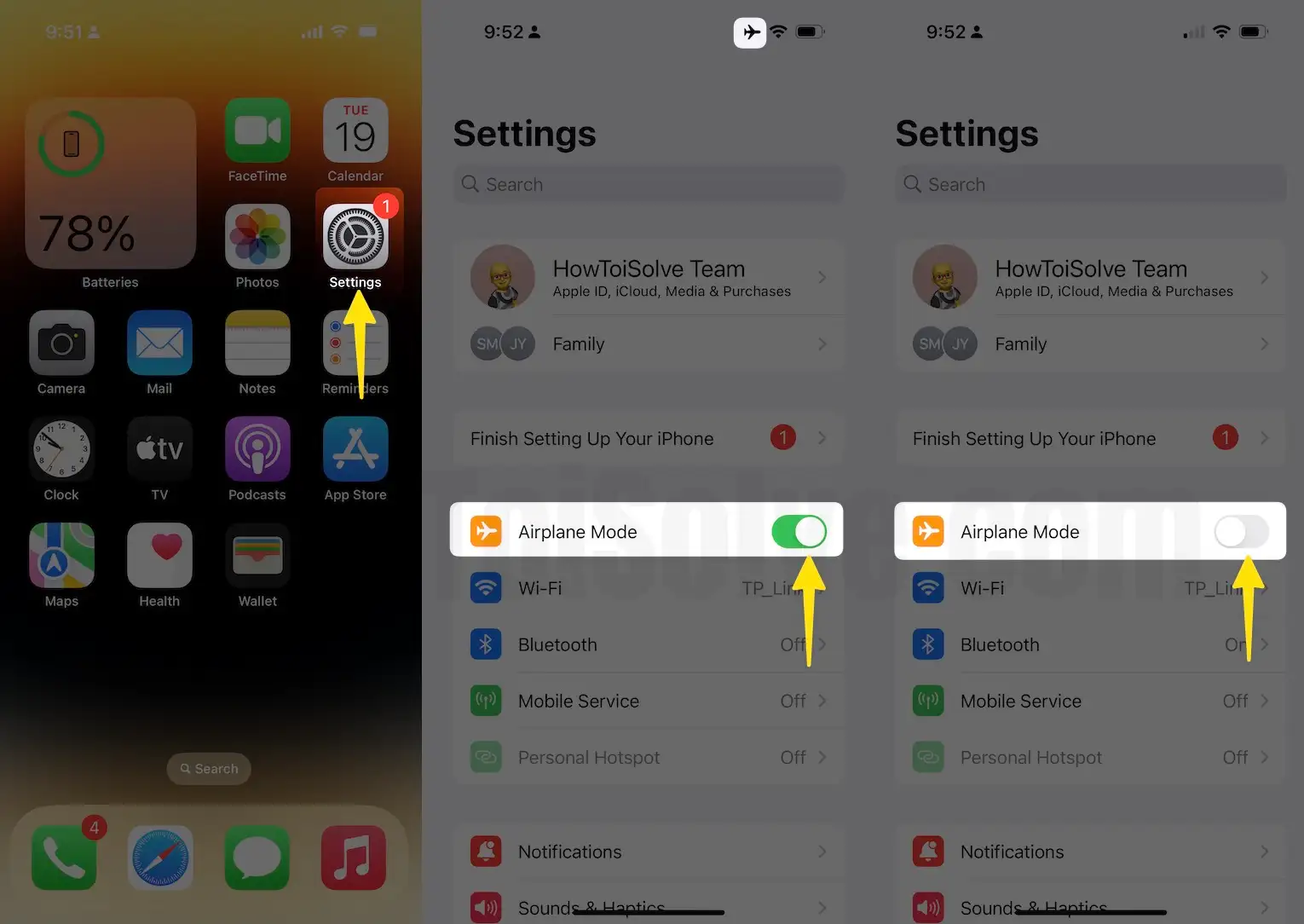
- If the network is unstable, switch to another Wi-Fi network or toggle Airplane Mode on and off.
2. Verify Date & Time Settings
Incorrect time settings can block activation.
- Go to Settings › General › Date & Time
- Turn on Set Automatically and restart your iPhone.

3. Make Sure iMessage is enabled
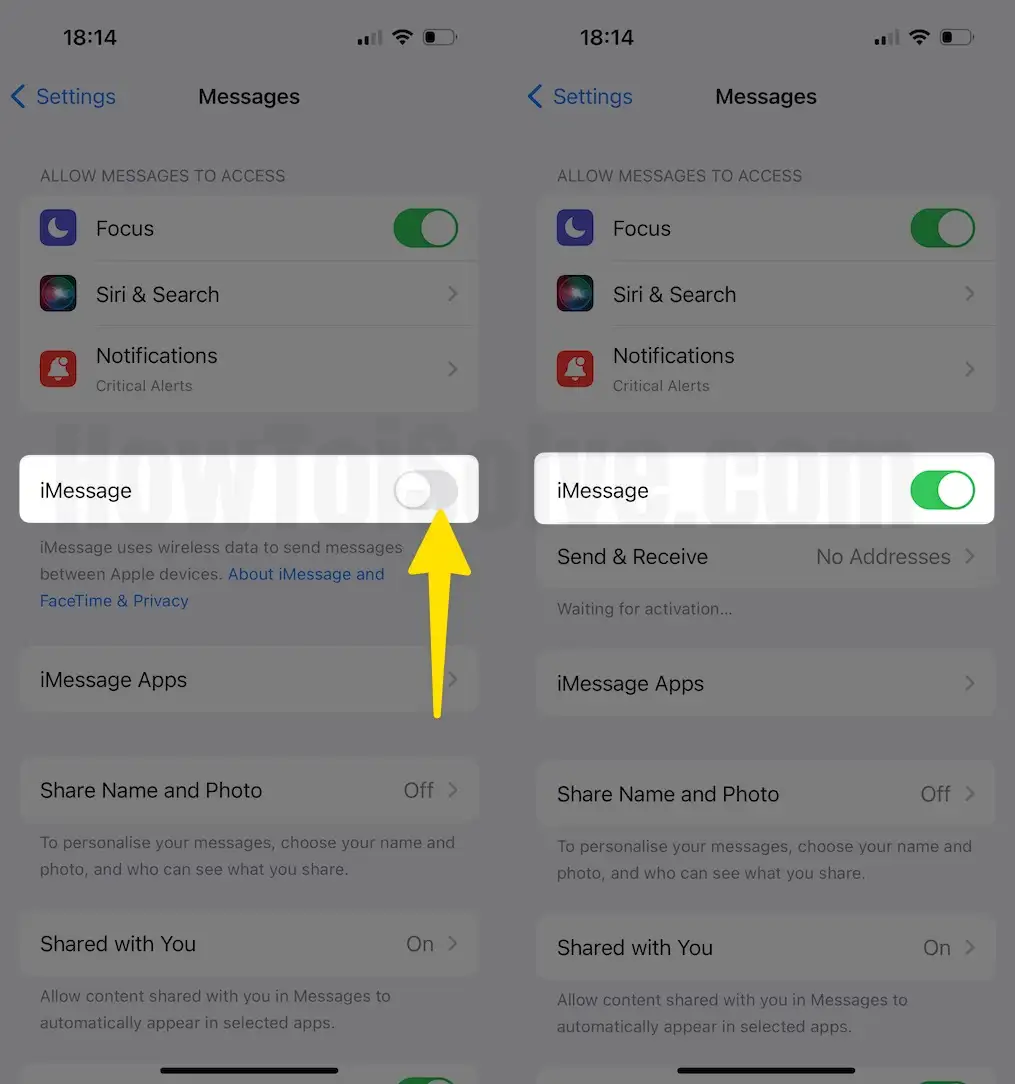
- Go to Settings › Apps > Messages
- Ensure the iMessage toggle is turned on
- Wait a few seconds — it might take time to activate after a major update.
4. Sign Out and Back Into Apple ID
Your Apple ID session may have glitched after the update.
- Go to Settings › Apps > Messages › Send & Receive
- Tap your Apple ID and choose Sign Out
- Sign back in using your Apple ID credentials.
5. Force Restart Your iPhone
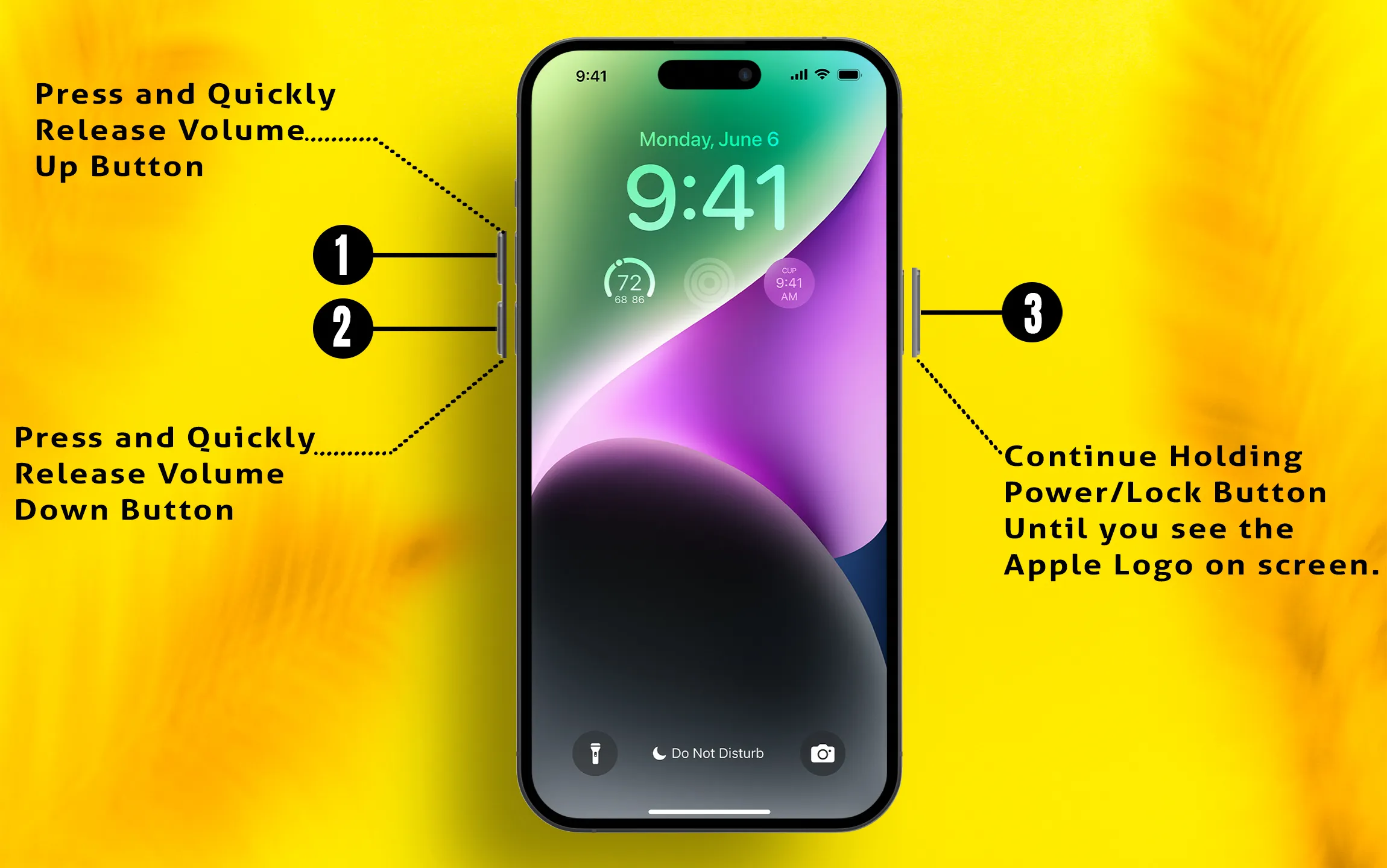
A simple force restart clears temporary bugs. After you force restart your iPhone, it cuts off all power and reboots the system without going through the normal shutdown process. This clears temporary glitches or frozen processes, helping your iPhone run smoothly again.
- Press Volume Up, then Volume Down, then hold the Side button until you see the Apple logo.
6. Reset Network Settings
If iMessage still won’t activate, clear your network cache.
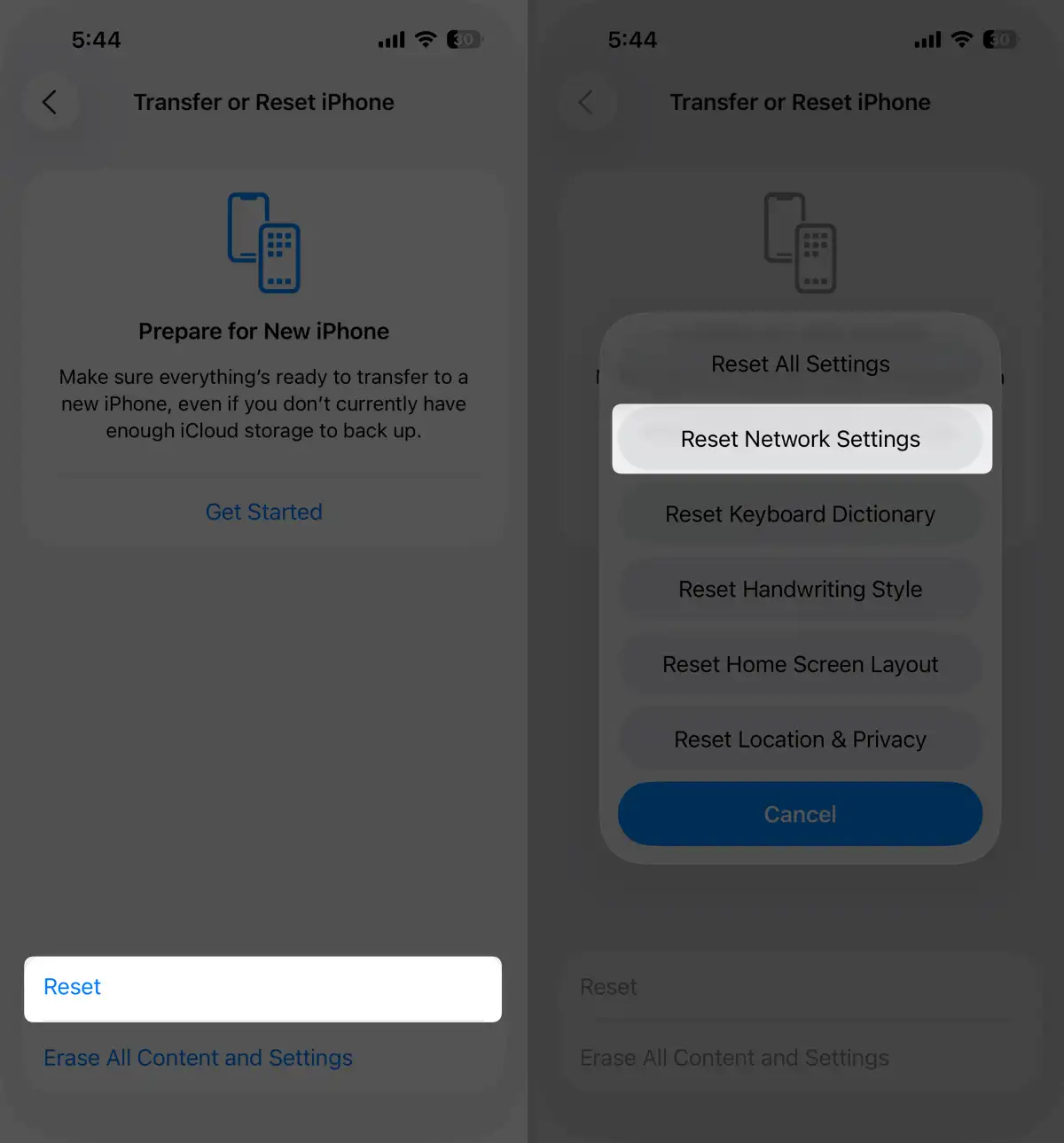
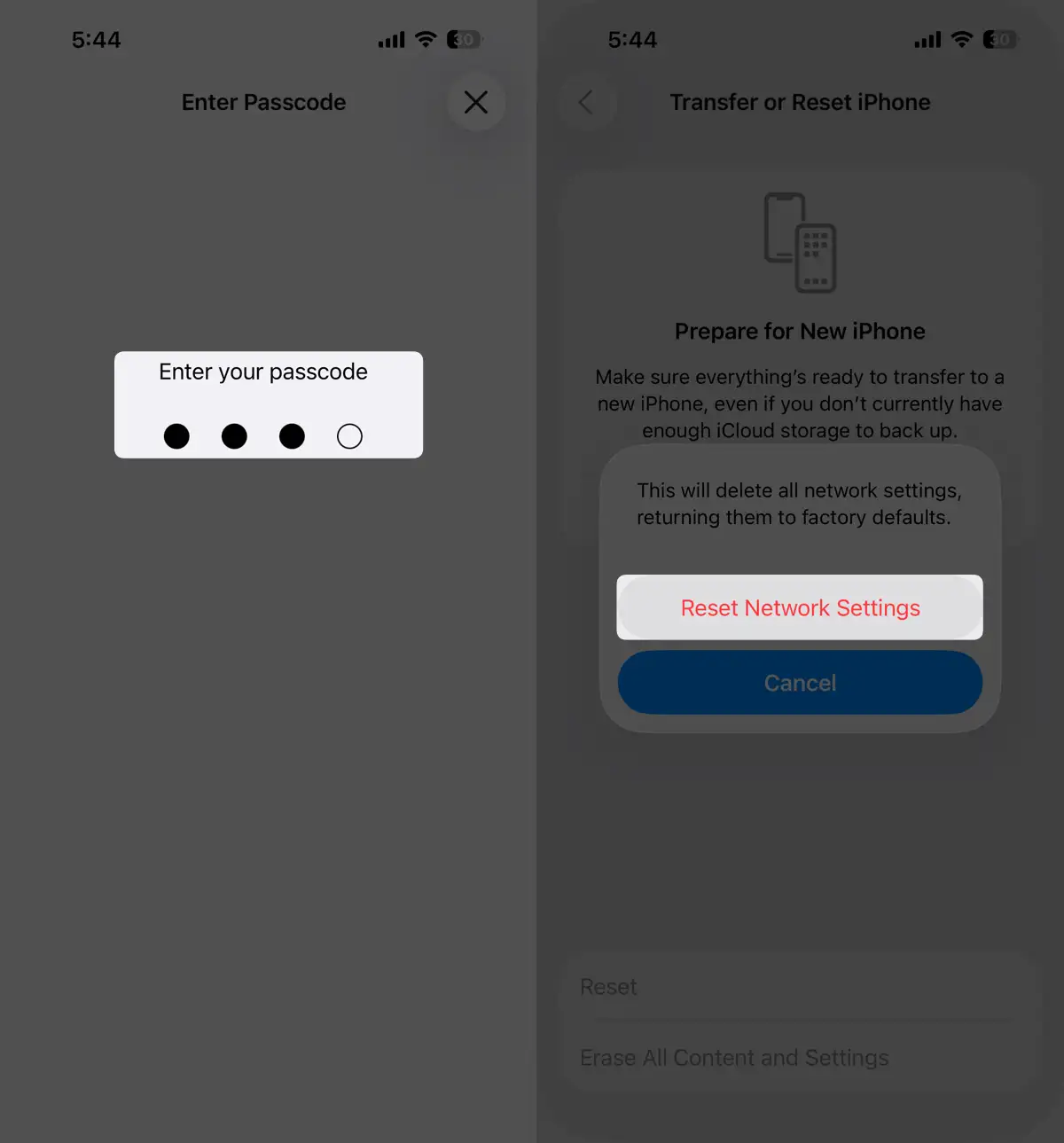
- Go to Settings › General › Transfer or Reset iPhone › Reset › Reset Network Settings
- This resets Wi-Fi, Bluetooth, and VPN settings, so reconnect to Wi-Fi afterward.
7. Update Carrier Settings
Carrier updates can affect SMS and iMessage delivery.
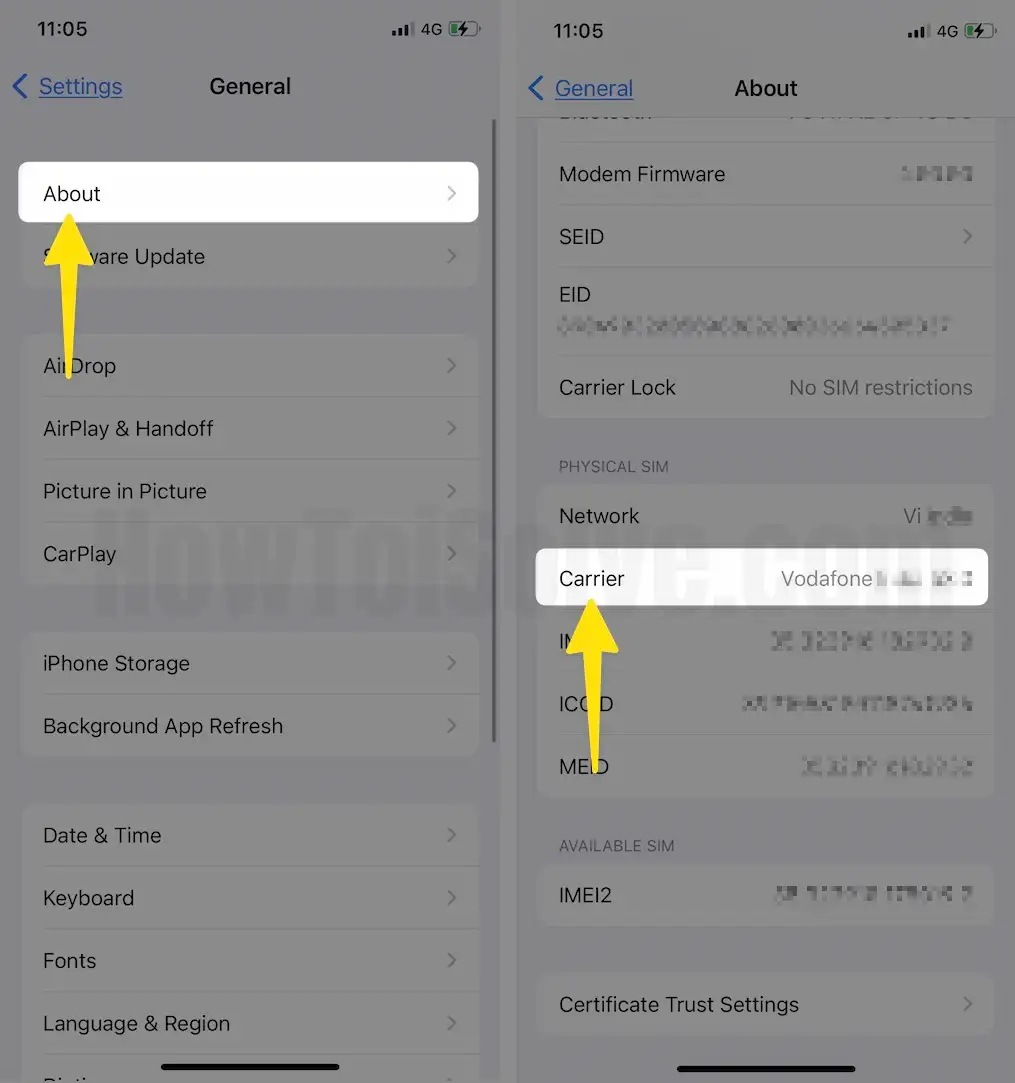
- Go to Settings › General › About
- If you see a Carrier Settings Update pop-up, tap Update
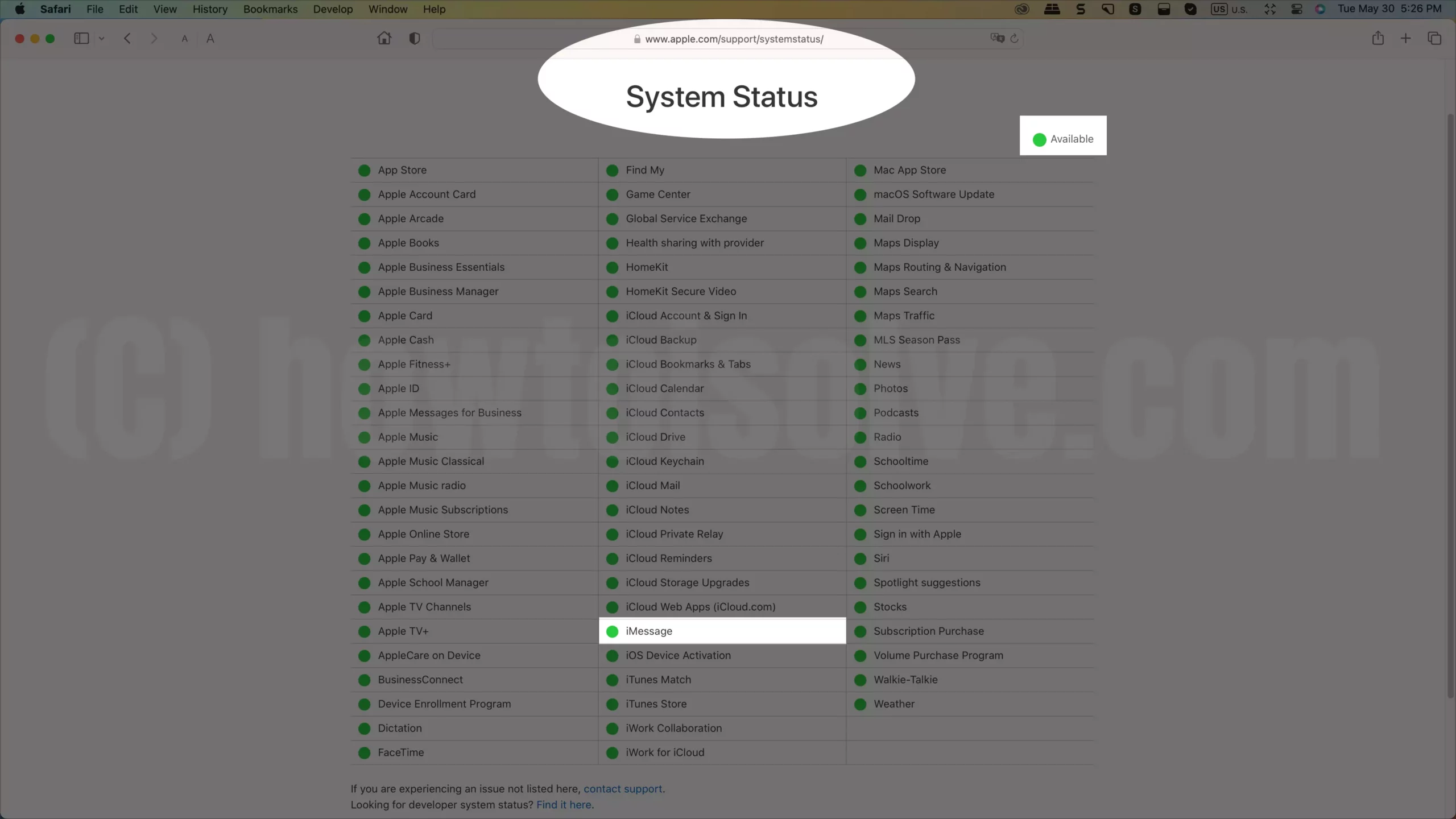
8. Check Apple’s iMessage System Status
Sometimes the problem isn’t on your side.
- Visit Apple’s System Status page
- If iMessage is down, wait until Apple resolves the outage.
9. Turn iMessage Off and Back On
- Go to Settings › Apps > Messages
- Toggle iMessage off, wait 30 seconds, and toggle it back on.
- Wait for reactivation — it may take a few minutes.
10. Contact Apple Support
If nothing works, there could be a deeper issue with your account or device.
- Contact Apple Support or visit an Apple Store.
- Back up your iPhone first in case they suggest a full reset.
Final Tips
- After big updates like iOS 26, iMessage might take a while to fully re-activate.
- Keep your iPhone plugged in, connected to Wi-Fi, and updated to the latest minor patch (like iOS 26.1 or later).
Did These Fixes Work for You?
Tried all the solutions above? Let us know if your iMessage is finally working again after updating to iOS 26.
Your feedback helps other users facing the same issue — so drop a quick comment below and share your experience.
We’d love to hear what worked (or didn’t) for you!