In Short
- Here are quick suggestions on quick solutions to resolve the FaceTime issue either permanently or temporarily.
- Get Pro tips to resolve any issues that may arise during a FaceTime video call.
FaceTime freezing after a few seconds on your iPhone can be frustrating, often linked to a poor connection warning. If you’re wondering whose fault it is when FaceTime says “poor connection,” it usually points to either your internet or the other person’s network issue. Common causes include weak Wi-Fi, mobile data drops, or outdated software. Fixing these problems can quickly restore smooth FaceTime video and audio performance.
Most common problems and Working solutions for iPhone Frozen on FaceTime Video call
Fix 1: Shut down the iPhone or Soft Reset
Frozen iPhone during FaceTime Video call, This setting is useless and can’t get help. Go with the next steps for Hard Restart and reboot your iPhone.
We will start with a straightforward solution to resolve iPhone freezing issues during FaceTime calls.
- Go to “Settings” on your iPhone.
- Open “General”.
- Finally, tap on “Shut Down”
- Now, drag the “Slide to Power Off” option.
- Please wait for 1 to 2 minutes and use the Side button to turn it on again.

Fix 2: Force Restart iPhone
If the normal restart doesn’t work for you, then try this force restart method which will help your iPhone to overcome minor software issues.
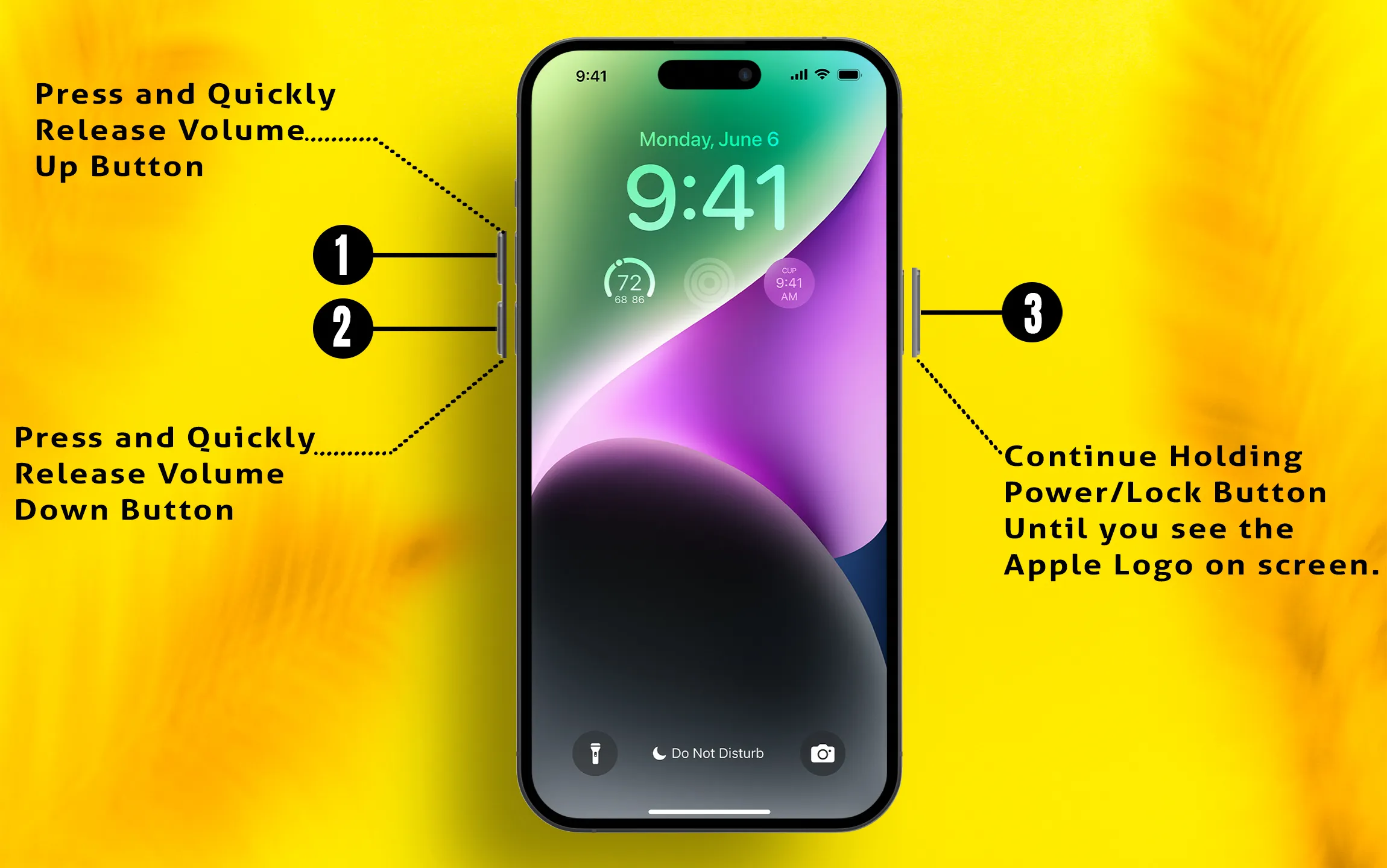
- Press and release the “Volume Up key“.
- Press and release the “Volume Down key“.
- Lastly, “hold down the Side button” until you don’t see the Apple logo.
Fix 3: Check for Software Update
Apple releases a new firmware update in a short duration. I suggest checking once a month. Otherwise, you can enable automatic software update from settings.
- Go to the “Settings“
- “General“
- “Software Update” [Check for Update].
That’s it.
Fix 4: Free Up Storage and Disable Background App Refresh
Too many processes run parallel on your iPhone makes freeze or unresponsive to touch. I recommend freeing up storage and give big room to process to run big apps and processes. Go to settings > General > iPhone storage > Follow Recommendations or Delete unwanted data [full tutorial on Free Up space on iPhone].
Otherwise, you can turn off the Background app refresh.
- Go to the Settings
- General
- Background App Refresh
- Off
Fix 5: Backup > Erase > Clean install iOS > Restore
When none of the solutions work for us, then our last option is to restore the iPhone. By restoring iPhone, every single harmful element, as well as necessary files, will be deleted. So if you have decided to go for this option take backup if you don’t want to lose data.
Auto-fix all the internal bugs using these steps, First, take a full backup of your iPhone.
Now, Erase all the settings and Content of your iPhone from “Settings” > “General” > “Transfer or Reset iPhone” > “Erase All Content and Settings” > Choose to Continue or Not Now > Enter Passcode for This iPhone > Now enter Screen Time Passcode if asked, Follow the on-screen process to complete the procedure.
After that, Now Restore your iPhone.
Now, Open iTunes on your Mac or PC.
Download the latest Firmware files of iPhone, iPad, and iPod Touch.
Connect your iPhone to iTunes via lightning cable, in iTunes you will see your iPhone icon.
Click on “iPhone icon” > Go to “Summary” >

Press “Option key” from your Keyboard on Mac + Click on “Restore iPhone”.

Now Browse the Downloaded .ipsw file save previously from the about link. Open it.
Now, Wait for the Restore process to get completed.
Fix 6: Go to Apple Support and Handover your Device for a test
Apple Gives free support for all Apple Devices. It doesn’t matter if your device is under warranty or not. But hardware damage will be charged for outside of warranty.
Fix 7: Disable and Enable FaceTime
Didn’t forcing a restart of the iPhone work for you? Don’t worry; we have more potential solutions to fix iPhone hanging during FaceTime calls. In this troubleshooting, we will disable the FaceTime app and then, after a few minutes, again enable it. Let’s do it.
- Open the “Settings” App.
- Scroll the screen to Apps
- Find the FaceTime app.
- On this page, turn the toggle off next to “FaceTime”.
Return to the main screen by closing the settings menu. Then, follow the same steps mentioned above to enable FaceTime.
Fix 8: Reset All Settings
By resetting all settings on your iPhone, all the Preferences and Network settings will be set to by default. So, in case you have made some wrong choice that might be affecting and causing iPhone to freezes at the end of the call, then it will be fixed.
- Go to Settings
- Choose General
- Tap Transfer or Reset iPhone
- Now tap Reset
- Tap on Reset All Settings
- Follow the on-screen instructions to complete the process.
Fix 9: iPhone is hitting up close to the Back Camera during a Video Call
FaceTime is hitting up the backside of the iPhone body near to the camera. It’s the natural and own behavior of the Apple iPhone. These are old problems running with the new iPhone model and iOS version.
To come reduce the temperature of the iPhone’s backside, Remove the cover that fully overlays the body. Don’t put your iPhone on charging while you are using your iPhone for video calls or Camera shooting.