


Apple’s Health App is an excellent tool that records all data concerning your daily health. It also saves third-party app data. Sometimes, even after an update or hardware repair, the Health App stops recording data. In case, you’re suffering from the issue of Health App Not Recording Data, then no worries. Check out my following guide. I hope this will help you to fix your iPhone Health App problems.
Before getting started with the solution, I describe my colleague’s experience and his iPhone Health App Dashboard Stopped Recording Steps as well as the Running + Walking usually but the phone can’t track distance, too. At that, I suggest he under given a suggestion and so he followed this guide and succeeded.
Why is my iPhone Health App Not Recording Data? Follow the ideal troubleshooting
Solution #1. Make Sure the Motion & Fitness Toggle is Enabled/Green Under The Privacy Setting
First of all, Unlock Your iPhone Screen,
- Open the Settings App on the iPhone looks like a Gear icon.
- Next, scroll the screen, tap the Privacy & Security tab,

- Check Motion & Fitness and Fitness Tracking, both toggles are switched ON/ Green.
- Also, Enable Health Toggle.
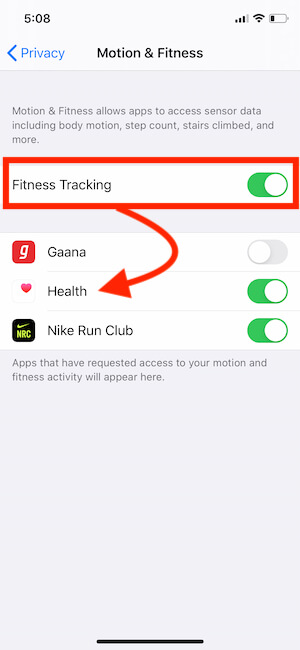
If Motion & Fitness is not enabled, so your iPhone won’t record health app data. Hence, if you would like to register your steps, Running + Walking distance correctly then keep always the Motion & Fitness trigger turned ON.
The second setting, as mentioned earlier (Motion & Fitness), is already ON. However, the Health App does Not Record Data on your iPhone. Then you should force restart your Phone.
Yeah, a Force reboot is an ideal solution for almost iPhone problems. Don’t worry; you don’t lose any data, it just refreshes your Phone.
Know how to Force Reboot Your iPhone as Per Model Wise An iPhone 8 Plus/8 Plus and Other all iPhone models. Before that Check How to Analyze Health App Data on iPhone’s Health app.
Where is the Recorded Data on iPhone?
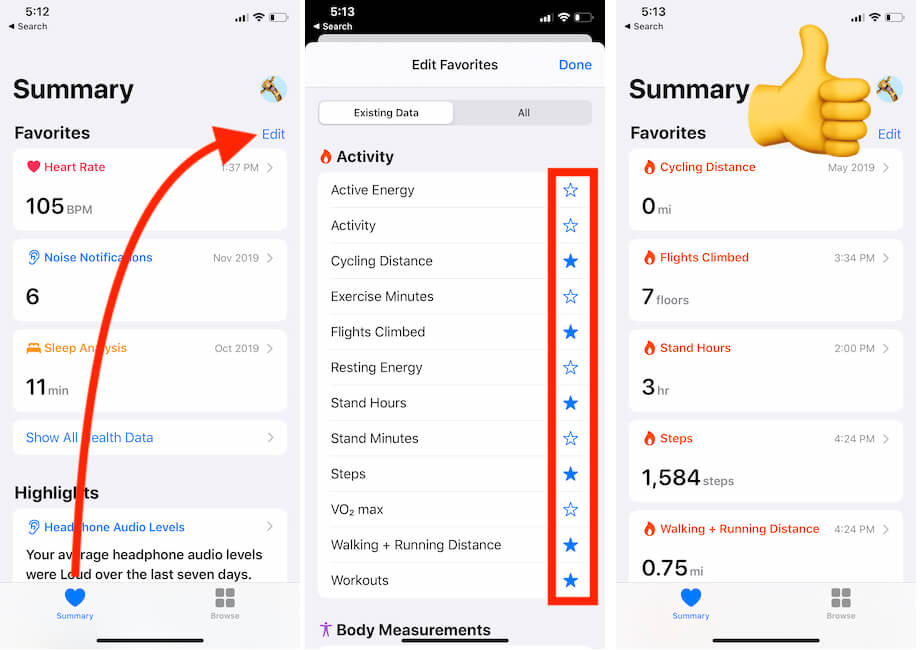
The Health app on an iOS device records all your activities very accurately. Let’s see how to use the Health app to analyze different types of Health data and Movements, such as cycling distance, flight Climbing, stand hours, steps, walking + running distance, workouts, cycle tracking, hearing through Apple Watch, sleep analysis, heart rate, and so on. Follow the steps below to show important data on your Health app and hide the rest.
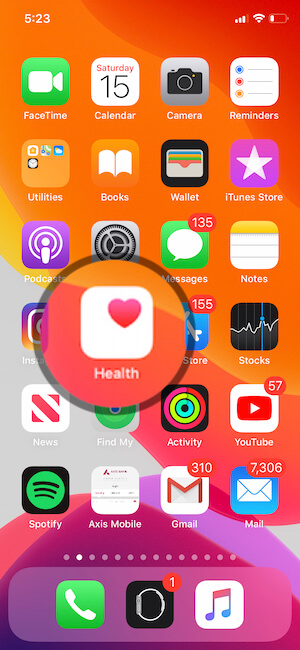
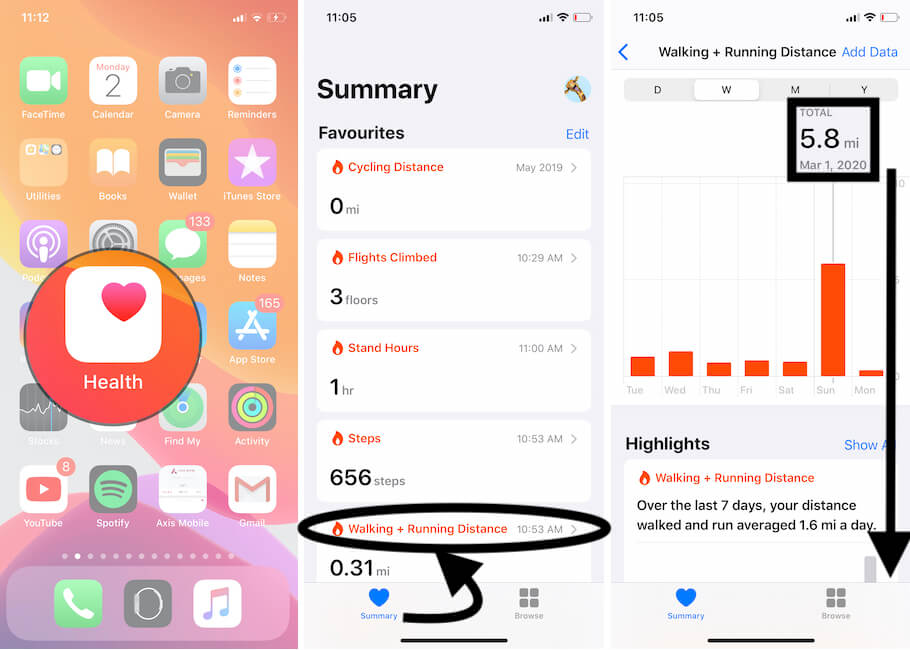
- Open the Health App on iPhone.
Solution #2. For Force Reboot iPhone with Face ID Models
1: Press and Quickly Release the Volume Up button, then press and Quickly Release the Volume Down Button, then lastly, Press and hold the Side Button until you see the Apple logo on the Screen.
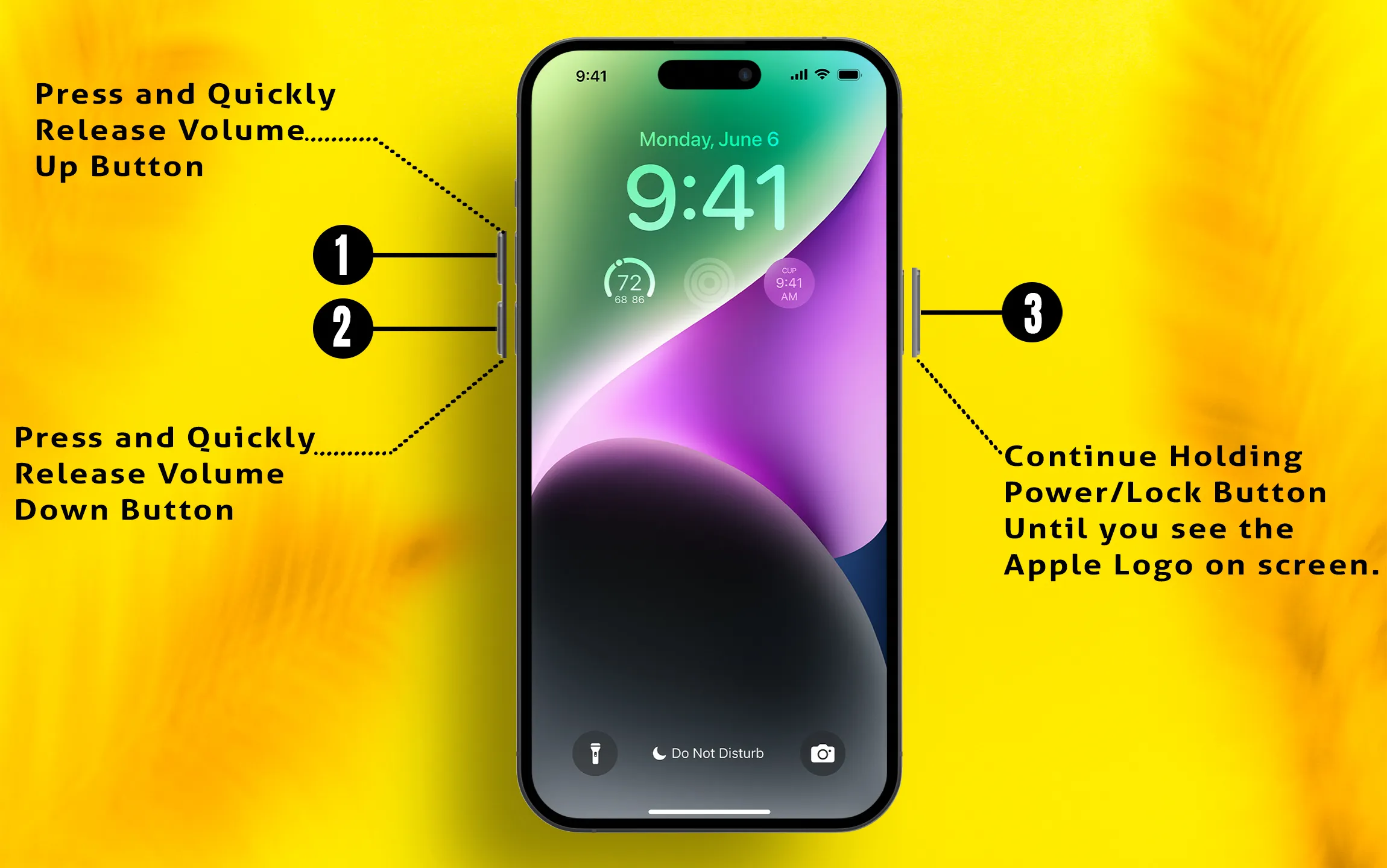
To start the iPhone, again press the Side button until the startup apple logo is on the screen.
Now turn back your iPhone, just press and hold on to the iPhone Power button till starts back.
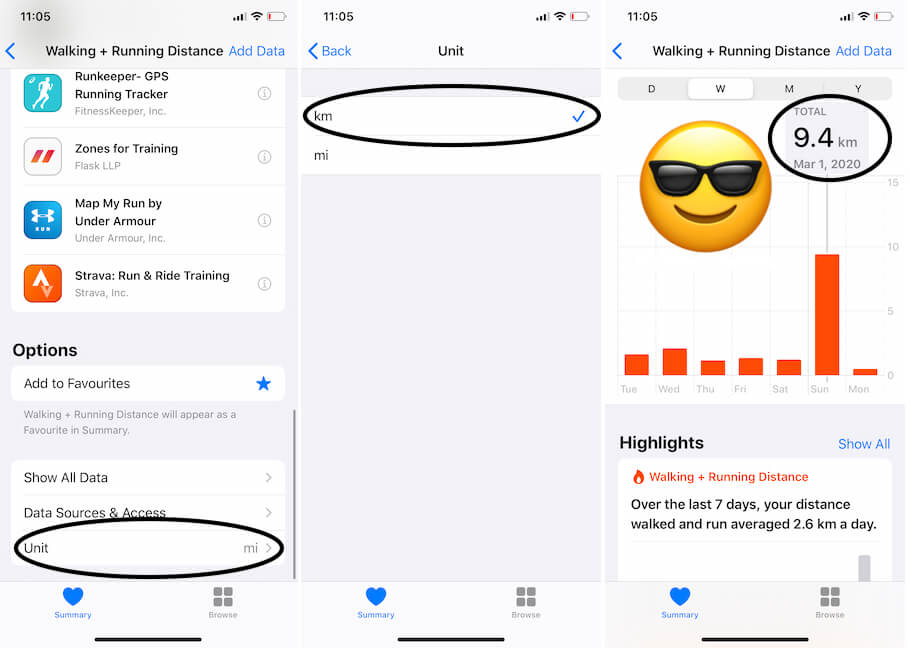
Solution #3: How to Switch Between Miles and Kilometers in Health App on iPhone
Yes, we can change the unit of distance from miles to Kilometers and Kilometers to Miles. This is a Built-in function, So we can easily switch the distance on your iPhone.
- Open Health App on iPhone.
- Under the Summary tab, Find Walking + Running Distance that we can add as of showing on Solution 2 in this article. Here are all the recorded data.
Solution #4. Backup/>Erase iPhone to Factory Settings/>Restore
in case of the above two processes won’t work for your iPhone, Kindly follow restoring your phone is brand new. For this, take a Fresh Backup (using iTunes or iCloud) and Restore your iPhone like brand new. This might help you to fix your phone health App.
→ Best Health and Fitness Apps For iPhone
Does your iPhone Health App not recording Data issue fix? Let me know in the comments.


