


The newest iOS version includes a lot of benefits: fixing the current running issue and increasing the performance of the device. Usually, you may prefer installing it on your device, and you can install it on your device during daytime or night sleep. But frequently receiving update notifications can be nerve-racking as it doesn’t let you focus on your work. Is it possible to stop iOS software update notifications? The answer is “Yes.” In this article, we’’ show you how to block the latest iOS software update notifications on iPhone. So let’s get started!
Alternate Ways to Block iOS Software Update Notifications on your iPhone, iPad
Here below are different ways to block software update notifications.
Method 1: Steps to disable Automatic Updates
First of all, we’ll disable Automatic iOS updates (Automatic update apps on iPhone).. However, this procedure only works if you haven’t yet installed the current iOS update. Additionally, disabling this feature will stop your iPhone from downloading iOS update files in the future. Here’s how to disable it.
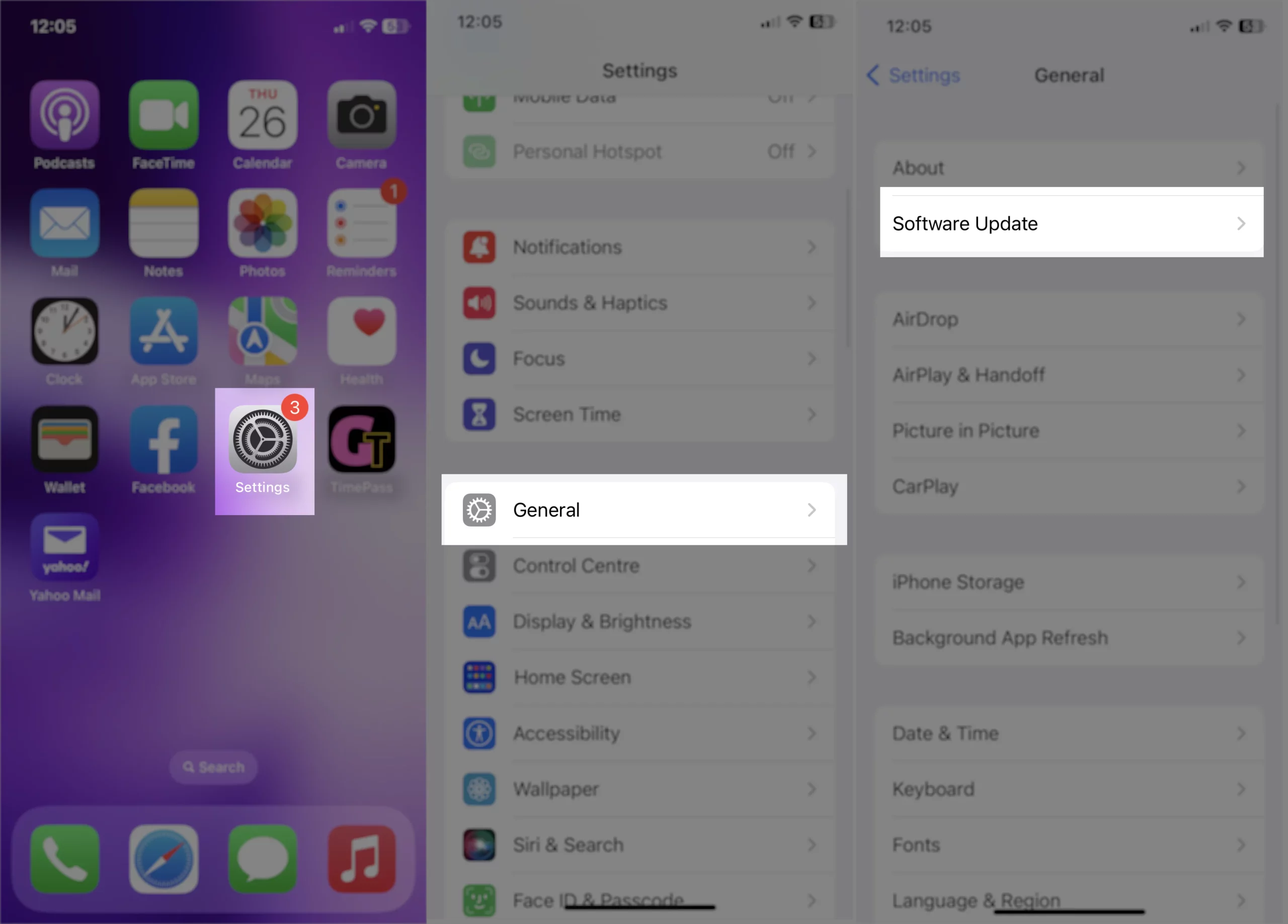
Step 1: Navigate to the Settings App on your iPhone.
Step 2: Search and select General > Software Updates.
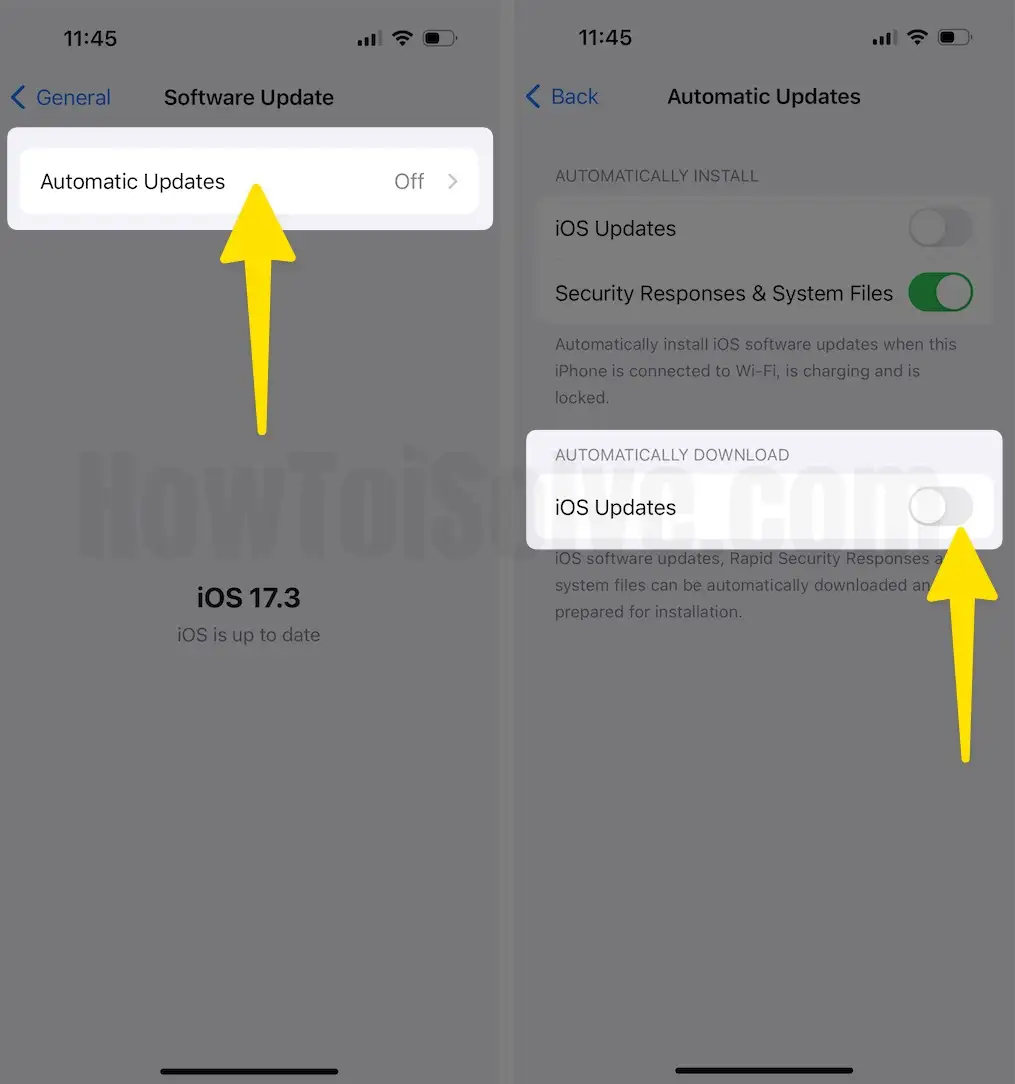
Step 3: Choose Automatic Update > turn off toggle next to the Automatic Update.
Method 2: Steps to delete the downloaded update you don’t want to install
In case you have already installed the software update file on your device and you keep on receiving frequent notifications on your iPhone home screen and lock screen. Then, delete the downloaded update file to help you get rid of this scenario. And the best part is it’s handy to do so. Here’s how.
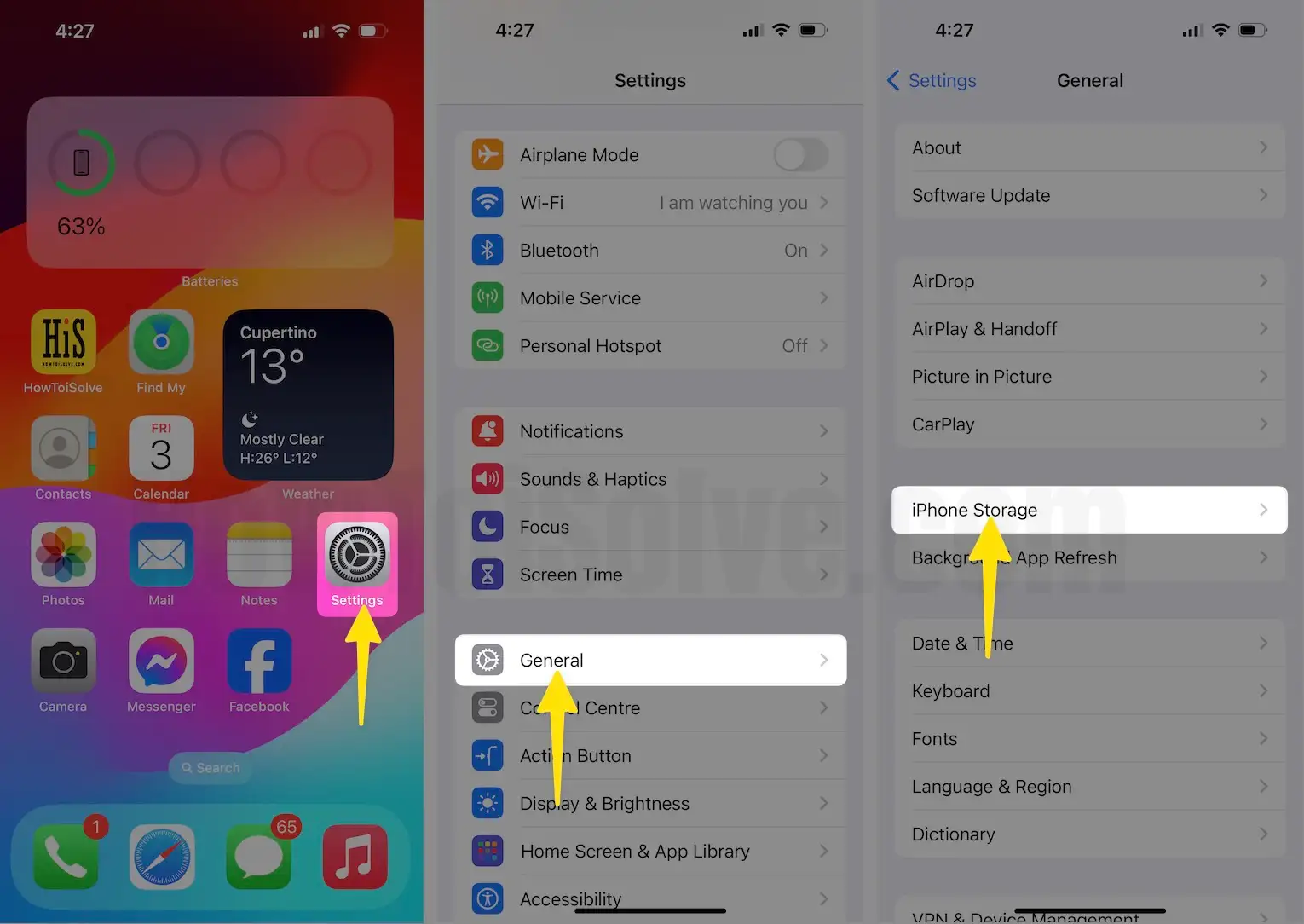
Step 1: Open the Settings App on your iPhone.
Step 2: Select General > iPhone Storage.
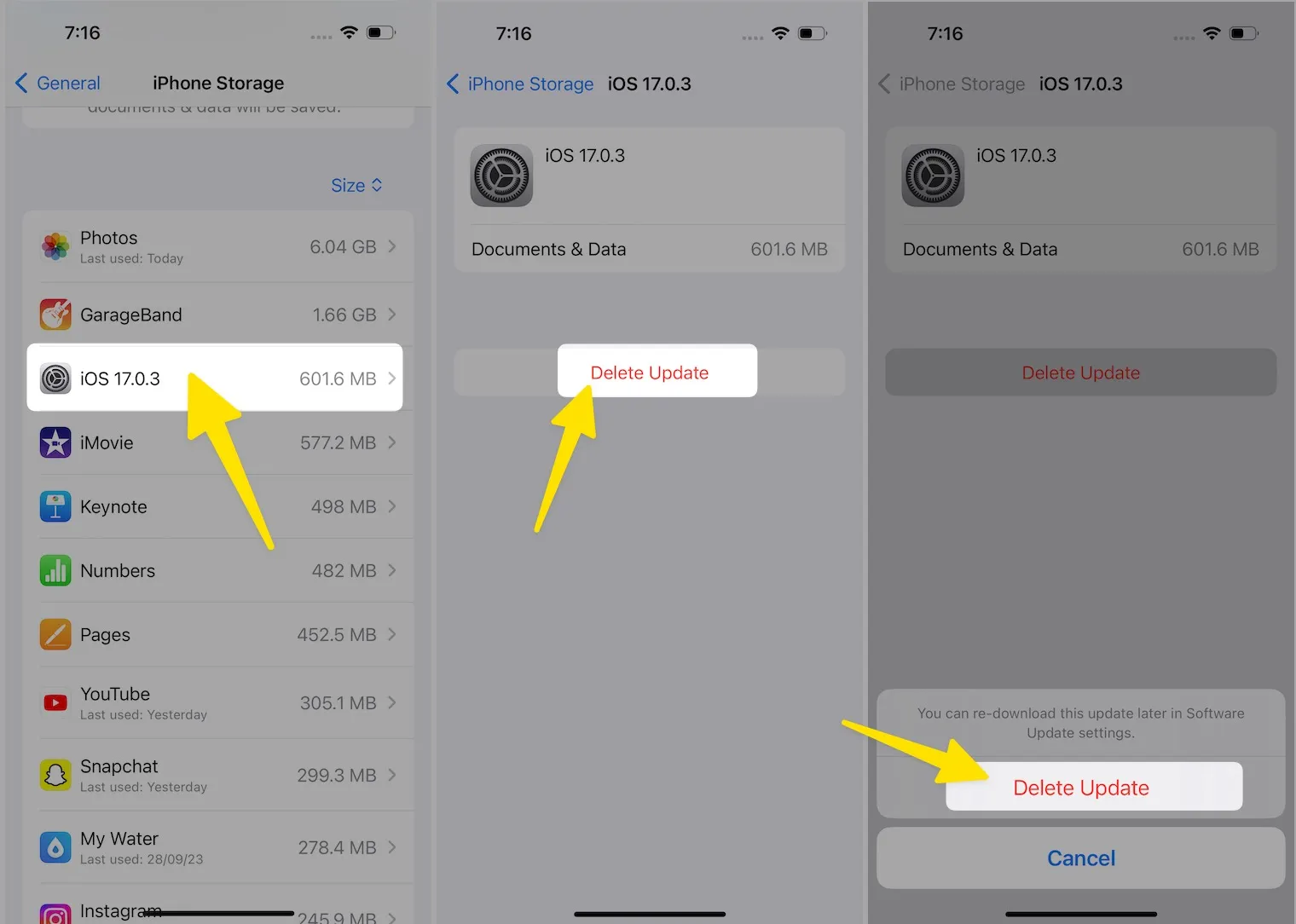
Step 3: Go through the list and search for the latest iOS update files. Tap on it.
Step 4: Select Delete Update > Delete Update for confirmation.
That’s It! After turning off the Automatic Updates and deleting downloaded update files, you’ll not receive any notifications, for instance, Install Now/Remind Later.
Method 3: Steps to block Apple Updates from Wi-Fi Router
In this procedure, we are going to block Apple Updates from the Wi-Fi router. However it may sound awkward, but it’s one of the most effective ways to Block IOS 17.3 Software Update Or Notification on iPhone. However, procedures for this vary from router to router.
Note: This process will completely prevent your iPhone from downloading updates. In simple words, when you select Software Update on your device, it won’t be able to check for updates.
Step 1: Open the Safari Browser or its alternative browser on your Mac.
Step 2: Enter the address mentioned on the backside of the router (Ours: https://192.168.0.1) to access the web interface of your router.

Step 3: Sign in using the admin name and password. (Given on back side of the router)
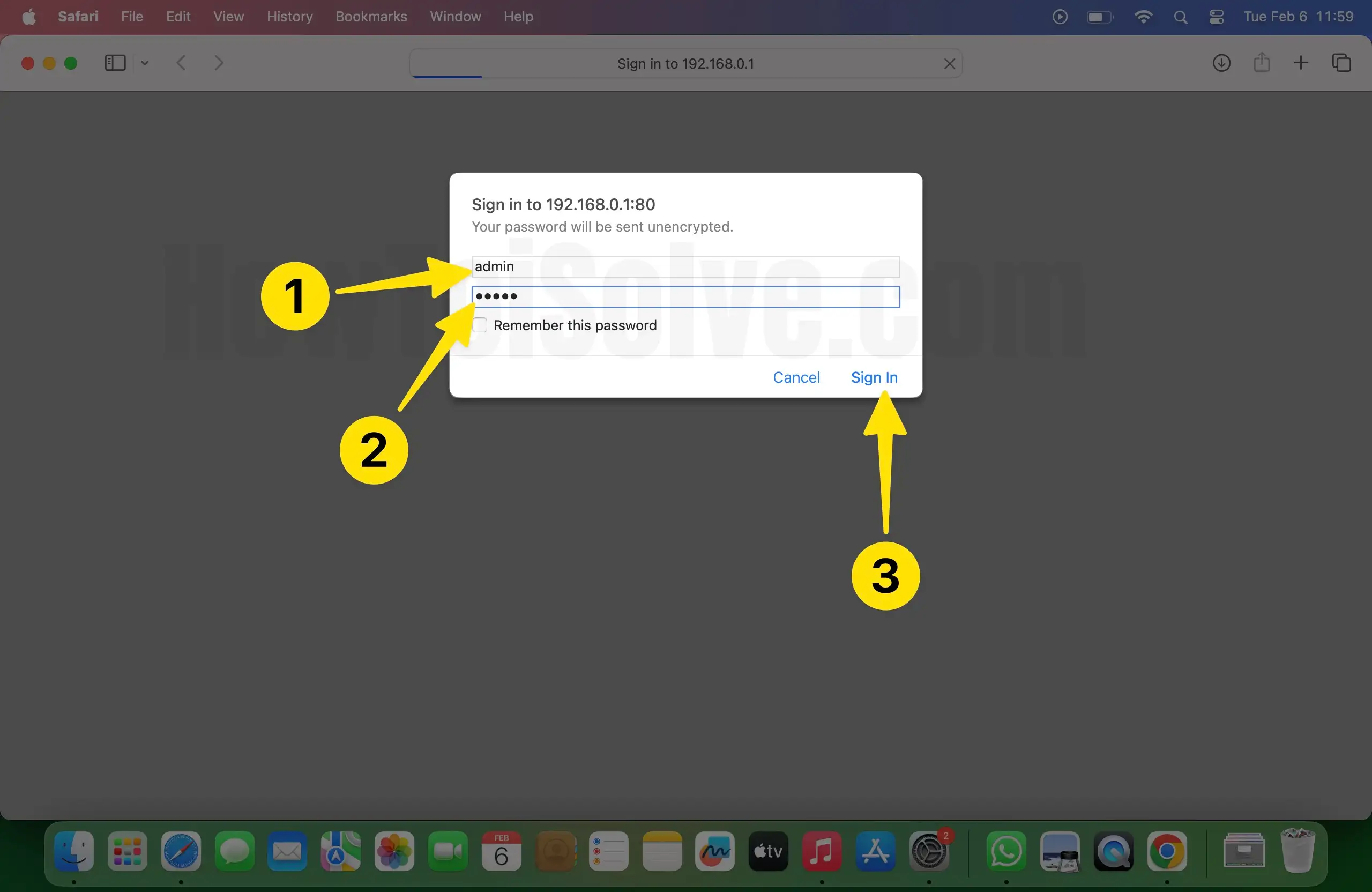
Step 4: Choose Advance Settings > Domain Blocking.
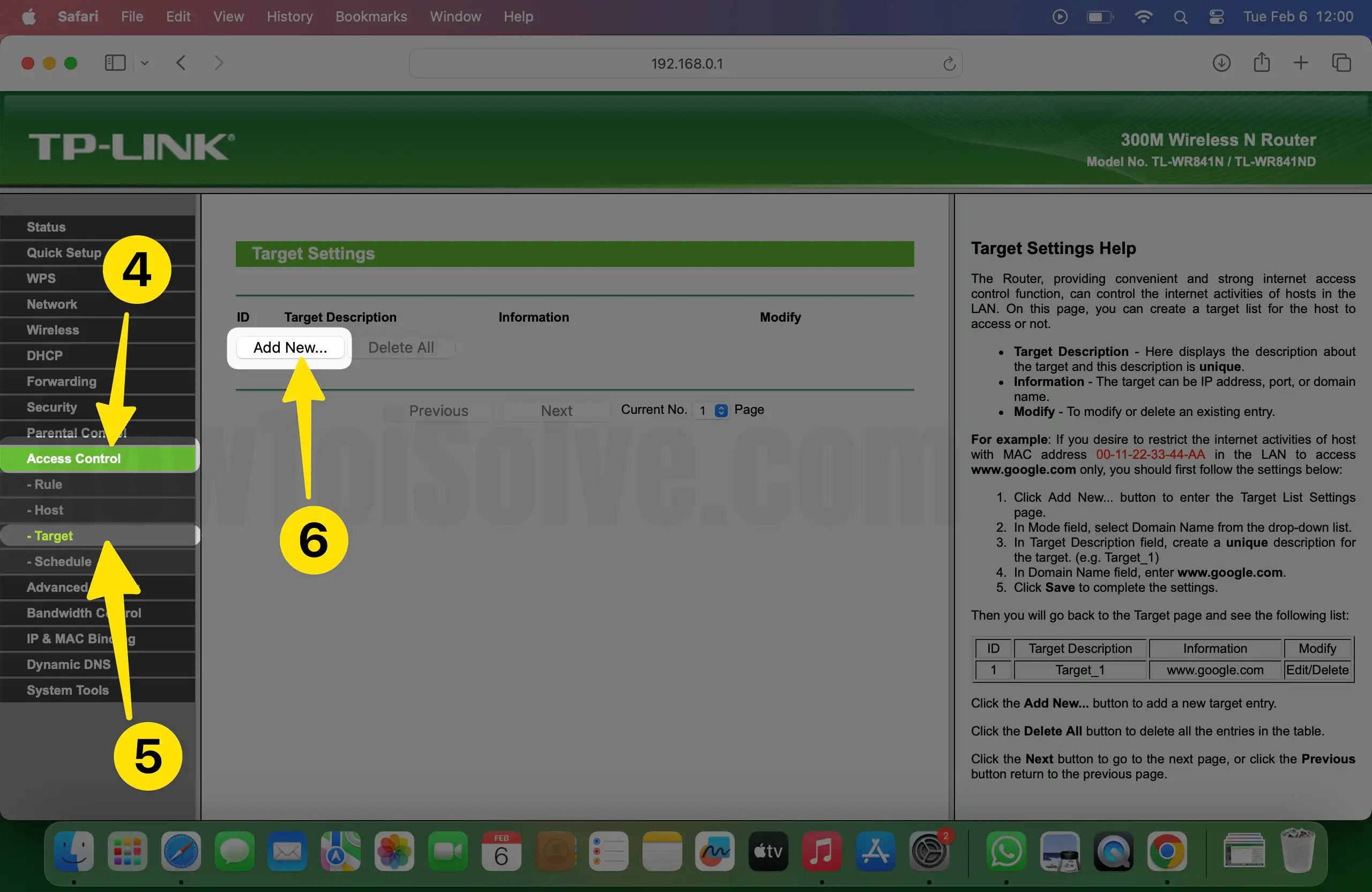
Step 5: Add appldnld.apple.com into the domain to block and select Add Domain.
Step 6: Enter mesu.apple.com and select Add Domain.
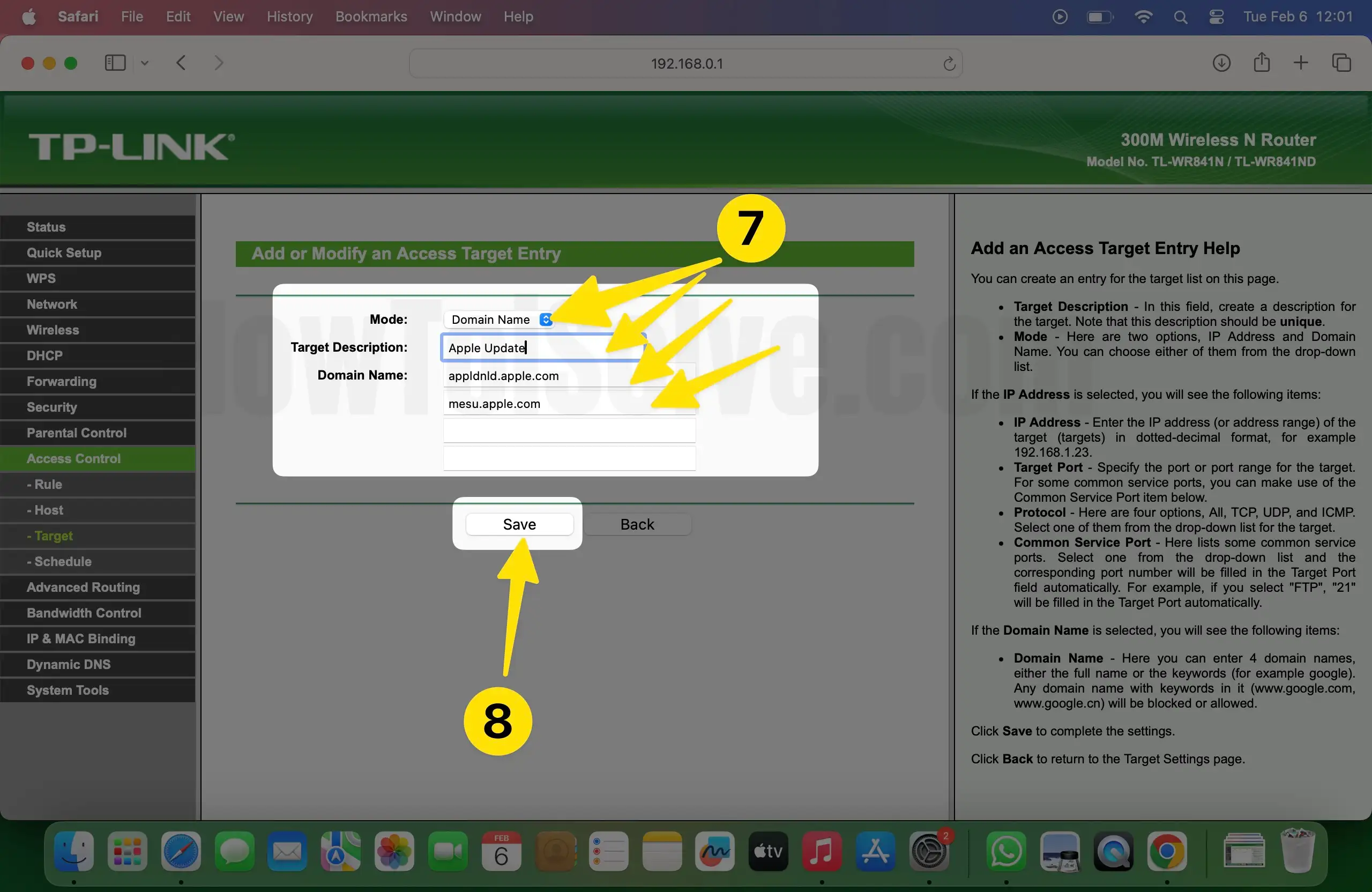
Step 7: Select Apply > Yes.
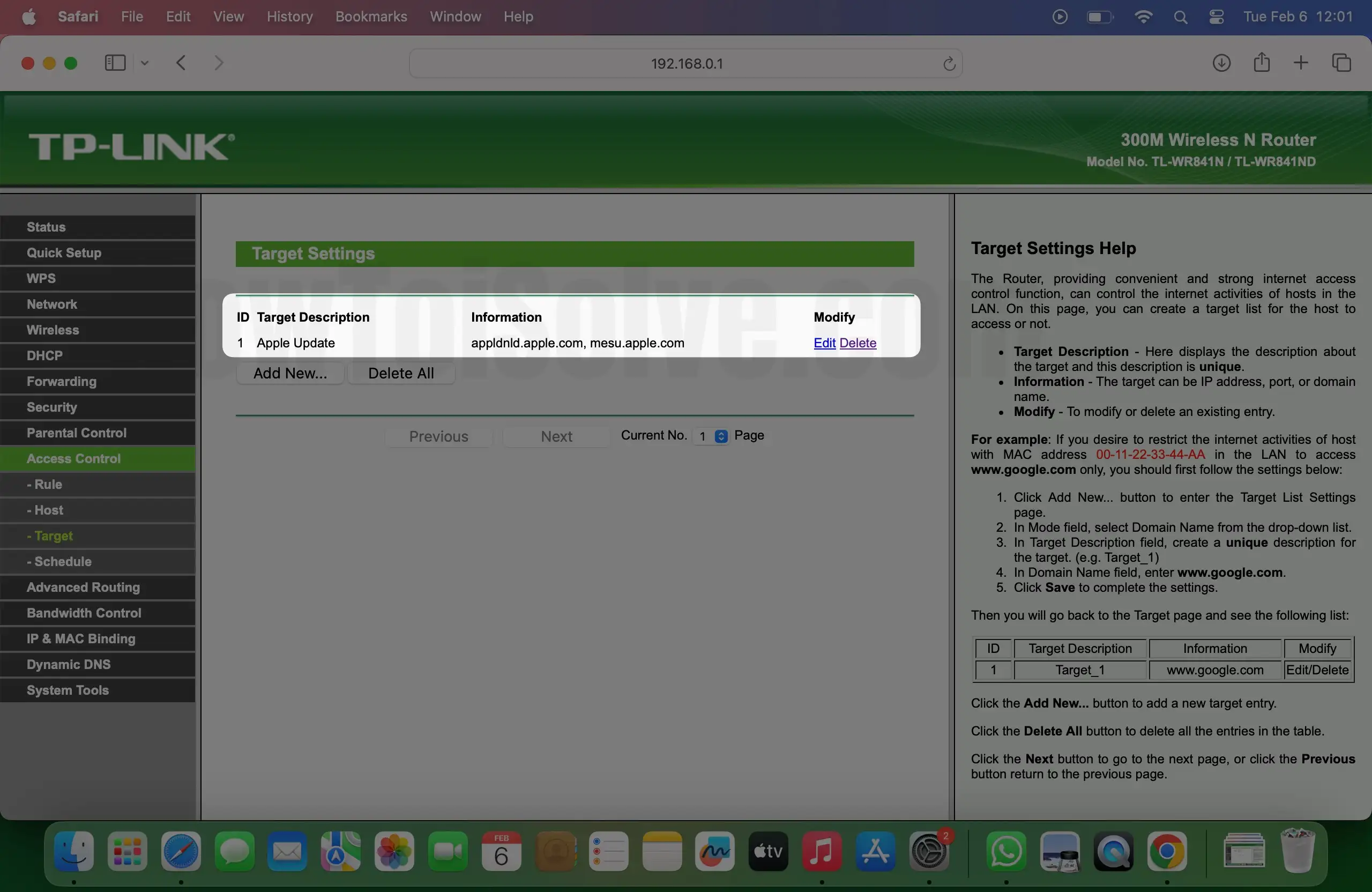
Final Verdict!
That’s It! This is how you can block software updates on your iPhone. Further, if you have any relatable queries, then feel free to drop them in the comment box below.






