Adjusting the screen brightness on your Apple Watch can enhance visibility, especially in varying lighting conditions. Whether you’re trying to conserve battery or improve readability, customizing your watch’s display settings is simple. This guide will walk you through the steps to effectively change the screen brightness on your Apple Watch, ensuring optimal performance and user experience.
Way to Change/Adjust Apple Watch Screen Brightness- Apple Watch Series
Make Text luminous to read comfortably, and get relaxed for your eyes. Increases and decreases text size tips for Apple Watch will be updated soon so stay connected on our site.
There are two ways to change your Apple Watch Screen brightness. One is using the Apple iPhone and the second is through Apple Watch.
Steps for Change or Adjust Apple Watch Screen Brightness from Apple Watch
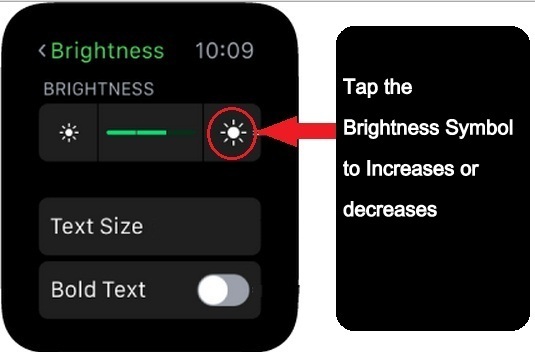
- Step 1. Open the Settings app on your Apple Watch
- Step 2. Now, Scroll down and Tap on Display & Brightness.

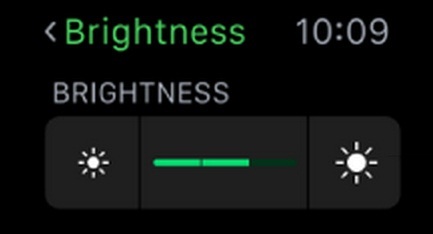
- Step 3. Now, Turn the Digital Crown or tap the brightness Symbol to adjust.

That’s it. You can also do adjust brightness using your iPhone watch app would you want to do some steps on your iPhone, follow the below instructions.
Steps for Change or Adjust Apple Watch Screen Brightness from the iPhone
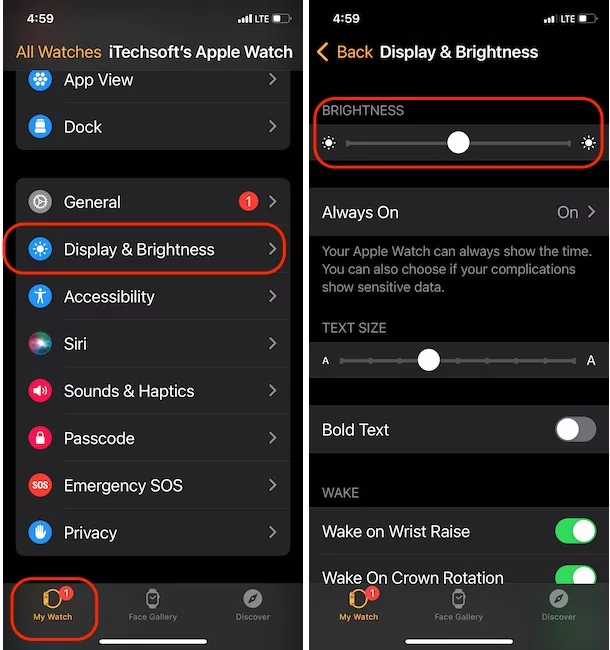
- Step 1. Open the Apple Watch app on your iPhone
- Step 2. Tap on My Watch,
- Step 3. Now, Tap Brightness & Text Size

- Step 4. Now, drag the Brightness slider.
That’s it. Beware, keep more brightness on Apple Watch whenever necessary, otherwise, an early battery drain problem occurs. How seems this tip on how to Change/ Adjust Apple Watch Screen Brightness?
How to Adjust Brightness on Apple Watch with Crown?
There is no shortcut to adjust the Apple Watch brightness using Digital Crown; however, when the Brightness Settings are open in the Apple Watch, you can surely use the crown to raise or lower down the brightness.
- Open the Settings app on the Apple Watch.
- Scroll down and tap on Display & Brightness.
- Tap on the brightness slider.
- Now, you can roll up or down the Digital Crown to change the brightness.
Using the Apple Watch iPhone App
Alternate ways to change Apple Watch Brightness on Apple Watch Using an iPhone, To apply these changes your Apple watch is near to your iPhone and must be paired with your iPhone. also, Your Apple watch is unlocked and on the wrist.
- Open Watch App on your iPhone, Under the My Watch Tab.
- Tap on Display & Brightness.

Apple Watch Dim Screen At Night
You can make the Apple Watch Screen Dim at night by visiting the Settings App > Display & Brightness and lower down the brightness. So if you wish to keep the Apple Watch display brightness lower during the night, just give few seconds to adjust the brightness. This will save the AW battery as well as won’t kill your eyes and sleep as well.
In addition, Your compatible Apple watch model also supports the Always-on Display [AOD] Apple Watch. Also, We can turn off and turn on Always on Display from Apple Watch settings.
Why is my Apple Watch Screen Dark?
Have you tried adjusting the brightness of the Apple Watch from the iPhone’s Watch App? It might do a trick. Aside from restarting and updating the Apple Watch, there is no other workaround rather than calling for Apple Support. If none of them works, immediately visit the Apple Genius Bar, it seems like your Apple Watch is facing hardware fault.
Apple Watch Brightness Problem
The essential solution for stopping Apple Watch from lighting up when I turn My wrist. Apple Watch screen bleeding or brightness problem is quite hard to fix unless it’s a software bug of Apple. Sometimes, the Apple Watch automatically dims in a brighter environment or brightens up in a dark environment, and so on. Try this basic troubleshooting and see if it works.
Force Restart Apple Watch
- Press and hold the Digital Crown and Power button at the same time until the Apple logo appears. after wait for a few seconds your Apple watch will turn on automatically, otherwise, hold on to the Side button only to manually wake up the Apple watch screen.
Factory Reset Apple Watch
It will delete all the data of your Apple Watch, so make sure to back up the Apple Watch.
- Go to the Settings app on Apple Watch.
- Tap General.
- Tap Reset.
- Select Erase All Content and Settings.
- Enter the Passcode to confirm.
- If you’ve GPS+Cellular Apple Watch, then you’ll be asked to keep or delete the Cellular Plan, decide what you want to do.
- Lastly, hit the Erase All and let the Apple Watch reset.
Or
Unpair and Pair Apple Watch with iPhone, to fix the internal software issue in WatchOS. Open Watch App on iPhone, Under My Watch Tab,> All Watches > Tap on (i) Button next to Apple Watch Name > Select Unpair Apple Watch Option.

Contact Apple
In the end, if it doesn’t work well, take the Apple Watch to the Apple Genius Bar, they will definitely fix the issue.