


We’ve discussed Screen Time before – it’s available on compatible iPhones and iPads. You can use it to view your phone usage data, including app usage, longest session, and phone pick-up time. Screen Time also shows which app sends the most notifications in a day and the last seven days.
Moreover, there are various features available on Apple devices that help track and manage screen time usage, such as Downtimes, App Limits, Always Allowed, Content & Privacy Restrictions, and Screen Time Family Sharing. If you wish to clear the screen time data usage, it can be done with a single tap on your device. You don’t need a Mac computer or even iTunes to do this.
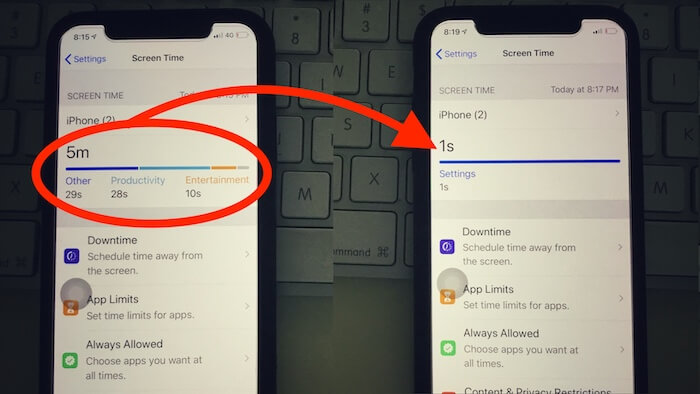
How to Delete Screen Time History on iPhone or iPad, Mac
1. Open the Settings App on your iPhone or iPad.
2. Tap on Screen Time.
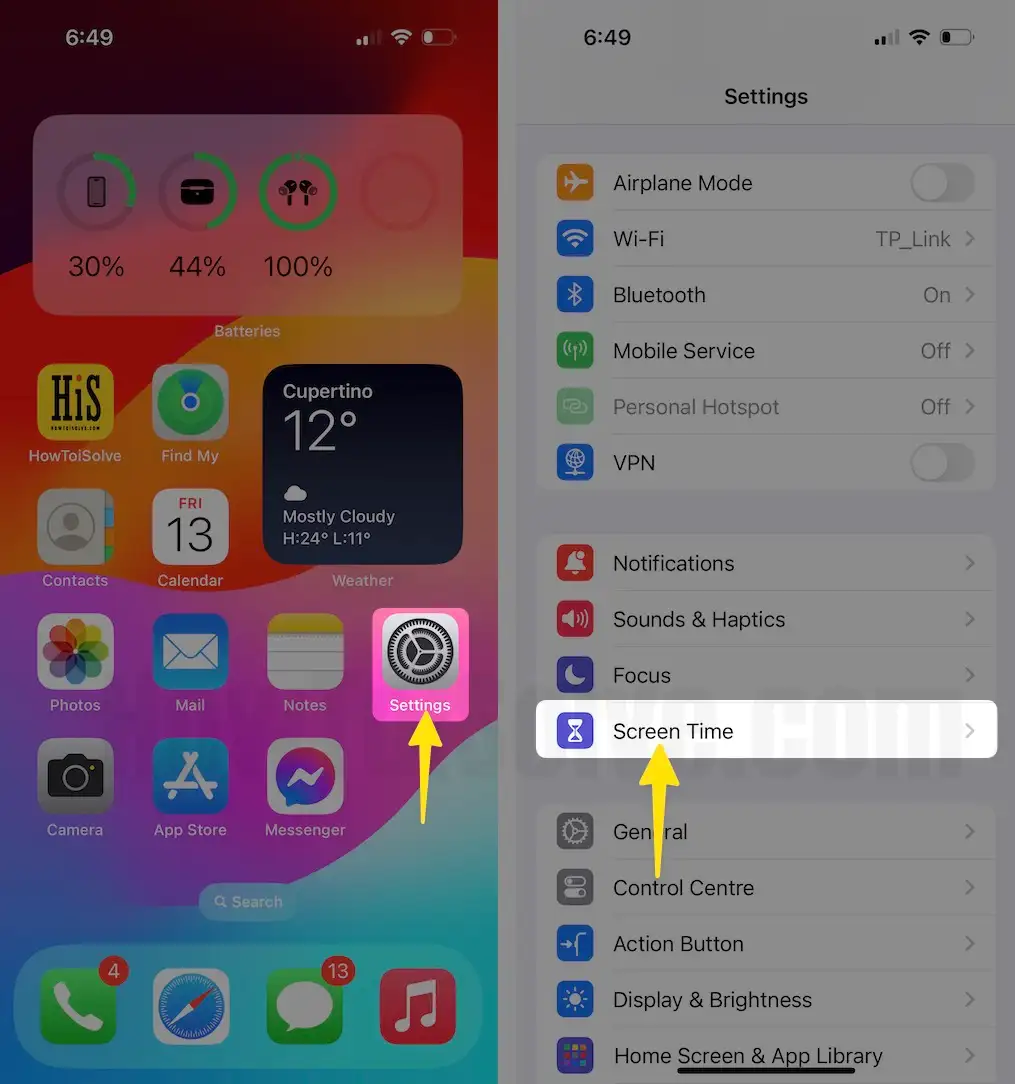
3. Scroll down the screen to tap on Change Screen Time Passcode.
4. Now tap on “Turn off Screen Time Passcode“,
5. So your phone will be asked to enter the screen Time Passcode; if you don’t know, don’t worry; you can forget the screen time passcode quickly from here.
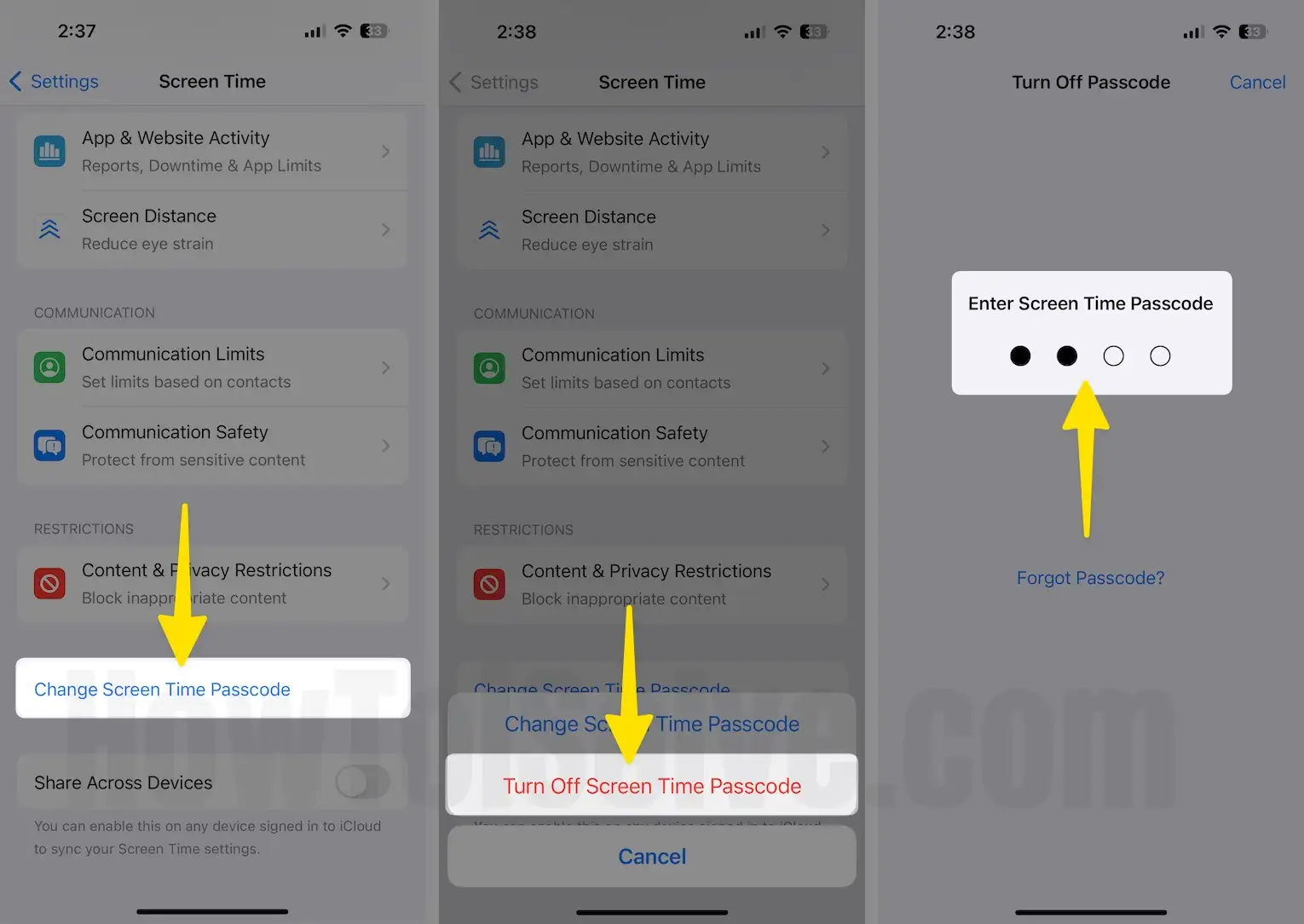
After entering the screen time passcode, you will get a screen that looks like my given below screen – Lock screen Time settings.
That’s it.
Note: The Screen Time Clear Usage Data button will remove apps, Websites, and notification history. It’s just Simple!
MacOS allows users to record screen time usage in the background and clear screen time data, similar to iPhone and iPad. Follow the steps below and clear all screen time data from macOS Catalina and later macOS Version.
How to Delete Screen Time History on Mac
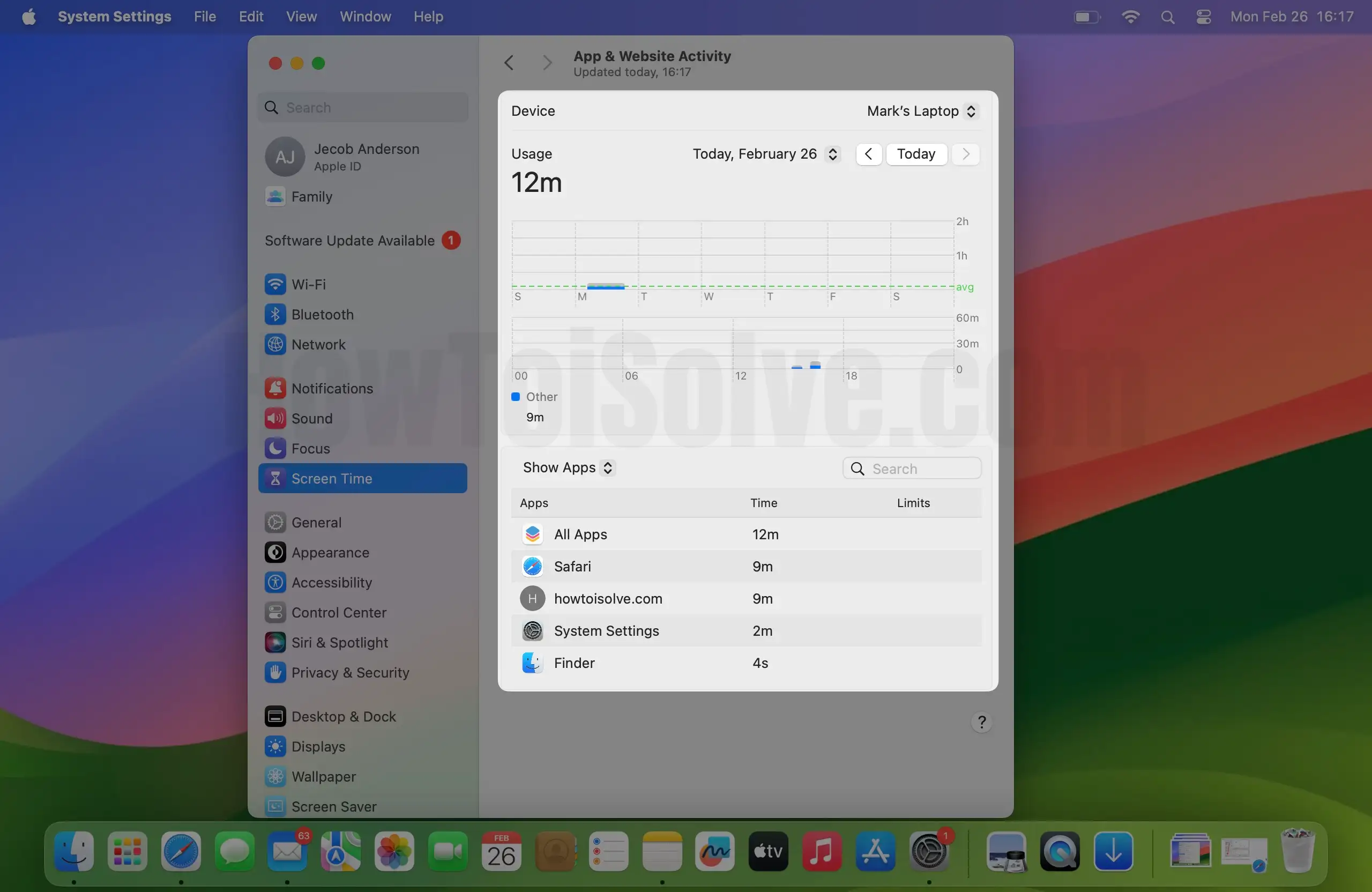
Follow the steps below to delete all screen time data from your Mac (macOS Sonoma Updated).
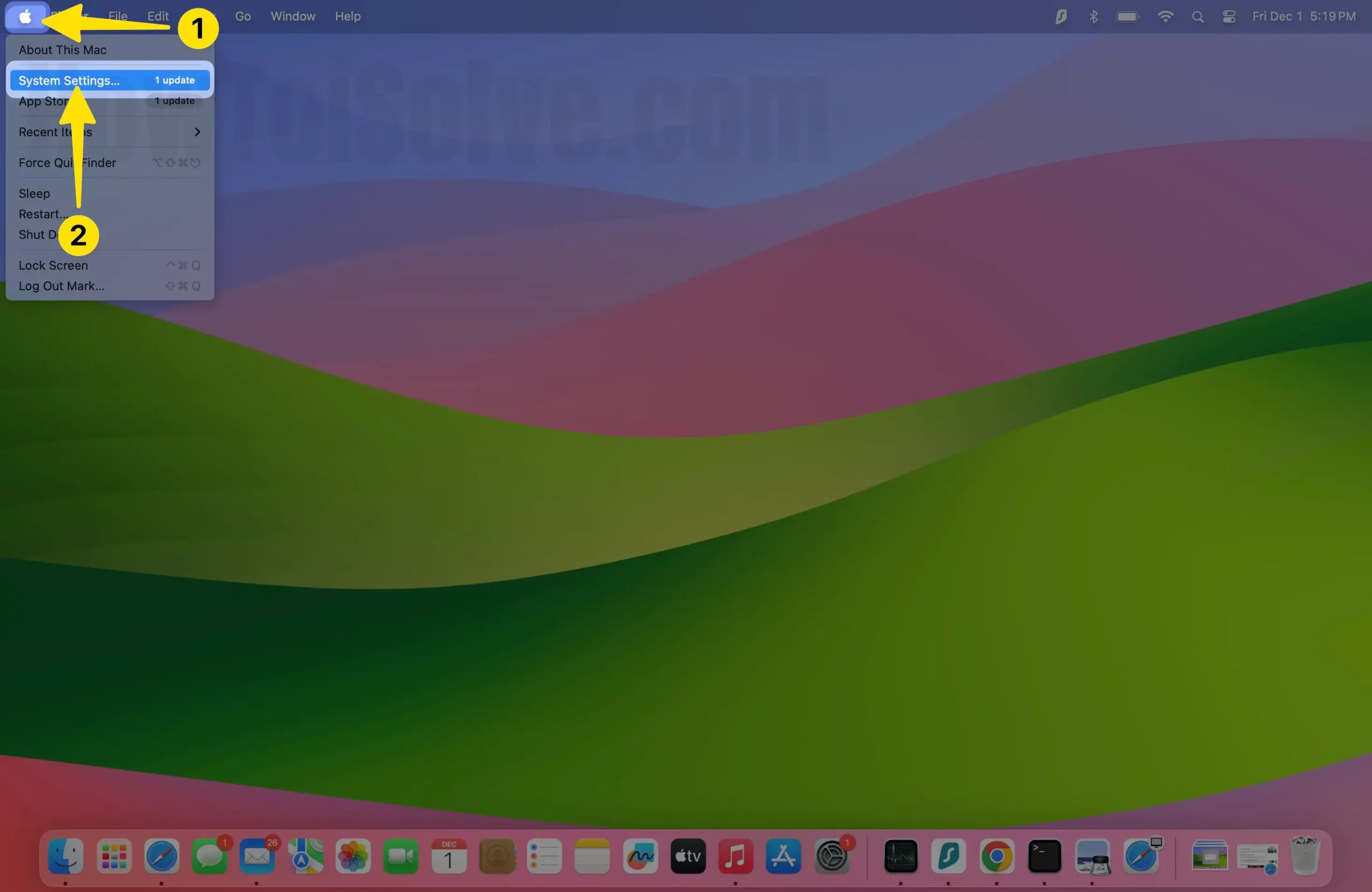
1. Go to the Apple Logo from the top Mac Menu.
2. Click on the System Settings… option.
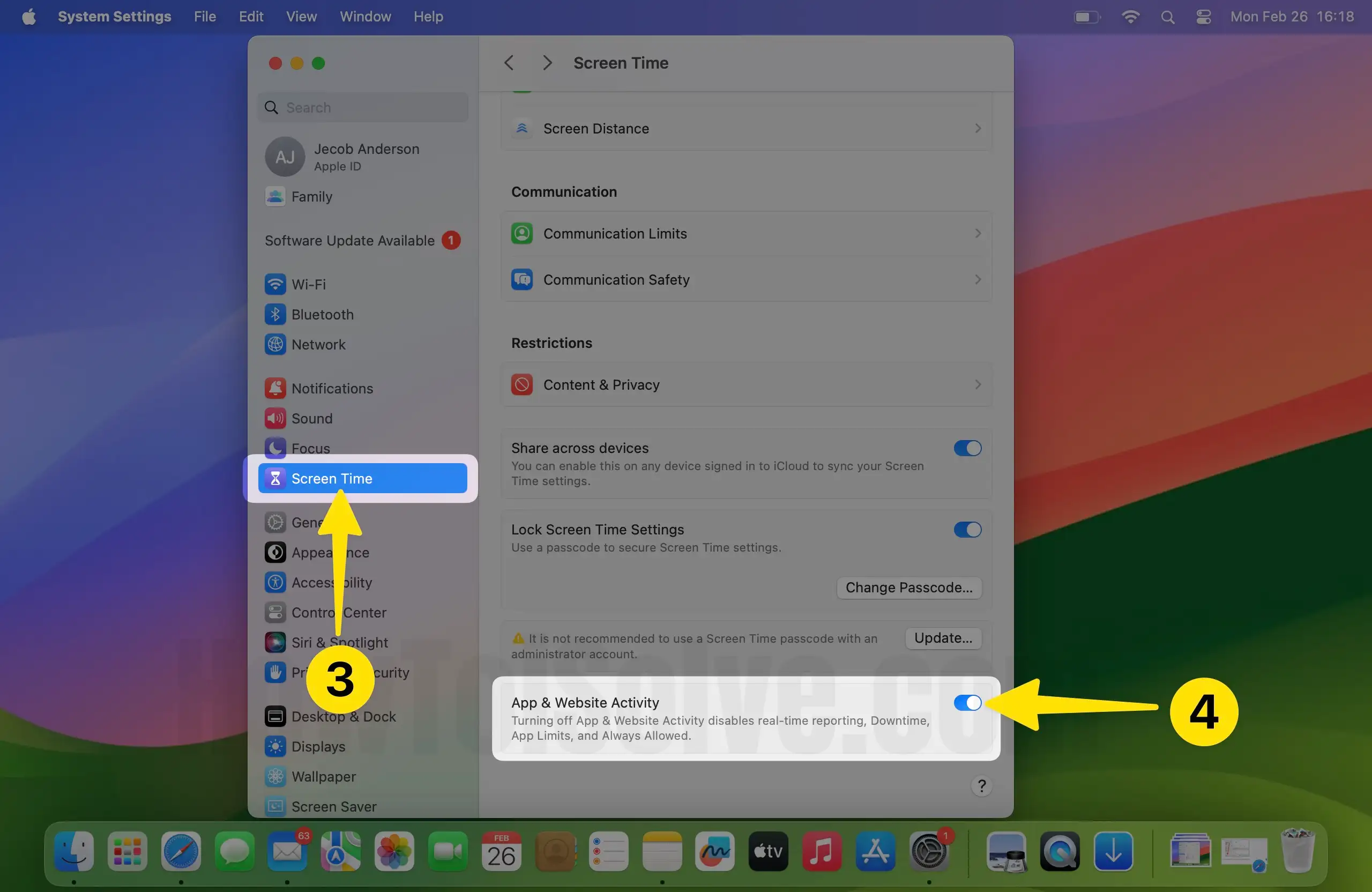
3. Under the System settings option, Click on Screen Time.
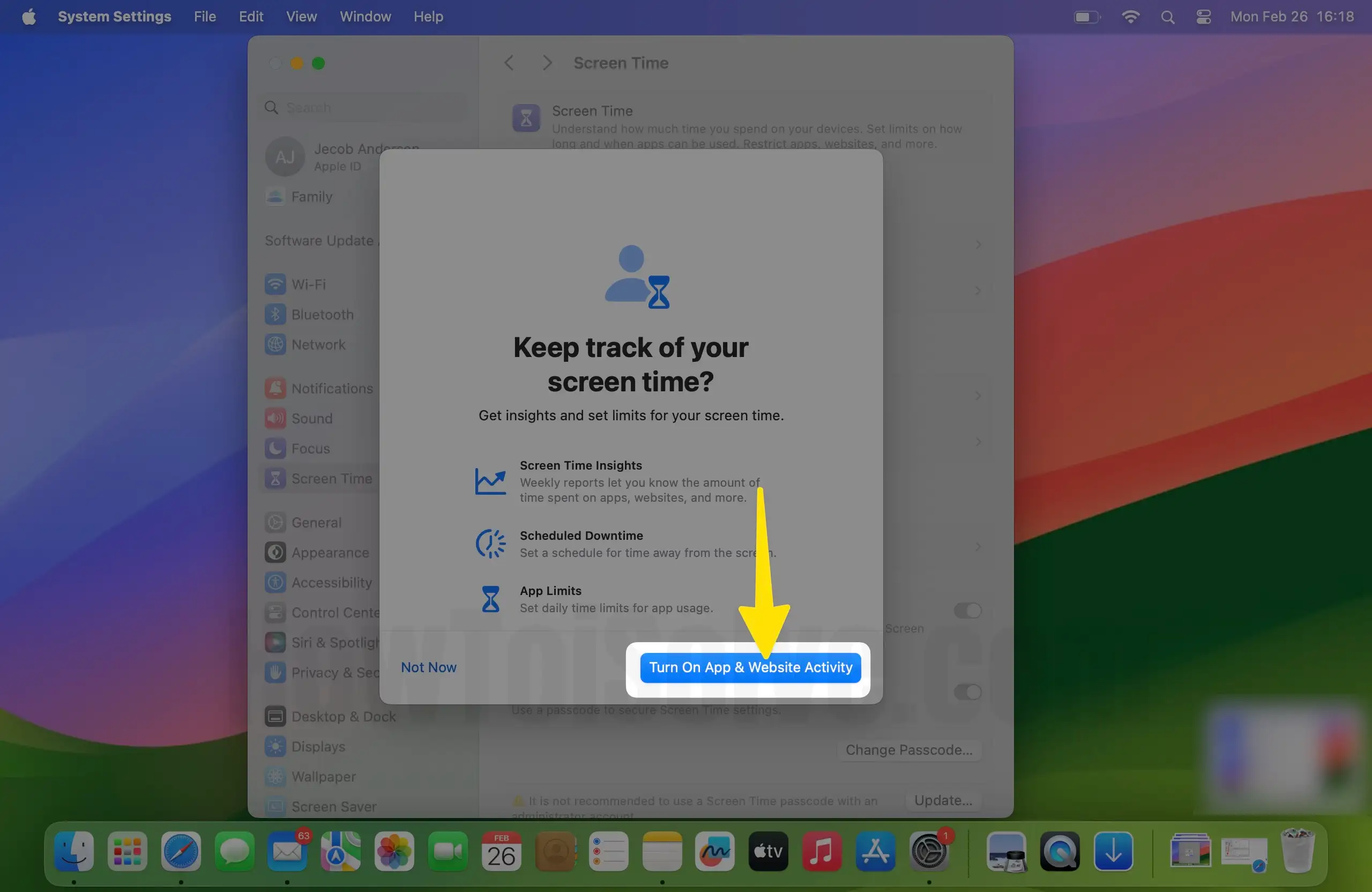
4. Turn on the App & Website Activity.
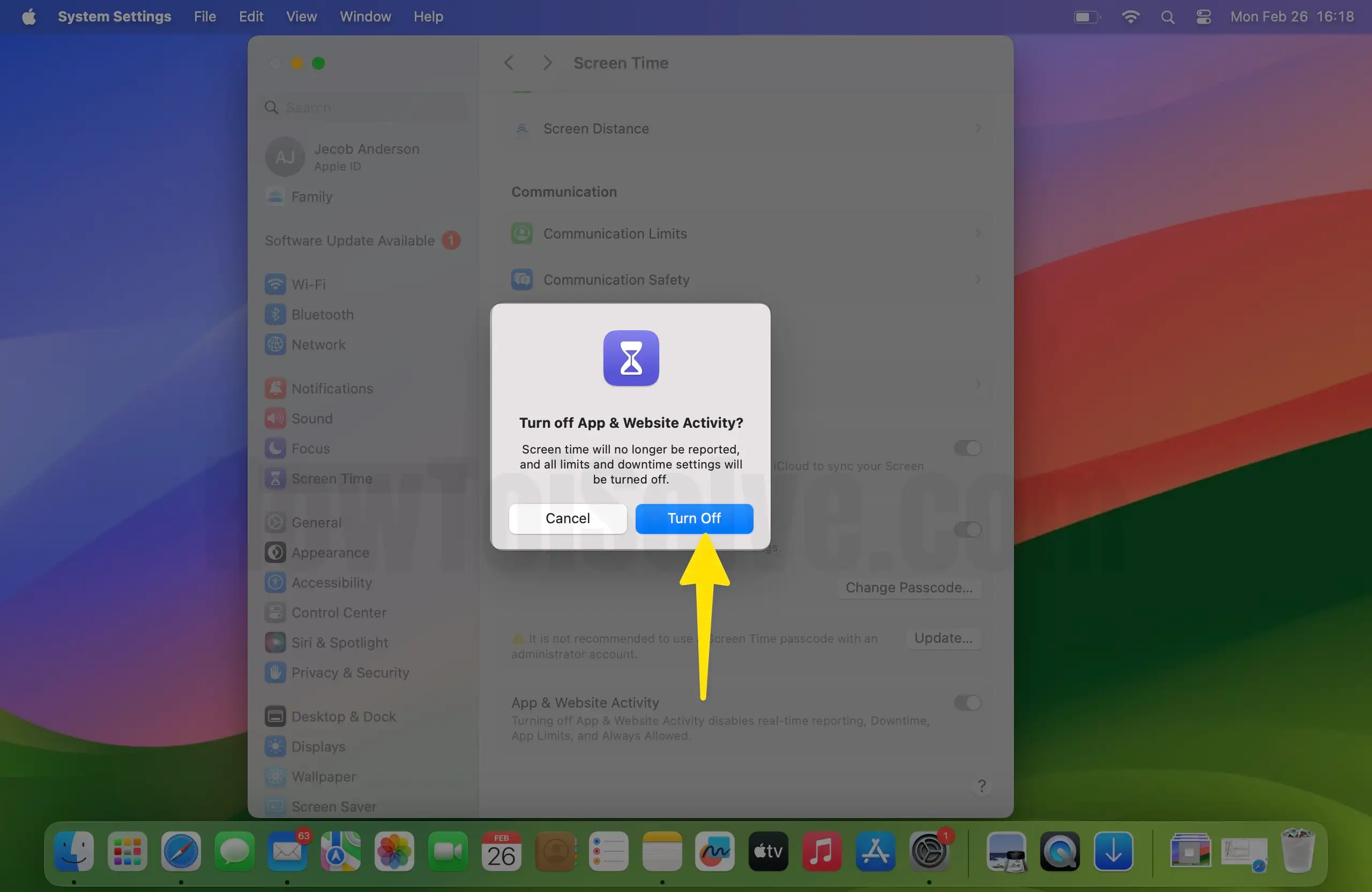
5. Tap Enter Screen Time Passcode. (forgot scene Time passcode on Mac)

5. Select Turn Off Option.
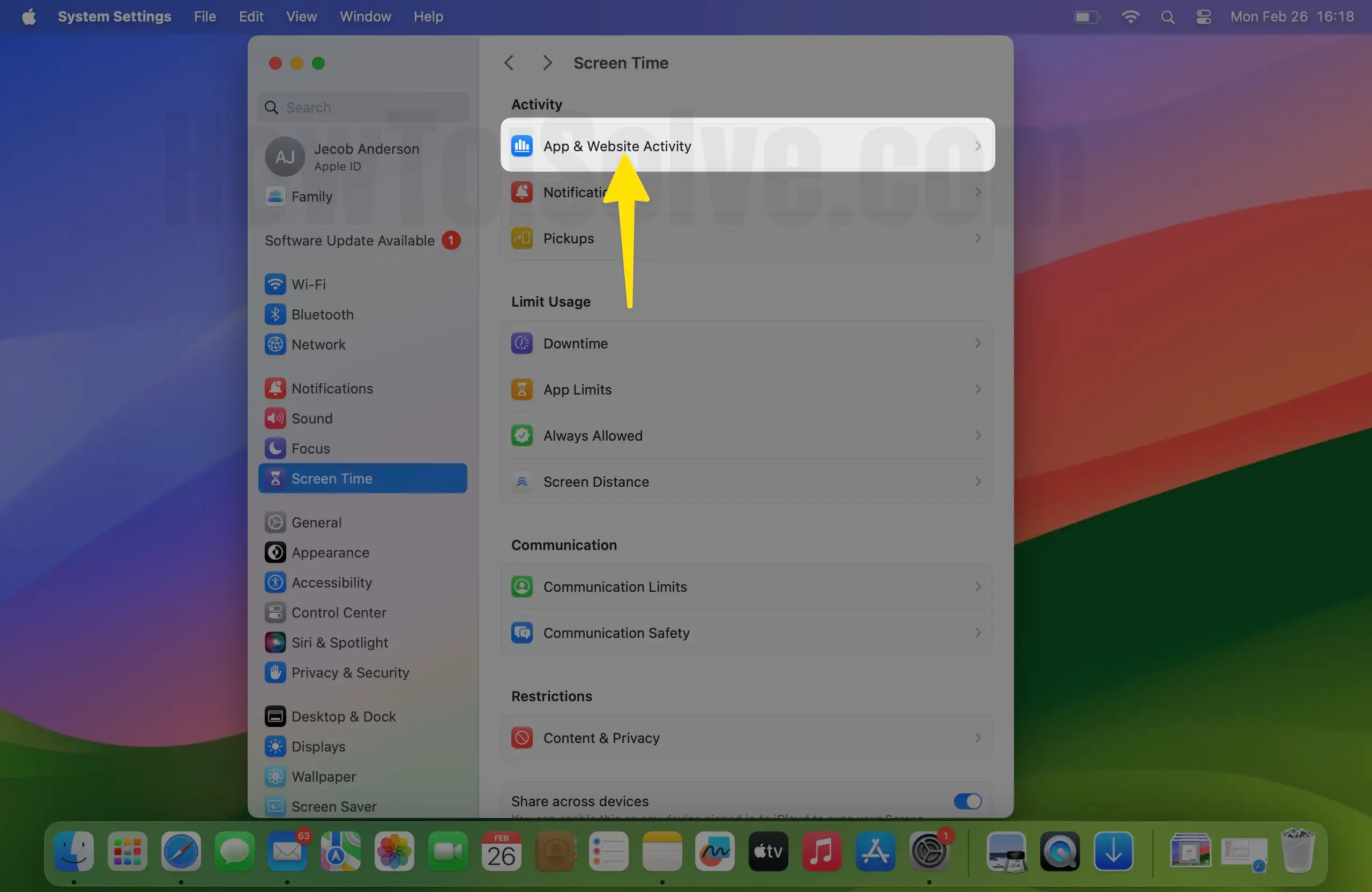
6. Click on App & Website Activity.
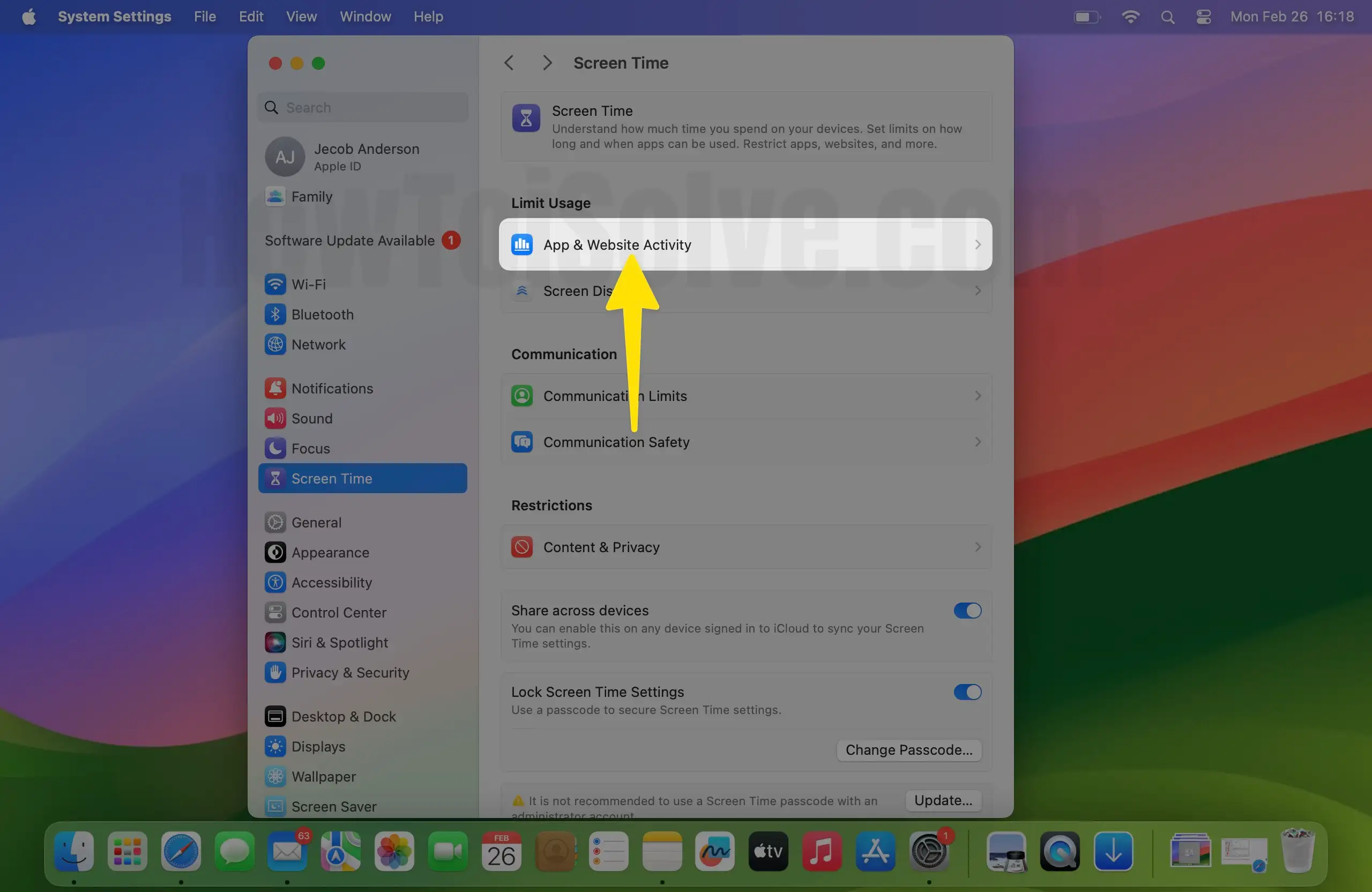
7. Choose Turn On App & Website Activity.
8. Click on App & Website Activity.
9. Now you will see There is no Data under the Screen Time on Mac.
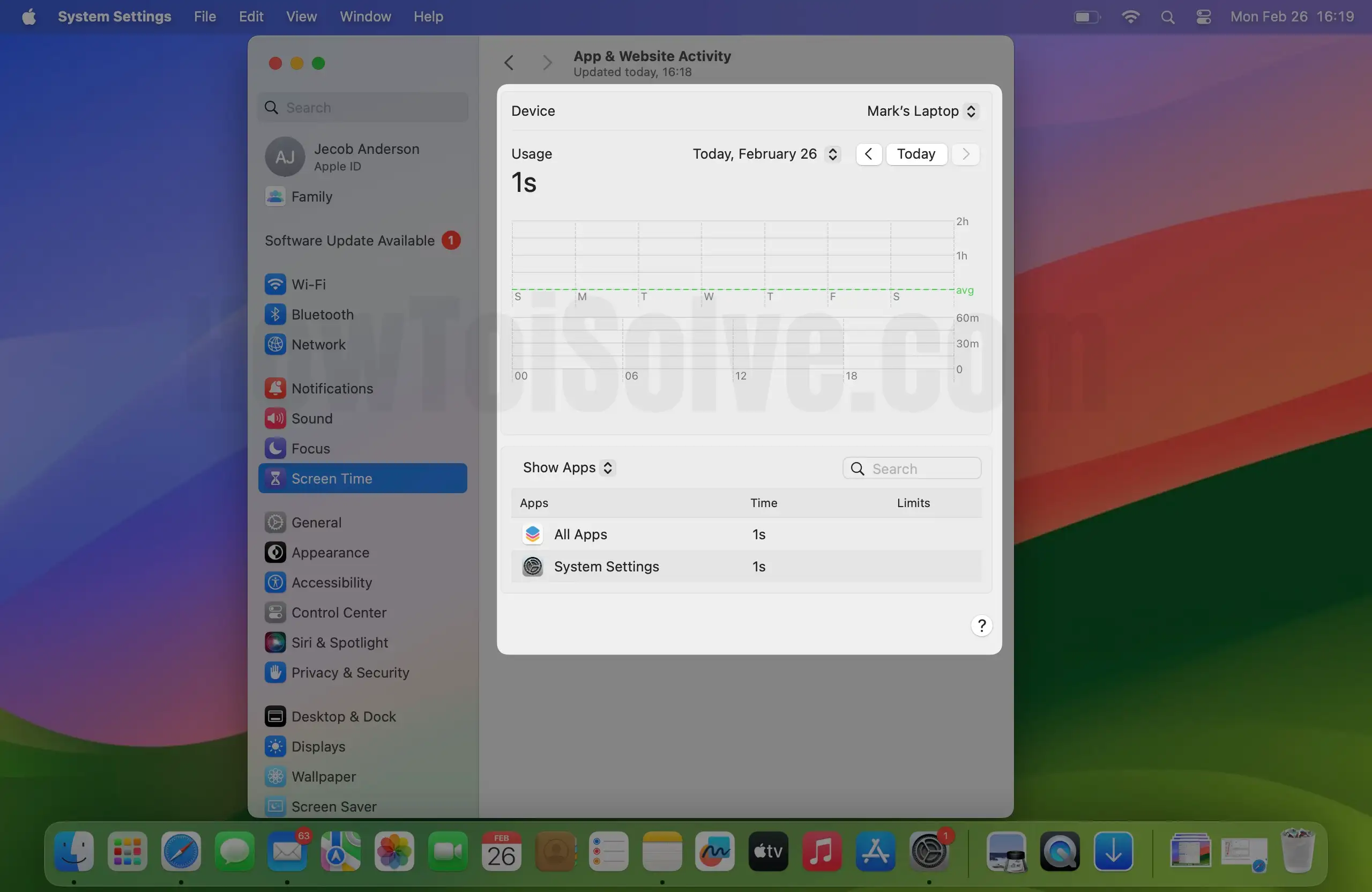
Before Deleting Screen Time Data on Mac,
That’s it.
More Important Notes: You won’t revert your screen Time Usage data once it is deleted. So you must think about that, in case you need it for the future, then you should take a screenshot on your iPhone to save into your camera roll.
In simpler terms, you can clear your mobile data usage to get a clean slate.
After Clear Screen Time Data Usage, it will give you a blank space in Screen Time and start to count Screen Time from Zero on your iPhone.
Reset The Screen Time Passcode on iPhone and iPad
Reset screen Time passcode is very easy, Also make sure the screen time passcode doesn’t save on iCloud. So we can fetch or retrieve from the Apple server. Screen Time passcode is the extra security of your device, so no one can change the screen time restrictions that are applied to your device or your Family Devices.
We can set the screen time passcode different from your Apple iPhone, or iPad lock screen passcode. if possible, set different passcodes so no one can access the screen time. if you are a forgetful person, set your iPhone/iPad login passcode so that it is easy to remember.
You have to enter the same passcode two times. if you already set or enabled screen time passcode then skip this step and go for change screen time passcode.
To enable the Screen time passcode: Go to the Settings app on iPhone/iPad > Screen Time > Scroll to the Option “Use Screen Time Passcode”. Enter the four-digit passcode that you wish. On iOS 15 or later iOS, Forgot Screen Time Passcode on iPhone Here’s the tutorial.
1. Launch the Settings App. Tap Screen Time on your iPhone.
2. Scroll the screen Lock Screen Time Settings. Enter Set a Screen Time Passcode.

3. Enter Re-Enter Screen Time Passcode. Tap Apple ID Password and click on the OK button.

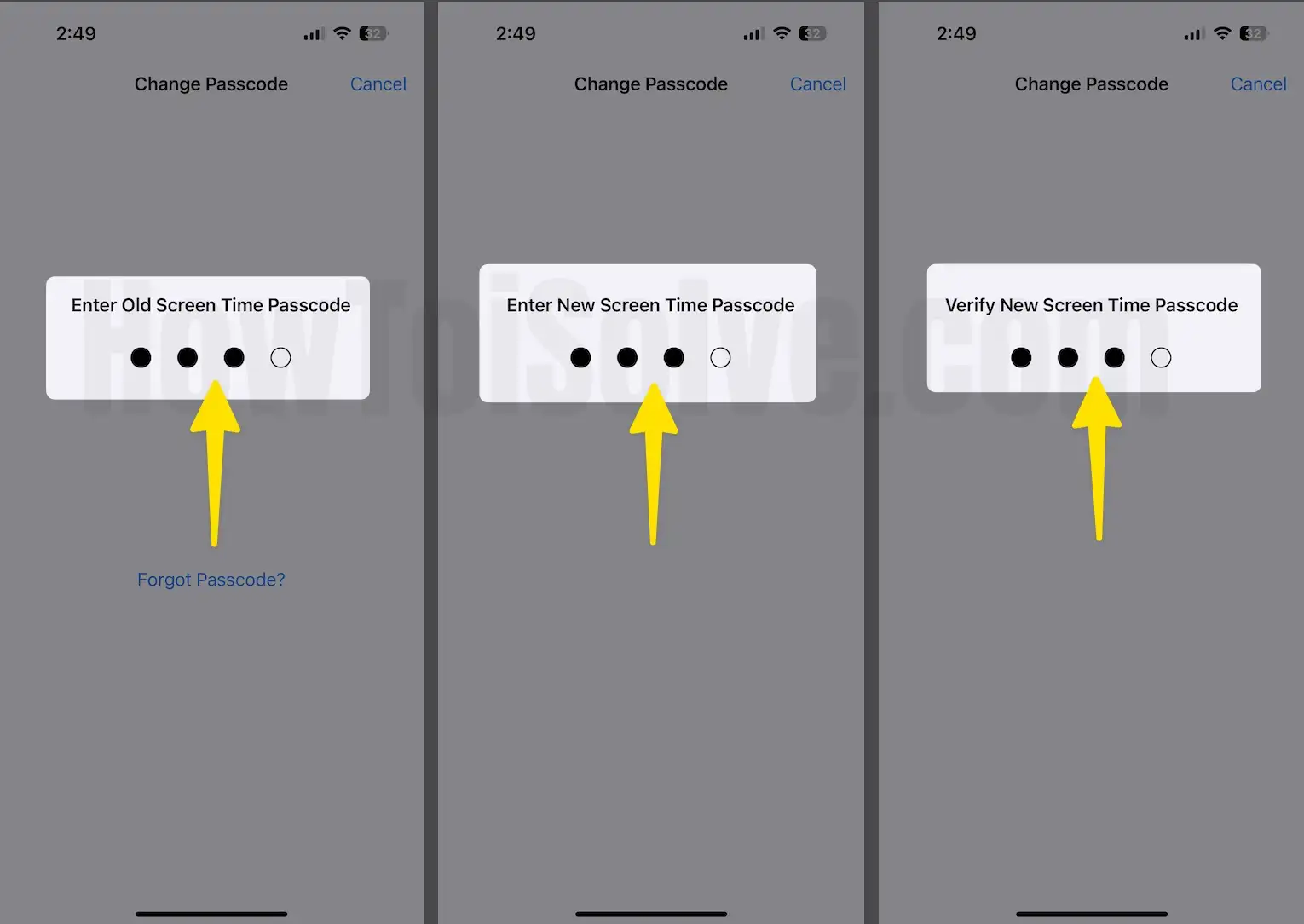
Update Screen Time Passcode: Settings app on iPhone/iPad > Screen Time > Change Screen Time Passcode ‘Change Screen Time passcode’ > Enter Old Password first to verify ownership and Enter new Passcode two time. if you don’t know the old password then Forgot Screen Time passcode using Apple ID. https://www.howtoisolve.com/how-to-reset-screen-time-passcode-on-iphone-xs-max-xs-iphone-xr-bypass-forgot-passcode/
1. Launch the Settings App on your iPhone.
2. Scroll the Screen Time.

3. Click Change Screen Time Passcode.
4. Select Change Screen Time Passcode.

5. Tap Enter Old Screen Time Passcode.
6. Click Enter New Screen Time Passcode.
7. Tap Verify New Screen Time Passcode.
That’s it.






