The iPhone 15 series comes with an advanced camera system, but some users have reported issues with autofocus, leading to blurry or out-of-focus shots. If you’re facing this problem, don’t worry—there are several possible solutions.
Possible Causes
- Software Glitches – Temporary bugs may affect the camera’s performance.
- Dirt or Debris – Smudges on the lens can interfere with focus.
- Close-Up Limitations – The camera may struggle to focus on objects too near.
- Third-Party Apps – Some apps may not optimize well with the camera system.
- Hardware Issues – In rare cases, a faulty camera module could be the culprit.
Troubleshooting of iPhone Camera Won’t Focus issue
Solution 1: Clean the dirty lens using a microfiber cloth
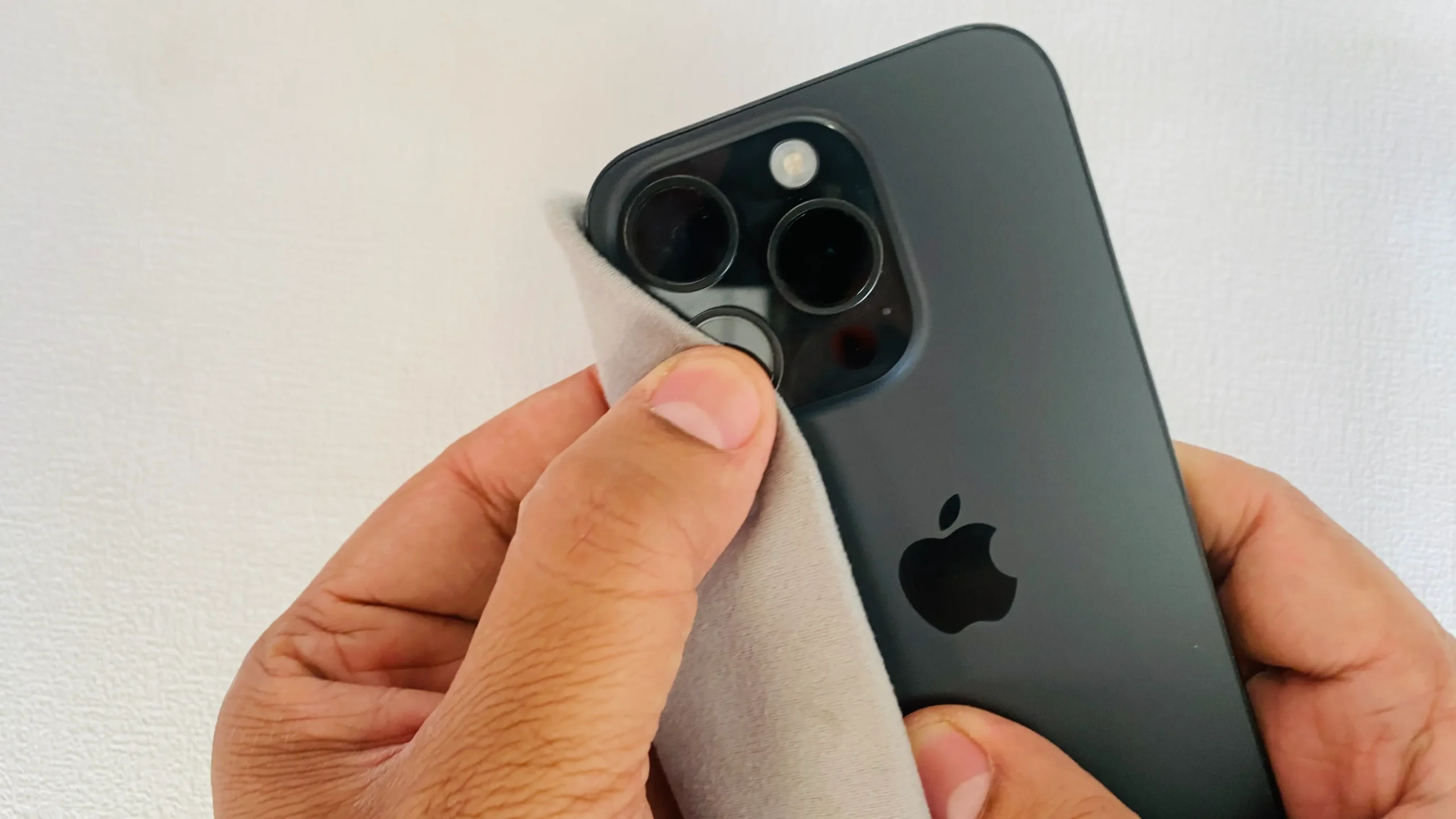
Is your iPhone camera constantly blurring and deblurring? Over time, the lens can accumulate dirt, especially if your iPhone has been exposed to dusty environments. This buildup of dirt, smudges, or dust can cause camera issues, preventing your iPhone from detecting objects and focusing correctly. While cleaning the lens with your finger might be tempting, this is not advisable. Instead, you should use a soft cloth to clean the camera lens of your iPhone gently.
You are unhappy with your iPhone’s camera performance. Try the External iPhone Camera lens.
Check the Below camera and Other settings
Storage is an issue: Storage is not enough to capture and save HD photos on your iPhone. At that time, your iPhone will take and save the optimized version of the photo. That means you feel resold like blurry.
Disable Reduce White point: Check out this setting on your iphone and test your camera what is different in your case. I felt a big difference last time.
Go to the Settings app > General > Accessibility > Display Accommodations > Disable Reduce White Point.
If your battery is too low and Low Power mode is turned on, Plug your iPhone into a charger or Connect it to an External power source like an iPhone Power bank.
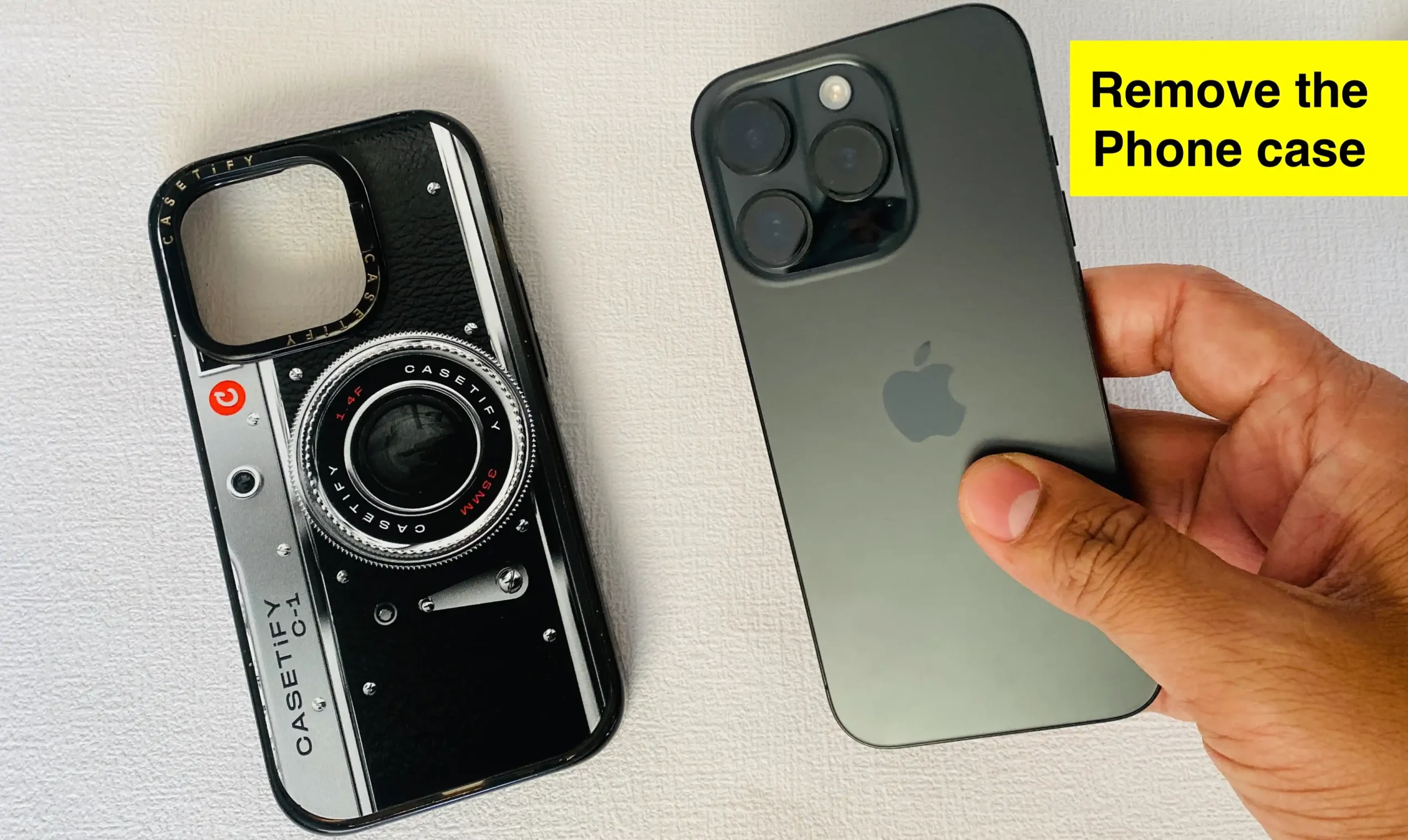
Solution 2: Remove the Phone case
If you’re experiencing autofocus issues with your iPhone 15 Pro Max when trying to focus on close objects, it may be due to a defective case causing the problem. Try removing the case and then test the camera to see if the lens is functioning properly.
Solution 3: Help your iPhone to focus
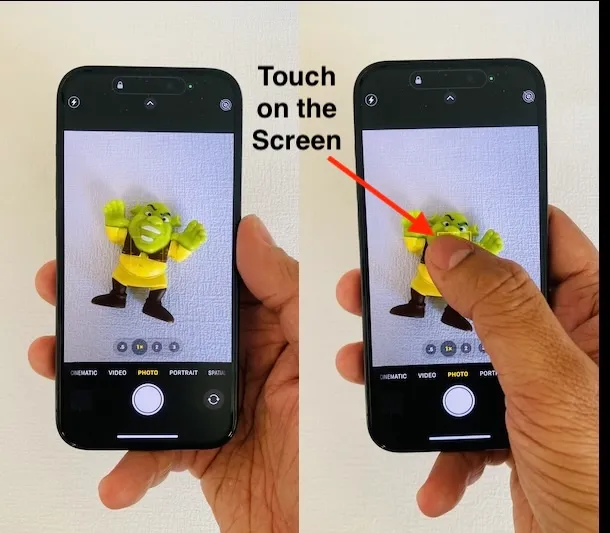
Typically, the iPhone has the ability to autofocus. However, if you are experiencing a blurry camera issue, you can help the camera focus manually. To do this, open the camera app, point it at the object you want to focus on, and tap the screen where the object is located. When you tap on the camera screen, it will recognize the object.
For instance, you can see my picture below. I’m tapping the screen to focus my camera on my McDonald’s Shrek toy.
Solution 4: Force close the Camera app
If your iPhone camera doesn’t focus, try this troubleshooting step: force close and relaunch the camera app to fix any temporary software bugs.
- Swipe Up – swipe up from the bottom and pause in the middle.
- Find the Camera App– Swipe left or right to locate it.
- Swipe Up to Close– Flick the Camera app preview upwards to force close it.
Reopen the app to see if the issue is resolved! You can see my example below.

This mostly helps to remove the temporary camera app bug and resolve the iPhone camera issue of constantly refocusing or blinking.
Solution 5: Force Restart iPhone
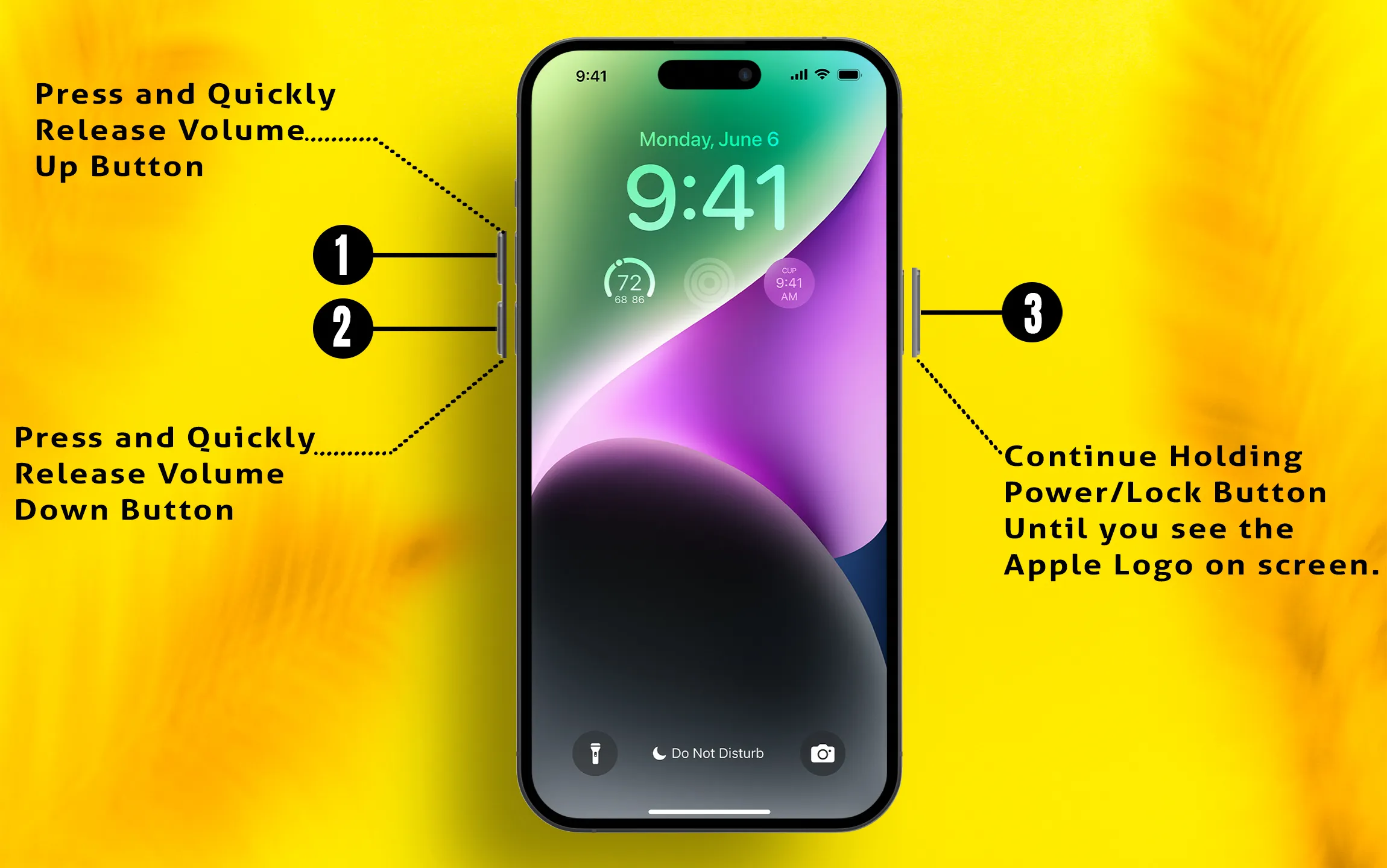
For some users, relaunching the camera didn’t work, so now all you can do is force restart the iPhone. The system reboot might fix all the bugs in the iPhone.
For iPhone 8, X, 11, 12, 13, 14, 15, and 16 Series:
- Press and release the Volume Up button.
- Press and release the Volume Down button.
- Press and hold the Side (Power) button until the Apple logo appears, then release.
Solution 6: DFU Restore
If the iPhone camera lens is still blurry, you might want to try this potential solution to get rid of that weird issue. As a precaution, you must back up your device to avoid data loss. Here’s how to perform a DFU restore in iPhone.
Please either watch the video or read the steps provided below.
Step #2: Turn off the iPhone.
Step #3: Connect the iPhone to the PC.
Step #4: Hold down the Side button for 3 seconds.
Step #5: Next, press and hold the Volume Down button, and do not lift a finger from the Side button. Press both Volume down button and Side button for 10 seconds. If you see the Apple logo on the screen, then repeat steps 4 and 5.
Step #6: Continue holding the Volume down button for more than 5 seconds. If you see a Plugin iTunes screen on your iPhone, you have to repeat steps 4-6 because the process failed.
Step #7: When the iPhone is successfully in DFU mode the iPhone screen will remain black. Besides, the PC will show that iTunes has detected the device.
Step #8: Now all you have to do it follow the on-screen prompts and complete the process.
Solution 7: Get Apple Support
If nothing helps you fix the iPhone camera lens issues, you have to visit Apple Support or contact them. There will probably be an issue with the hardware of the iPhone’s camera; they can only fix this. To save your time, you should make an appointment at the Apple Store.
We are glad to help if you reach out via the comment below. If you have a problem with any of Apple’s Devices, just come back and submit a question or share the issues. We will help you for free. Thank You!