To update your iPhone to the latest iOS, you can use either an over-the-air (OTA) update or a Mac/PC with Finder or iTunes. The OTA method is simpler. I’ll guide you through both options for updating to iOS 18, and you can install the update without a computer. Let’s get started!
Before starting anything, always create a backup of your phone data. This resource can be valuable for safeguarding against accidental data loss.
Video Guide to Update your iPhone to iOS 18
Steps to Update your iPhone to the Latest iOS Wirelessely (OTA)
You can update your iPhone using an over-the-air (OTA) update without needing a Mac or PC.
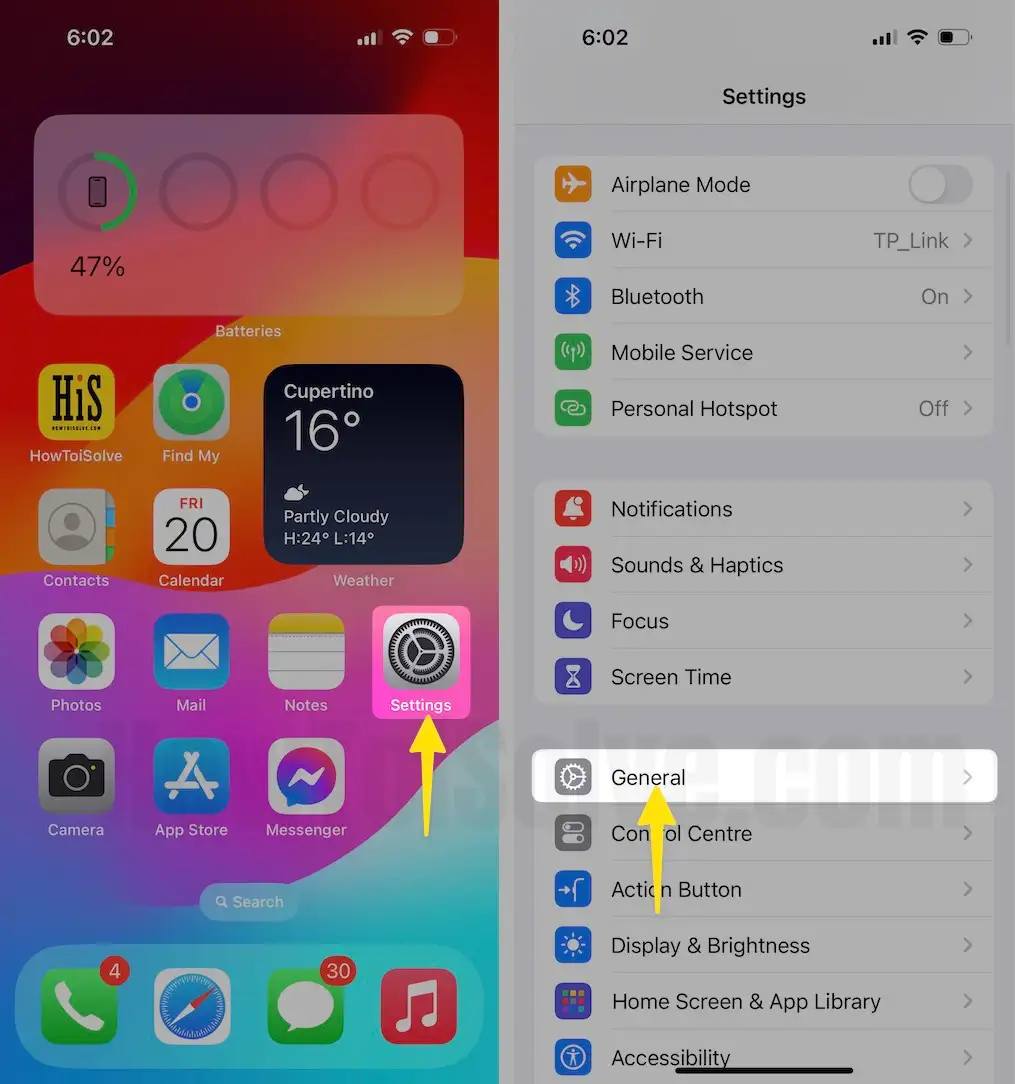
Step #1. Let’s hop into the Settings app on your iPhone or iPad.
Step #2. Scroll down to General
Step #3. Tap on Software Update

Wait until your Phone explores the available iOS update.
Step #4. You can see the iOS update, Storage size, feature details, and the clickable option Download and Install.
So, Tap on the Download and follow the on-screen instructions as usual.
After downloading iOS software update successfully, the following process is installing iOS on your iPhone.
So, this was the way to download and install the iOS update on an iPhone wirelessly. It’s a Useful trick without a Mac computer or PC.
If you are experiencing storage issues or other specific problems with your device, you will need to update your phone’s operating system (OS) using a Mac computer or Windows PC. Follow the steps below to successfully install the latest version of iOS or iPadOS.
Steps to Update iPhone Software on Mac (Finder) or Windows PC (iTunes)
Pre-Requirements:
- Latest iTunes installed on your Windows PC (if you follow this process on your Microsoft Windows OS)
- Lighting to USB cable to plug your iPhone to PC through USB Port
- Strong Wi-Fi network
Guide to Download and install iOS on iPhone using iTunes
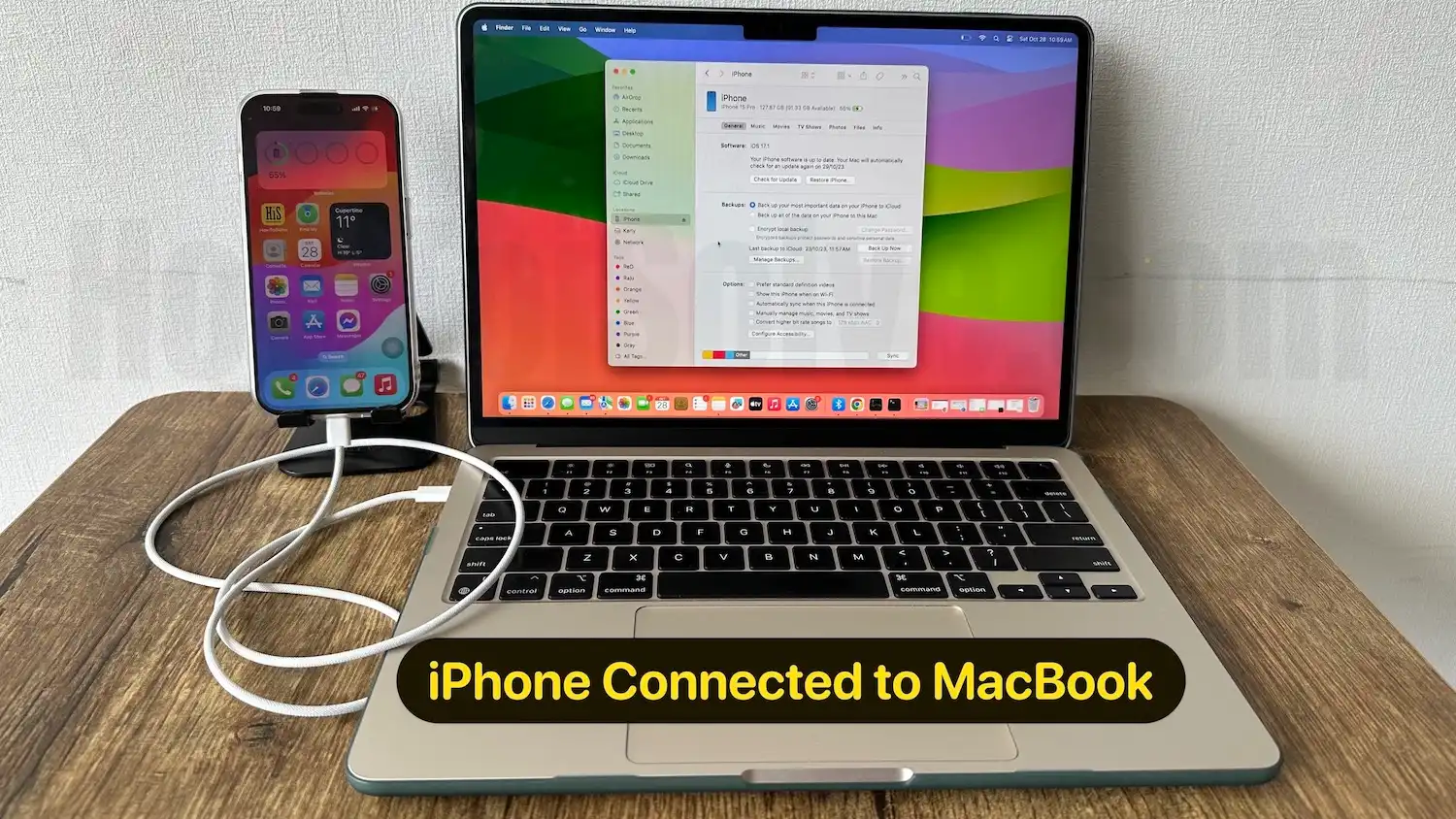
Step 1: First, open Finder/iTunes on your Mac or pc, then connect your iPhone to your computer.
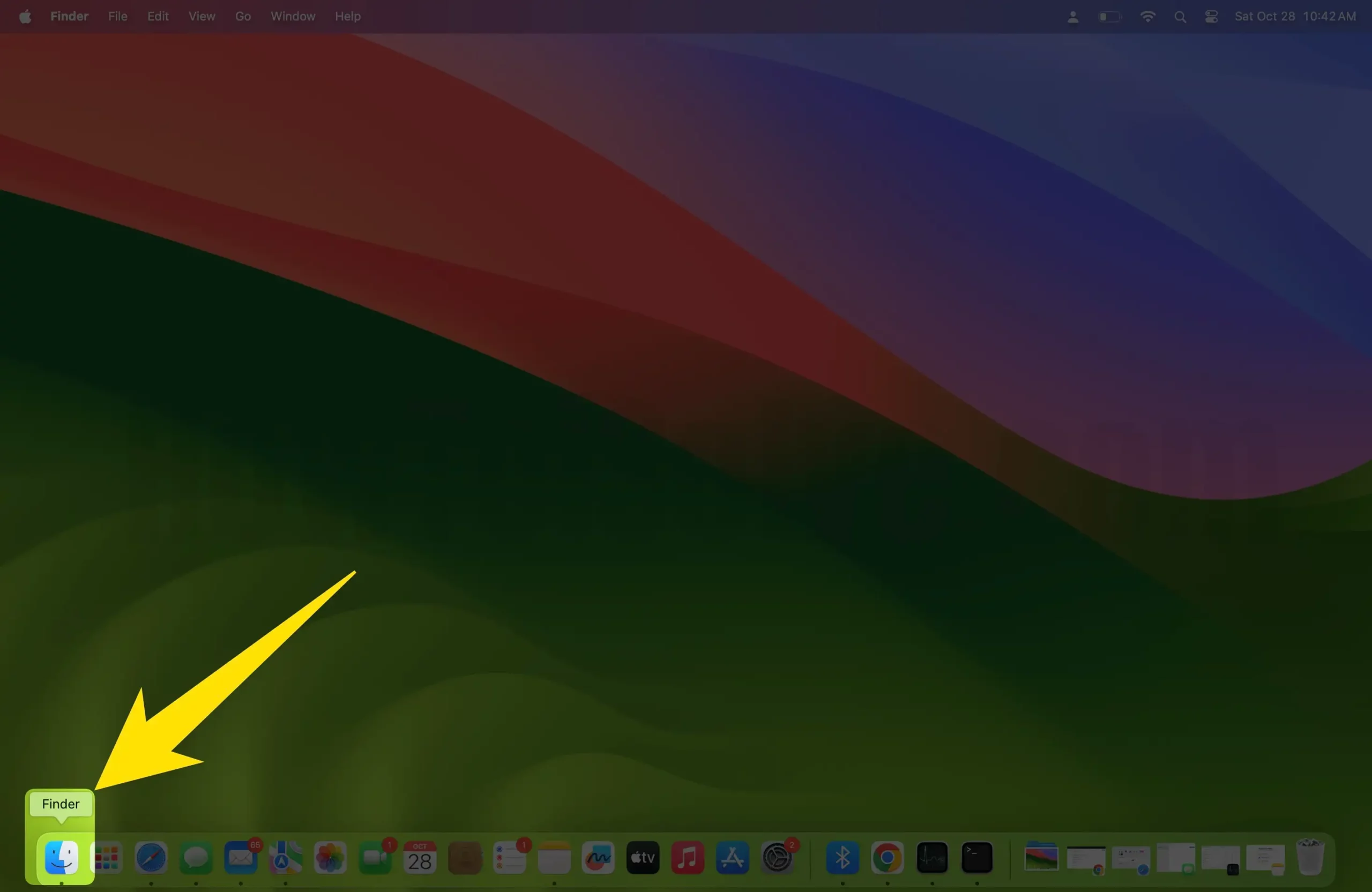
Step 2: In Finder, let’s select your device.
Step 3: In the summary pane, click on Check for Update.
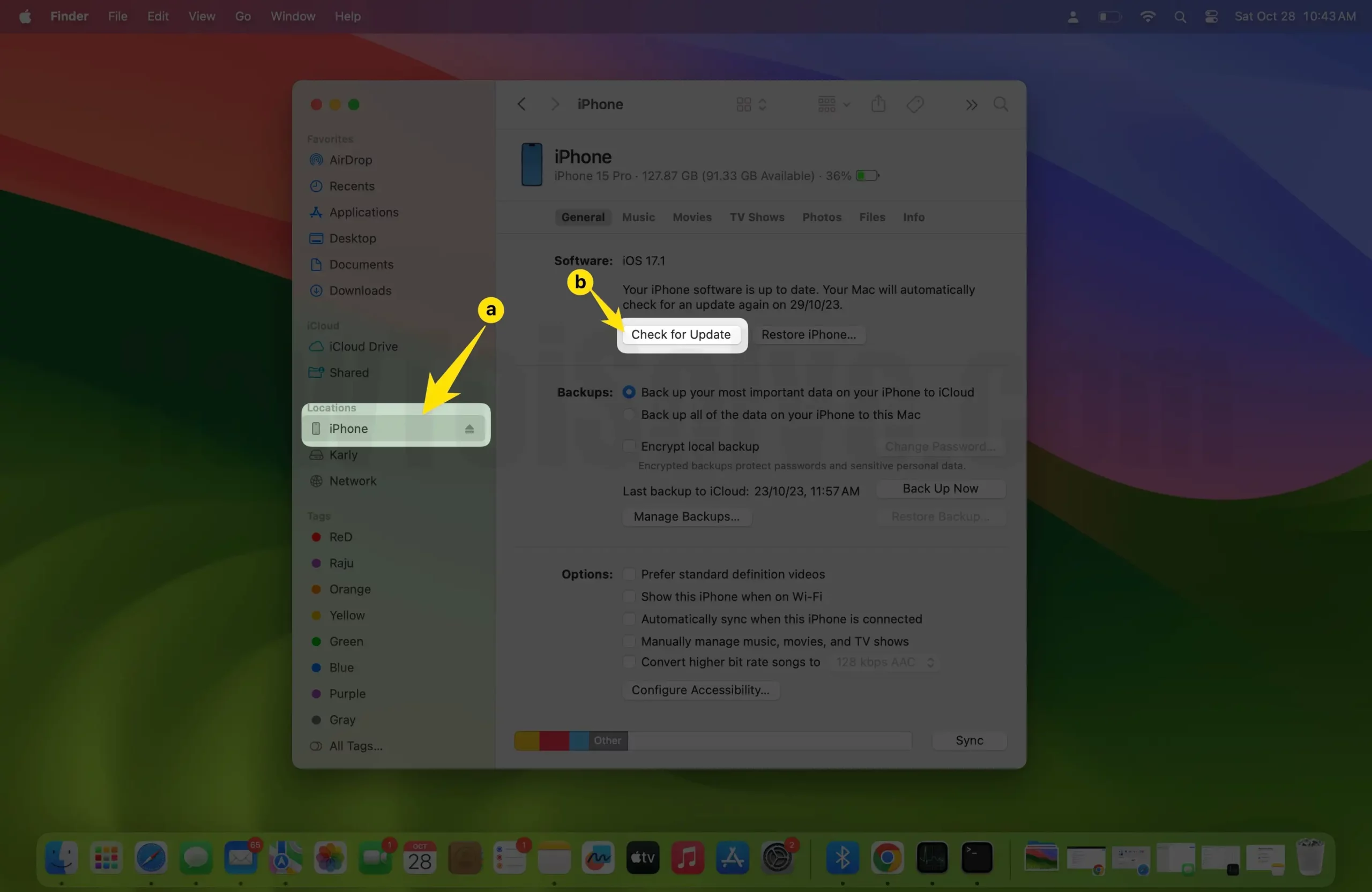
Step 4: Next, Click Download and Update.
That’s it!
If you face any error message during an update, follow the bottom steps to resolve errors.
- Update iTunes
- Update Your Computer
- Plug directly into your computer
- Restart – Turn Off your PC and your iPhone
- Check your Computer’s Security Software
- Try again – yeah, try back to update or restore your iPhone.
Don’t miss out on sharing your experience with the tutorial in the comments.