Why is Bluetooth not working on the iPhone after the iOS 18 update? When we attempt to connect with Bluetooth accessories or other Apple devices, we encounter Bluetooth issues. For different uses like AirPlay (Apple TV), Handoff (Mac, Apple Watch), AirDrop (Mac), AirPods, CarPlay (Maps, Phone Calls, Messages, Music, apps, and more), and Bluetooth Keyboards (Magic Keyboard, Apple Wireless Keyboard, and other third-party Bluetooth keyboards). Find common mistakes and relative fixes for Bluetooth not working after the latest iOS or iPadOS update.
In most cases, Bluetooth will fix very quickly using the troubleshooting steps given here. Read it carefully and get fixed Bluetooth after the iOS update.
Read More: Quickly turn off or turn on Bluetooth from the control center on the iPhone.
Consider troubleshooting the Bluetooth issues on iPhones and iPads after the iOS update.
Solution #1. Restart or turn off/turn on Bluetooth on iPhone, iPad
The Bluetooth shortcut control on the Control Center appears to be malfunctioning. So we do it from the Settings app, like the Control Center network card, which is an excellent shortcut for turning on Bluetooth [but I experienced that not turning on Bluetooth really].
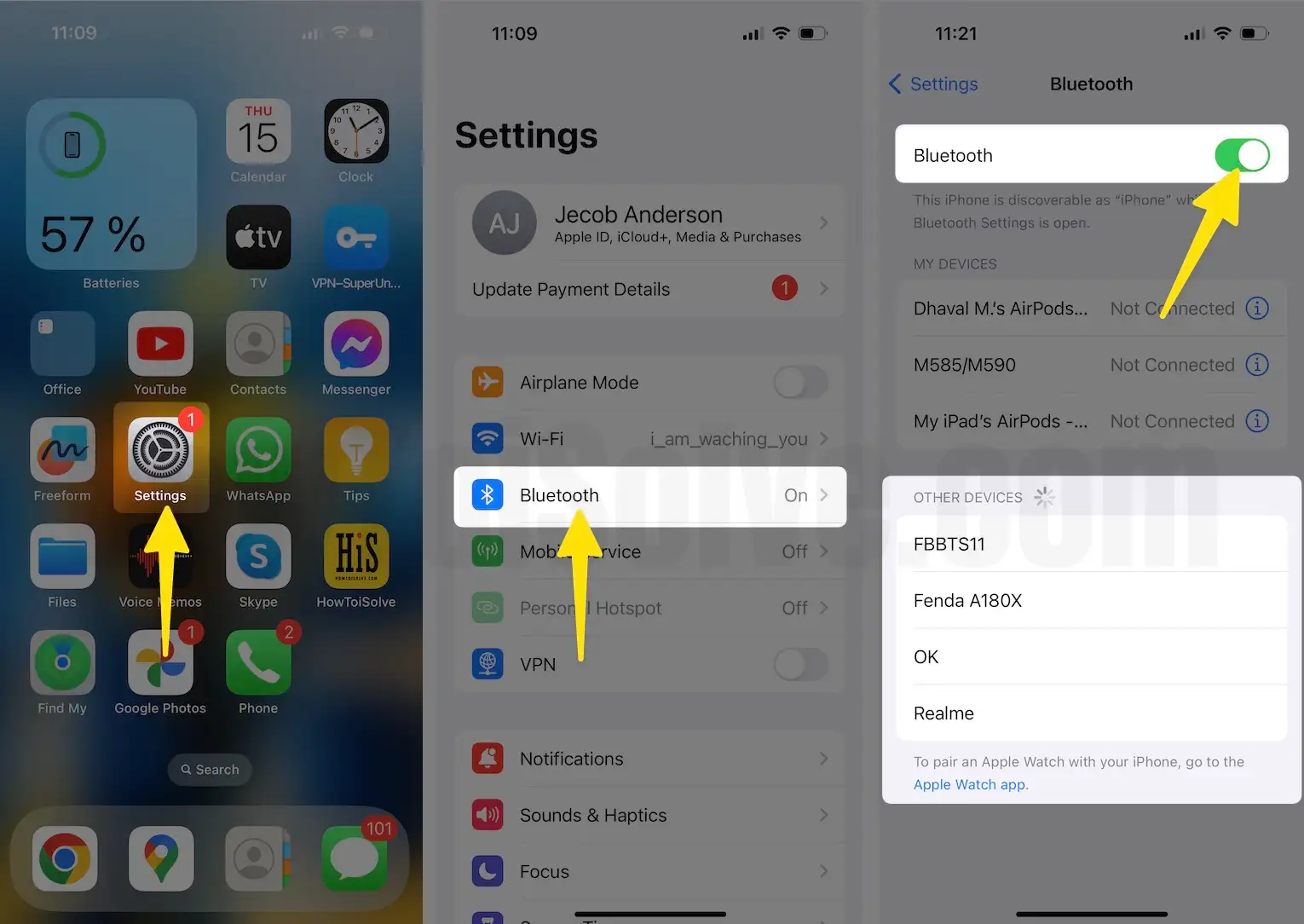
- Launch the Settings app.
- Click Bluetooth.

3. Next, tap on Bluetooth and disable/enable the Bluetooth toggle with a single tap.

iPhone Bluetooth can also be turned on from the lock screen or home screen control center, but sometimes it does not turn on correctly. Therefore, manually turn on Bluetooth from the Settings app.
Switch Wi-Fi Network & Bluetooth from Control Panel on iOS & iPadOS or Later
In iOS 15 and later, open the Control Panel—tap & hold on the Bluetooth icon—you will get a popup to switch Bluetooth devices, andyou can directly go to the Bluetooth Settings screen on both iOS and iPadOS.


The same steps can also be applied to switch the Wi-Fi network.
Once we turned on Bluetooth on the iOS device, your iPhone, iPad, or iPod automatically scanned the device and listed the name just below under the Devices section.
Solution #2: Restart or Reboot iPhone/iPad and Accessories
A restart will help to fix the problem. Once rebooted, the iOS device and try to connect or pair a Bluetooth device with the iPhone, iPad, or iPod touch.
- Occasionally you will get your Bluetooth settings screen stuck or unresponsive.
Useful: Restart iPhone without the Power button
Furthermore, restart your Bluetooth accessories.
Also, Hard Reset or Reboot Device
- 1: Press and quickly release the volume up button.
- 2: Press and quickly release the volume down button.
- 3: Press and hold the side button until you see the Apple logo on the screen.
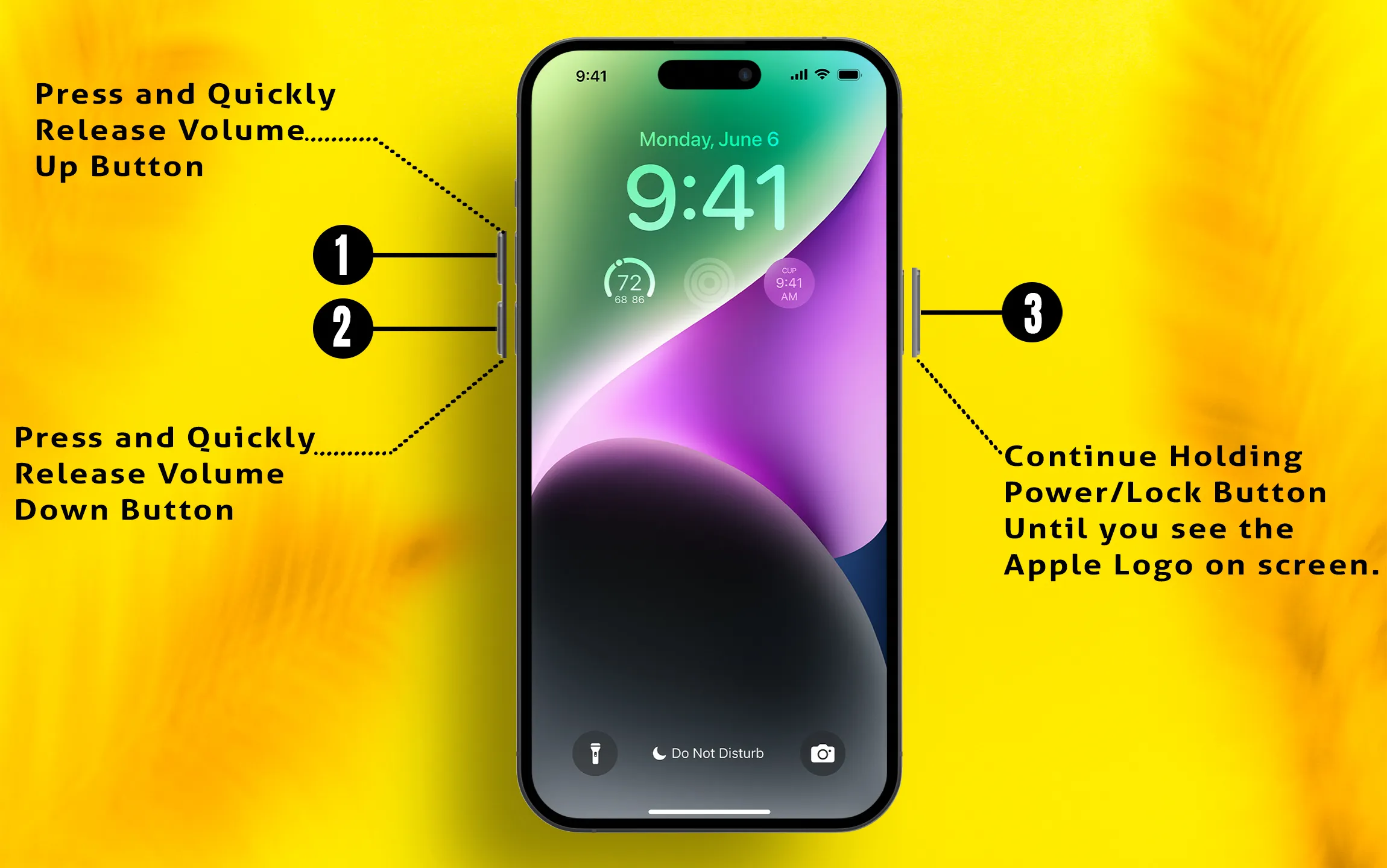
To start the iPhone, again press the side button until the startup Apple logo appears on the screen.
Solution #3: Unable to Scan Accessories or Not Discovering Devices
Make sure Bluetooth is correctly working on Bluetooth accessories or other systems that we want to connect to it.
Bluetooth not finding devices or not showing name: Double-check the name of the device is correct.
Also check that Bluetooth is turned on for accessories (headphones, speakers) or Apple devices (Apple TV, Mac, Apple Watch, and CarPlay). I recommend disabling or enabling Bluetooth on the third-party device.
Bluetooth accessories are already connected to other iOS devices or systems. Some auto-pairing Bluetooth gadgets do this under a particular area.
Solution #4. Update iOS and Bluetooth device software.
Check for new iOS updates; Apple tests and improves all connectivity problems regularly. From experience, iOS users get fixed Bluetooth problems after an upgrade.
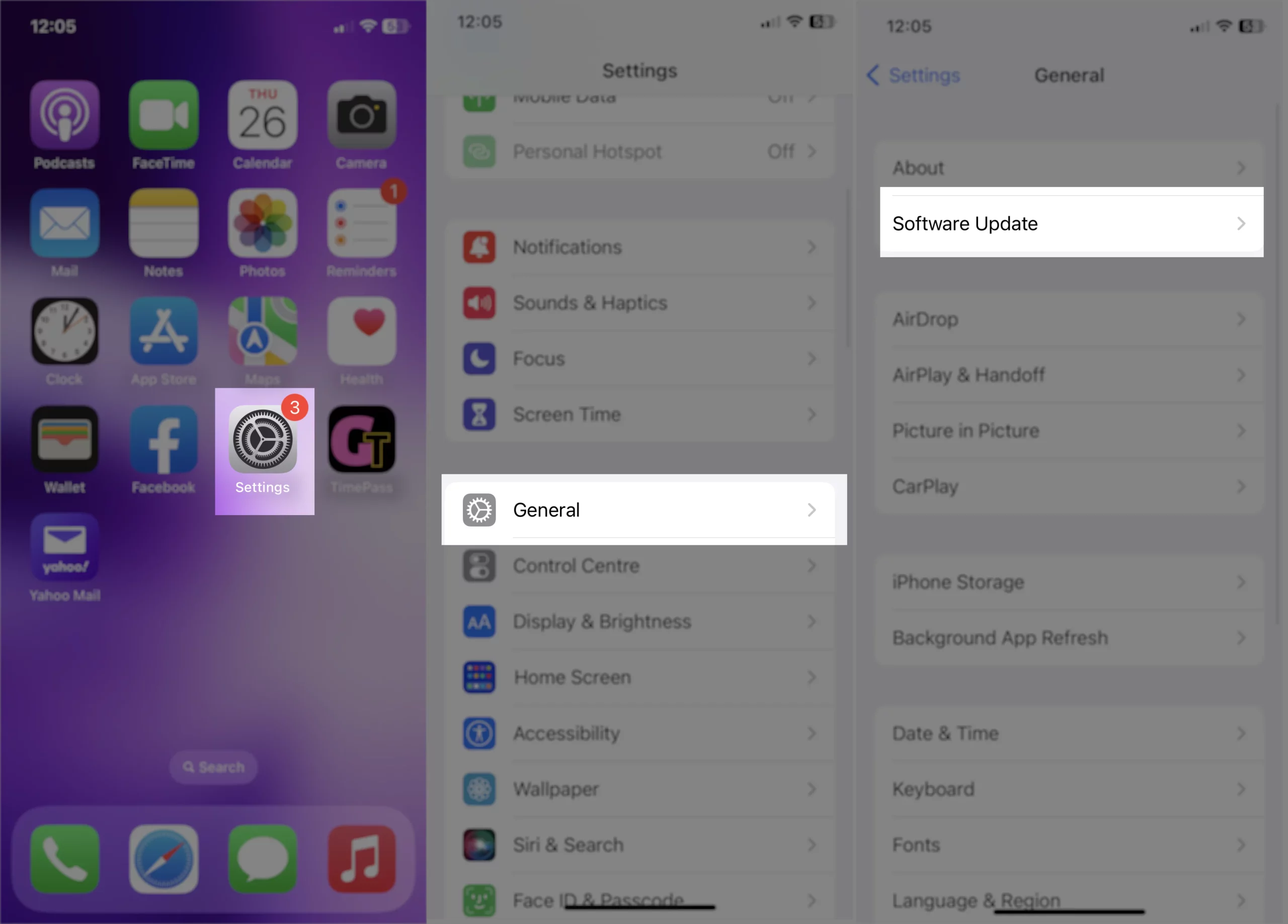
- To check for updates, open the Settings app and navigate to General, then select Software Update.
- Bluetooth is connected but not working: Some smart speakers and sound systems (JBL, Sony, Bose, Phillips, and many others) also get a new software update; please update it with help from the official site or customer service.
Solution #5. Disconnect or Forgot This Device: connection unsuccessful
To reset Bluetooth connectivity between specific devices, follow these steps.
- Go to the Settings app on iPhone, iPad
- Tap on Bluetooth, then enable the Bluetooth toggle to view the list of previously connected devices.
- Now, under the My Devices list, tap on the (i) icon next to the device name.
- See the two Bluetooth connection options.

- Disconnect: Tap Disconnect to release the Bluetooth connection between them.
- Forget This Device: This option removes the device under Bluetooth and also other device details as well. Fix Bluetooth connection unsuccessful.

Solution #6. iPhone Bluetooth Spinning Wheel
For a proper Bluetooth connection, both devices should be in range.
- Keep your iPhone near to Bluetooth accessories if you experience Bluetooth auto-disconnecting (dropping) or interrupting setup or connection. Also, your iPhone Bluetooth icon is blinking on the top status bar due to distance.
- Apple is recommending keeping your iOS device near about 30 feet.
- If you know of the new iPhone model, Apple added Bluetooth 5.0 so we could catch the device up to around 330 feet.
- Alternatively, we can use the iPhone Bluetooth Extender.
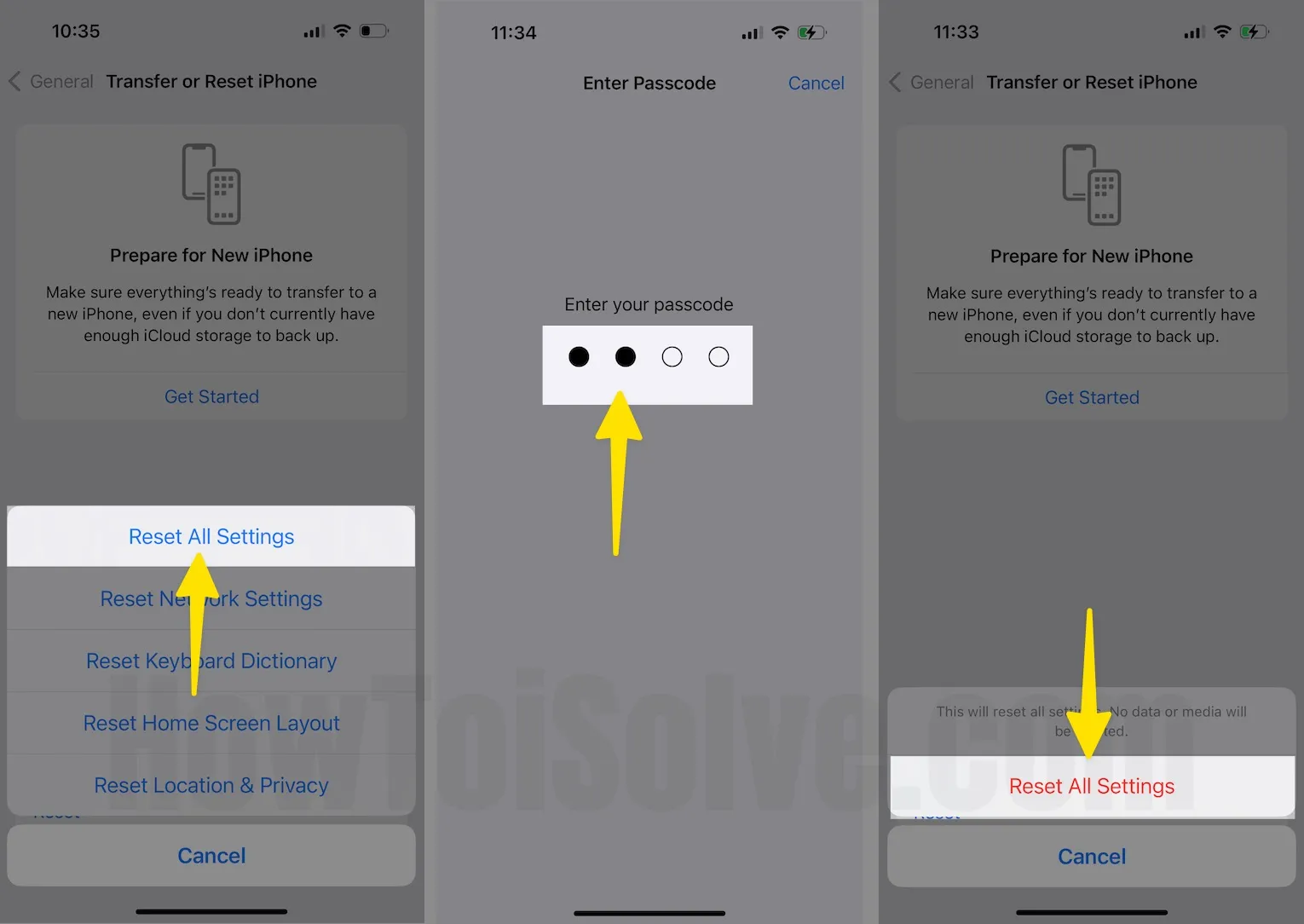
Solution #7: Reset All Settings
Erase all the connectivity details entirely from your iOS device from Settings. This Reset All Settings is an ideal solution for when Bluetooth Settings won’t work or are grayed out.
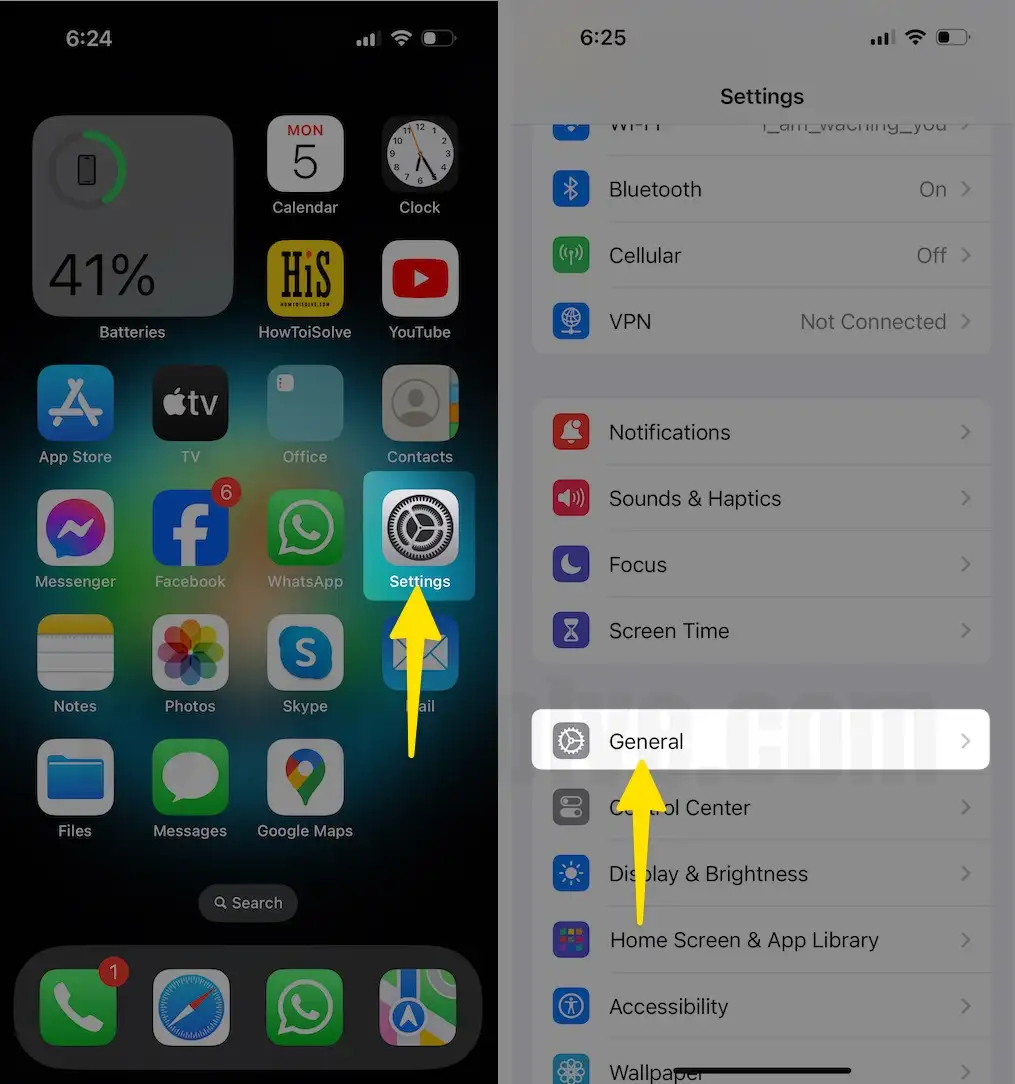
- Launch the Settings app.
- Tap on the General Tab on your iPhone.
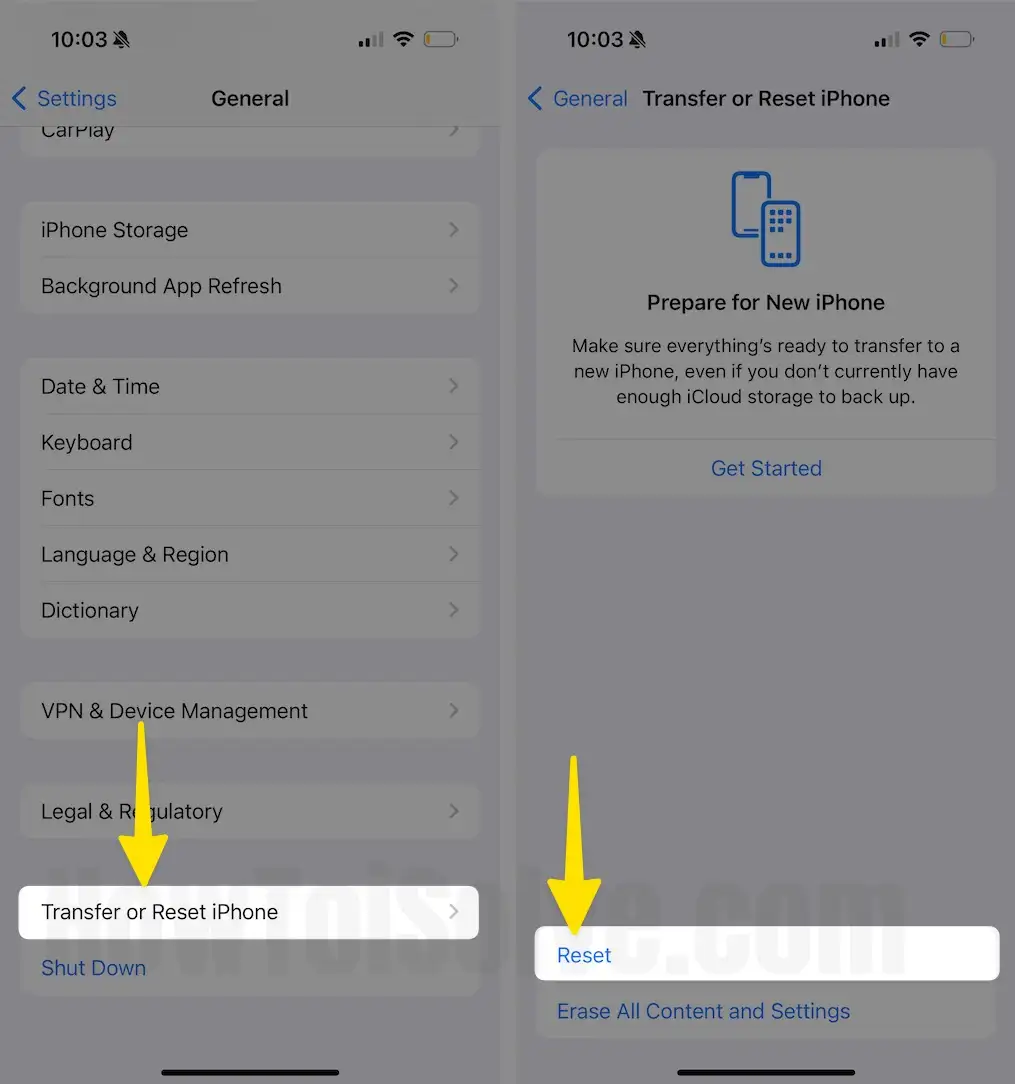
- Select Transfer or Reset iPhone.
- Tap on Reset.
- Select Reset All Settings.
- For security reasons, you will be asked to enter the iPhone passcode.
- Tap Confirm Reset All Settings.
Solution #8: Bluetooth, not auto-connecting to a previously paired device
Bluetooth is not connecting automatically, which means it is already linked to another device.
Or, you previously forgot the device from your iOS settings manually.
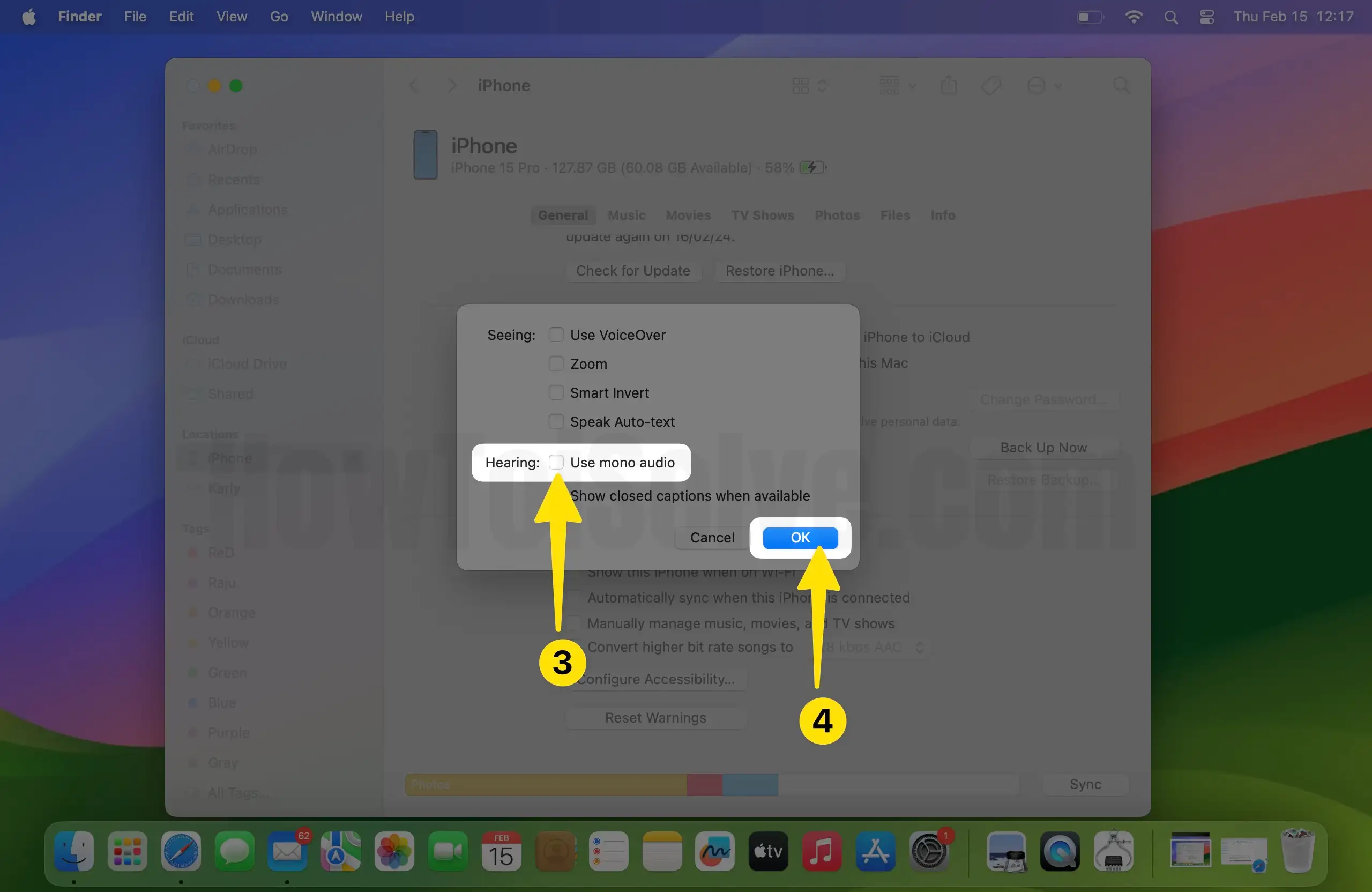
Solution #9. Poor Sound quality over Bluetooth
Are you getting unbalanced or poor sound quality in your bluetooth headphone? Check the below steps.
1. Connect your iPhone to iTunes on Mac
2. Click on your Device (upper-left corner) > Summary > Configure Accessibility.

3. Now, uncheck Mono audio if activated > Click Ok to make changes. Otherwise, ignore this setting. Now you will get improved bass and sound quality back.
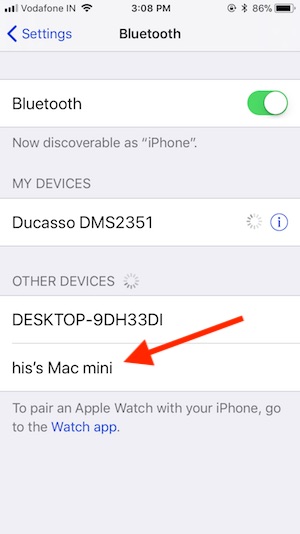
Solution #10. Unable to pair iPhone Bluetooth on Mac: Pairing Unsuccessful
- Turn on Bluetooth on your iPhone, and find Mac under Other Devices.
- Tap on Mac Name > Accept Bluetooth connection permission on Mac.
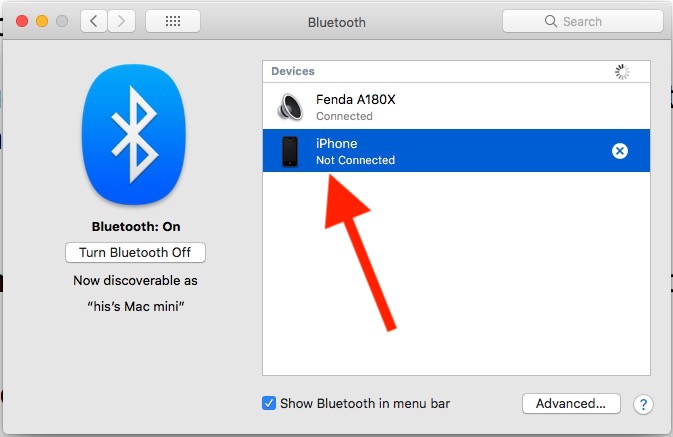
On Mac,
- Open System Preference on Mac, Bluetooth > Open bluetooth preferences, and See the list of Bluetooth accessories.
- If your Mac doesn’t see iOS devices in the list, then restart your Mac and check again.
Solution #11. iPhone Bluetooth cannot connect AirPods or car stereo.
For AirPods: Unlock your iPhone and open the home screen. Next, open the AirPods case near your iPhone screen. Get the “continue” option on the screen and “Done.”
Apple also seeds new AirPods firmware, but we have nothing to do; it will auto-update.
Also Read: AirPods disconnecting on iPhone, iPad
- CarPlay: Limited car models have built-in CarPlay. Now check CarPlay Support for wireless connectivity or USB port.
- That support iOS functionality directly accesses the big CarPlay screen and gives you extra control of your car. Like music, receive calls, text messages, and more.
- CarPlay Showing Connecting iPhone with Car Stereo: Unpair iOS device, Restart CarPlay by restarting the car
- Install CarPlay Firmware Updates
- Correctly set up iPhone with CarPlay, Enjoy over Bluetooth
Solution #12. Pair Apple Watch with iPhone
We won’t connect Apple Watch Bluetooth with iPhone because you need the My Watch app and to set it up manually.
Solution #13: Bluetooth Antenna: Hardware Problems
Check your iPhone warranty status and get a free replacement or repair from Apple. Check, your iPhone does fall under free 1-year warranty coverage.
General Tips:
- Contact Accessory Manufacturer
Solution #14. Get Apple Help!
Apple will help you to find the actual problem that’s causing the Bluetooth to break up the issue. If you use the iOS 18 version, move iOS Beta to public.
Titbits
Bluetooth consumes more power over Bluetooth; we suggest keeping the best iPhone power banks for your needs. And enjoy the iPhone Bluetooth battery drain.
Find the nearest Apple store, or ask about your problem at Apple’s Genius Bar about Bluetooth not working in iOS.