


Google Meet Camera not working in Chrome on Mac, MacBook, is quite a common issue, happens due to software bug most of the times and Wrong Input & Output Camera Configurations. In this tutorial, I’ll show you the best solutions to fix the Mac camera not working Google Hangout and Google Meet, in the easiest way possible. Aside from Mac, several Windows users have reported the same issue, like Camera is working absolutely fine with other applications, but when it comes to Google Meet, Camera is blocked or No Camera Found in Google Meet Error.
Mostly, it happens due to the web browser permitted to access the Camera, Microphone, or other functions. If that’s not an issue, then jump to other solutions and get it resolved.
How To Fix Google Meet Camera Failed on Mac
Internal Mac Camera is Blocked under Screen Time Restriction
Screen Time as a Parental control is enabled for your Mac’s Internal Camera. just check it and remove the camera restrictions, So follow the steps to unblock camera on google meet mac.
- Apple Logo > System Preferences > Screen Time > Content & Privacy > Apps Tab > Enable the Camera Check box.

1. Check Google Meet Status
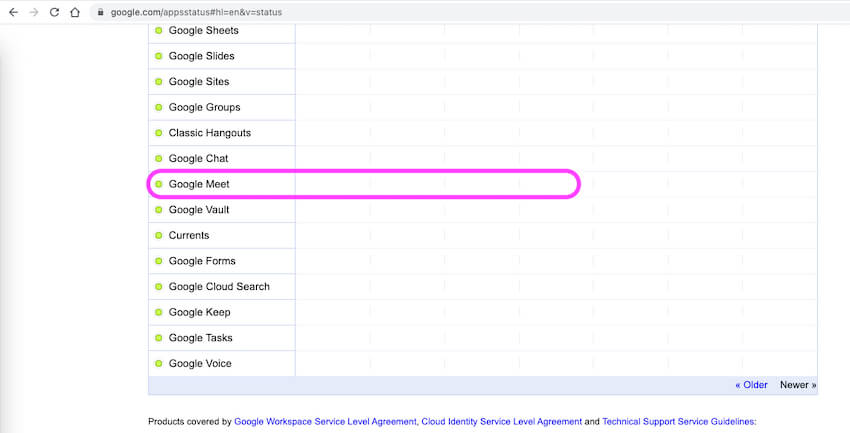
Before diving into any troubleshooting tricks, it’s recommended to check Google Service Disruption & Outage the Google Meet status [Official Page] See Google Meet Service has no issue, if there’s any server outage or issue from Google’s end, there’s nothing you can do. or Go with Other Google Meet Alternatives for Mac. if it’s okay then troubleshoot and Try your Camera test on one of these video calling applications like Skype, Zoom, FaceTime.. for internal Mic/Camera.
Some Users Get solutions while using External Headset with Microphone.
2. Enable Hardware Acceleration When Available For Meets
Google Browser is optimized for Battery devices to utilize more resources when users need. In some online gaming tasks, some online Video services require more System resources while using them through the browser. So, at that time, users have to allow this option from the browser settings. Follow the steps below to enable hardware acceleration on Chrome. Later on, you can disable it if you don’t like to allow it on your system, and show the Blue Pixel bar issues on the screen.
This option helps in running Google Meet, making your Browsers unresponsive and freezing.
Open Google Chrome Browser on Mac, And Enter this line in the browser address bar and go to your Chrome Settings,
chrome://settings/system

or
Click on the Three Vertical dots icon at the top right corner of the browser screen. From the Browser Settings menu, click on Settings, And Click to show Advanced settings, and select the System option.
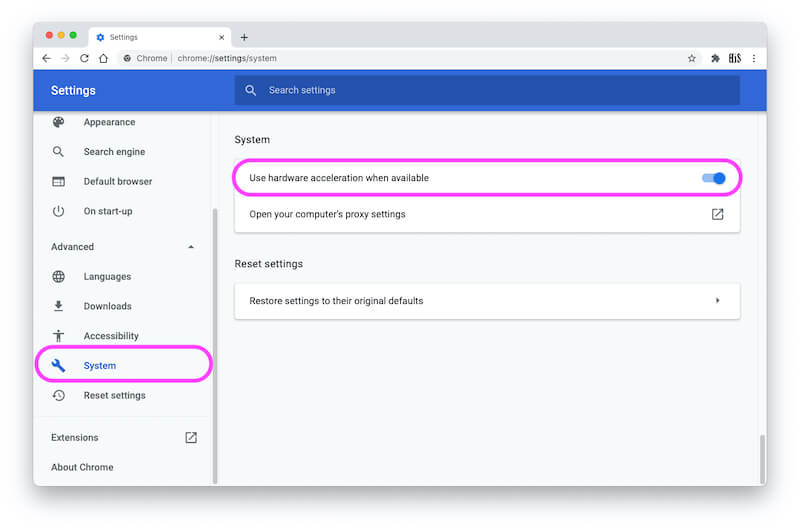
Enable the “Use hardware acceleration when available” toglge to Blue, and Relaunch the Browser and try again.
Still, the Problem is not fixed. Then I recommend switching to another browser. Otherwise, you have time to fix it with more troubleshooting techniques, then follow the important fixes over here for “Camera & Microphone Working on Mac but Can’t see me or Share your screen as well”.
3. Switch to Another Browser
Users reported the issues with the Chrome browser, but surprisingly, it works amazingly on the Safari & Firefox browsers. The time-saving solution is to use the Best Browser for Mac, MacBook. Without losing your Security and Privacy, keep installing these browsers and use them while you are in the middle of the ocean.
My Recommendation is over here, but why did you let down the Best Google Browser?
4. Force Close Any Other Applications on Mac
Also check, your mac has opened multiple applications in the background that using your System Camera or External Camera. First, Force closes all the applications such as FaceTime, Zoom, or others. Go to the Apple Logo from the top Mac menu > Force Quit… > From the Popup Select the Other App Excluding Google Chrome and Force Close one by one.

Now, Re-Open and Reload the browser that uses the Google Meet service with the Camera and microphone.
Still, are you getting the same error? Now, you have to check the restrictions and Camera or Microphone permissions within the browser. Let’s follow the next two steps.
5. Check Camera Permission for Browser
Without permission, an app can’t use the Camera and Microphone of the Mac. Are you accessing Google Meet via Google Chrome? If yes, then make sure Chrome App is allowed to access the Camera and Microphone; otherwise, you’ll face the Mac camera not working Google Meet kind of issues, with another app too. Here’s how to unblock the mic and camera on Google Meet on Mac. This will fix Google Meet, no camera found on your Apple laptop.
- Click on the Apple Logo. Select System Preferences.
- Open the Security & Privacy option. Click Privacy.
- Scroll down and select Camera.

Once you allow permission to the whole browser from your Mac system settings. Also, allow the Permission for the Tab to use Your Camera through the Browser. Steps are below in the next solution.
6. Re-Set & Quickly Unblock Google Meet Camera Blocked
The browser has Security settings regarding allowing access to your system’s microphone or Camera while you are visiting or opening a webpage in Tabs. In this case, users have to allow permission to the Browser for the use of the Camera. By Default, the camera and microphone are restricted, meaning off. To enable the camera to access to a particular tab, follow the steps below. Or reset the old Settings as well if turned off or blocked.
- Open Chrome Browser, Click on “More Options” at the Top Right Corner of the screen.
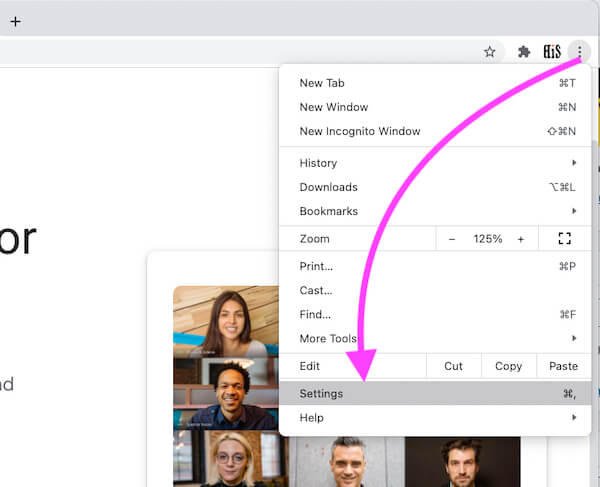


Now, in the Browser Camera settings, “Google Meet URL allows for the used camera at any time“. Your Browser will not ask for next time.

7. Camera is Blocked or Can’t find your camera google meet mac

Some Misconfigurations and intensively blocking of camera hardware creating a problem like this (can’t find your camera google meet mac).
Double check that, Camera access allowed for Tab in Browser or and Browser as well from Mac System Preferences settings.
Reset NVRAM or PRAM on Mac [Don’t need to check on M1 Mac]
Force Close Camera Process Using Terminal, Open Terminal on Mac and Try the Below command to Force close camera process.
sudo killall appleh13camerad
Also Check in Safe mode.
If you are getting No Camera Found Google Meet issues then Diagnose and fix with Mac Camera Not Working or Use One of the best External Camera for Mac.
Most common problems,
- Camera damaged or Internet Mac Cabling issues
- Blocked by your System, Explained in this article, Allow Camera access on Browser
- Corrupted macOS or Outdated MacOS, Also Update your Browser
- Change Browser or Disable Extension
- None of the Different browsers works and Other apps as well, then I recommend checking in different login in the same mac or Reinstall macOS.
8. Unblock Google Meet Camera blocked without moving browser Settings
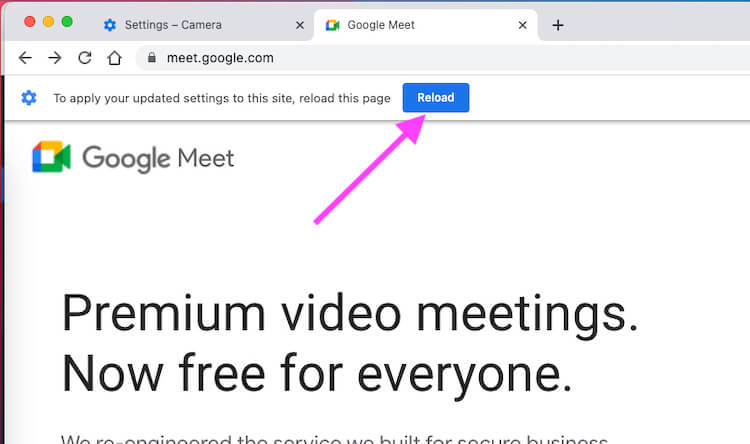
Or – Directly Allow Camera for Visited URL on Chrome Browser,

Then “Reload” the page to start accessing the camera on Browser’s Tab,
9. Update Web Browser
Often the browser policies changes, and to stay up to date with it, you’ll need to keep the Browser App up to date. Usually, Google Chrome and Microsoft Edge automatically update without needing any manual interference. However, in some cases, due to a software bug or network issue, the update could be stuck, therefore manually check for the updates on the respective browser.
To Update Safari,
Simply update the macOS, Safari along with all the default applications will automatically be updated.
- Click on the Apple icon > Select System Preferences > Click on Software Update > Click on the Update Now button.
To Update Google Chrome,
- Launch the Chrome App > Click on the three-dots icon > Choose Help > About Google Chrome > Wait until Chrome itself installs the update.
To update Firefox,
- Open the Firefox > Click on the three-dots icon > Choose Help (question mark) > About Firefox > Let the Firefox check for the updates and complete it.
To update Microsoft Edge,
- Go to the Microsoft Edge > Click on the three-dots icon > Select Help and feedback > Click on About Microsoft Edge > Wait for Microsoft Edge to install the latest updates.
10. Disable Extensions
Usually, most users forget to delete the extensions after using them, even when they are no longer needed. If you’re the one with the same habit, keep note that more extensions will create more load on the app, and hence result in this type of bug. Delete the extensions that you don’t need.
Disable Safari Extensions,
- Launch the Safari App.
- Click on Safari in the top menu, and select Preferences.
- Select Extensions.
- Choose the extensions and start uninstalling.
Disable Google Chrome Extensions,
- Enter chrome://extensions/ in the search bar and hit Enter. Remove the extensions one by one.
Disable Firefox Extensions,
- Open Firefox.
- Click on the three dots and choose Add-ons.
- Select Extensions.
- Remove the Extension by clicking on the three dots and Remove.
Disable Microsoft Edge Extensions,
- Enter the edge://extensions/ in the search bar and visit that page.
- Delete the extensions that you don’t need anymore.
11. Turn Off Antivirus and VPN
VPN and Firewall Protection could block certain functionality if any irregular activities are detected on the system. If you’re using the VPN, then make sure to disable it before using any Google app, because, if it can’t detect your correct location the Meet app won’t work correctly.
On top of that, the Firewall of Antivirus also does the same, make sure to temporarily disable any Antivirus app if you’ve any and try to use Google Meet.
- On your Mac, click on the Apple icon and choose System Preferences.
- Choose Security & Privacy.
- Select the Firewall tab.
- Click on the Lock icon on the lower-left corner.
- Enter the administrator password.
- Click on Turn Off Firewall.
12. Turn off & Join On Meet Mobile or iPhone App
Google Meet mobile does a great job just like Desktop Browser, You can learn or Get the Screen with Face in High-Quality conference. Even you have a poor Broadband connection or some blocking issues. Turn the Mobile Data on and Start All Video Calling Facility to your Google Meet mobile app is free.
Here are the great options, You can use headphones for better sound qualities.
13. Google Meet Screen Recording Issues
Google Meet allows users to share their Screen during a call. But your External Browser, like Chrome, only allows users if the Permission is allowed from the Mac system preferences settings. Let’s turn on Screen Recording Privacy for Google Chrome, or Other Browser if you are using it.
- Click on Apple Logo from top Mac menu > System Preferences.
- Security & Privacy > Screen Recording > Click on the Lock icon to make changes and Enter your Mac login password.
Now, Allow Google Chrome for Screen Recording.
That’s it.
Move to Chrome browser Tab, and Start Screen Share of your Mac during a Google Meet call on Mac.
14. Google Meet Camera is Working but Won’t Hear
A problem like this, here you have to diagnose that the microphone has a problem and the relevant settings are given on your Mac System.
- First, check that the Microphone is in use and the Level is up
- Allow the Use of the Microphone in the Browser.
- New Joining or Chime sound only hear the first Five People. Later on, for new Joining, you will not hear the startup sound or the new joining sound.
Above all are the most helpful fixes for the Mac Camera that has stopped on Google Meet or won’t open on Google Meet video calls.





