


This article helps you get to fix your Apple Mac Message App slow or keeps Freezing on your Mac. Apple’s default Message is helpful in all ways, except iOS, iPadOS, WatchOS, and macOS. Easy to sync on the same Apple ID account. The message effect and starting the same chat (send and receive iMessages) on the Apple smartphone on the go is an adorable feature.
But Sometimes Mac’s message app slow/lags, and crashes, that’s why it ultimately becomes unresponsive and doesn’t work as likely running previously—most of the time after the macOS upgrade.
Having the same issue on your Mac (Message app gets the spinning wheel screen when open)? Let me share specific essential solutions that will help you to fix iMessage not working on Mac.
List of Solutions to Fix the Message App Slow on Mac
Fix #1 – force quit Message App
You should force close the message app and then re-open it to use.
- Go to the Apple Logo on the top menu bar > Choose Force Quit Or(Option + Command + esc). Select Messages > Click on Force Quit.
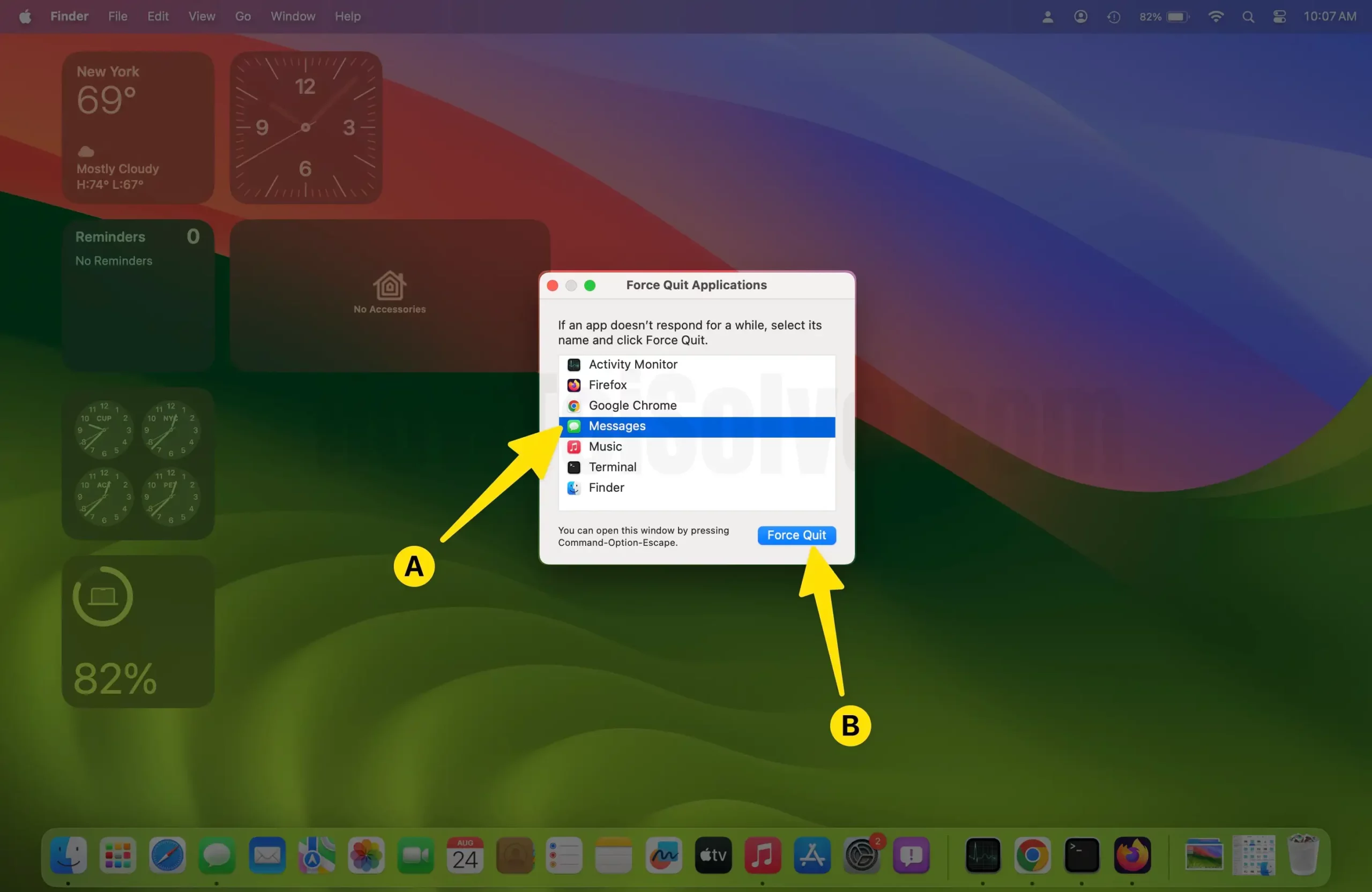
Or use Activity Monitor to force close any app. Here’s how to force quit app on Mac.
If the first workaround doesn’t work, try the next one.
Fix #2- Change Mac Mouse Pointer size
As a temporary solution, at least try once on your Mac.
To the best of my knowledge, the size of Mac’s mouse cursor does not impact iMessage performance. But this works, one of our readers says.
- Click on the Apple Logo on the top menu bar.
- Select System Settings
- Click on Accessibility
- Display.
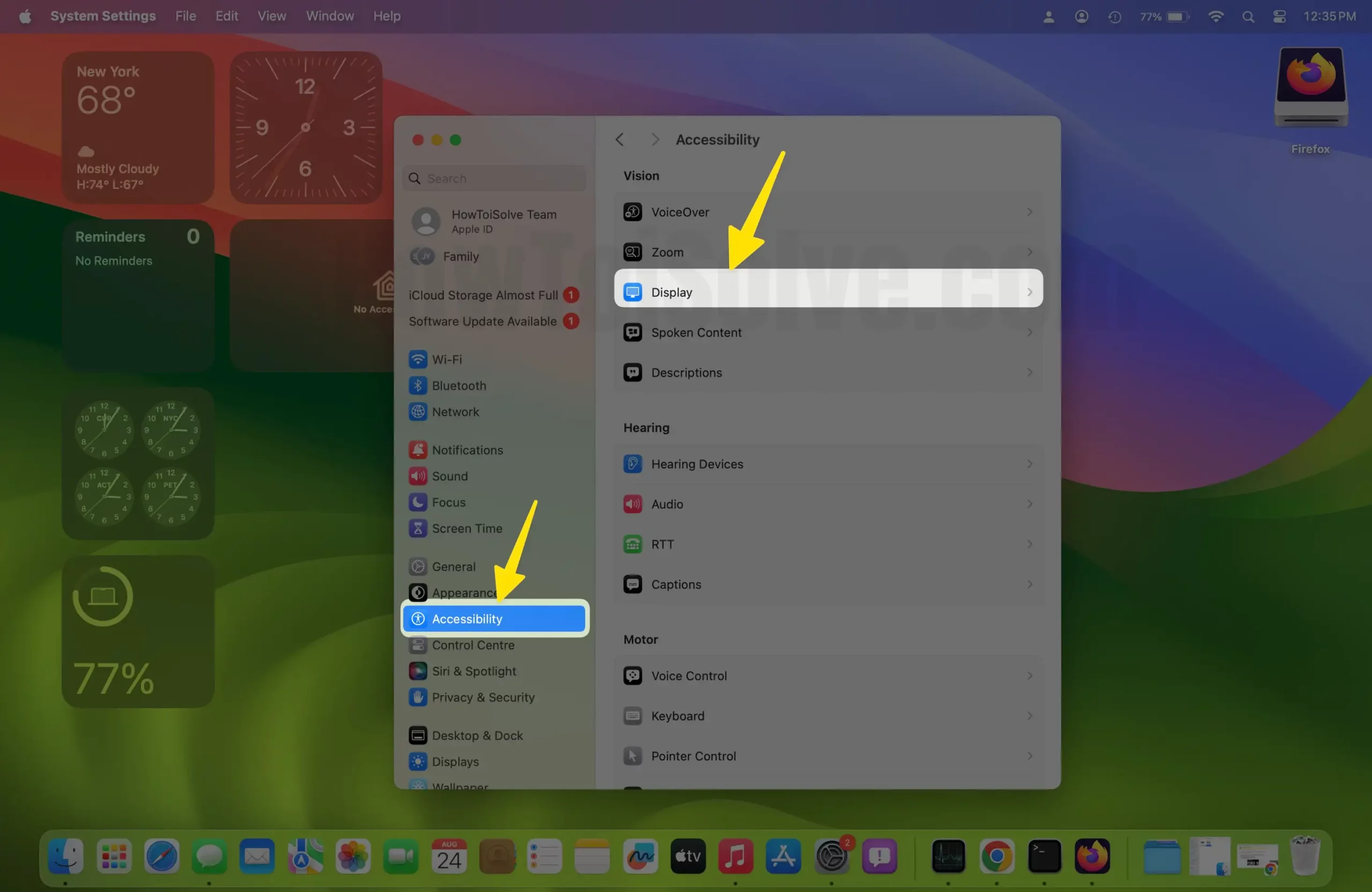
- Pointer section.
- Pointer Size. Now set it to the smallest size (3rd or 4th stage on a slider).

If your Mac’s mouse pointer size is already set to the smallest setting. Then enlarge it one degree.
This fixes the LAG whilst typing that appears in the messaging app.
Fix #3. Rebooting Your Mac into Safe Mode
Follow this process step by step:- Click on the Apple Logo > Choose Restart.
Now, wait for a while till your Mac starts back. Now, try to use the Message app. Still the Message opens slowly which means the issue persists. Don’t worry. Go to the following way.
Fix #4. Sign out of Messages on the MacBook and iPhone
This will also fix the iMessage sync being slow between devices. (To read the full picture proof tutorial get here)
to do that,
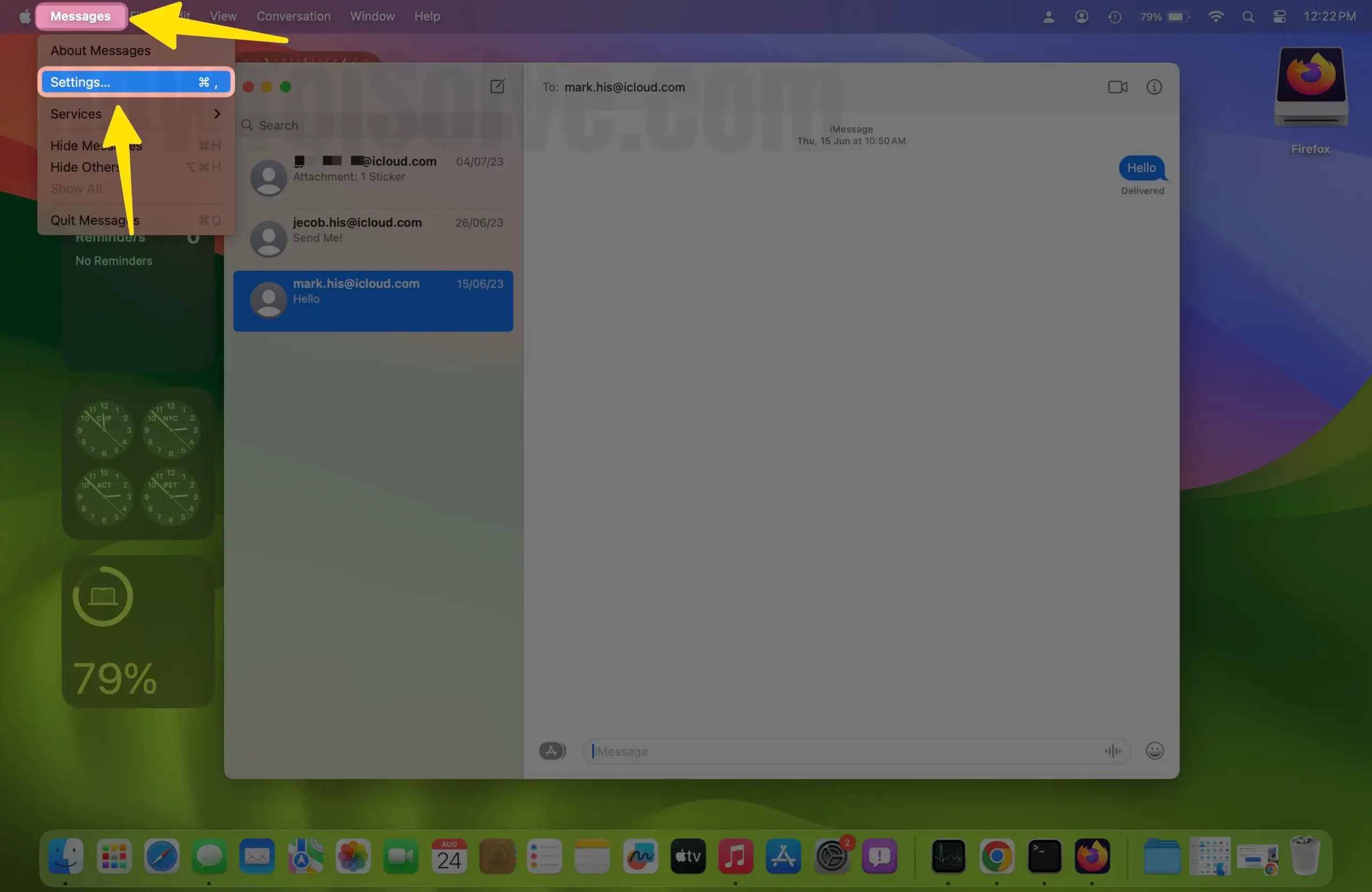
Step 1: Open the Messages app on Mac > on the top left corner of the screen and click Messages > Settings.
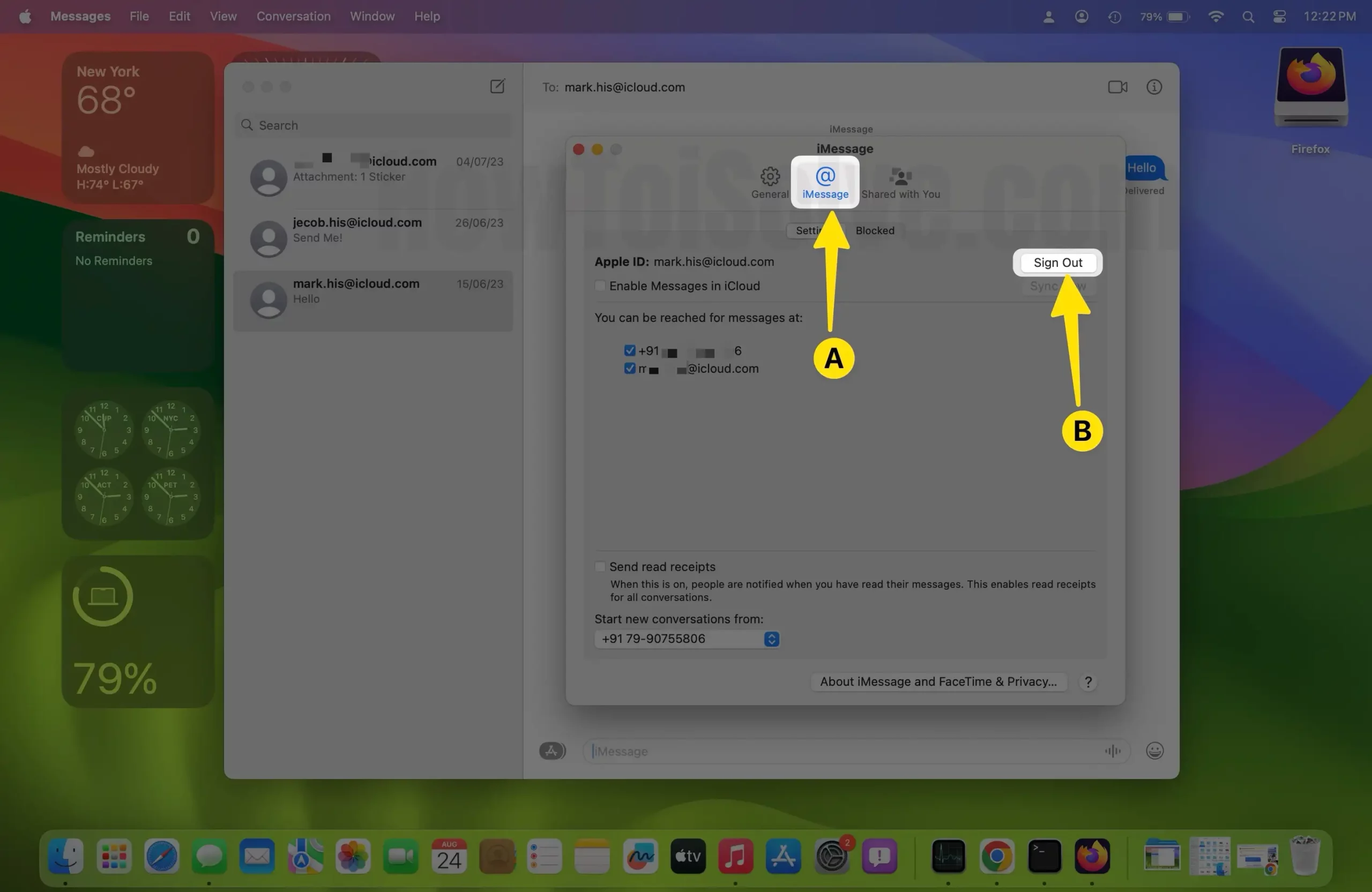
Step 2: Next iMessages > sign out from there.
Sing Out iMessage on iPhone
- Go to Settings on your iPhone
- Scroll the screen to Apps
- Now find Messages
- On this screen, Turn toggle turn off iMessage.
Now, Soft restart your iPhone. After that, turn iMessage back on.
What you will have to do next,
- On your Mac.
- Get iMessage signed back into Mac’s Messages app.
On your iPhone
Open Settings > scroll screen the screen to Apps > on this page, tap Messages > choose Text Message Forwarding.
Let’s enable the switch on your Mac that allows you to send SMS and MMS messages from your Apple MacBook.
You should enter the code that pops up on your device screen.
hope, you get no more lagging in the messages app.
Fix #5. Downgrade Sequoia to macOS Sonoma
Not found an all-time fix? Let’s go back to the previous macOS version. Follow how to downgrade macOS.
Fix #6. Wait for the Next update
Wait for future releases, I hope, Apple will patch the unusable lag with the iMessage issue in the next Sequoia update.
Fix #7. Have an old Mac?
Apple’s latest macOS Sequoia won’t run as expected on too old Macbook Pro, iMac, MacBook Air, and Mac Mini. You can check on the Activity monitor how much space the Message App uses.
Let’s upgrade SSD storage and RAM on your Mac to improve overall performance. You can view here What SSD Drive you should buy for your Mac?
Drop your comment. What solution worked exceptionally well for you?





