Why is Apple Music not Playing Songs on iPhone Cellular data? Apple’s newly launched Music service is an online streaming player. Whether you download Apple Music songs on your iPhone Music app, even though if you want to play a new music shot of Apple Music, then you must require internet, either Wi-Fi or Cellular data (3G/ LTE Speed), it doesn’t matter. To get the continued sound of Online Songs, though, requires good speed internet. Since you can play Apple Music Online, it doesn’t matter if you’re a trial member or have an Apple Music Subscription. But the meaning is that Apple Music can’t play offline.
While there’s no Wi-Fi connectivity on your iPhone and you are trying to play Apple Music with Cellular data, you might have an issue with the Apple Music not working with Cellular data on your iPhone, iPad, or iPod Touch. We offered fixes points about the Apple Music not playing on an iOS device, please refer ways. I hope this will clear your problem.
Ways to Clear Apple Music not playing Songs on iPhone Cellular data: iPad, iPod
Verify Cellular data is enabled for the Music App
To check out,
- Open the Settings app from your iPhone Home screen.
- Click on Mobile Service.

- Now turn the Mobile DataON.
- Scroll down the screen to turn the toggle to the right side (Green) next to the Music app.

That’s it.
Still, Apple Music Songs won’t play. Please go with the steps listed below.
Check out Music Streaming and Downloads is Turned ON
Apple Music is Not playing songs on Cellular data on iPhone. Simply continue troubleshooting, and we’ll make sure your music experience is uninterrupted.
- Open the Settings App.
- Scroll the screen to tap on Music.
- Under ALLOW MUSIC TO ACCESS, turn the Mobile Data toggle on the right side to turn it ON/Green.

You’re done.
Please open the music app again and play the song from the Apple Music tab. We expect that it will play without any issues. However, if the song doesn’t start playing smoothly, please restart your iPhone, iPad, or iPod touch.
You can avoid buffering issues while streaming on cellular data by enabling High quality option.
How do you turn on cellular data for Apple Music?
On iPhone and iPad, you can individually allow the apps to use the Cellular/Mobile Data; likewise, Apple Music can use the Cellular Data to stream the music. And if Cellular Data for Apple Music is disabled, then you cannot play or download music over Cellular Data on Apple Music. Here’s how to turn on cellular data for Apple Music.
- Open the Settings app on the iPhone.
- Tap on Cellular.
- Scroll down the list until Apple Music shows up, and turn on Apple Music.
- Now you can use Cellular Data for Apple Music on iPhone.
Why does Apple Music not work with data?
Is your Apple Music not working on cellular data? Mostly, there won’t be any fault from Apple’s side, therefore you should determine and try to find the cause on your own. Here’s the breakthrough.
Solution 1: Check the Cellular Data Plan
If you’ve exhausted the cellular data, Apple Music won’t work at all. However, to ensure it’s the only problem, try using Apple Music on Wi-Fi. You can get the best cell phone plans for 2024 here.
Solution 2: Make Sure Cellular Data is Enabled for Apple Music
There’s a specific setting provided in the iPhone that lets us manage the Cellular Data for individual apps. If the Cellular App for Apple Music is turned off, then Apple Music won’t work on cellular data.
- Navigate to the Settings
- Tap on Cellular.
- Find Apple Music and make sure it is enabled.
Apple Music Not Working with 5G Connection
It sounds weird, but I’ve seen a few users who reported that Apple Music not working on a 5G or 4G connection. Have you enabled the Cellular Data for Apple Music? Did you check the Cellular Data plan? These are the most common reasons why your Apple Music not working on the 4G connection.
Prefer the above steps to enable Cellular Data for Apple Music. You can contact Carrier Support or check the plan for the Cellular Data plan by signing in to the carrier’s website.
Cellular Data Won’t Stay On for Apple Music
Despite turning on Cellular Data for Apple Music, if it automatically turns off, that’s an iPhone glitch. We can suggest a few basic workarounds to fix this, here are they.
Solution 1: Force Restart iPhone
For iPhone 8 or Later,
- Press and quickly release the Volume Up button.
- Press and quickly release the Volume Down button.
- Press and hold the Power button until the Apple logo shows up.
For iPhone 7, 7 Plus,
- Press and hold the Volume Down button and Side button until the Apple logo appears.
For iPhone 6S, 6SPlus, or earlier,
- Press and hold the Home button and Sleep/Wake button until the Apple logo appears on the screen.
Solution 2: Update Apple Music and iPhone
Using outdated Apple Music App and iOS versions could bring many more issues than this. If you haven’t updated both of them, then update as early as possible,
Connect the iPhone to Wi-Fi before proceeding.
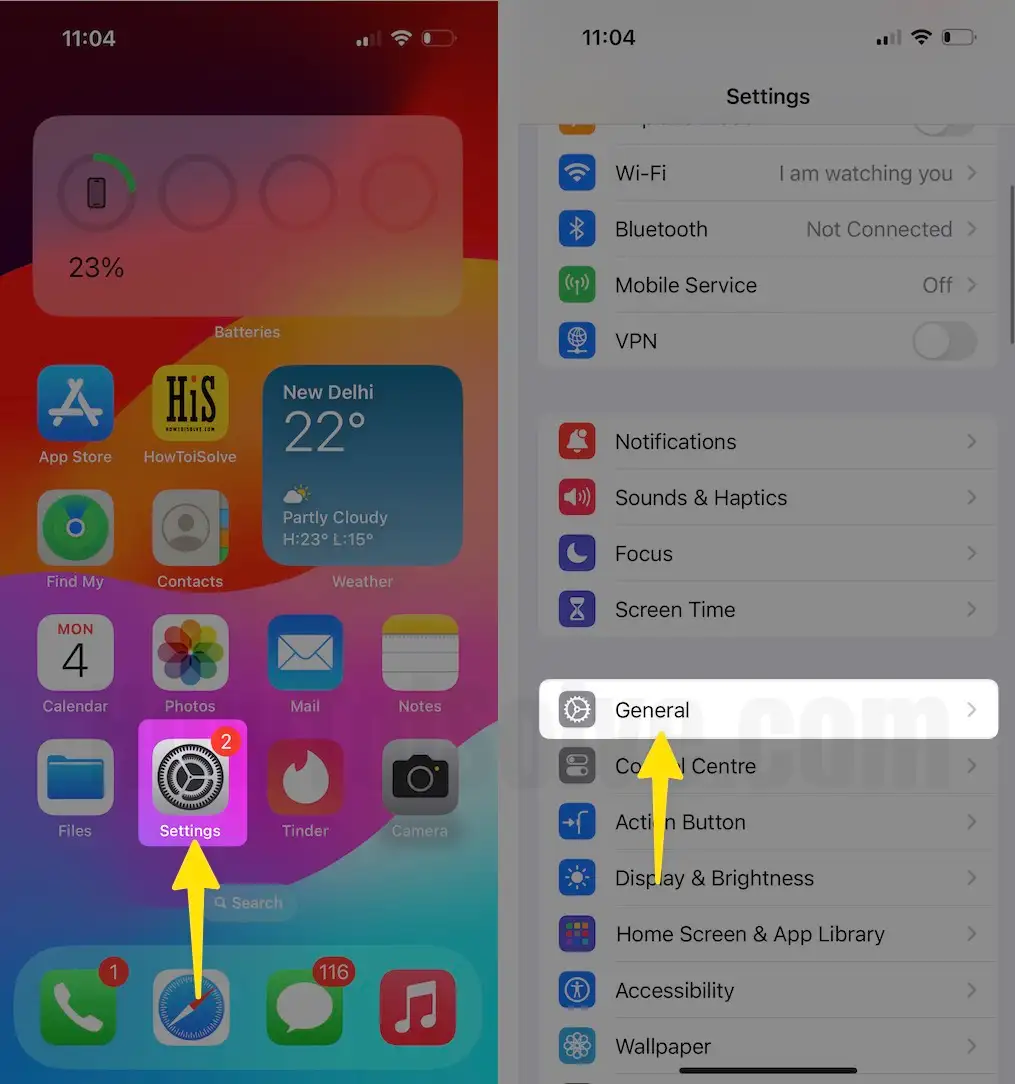
To update Apple Music, open the App Store > Tap on your Profile icon in the upper-right corner, and scroll down to Apple Music. Tap the Update button if it is available.

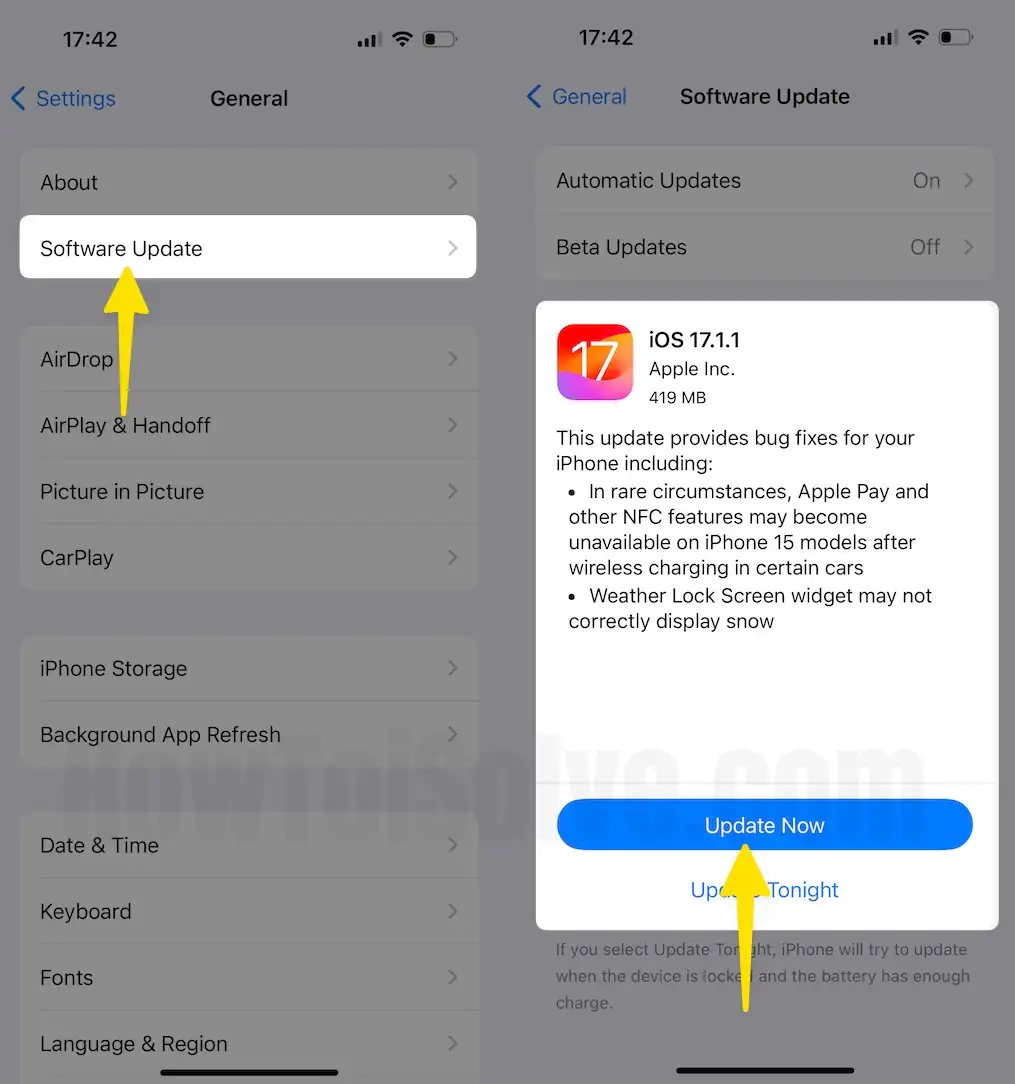
Go to the Settings app > General > Software Update to update your iPhone. Download and Install if there is any update available.
Apple Music Lyrics Not Showing
Well, there is no dedicated workaround available for this issue; on some iPhones, Apple Music is working perfectly, while few are complaining about such issues. In that case, keeping the Apple Music App and iPhone up to date is a wise solution. Meanwhile, if report the same to Apple, it’s good if they acknowledge and try to fix Apple Music lyrics not working.
Please Note: if you enable High quality on Cellular data, it always streams music at the highest quality. This will use more cellular data, and songs may take longer to start playing.
Though now showing Connect to Wi-Fi to Play Music or any doubt to clear Apple Music Not Playing Songs on iPhone Cellular data. Share posts on Facebook and Twitter.