


If your MacBook’s startup sound isn’t working, it could be due to various reasons, including sound settings, software updates, or hardware issues. Reddit users have shared common causes, such as muted settings or changes in macOS configurations. This article explores troubleshooting steps to help restore your MacBook’s iconic startup sound.
Workable Troubleshooting to Fix Apple Mac Startup Sound Won’t Work
Ensure the System Startup Sound is enabled in the System Preferences settings. By default, Apple removed the option for turn on/Turn off System Sound, Now, The options are re-showing on the latest macOS. Follow the steps below to enable Startup Sound on a MacBook or a Mac.
On MacOS Ventura & later Mac users
1→ Go to the Apple Logo () from the top menu > System Settings.
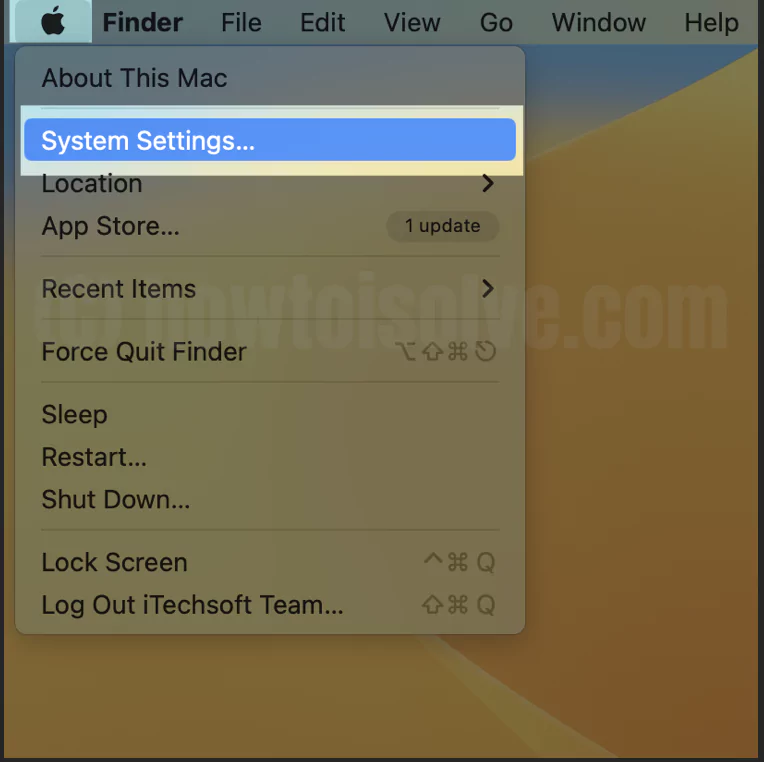
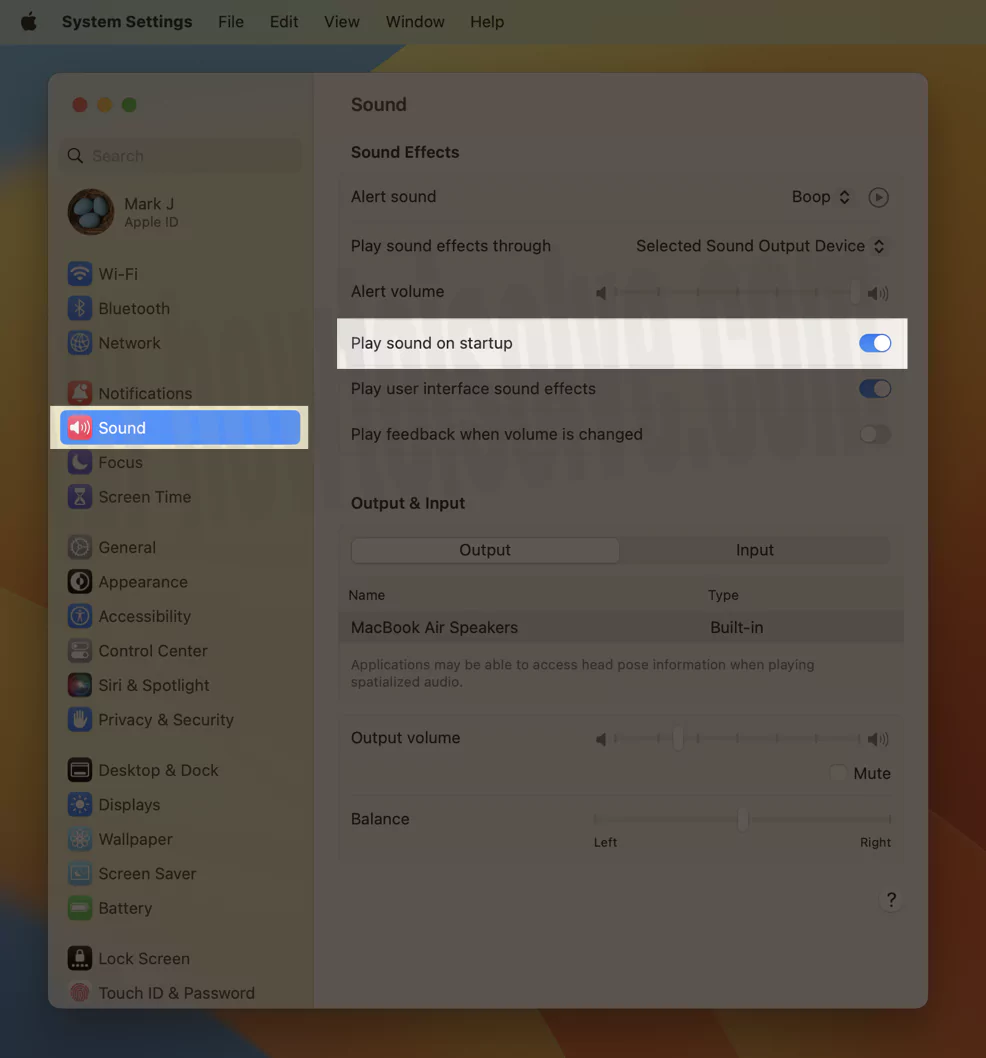
2→ Next, go to Sound from the left side, Option > Enable the toggle “Play sound on startup“.
That’s it.
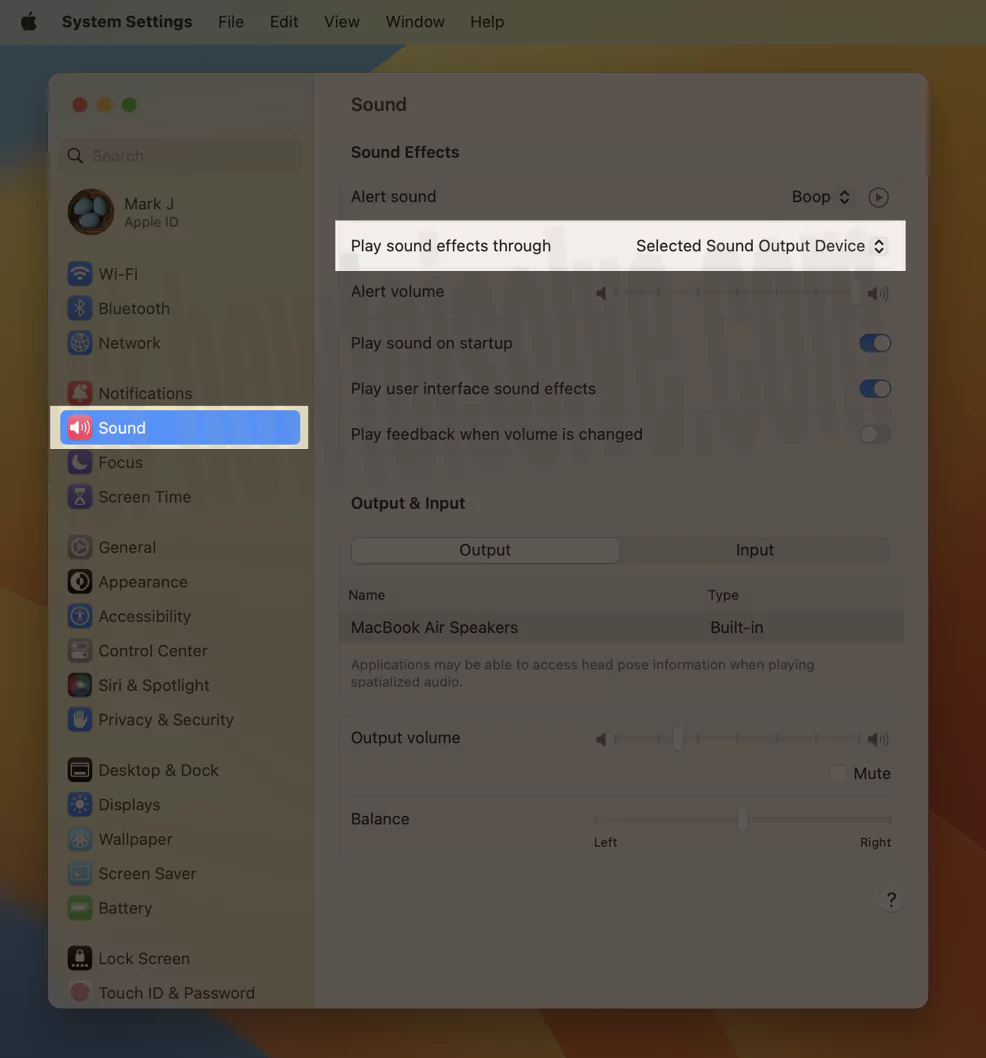
Also Ensure that, Select play sound effects through (the Mac Speaker) from the Multiple Output option.

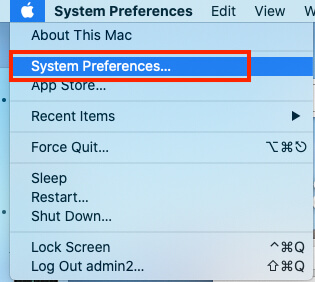
On MacOS Monterey
- Go to the Apple logo from the top Mac menu > System Preferences.
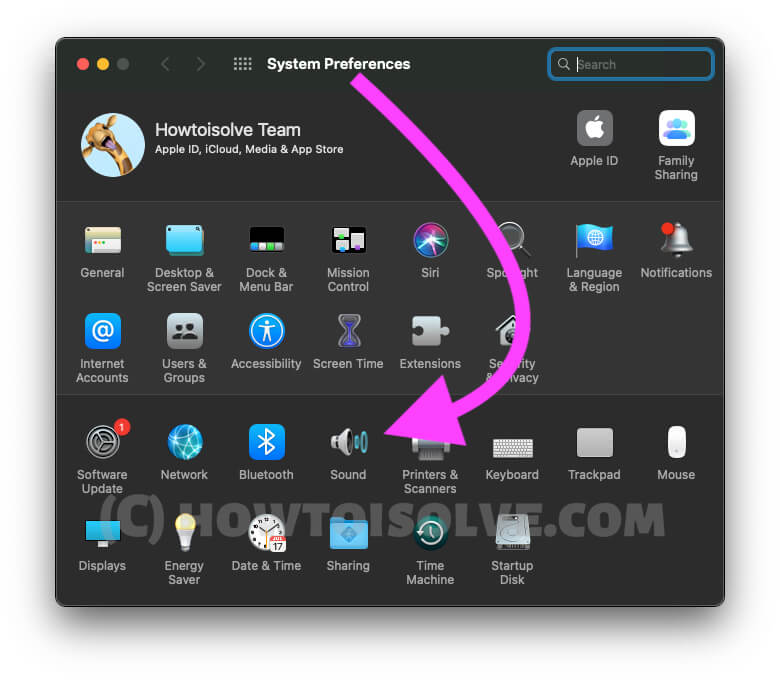
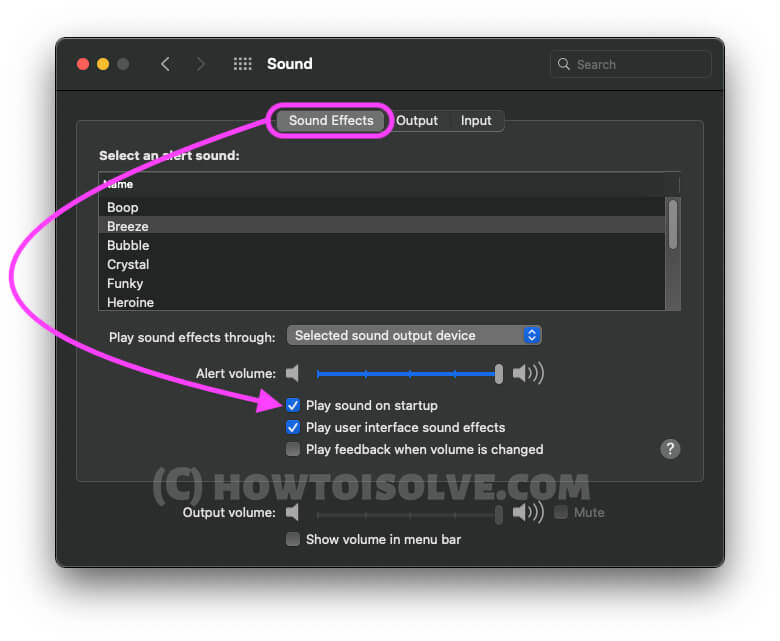
Try this: Enable Mac Startup Sound Using Terminal
As per the reports and complaints, many users didn’t hear the Startup Chimes when the Mac or MacBook boots up, which is quite unacceptable for the ones who love that sound. Although it’s not something new, people have fixed this by resetting the NVRAM and SMC, before going into this, I’d suggest you enter the following code into the Terminal app and see if it works.
- Press Command+Space keys to launch Spotlight.
- Type Terminal and open it. Or find Terminal from the Launchpad.
- Enter the following code and press Return, Next, you have to enter Your Mac system login password, Once you successfully run, Hope you fixed after Restart your MacBook/Mac.
sudo nvram StartupMute=%00
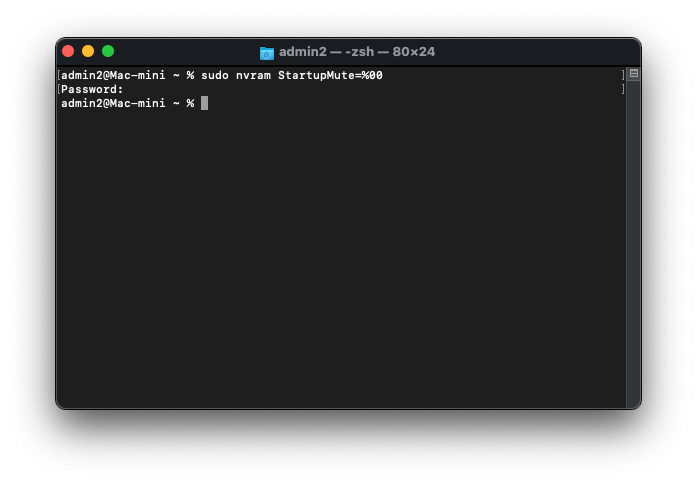
If the above code didn’t work then try the second one,
sudo nvram BootAudio=%0

This will force Mac to play the startup chime.
Fix 1: Check if You Haven’t Muted the Mac
Sometimes, when you are irritated by the sound of Mac and mute it but forget to unmute, it might be possible that Mac doesn’t chime at startup. So go and check the volume of Mac isn’t low or muted. If you haven’t muted the sound on Mac, continue reading the following solution to fix Mac not making startup sound.
Fix 2: Update your MacOS
Keep your Mac updated with the latest macOS. Sometimes, an important bug fix comes with a new macOS update. So don’t miss out. Check here,
- Go to the Apple logo on the top Mac menu.
- Choose System Settings
- Select General in the left sidebar.
- Now, click on “Software Update” in the right-side window pane.
- Please click the ‘Update Now ‘button to install the latest macOS.
Fix 3: Reinstall MacOS
Need to Update or Repair your MacOS System Volume. Go with the Reinstall macOS Option, Without Any data loss, install a new Copy of MacOS from the internet to your Mac.
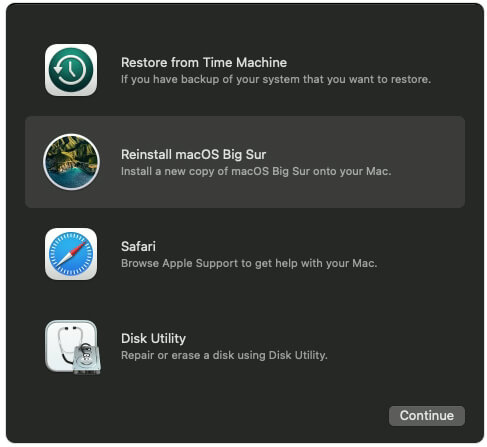
First, enter your Mac in Recovery mode [here are separate steps for Apple Silicon M1 Mac and Intel Mac] and Go with the option for Reinstall macOS with the option. On Apple Silicon or Intel Mac.
Fix 4: Reset PRAM on Mac
For Intel Mac only, no need for M1 Apple Silicon Mac.
Resetting PRAM is very helpful in fixing hardware-related problems like MacBook Air’s keyboard is not responding, the trackpad is lagging, and much more. Hence, we will also try to fix Mac doesn’t chime at startup.
How to reset PRAM on Mac,
- Power off your Mac.
- Press and hold the Command+Option+P+R keys altogether.
- Next, press the power button and continue to hold that keys.
- When Mac restarts a second time, release the buttons.
For further assistance, you can see a given video tutorial too and can Reset PRAM.
Fix 5: Reset SMC
For Intel Mac only, no need for M1 Apple Silicon Mac.
If resetting PRAM is not helpful for you, then this will resolve the Mac startup sound not working.
- Shut down Mac.
- Remove the power adapter or power source and also disconnect external accessories from Mac.
- Now, press and hold Shift+Control+Option+Power keys together.
- Release all the keys together after a few seconds.
- Power on the Mac by pressing the Power button.
If this solution fails, please don’t hesitate to contact Apple Support for further assistance.
Apart from the above tips, if you have another workaround, please share it with us in the comments.





