


These days, texting is easier and way faster than ever thanks to emojis. Apple’s latest iOS packs in tons of features to make life simpler, and one of the best is the built-in emoji keyboard. iPhones and other iOS devices let you share your feelings instantly with emojis, and it just keeps getting better with every update.
Have you heard about, how to use Predictive Emoji on iPhone, iPad? If not, then, it is worth trying. Apart from this, we have a collection of the best Emoji Apps for iPhone to try out. Emojis help to share complex thoughts in the form of funny or sad faces, tiny Objects cute Emoji to others on Chat, Message, and email.
If you are interested in using the default Emoji Keyboard of the iPhone, then it needs to be enabled.
How to Enable Emoji Keyboard on iPhone (Apple Keyboard)
Some iPhone users can’t use emojis on their iPhone or iPad keyboard simply because the Emoji keyboard is disabled in their settings. Follow the steps below to turn on the Emoji keyboard on your iPhone. In the next section, we’ll also cover how to use your custom Memoji or install third-party emoji stickers.
- Launch the Settings app.
- Tap General.
- Scroll to Keyboard.

- Tap on Keyboards.
- Then tap Add New Keyboard.
- Scroll down and select Emoji from the list.
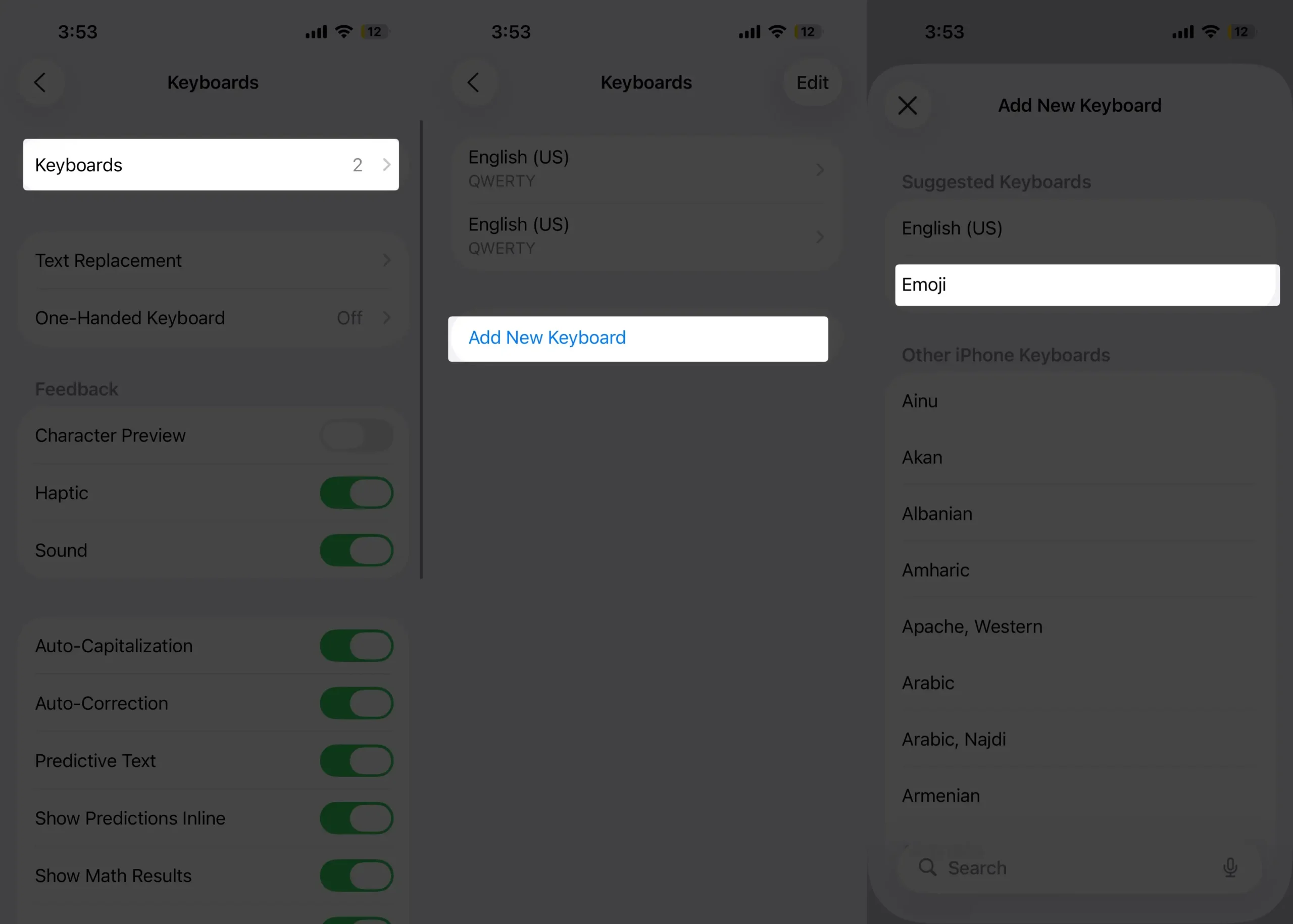
- Go back and open the Messages app. Then pick a contact to chat with. Look for the emoji button on your keyboard and tap it to start using emojis.
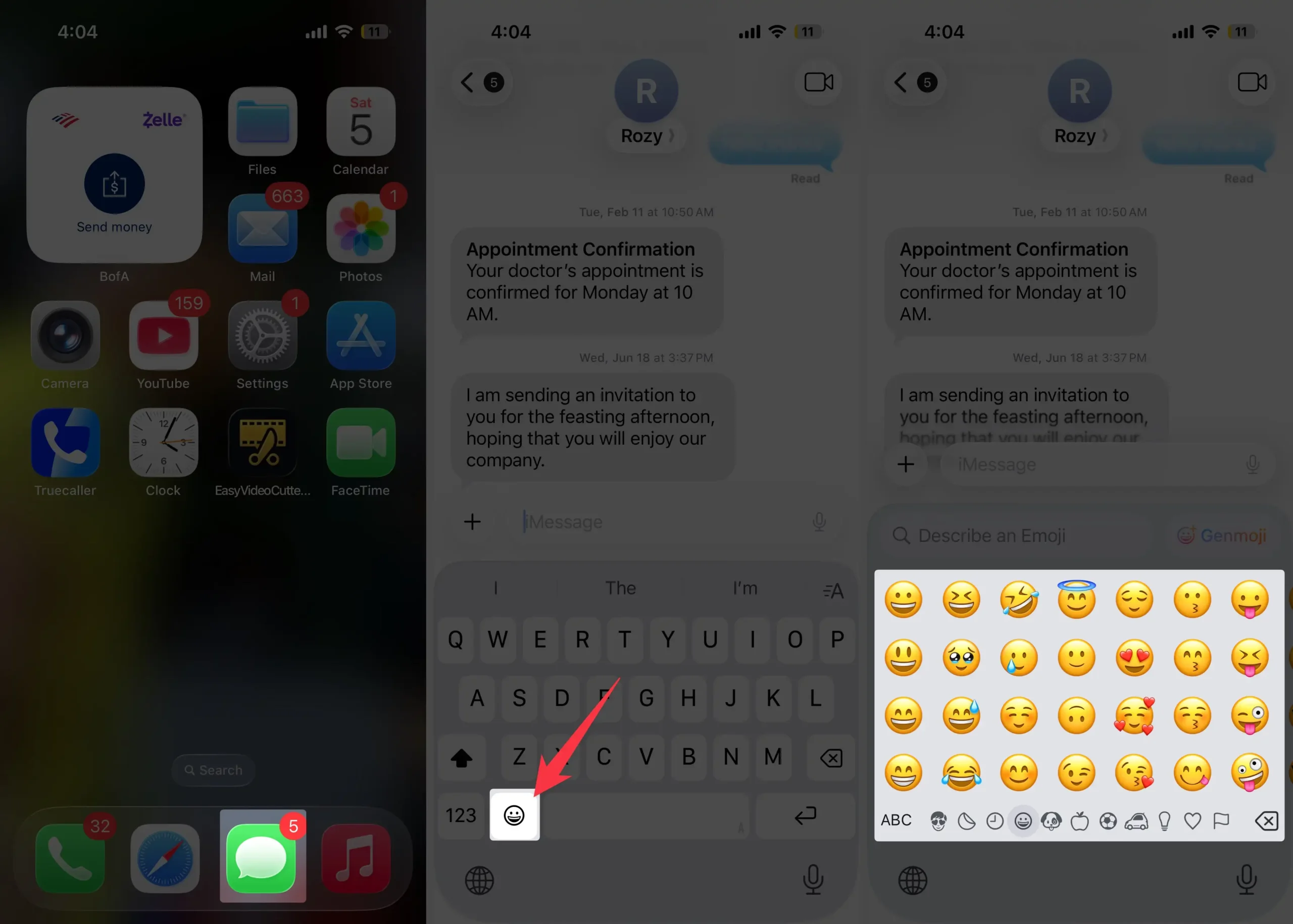
That’s it.
2. Enable/Disable Memoji Sticker from Your iPhone Emoji Keyboard
You can send your own custom Memoji or animated Memoji stickers right from your iPhone keyboard. But some people can’t find them because they’ve turned the feature off. If you want to turn your custom Memoji back on, just follow these simple steps to enable it on your iPhone’s Apple keyboard.
- Open the Settings app on iPhone
- Tap General.
- Scroll to Keyboard.
- Next, scroll down until you see the “Stickers” section.
- Turn on the toggle next to Stickers so you’ll get larger emojis and Memojis on your iPhone’s emoji keyboard.
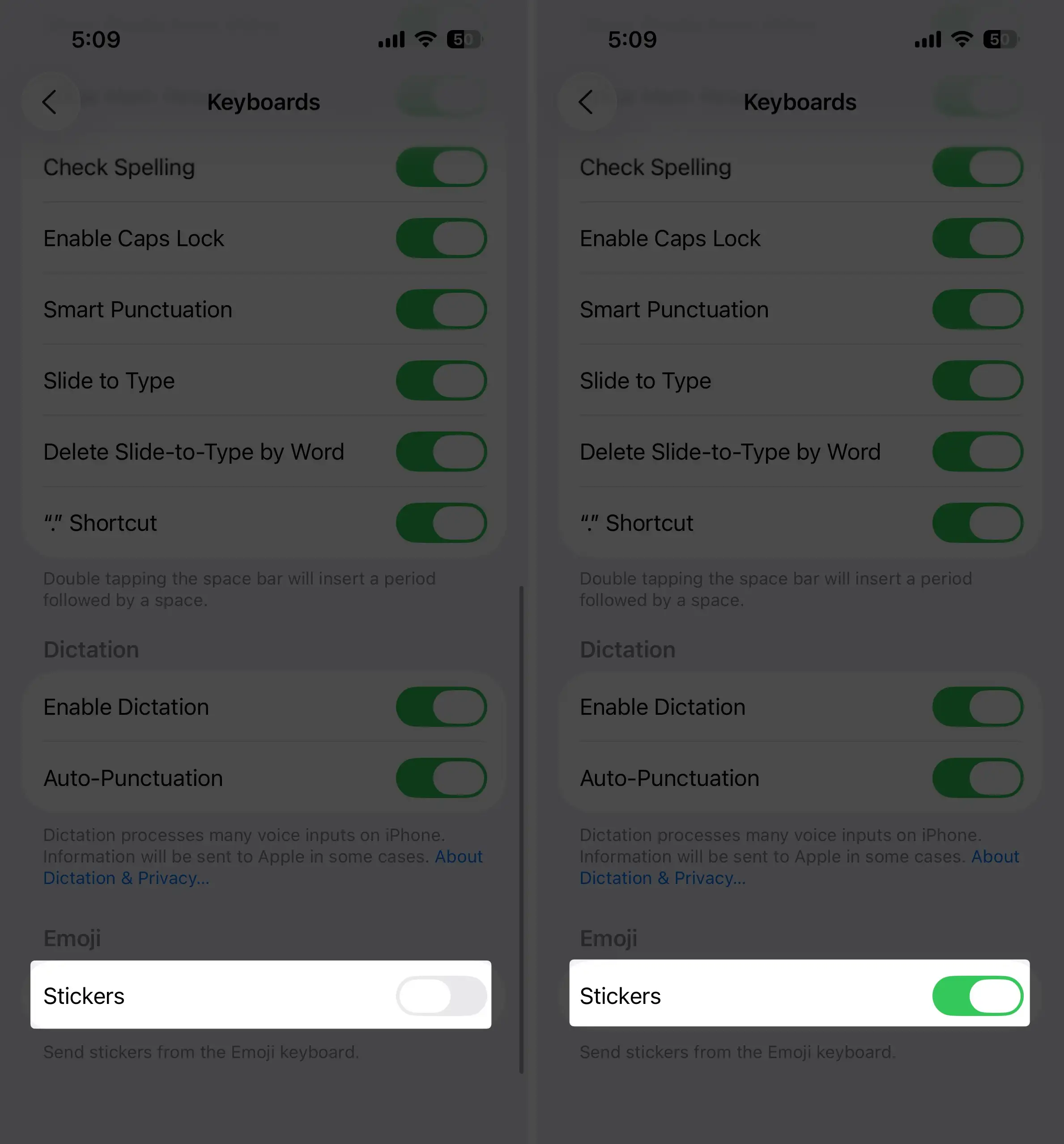
Go back and open your Apple Text messages app to access the keyboard. Then tap the emoji key and swipe to the right to find your stickers, Memojis, and custom stickers.
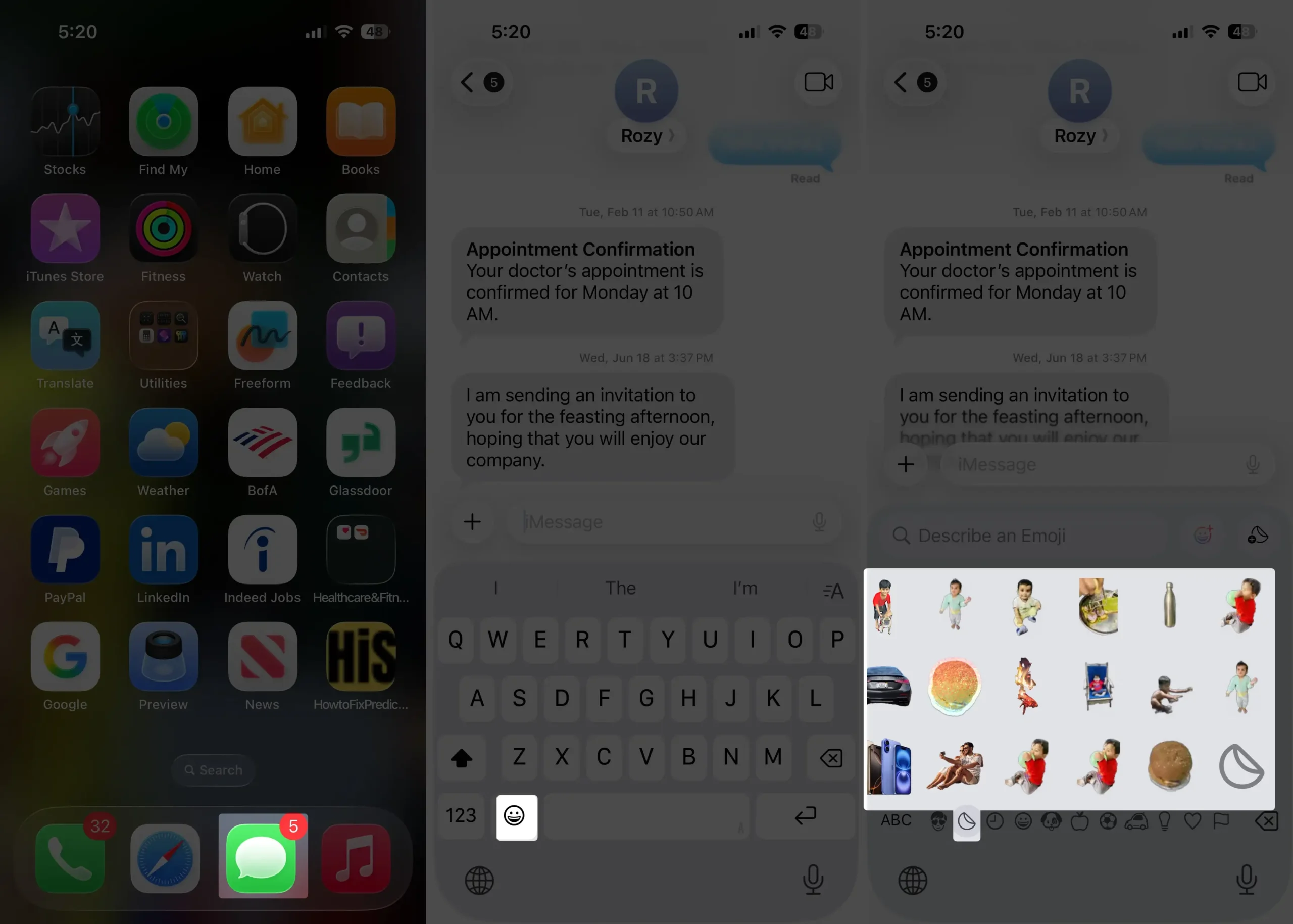
That’s it.
Method 3. Add a Third-party Keyboard in iOS
Adding a third-party emoji keyboard app on your iPhone lets you use tons of new emojis and fun sticker styles. It’s a quick way to upgrade your regular keyboard and make your chats way more expressive. Follow this complete guide to install and use a third-party keyboard on your iPhone. It’ll walk you through everything step by step.






