

Now start a Professional FaceTime call anywhere, anytime like a Public Area, at home with Family, or in Office from any Mac that’s compatible with macOS Monterey or later iMac, MacBook Pro or MacBook Air. Unfortunately, the Mac mini doesn’t support Portrait mode in FaceTime calls.
Ideally, Portrait mode is disabled in FaceTime while we start the Video calls. So, if you would like to enjoy Portrait mode from starting a video call, then enable the Settings manually as given below.
Enable Portrait mode on FaceTime Call and blur the background
Way 1:-
- Open FaceTime on Mac. Before making a FaceTime call or joining a FaceTime call, enable Portrait mode camera from the Control Center on Mac.
- Click on the Control Center icon from the top-right menu > Video Effects.

- Enable Portrait Mode under FaceTime.

- That’s it. Then you can start a call or join a call before you accept.

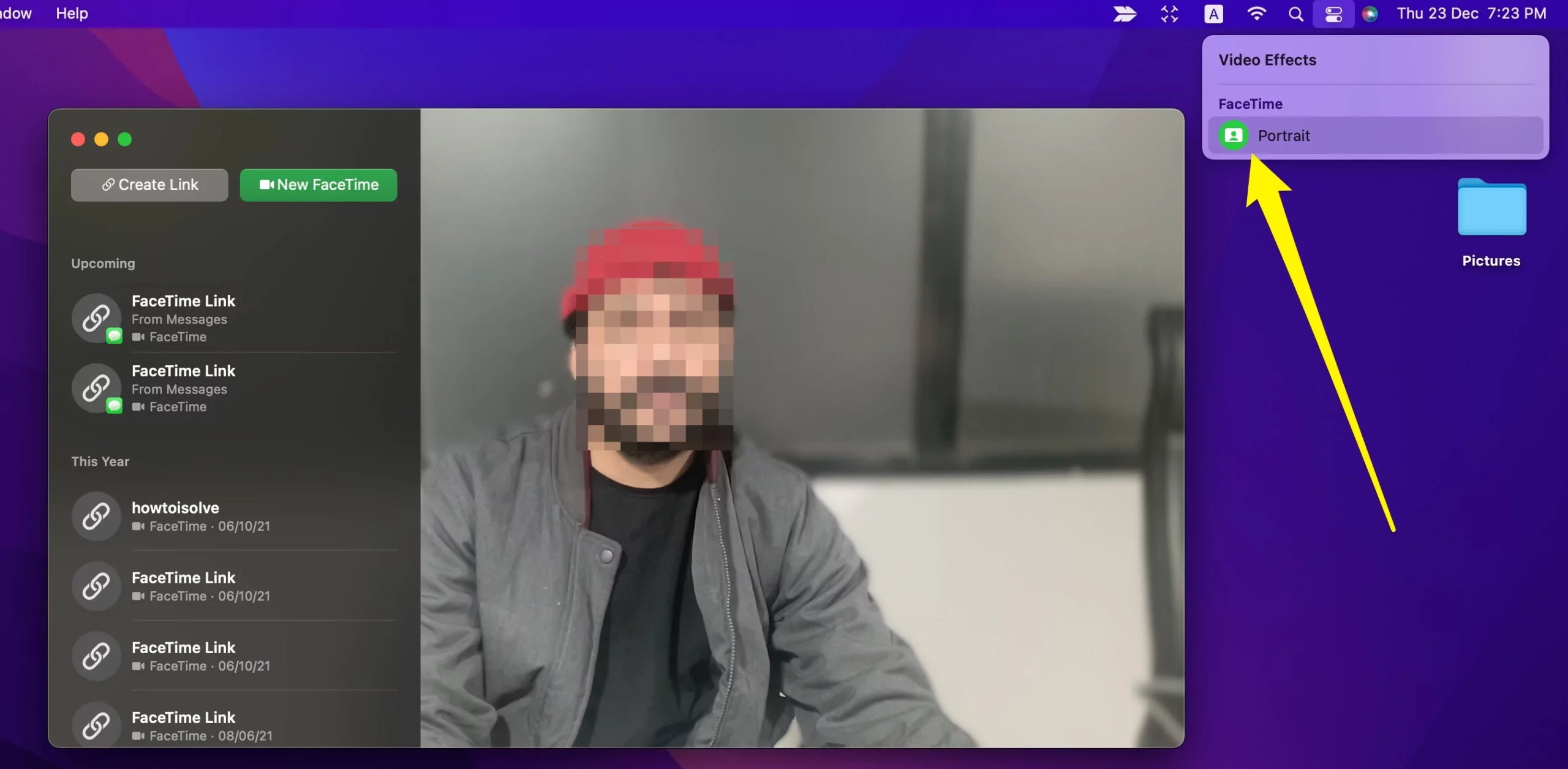
Way 2:-
In the same way, we can enable Portrait mode on FaceTime from the iPhone control center or from the in-app option.
On the FaceTime Mac app, during video calls, we can see the Portrait icon in the Camera Image preview. Click on it to make the Blur Background.
Can I enable FaceTime Portrait mode permanently?
No, we can’t enable Portrait mode in FaceTime permanently for all Outloging or Incoming video calls. But we have to turn it on manually from the Control center before starting the Video call or joining a video call. or On App Portrait mode option as explained in the earlier steps.
Can you hide your image on FaceTime?
Yes, we can do it on FaceTime video call. Hiding the background during a video call makes your Video call experience much better. But still, if you don’t want to see your Face even in a Video Call then turn off from FaceTime app as you start calling. Or anytime you can turn off and turn on the Camera for FaceTime in Video call.
Can I change your FaceTime background on Mac?
No, we can’t set a different background like Zoom, Microsoft Team, or Other video calling app. Right now in FaceTime’s latest feature, FaceTime Mac only allows making Background blur before start call or During Call.
If you want this feature highly required during the call then you must have to switch to another app [Zoom, Microsoft Team].






