Here is an official way to view, update, or cancel YouTube Premium Subscription, formally called YouTube Red membership on iPhone, iPad, and Mac. YouTube Premium is an outstanding ad-free service offered by YouTube. Albeit, it’s a paid subscription service ($10-a-monthly plan). Therefore, it may not be convenient for all families. So here I publish this article for those subscribers who wish to update or cancel their YouTube Premium subscription before the 30-day free trial is completed.
There are many benefits of YouTube Premium, like,
- Ad-free videos
- Save offline youtube Videos
- Background play
- Google Play Music & YouTube Premium Original
However, if the service seems out of your budget, please stop subscriptions through the following guide (unsubscribe from YouTube Premium).
We recommend that you don’t have to wait until completing the free YouTube Premium Membership. But if you don’t agree to continue with YouTube Premium in the future, then you must follow the given steps to turn off the Auto-renewal YouTube Premium membership on iPhone, iPad (iOS and iPadOS), or Mac computer.
The Ultimate Guide About to Update or Cancel YouTube Premium on iPhone, iPad
Method 1:- (Using Apple ID)
Step 1: Launch the Settings app on your iPhone > Tap on your Apple ID Profile Name > Next, Find the Subscriptions.

2. See all the Active Subscriptions and Manage them. Find & Tap on YouTube Premium subscription.
If the option is not visible here, try the second method. You may have activated it through your Google account, but not with your Apple ID.
3. Tap on Cancel Subscription and Confirm the popup option.
4. Tap on Done to save the changes.
Method 2:- (Using iPhone Browser)
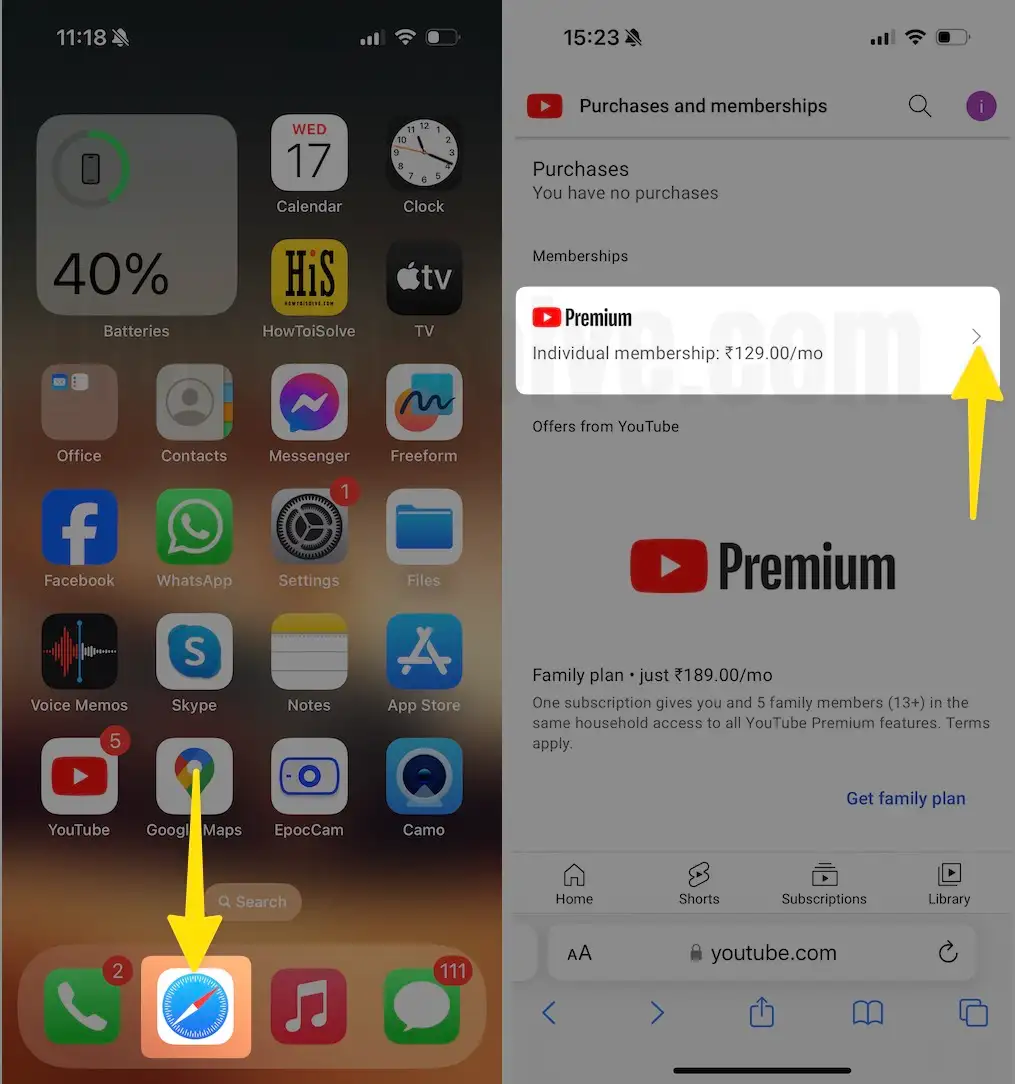
Step 1: Launch the Safari browser on your iPhone > [Link Open in the new tab] Google account link and Log in with your Google account > Now, Tap on YouTube Premium Membership.
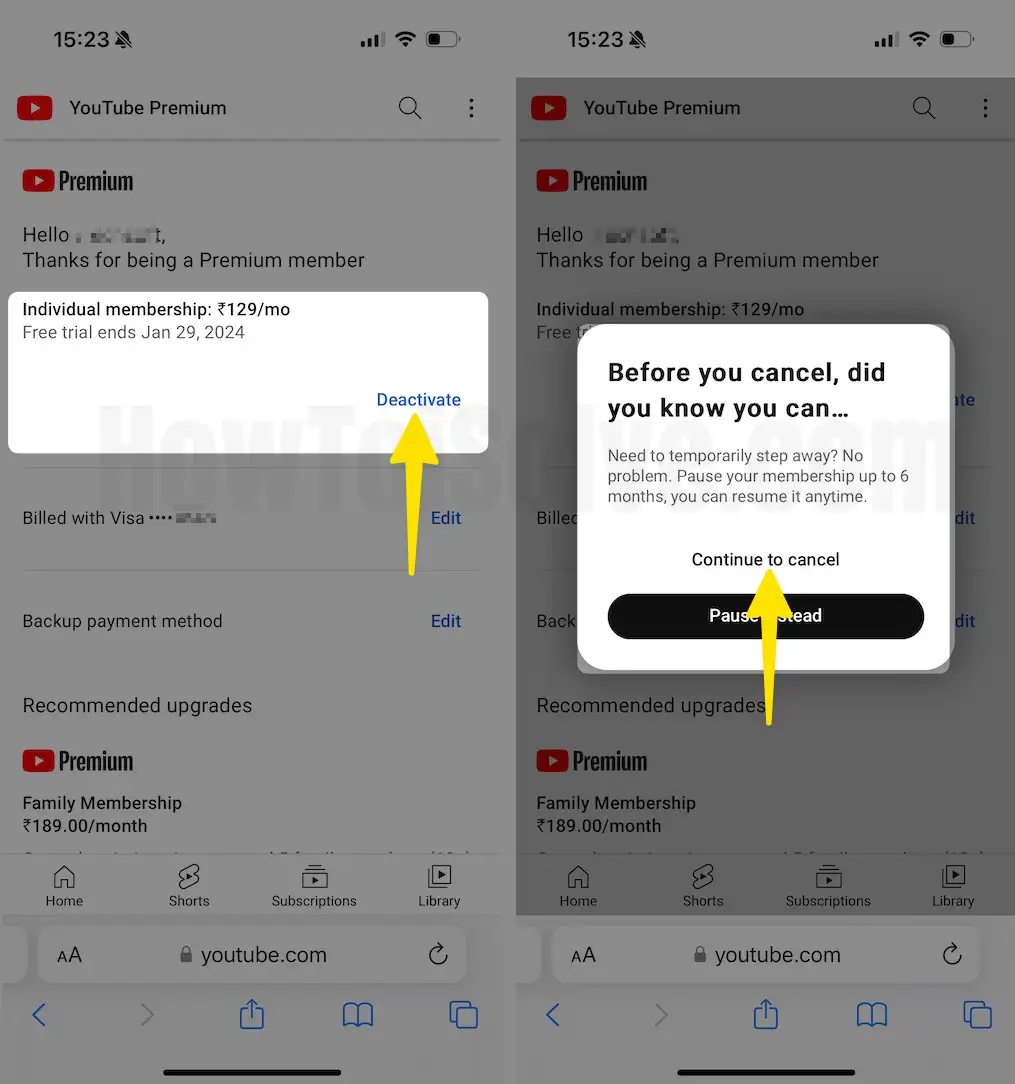
Step 2: Tap on Deactivate > Select Continue to Cancel Options to Cancel YouTube Premium successfully from your account without the desktop.
Method 3:- (Using YouTube App)
Step 1: Launch the YouTube app on your iPhone. [Ensure you signed in with the same Google account] Then, Tap on the Profile icon at the top right corner.
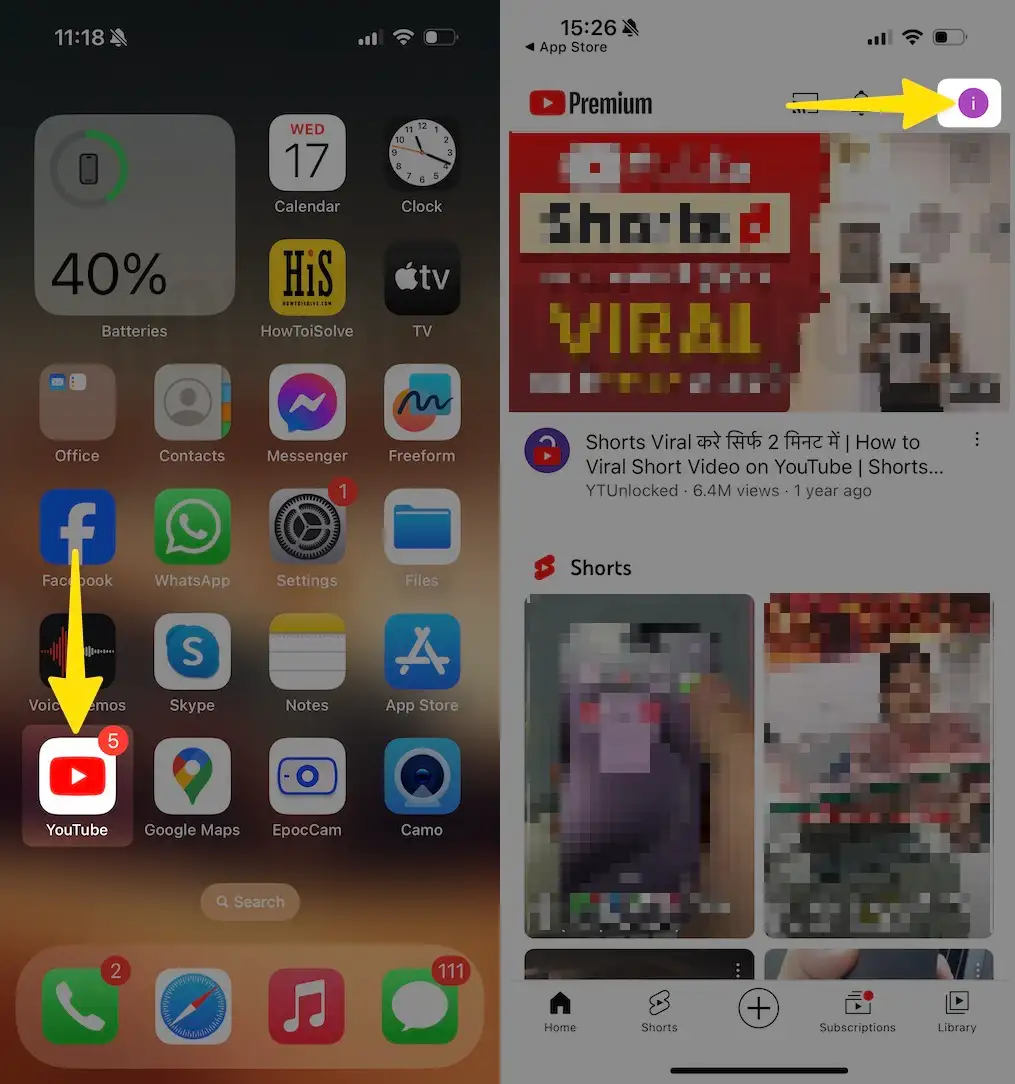
Step 2: Tap on Settings > Select Purchases and Memberships.
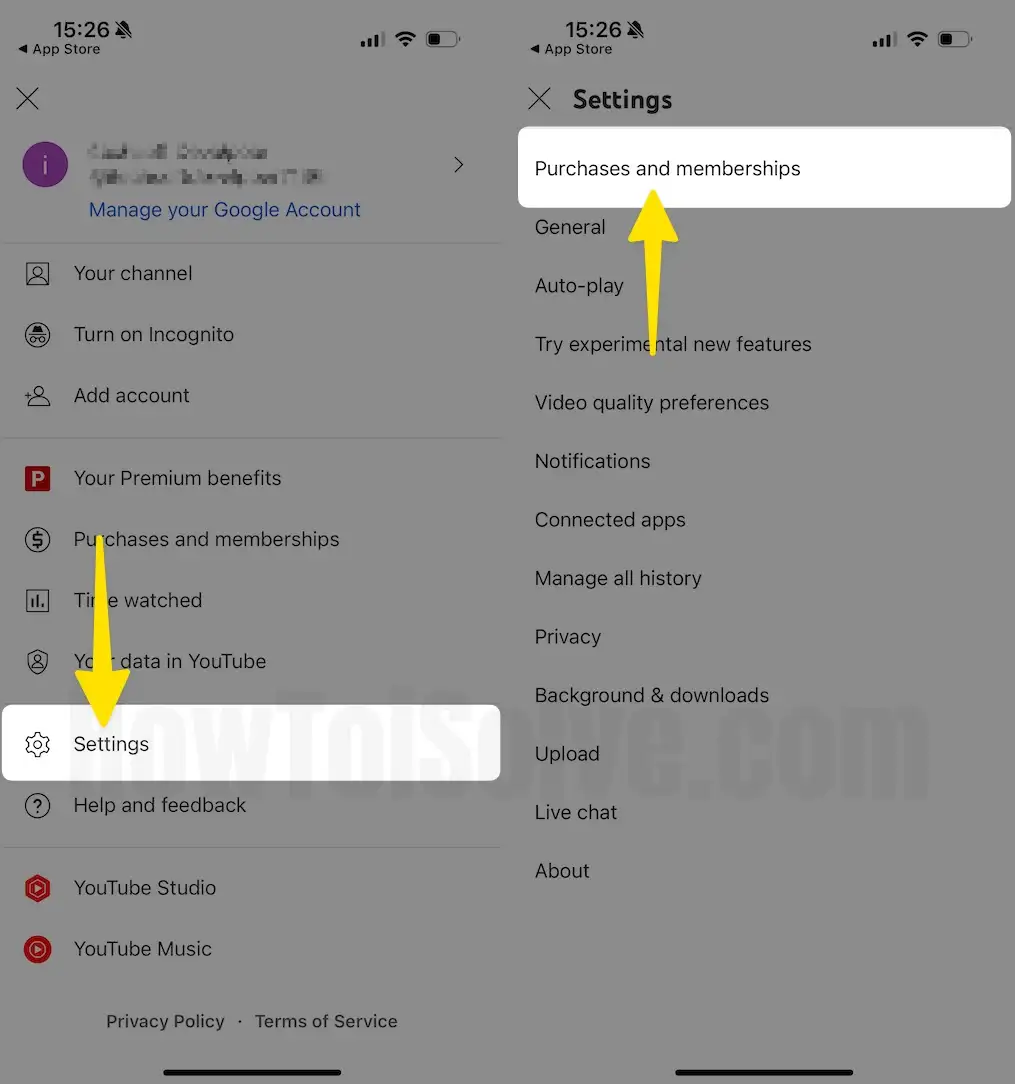
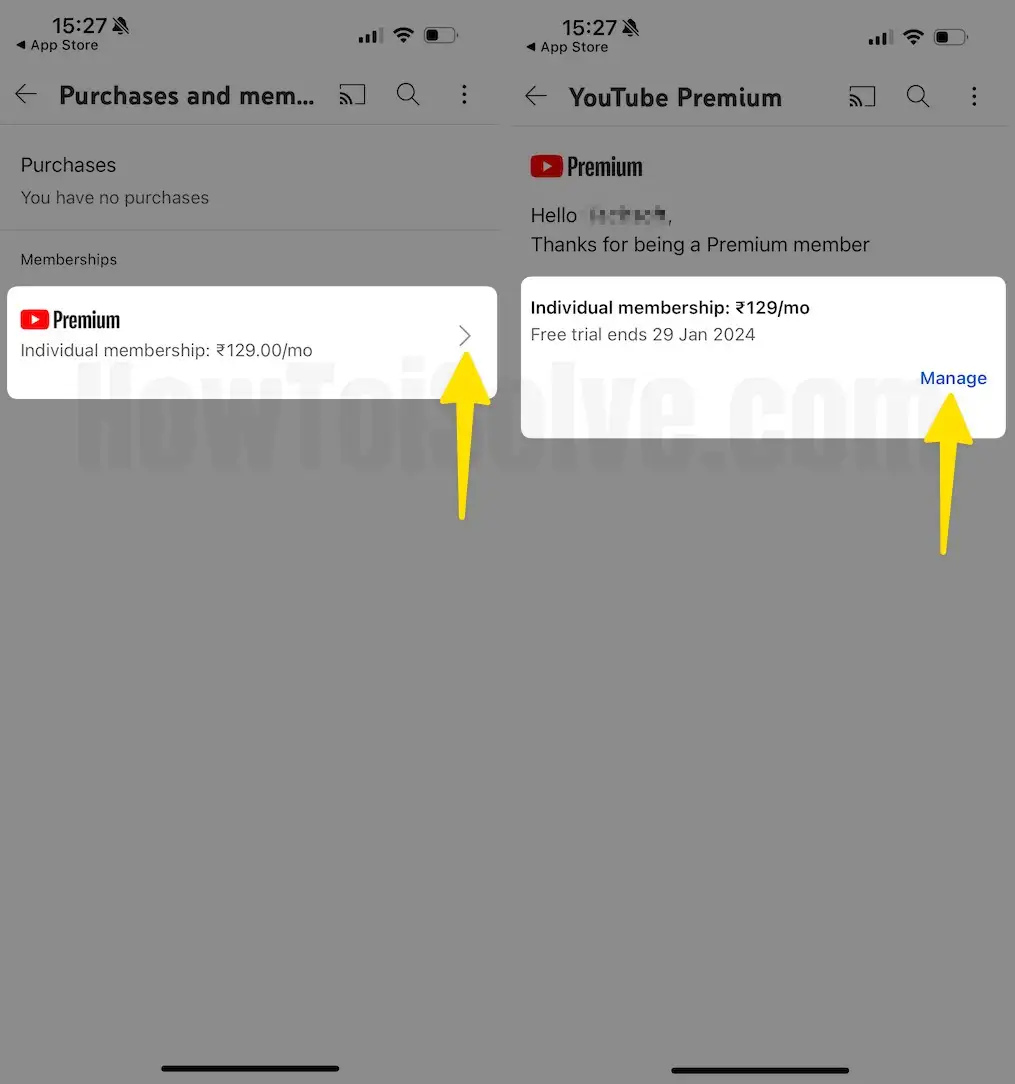
Step 3: Tap on Your Activate YouTube Membership > Select Manage.
Step 4: Select Prefer Browser [Recommend to Open Safari] > Click on Cancel Now.
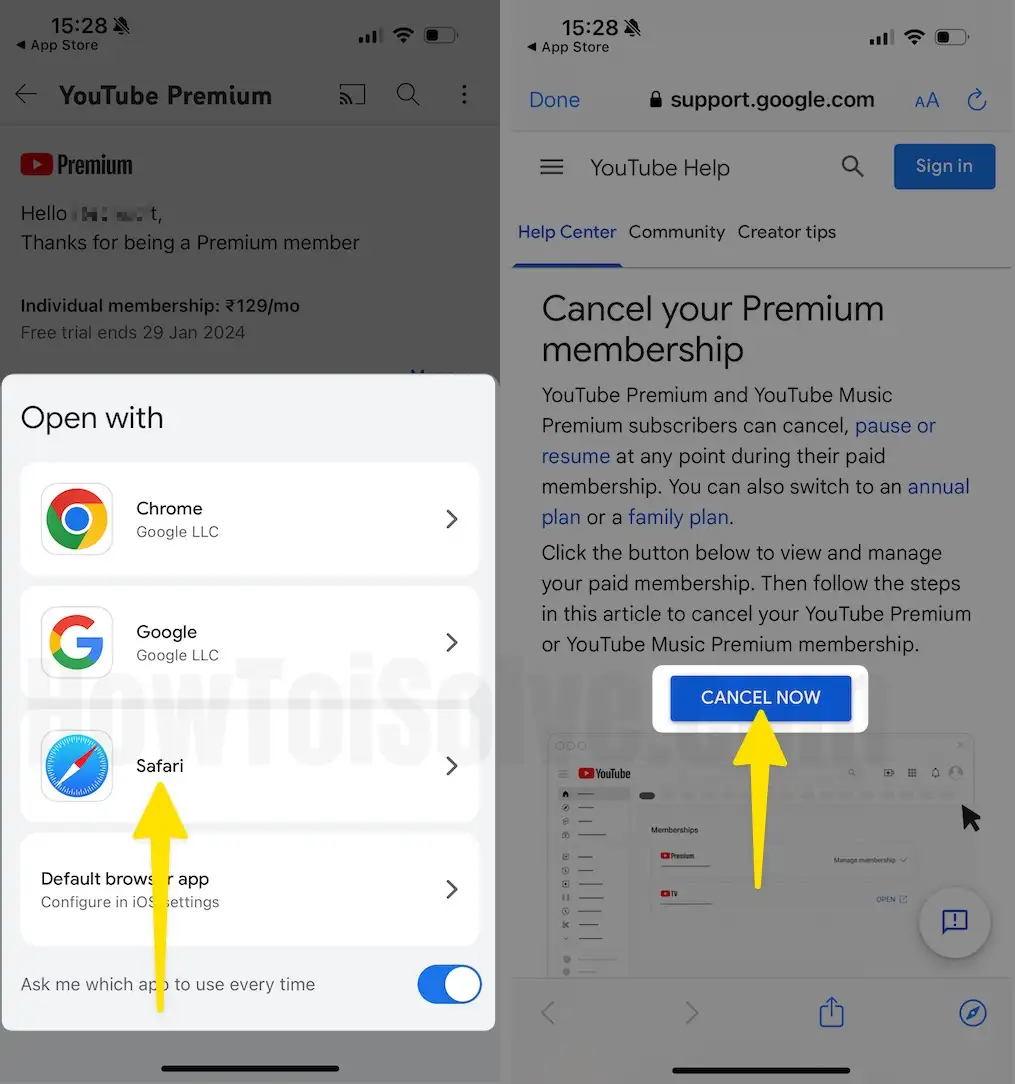
Step 5: Tap on Sign in with your Google account > Select Cancel Now.

That’s it. Go back to this screen to reactivate or resubscribe to YouTube Premium and select the plan from personal or family. Also, we can View and Switch or Change or stop YouTube Premium subscription services from your iPhone.
Now, here you can see the number of Subscription services such as (Apple Music memberships, Newspaper Subscriptions, Magazine subscriptions, Online Memberships, or Subscriptions to services such as Netflix, Pandora, Hulu, HBO Now, etc.).
Next, out of all services, choose a YouTube Premium service and use the onscreen listed options to manage YouTube Premium Services and disable Automatic Renewal under the renewal options. Then tap on Done.
So your YouTube Premium subscription will stop at the end of the current billing cycle.
Please Note: if you don’t turn off Auto-renewal more than 8 hours before your membership renewal date, then Your membership might renew.
- If you don’t see a subscription in iTunes and are still being charged, make sure that you’re signed in with the correct Apple ID. If so, you might have subscribed directly to the provider and not through iTunes.
- In this case, please contact the content publisher or app developer directly to cancel your subscription.
That’s it.
Before you cancel your YouTube Premium Membership
If YouTube Premium isn’t working as expected, then you might be eligible for a refund. For this, you can use the Help support page to ask for a refund. If you’re eligible, your payment will be successfully refunded to the payment method you used during the YouTube Premium subscription procedure. Remember that you’re submitting it on your YouTube Premium account. That’s because you will instantly lose access to YouTube Premium Subscription after unsubscribing. However, the benefit of YouTube Premium will be active until the next billing date.
Some points for YouTube Premium that you must consider…
- If you have subscribed from the YouTube iOS app, you can deactivate your paid membership from Apple ID.
- iOS owners who are billed via Google must cancel the membership using non-iOS peripherals.
- When you become a member of YouTube Premium, you’ll automatically be charged the membership price at the start of each billing cycle until you cancel it.
- Once you cancel YouTube Premium, you won’t be charged again unless you subscribe again.
- Pausing and resuming the paid YouTube premium isn’t for the users who billed through Apple.
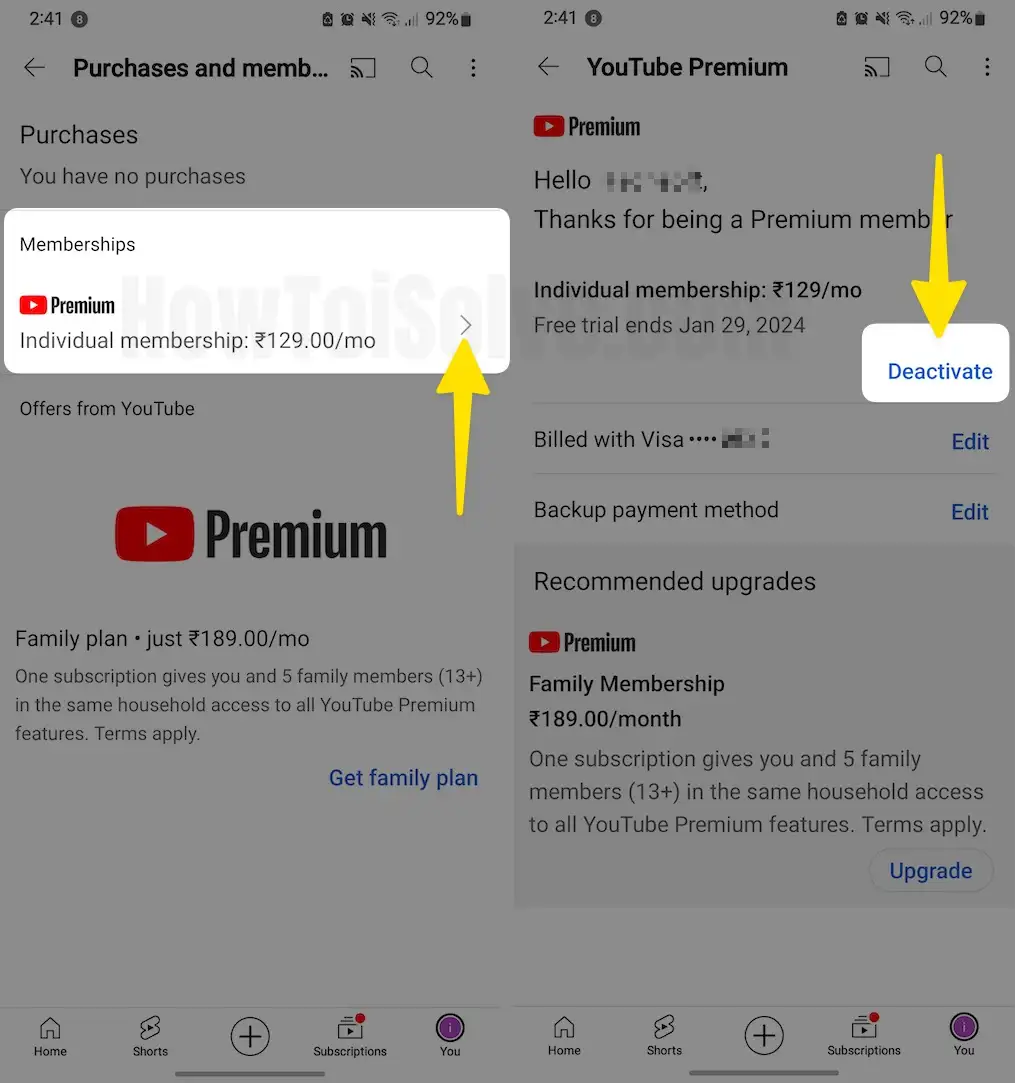
Steps to cancel YouTube Premium on Android
Step 1: Launch the YouTube App on your Android > Tap on your Profile Icon from the Bottom Right Corner of the Screen.

Step 2: Select Your Premium Benefits > Swipe down to the Bottom and Tap on Manage Your Membership.
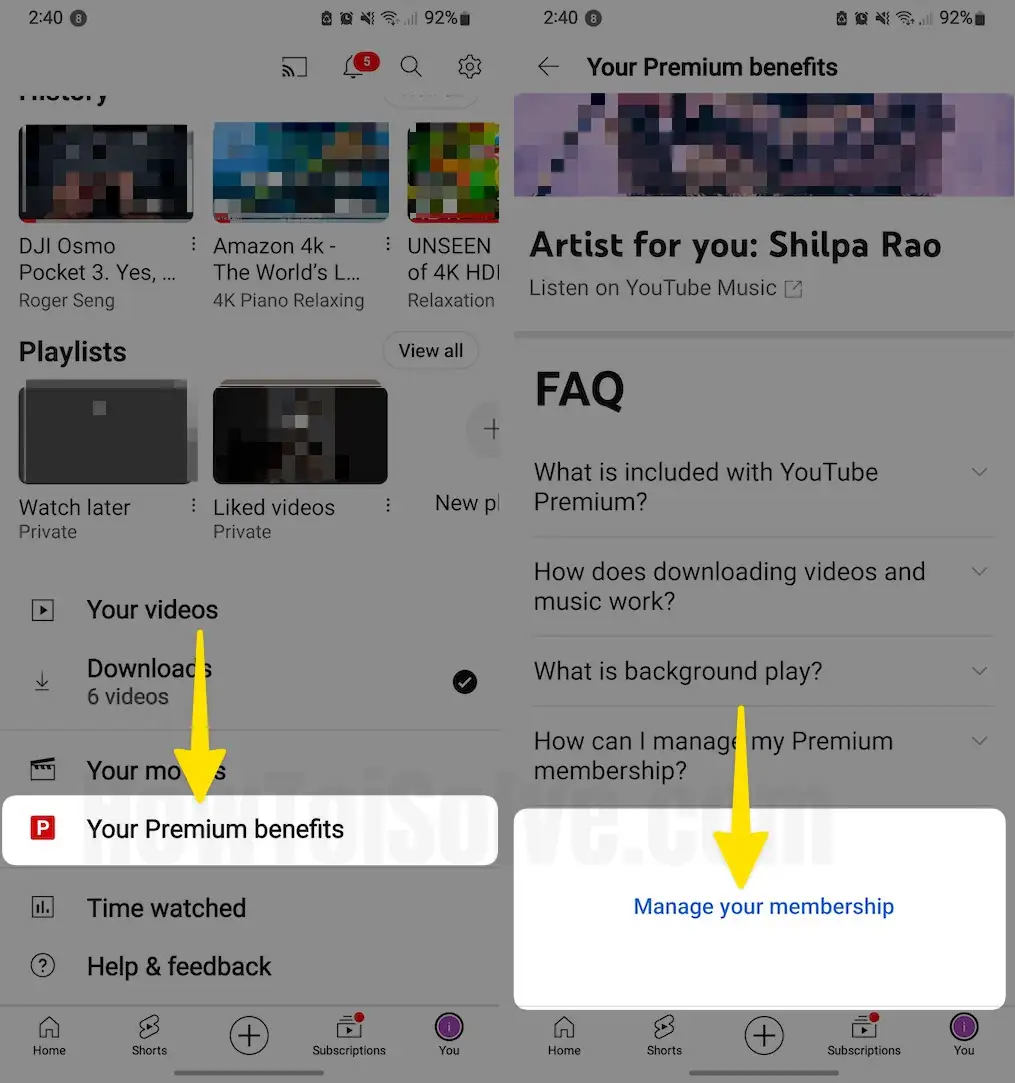
Step 3: In the Next Screen, Select Memberships > Tap on Deactivate. Follow the On-Screen Instructions to Finish the Procedure.
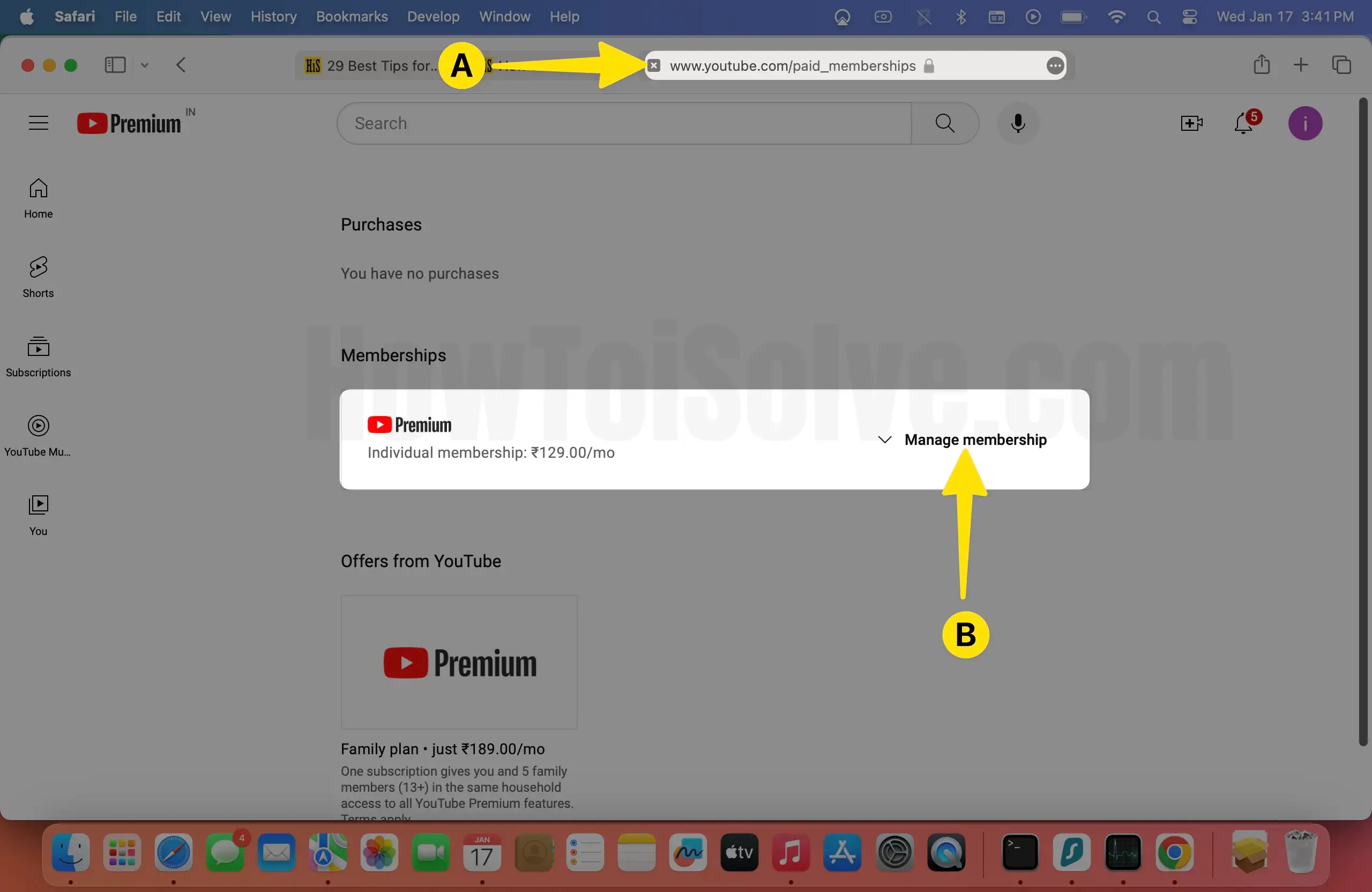
Steps to cancel YouTube Premium on Mac or Pac
Step 1: Navigate to the https://www.youtube.com/paid_memberships > After this, Click on Manage Membership.
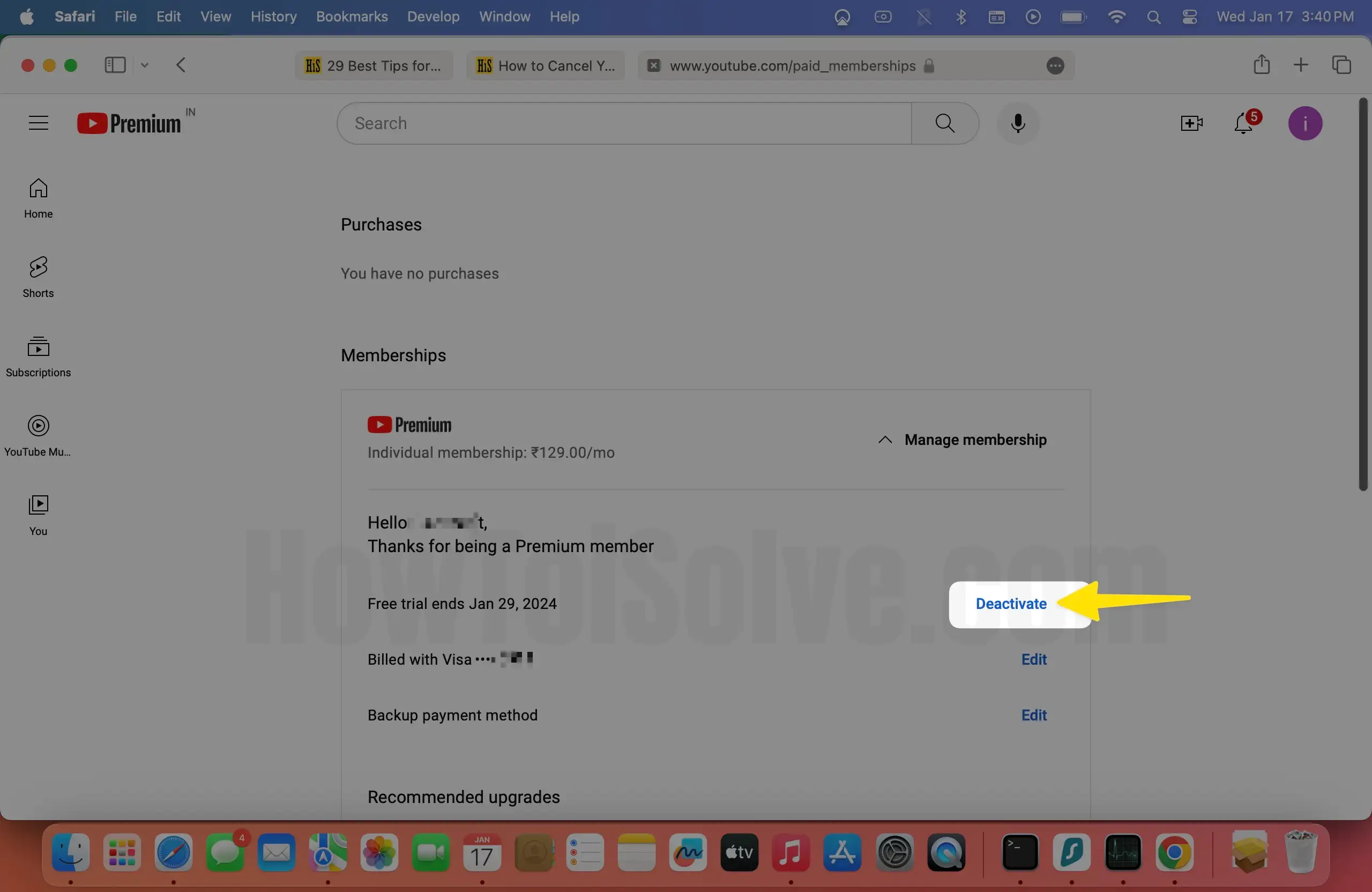
Step 2: Click on Deactivate.
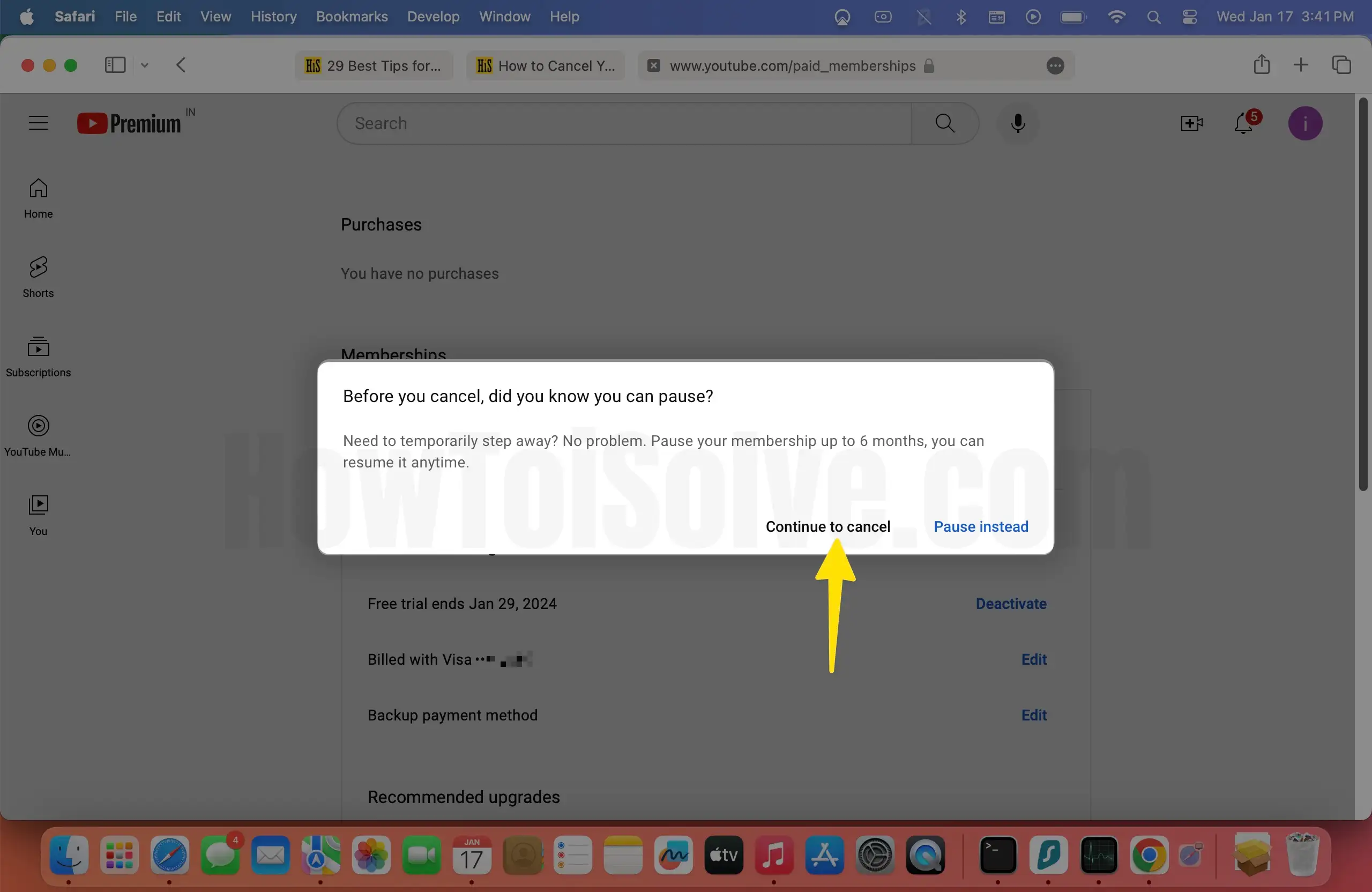
Step 3: Select Continue to cancel YouTube Premium Membership.
Step 4: Select Next From the Prompt Menu.
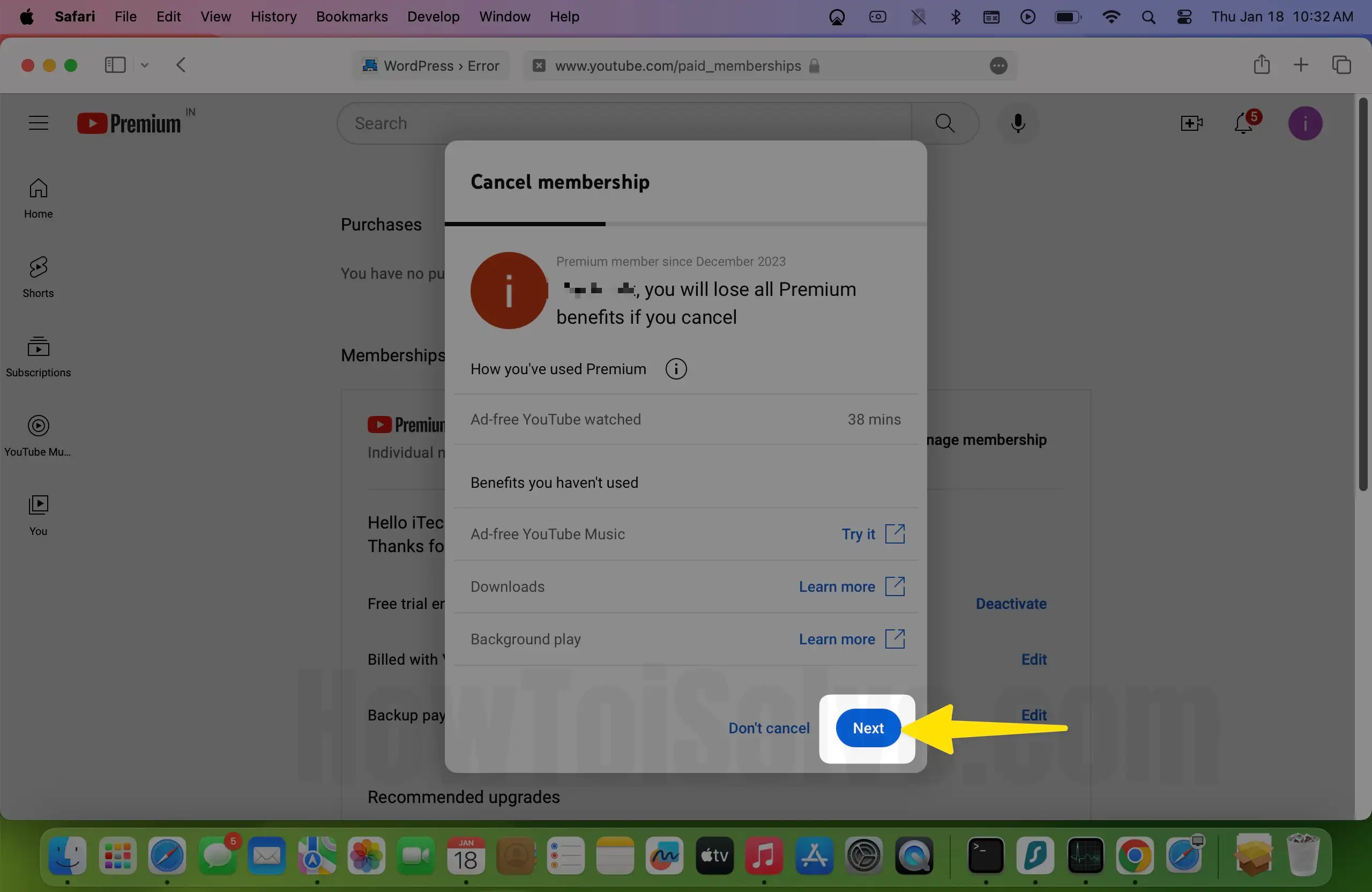
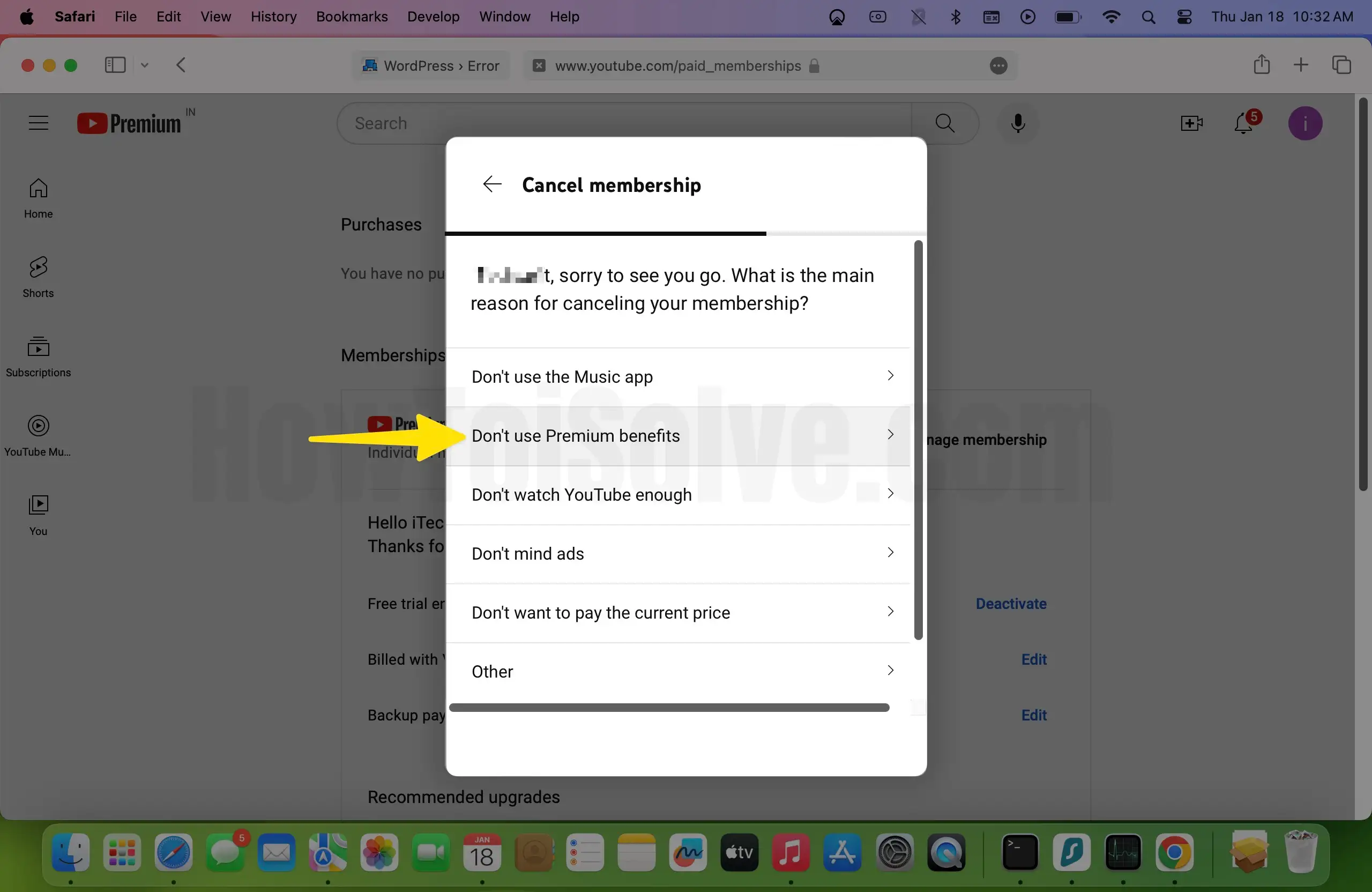
Step 5: Choose the Desired Reason for Canceling.
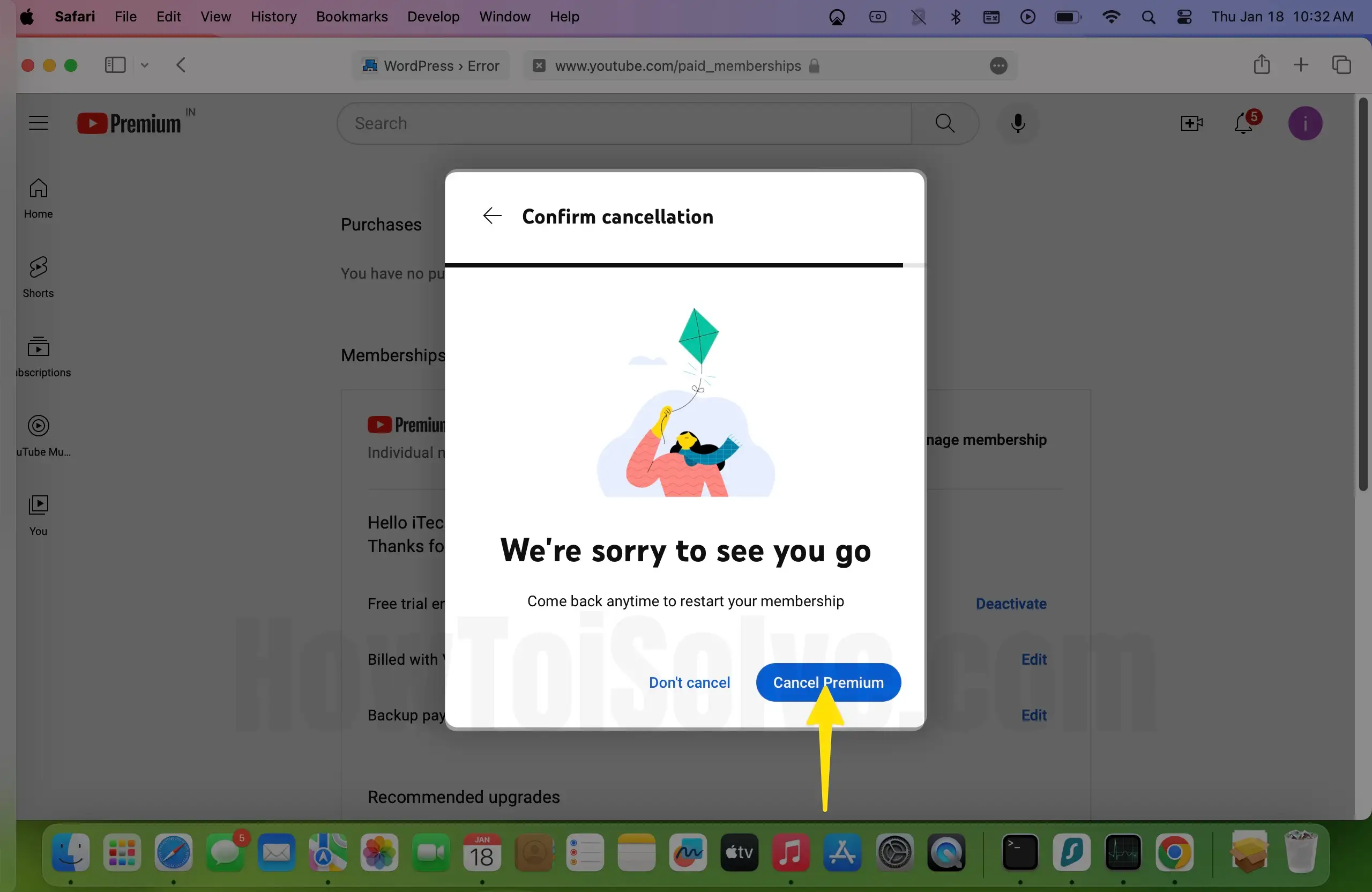
Step 6: Click on Cancel Premium.
How to unsubscribe from YouTube Premium or Cancel YouTube Premium Free trial on Apple TV 4
In case you’ve owned an Apple TV 4 running on tvOS. Let’s follow the five steps to edit, manage, or cancel the YouTube Premium free trial without a computer/ Macbook, iPhone, or iPad.
Note: To apply these steps, the correct Apple ID and Passcode are required to log in.
- Open up Settings App on your TV screen. (Settings App looks like a Gear icon).
- Now Select Account.
- Under the Subscriptions tab, Click on Manage Subscriptions.

4. Here on your TV screen, you can see all the app subscriptions; from all of them, choose YouTube Premium because you still want to manage or cancel.
5. To get rid of the big bill, select cancel YouTube Premium trail. After canceling your YouTube Premium subscription will stop at the end of the current billing cycle.
That’s it.
I hope you would like this straightforward way. You can use the same steps for other third-party tvOS Video channel apps that require subscriptions, such as 120sports, NBA (USA), A&E, ABC News, NBC, ACC, NBC Sports, AOL, Netflix, Arte, NFL Now, NHL, Bloomberg, NOW TV, Campus Insiders, PBS, CPS Sports, Qello, Red bull TV, CNBC, CNN, Showtime, Crackle, Crave, Showtime Anytime, Sky news, Tennis Channel, Fox Now, HBO GO, KORTV, and many more.
Are you looking for a way to request a refund for YouTube Premium subscriptions? Get here for a YouTube Premium Refund.
Please don’t miss sharing your thoughts about how to Get rid of the YouTube Premium free trial on iPhone, iPad, Apple TV, and on a computer.
Do you have any trouble unsubscribing from YouTube Premium/canceling your YouTube Premium Membership on your iPhone or another device? Let us know in the comment box below.