What to Know
- Make sure Calendar Notifications are turned on and not set to None.
- Please check that the calendar Alert Style is set to Banners or Alerts.
- Ensure that Do Not Disturb is turned off and that you’re signed in to your Apple ID. For More, read this article.
If you’ve recently updated your iPhone to iOS 18.4 and suddenly your Calendar alerts are not going off — you’re not alone. Many users are reporting missed meetings, events, and reminders. But don’t worry — here are several ways to troubleshoot and get your alerts working again.
You should try these best Calendar Apps for iPhone.
All Possible Clues to Fix iPhone Calendar Alerts Not Working: iPad, iPad Pro, iPod
Fix #1. Make Sure Calendar Alerts isn’t None
You must follow the steps carefully to fix the iPhone Calendar Alert that is not working.
Step 1. Launch the Settings App on iPhone or iPad.
Step 2. Tapping Sounds & Haptics.

Step 3. Now scroll down the screen and tap on Calendar Alerts.
Step 4. Ensure the Calendar Alert Tones switch isn’t None (Mute).
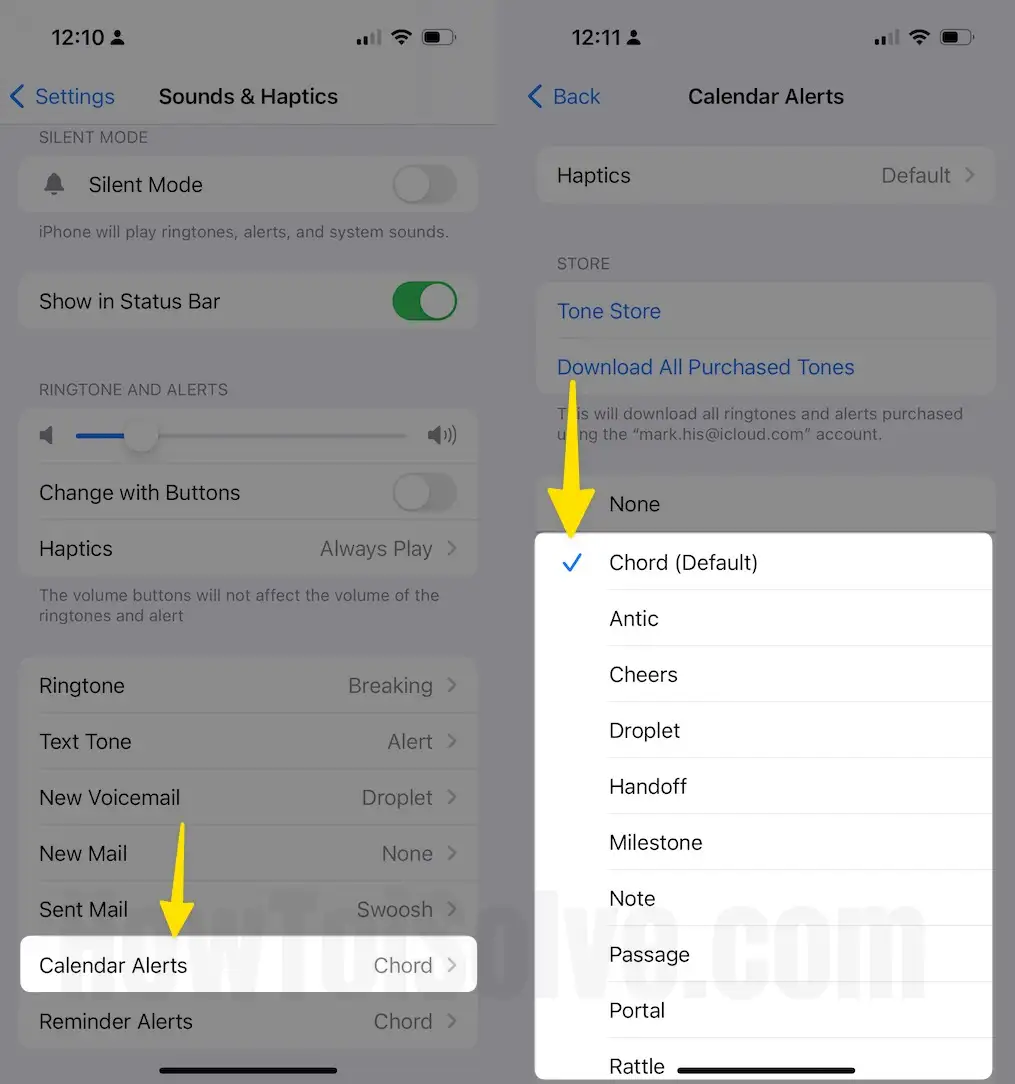
If you switch to None then please choose other available sound tones or continue following the Steps.
You can also choose Ringtones for your iPhone Calendar Alerts. Besides, on the bottom of the Calendar Alerts screen, you can see Classic tones, there are wonderful tons such as real Alarm, Bark, Belltower, Blues, Crickets, Doorbell, Duck, Robot, Sci-Fi, Timba and more.
Fix -2 Check out iPhone Calendar Notifications Settings
Please change the Notification Alert style and Sound too.
- Launch the Settings app on iPhone.
- Tap Notifications.
- Scroll down Notifications Style under and tap Calender.
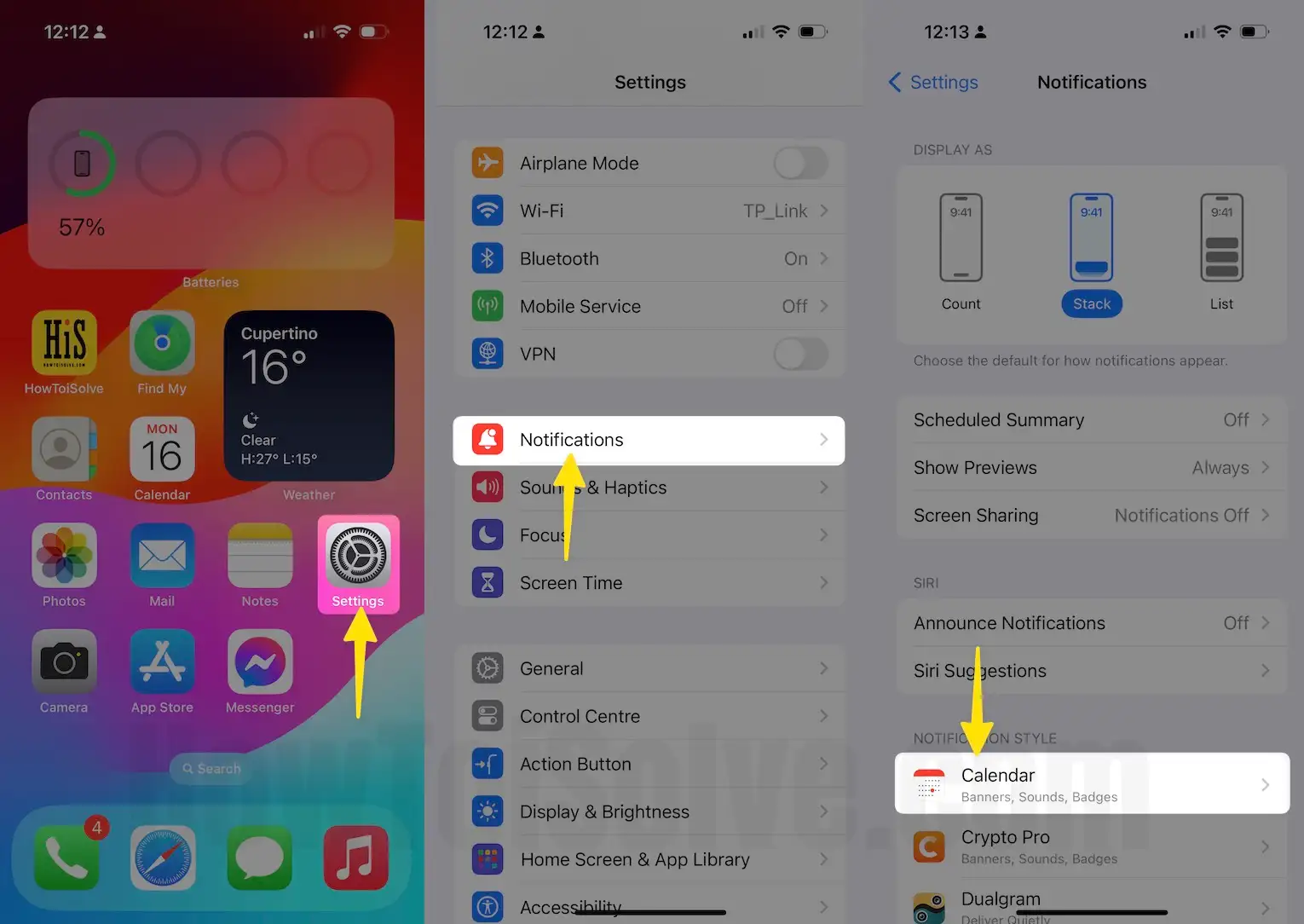
- Turn toggle Allow Notification ON/Green.
- Now you can see various sections on-screen including Upcoming Events, Invitations, invitee Responses, Shared Calendar Changes, and Siri Found in Apps.
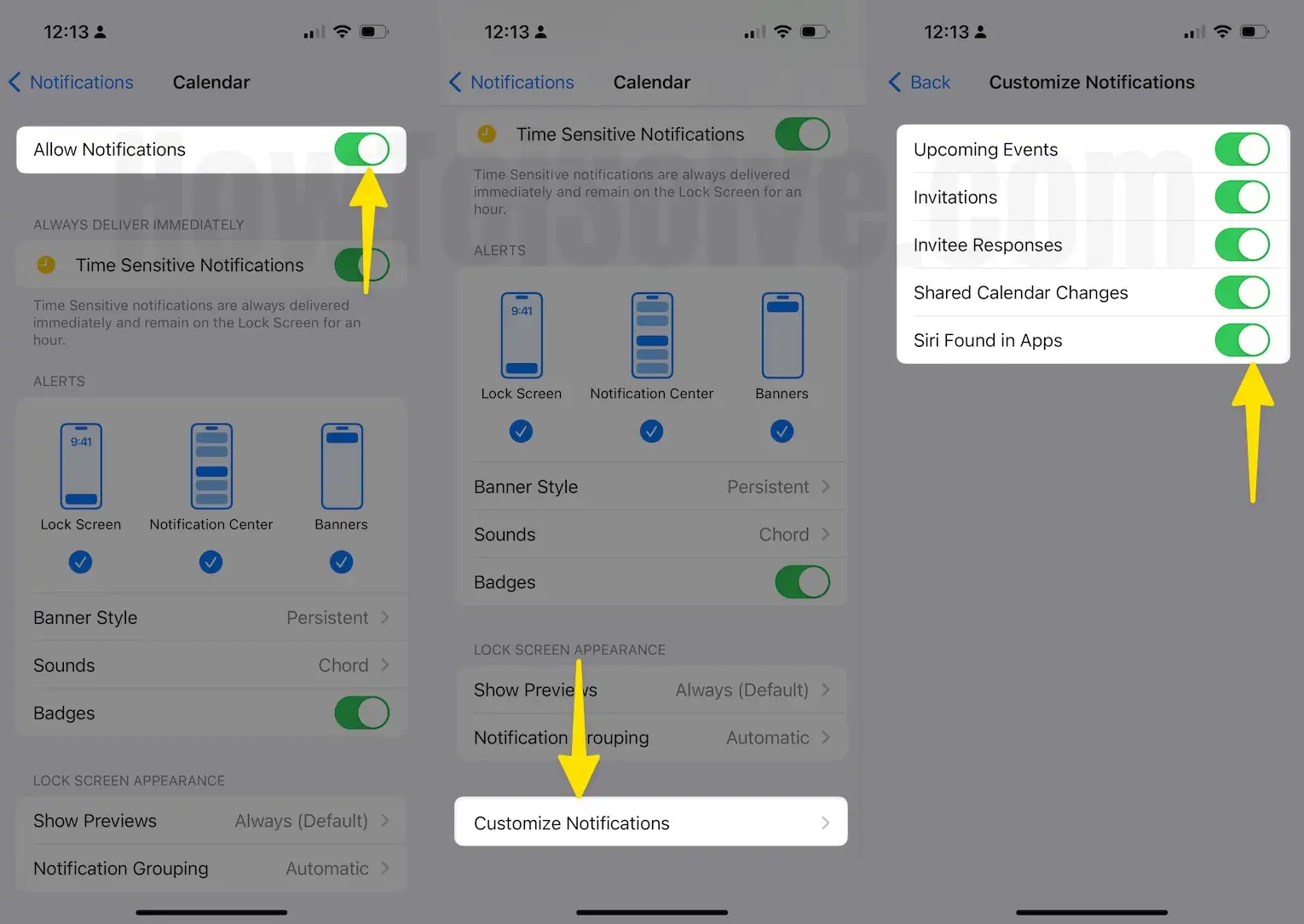
Now, choose one of these to make a change such as Allow Notifications, Calendar Alerts style (on Lock Screen, Alert Show or hide in Notifications Center, Banners Style) Sounds (tap on Sounds and update Settings like vibration, Alert Tones, choose Ringtones as Calendar Alert), Enable Badges to show the number of Alerts on Calendar App icon on Phone or iPad’s Home Screen.
Fix #3. Change Default Alert Times
- Launch the Settings App on iPhone/iPad
- Scroll the screen tap on Calendar.

- Click Default Alert Times.
- Tap Default Alert Time – Birthday, Events, All-Day Events

Set your reminder time just before a day. The birthday reminder should be on day, and the event reminder should be just before a day. You can set an event reminder as you need.
That’s it.
Fix 4. Adjust Correct Time Zone
Please set up the current time zone where you are currently living.
‘’According to a piece of information on Apple Site, the iPhone calendar uses your location, locations of upcoming events, and traffic conditions to tell you when you need to leave to arrive on time at your destination. You will not receive alerts for events with destinations that take more than three hours to reach.’’
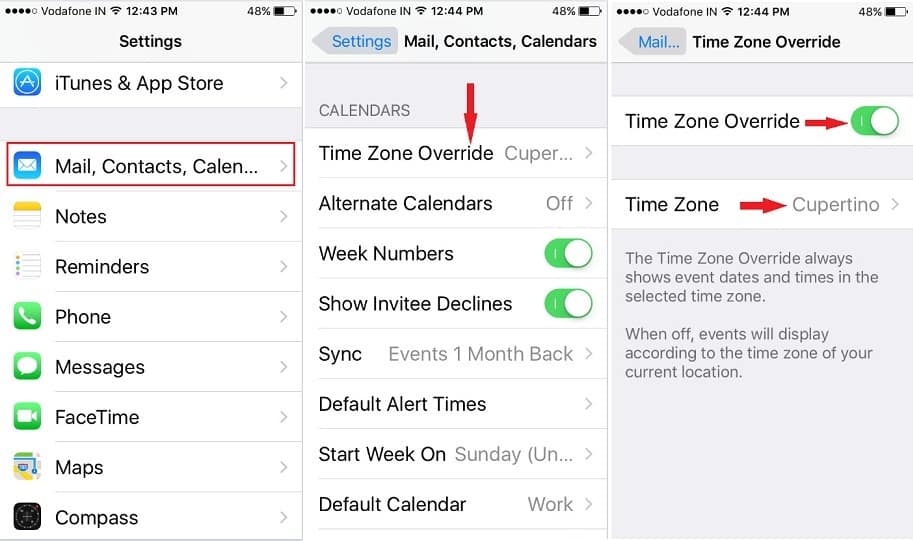
- Launch the Settings app on your iPhone.
- Tap Calender.

- Scroll down the screen until you see the Calendar label and tap on Time Zone Override
- Turn On Turn Time Zone Override.

in advance, you should also set up a location-based alert for the calendar App.
Go to Settings App > Privacy > Location Services, then tap an app to turn Calendar alerts ON based on your location.
Fixes #5. Force Reboot Your iOS Device
Different iPhone models have other ways to force reboot devices; All iPhone users should follow the steps below to force reboot devices and get rid of the Phone calendar alert issue.
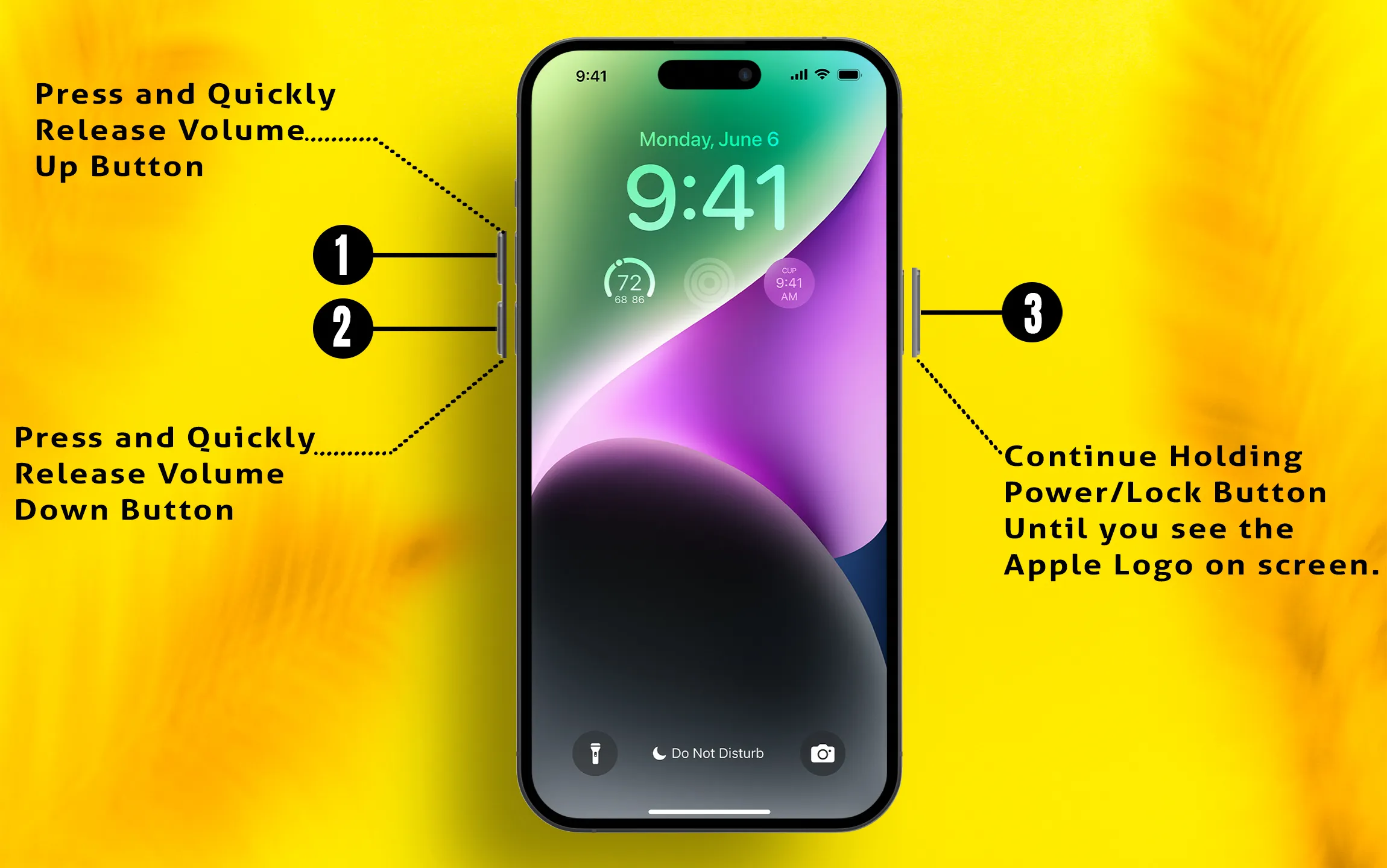
Method to force reboot For All Face ID iPhone models
Press and quickly release the Volume up button, then press and promptly release the Volume down button, and in the last press and hold on the Side button until the Apple logo appears on the screen, after successfully shutting down the Phone, press and hold the Side button again to Turn On your Phone.
Method to force reboot iPhone 7 and iPhone 7 Plus users
Let’s Press and hold on the Power/ sleep-wake and Volume down button simultaneously for 10 seconds and turn off your phone. To turn on the Phone press & hold on to the Power button again.
Method to force reboot iPhone 6S and previous iPhone model users
Just press and hold on to the Power button + Home button simultaneously for up to 8 seconds and solve your problem. Don’t forget to press and hold the power button again to turn your iPhone On.
iPhone Calendar Second Alert Not Working 2025
Are you sure you’ve set up the Calendar Second Alert on iPhone? Take note that the second alert on the Calendar is only an iCalendar-specific feature, meaning it is only Apple’s own Calendar feature.
- Launch the Settings App on your iPhone.
- Tap on Calendar.
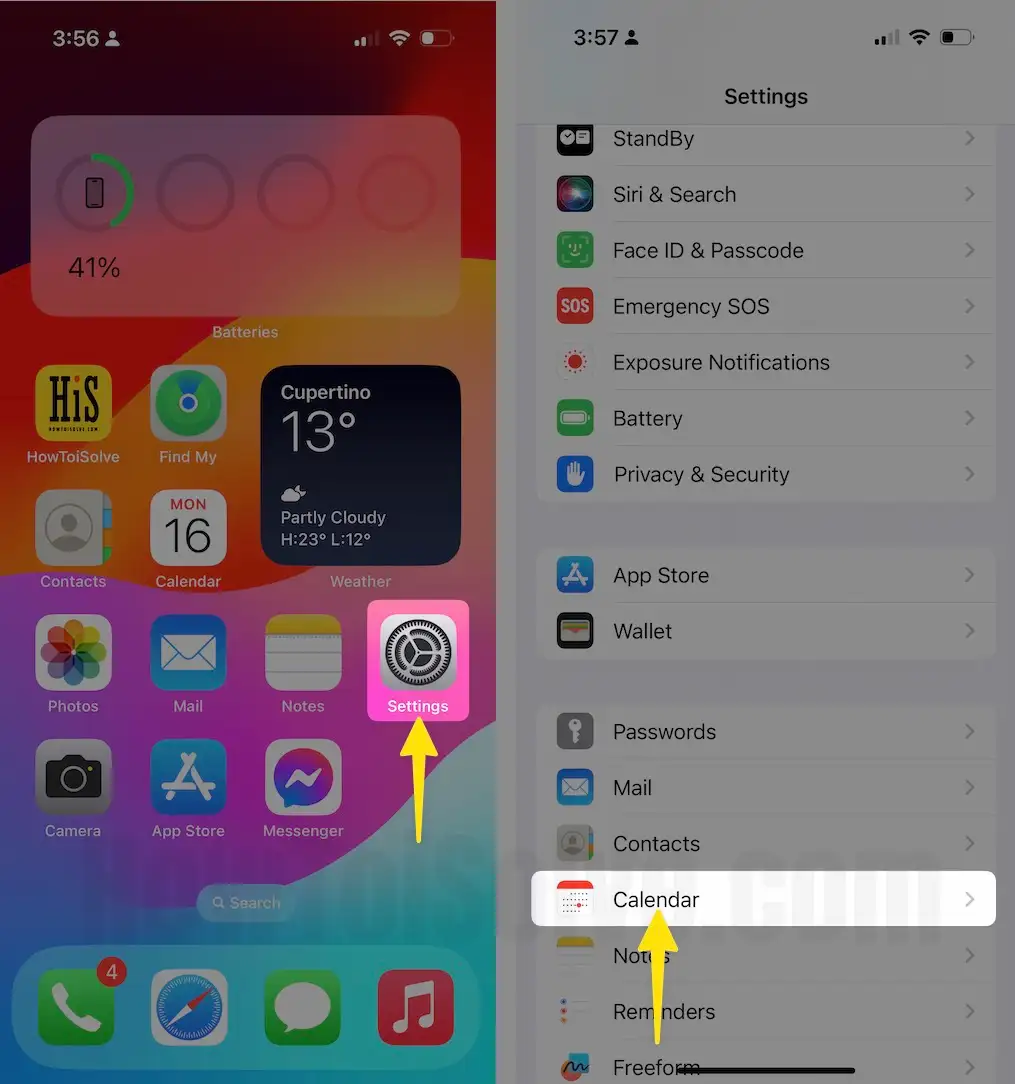
- Select the Default Calendar.
- Choose the On My iPhone calendar as your default.

iCloud and Google Calendar are the only calendars supporting the second alert, whereas Outlook App doesn’t.
How do I turn off the second alert on iPhone Calendar?
Don’t you know how to disable the second alert on the iPhone Calendar? Let’s see how to do it.
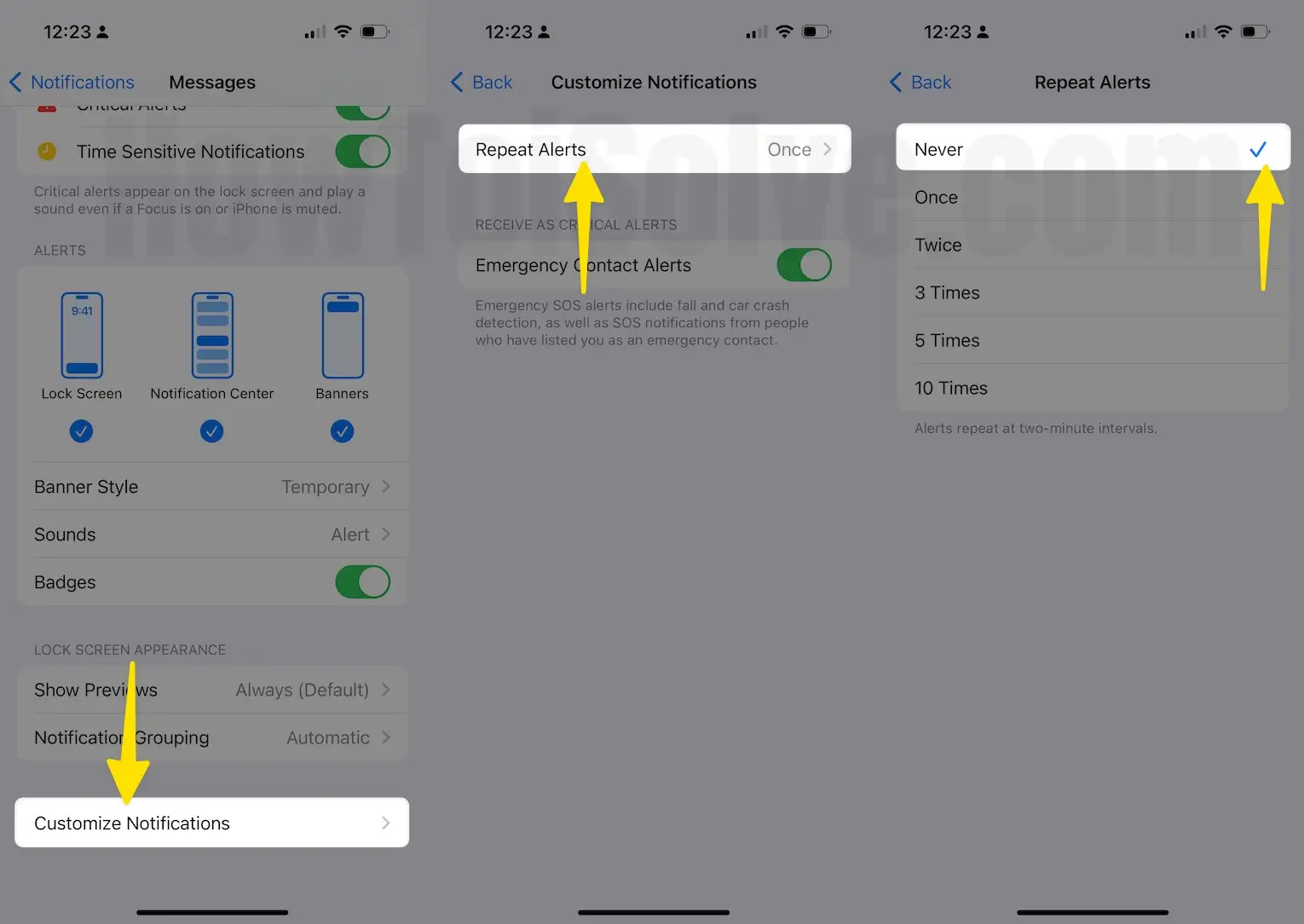
- Launch the Settings App on iPhone.
- Tap Notifications.
- Select the Messages App.

- Scroll down the Customize Notifications.
- Find Repeat Alert and choose Never.
Why does my Calendar Keep Sending me Notifications iPhone?
Even if you haven’t set up the Calendar Alert or Event, does the calendar keep sending notifications on your iPhone? There are a few things to check to get rid of spam calendar notifications on the iPhone.
Check for Random Calendar Subscription
Step 1: Launch the Settings app on iPhone.
Step 2: Scroll down to the Calendar app and tap on it.
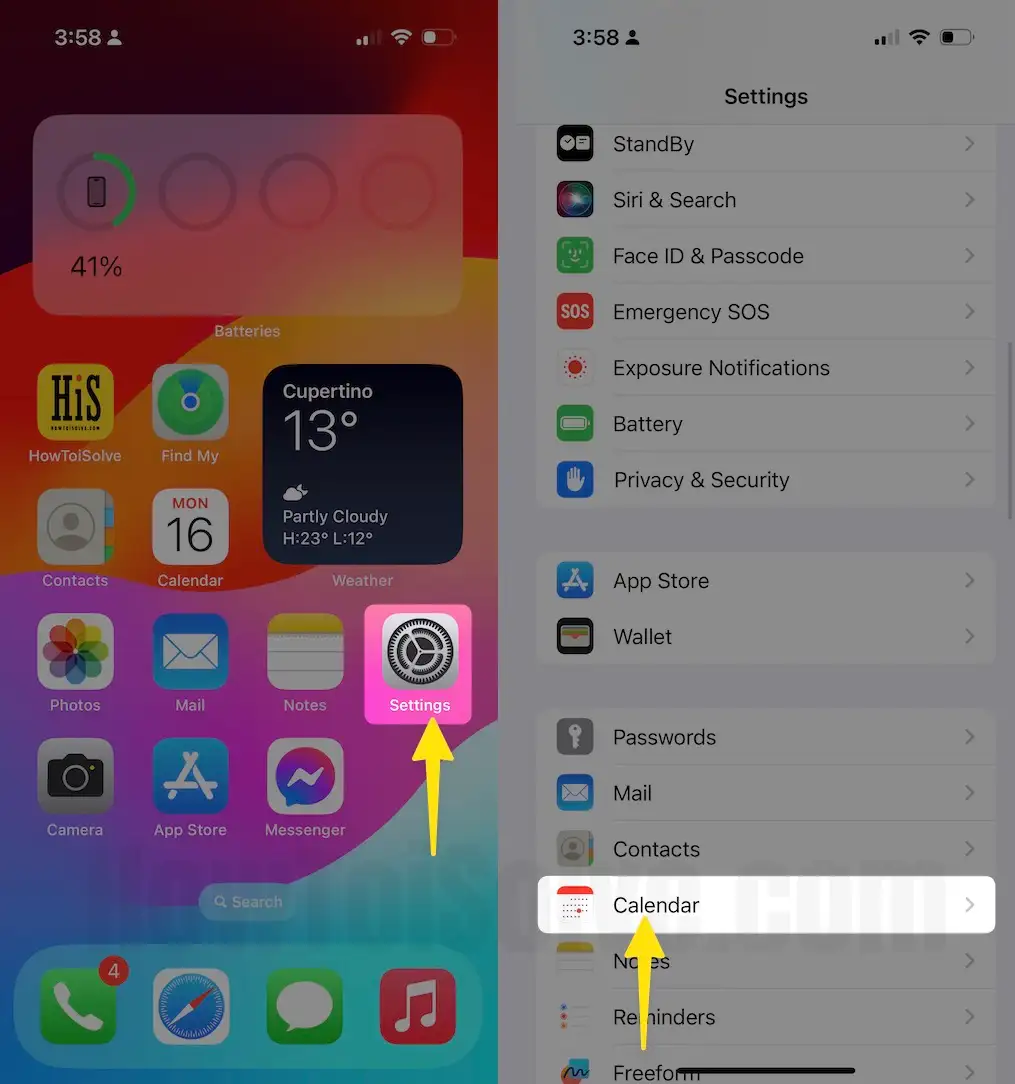
Step 3: Click Accounts.
Step 4: Under Accounts tap Subscribed Calendars.
Step 5: Select US Holidays.

Step 6: Choose Delete Account.
Step 7: Finally, select Delete Account.
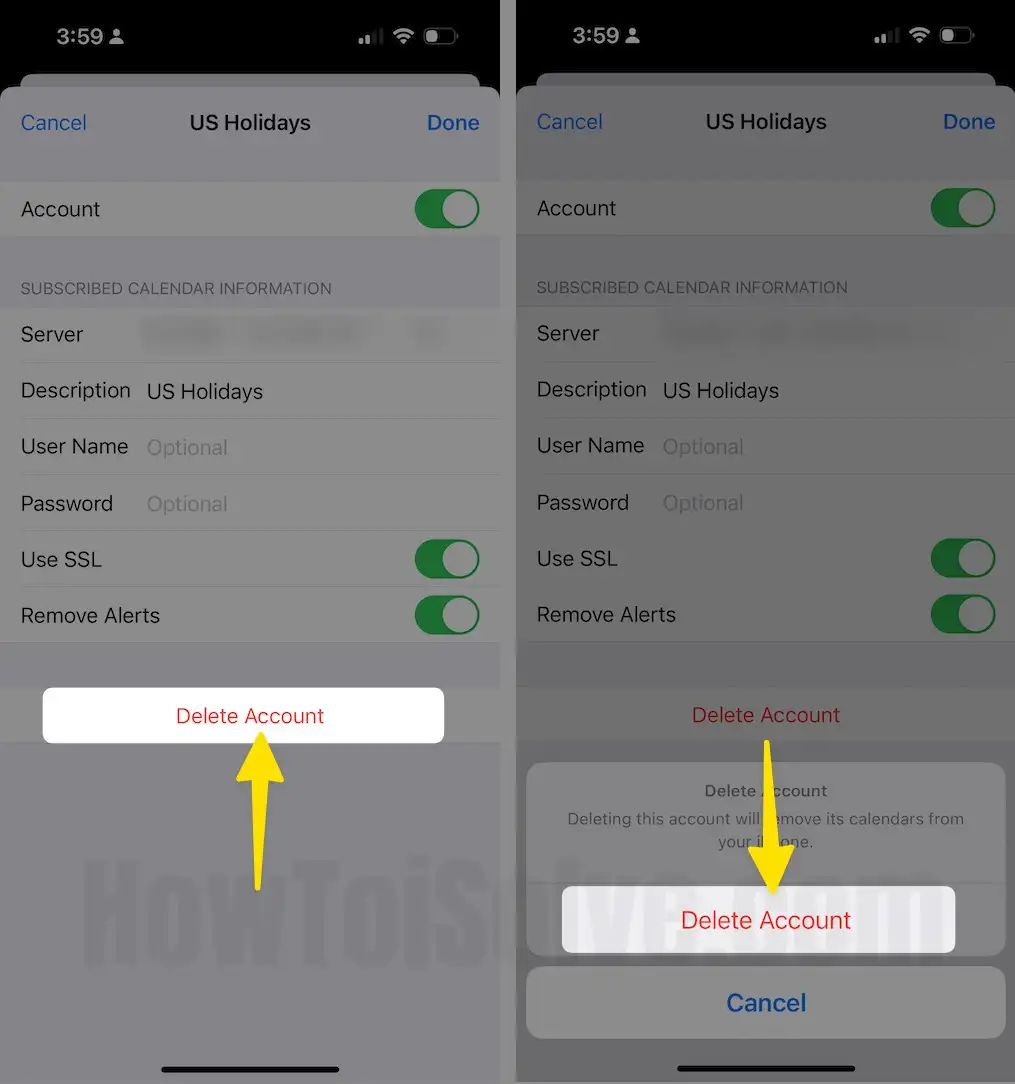
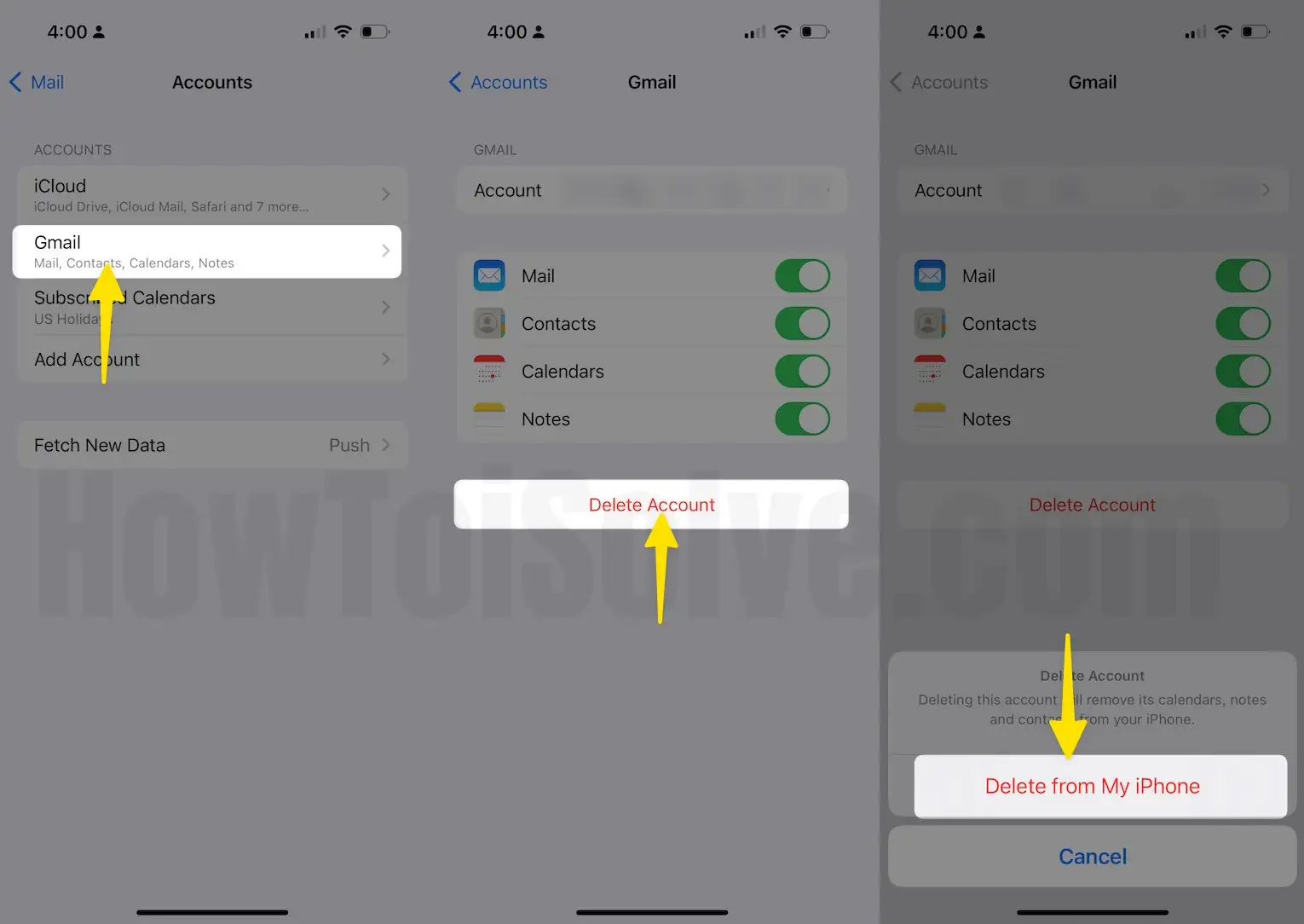
Check for Email
- Launch the Settings app on the iPhone.
- Scroll the screen to tap on Mail setting.
- Click Accounts.

- Select Gmail accounts.
- Choose Delete Account the Email Account, if you haven’t added it.
iPhone shared calendar alerts not working
Enable Notifications for Calendar on iCloud.com
To get the Calendar Notifications on iPhone, your iCloud must be set up correctly. Here’s how to do it.
- Go to iCloud.com.
- Click on the settings cog in the upper-left corner.
- Select Preferences.
- Look for the Advanced pane and from there choose In-app notifications and Save
Now we’ll see a miscellaneous workaround to fix this problem.
- First Check the Apple System Status and make sure Calendar, iCloud and Reminders are live and working.
- Update all of your Apple devices, including your iPhone, iPad, Mac, and MacBook.
- Verify the Date and Time on all the devices.
- Check Internet Connection.
iPhone Calendar Alerts not making sound
in case of your iPhone calendar alert sound not working, If your ringer or silent switch is turned on. however, your iPhone still not receiving any sound for your notifications alerts,
Please head to the bottom steps –
Step 1: Launch the Settings App on iPhone
Step 2: Tap Sounds & Haptics.
Step 3: Now Drag the ‘Ringer And Alerts‘ slider all the way to the left, then let go of your finger.
Step 4: Next, Drag the ‘Ringer and Alerts slider back to the original position.

That’s it.
Even if you set up a reminder on the iPhone Calendar but it doesn’t ring, I hope all the listed ways guide you to clear the iPhone Calendar Reminder not Working. For more information, you can read Apple’s document Get the sweet and sober guide. And share your feedback on our site. I really appreciate any help you can provide.
Last resort: If none of the above workarounds work in your case after attempting them, please take a fresh backup copy of your device and restore a like-new Phone. We know the process is a little long, but we hope this trick will give you a 100% positive result.
For anything that helps, don’t hesitate to contact us! Please share your feedback in the comment box.