High-resolution photos acquire a considerable amount of storage, which ultimately accumulates iCloud storage rapidly. However, the best part is deleting photos from iCloud backup is more handy than you think. Go through this step-by-step guide and learn how to delete photos from iCloud on your iPhone, iPad, and Mac. It’s high time to free storage space in your iCloud Storage and make it more usable.
3 Ways to Delete Photos From iCloud to Free Up Space
Here is how you can delete photos from iCloud on your iPhone, iPad, and Mac.
Steps to delete photos from iCloud on your iPhone & iPad
Step 1: Launch the Photos App on your iPhone > Tap on the Library from the bottom of the Left Corner > After this, Tap on the Select Button from the top right corner.

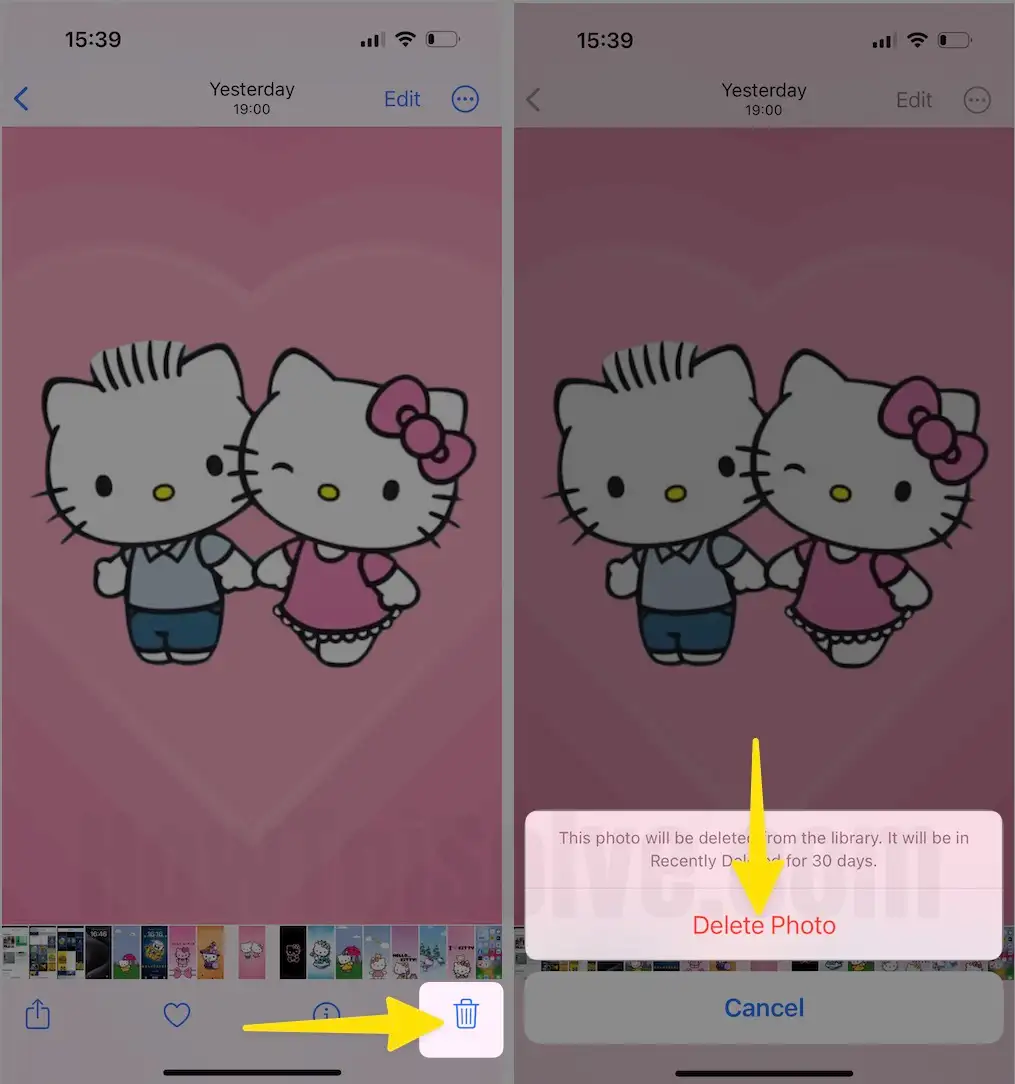
Step 2: Select One or More Photos you want to delete > Tap on the Delete icon > From the Pop-Up Menu, These photos will be deleted from iCloud Photos on all your devices. It will be recently deleted for 30 days. Tap on Delete Photo.
If you are no longer using iCloud Photos
If you no longer use iCloud Photos, your camera roll is part of iCloud backup. To verify how much it’s using in iCloud Backup, follow the steps below.
Step 1: Launch the Settings App on your iPhone > Select Apple ID.
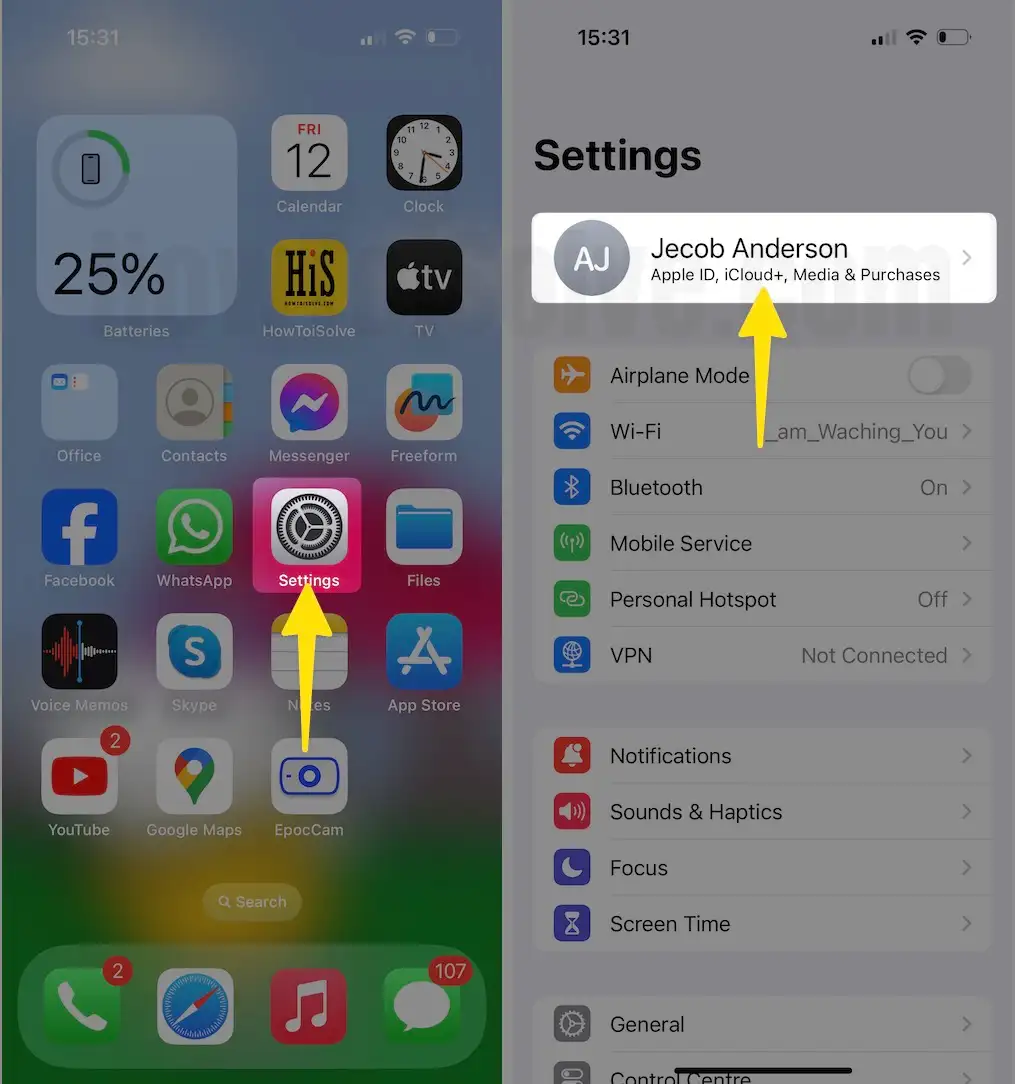
Step 2: In the Next Screen, Select iCloud > Choose Manage Account Storage or Manage Storage.

Step 3: Select Backups > Tap on your Device Name, then Search for Photo Library.
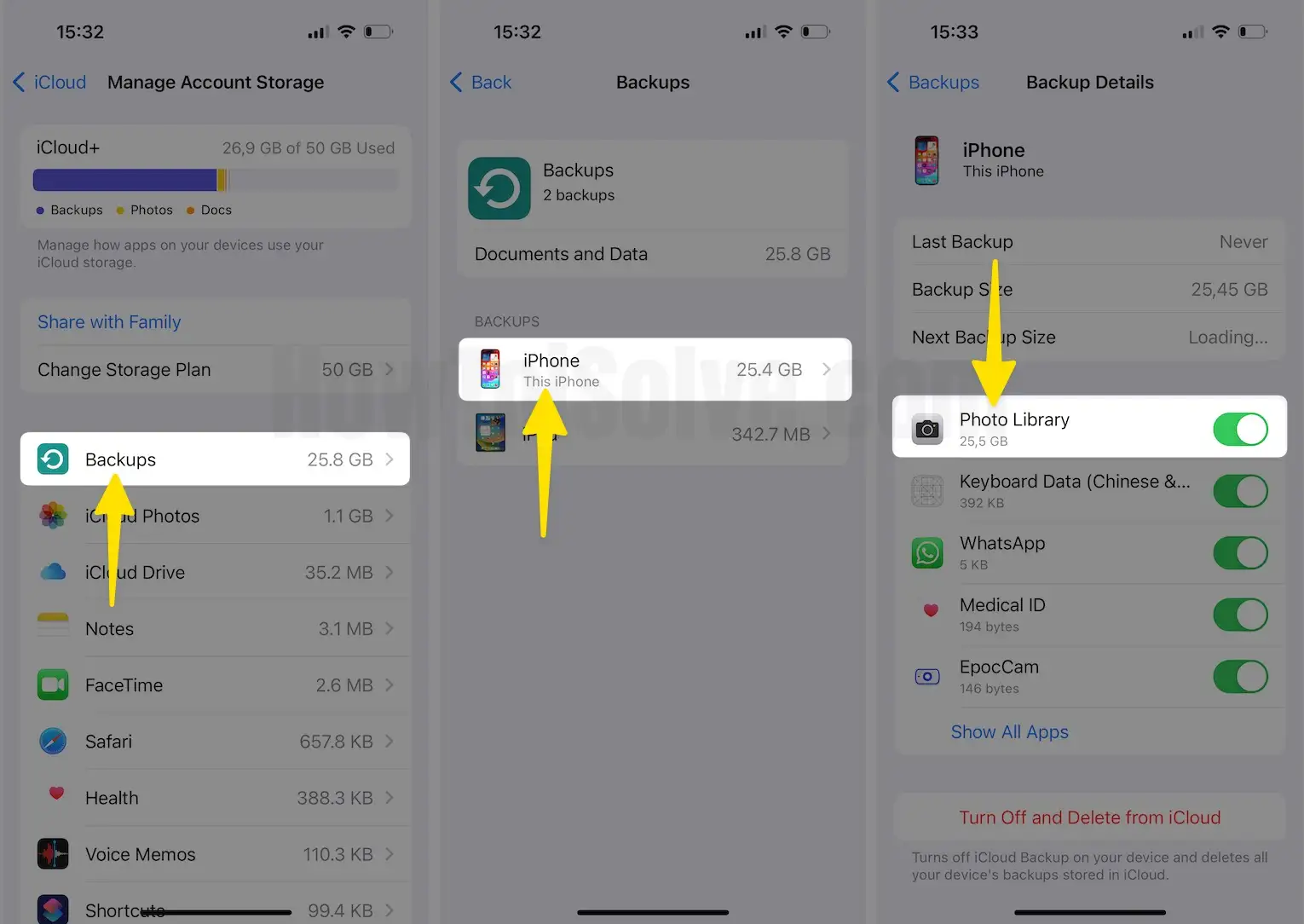
To decrease the size of the backup of your photos app, save all your photos and videos into your PC and create a backup manually. And if you want to keep it on the device, you can turn off Photos in Backups or upgrade to the iCloud+. However, if there are any photos that you no longer need, then you can delete them by following the steps below.
Step 1: Launch the Photos App on your iPhone > Choose Photos you want to delete.

Step 2: Select the Delete icon at the bottom of the right corner > Tap on Delete Photos for confirmation.
Steps to delete photos from iCloud on your Mac
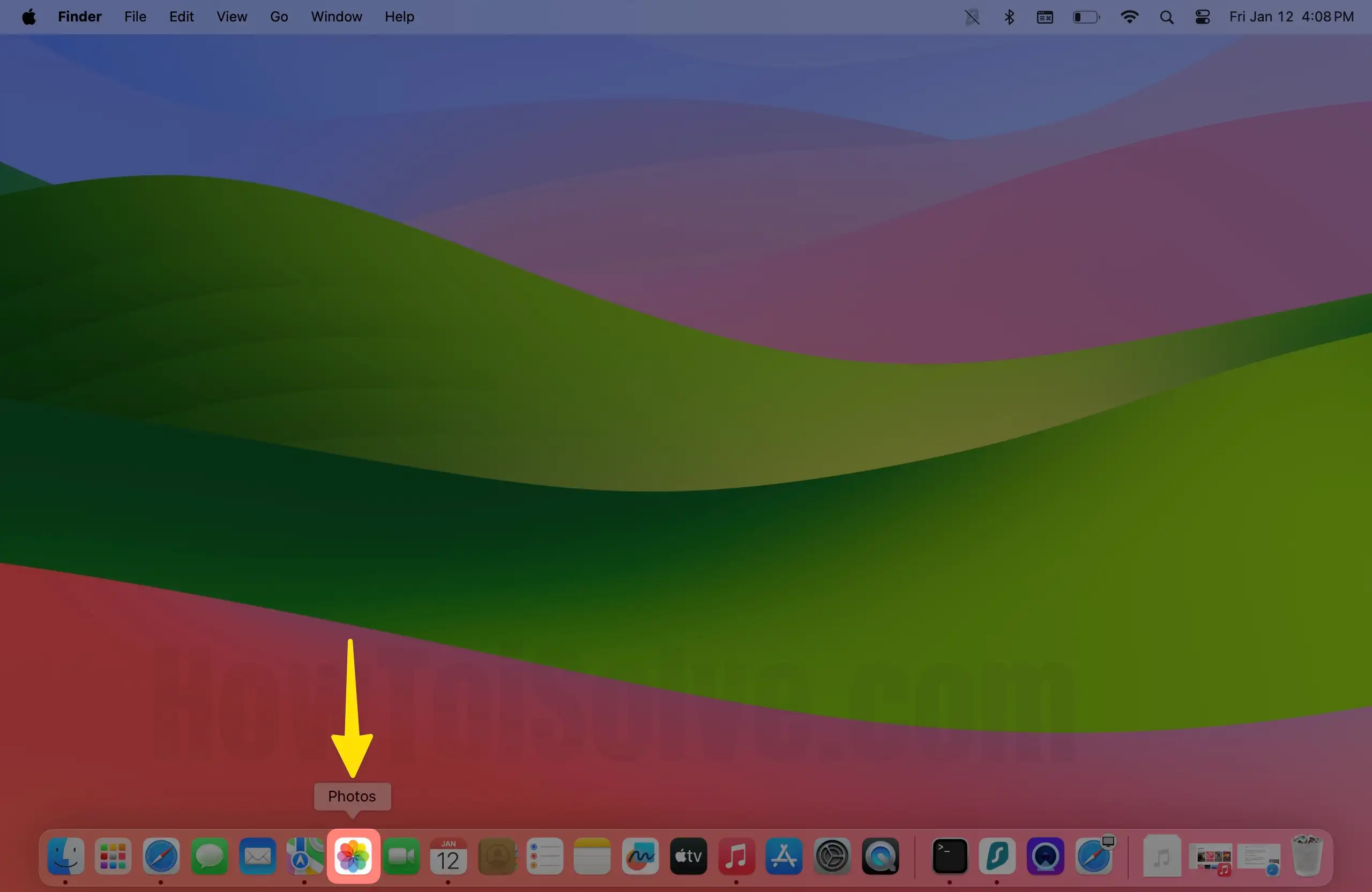
Step 1: Access the Photos App on your Mac.
Step 2: Choose the Photo you want to delete > Right-click to Select the Delete Photo.
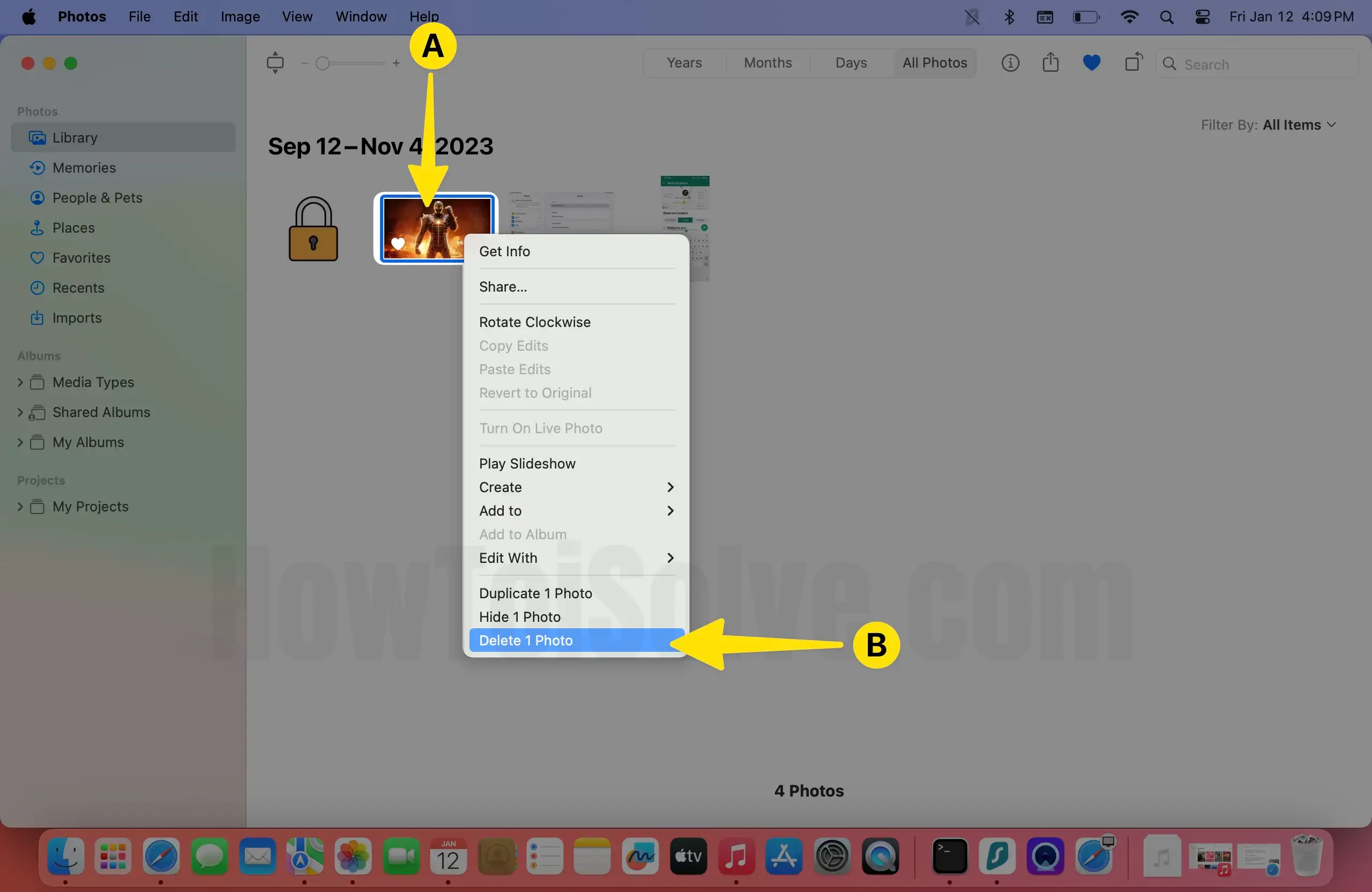
Step 3: Click on Delete for Confirmation Pop-Up.

Steps to delete photos from iCloud.com
Step 1: Access Safari on your Mac > Search icloud.com

Step 2: Tap on Sign in using your Apple ID.

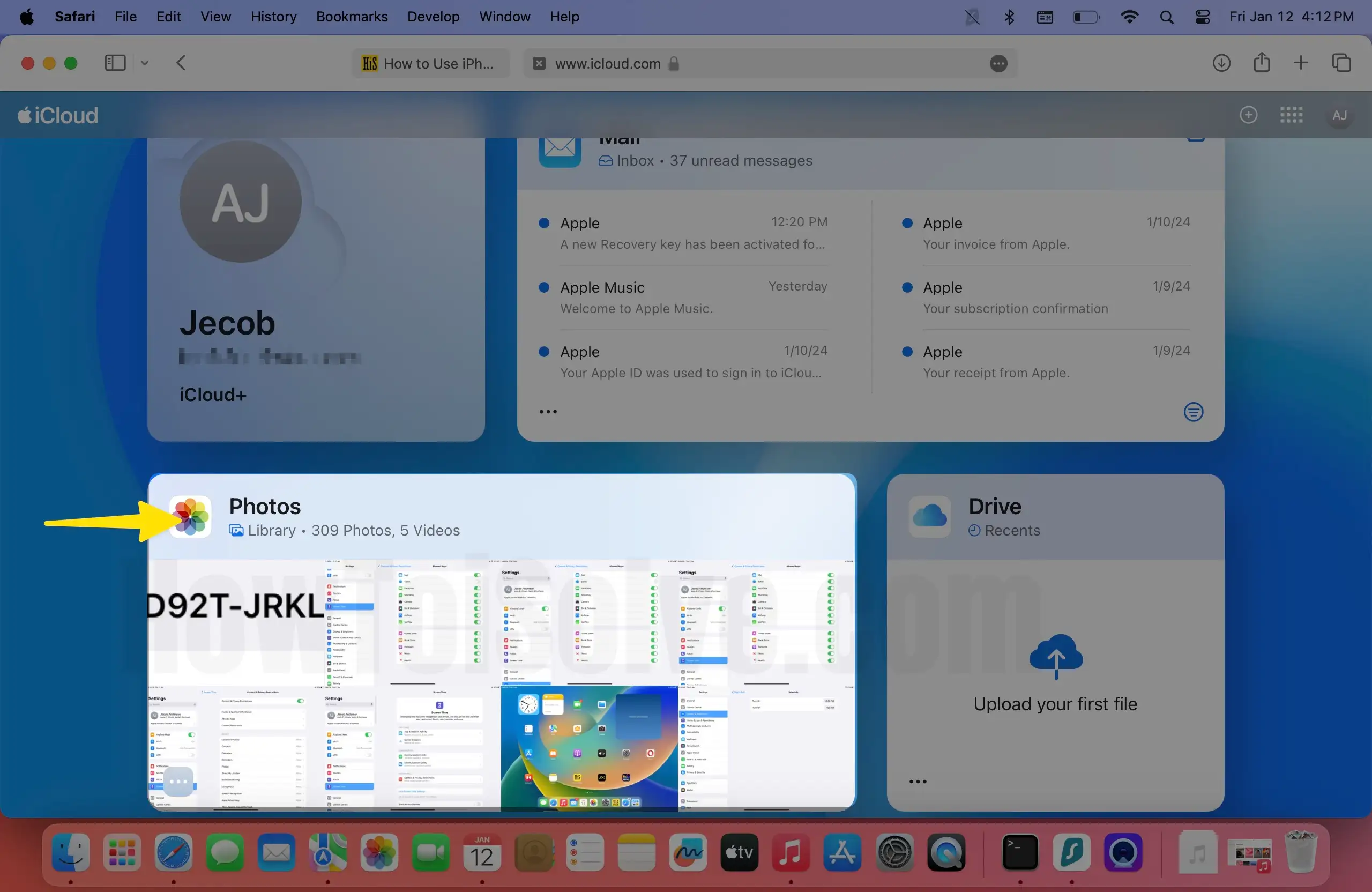
Step 3: Access the Photos App using iCloud.
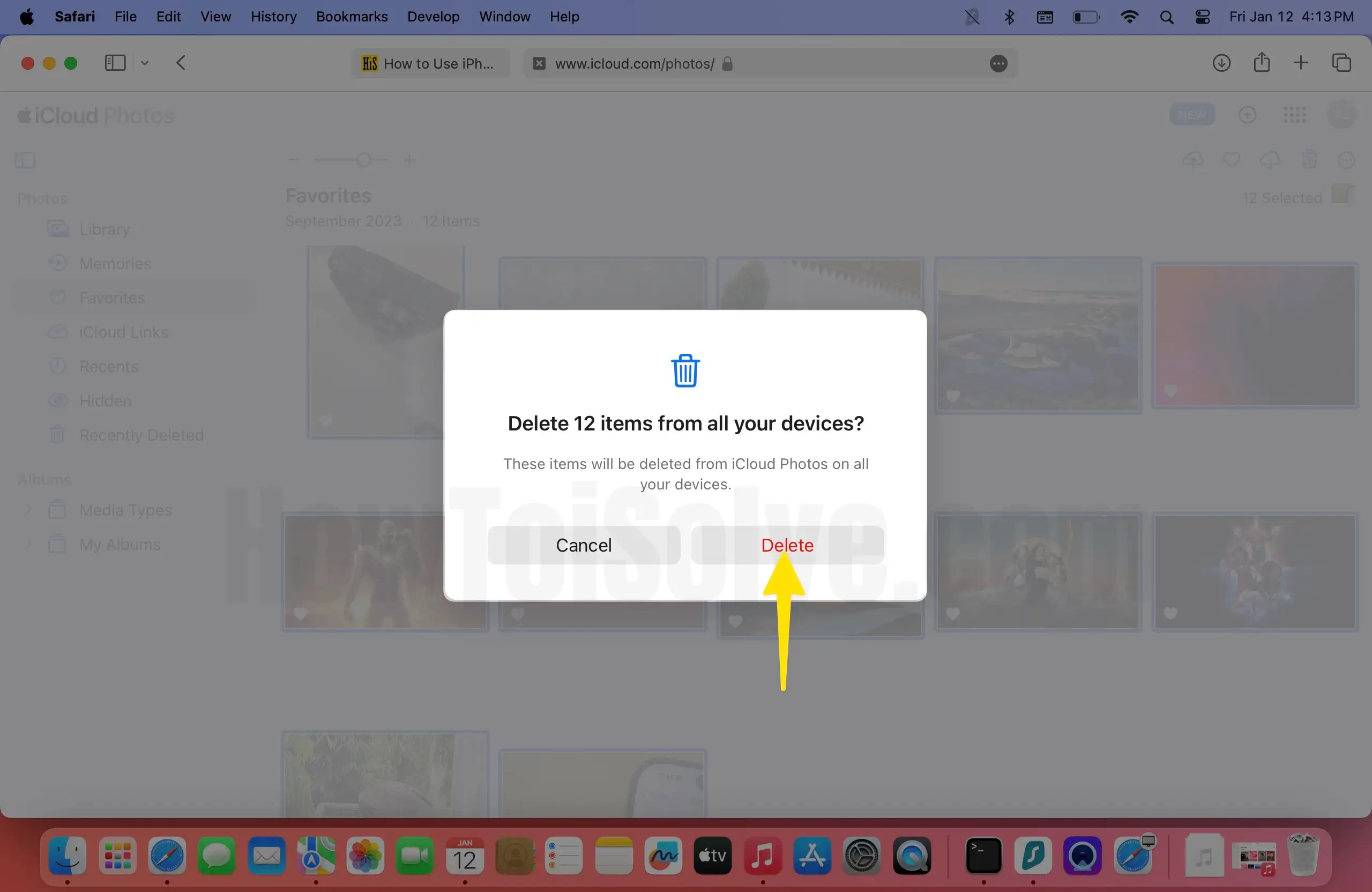
Step 4: To Select all photos, Press and hold Command + A > Tap on the Delete icon at the top of the right corner.
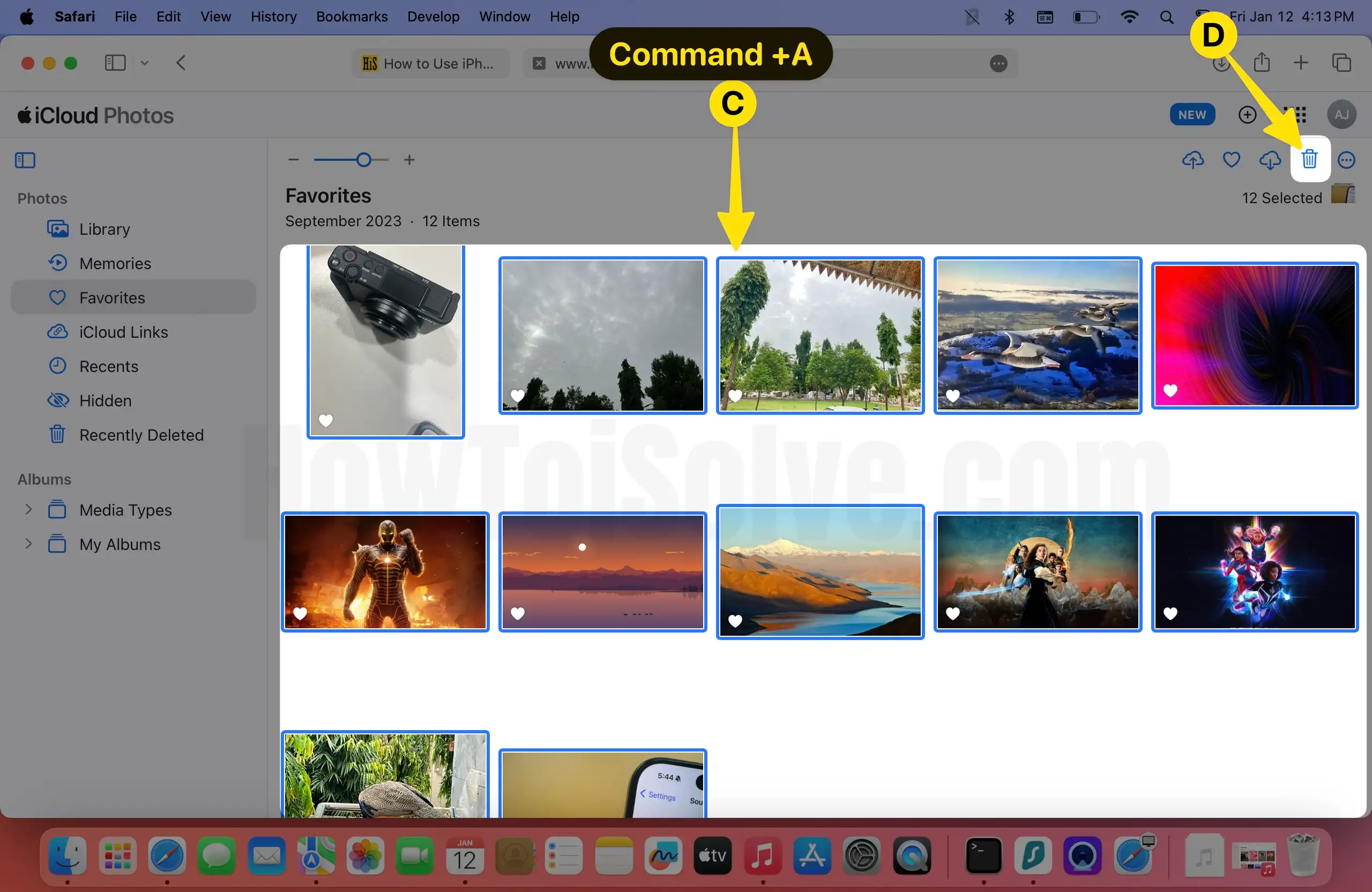
Step 5: From the Pop-Up Confirmation to Tap on Delete.
Final Verdict!
That’s it! This is how you can delete photos from iCloud on your iPhone, iPad, and Mac. However, you can recover the deleted photos and videos from recently deleted folders within 30 days.