If you’ve accessed your iCloud account on multiple devices or browsers and want to sign out remotely for added security, it’s important to know how to do so across all platforms. Whether you’re on a Mac or PC, remotely signing out of iCloud can help protect your personal data, especially if you suspect unauthorized access.
In this article, we’ll guide you through the steps to sign out of iCloud on all browsers, ensuring your account remains secure no matter where it was accessed from. Let’s dive in!
Steps to Remotely Sign Out iCloud on all browsers
- Open up https://www.icloud.com on your device and enter your Apple ID and Password.
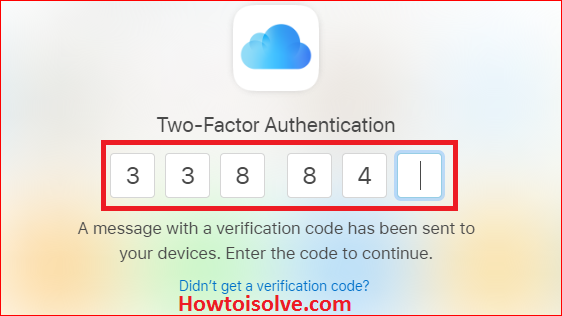
Note: if your Apple ID has enabled for Two-Factor Authentication for Apple ID. Then, you will get A message with a verification code that has been sent to your devices. Enter the code to continue.
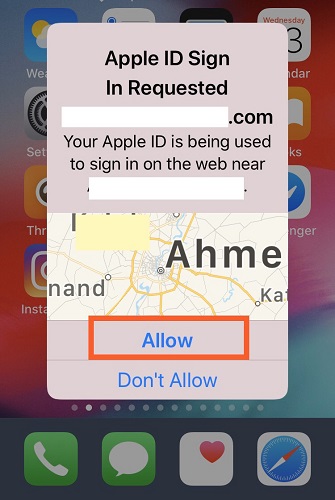
- On Your Phone, Tap Apple ID SIGN IN REQUESTED
(your Apple ID is being used to sign-in on the web near (location name).
- Tap on Notification, put your Fingerprint on the Home button, or unlock with Face ID, or enter the Phone unlock screen passcode.
- Tap Allow

- You’ll get the Apple ID Verification code on your Phone.

- Please Enter Six Digits verification code on the web to sing in.

- So the web will be verifying.
- After that, you’ll get a pop-up like Trust This browser? (If you choose to trust this browser, you will not be asked for a verification code the next time you sign in.)
→ Not Now, Don’t Trust, and Trust - Go with Not Now



→Next scroll down the screen,

(immediately sign out of all browsers currently signed in to icloud.com)


That’s it.
Get More: How to Login iCloud.com on your iPhone [Read this tutorial to sign-in icloud.com on your iPhone and you can Remotely Sign out iCloud on All Browsers Without Pc Computer or Mac]
If I sign out of my Apple ID, will I lose everything on Mac or PC?
No, you will not lose anything from your Mac. But syncing the Data between Mac and iCloud accounts will be stopped. While you log in your Apple ID and Sync with iCloud account, you can reaccess all the Data in All the Mac Apps like App Store [Purchase History], Apple Music [If Premium subscription is Activated], Contacts in Contacts app, Books, Mail, Safari, Notes, iMessage, Calendars, Reminders, Numbers, Pages, Home Automation, Shared Photos in Photos app.
If I log out of my iCloud will it delete my messages from Mac
After signing out of the Apple ID account from the Messages app on Mac, we can’t use or send/receive messages on Mac [iMessage]. But signing out of the account will not delete the Messages history, but it will appear when you re-login your Messages app on Mac.
Note: You’ll also sign out all the devices where you logged in with the same Apple ID. Please share with us if you’ve any other way to sign out of iCloud on all browsers remotely.