Simple methods to reset a forgotten passcode on your Apple Watch, especially when it’s disabled! You’ll see prompts to try again in 1, 2, 3, or 5 minutes. You can choose to reset using an iPhone or directly on the Apple Watch. It’s understandable to feel confused if a passcode is enabled and you forget it, as access to your device is blocked without the passcode. We hope you’re excited to wear your Apple Watch; it’s almost ready! You can easily set it up with its basic settings, pairing it with an iPhone and creating a secure passcode for your iWatch.
If you enter the incorrect Passcode six times consecutively on your Apple Watch, it will either lock you out or display a message indicating that you should try again in a few minutes. This raises a question: what steps should you take if you’ve forgotten your Apple Watch Passcode and it’s disabled? In this case, you will need to reset the forgotten Passcode on your Apple Watch.
Generally, the Apple Watch Passcode is similar to the Apple iPhone forgot Passcode, but to solve this issue – its tips totally differ for the Apple Watch. Here, the given ways are for all kinds of Apple Watch models. You can apply under the given instructions for Watch Sport, Watch Edition & Apple Watch.
Different Methods for Resetting a Forgotten Passcode on an Apple Watch with a Disabled Screen
First, back up your Apple Watch. Remember that your Passcode is not included in the backup, so refer to the step-by-step guide for erasing your Apple Watch. Once that’s done, you can pair your watch with a compatible device again and restore it from a backup if you have one.
First Method: Forgot Passcode on Apple Watch Using Paired iPhone
To start these steps, make sure that you keep your Apple Watch and iPhone close together. Until you completely erase the Apple watch.
- Step 1. Open the Watch application on your iPhone.
- Step 2. Tap, My Watch
- Step 3. Now, tap General, then Reset.

- Step 4. Tap Erase Apple Watch Content and Settings, then tap again to confirm, Erase All Content and Settings means This will delete all media and data, and reset all settings on your Apple Watch.

That’s it. The above steps you followed are why you’ve paired your iPhone. Even if you’ve no iPhone and want to reset it, forget the Apple Watch Passcode. Then, follow 2nd way to erase or reset the Apple watch Passcode without the iPhone.
Second Method: To reset the forgot Passcode on the Apple Watch without the iPhone
Apple allows Apple to watch users erase their own Apple watch without an iPhone. Follow the below steps to perform this on your Apple watch.

To reset your Apple Watch, follow the steps below:
Step 1: Put your Apple Watch on its charger.
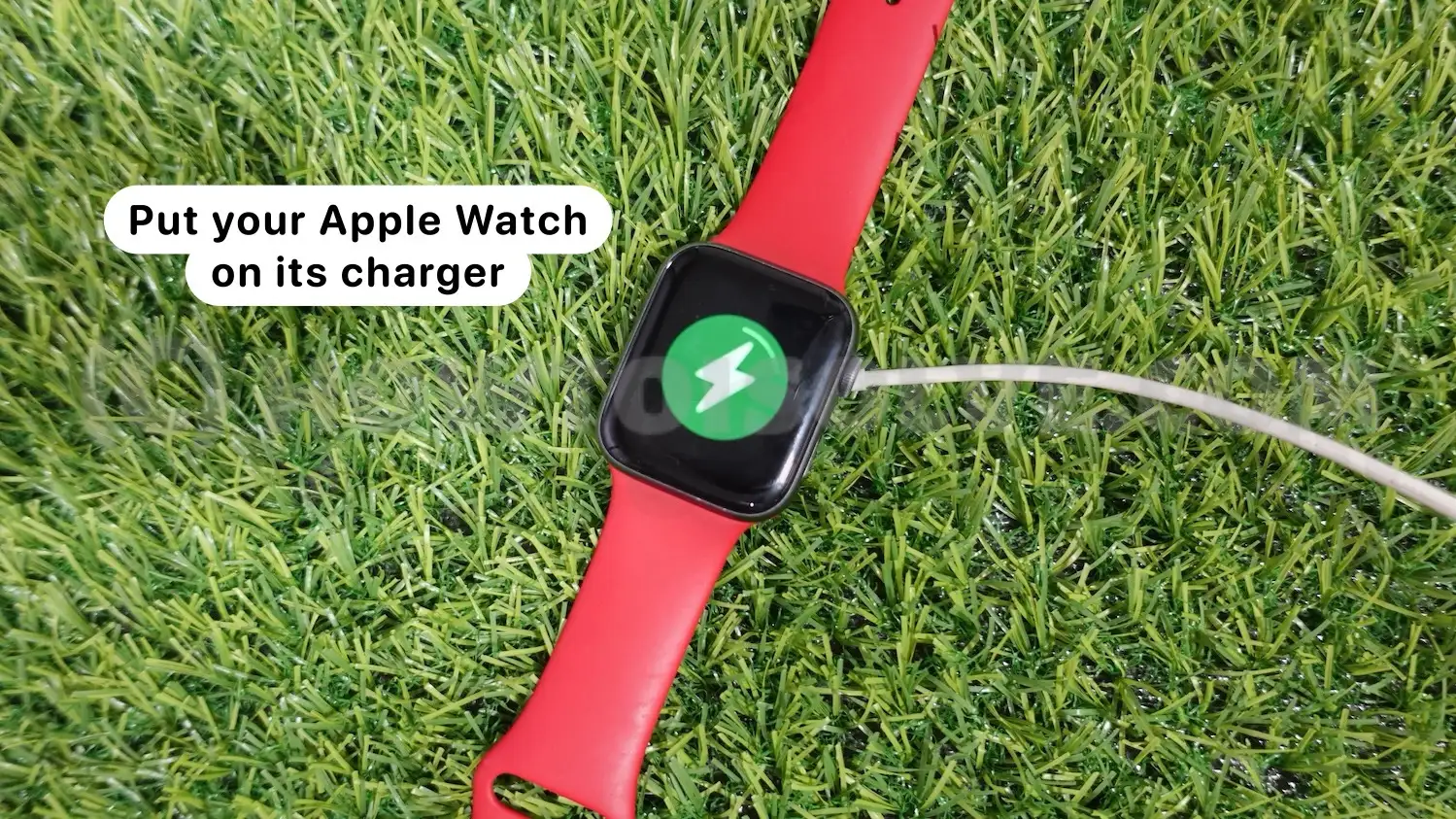
Step 2: Press and hold the side button until the sliders appear.

Step 3: Press and hold the Digital Crown until the Erase all content and settings screen appears.

Step 4: Tap Reset and then tap Reset again to confirm.
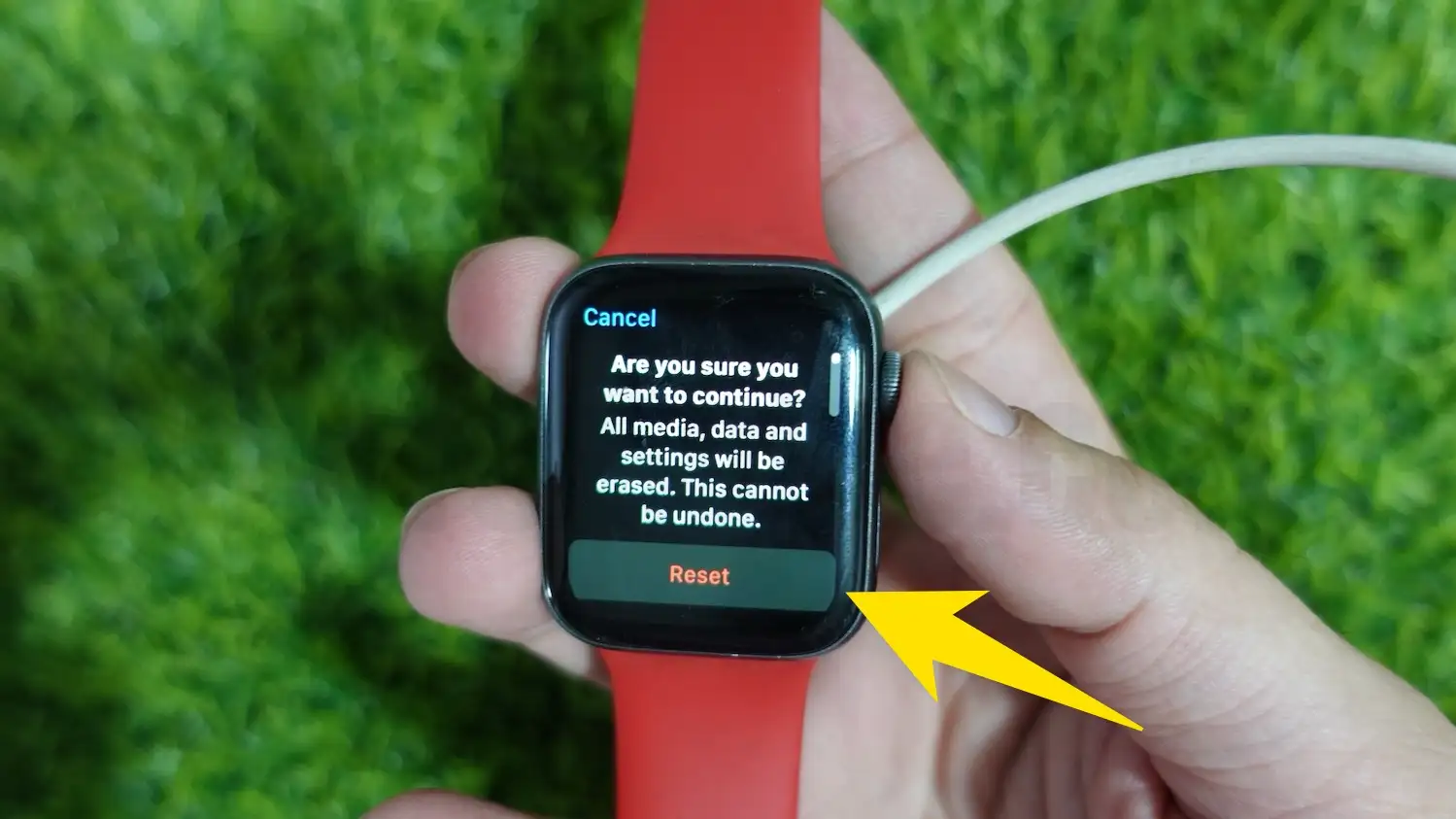
Wait for the process to finish. Set up your watch again.
That should do it! Let me know if you have any further questions or concerns.