In Shorts
- Efficiently tackle iOS app crashes with these proven solutions to enhance your device’s stability and performance.
- Resolve app crashes in iOS with updates, resets, Check Settings, and clear data methods.
- Backup and restore or downgrade iOS as a last option.
New iOS updates, especially for pre-installed apps, greatly improve functionality and ease of use. However, some tools might not work correctly due to internal iOS or App problems. Here, I have covered all the possible errors and causes that help stop apps like Notes, Safari, and Files app from crashing in iOS and iPadOS.
Fixed out iOS Apps that keep crashing: Notes, Safari, Files, Messages, etc.
Solution #1: Check for Software Update
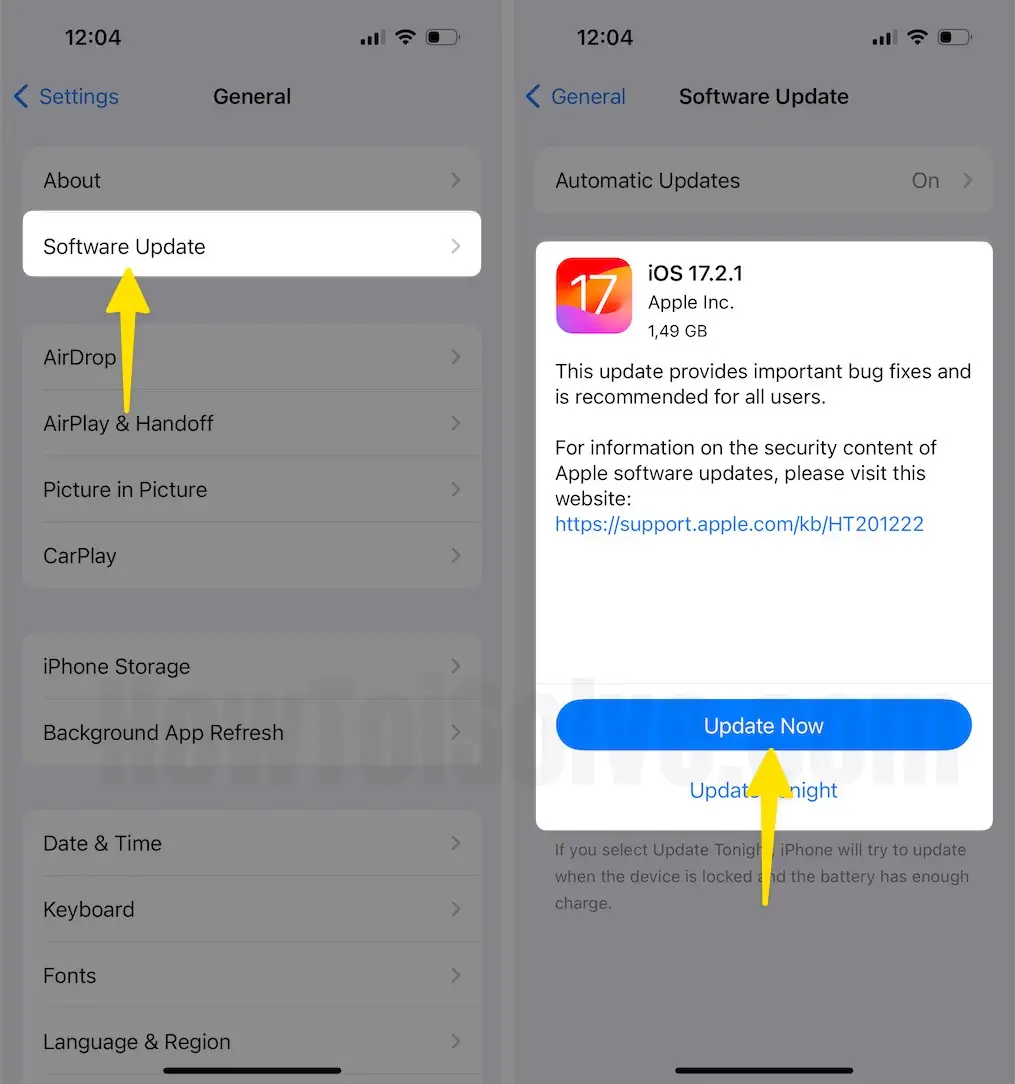
Check and get a new iOS update on your iPhone and iPad. Apple’s New iOS seeds come out with all bug fixes and improvements. Let’s update iOS using the OTA (Over-The-Air) method,
Step 1: Launch the Settings app on your iPhone > Tap on General.
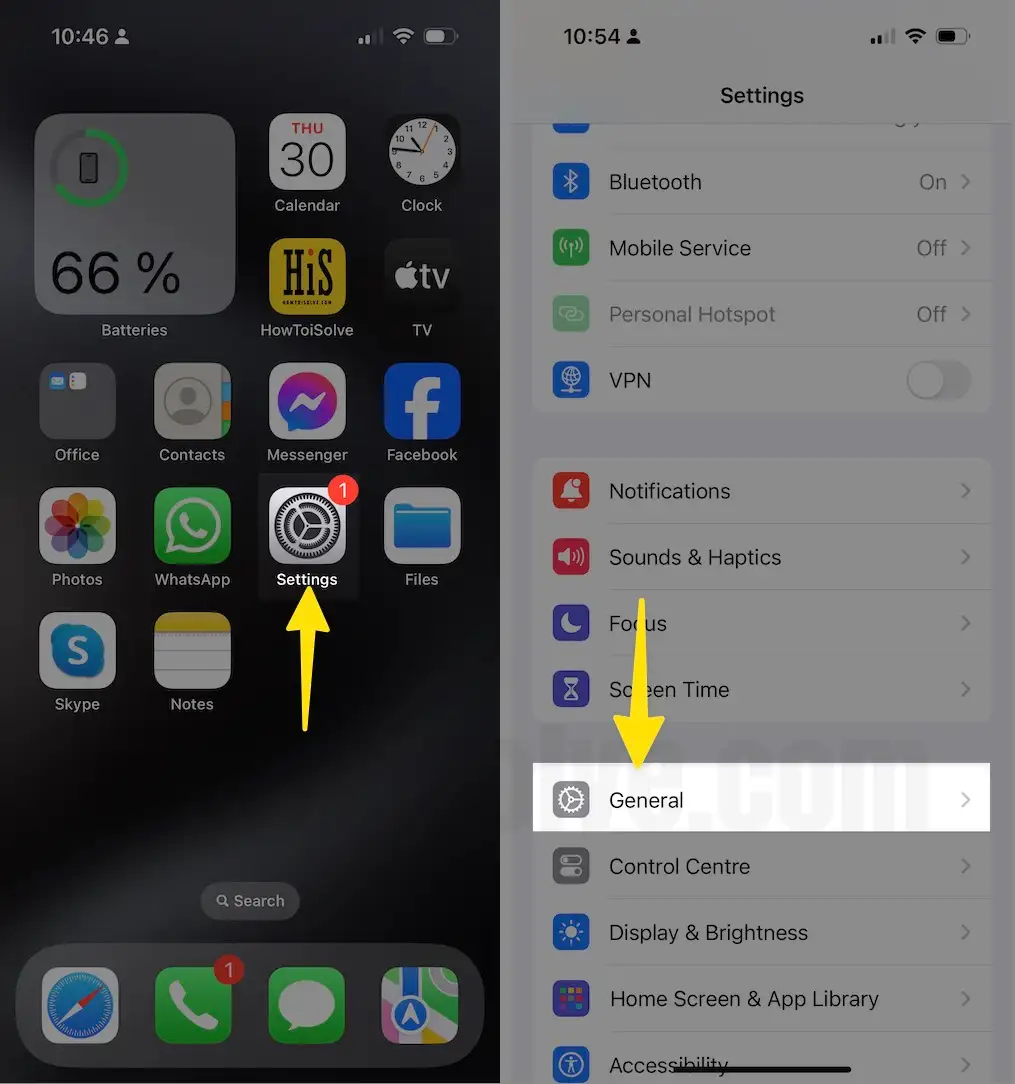
Step 2: Select Software Update > Tap on Update Now.
Solution #2: Check for Apps Updates
- Unable to create a new Note in the Notes app on iPhone, iPad
- App crashing on Drag and Drop in Files app
- Safari keeps crashing
- Mark-up tools in Mail, Photos, and Notes app – New mark-up tools allow users to draw and make some editing within the app under sharing tools.
Step 1: Launch the App Store on your iPhone > Tap on Search From the Bottom of the Right Corner.
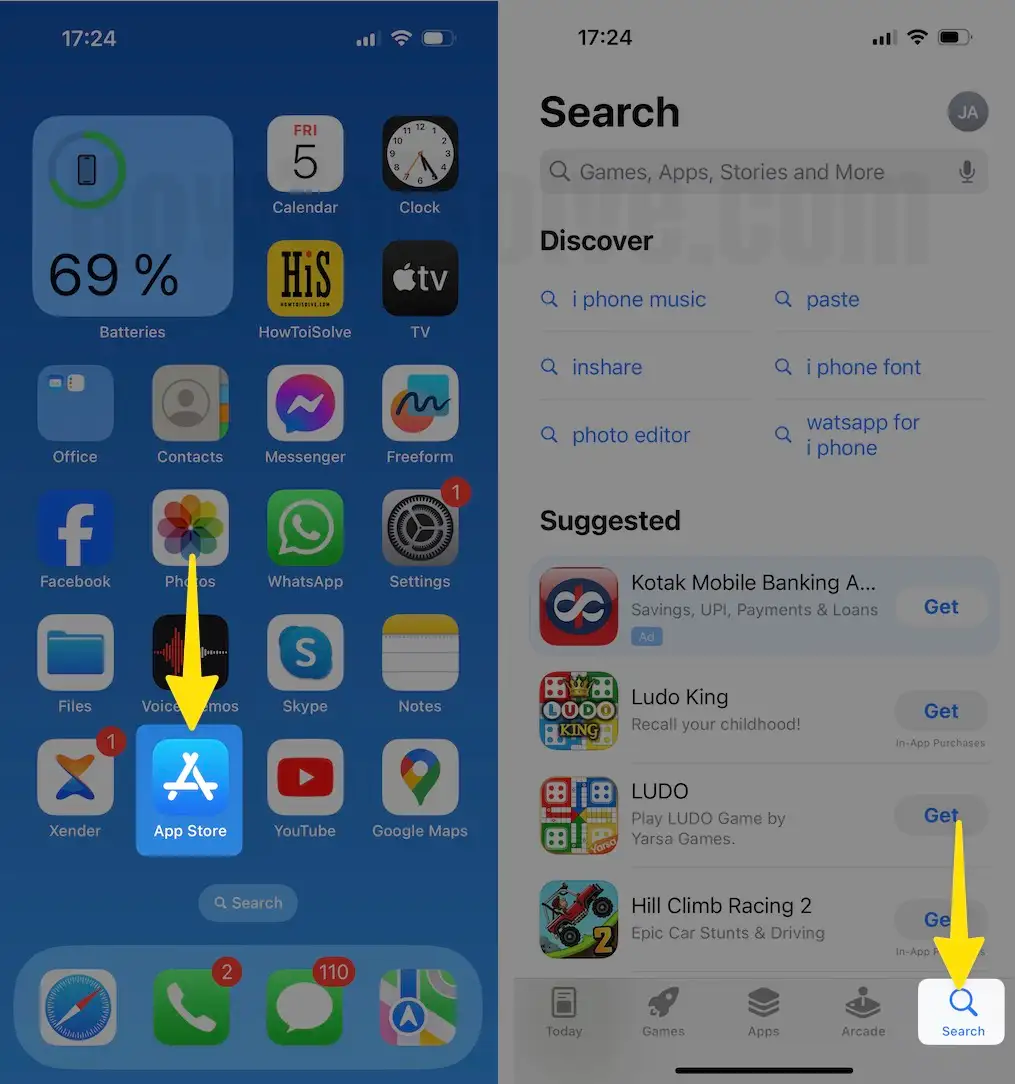
Check if any update is available, then tap on the update button first. Other iOS apps – Safari, and Photos apps are built-in applications for iDevice.
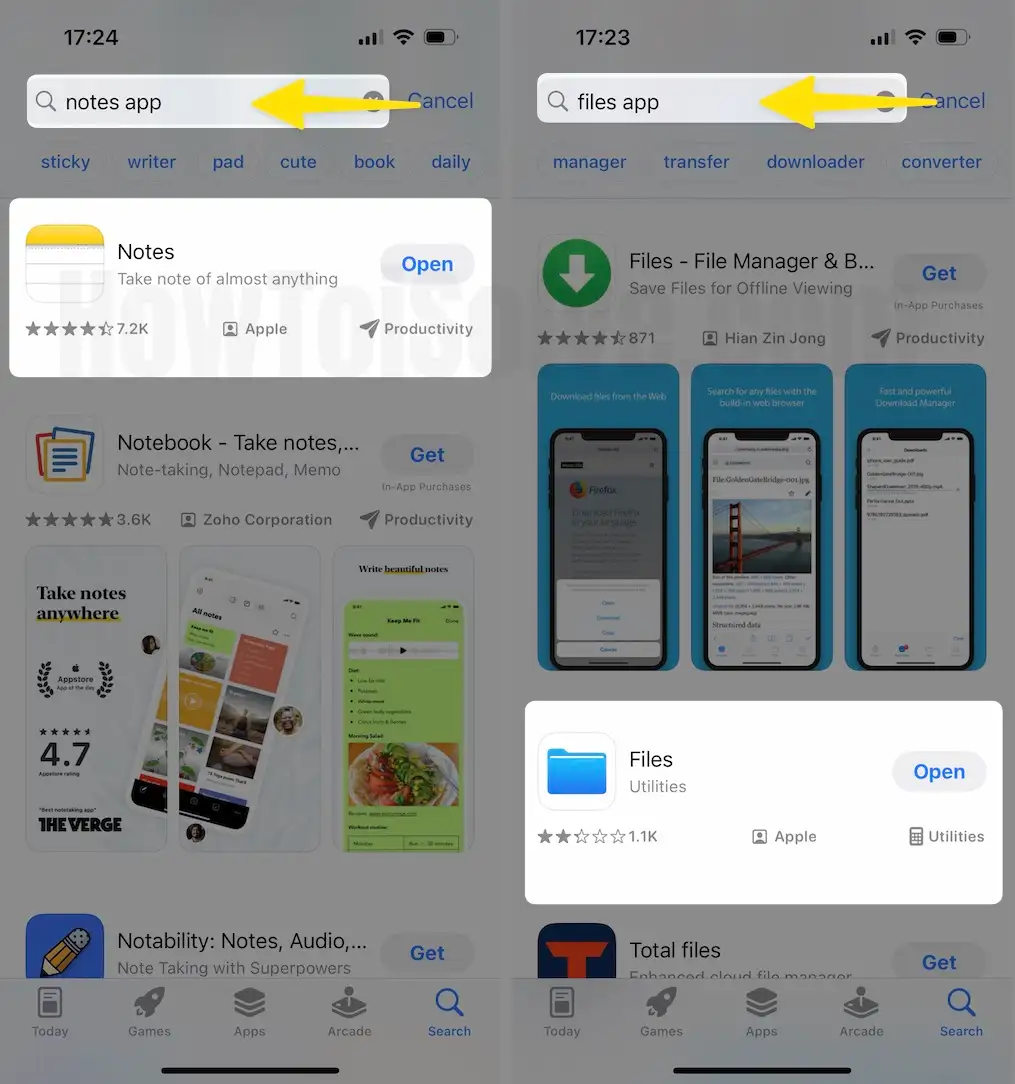
Step 2: Search for the Notes app and Files app in the upper search box.
Solution #3: Reset all Settings on your Device
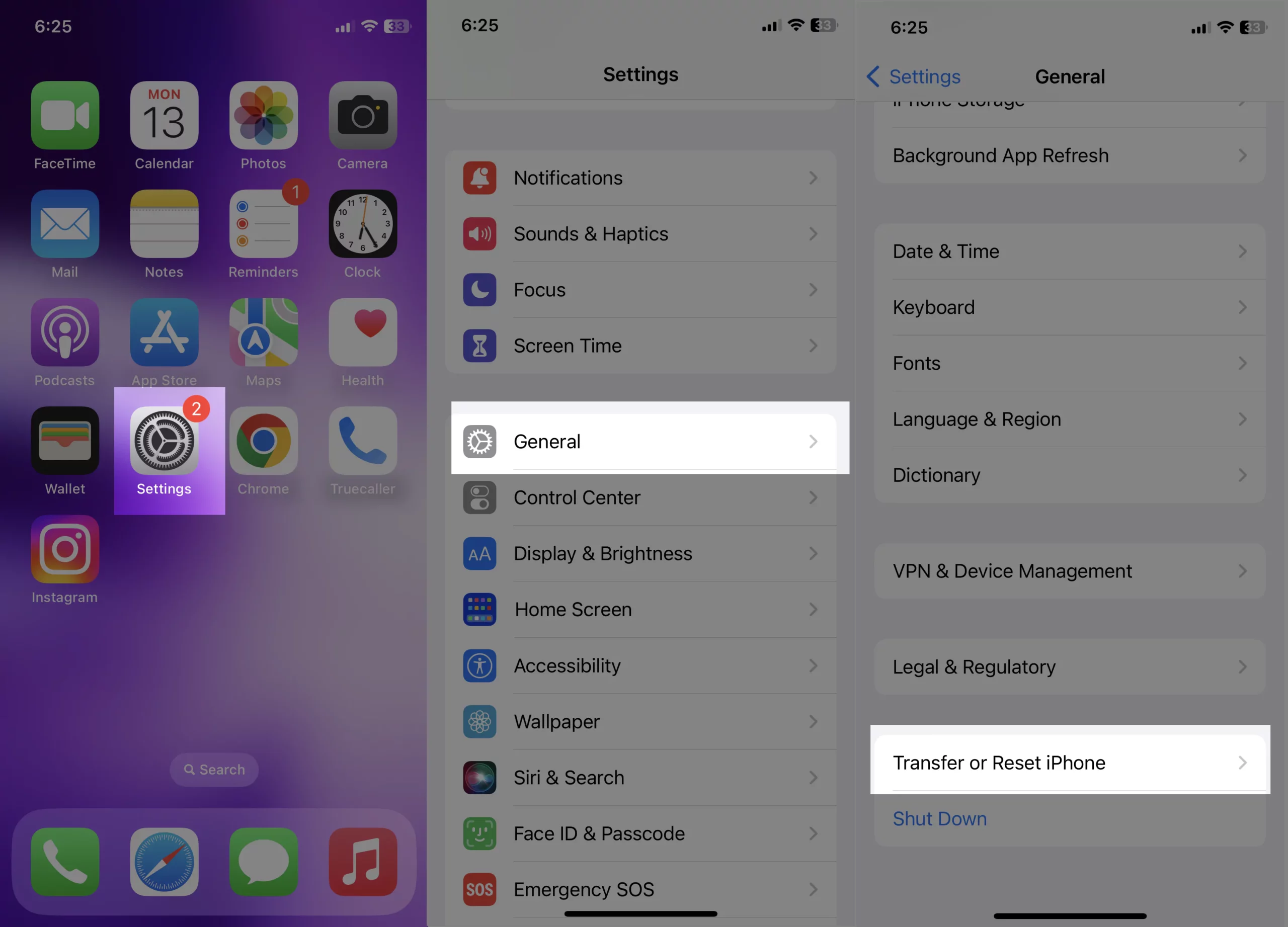
Step 1: Launch the Settings app on your iPhone > Tap on General > Scroll down to Select Transfer or Reset iPhone.
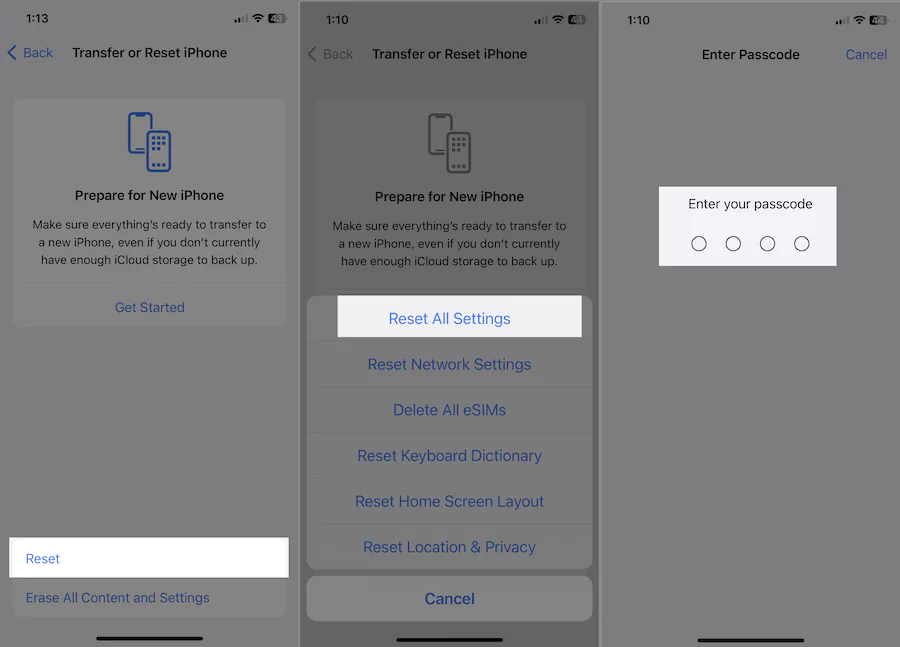
Step 2: Tap on Reset > Choose Reset All Settings > You will be asked to Enter the iPhone Passcode for security reasons.
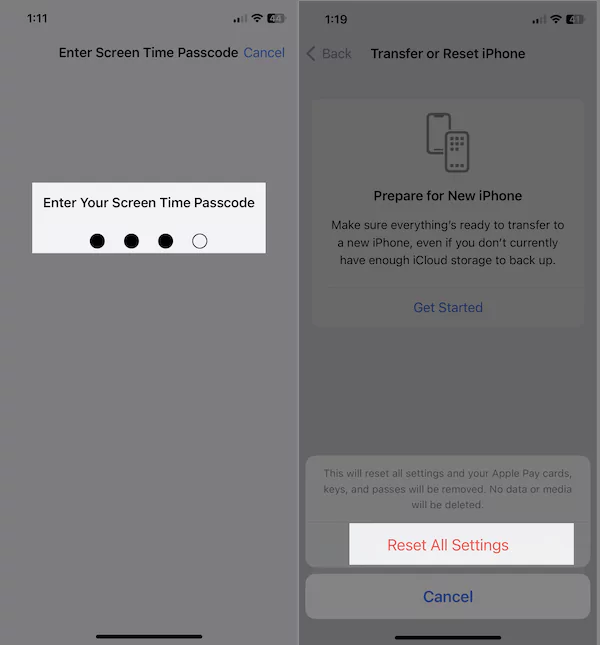
Step 3: Enter your Screen Time Passcode > Click on Reset All Settings from the Confirmation Pop-up Menu > After that iPhone will reboot.
Solution #4: Safari keeps crashing after iOS update
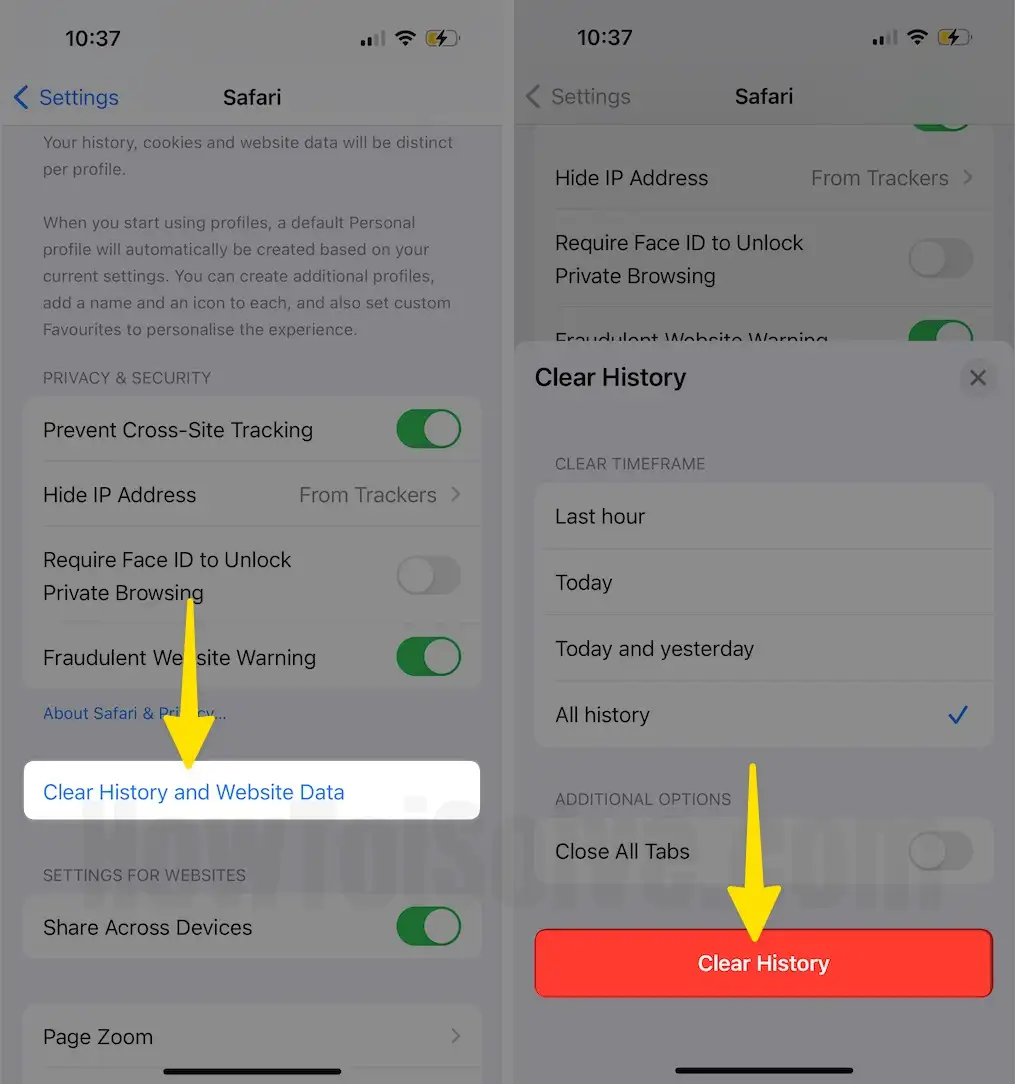
Large safari (History and Website Data) data saved on iPhone local storage. Remove it from Settings,
Step 1: Launch the Settings App on your iPhone > Select Safari.
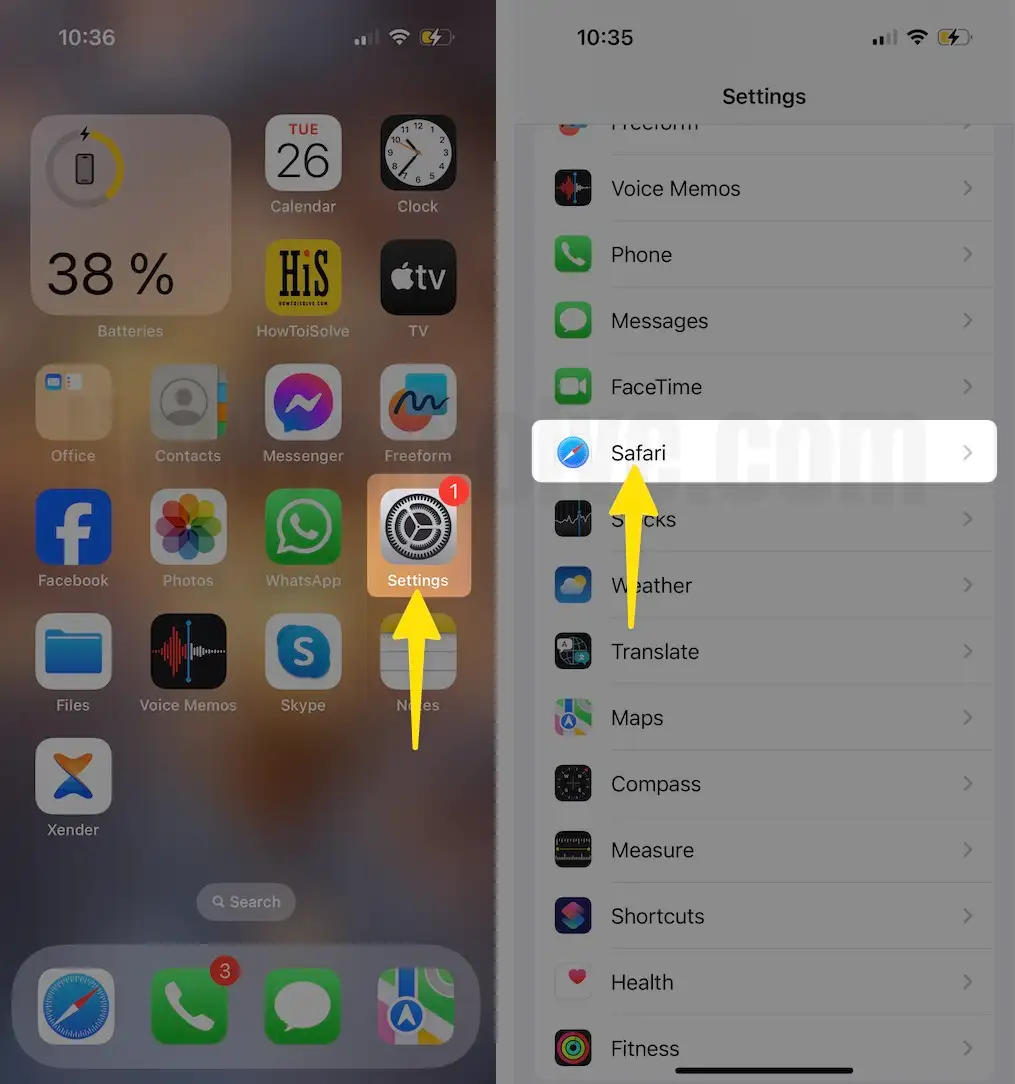
Step 2: Click on Clear History and Website Data > From the Prompted Menu, Tap on Clear History.
Solution #5: iOS beta installed, Remove Beta
Remove the beta profile from iPhone settings, Switch iOS beta to the public.
Or clean installation explained in the above 4th step.
Solution #6: Backup and Restore
Backup device: We can take a backup iPhone or iPad on iTunes [Recommended, Fast and Easy] or iCloud. Read more Steps: Backup iPhone
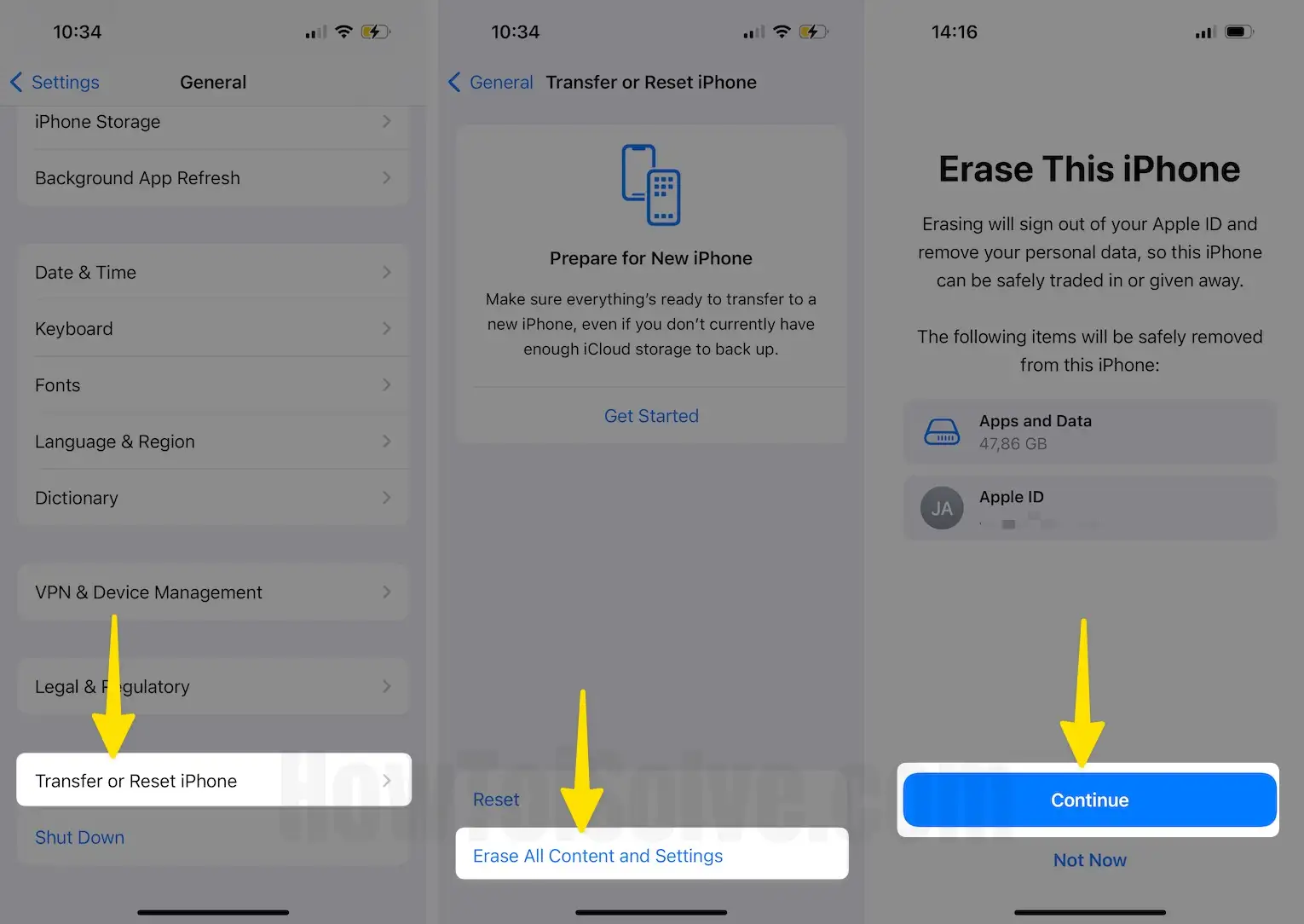
Erase All Contents: After that, reset all the settings and content.
Step 1: Launch the Settings app on your iPhone > Choose General Option.
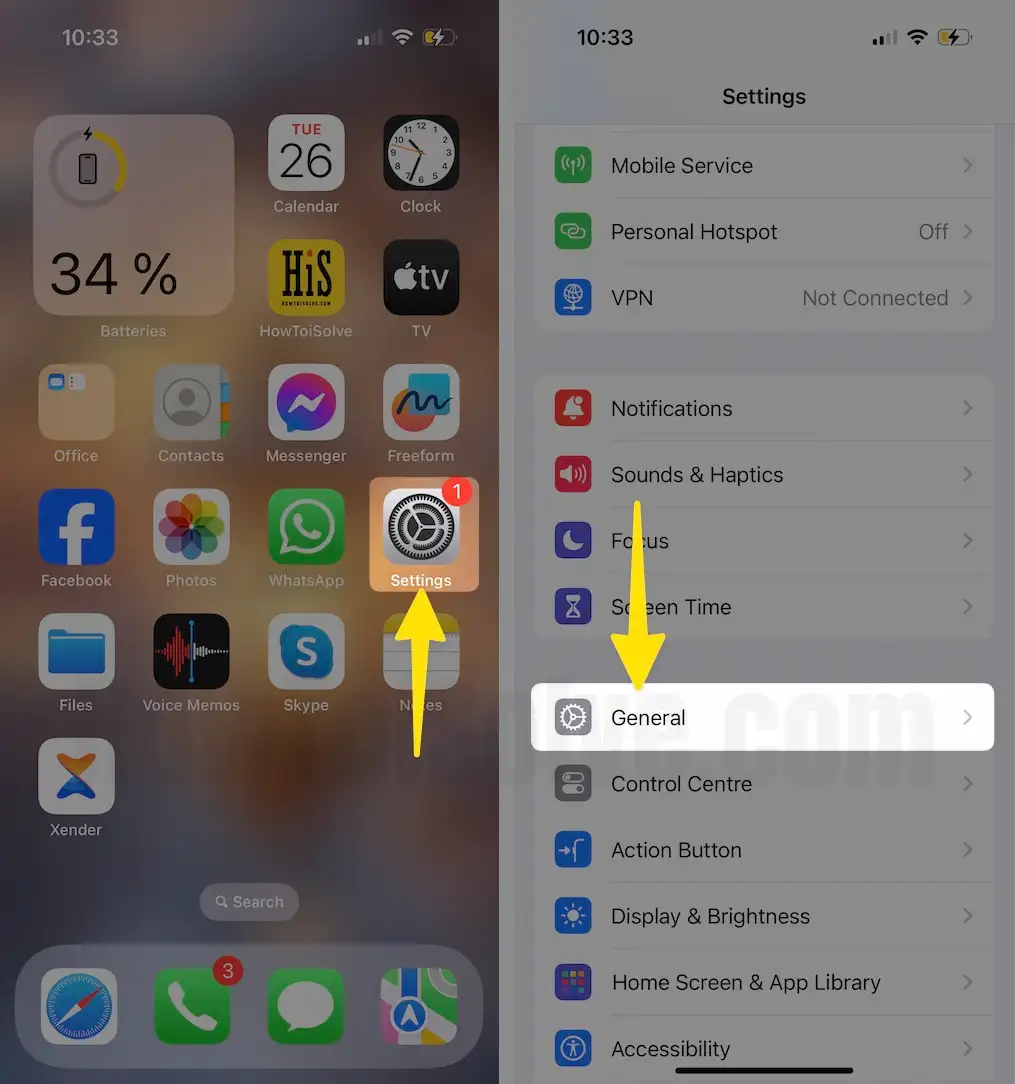
Step 2: Click on Transfer or Reset iPhone > Select Erase all Content and Settings > Tap on Continue.
Restore: Connect your iOS device, Put in DFU Mode, and install new iOS, then restore the old backup on your iPhone, or iPad. Know about: Clean install
Solution #7: Downgrade iOS device: iOS 18 to iOS 17
App crashing is too big an issue for you; want to use the app urgently and none of the above solutions works, then downgrade to the latest final version.
Download from the last firmware file (iPhone, iPad, and iPod Touch).