


If Wi-Fi password sharing isn’t working on your iPhone, it can be frustrating—especially when trying to connect another Apple device quickly. This issue is often caused by software glitches, settings misconfiguration, or outdated iOS. In this article, we’ll walk you through easy fixes to get password sharing working again.
Torublshooting Sharing a Wi-Fi password doesn’t work on an iPhone
Unable to connect to WiFi using password sharing automatically, your iOS device connected to the WiFi network and Wants to share your Network with Other iOS devices without knowing or sharing the password. This feature is a great and quick way to turn on Wi-Fi on other devices or as a Guest.
Why can’t I share a WiFi password with another iPhone?
Sharing the Wi-Fi password on your iPhone is easy if you follow the right steps. If it’s not working, there may be software glitches or errors in the process. Before troubleshooting, verify the requirements for sharing the Wi-Fi password and follow the correct procedure.
Pre-requisites to Share Wi-Fi Password Across Devices
- Keep both the Sending and Receiving Device Closer
- Update the iPhone, iPad, and Mac, to the latest version, whichever device you are using to share the Wi-Fi Password.
- Enable Bluetooth & Wi-Fi on both devices.
- Turn off Personal Hotspot on both devices.
- Use your Apple ID to sign in to iCloud.
- Make sure to save your email address on the receiver’s contact, and you should also save the email addresses of other people in your contacts.
How to Share Wi-Fi Password on iPhone, iPad
This is the correct procedure for sharing a Wi-Fi Password on an iPhone or iPad. For once, make sure you are going in the right direction by following the guide below.
- Connect the iOS device to the Wi-Fi from which you want to share the password. Make sure this iPhone stays awake, don’t lock it.
- On the other iOS device: Now go to the Settings > Wi-Fi > tap on the Wi-Fi network to connect.
- When you tap on the password field, the device from which you are sharing the Wi-Fi password will show pop-up asking you to share the Wi-Fi Password, tap Share Password.
My iPhone won’t share WiFi Passwords! Here’s The Real Fix
Solution #1: Restart iPhone:
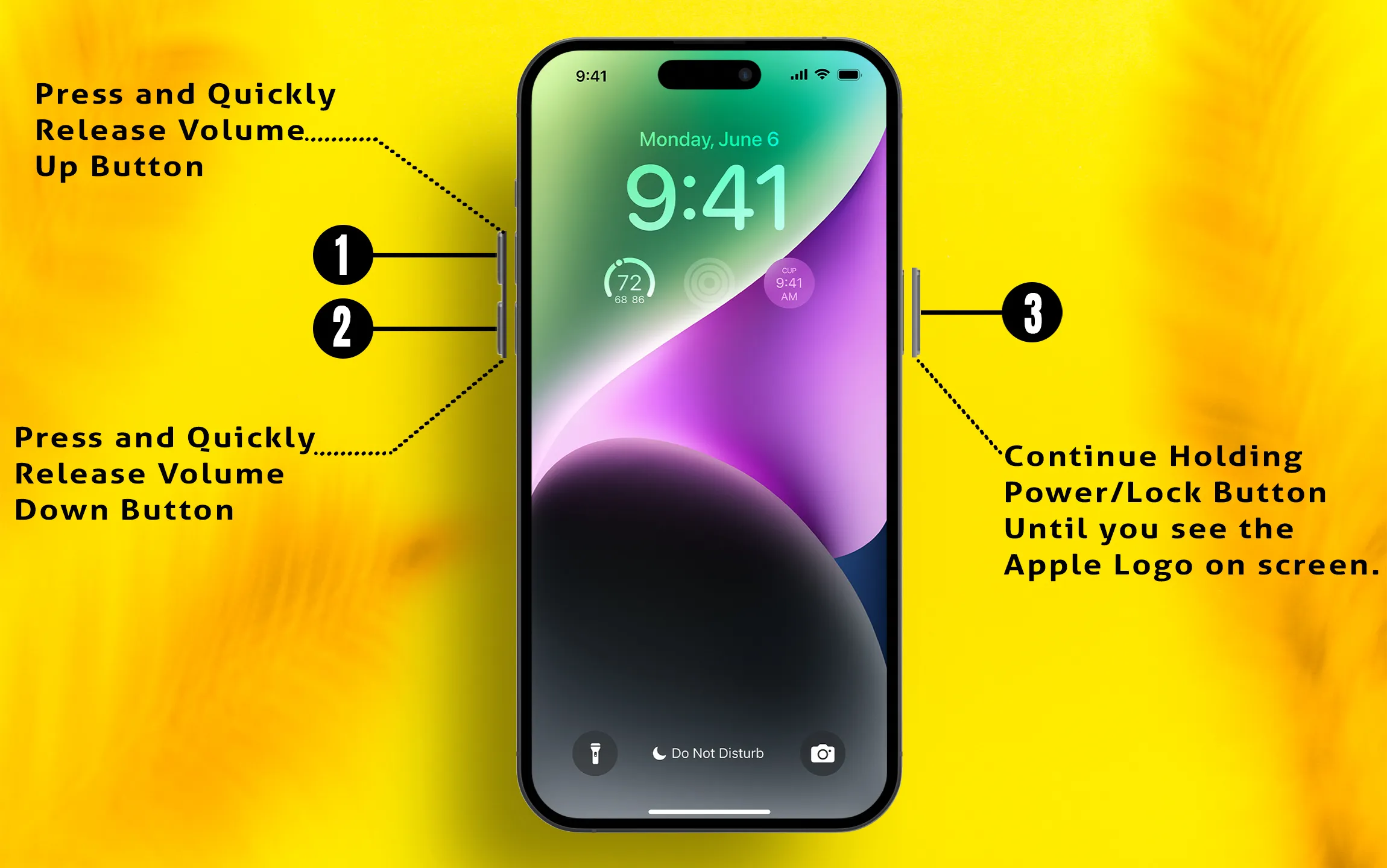
Reboot or restart the iPhone that wants to retrieve the password from the connected device on the network.
- Press and quickly release the Volume Up button.
- Press and quickly release the Volume Down button.
- Press and hold the Power button until the screen goes dark.
Also, check: WiFi Not Working – Verify and Fix it.
Solution #2: Reset Network Settings
If iPhone shows password not shared, there was a problem sharing your wifi password. try resetting this setting, it will only affect your saved WiFi password, easily find a new network by finding one near your device. To Reset Network Settings,
- Go to the Settings
- Tap General
- Scroll the screen all the way Transfer or Reset iPhone
- Choose the Reset option
- Tap Reset Network Settings
- Follow the on-screen instructions and confirm the Reset network settings.
Solution #3: Keep turning your Phone screen on [it doesn’t work with a locked phone screen]
If you set the sleep time for a short interval, keep an eye on the iPhone screen. Wake up the screen while retrieving the password on your iPhone from another device or Mac.
Continue to retrieve the password screen on your iPhone or iPad.
Solution #4: Update iOS firmware
Check for updates regarding the upcoming new upgrade. Every update includes some bug fixes and errors. Recently, Apple released an update to address a Bluetooth issue.
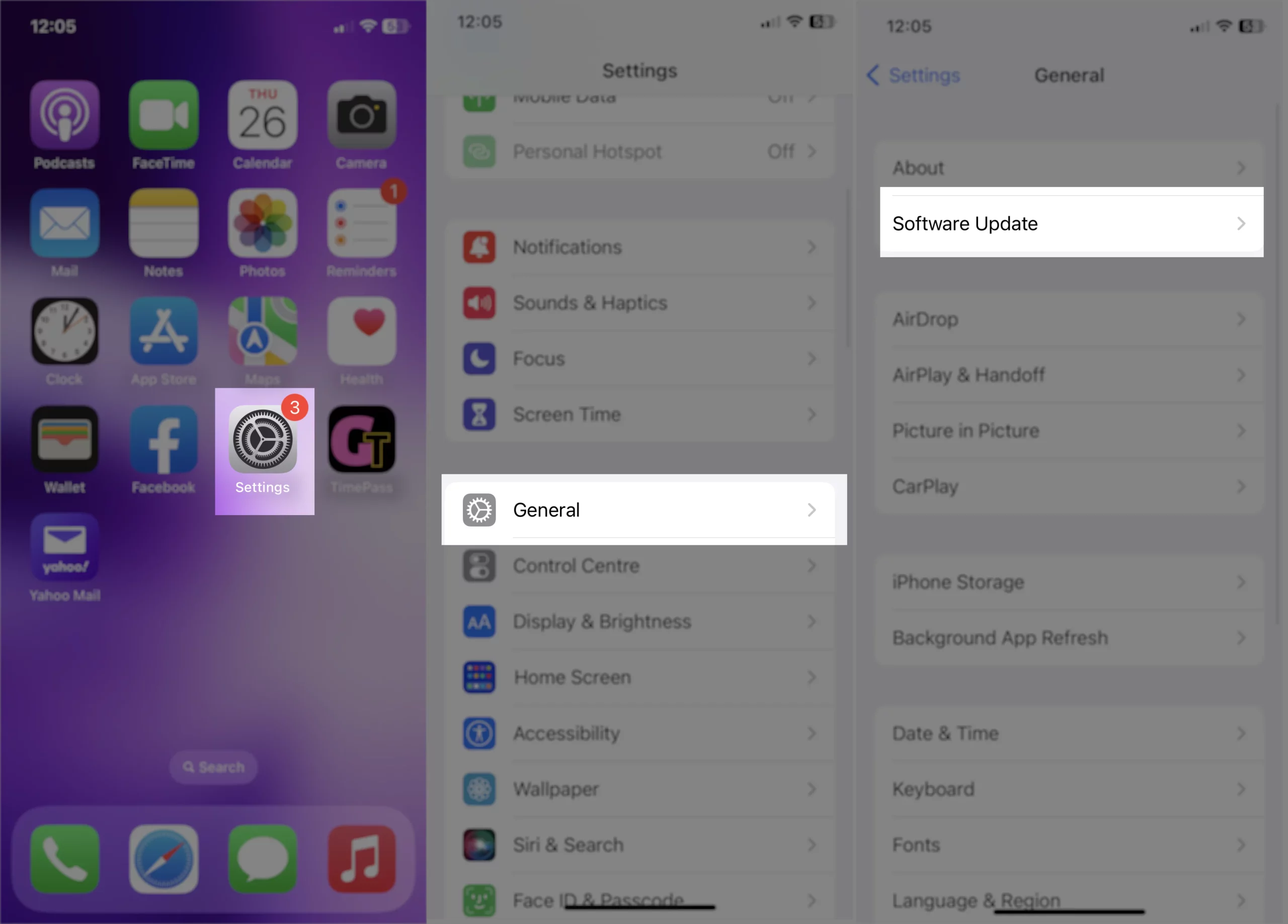
- Launch the Settings App
- Scroll the screen, tap General
- Tap Software Update– wait a while and your screen will show you update.
Get here – what should I do getting unable to check for update error
Solution #5: Disable and Enable WiFi from Settings
Manually disable the WiFi password from settings.
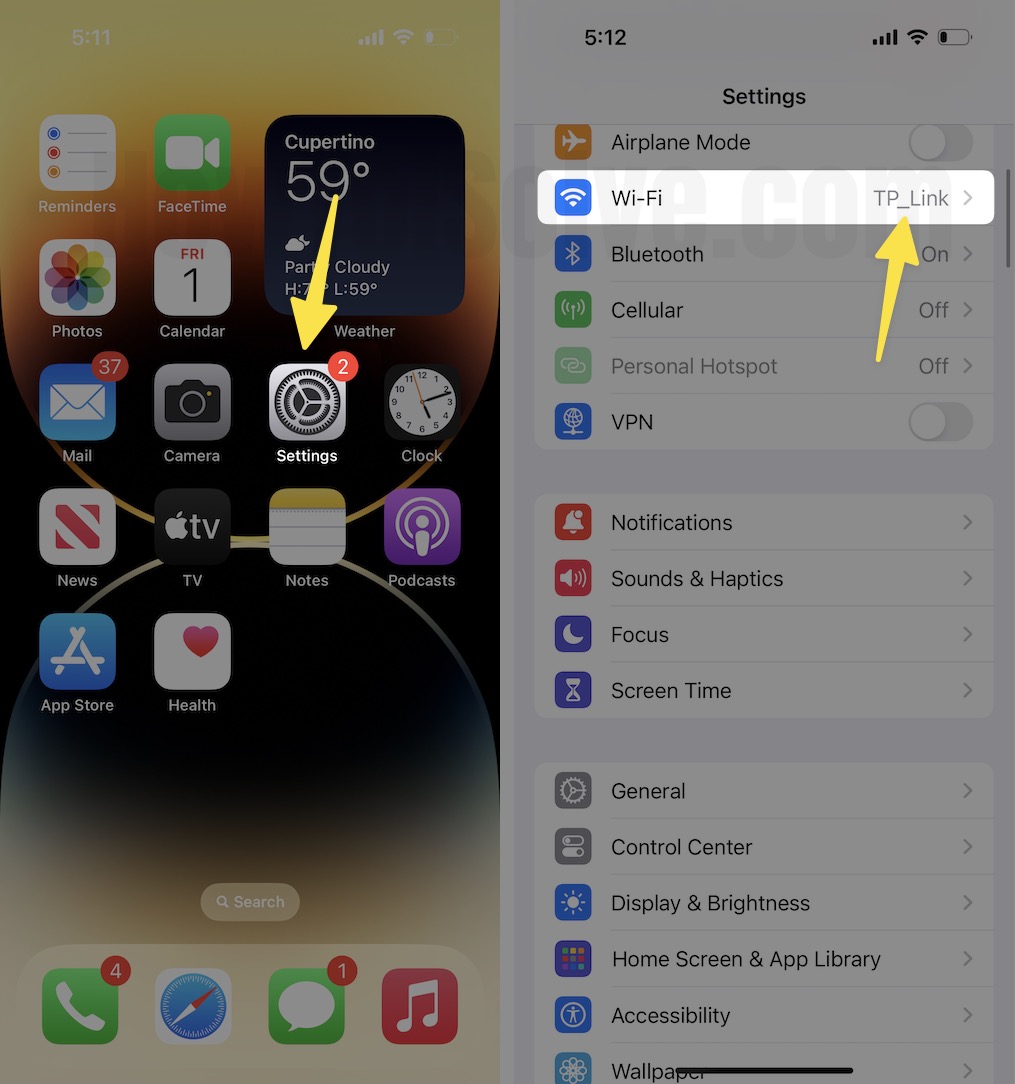
- Go to Settings
- Tap on WiFi
- Now, disable the WiFi toggle and re-enable WiFi.
Also, you can use the Control Center as a Wi-Fi shortcut to turn on or off.
Solution #6: On Mac: Not Working, Unable to share WiFi password
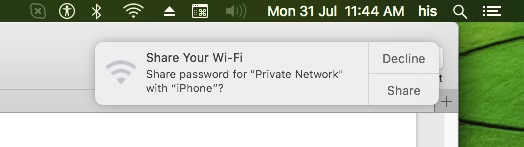
If you encounter an error while sharing your Wi-Fi password on a Mac, ensure your device is running macOS Big Sur & later and is connected to the same Wi-Fi network. You should receive a notification to share the password; click “Share” to proceed. If you’re unsure or don’t want to share, you can dismiss the notification.
Still doesn’t work, then restart the Mac Device (iMac, MacBook, MacBook Air, MacBook Pro…)
Solution #7: Backup And Restore the iOS Device
Remove all types of Bugs and Software issues by refreshing your iOS version with the latest one. For Security, you need to take full iPhone backup of the iOS device on iCloud or iTunes.
After that, Download the latest IPSW file and restore it using iTunes. Learn more about restoring the iPhone.


