As usual, Safari is the default browser in the Apple iPhone, the same way all iPhone models are packed with Safari browsers to access the internet and Google on the Smartphone. Safari is perfect for all times with the latest iOS. However, some of the users have complained about the issue of Safari crashing on iPhone 15 Pro Max after updating iOS. Sometimes iOS Apps crash randomly. If you are one of them, let’s try the following solutions, these would resolve your problem.
This guide is also useful if you frequently crash when you tap the address bar or after updating iOS on iPhone/ iPad. Get more: Airdrop not working in iOS.
Related Article- Fix iPhone App Keeps Crashing after update iOS
Complete Guide to Fix Safari Keeps Crashing on iPhone
Solution #1. Force Restart Your iPhone
The very first workaround is to force reboot the iPhone. This will clear the memory and processor of the iPhone to make the iPhone faster and smoother alongside removing the minor bugs. The process to force restart the iPhone varies from device to device, here’s how to do it.
For iPhone 8 or later,
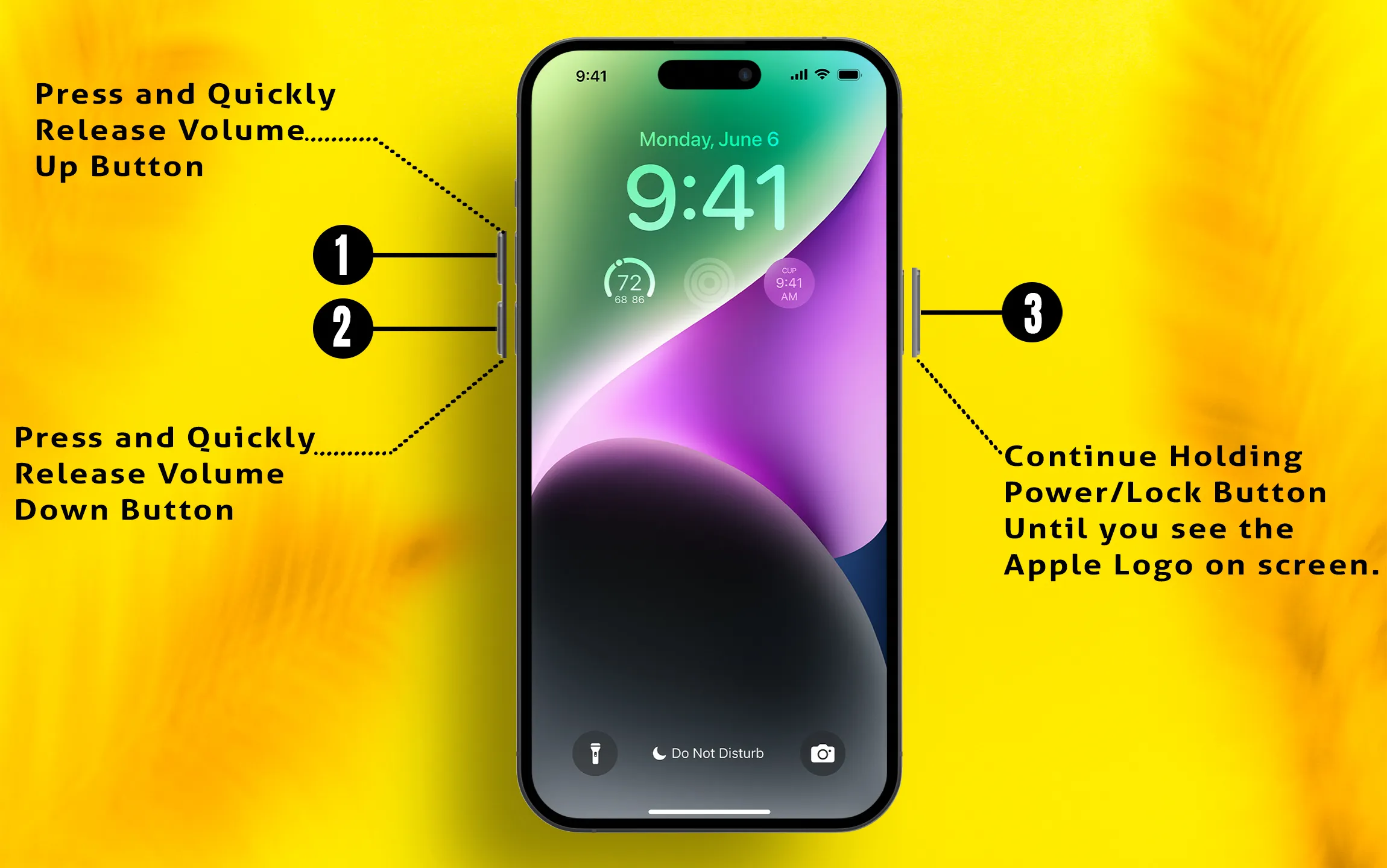
- Press and quickly release the Volume Up button.
- Press and quickly release the Volume Down button.
- Press and hold the Side button until the Apple logo shows up.
For iPhone 7/7Plus,
- Press and hold the Volume Down and Power button until the Apple logo appears on the screen.
Solution #2. Update iPhone Software and Safari App
It has been found that keeping the applications and iPhone up to date reduces the minor bugs and errors that could lead to the app crashing and not responding. If you haven’t updated the iPhone and Safari App, do it first.
Make sure to connect the iPhone to the Wi-Fi.
Update iPhone,
Step 1: Launch the Settings app on your iPhone > Select General Option.

Step 2: Click on Software Update > Tap on Update Now.

Update Safari App,
Step 1: Launch the App Store on your iPhone > Tap on your profile icon.

Step 2: Click on Update All > Select Safari > Tap on Update.

Solution #3. Turn Off AutoFill
AutoFill sometimes adds up the load on the Safari App, as it automatically fills out the information such as Email, Name, and such information in the Contact form. Maybe this functionality is causing the Safari App crashing issue on iPhone.
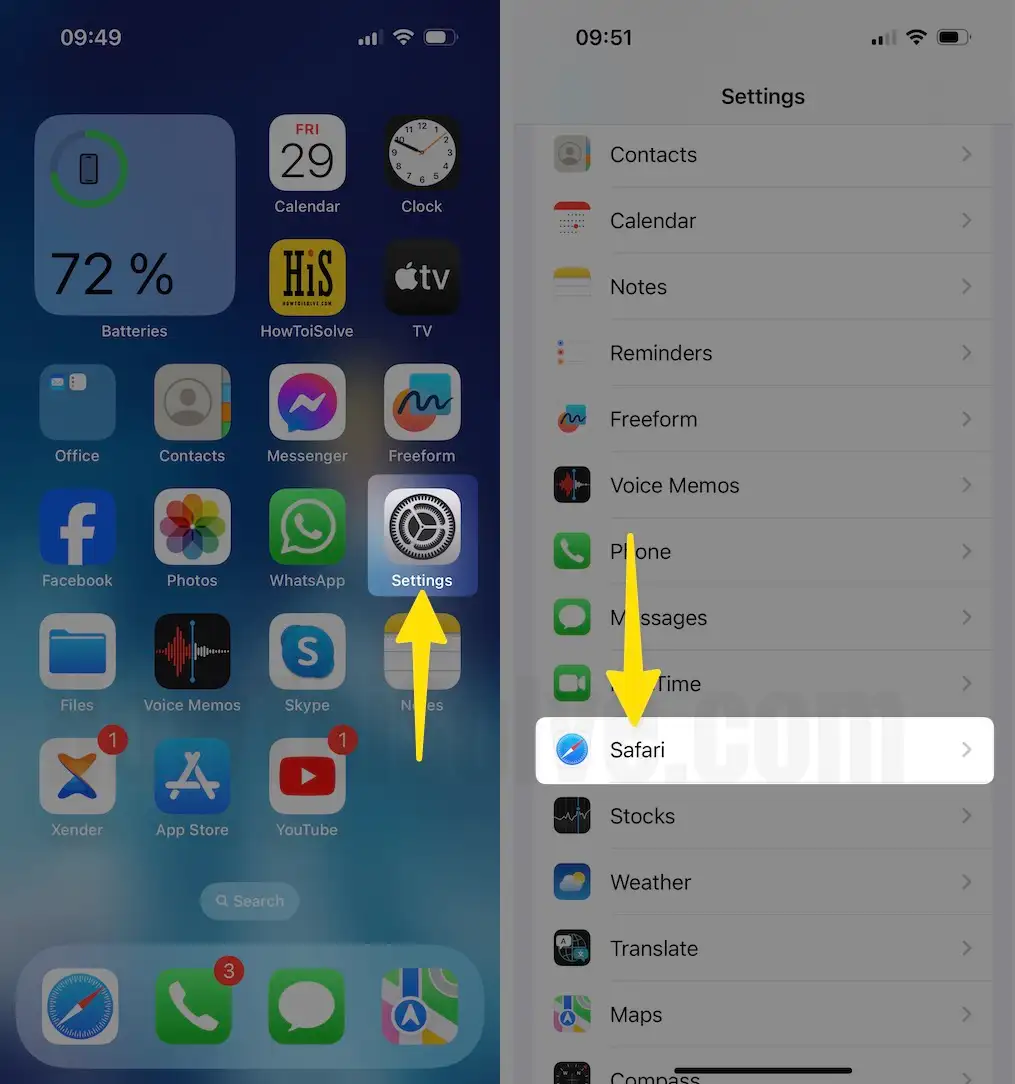
Step 1: Launch the Settings app on your iPhone > Swipe Down to Select Safari.
Step 2: Tap on AutoFill > Disable use Contact Info > Disable Credit Cards.

Solution #4. Clear Cache, Cookies, History, and Website Data for Safari in iOS
Step 1: Launch the Settings App on your iPhone > Tap on Safari.

Step 2: Select Clear History and Website Data > From the Pop-up Menu, Tap on Clear History.

Solution #5. Now Remove All Website Data
Step 1: Launch Settings App on your iPhone > Choose Safari > Swipe down to Select Advanced.
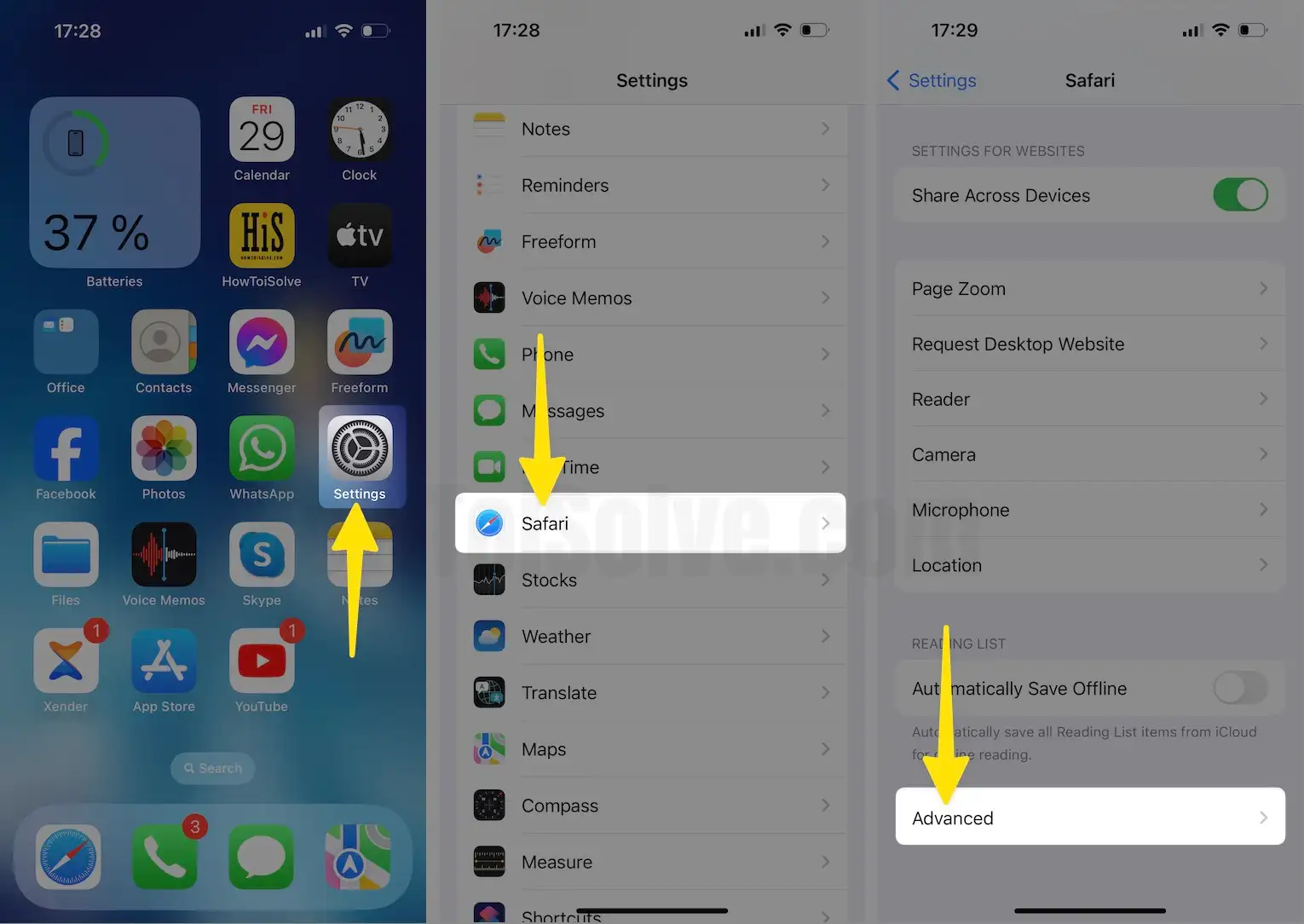
Step 2: Tap on Website Data > Swipe Down to Click on Remove All Website Data > Tap on Remove Now.

Note: This will erase data that could be used for tracking, but it is also utilized by the website to preserve login information and speed up browsing.
Solution #6. Restart the Safari App – Follow the step-by-step guide
Do you know how to Restart the App on your iPhone? Even if you are not, don’t worry. Just go with the below steps and do your job.
Double click on the Home button to get the multitasking screen (to view running all recent apps screen) > Navigate Safari App Screen and swipe upside down to close an app.

Don’t miss – 3 Methods to Force Quit an App on iOS
Now do a single click on the home button on the Home screen. And then open the Safari app again.
Solution #7. Turn iCloud bookmarks Off and again ON
Step 1: Launch the Settings App on your iPhone > Tap on your Apple ID > Click on iCloud.

Step 2: Tap on Safari to Disable > You’ll be asked to keep it on my iPhone and Delete it from My iPhone > Click on Keep it on my iPhone.
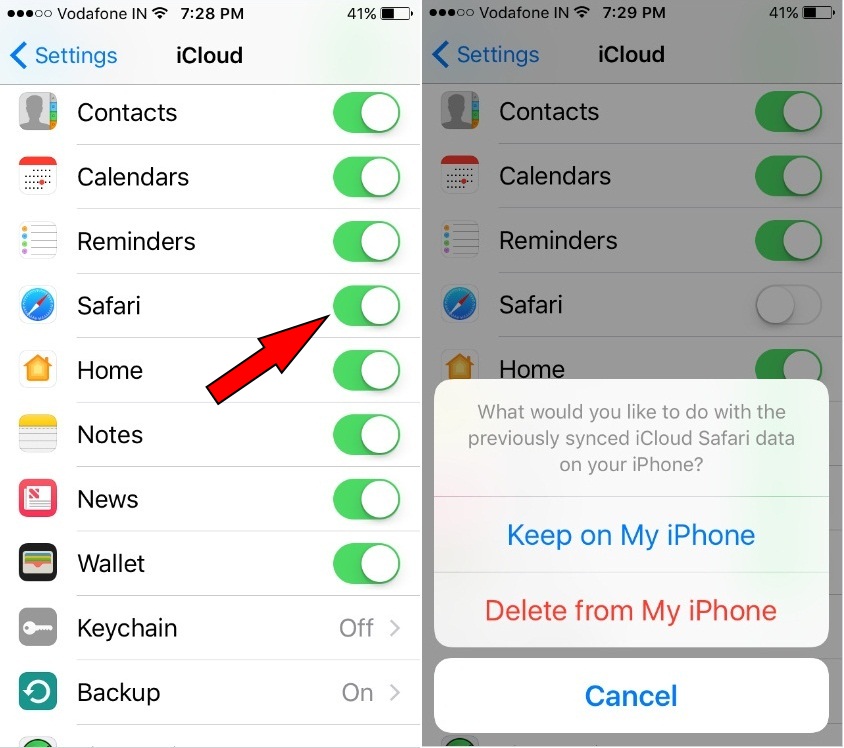
In this case, if you have backed up this data on your computer, then select (remove from My iPhone); if you haven’t, then please tap on Keep on My iPhone. After that, wait a moment and turn Safari again. Hope this will be solved your iPhone Safari keeps crashing iOS glitches.
Turn Off iCloud Safari Syncing
Likewise keeping the iCloud Safari Syncing could be a reason behind the Safari App Crashing on iPhone.
Step 1: Launch the Settings App on your iPhone > Tap on your Apple ID.
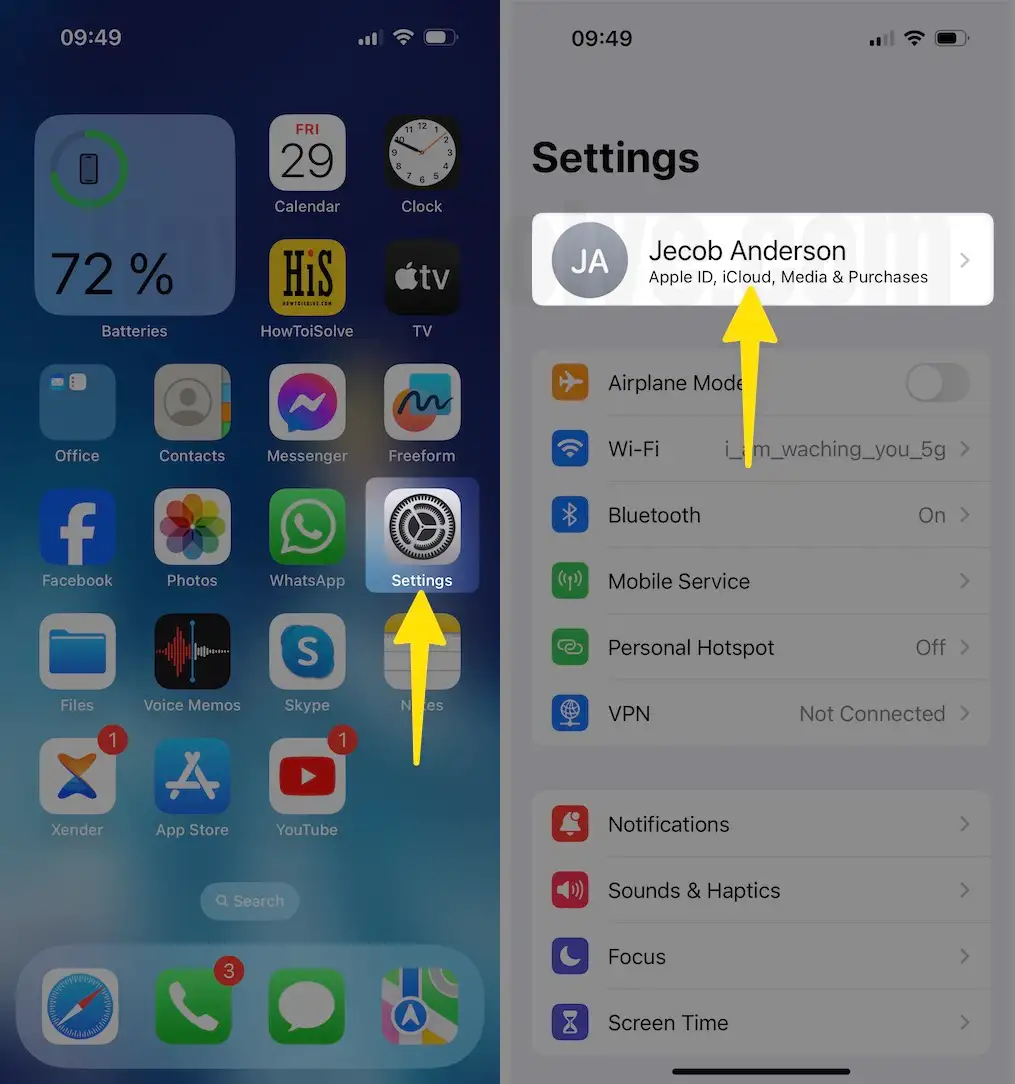
Step 2: Tap on iCloud > Click on Show All > Disable Safari.

Disable JavaScript
JavaScript is a superior programming language that adds the Animations and required features that handle the website; however, if there’s an error in the code, then JavaScript could crash the Safari App.
Step 1: Launch the Settings App on your iPhone > Tap on Safari.

Step 2: Select Advanced > Disable JavaScript.

Get More: Safari’s Alternatives browsers
We hope your problem with Safari keeps crashing on your iPhone is resolved. If you have a way that is not mentioned above, please let’s share that fix that became very useful for you.