Why is the Facebook Live button missing on the Facebook group, or is the Live button not showing up or disappearing? If you’re experiencing a Facebook video icon missing on your iPhone or iPad, while your friends or other Facebook accounts show live options, don’t panic. I’ve experienced this issue and have found a solution. Follow the steps below to fix it and enjoy the live video without the live icon.
Facebook Live explored live video features in the USA first, with some limitations. Officially, Android users can now broadcast live video from Android mobile devices/ Tablets.
New features are awesome and can be used from our Facebook iOS app. However, some users missed the Facebook live video, so they turned it on after troubleshooting the steps below.
Have you verified Facebook users’ means, actors, Journalists, musicians, or public figures’ pages? If so, you can use a dedicated app behind Facebook Live (Facebook Mentions) features more happily (Talk with Followers, Share beautifully, Tell Story, and more).
Free Solutions to Fix Facebook Live Video Not Working
I was surprised when I saw the reply from the Facebook community team (The option is not available to some FB users). But I got a solution instantly through the below tips,
Where to Use Facebook Live From iPhone App
Facebook Live video option is available on your App in 2 Different ways.
Method 1:
Step 1: Launch the Facebook App on your iPhone > Click on Home from the Bottom Left Corner > Tap on the + Button.
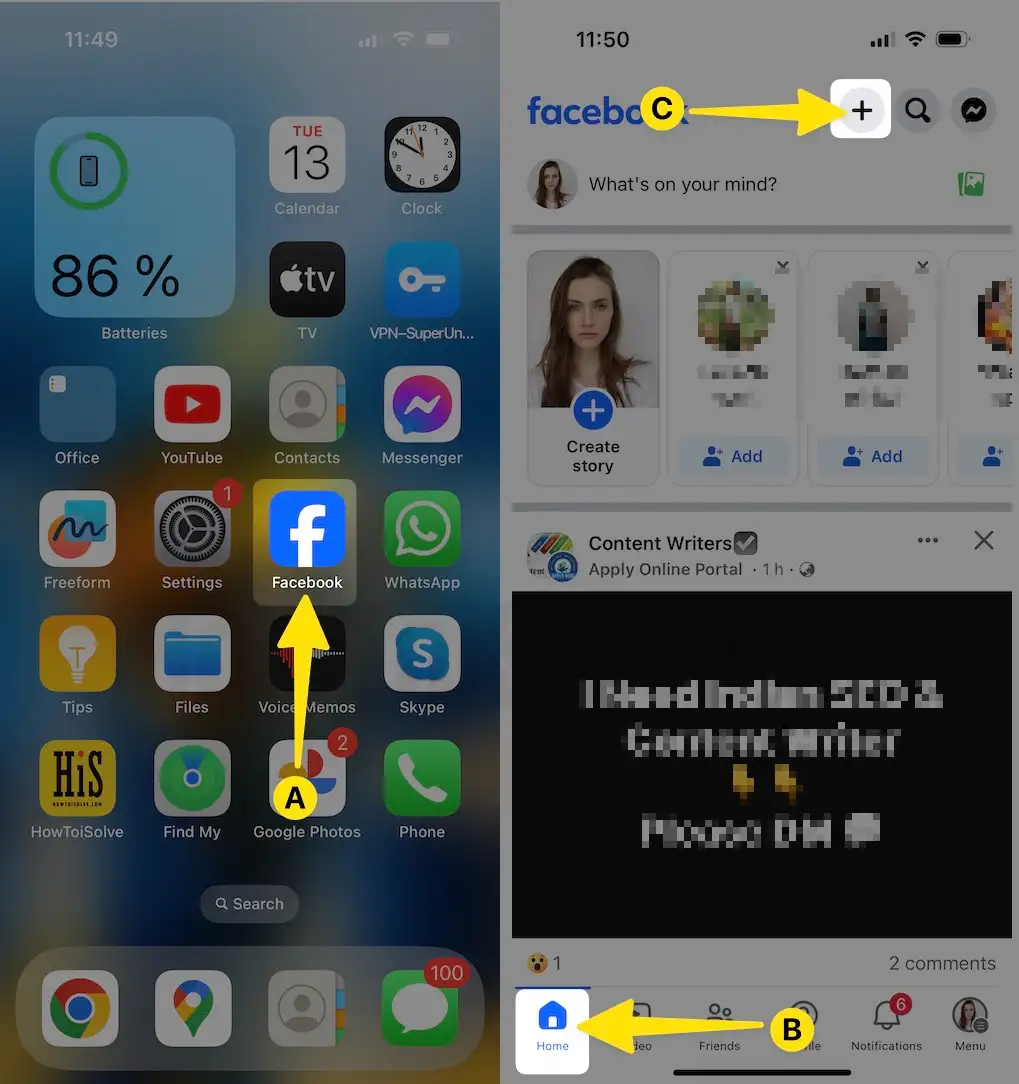
Step 2: Choose Live > Tap on Go Live.
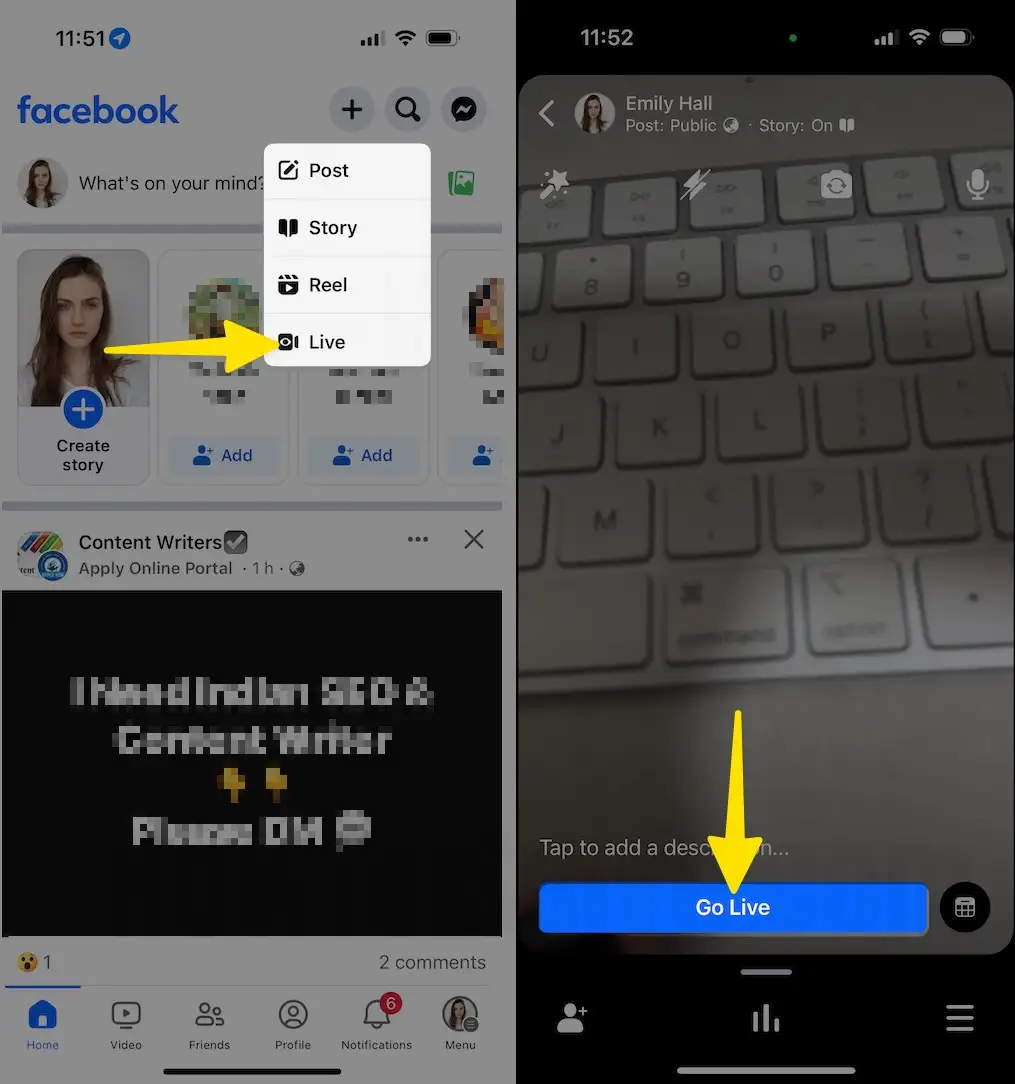
Method 2: If Facebook Live is not available on your Facebook home screen, go with the new post’s Find Live Video option. Follow my troubleshooting on how to access or Get Facebook Live normally.
Step 1: Launch the Facebook App on your iPhone > Click on Home from the Bottom Left Corner > Tap on the + Button.

Step 2: If you are looking for access to the Live Option on Post, Then here is your option: Tap on Post > Select Live Video > Tap on Go Live Option, Given in the image below,
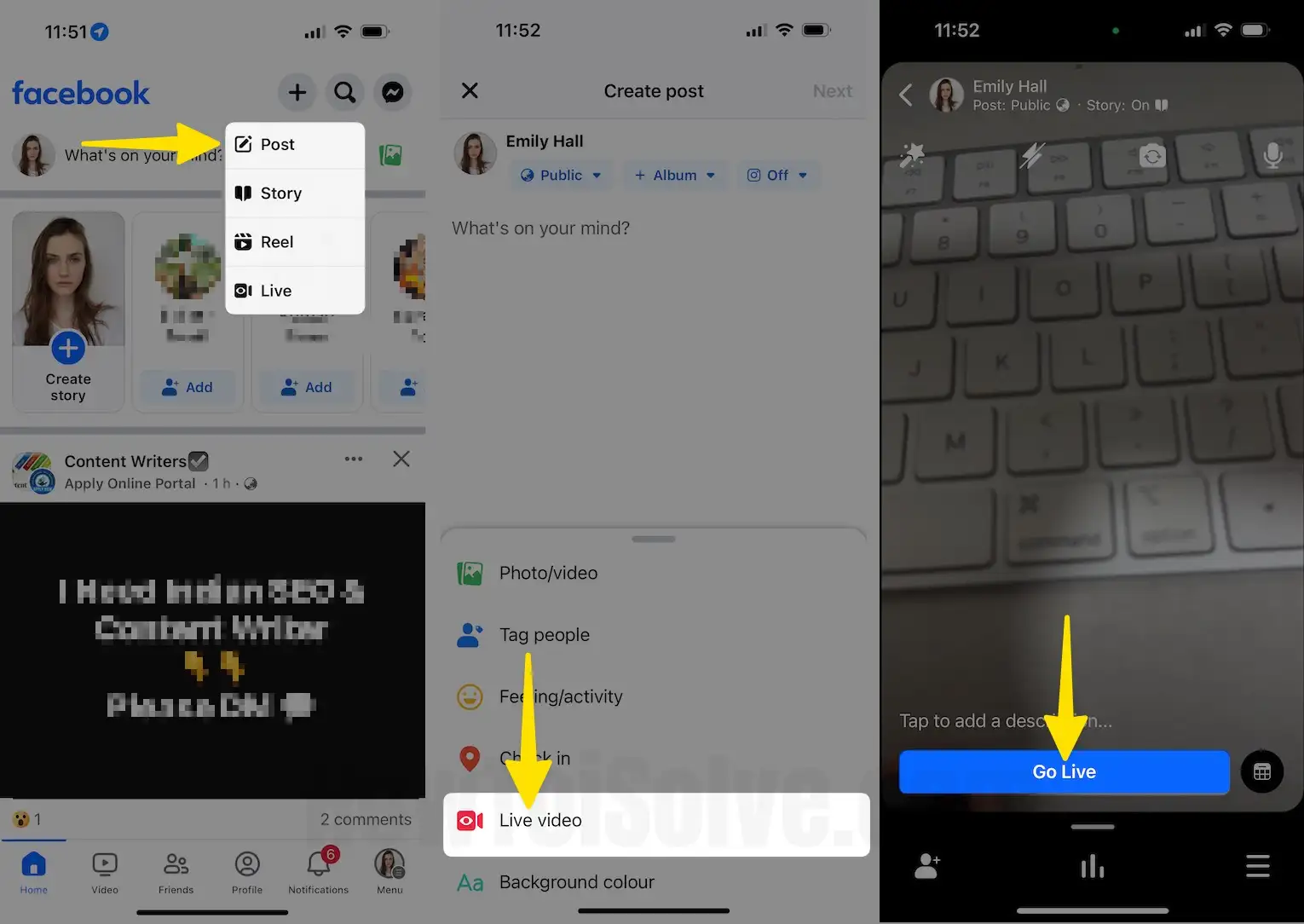
After that, you can see the changed layout instantly, the live option on the Facebook home screen.
Other Troubleshooting: FaceBook Live Not Working in the App
Facebook Live streaming not working on iPhone in landscape mode
If you switch your FB app live stream in landscape mode, are you facing camera image stretches and distorts? Please, I advise you to follow the bottom clues step-buddy-step, I’m sure this will fix the smartphone FB live stream not working issue 2025.
- Force Close FaceBook app,
- Force Close All other running Apps,
- Restart your iPhone,
- Update your Phone software,
- Update the Facebook App.
- Uninstall and Re-install the Facebook App
- Contact Facebook App Developer – The user can report an issue to Facebook Developer – here’s a complete guide on how to contact An App Developer quickly. So, I hope Facebook will fix this issue very soon.
Suppose none of the solutions work for you, I recommended to you that try FaceBook Live on your Computer or via an alternate smartphone.
Logout and Re-Login Facebook App
Step 1: Launch the Facebook App on your iPhone > Tap on the Profile Menu at the Bottom Right Corner.

Step 2: Swipe down to below and Tap on Log out.
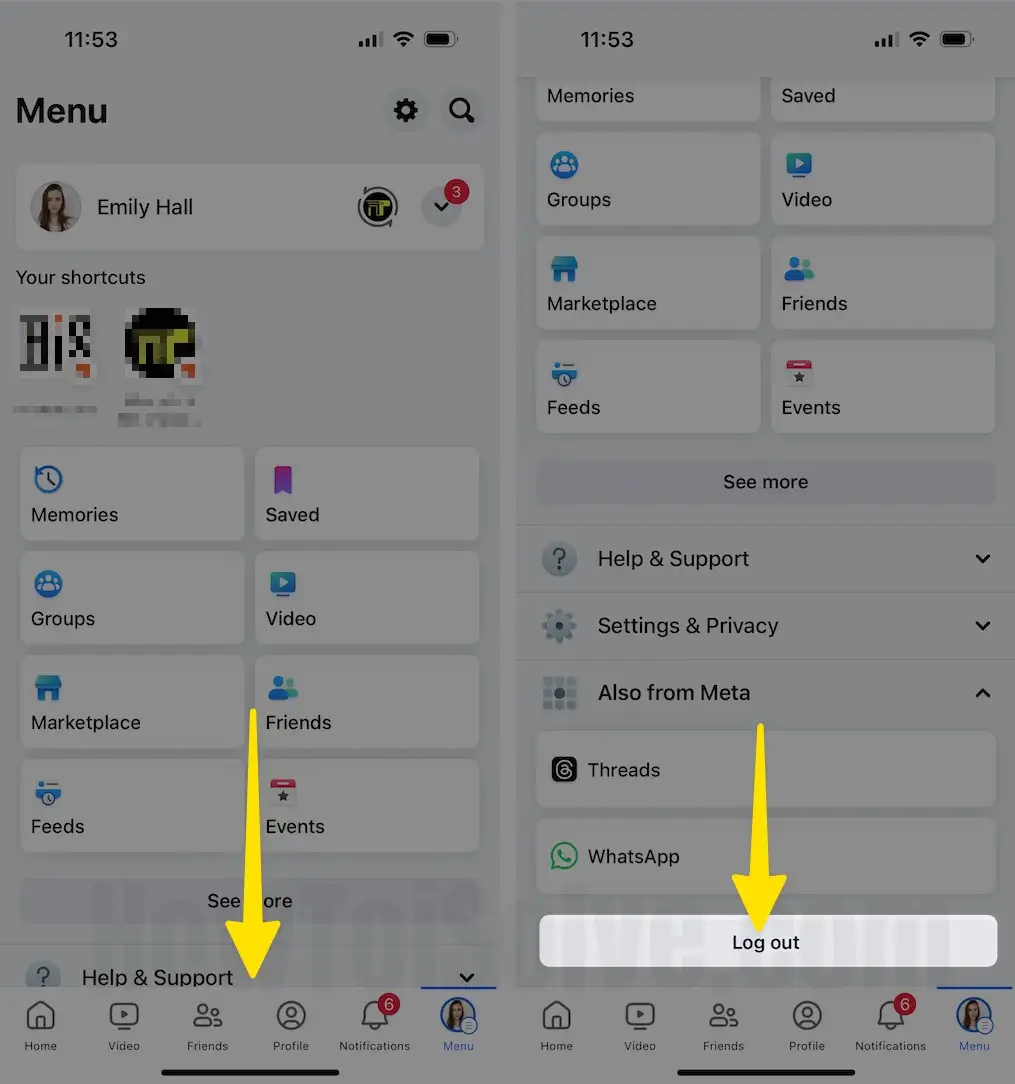
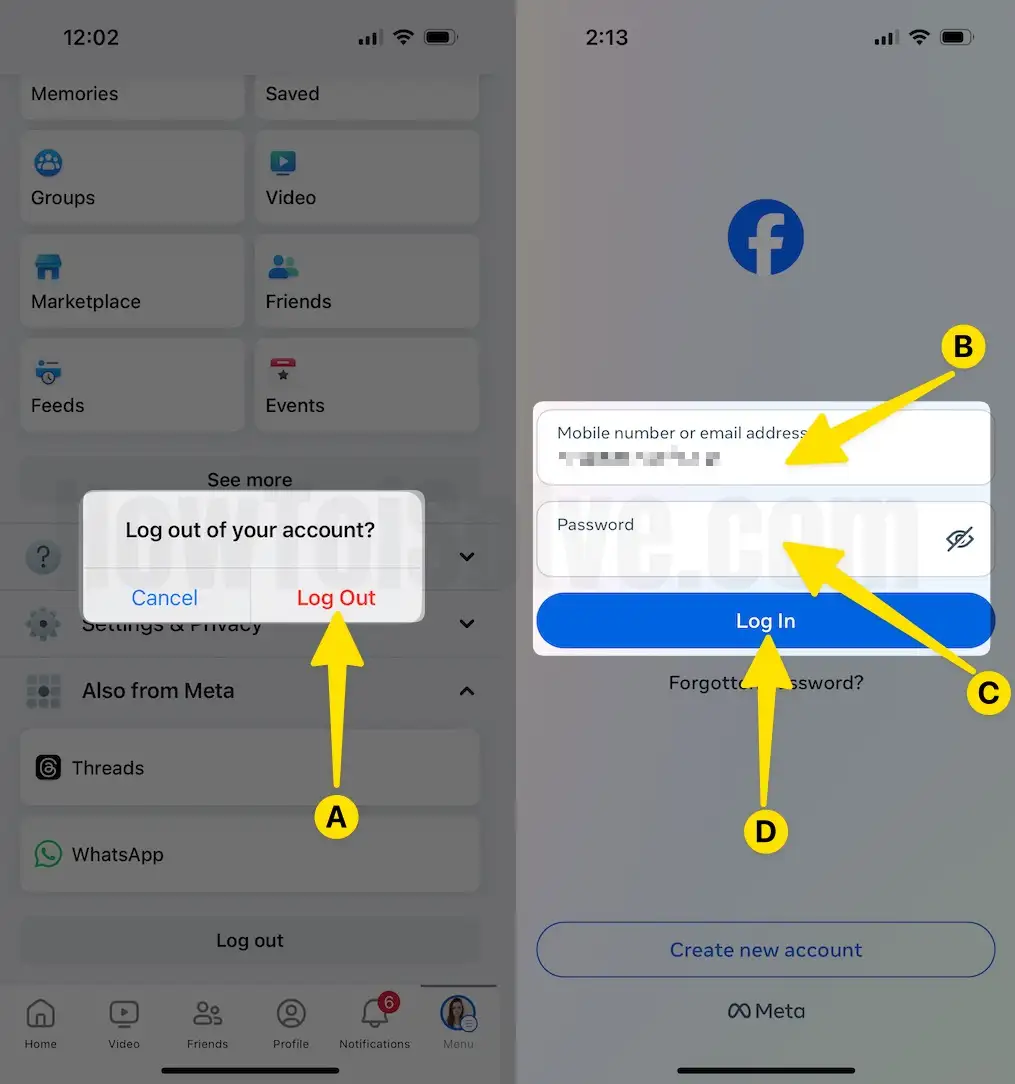
Step 3: Select Log Out for Confirmation > Re-login your FB account on the same app.
Live video features/ Audio features
Change Viewer’s privacy: So, Share your live photo with your Friends, Publicly or only you.
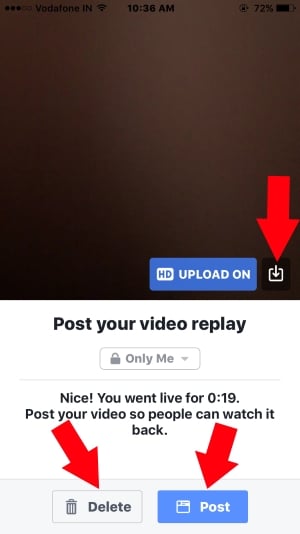
Delete after it goes live, for later watch who missed your live event
Download video after stopping live recording on iPhone/ iPad in the Camera app
Troubleshooting to resolve Facebook Live Not Working on iPhone
Update Facebook App: Delete and Re-Install the Facebook App
First, we must check that the installed FaceBook has been updated to the latest app version. Sometimes outdated Apps create problems like unresponsiveness, Crashing, and Freezing, and Some of the App functions die automatically.
To Update the FaceBook app,
Launch the App Store on your iPhone > Search FaceBook App in the Search Box > Tap on the Update button next to the Facebook App.
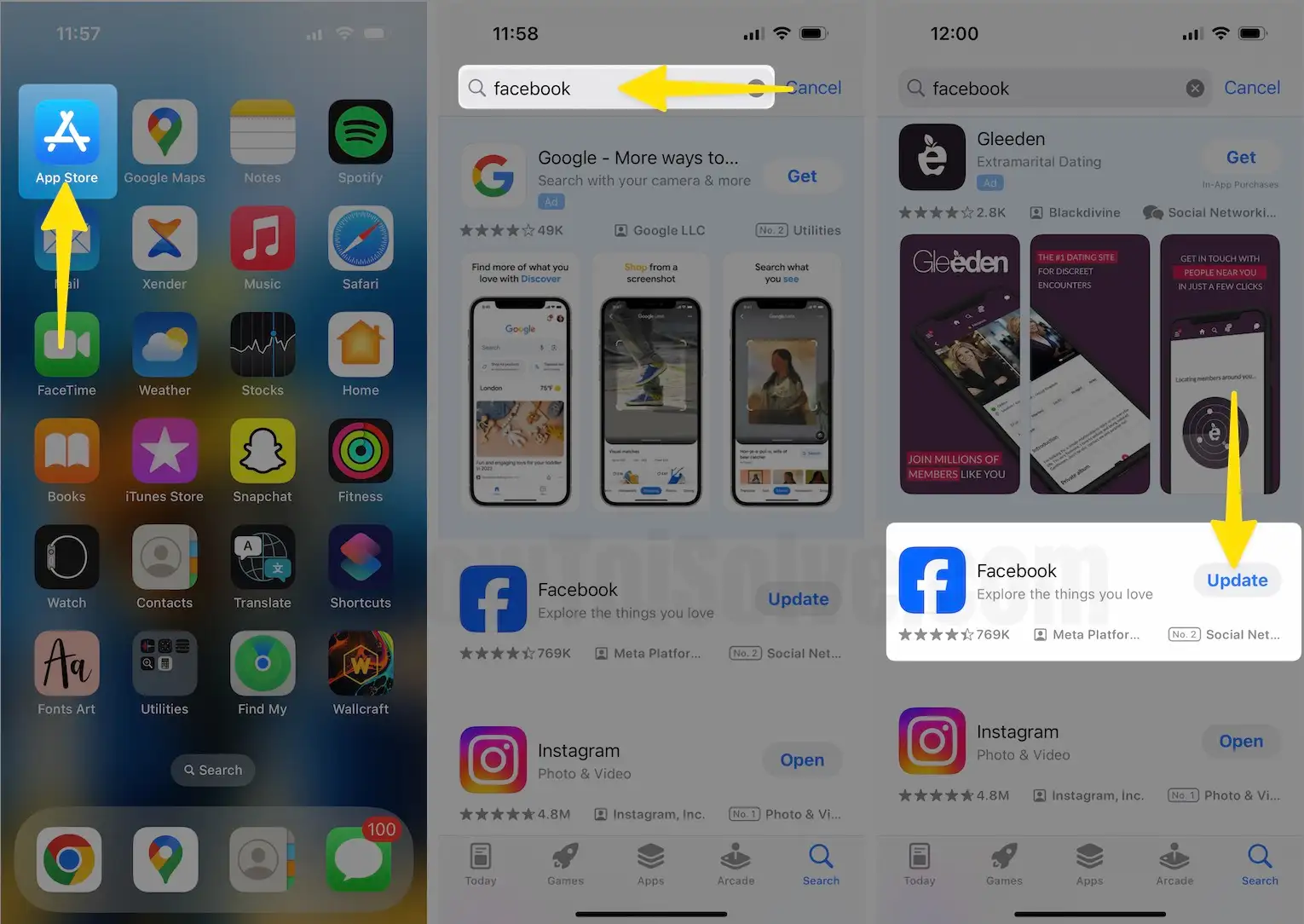
After Updating the App, Force Close the old Facebook app running on your iPhone background and Re-launch the App after the Update. If you have a problem overriding the Updated app, delete the Facebook app and reinstall the App From the App Store.
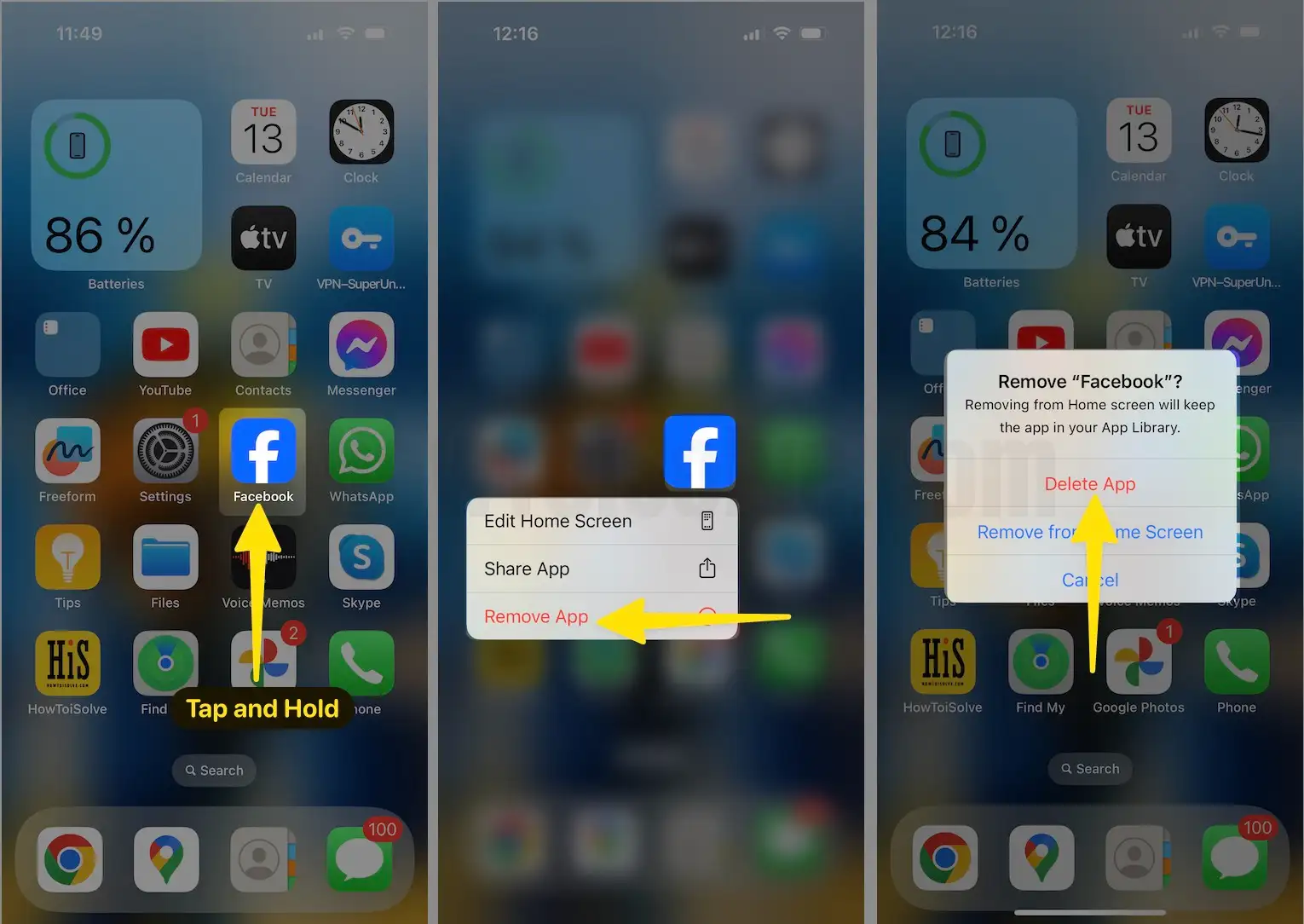
Delete the Facebook app,
Tap and Hold on the Facebook app from the iPhone home screen > Click on the Remove App > Choose Delete app from the Popup.
Re-install the App From the App Store,
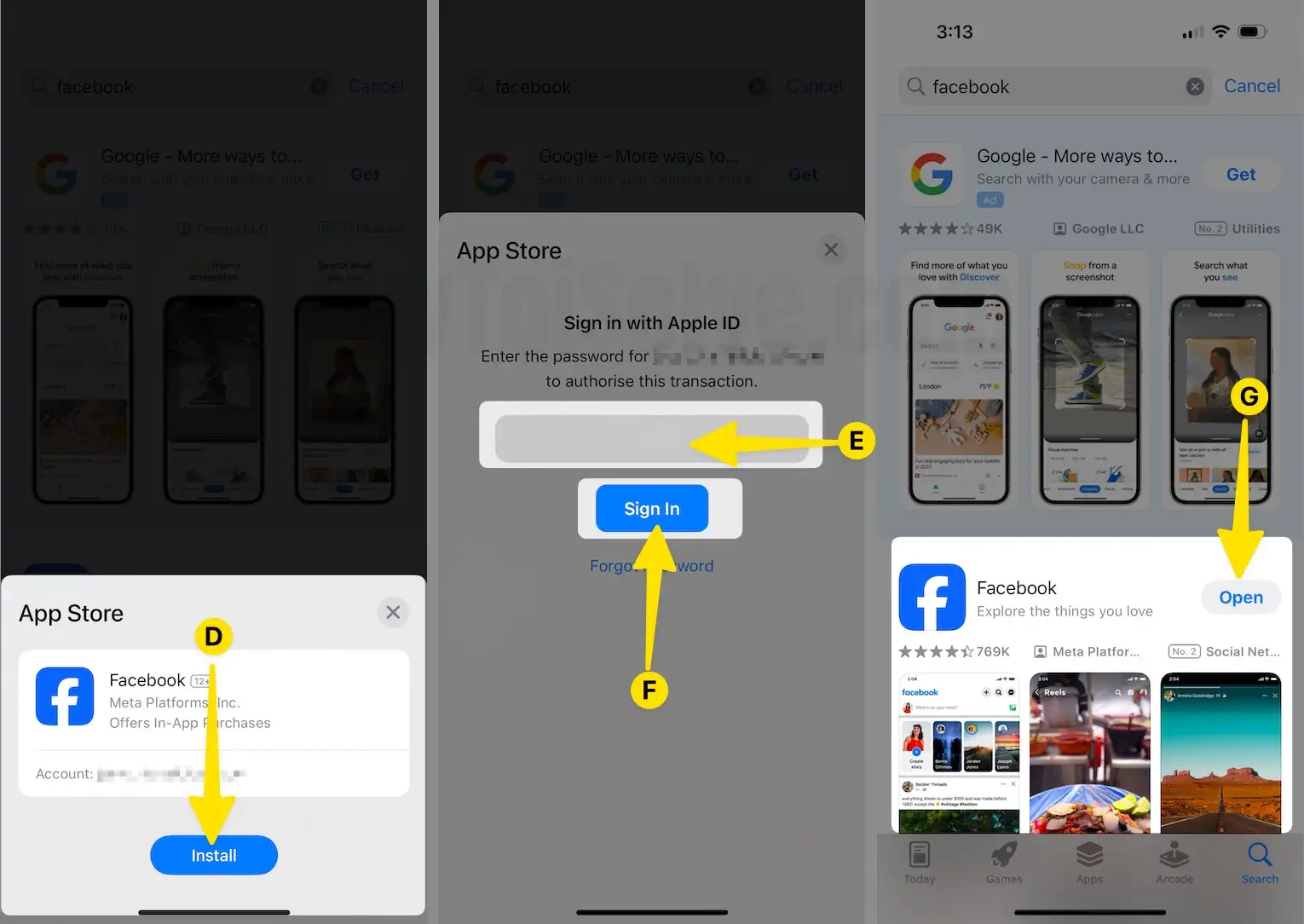
Step 1: Launch the App Store > Search Facebook > Tap on Get next to Facebook App.
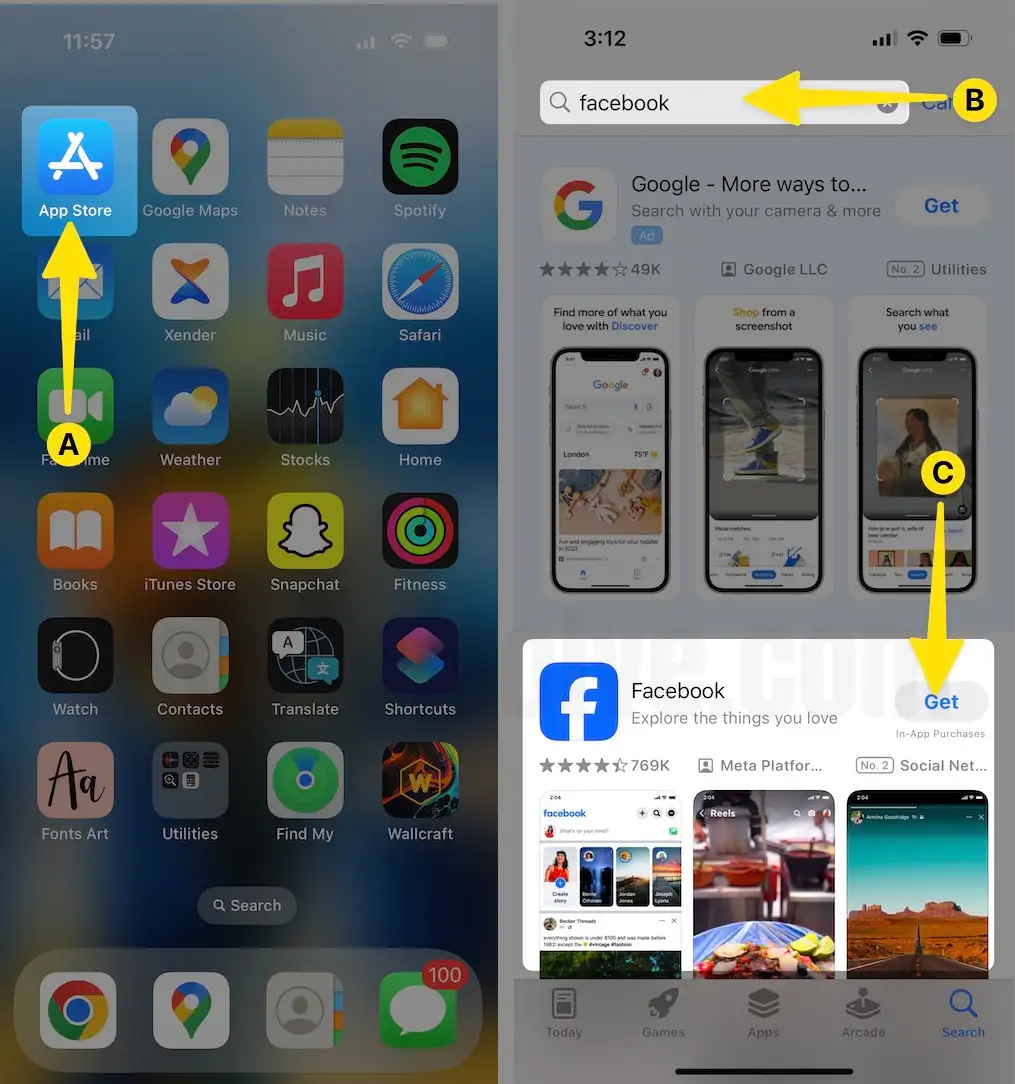
Step 2: Click Install > Enter your Password to Sign in Apple ID > Tap on Open to Facebook App.
Enable Microphone, Camera Under the Privacy option
Facebook Live Required Microphone and Camera Access to Your iPhone. If the restrictions are enabled for privacy reasons, you should enable them manually if the Facebook app doesn’t ask to enable Camera and microphone access while using Facebook Live for the First time.
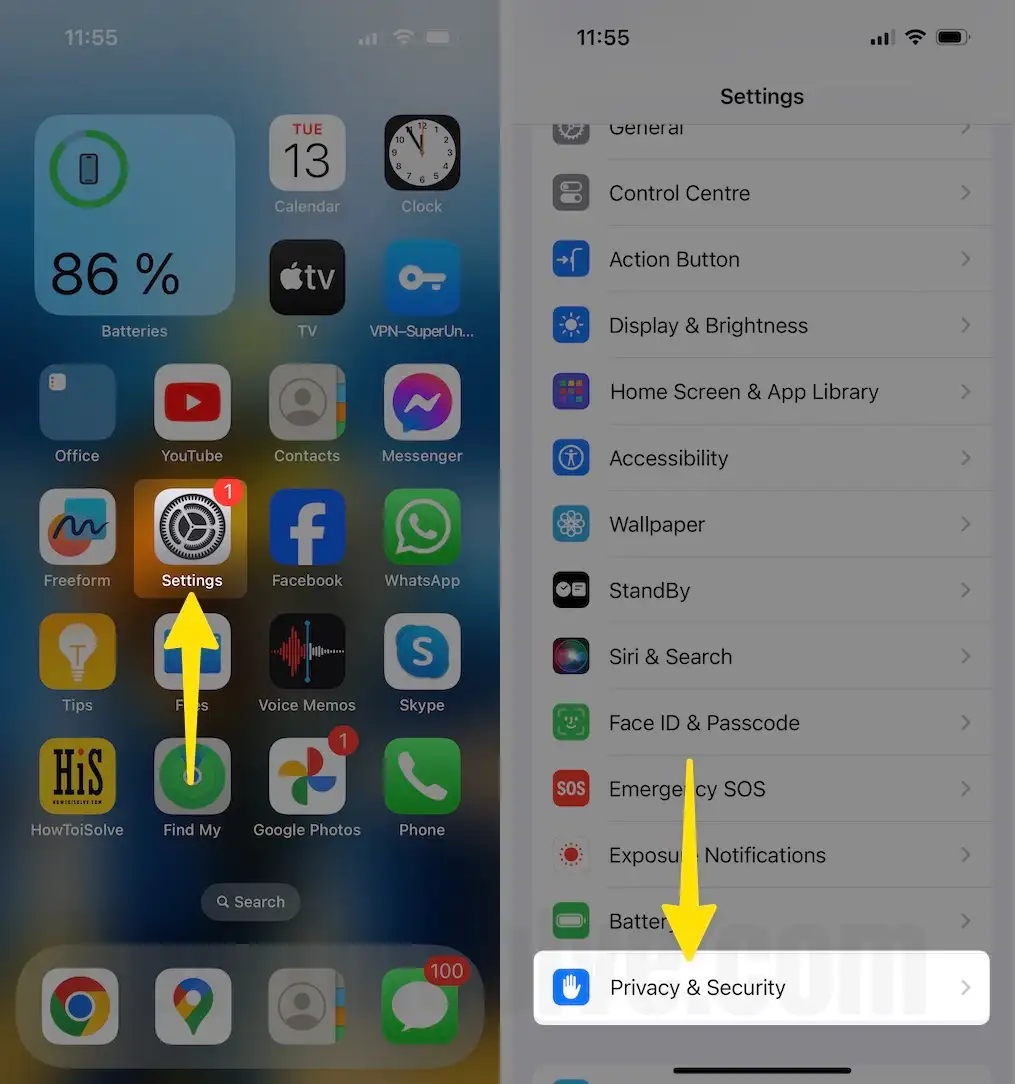
Step 1: Launch the Settings app on your iPhone > Tap on Privacy & Security.
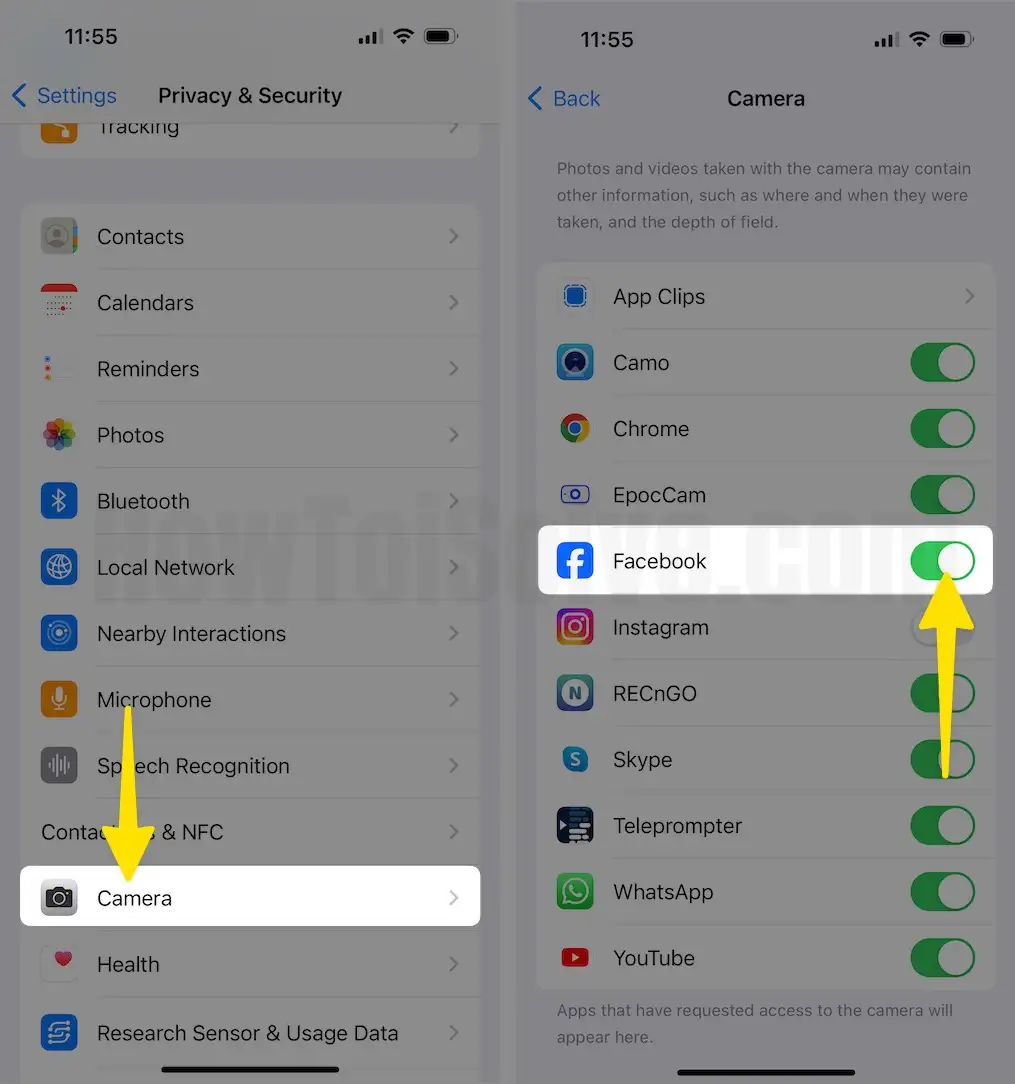
Step 2: Tap on Camera > Enable Facebook.
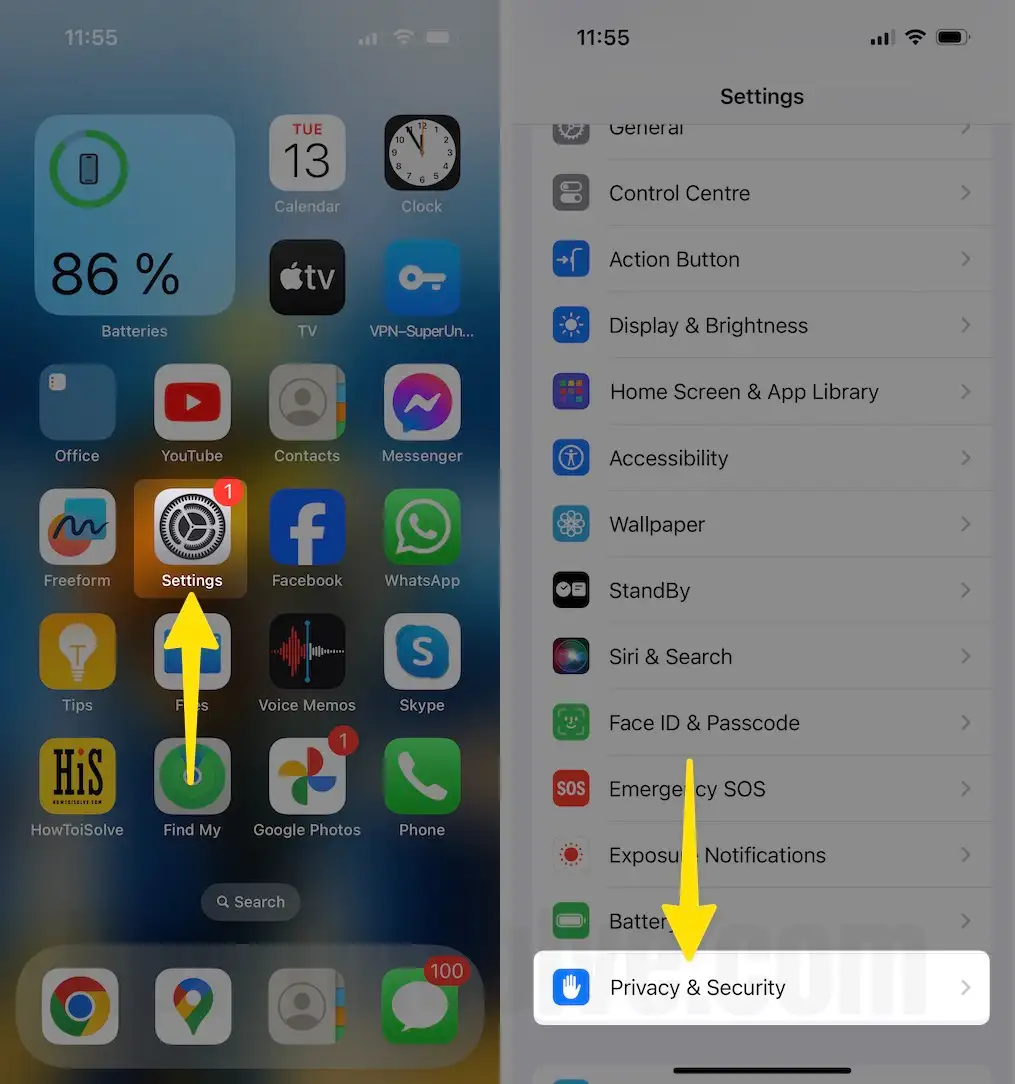
Step 1: Launch the Settings app on your iPhone > Tap on Privacy & Security.
Step 2: Tapping on Microphone > Enable Toggle for FaceBook.
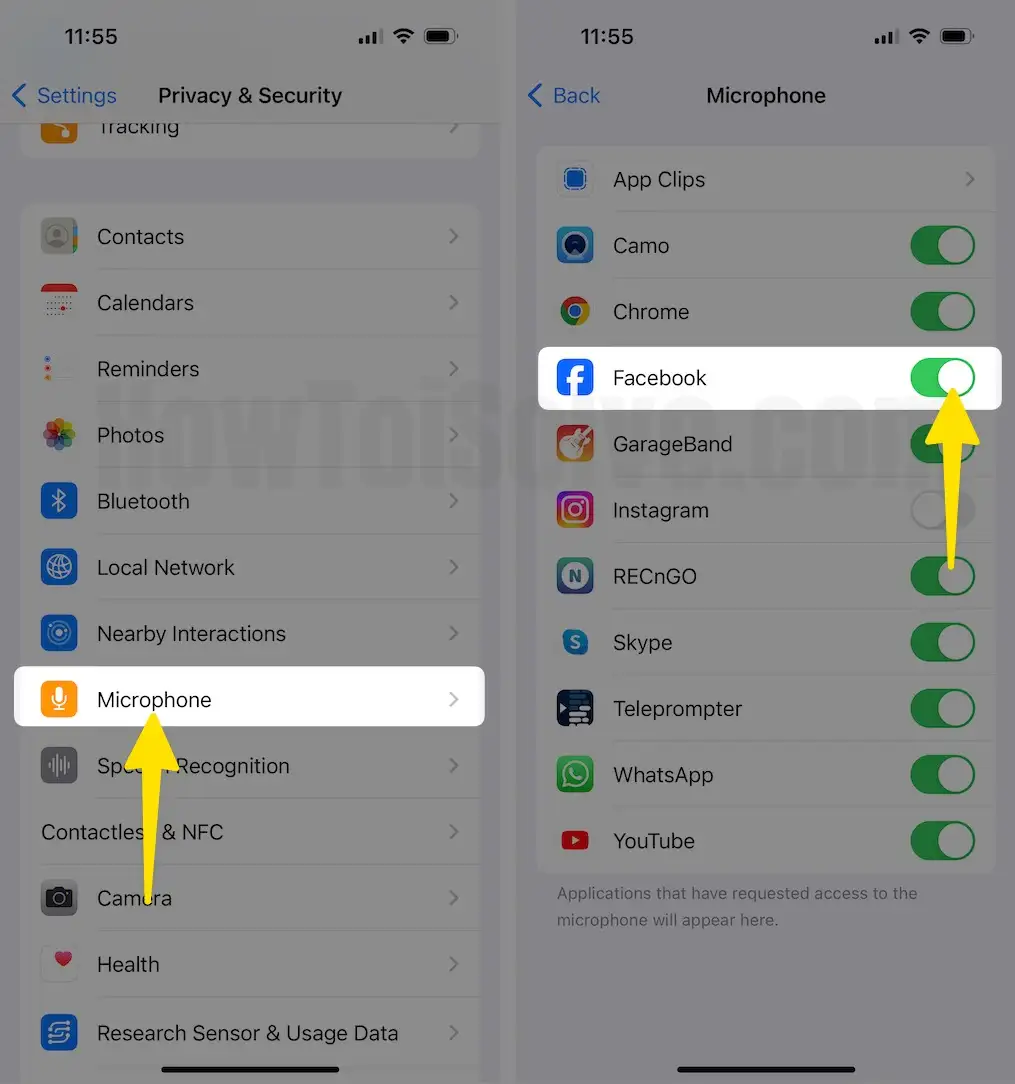
That’s it.
Enable Camera access on Screen Time Setting
Screen time restriction is advanced control for the apps that we are using on Our iOS and macOS devices. We want to allow Camera and microphone access to Third-Party Apps from the screen time as well. Follow the below steps to Disable Screen Time restrictions for FaceBook live Camera.
Step 1: Launch the Settings app on your iPhone > Tap on Screen Time.

Step 2: Select Content & Privacy Restrictions > Tap on Allowed Apps > Enable Toggle for Camera.
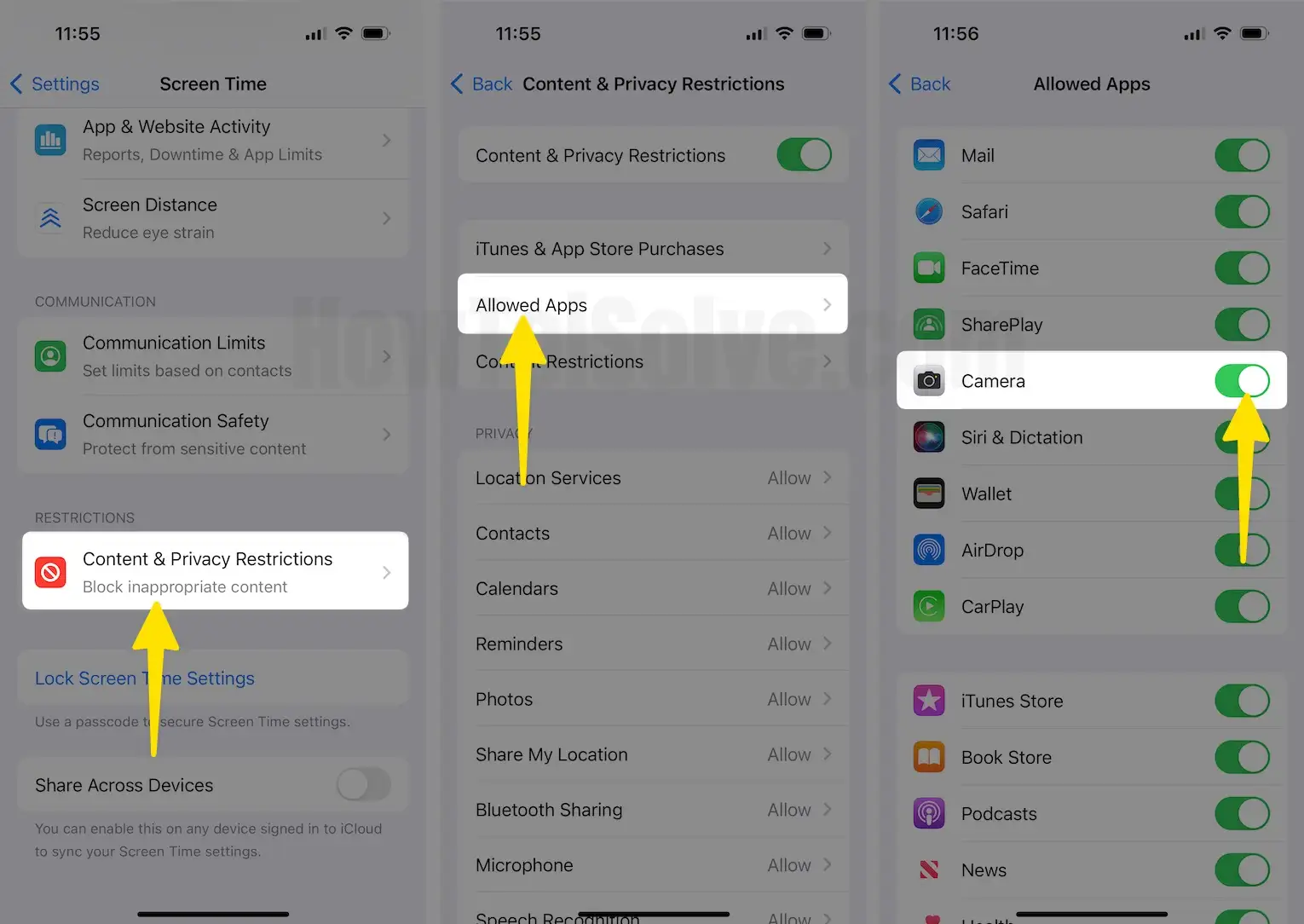
That’s it.
Reset All Settings
Reset All Settings is the most useful option to protect your iPhone from internal software glitches and incompatibility issues with iOS. This option sets your All iPhone settings to the default value. This option will not erase the data types like Contacts, Messages, Photos, Videos, Email Accounts, and more. This option will reset the Bluetooth, WiFi settings, Assistive touch control, and Control center customization. That we can do after Resetting the device.
Step 1: Launch the Settings App on your iPhone > Tap on General.
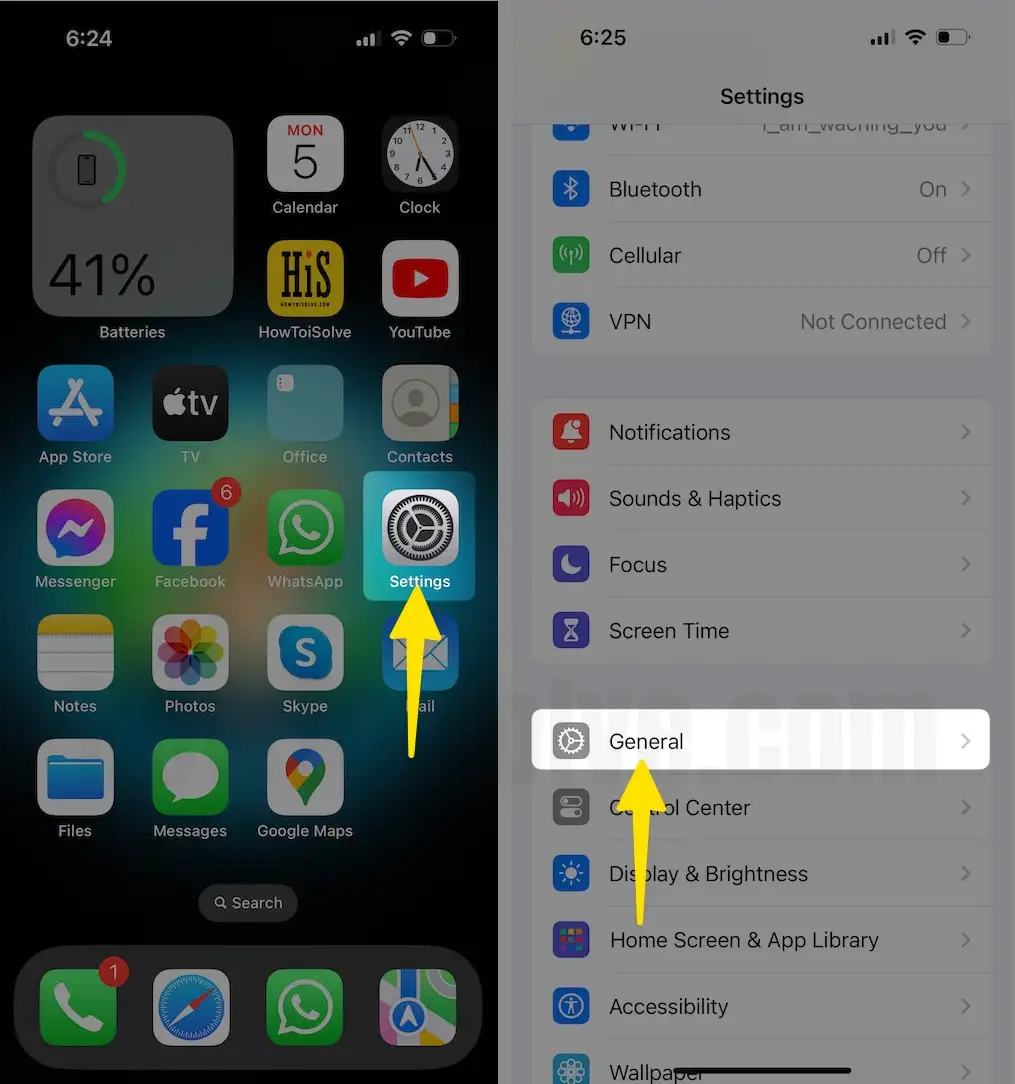
Step 2: Tap on Transfer or Reset > Select Reset > Choose Reset All Settings.
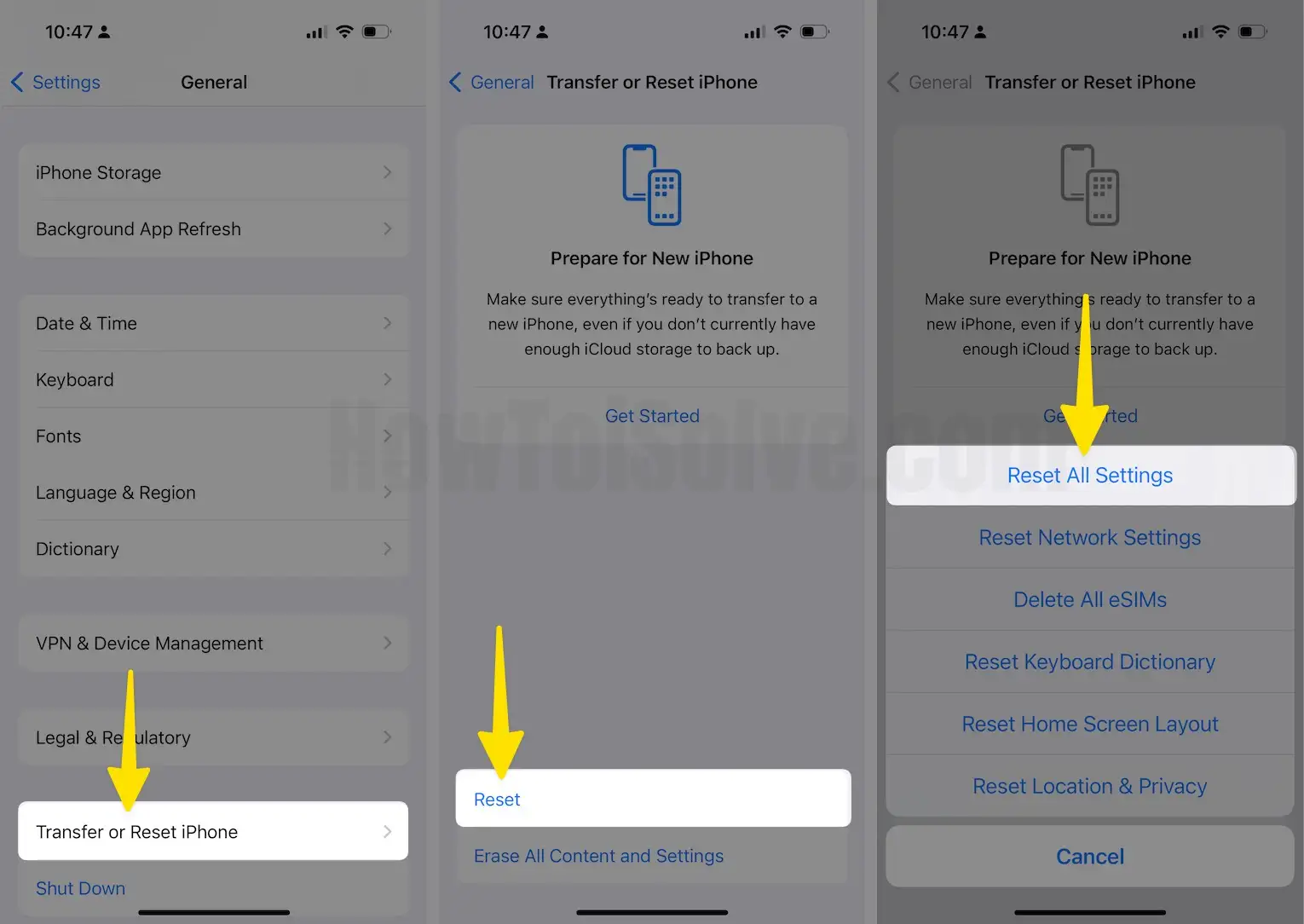
I hope you can fix it after that. After resetting the device, remember to turn on WiFi or cellular data.
Check Internet Connectivity
Sometimes, VPNs and insecure WiFi connections create problems with internet use. Some Companies block Social connections. If you use a Public or Private network, try Facebook Live using Your Personal WiFi or mobile data.
- Try to search for something on Google Safari browser or play an online video to check your network health.
Your Location Does Matter On Facebook App
Some Facebook services, such as age restrictions, depend on your location and account type. So make sure you compare your account with your friends or family members. Some users are getting the

The same issues are on the iOS, app, and mobile devices. But Specifically, you can’t find the option for live Facebook on iPhone or iPad apps. If you want to discuss this with the Facebook support team, then Get help from FaceBook from here. Double-check the location selected for your profile when you have a FaceBook account or Your Age.
FaceBook Server Down issues: App issues
Facebook is a large company in the world. So, Facebook is available worldwide. So the company provides CDN service from different servers that are located in different regions. In most cases, Live streaming and Updates are stopped when the Services are under maintenance. So you can check the Facebook blog update or Server status. For that, you should wait for the Server to get up or fixed. Or try alternate Group Video Calling apps. – WhatsApp Group, FaceTime Group Video, Skype, and more.
Note: The total length of Facebook live video broadcasting is 30 minutes. More help and guidance on this topic were shared with me in the comments.