

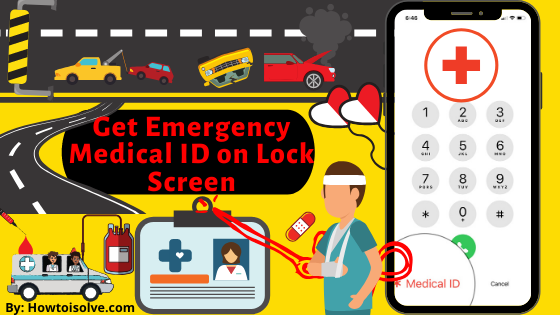
Do you want to update Apple’s medical ID on your iPhone? In this tutorial, you can learn everything about updating iOS medical ID information of your physical health and close relative contact number. Also, the latest iOS iPhone user can sign up with Donate Life. Emergency Medical ID is an excellent feature on the Apple iPhone and iPod. Apple Medical ID is helpful if and only if when it is ready with correct information Such as your Name, Birthdate, Medical Condition, Medical Notes, Allergies & Reactions, Medications, Emergency Contact Numbers, Blood group, Organ Donor, Weight, and Height.
We recommend keeping your Emergency iOS Medical ID up to date on your Apple iPhone Health App. And yeah, don’t worry about misuse because this information is not accessible to your health Data or shared with other apps. It is stored in a secure table on your iPhone.
What is the Role of Emergency Contacts in Medical ID?
The medical ID has done an incredible job until now. Thousands of people are Updating their medical ID regularly. Why do we not? Let’s know the WOW constituent of Added details with Emergency Contacts, Blood group, Wright, Height, Critical Medical Conditions, Medical Notes, and Allergies and reactions.
If possible, enter all primary family numbers or Friends’ numbers. This way, All Emergency Contacts will also be shown and used for Emergency SOS automatically. Emergency SOS is mostly used personally, while iOS users are helpless.
Is Emergency SOS Related To a Medical ID?
Yes, Apple Tendered Easy Structure in the backend for All Apple Devices like iPhone, iPad, Apple Watch, Mac, So users can manage all the details with the freshest information from one place. in this case, while we update contacts he
Guide to Edit/ Update Apple Medical ID on iPhone Health App
1. Launch the Health app from your iPhone home screen.
2. Tap on the Summary tab.
3. Now, go with the Profile icon.

4. Tap the Medical ID option.
5. Now tap on Edit.

6. You can update your information on this Medical ID screen. After making changes, tap on the Done Button. So, what happens when you do this? You will get your updated medical ID information when you attempt to access it on your iPhone’s lock screen.

Note: keep Show When Locked option enabled [under Emergency Access] if you want to access Medical ID on a locked screen iPhone/iPod Touch.
You’re done!
How to Access Medical ID on Locked Screen iPhone
- Swipe right side Slide to unlock the iPhone Screen.
- Now tap the Emergency option at the bottom of the Touch ID or Enter Passcode screen.
- Tap on the Medical ID button below the Phone dial screen.

That’s it.
How do I delete my medical ID on my iPhone or iPad?
1. Open the Health app on iPhone. Tap on Profile Picture at the top right corner of the screen.
Next, Tap on Medical ID.
2. Now, Find and Tap on the Edit button again at the top right corner of the screen. This is the Edit mode where you can update the data.

3. Scroll to End of the screen, and Find the option “Delete Medical ID“. iPhone will confirm and ask to delete Medical Data again.
4. That’s it.
How Do I Put My Phone Number on My Lock Screen?
Most iOS users set up Medical ID to show their Phone number on the Lock screen. It might be that your Thinking is precise. You deserve this. But Apple Allows setting in another Way.
- The first Easy Way is to Enable and set up Medical ID on your iPhone or iPad. The medical ID will show on the lock screen, Next to the Emergency option. [Check Lock screen passcode image in this article]
- The second Way is to Set up Emergency SOS on the iPhone. This can be activated using the Side button after Hard Work. (Press the Side button 5 times continuously), as we set during setup.






