If your iPhone’s Control Center isn’t working after an iOS update or on a new iPhone, you’re not alone. This common issue can disrupt quick access to key features like Wi-Fi, Bluetooth, and media controls. In this article, we’ll explore simple troubleshooting steps to get your Control Center functioning properly again.
Torublshoointg Control Center not working on iPhone, iPad
Solution 0: Reset Control Center on your iPhone
If Control Center on your iPhone isn’t responding or acting up after the iOS update, here’s how to reset it and restore normal functionality.
Solution 1: Check for a New Update
Apple users should always check for new updates that improve performance, fix bugs, and add features. In the latest iOS, Apple has addressed all minor bugs.
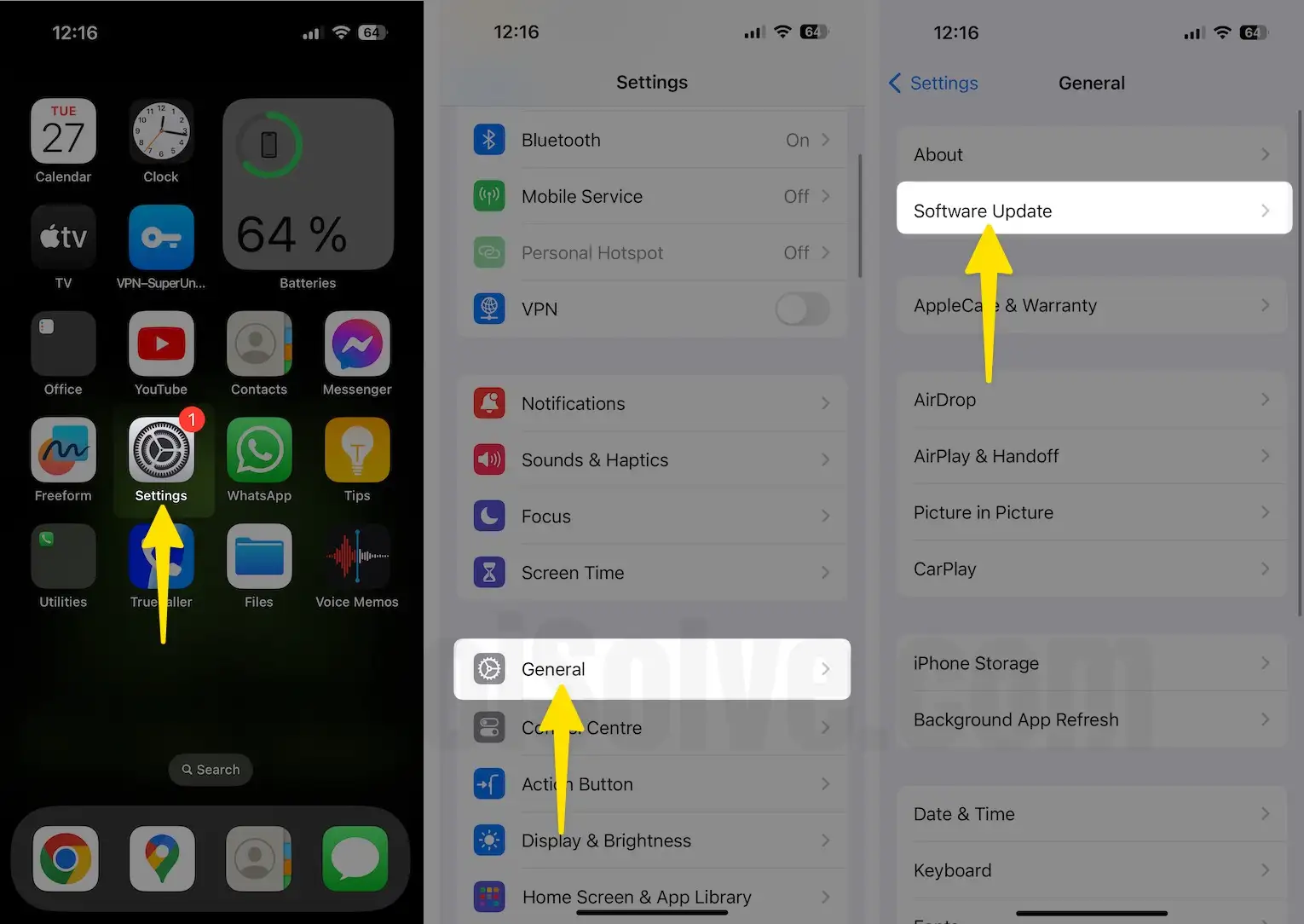
- Launch the Settings App.
- General
- Software Update.
- Please install the latest update on your device to fix siwpe down screen issues on your iPhone.
Solution 2: Can the control center be customized? How
The most frequently asked question by my readers is this. So I am suggesting to use customized control center. That can easily access on the lock screen or home screen.
Solution 3: Force Restart
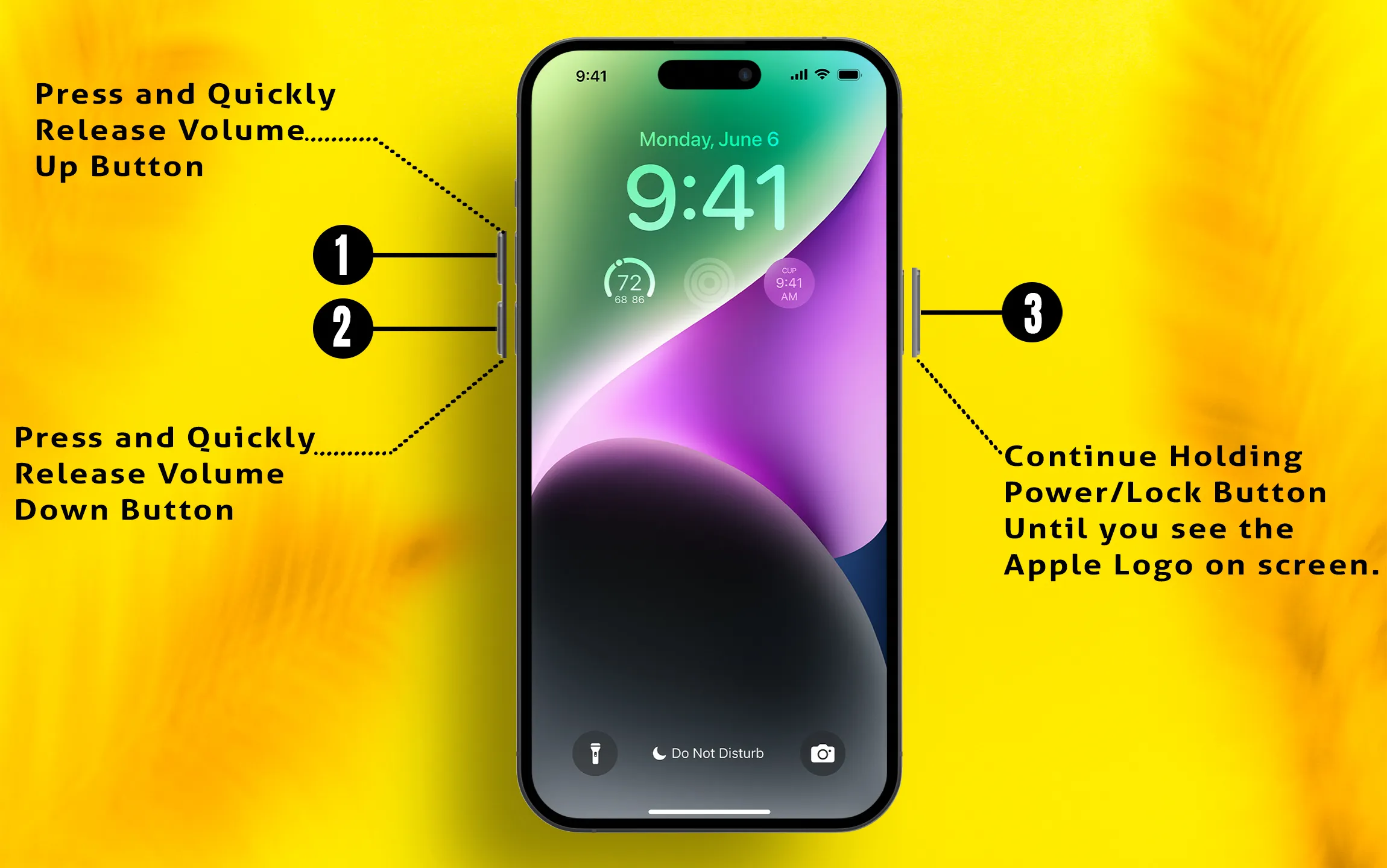
1: Press and Quickly Release Volume Up button,
2: Press and Quickly Release Volume Down Button,
3: Press and Hold the Side Button until you see the Apple logo on Screen.
To start the iPhone, again press the Side button until the startup apple logo appears on the screen.
Solution 4: Control center stuck and Spinning wheel
This is the biggest problem with the new release of iOS, are still getting this error on your iPhone or iPad. And a force restart makes your iPhone restore all data automatically. This isn’t very pleasant.
If possible, wait for the auto fix, Still not getting the solution, then restart the device.
Solution 5: Control Center won’t swipe up on Lock Screen
The Control Center does not open on the lock screen. If you have disabled the Control Center on the lock screen settings, follow the steps below to check. For privacy reasons, you can disable Control Center on the lock screen. Check it on the settings app.
- Launch the Settings App.
- Scroll to Face ID & Passcode.
- Enter your Lock screen Passcode
- Now, scroll down to the ‘Allow Access when locked‘ section and check that the toggle next to ‘Control Center‘ is turned on (green).
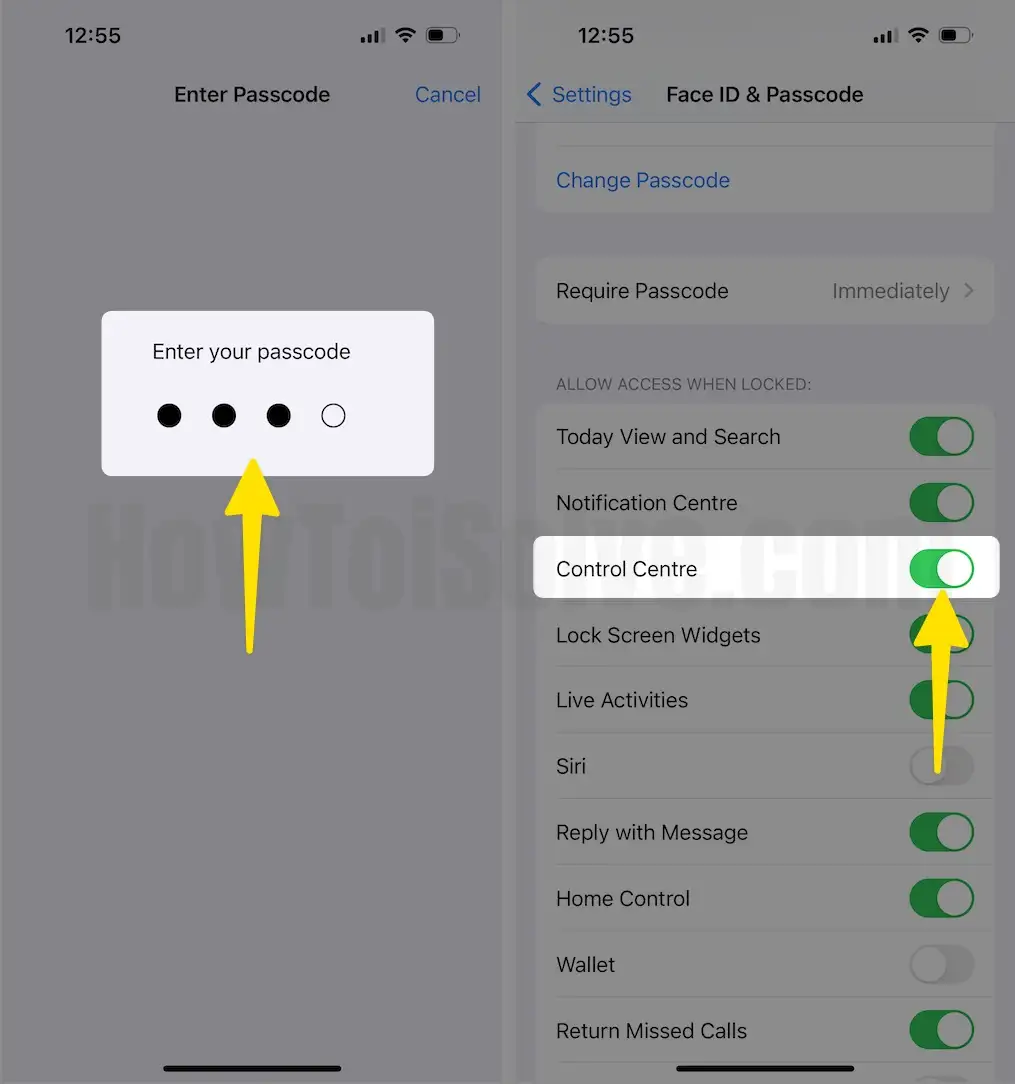
Full Guide to Disable/ Enable control center on the lock screen
Solution 6: Control Center Won’t Swipe up on App or Unlocked screen
For, the control center swipes up not responding on the home screen then try other troubleshooting steps.
The Control center does not open on the App screen or Settings
Go to the Settings app on iPhone, iPad.
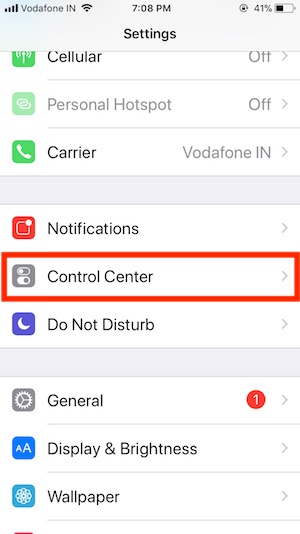
Next, Tap on Control center and Enable Access Within Apps
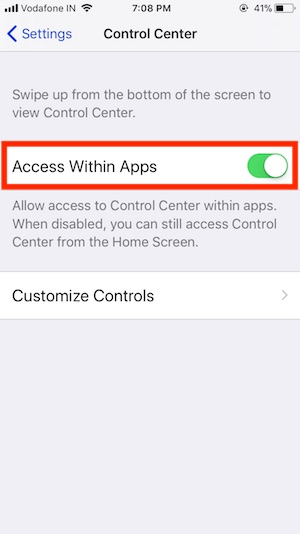
This very useful for access all the control within the app, For Example, WiFi not working correctly then swipe up the finger to open the control center and Tap on the Cellular icon.
That’s it, Enjoy uninterrupted Service
Solution 7: Remove or add a control in Control Center in iOS
- Have you found any control missing after add in customized control center from iOS settings?
- Sometimes you get the default control missing or unable to find, Follow Step 2, 8 steps. (Restart or Force Restart)
- We can remove or Add a new Shortcut in the control center from the Settings > Tap Control center > Click on Customize Control center.
Solution 8: Reset Control Center: Reset All Settings
This trick restores all settings on your iOS device to their default values. It resets your iPhone or iPad to a state similar to when it was first set up, helping to fix internal issues in just a few seconds. These problems often arise from incorrect configurations or settings.
- Launch the Settings app on iPhone.
- Tap General.
- Scroll all the way to Transfer or Reset iPhone.
- Choose Reset.
- In pop-up options, select Reset all settings.
- Now follow the on-screen instructions to complete the process.

Solution 9: AirDrop, Bluetooth, Brightness & Volume bar, Music
Very import shortcut cover in iOS 11 control center in a smart way. The expandable panel is easy to use on the same screen. If you won’t turn on AirDrop (turn on Airdrop in iOS), Bluetooth, Low Power mode from the control center then turn it from iPhone, iPad settings app.
Solution 10: Backup and Restore (Restore iPhone)
The problem is enormous and vital for you, fixed out by installing a new iOS version by deleting all documents or data from iPhone, iPad after backup iPhone.
Once you clean install iOS, restore Backup.
Solution 11: Send Report to Apple
Apple will take action and try to repair bugs it’s severe for the device in the next update. Above all are the possible fix and troubleshooting tips for the Control center not working on iPhone and iPadOS.